Quick answer: To draw on Zoom, start or join a meeting, click Share Screen in the toolbar, select Whiteboard, then click Share. A blank canvas opens with a drawing toolbar—select the pen tool and draw using your mouse, trackpad, or stylus. To annotate a shared screen instead of a blank whiteboard, click Annotate in the floating toolbar that appears during screen share.
That covers the basic case. The steps vary depending on your device, whether you’re annotating someone else’s shared screen, and whether you want more drawing capability than Zoom’s built-in tools provide. This guide covers all of it.
How to Draw on Zoom on a PC or Mac
The Windows and Mac versions of Zoom have nearly identical interfaces, so these steps apply to both.
-
Start or join a Zoom meeting.
-
Click Share Screen in the meeting toolbar at the bottom of the screen.
-
In the screen share menu, select Whiteboard, then click Share.
-
A blank whiteboard opens with a drawing toolbar along the left side. Select the Draw tool (pencil icon).
-
Use your mouse or trackpad to draw on the canvas. All participants in the meeting can see what you draw in real time.
-
To stop sharing, click Stop Share in the floating toolbar at the top of the screen.
Zoom’s whiteboard offers two drawing modes you can toggle between:
-
Freeform — your lines appear exactly as drawn, with no auto-correction.
-
Smart Recognition — Zoom converts rough freehand shapes into clean geometric forms automatically.
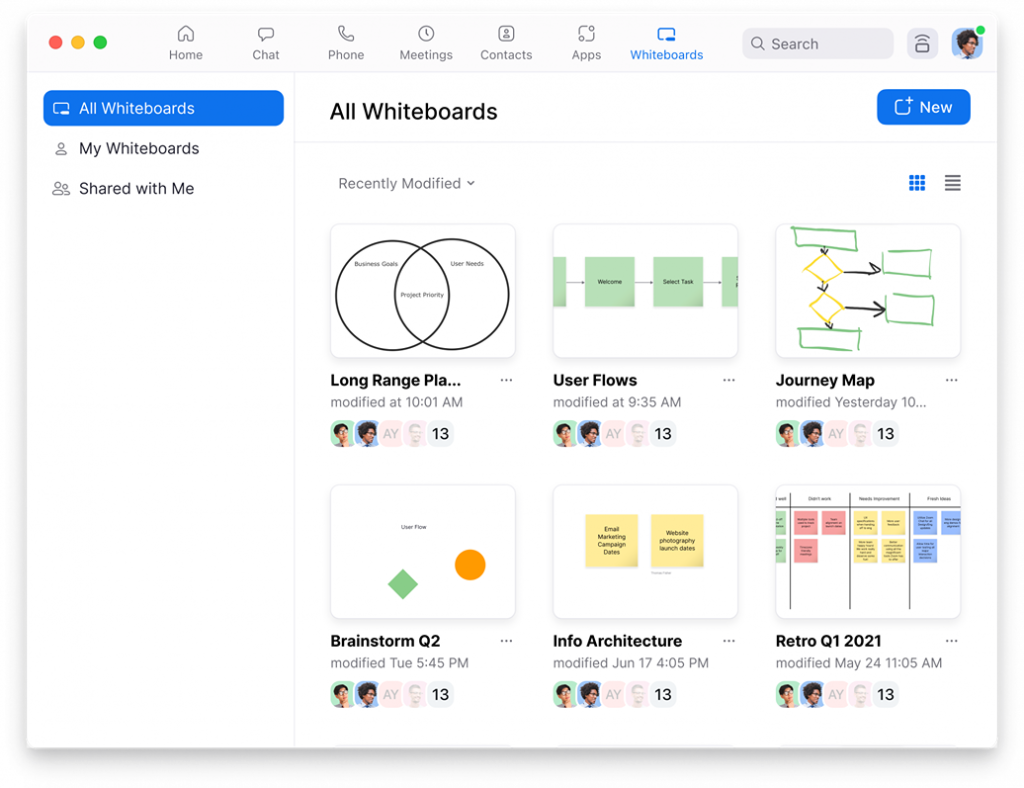
Beyond the pen tool, the annotation toolbar includes a highlighter, text box, shapes, stamp tool, eraser, and a spotlight/laser pointer for presentations.
How to Draw on Zoom on iPhone
-
Start or join a Zoom meeting in the iOS app.
-
Tap the More (…) button in the bottom toolbar.
-
Select Whiteboards from the menu.
-
Choose an existing whiteboard or create a new one.
-
Set participant permissions—choose whether others can edit or view only.
-
Tap Open and Collaborate to share the whiteboard with the meeting.

On iOS, you can draw directly on the whiteboard using your finger or an Apple Pencil. The drawing toolbar appears at the bottom of the screen when the whiteboard is active.
How to Draw on Zoom on Android
-
Start or join a Zoom meeting in the Android app.
-
Tap the Share button in the meeting controls.
-
Select Share Whiteboard.
-
Tap the pen icon to expand the annotation toolbar.
-
Select your preferred drawing tool and draw using your finger or stylus.
How to Draw on Someone Else’s Shared Screen in Zoom
When another participant is sharing their screen, you can annotate directly on top of what they’re showing—without interrupting the share or switching to a whiteboard.
-
Wait for the other participant to begin screen sharing.
-
In the floating toolbar that appears at the top of your screen, click Annotate.
-
The annotation toolbar opens. Select your drawing tool—pen, highlighter, shapes, or text.
-
Draw or write on the shared screen. Your annotations are visible to all meeting participants.
-
When you’re done, click Clear in the toolbar to remove your annotations, or click Stop Annotate to exit annotation mode without clearing.
This works on both the shared screen itself and on content like slides or documents being presented. It’s useful for marking up proposals, pointing out specific elements in a design, or collaborating on a document in real time.
How to Draw on Zoom When You Are Screen Sharing
If you’re the one sharing your screen and want to draw on top of your own content:
-
Start screen sharing as usual—select the window or content you want to share and click Share.
-
Once sharing begins, hover over the floating toolbar at the top of the screen and click Annotate.
-
Select a drawing tool from the annotation panel and draw directly on the shared content.
-
Click Clear to remove annotations or Stop Annotate to close the toolbar.
How to Disable Drawing for Other Participants
If you’re sharing your screen and want to prevent other participants from annotating:
-
In the floating screen share toolbar, hover over More.
-
Click Disable annotation for others.
This prevents other participants from drawing on your shared screen or whiteboard. You can re-enable it the same way.
How to Remove or Clear Drawings in Zoom
To erase annotations during a meeting:
-
Erase a specific annotation: Select the eraser tool from the annotation toolbar and click or drag over the marks you want to remove.
-
Clear all annotations: Click the Clear button in the annotation toolbar. You’ll be given options to clear your own annotations, viewer annotations, or all annotations.
-
Undo the last annotation: Use Ctrl+Z (Windows) or Cmd+Z (Mac) to undo the most recent mark.
How to Draw on Zoom Using an Interactive Whiteboard
If your meeting room has an interactive whiteboard, you can run Zoom directly on the board and draw using a stylus rather than a mouse—which makes a significant difference for anything requiring precision, like diagrams, equations, or detailed markup.
The Vibe Board S1 runs Zoom natively, so you can start or join a meeting directly from the board and share your screen to all remote participants. From there, you can annotate using the Vibe Stylus—which behaves like pen on paper rather than dragging a cursor—and switch between Zoom’s built-in whiteboard and Vibe Canvas for richer drawing capabilities: infinite canvas, layers, shape libraries, and real-time collaboration where remote participants can draw alongside you simultaneously.
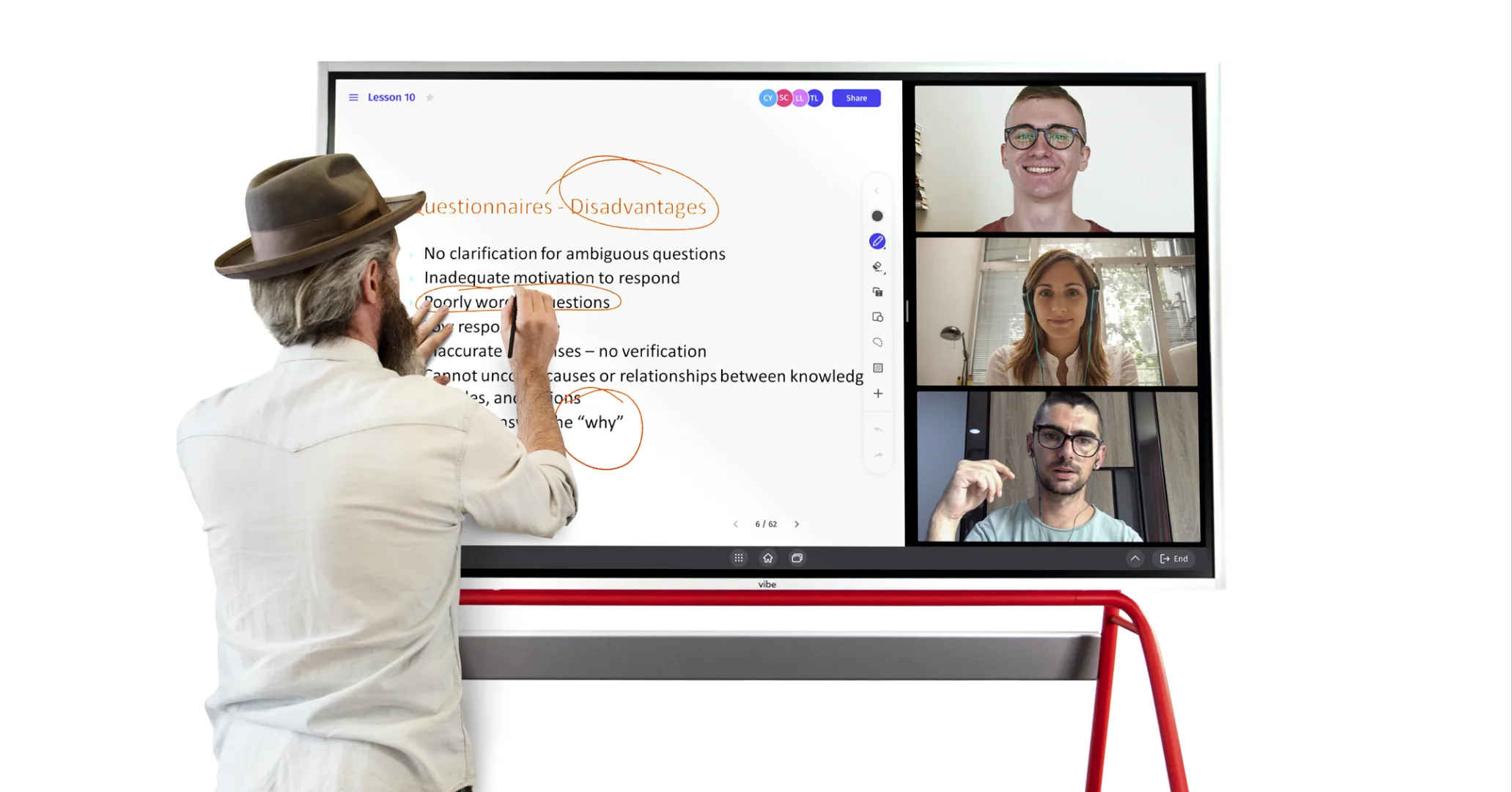
You can also share your entire Vibe Board screen into the Zoom call and annotate any app open on the board—presentations, documents, browser windows—in split-screen mode. Annotations can be saved directly from the board at the end of the session.
Zoom Drawing vs. a Dedicated Whiteboard: What’s the Difference?
Zoom’s built-in whiteboard and annotation tools are functional for quick sketches and basic markup. They work well for pointing out elements on a slide, drawing a rough diagram, or jotting a few notes. The limitations become apparent for more complex use cases:
-
The canvas is fixed in size—there’s no infinite scroll for longer brainstorms or visual frameworks
-
Drawing with a mouse or trackpad is imprecise for anything beyond simple marks
-
Zoom’s whiteboard is tied to the meeting session; saving and retrieving content requires manual export
-
Collaboration is one-directional in many setups—one person draws while others watch
For teams that use visual collaboration regularly—brainstorming, design reviews, planning sessions, teaching—a dedicated tool like Vibe Canvas paired with Zoom is a meaningful upgrade. You get a persistent, shareable canvas that exists outside of any single meeting, a full set of drawing and diagramming tools, and the ability for every participant to contribute simultaneously regardless of whether they’re in the room or remote.
FAQs
Can you draw on Zoom without screen sharing?
Yes. Zoom’s whiteboard opens as its own shared view—you don’t need to share a specific app or window first. In the Share Screen menu, select Whiteboard and click Share. The whiteboard appears as the shared content, and all participants see the canvas with its drawing tools. You’re not sharing your desktop or any other application.
Can all participants draw on the Zoom whiteboard?
By default, all participants can annotate the shared whiteboard. The meeting host can restrict this by clicking Disable annotation for others in the More menu of the screen share toolbar. Individual participants can also be given or removed from annotation permissions during the meeting.
How do you use the pen tool in a Zoom meeting?
Once you’ve opened the Zoom whiteboard or annotation mode on a shared screen, the annotation toolbar appears. Click the Draw tool (pencil icon) to activate the pen. You can adjust the line color and thickness using the Format option in the same toolbar. On a touchscreen device, draw with your finger or stylus. On a PC or Mac, draw with your mouse or trackpad.
What drawing tools does Zoom have?
Zoom’s annotation toolbar includes: a freehand draw/pen tool, a highlighter, text, shapes (lines, arrows, rectangles, ellipses), a stamp tool, an eraser, a spotlight (a visible cursor that highlights as you move), and a laser pointer mode. The Smart Recognition toggle converts freehand shapes into clean geometric forms automatically. Color and line weight are adjustable for most tools.
How do you draw on Zoom when someone else is sharing their screen?
When another participant shares their screen, look for the Annotate button in the floating toolbar that appears at the top of your screen. Click it to open the annotation panel and draw on top of the shared content. The host controls whether participants can do this—if you don’t see the Annotate option, the host may have disabled annotation for others.
How do you save a Zoom whiteboard drawing?
During the meeting, click the Save button in the whiteboard toolbar—it saves the current canvas as a PNG image to your local computer. You can also find saved whiteboards in the Zoom web portal under Whiteboards after the meeting ends, if your account has Zoom Whiteboards enabled. The host can also save the entire session from the meeting controls.
Can you draw on Zoom on a phone?
Yes, on both iPhone and Android. On iPhone, tap More (…) in the meeting controls, select Whiteboards, then open or create a whiteboard and tap Open and Collaborate. On Android, tap Share, select Share Whiteboard, then tap the pen icon to access drawing tools. Both platforms support drawing with a finger or stylus.
What’s a better way to draw on screen during a video call?
For occasional quick annotations, Zoom’s built-in tools are sufficient. For teams that do regular visual collaboration—workshops, design reviews, teaching, planning sessions—a dedicated interactive whiteboard like the Vibe Board S1 gives you a full drawing environment with a stylus, an infinite canvas in Vibe Canvas, and persistent whiteboards that survive after the meeting ends. You can still run Zoom on the board and share to remote participants, combining meeting-quality video with a proper drawing surface.