
What Is a Dual Monitor Setup?
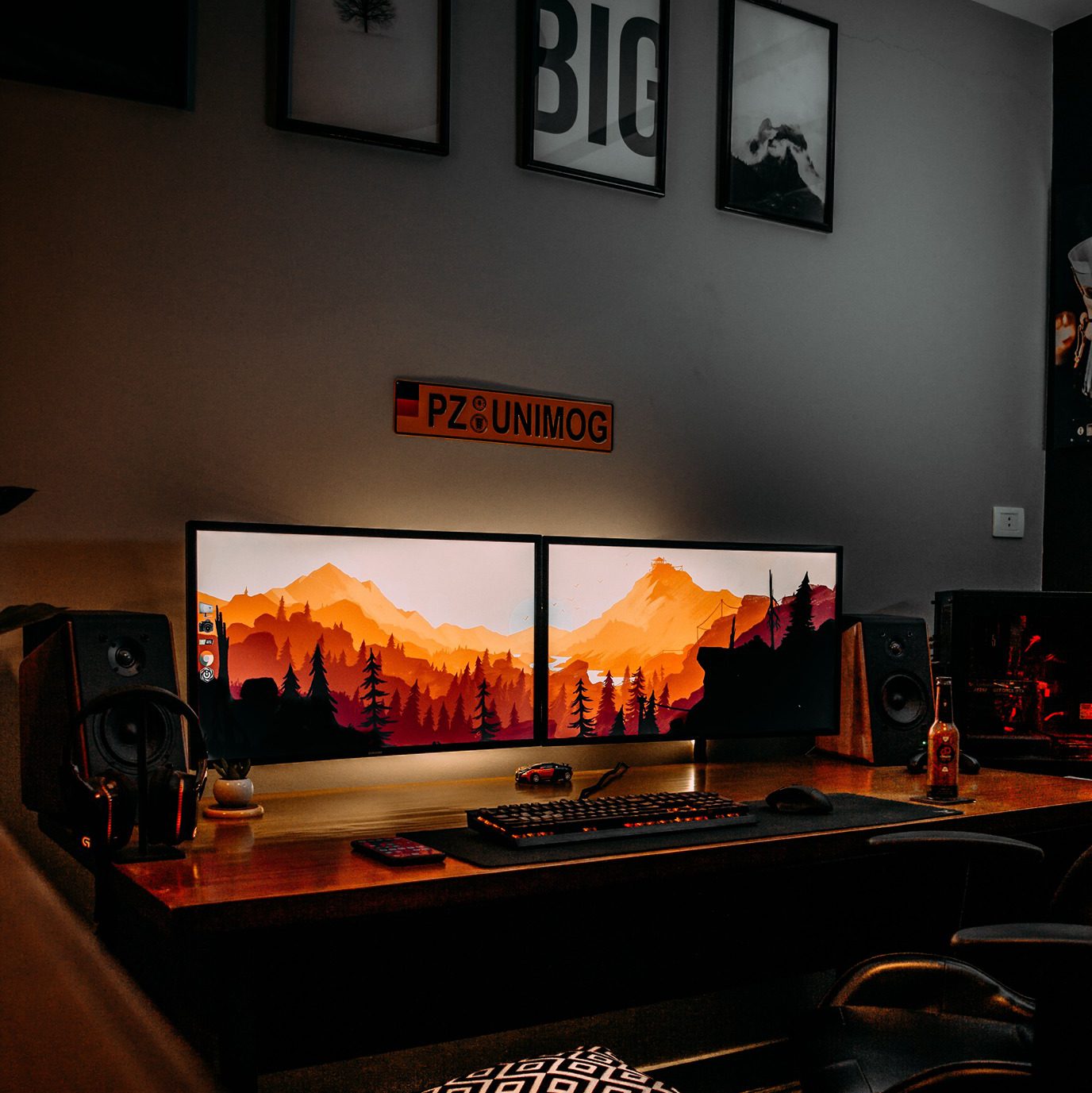
A dual monitor setup connects two screens to a single computer, effectively doubling your visible workspace. Both monitors share the same keyboard, mouse, and computer—you simply extend your desktop across the two displays and move windows between them as needed.
Almost every modern desktop, laptop, and even many tablets can support two monitors without additional hardware, making this one of the most accessible productivity upgrades available.
The configuration is popular across roles—developers use a second screen to keep documentation open while coding; analysts pull reference data on one display and build reports on the other; hybrid workers dedicate one screen to video calls and the other to live work. What they share is the same core benefit: less switching, more doing.
10 Benefits of Dual Monitors at Work
1. Measurably higher productivity
The productivity case for dual monitors is well-established in research. A study from Wichita State University found that dual monitor users were 18% more efficient at tasks involving multiple information sources and switched windows 15% less frequently than single-screen users. A separate University of Utah study found that 98% of participants preferred dual monitors over single, citing measurably less frustration and faster task completion.
For specific task types, the gains are even sharper. Research comparing single and dual 20-inch monitors found productivity gains of 44% on text editing and 29% on spreadsheet editing over a single smaller screen.
The mechanism is straightforward: when you can see both your source and your destination at once, you skip the constant minimize-switch-resize cycle that fragments attention and slows throughput.
2. Dramatically reduced task-switching and cognitive load
Every time you minimize a window to check something on another, you lose a small slice of working memory—what researchers call "context switching cost." With two screens, most of that switching disappears.
Instead of toggling between your email client and your calendar, your browser and your document, your CRM and your note-taking app—they stay visible simultaneously. The mental load of tracking where everything is drops significantly, and you spend that saved attention on the actual work.
This is especially pronounced for communication-heavy roles. Project managers, customer success teams, and executives who juggle inboxes, dashboards, and video platforms all day report the biggest quality-of-life improvements from a second screen.
3. Better hybrid and remote work experience
In 2025 and into 2026, the hybrid professional has a specific problem: video calls demand screen space that competes with everything else. On a single monitor, you’re either seeing the call or seeing your work—rarely both clearly.
A two-screen setup resolves this directly. Keep your video conferencing platform (Zoom, Teams, Google Meet) on one display and your live work—notes, reference documents, shared files—on the other. You stay present in the conversation while continuing to work. You can annotate, pull up client history, or reference a brief without minimizing the call or losing your train of thought.
The shift to hybrid work since 2020 has made this use case central rather than niche. For anyone navigating a mix of in-office and home working, a consistent dual-screen setup at both locations creates a seamless, familiar workspace regardless of where you’re sitting.
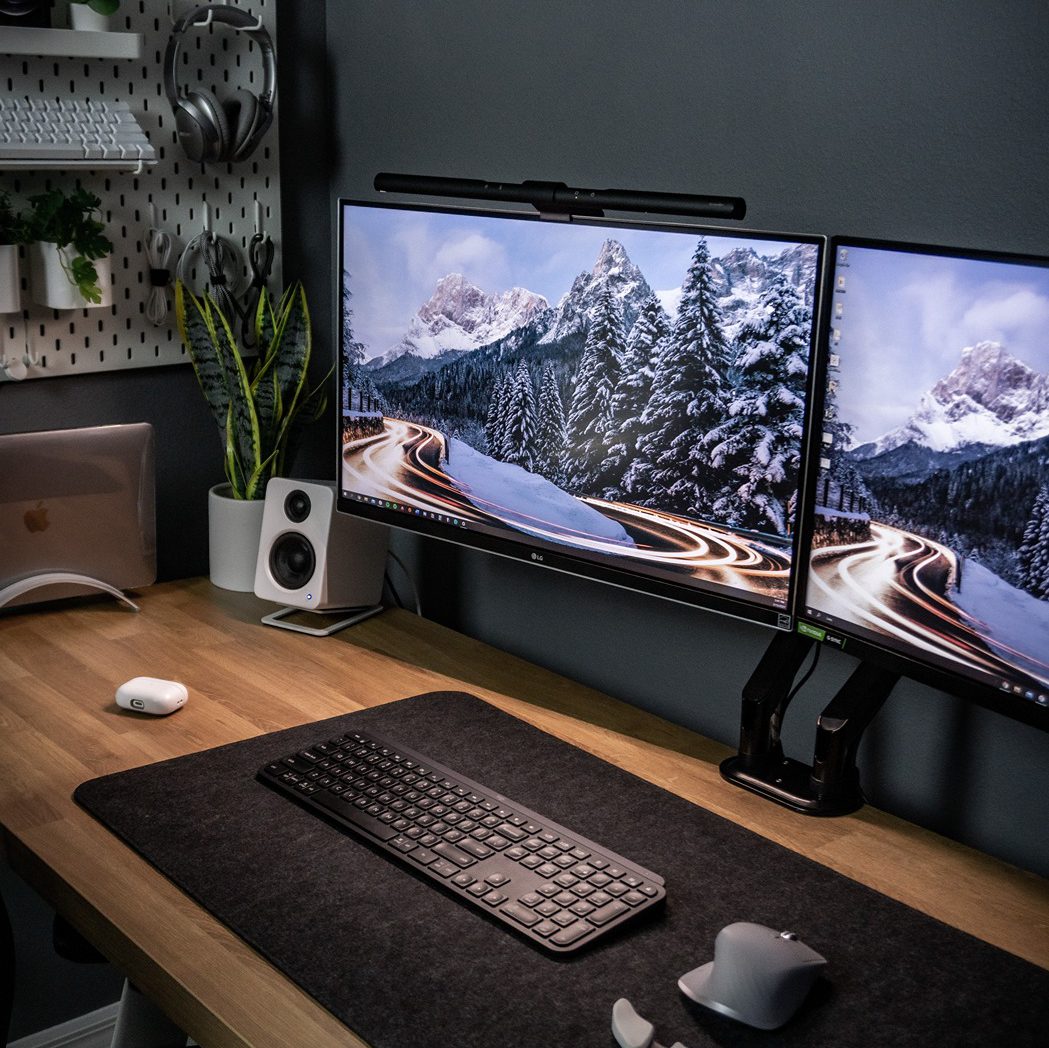
4. Side-by-side document and data comparison
One of the most useful things you can do with dual monitors that you simply cannot replicate on a single screen: open two full-size documents—or two spreadsheets, two versions of a design, two data sets—and view them at their natural size next to each other.
On one screen: the original. On the other: your working draft. No window-snapping, no zoomed-out thumbnail views, no alt-tabbing. Just two full documents, side by side.
This matters most for roles that involve comparison by nature: editors reviewing against a brief, analysts reconciling figures, developers reviewing code diffs, legal teams comparing contract versions. The quality of comparison improves when you’re not compressing either document to make it fit.
5. Cleaner, more organized desktop
With double the screen real estate, you stop stacking windows on top of each other. Applications that you keep open throughout the day—communication tools, dashboards, reference tabs—live permanently on your secondary screen rather than hiding behind your active work.
The result is less clutter on your primary display, which directly supports focus. Your working screen contains only what you’re actively working on. Everything supporting that work is a glance away, not buried under layers of minimized windows.
6. Seamless multitasking without multitasking penalties
Genuine multitasking—doing two cognitively demanding things simultaneously—is largely a myth. But parallel monitoring is different and very real: watching a long export run on one screen while writing documentation on the other, keeping a Slack channel visible while deep in a spreadsheet, following a tutorial on one side while executing the steps on the other.
Dual monitors enable this type of "parallel awareness" without requiring you to hold two contexts in your head at once. One task runs; you work on the other. The second screen handles the monitoring so your attention doesn’t have to.
7. Portrait mode: a setup most single-screen users don’t know about
One of the most underused features of a dual-monitor setup is rotating the secondary screen to portrait (vertical) orientation. When you pivot a monitor 90 degrees, it becomes significantly taller than it is wide—which is exactly what certain content types need.
Portrait mode is particularly effective for:
-
Long code files (see significantly more lines without scrolling)
-
Lengthy documents, PDFs, and research papers
-
Chat and messaging apps like Slack or Teams
-
Social media monitoring feeds
-
Email inboxes
Developers frequently use a landscape primary monitor for their active editor and a rotated secondary for documentation, logs, or a second editor pane. Writers keep their research or source material in portrait while drafting in landscape. If your secondary screen’s stand allows rotation (or if you use a monitor arm), it’s worth experimenting with—many users find it becomes permanent once they try it.
8. Built-in redundancy
If one monitor fails, you continue working on the other. This is a practical advantage that’s easy to overlook until it matters. With a single screen, a monitor problem halts your work entirely while you wait for a replacement or repair. With two, you lose workspace but not function.
For roles where continuous availability matters—support agents, traders, operations teams—the redundancy benefit is worth noting explicitly.
9. Works seamlessly with laptops
Laptop screens range from 13 to 16 inches—practical for portability, limiting for sustained desk work. Connecting an external monitor gives you a proper-sized primary display while keeping the laptop screen available as a secondary.
The laptop becomes a dedicated communication hub (email, Slack, calendar) while a larger external monitor handles the primary work. For developers, the external screen hosts the editor while the laptop screen holds a terminal. For designers, the external provides the color-accurate canvas while the laptop handles the tools panel.
Most modern laptops connect via USB-C, USB-C with DisplayPort, or HDMI. A docking station simplifies this further if you’re switching between desk and remote environments regularly.
10. Accessible to almost any hardware
Unlike productivity software subscriptions or hardware upgrades with steep learning curves, adding a second monitor requires almost no adjustment period. The concept of dragging a window from one screen to another is immediately intuitive. Most operating systems automatically detect a second display and configure it without additional drivers.
If you’re already comfortable using a single computer screen, you’ll be equally comfortable with two within the first hour.
How to Set Up Two Monitors
What you’ll need
-
A computer with at least two display output ports (HDMI, DisplayPort, USB-C with DisplayPort, or VGA)
-
A second monitor with a compatible input
-
The appropriate cable (HDMI-to-HDMI is most common; USB-C to DisplayPort and HDMI-to-DisplayPort adapters are widely available)
Most desktop PCs and modern laptops support two displays natively. If your laptop has only one output port, a USB-C hub or docking station can add additional video outputs.
Setting up dual monitors on Windows 11
-
Connect your second monitor to your computer using the appropriate cable. Windows will usually detect it automatically within a few seconds.
-
Right-click your desktop and select Display settings.
-
You’ll see two numbered monitor icons at the top of the page. Click Identify to confirm which number corresponds to which physical screen.
-
Under Multiple displays, select Extend these displays from the dropdown menu. This is the setting you want for day-to-day dual-screen work—it treats both monitors as one large, continuous desktop.
-
Drag the monitor icons to match their physical arrangement on your desk (left/right, height alignment).
-
Click the monitor icon for your primary display and check Make this my main display.
-
Click Apply and then Keep changes.
Useful shortcut: Press Windows + P at any time to quickly switch between PC screen only, Duplicate, Extend, and Second screen only modes—useful when moving between presentations and regular work.
Setting up dual monitors on macOS (Sequoia)
-
Connect your second monitor via HDMI, USB-C, or Thunderbolt.
-
Open System Settings → Displays.
-
macOS will show both screens. Drag the white menu bar in the display preview to your preferred primary monitor.
-
Click Arrange to set the physical layout (left/right).
-
Select Extended Display from the Use as dropdown if prompted. Avoid Mirror Displays unless you specifically need identical content on both screens.
Note: M-series MacBooks (M1 through M4) natively support one external display on the base models. M Pro, Max, and Ultra chips support two or more. Check your model’s specifications if you plan to connect two external monitors in addition to the built-in display.
Setting up dual monitors with a laptop
Connect your external monitor via HDMI or USB-C and follow the Windows or macOS steps above. Your laptop screen automatically becomes one of the two displays—decide whether it serves as your primary or secondary screen based on which is larger or better positioned.
If you use a docking station, connect it to your laptop and plug both monitors into the dock. This creates a clean desk setup where you connect and disconnect with a single cable when switching between desk and mobile work.
How to Use Dual Monitors Effectively
Having two monitors is the starting point—how you use them determines how much you actually benefit.
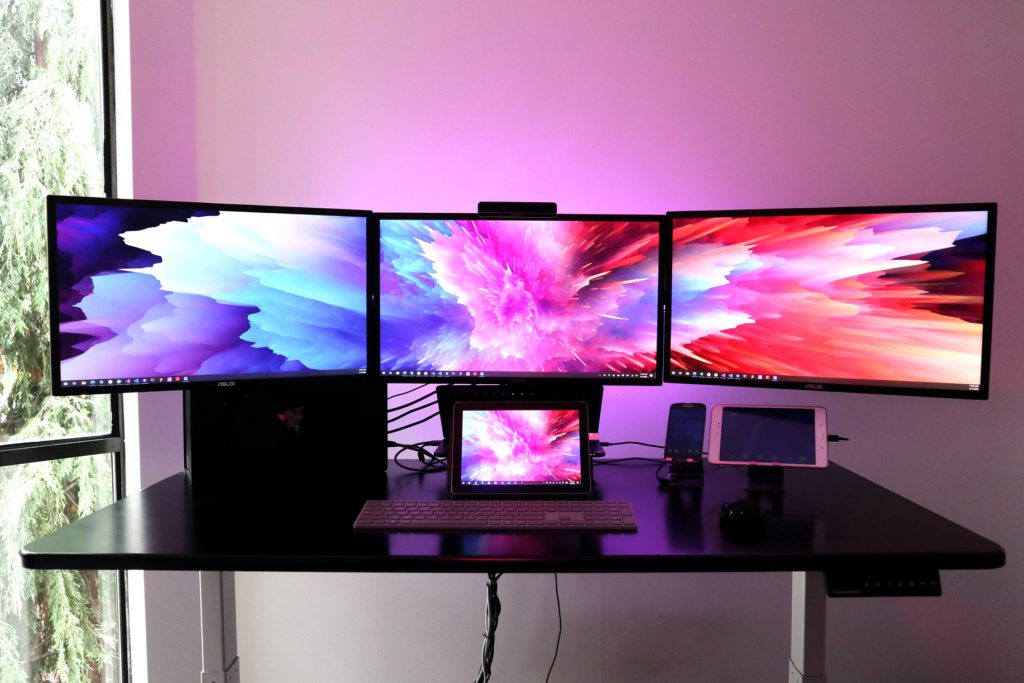
Assign a purpose to each screen
The single most effective habit for dual-monitor users: decide in advance which type of work goes on which screen and stick to it consistently.
A common, well-tested split:
-
Primary monitor (main screen): Active creation work—documents, code, design files, spreadsheets
-
Secondary monitor: Reference and communication—email, Slack, browser tabs for research, dashboards, video calls
When the assignment is consistent, you build muscle memory for where things live. After a few days, you stop consciously deciding where to open a new window—it just goes to the right place automatically.
Master the keyboard shortcuts
Moving windows between monitors with a mouse is functional, but keyboard shortcuts are significantly faster once memorized.
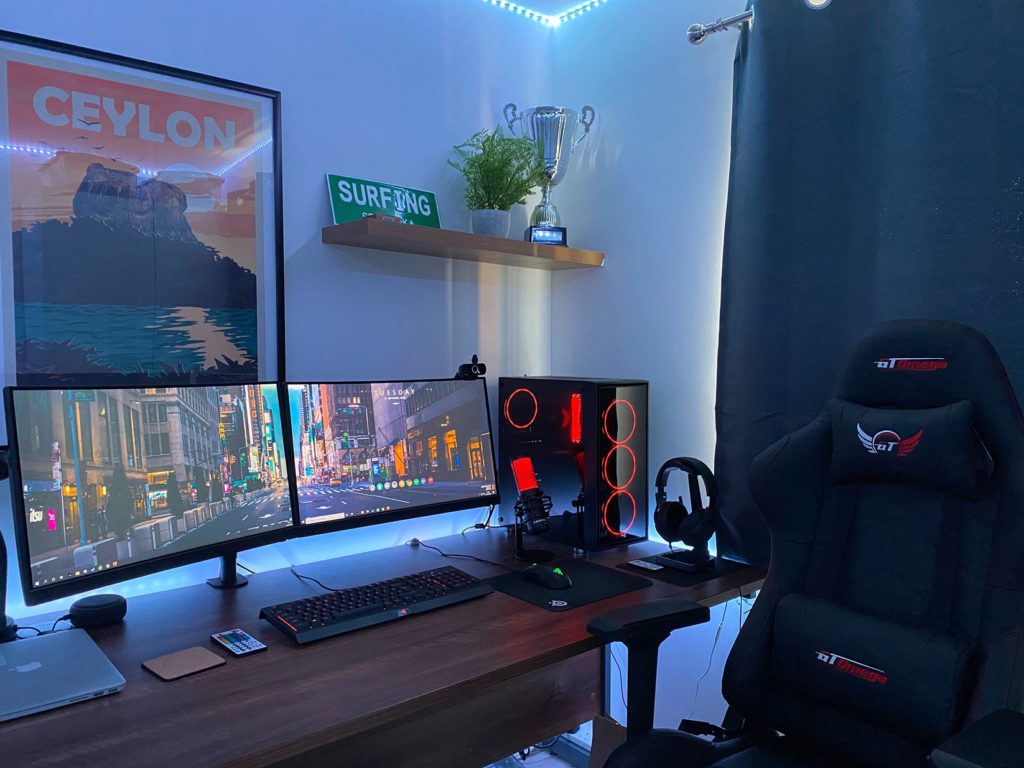
Windows:
-
Windows + Shift + Left/Right Arrow — move active window to the other monitor
-
Windows + Left/Right Arrow — snap window to left or right half of current screen
-
Windows + P — switch display modes (Extend / Duplicate / etc.)
-
Windows + Tab — open Task View to see all open windows across both screens
macOS:
-
Cmd + Tab — switch between open applications
-
Mission Control (three-finger swipe up) — see all windows on both screens
-
In System Settings → Keyboard Shortcuts, you can assign custom shortcuts to move windows between displays
Consider portrait mode for the right tasks
If your secondary monitor’s stand pivots or you’re using a monitor arm, rotate it to portrait orientation for content that benefits from vertical height: code, long documents, emails, and chat channels. The visual difference is immediately obvious—you’ll see roughly 60% more lines of a code file or document without scrolling.
To rotate in Windows: Display Settings → select the monitor → Display orientation → Portrait.
To rotate on macOS: System Settings → Displays → select the monitor → Rotation → 90°.
Use your secondary screen for AI tools
A practical 2025–2026 workflow pattern: keep your AI assistant (ChatGPT, Claude, Copilot, Gemini) open on your secondary screen as a persistent reference. You can prompt it, review its output, and copy what you need without ever leaving your primary work surface. The dual-screen setup removes the friction of switching to a separate app or browser tab—the AI is always visible, always ready.
Align your monitors ergonomically from day one
The fastest way to lose the productivity gains from dual monitors is neck pain from poor positioning. Set up ergonomics correctly from the start:
-
If you use both screens equally, center both monitors directly in front of you so their inner bezels nearly touch. Your head should rest in a neutral position between them.
-
If one screen is primary, place it directly in front of you and angle the secondary monitor inward at 20–30 degrees—enough to see it with minimal head rotation.
-
Set both screens at the same height. The top of each screen should sit at or just below eye level when seated upright.
-
Maintain 60–75 cm (24–30 inches) of viewing distance.
A 2026 review published in Applied Ergonomics confirmed that dual monitors improve task performance but increase neck and visual strain when ergonomics aren’t addressed—making setup posture a factor in whether you actually capture the productivity benefits.
Things to Consider Before Buying a Second Monitor
Does your computer have the right ports?
Check your computer’s available outputs before buying a monitor. Most modern desktops and laptops have at least one HDMI port; many newer models use USB-C with DisplayPort over Thunderbolt. Older systems may have VGA or DVI. Your second monitor needs a compatible input, or you’ll need an adapter.
If you’re unsure, search your computer’s model number plus "display outputs" for a definitive answer.
Will a second monitor slow your computer down?
For standard office work—documents, spreadsheets, browser tabs, video calls—running two monitors adds minimal load. Modern integrated graphics chips handle this comfortably.
For high-refresh-rate gaming or 4K video editing across two screens, you’ll want a discrete GPU with adequate video memory. Check your GPU’s specifications if you’re pushing both screens hard simultaneously.
How much desk space do you have?
Two 27-inch monitors side by side require roughly 130–140 cm (51–55 inches) of horizontal desk space. Two 24-inch screens need around 115 cm (45 inches). If desk space is limited, a smaller secondary screen or a portrait-rotated monitor can significantly reduce the footprint while keeping the second display functional.
A monitor arm is worth the investment if space is tight—it frees up desk surface, allows precise height and angle adjustment, and makes ergonomic positioning much easier than fixed stands allow.
What resolution and size makes sense for your secondary monitor?
Your secondary screen doesn’t need to match your primary exactly. A common, practical combination: a 27-inch 1440p (QHD) main monitor paired with a 24-inch 1080p secondary. The size difference makes it naturally clear which screen is primary, and the lower resolution secondary is usually cheaper without meaningfully limiting its usefulness for email, communication, and reference work.
Ergonomics: the make-or-break factor
Dual monitors set up without ergonomic care can cause neck strain from constant head rotation between screens. The key rules: keep both screens at the same height, position your primary screen directly in front of you, and angle any secondary screen inward rather than placing it parallel to the primary.
If neck pain develops within the first week of using two monitors, the arrangement rather than the setup itself is almost certainly the cause.
Upgrade Your Workspace with Vibe Board S1
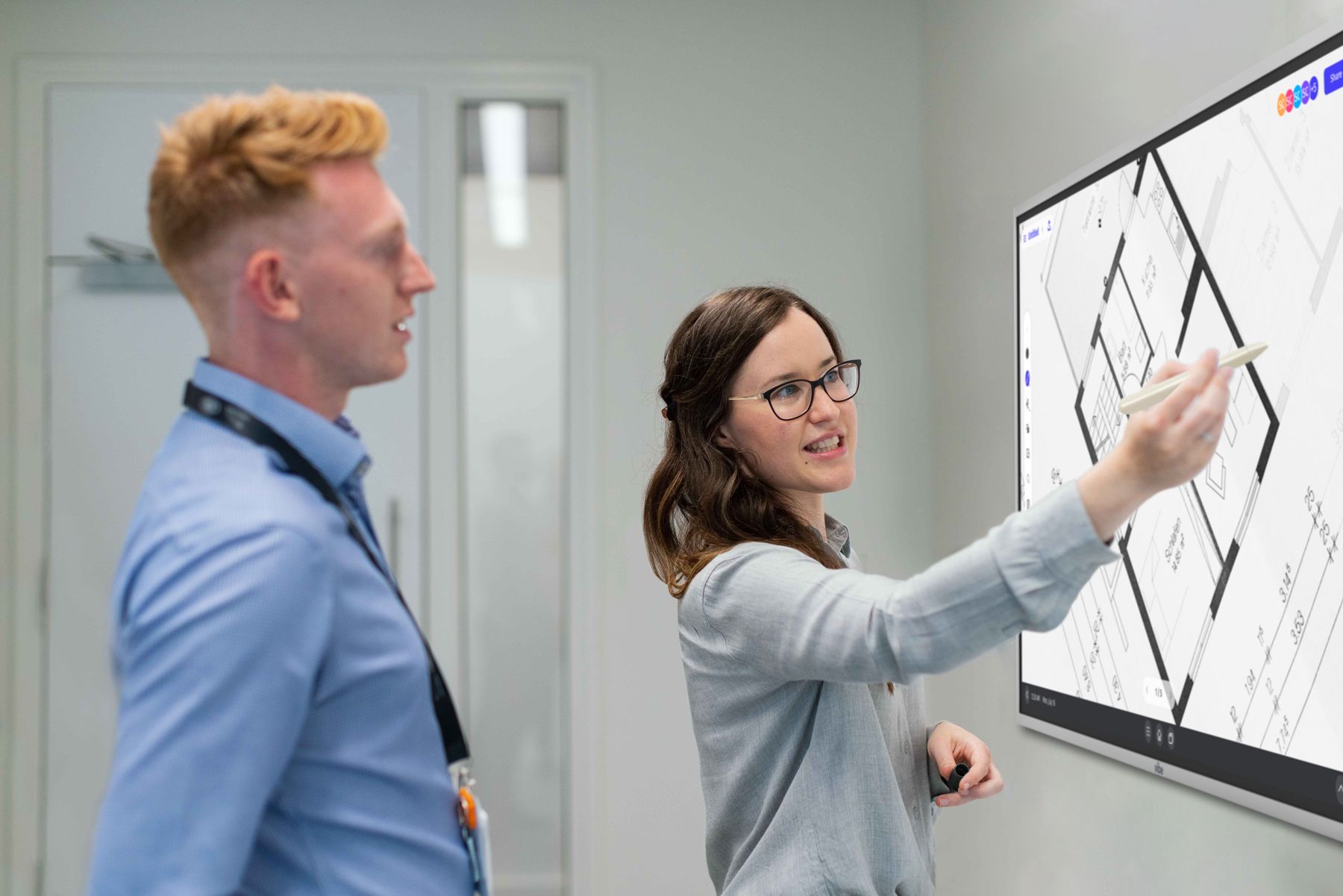
For teams working in hybrid environments, a second personal monitor is only part of the picture. When you bring a group together—for brainstorming, project reviews, training sessions, or client presentations—a large collaborative display changes what’s possible in the room.
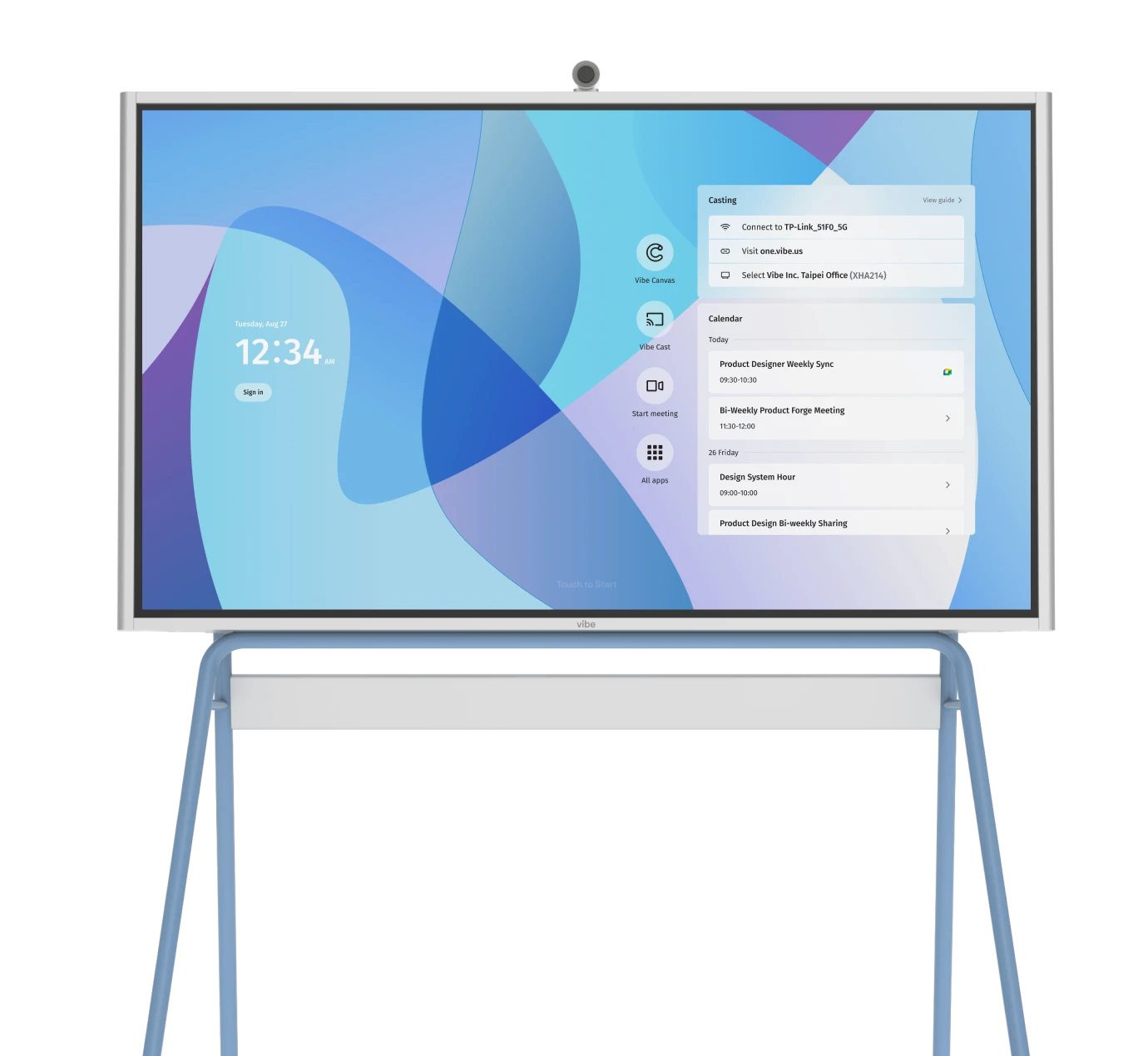
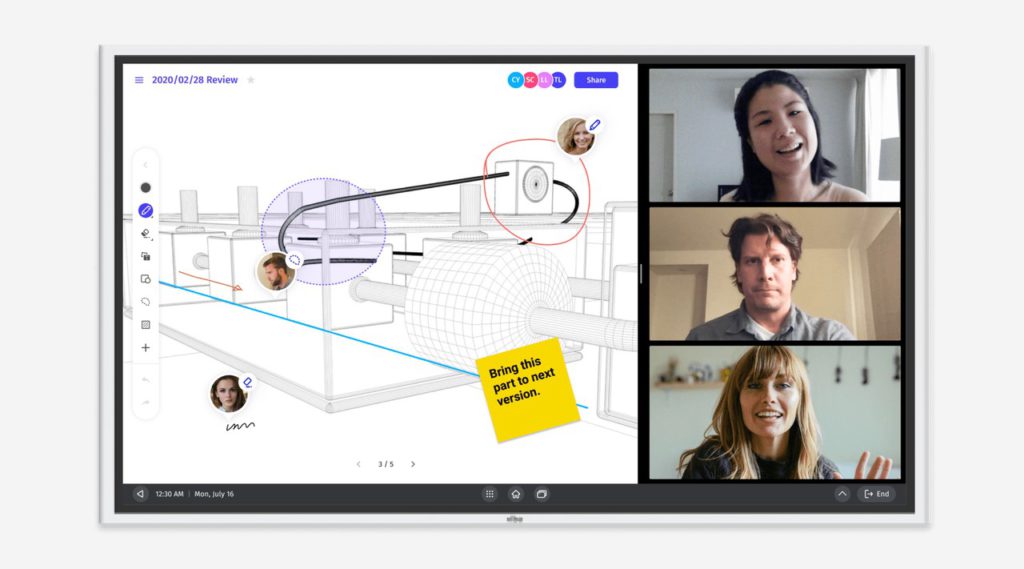
The Vibe Board S1 is a 4K touchscreen smart whiteboard that connects to your laptop wirelessly or via HDMI-In. It integrates with over 250 applications and functions as a shared canvas for hybrid teams: everyone in the room can annotate, contribute, and review content together, while remote participants see and interact with the same display in real time.
Where a personal second monitor extends your individual workspace, the Vibe Board S1 extends your team’s shared workspace—the collaborative equivalent of the dual-screen setup. Request a demo to see it in context.
FAQ
What are the benefits of dual monitors at work?
The main benefits of dual monitors at work are reduced window-switching (studies show 15% fewer window switches), improved task efficiency (18–44% gains depending on task type), better focus by eliminating the constant minimize-restore cycle, easier document comparison, and cleaner handling of video calls in hybrid work environments.
Do dual monitors actually increase productivity?
Yes, across multiple independent studies. Research from Wichita State University found 18% efficiency gains for tasks involving multiple information sources. A University of Utah study found 98% of participants preferred dual monitors and completed tasks faster with fewer errors. The gains are most pronounced for information-heavy roles: analysts, developers, writers, and anyone managing communication alongside production work.
How do dual monitors work?
When you connect two monitors to one computer and select "Extend" in your display settings, the operating system treats both screens as one continuous desktop. You can move your mouse cursor across the boundary between screens and drag windows from one to the other. Each screen shows different content simultaneously. The keyboard and mouse control both screens from a single input.
What are the advantages of a dual-monitor setup for communications-heavy tasks?
For roles with heavy communication loads, dual monitors allow you to keep your communication tools (email, Slack, Teams, or Zoom) permanently visible on one screen while your active work stays open on the other. You can monitor incoming messages and respond without leaving your work context, and you can participate in video calls without minimizing whatever you’re working on.
Are there benefits to using a dual-monitor setup on a desktop for office work productivity?
Yes. Desktop dual-monitor setups provide the same productivity benefits as laptop configurations—reduced switching, side-by-side comparison, dedicated screen zones for different task types—with the added advantage of larger screen sizes and more stable ergonomic positioning. Desktops also typically have multiple HDMI/DisplayPort outputs, making the physical setup straightforward.
What should I put on each monitor?
A widely recommended split: use your primary monitor for active creation (writing, coding, designing, building) and your secondary monitor for reference and communication (browser research tabs, email, Slack, dashboards, video calls). Keeping this division consistent means you always know where to look without thinking about it.
Do dual monitors work with laptops?
Yes. Most modern laptops support at least one external display via HDMI or USB-C. Connect the external monitor, open your display settings, and select "Extend." Your laptop screen and the external monitor function as two separate displays. A docking station simplifies the connection if you switch regularly between desk and mobile work.
How does having multiple monitors affect desk setup and posture?
The key ergonomic principles for dual monitors: place both screens at the same height with the top of each display at or just below eye level; position your primary monitor directly in front of you; angle your secondary monitor inward at 20–30 degrees rather than placing it flat parallel to the primary. Maintain 60–75 cm viewing distance. Poor positioning—particularly screens at unequal heights or placed too far apart—can cause neck strain that offsets productivity gains.
Does running two monitors slow down a computer?
For standard office work, no. Modern computers handle two displays with minimal additional load. If you’re running GPU-intensive applications—high-refresh gaming, 4K video editing—simultaneously on two large screens, you’ll want a dedicated graphics card with sufficient video memory. For typical office tasks, the performance impact is negligible.