

Interactive Classroom Technology: Displays, Response Systems, and Engagement Platforms Explained
Interactive classroom technology falls into three categories: interactive displays (the shared screen), student response systems (real-time feedback tools like Kahoot and Plickers), and engagement platforms (lesson-delivery tools like Nearpod and Pear Deck). Most districts purchase these in isolation, creating a fragmented experience where teachers juggle tabs, logins, and disconnected workflows.
The highest-performing classrooms treat these as layers of a single system — with the interactive display as the foundation that ties everything together. This article explains what each category does, how they complement each other, and what instructional technology leaders should look for when building a unified classroom technology stack.
- Interactive classroom technology comprises three complementary layers: displays, response systems, and engagement platforms
- 74% of teachers use three or more separate technology tools per class period, creating fragmentation and workflow inefficiencies
- Interactive displays serve as the integration point where response systems and engagement platforms converge into a seamless experience
- A unified classroom technology stack reduces training costs, improves student engagement, and eliminates the 18% of edtech budgets wasted on integration workarounds
The Fragmentation Problem in Classroom Technology
Walk into any school that has invested in educational technology over the past decade and you will likely find a familiar pattern: an interactive whiteboard mounted on the wall, a subscription to one or two student response systems, a handful of engagement platforms adopted by individual teachers, and very little connecting any of it together.
According to a 2023 survey by the International Society for Technology in Education (ISTE), 74% of teachers report using three or more separate technology tools during a single class period. Each tool has its own login, its own interface, and its own way of displaying content. The result is not a technology-rich classroom — it is a technology-fragmented one.
For instructional technology leaders and district IT teams, this fragmentation creates real operational costs:
-
Training hours multiply across disconnected platforms
-
Support tickets increase as teachers troubleshoot tool-switching
-
Teachers spend more time managing technology than actually teaching
-
Students experience a disjointed learning flow that undermines engagement
The solution is not fewer tools. It is a better architecture — one where each layer of classroom technology has a clear role and connects to the others through a shared surface.
 A group of professionals in a modern office are gathered around a large, transparent digital screen displaying data charts and global analytics. Floating digital icons representing emails and video calls stream toward the display, illustrating a high-tech collaborative workspace. The scene is set in a minimalist environment with large windows overlooking a city skyline.
Three Categories of Interactive Classroom Technology
To build a coherent classroom technology stack, it helps to understand the three distinct categories and what each one does best.
Interactive Displays: The Shared Surface
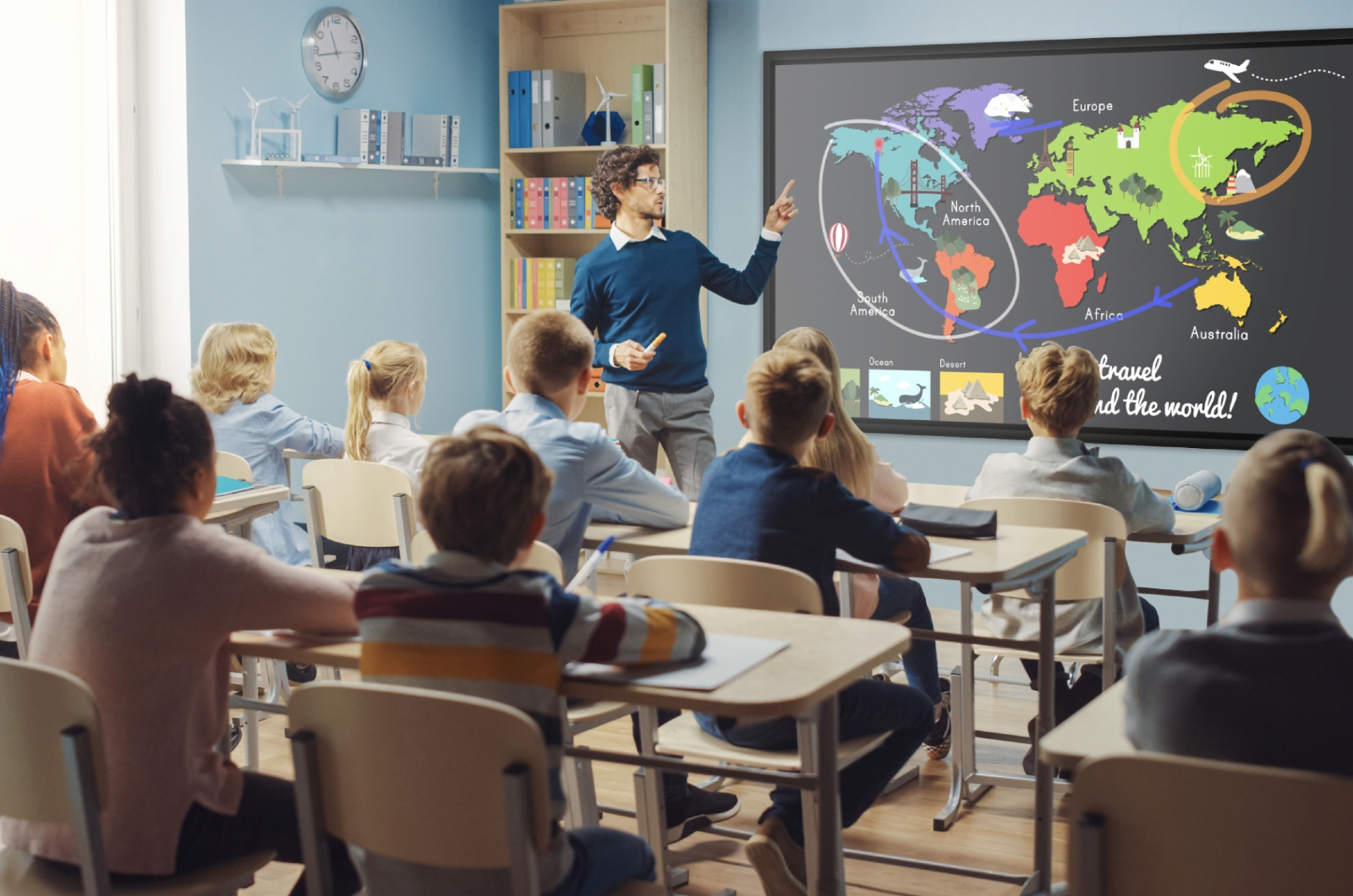
Interactive displays — large touchscreen panels mounted at the front of the classroom — serve as the shared visual surface for instruction. Unlike traditional projectors or static whiteboards, interactive displays allow teachers and students to annotate, manipulate content, and run applications directly on screen.
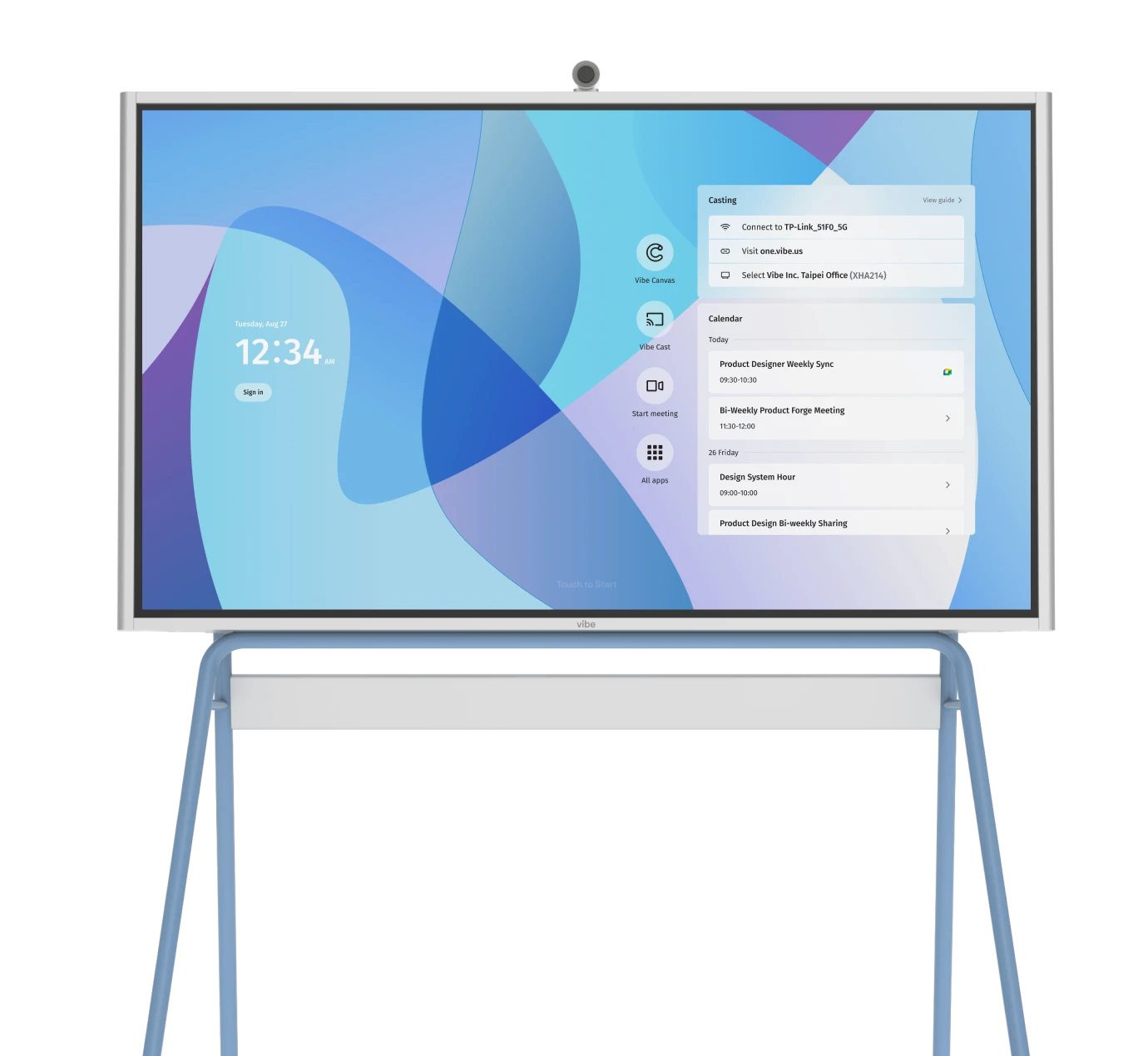
Modern interactive displays like the Vibe Board function as collaboration workspaces, not just presentation screens. They run a full operating system, connect to cloud services, and can launch any web-based application natively. This matters because the display becomes the integration point — the single screen where response systems, engagement platforms, and instructional content all converge.
Research published in the Journal of Educational Technology & Society found that classrooms using interactive displays saw a 16% increase in student participation rates compared to classrooms using traditional projection systems (Schmid et al., 2022). The key factor was not the display itself but the reduction in transition time between activities when everything ran on one surface.
Student Response Systems: Real-Time Feedback
Student response systems — sometimes called classroom response systems or "clickers" — let every student answer questions, vote, or provide feedback simultaneously during a lesson. Modern versions include Kahoot, Plickers, Poll Everywhere, and Mentimeter.
These tools solve a fundamental classroom problem: in a room of 30 students, a verbal question typically gets a response from the same three or four students. Student response systems give every student a voice in every question, giving teachers immediate visibility into who understands the material and who does not.
An EdWeek Research Center survey from 2024 found that 68% of teachers who regularly use student response systems report being better able to identify struggling students in real time, compared to 31% of teachers who rely solely on traditional questioning techniques. The data is clear: response systems improve formative assessment.
The limitation of response systems is that they are point tools. They handle the feedback moment well, but they do not deliver lessons, host collaborative workspaces, or manage the full arc of a class session.
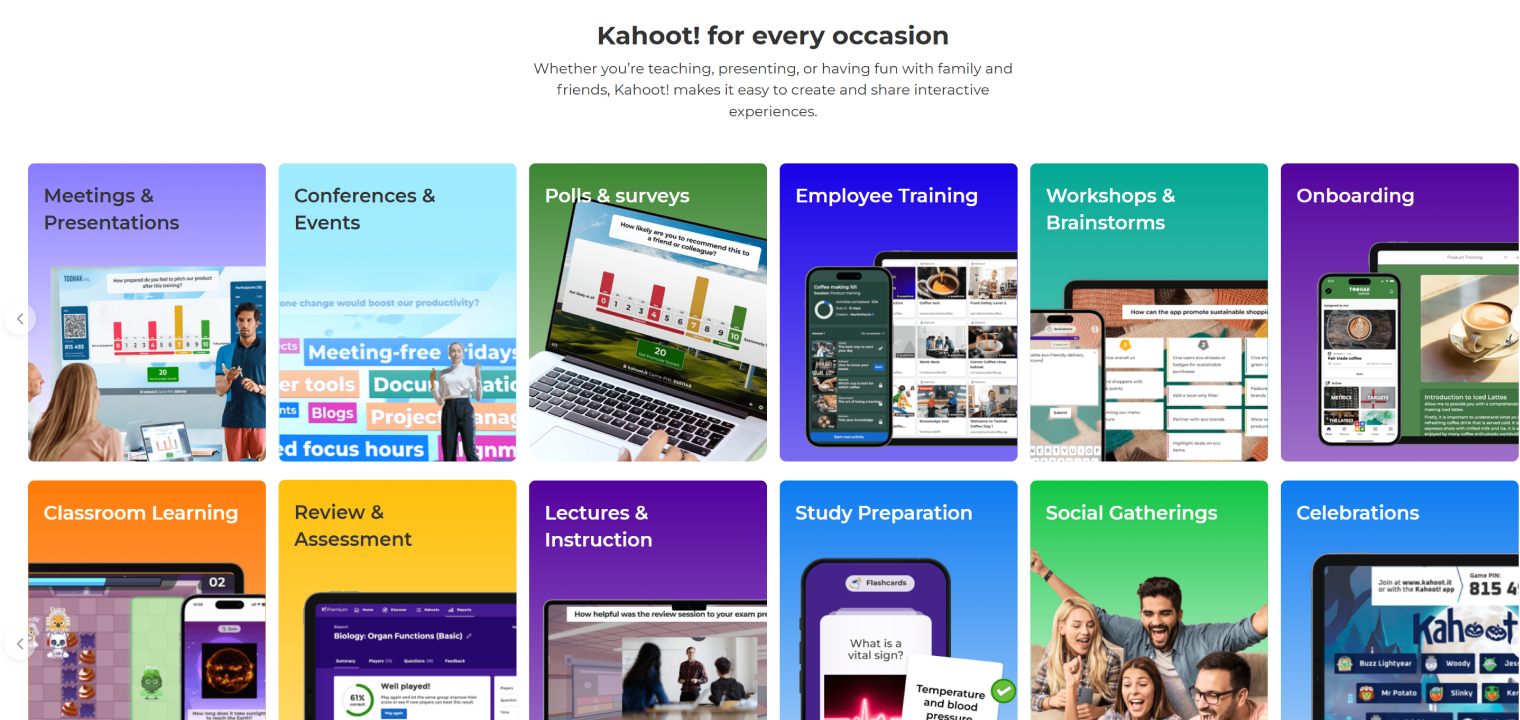 The image displays a series of twelve colorful tiles illustrating various professional, educational, and personal use cases for the Kahoot! platform. These categories include settings such as business meetings, classroom learning, employee training, and social celebrations, showing the app being used on laptops, smartphones, and large displays.
Engagement Platforms: Lesson Delivery and Interaction
Engagement platforms — Nearpod, Pear Deck, Classkick, and similar tools — go further than response systems by embedding interactive elements directly into lesson content. A teacher can build a slide deck where slide three is a poll, slide seven is a collaborative drawing activity, and slide twelve is a formative assessment quiz.
These platforms blur the line between presentation and participation. Students follow along on their own devices while the teacher controls pacing from the front of the room. The platforms capture response data, generate reports, and integrate with learning management systems.
ISTE's 2023 EdTech Impact Report noted that schools using engagement platforms consistently reported a 22% improvement in student completion rates for in-class activities compared to schools using static presentation tools. The interactive, paced format keeps students inside the lesson rather than drifting to other tabs or tuning out.
How These Technologies Work Together
The critical insight for instructional technology leaders is that these three categories are not competing alternatives. They are complementary layers of a single classroom experience.
The Layer Model
Layer 1 — Interactive Display (Foundation)
The shared screen where everything is visible to the class. Runs apps, displays content, enables annotation, hosts video calls.
Layer 2 — Student Response System (Feedback)
Collects individual student input in real time. Runs inside the display's browser or as a native app on the display surface.
Layer 3 — Engagement Platform (Lesson Delivery)
Structures the full lesson flow with embedded interactive elements. Projects through the display; students participate on personal devices.
When these layers are connected through a single interactive display, the classroom experience becomes seamless. A teacher opens Nearpod on the Vibe Board, walks students through a lesson, launches a Kahoot quiz for a mid-lesson check, annotates student responses directly on the display, and returns to the lesson — all without switching devices, changing cables, or losing instructional momentum.

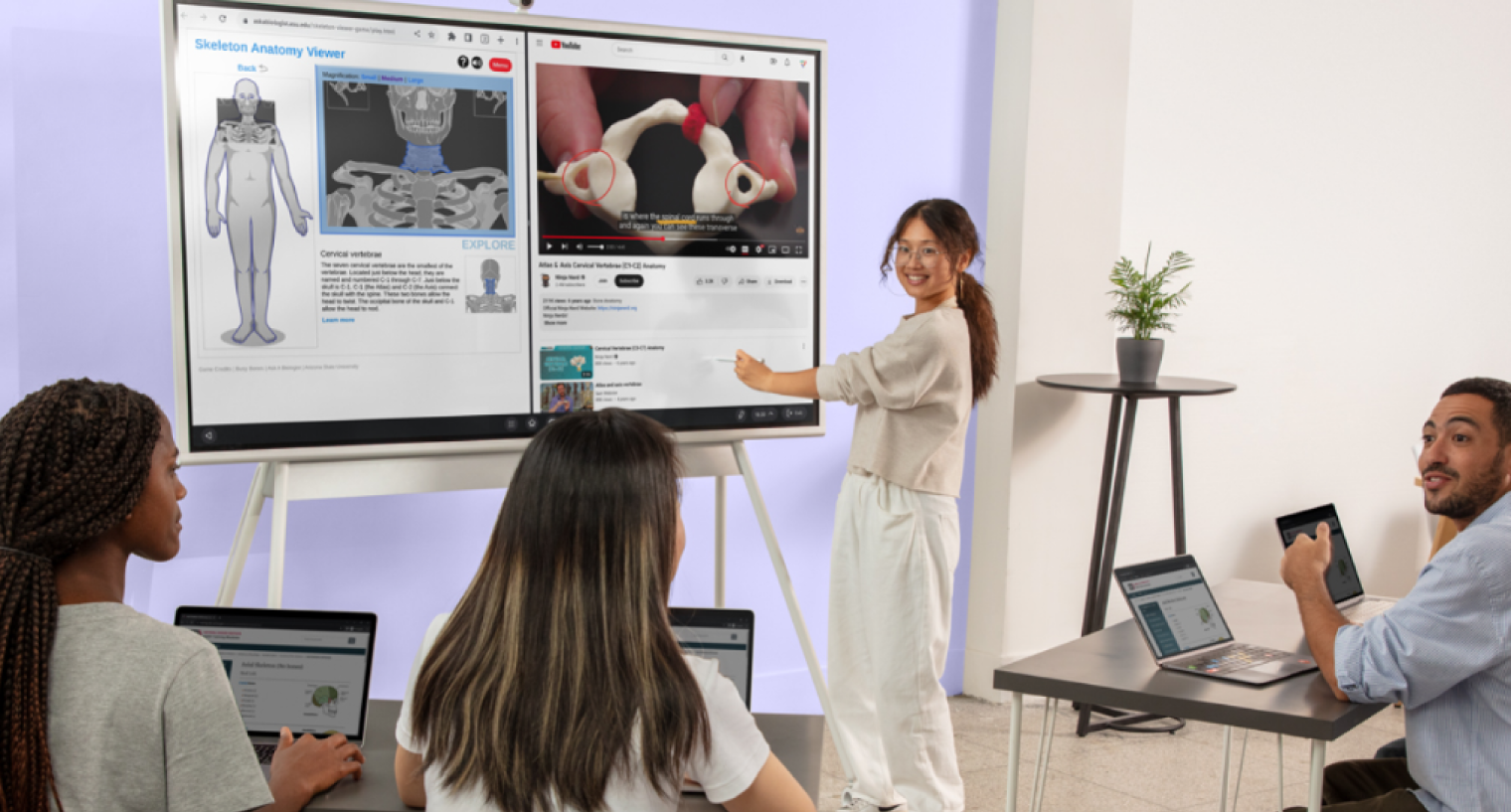 In a collaborative learning environment, a woman stands before a large interactive display, presenting a lesson on human anatomy to several colleagues seated with laptops. The digital screen features a 3D skeleton viewer and an educational video about vertebrae as the group engages in the presentation.
Comparison Table: Interactive Displays vs. Response Systems vs. Engagement Platforms
|
Capability |
Interactive Displays |
Student Response Systems |
Engagement Platforms |
|---|---|---|---|
|
Primary function |
Shared visual surface |
Real-time feedback |
Structured lesson delivery |
|
Student participation |
Touch/annotation |
Individual responses |
Embedded activities |
|
Formative assessment |
Via integrated apps |
Core strength |
Built into lesson flow |
|
Content creation |
Whiteboarding, apps |
Question/quiz creation |
Full lesson building |
|
Data/analytics |
Session recording |
Response analytics |
Completion & performance |
|
Device requirement |
Front-of-room display |
Student devices/cards |
Student devices + display |
|
Works standalone? |
Yes |
Yes (limited display) |
Needs display/projector |
|
Best paired with |
Response + engagement |
Interactive display |
Interactive display |
|
Example products |
Vibe Board, SMART, Promethean |
Kahoot, Plickers, Poll Everywhere |
Nearpod, Pear Deck, Classkick |
What to Look for in a Display That Integrates Everything
Not all interactive displays are equal when it comes to running student response systems and engagement platforms. Instructional technology leaders evaluating displays should prioritize these capabilities:
Full Web Browser with Modern Standards
Response systems and engagement platforms are web-based. The display must run a browser capable of handling complex web applications without lag. If teachers have to plug in a laptop to run Nearpod, the display has failed its primary job as an integration surface.
Built-in Collaboration Workspace
The display should offer its own annotation, whiteboarding, and collaboration tools so teachers can move between third-party apps and native tools without friction. Vibe Board, for example, provides an infinite canvas workspace alongside full app compatibility — teachers annotate over a Pear Deck lesson, save the annotations, and return to the lesson without closing anything.
Cloud Connectivity and File Access
Teachers store materials in Google Drive, OneDrive, and learning management systems. The display should connect to these services natively, so pulling up a resource does not require a USB drive or email workaround.
Multi-Touch for Student Interaction
When students come to the board for collaborative activities, multi-touch support lets multiple students interact simultaneously. This is particularly important for engagement platform activities that involve group annotation or collaborative problem-solving.
Simple Device Management for IT
District IT teams manage hundreds or thousands of displays. The display should support remote management, centralized updates, and standard security protocols. A display that creates an IT burden will be powered off, no matter how good its classroom features are.
For a deeper look at how different interactive displays compare on these criteria, see our guide on comparing interactive displays or explore factors to consider when choosing the right smart board.
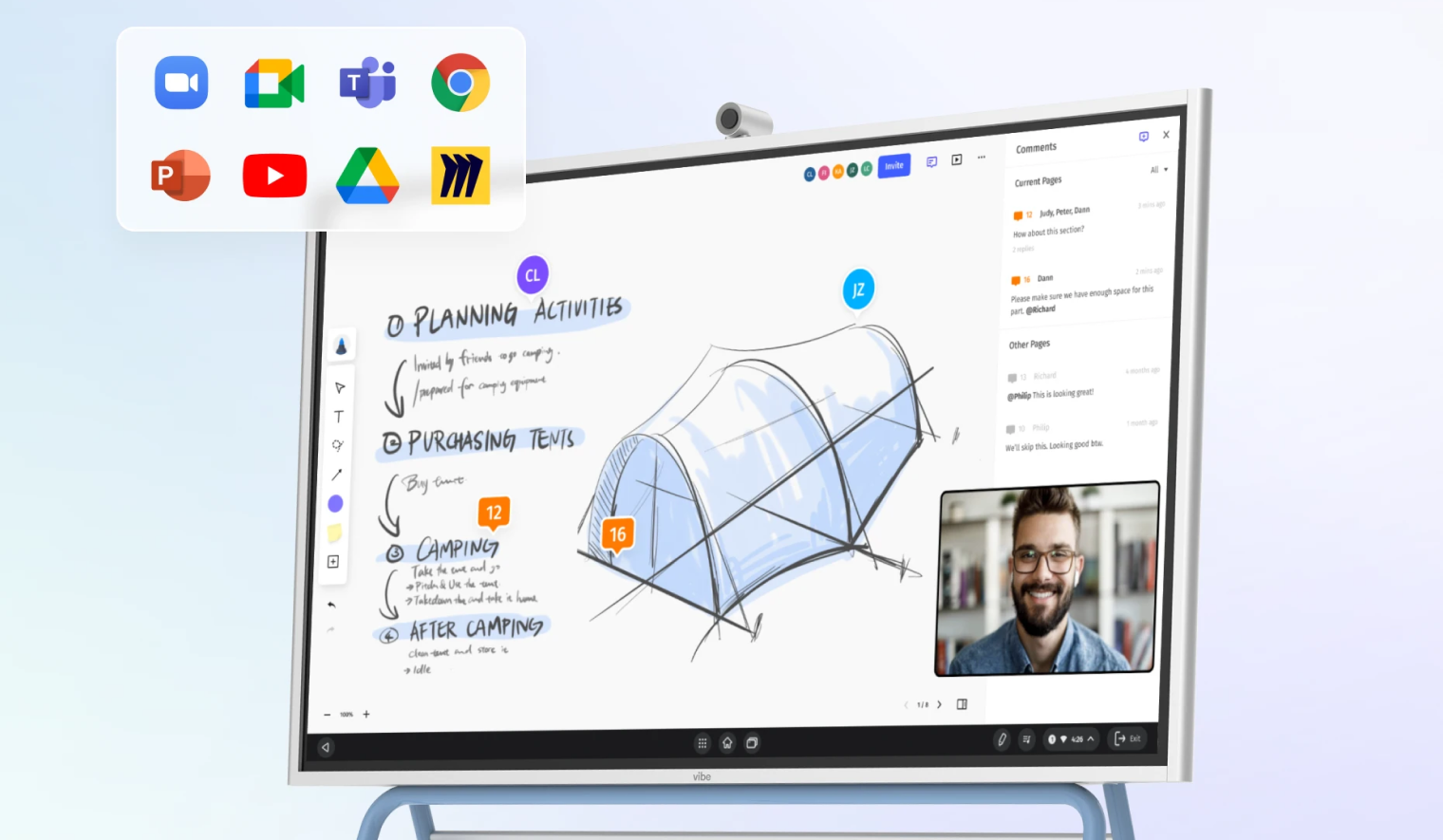 This image shows an interactive digital whiteboard displaying a collaborative design project for planning a camping trip. The screen features a 3D sketch of a tent alongside handwritten notes, a live video call window, and a sidebar for comments. Floating icons for various productivity and communication apps are shown in the upper corner, highlighting the display's integrated software capabilities.
Building a Unified Classroom Technology Stack: A Practical Framework
For instructional technology leaders planning a district-wide rollout, here is a practical framework for building a unified stack:
Step 1: Standardize the Display Layer
Choose one interactive display platform across the district. This eliminates training fragmentation and simplifies IT support. The display should be capable of running all major engagement and response tools natively.
Step 2: Select Two to Three Approved Response/Engagement Tools
Do not mandate a single tool — teachers need flexibility. But limit the approved list to reduce support complexity. Common pairings: one response system (Kahoot or Plickers) and one engagement platform (Nearpod or Pear Deck).
Step 3: Ensure Integration Paths
Verify that your chosen tools run smoothly on your chosen display. Test for performance, touch compatibility, and audio/video handling. Run pilot classrooms before district-wide deployment.
Step 4: Train on the Stack, Not the Tools
Instead of training teachers on each tool separately, train them on the integrated workflow: how to open an engagement platform on the display, embed a response check, annotate student work, and save the session. This workflow-based training is more effective and more memorable.
Step 5: Measure Engagement, Not Adoption
Track student participation rates, formative assessment frequency, and lesson completion — not just how many teachers logged into a tool. The goal is not tool usage; it is student engagement.
For a comprehensive guide to classroom technology planning and implementation, explore our full framework for instructional technology leaders.
The Cost of Getting This Wrong
Districts that treat classroom technology as a collection of isolated purchases pay a compounding cost. Teachers receive training on tools they cannot access from their classroom display. IT teams support dozens of workarounds — HDMI adapters, Bluetooth speakers, laptop carts — to bridge gaps that a unified system would eliminate. Students experience a different technology environment in every classroom, reducing the cognitive benefits of consistent digital routines.
A 2023 analysis by Education Week estimated that the average U.S. school district spends 18% of its edtech budget on integration workarounds — adapters, redundant subscriptions, and support labor — that would be unnecessary with a standardized display-and-software architecture.
Classrooms should not reset every time teachers switch tools. The technology should be invisible infrastructure, not a daily obstacle course.
 A female teacher is instructing a group of four young students by using a stylus to point at a geometric triangle on a large digital screen. The students stand gathered together, watching the lesson attentively in a classroom setting.
FAQ
Q: What is a student response system, and how is it different from an engagement platform?
A student response system is a tool designed specifically for collecting real-time feedback from every student simultaneously — think polls, quizzes, and quick checks for understanding. Tools like Kahoot, Plickers, and Poll Everywhere fall into this category. Engagement platforms like Nearpod and Pear Deck go further by embedding those interactive elements directly into structured lesson content, combining presentation with participation across an entire class session.
Q: Can student response systems run directly on an interactive display?
Yes. Modern interactive displays with built-in web browsers can run any web-based student response system natively. Teachers open the tool in the display's browser, project the question to the class, and students respond on their own devices. No laptop connection required. This is one of the primary benefits of choosing a display with a capable built-in browser, like the Vibe Board.
Q: Do interactive displays replace student response systems and engagement platforms?
No. Interactive displays are the hardware foundation — the shared screen at the front of the room. Student response systems and engagement platforms are software layers that run on or through the display. They serve different functions and work best when used together. The display makes the software tools more accessible and the classroom experience more seamless.
Q: What should district IT consider when choosing an interactive display for classroom use?
Prioritize five factors:
-
Browser capability (can it run complex web apps smoothly?)
-
Cloud connectivity (does it connect to Google Drive, OneDrive, and your LMS?)
-
Device management (can you manage it remotely at scale?)
-
Multi-touch support (can multiple students interact simultaneously?)
-
Built-in collaboration tools (can teachers annotate and whiteboard without a third-party app?)
Q: How does the Vibe Board work with tools like Kahoot and Nearpod?
The Vibe Board runs a full operating system with a built-in browser, so teachers can open Kahoot, Nearpod, Pear Deck, or any web-based tool directly on the display. Teachers can also use Vibe's native collaboration workspace to annotate over these applications, save annotated sessions to the cloud, and switch between tools without closing anything. It functions as the integration surface where all classroom technology converges.
Q: What is the best way to train teachers on integrated classroom technology?
Train on workflows, not individual tools. Instead of separate sessions on "how to use Kahoot" and "how to use the display," run training on integrated scenarios: "Open your Nearpod lesson on the display, run a Kahoot check at minute 15, annotate the results, and save the session." This approach mirrors actual classroom use and builds confidence faster.
Q: How many interactive teaching tools should a district standardize on?
Most successful districts standardize on one interactive display platform, one to two student response systems, and one to two engagement platforms. This keeps the approved toolkit small enough for consistent training and IT support while giving teachers enough choice to match their teaching style. Fewer than three total software tools leads to rigidity; more than five leads to fragmentation.
Q: What evidence supports using interactive classroom technology for student engagement?
Multiple sources support the impact:
-
ISTE's 2023 survey found 74% of teachers use three or more tech tools per class period
-
Research in the Journal of Educational Technology & Society showed a 16% increase in participation with interactive displays
-
EdWeek's 2024 survey found 68% of teachers using response systems better identify struggling students
-
ISTE's EdTech Impact Report documented a 22% improvement in activity completion rates with engagement platforms
Interactive classroom technology works best when it works together. The display is the foundation. Student response systems provide real-time feedback. Engagement platforms structure the lesson. When these three layers integrate seamlessly, teachers spend less time managing technology and more time teaching — and students stay engaged from the first question to the final activity.
If you are ready to see how a unified classroom technology stack performs in practice, schedule a demo to explore how the Vibe Board integrates with the interactive teaching tools your district already uses.