You’ve crafted the perfect presentation, but five minutes in, you notice the audience isn’t leaning in—they’re checking their phones. Traditional presentations have a way of fading into the background. Often, the problem isn’t your content, but the delivery. Predictable, static slides can only do so much when attention spans are shorter than ever.
By weaving in moments that invite participation, you turn a monologue into a shared experience. This article breaks down 18 interactive presentation ideas with practical tactics and tools to spark real engagement.
- Interactive presentation ideas change passive listeners into active participants.
- Technology and low-tech methods alike can boost engagement when used intentionally.
- Storytelling, structure, and visuals keep attention anchored throughout.
- The right tools—like smart whiteboards—make seamless interaction possible.
All 18 Interactive Presentation Ideas at a Glance
Technology-Based
-
Live Polls & Surveys
-
Gamified Quizzes
-
Collaborative Whiteboards
-
Interactive Multimedia
-
Real-Time Commenting
Analog & Low-Tech
-
Colored Cards or Props
-
Metaphorical or Emotional Storytelling
-
Group Movement Activities
-
Pair-and-Share Moments
-
Sticky Note Feedback
Structural & Story-Based
-
Choose-Your-Own-Adventure
-
Reverse Presentation
-
Nested Loops
Design & Visual Storytelling
-
Use GIFs & Video Clips
-
Before & After Contrasts
-
Visual Anchors
-
Bold Key Stats
-
1 Idea Per Visual
Jump to any section, or read straight through for full context on each idea.
5 Technology-Based Engagement Tactics
You have tools at your disposal—why not use them to their full potential? Here are five creative presentation ideas powered by tech that keep people involved from start to finish.
1. Live Polls & Surveys
Nothing pulls an audience in faster than giving them a voice right from the start. With tools like Mentimeter or AhaSlides, you can set up polls in advance and share access through a join code or QR. Within seconds, participants are weighing in, and you’re gathering insights you can use to shape the session.
These polls work best when timed strategically. Use one in the opening minutes to grab attention, or introduce a mid-presentation survey to spark energy after a dense section. Live results create a natural transition point, while also showing that the audience’s opinions directly influence the conversation.
2. Gamified Quizzes
A quiz brings out the competitive side of any audience, and platforms like Kahoot!, Quizizz, or Slido make it easy to build interactive rounds. Set up a handful of multiple-choice questions that recap key points, then let participants battle for leaderboard status in real time. The format is playful, yet highly effective for reinforcing concepts.
Quizzes work especially well as section closers. After a technical walkthrough, for example, use a short quiz to test recall and keep energy high. When people see their names climb—or fall—on the board, you’ve turned repetition into entertainment and given your content staying power.
3. Collaborative Whiteboards
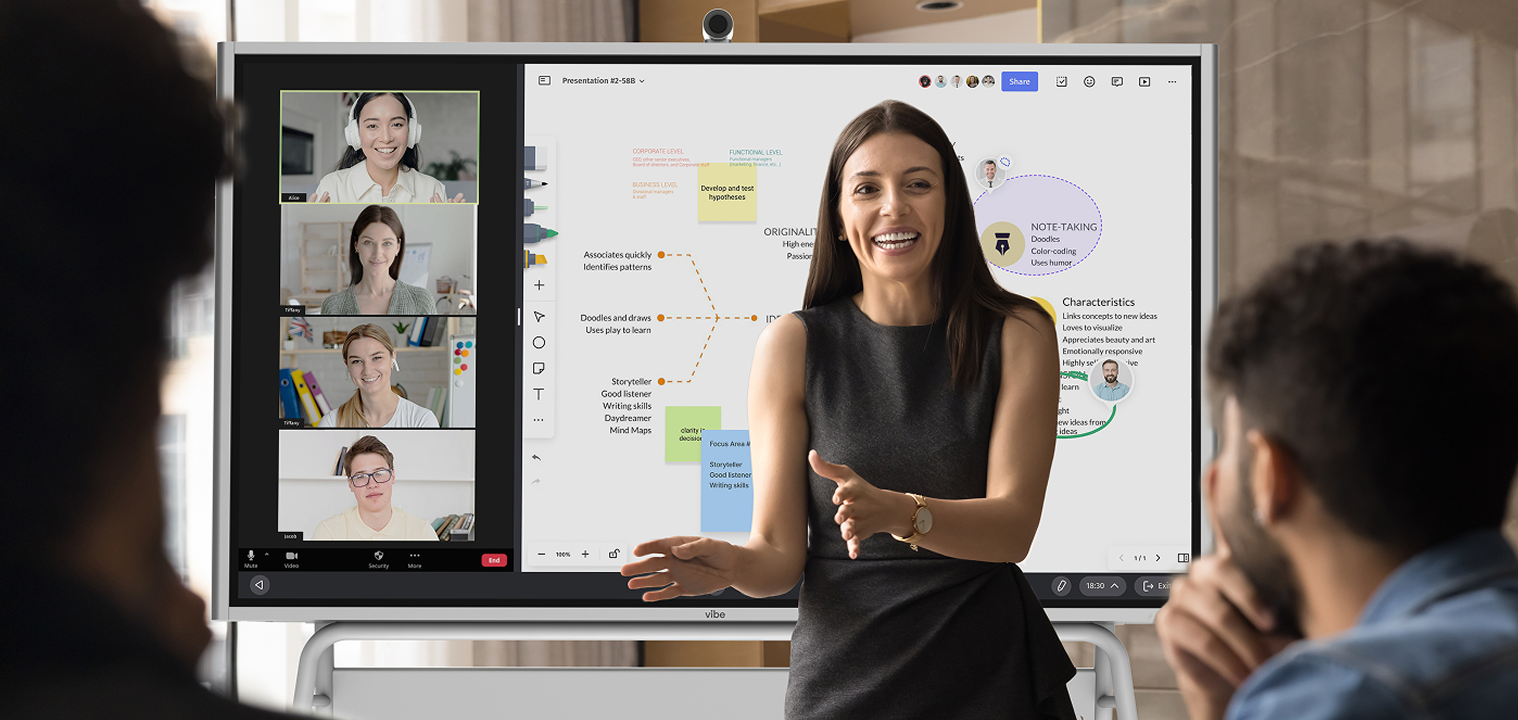
Sometimes the best presentations are the ones where the audience helps create the outcome. Collaborative platforms like Miro or Vibe Canvas let participants add sticky notes, sketches, or diagrams in real time. That means you’re not just presenting but co-building ideas with your group. Most teams onboard within days thanks to the intuitive interfaces, and for larger groups, setting clear session rules and appointing a moderator helps keep things on track. Both platforms work best on a stable connection (above 1 Mbps) and modern devices.
This tactic is ideal for strategy sessions, hybrid workshops, or design sprints. Dedicate 10–15 minutes to a shared whiteboard exercise, and you’ll walk away with something more than engagement. You’ll have concrete outputs—ideas, feedback, or solutions—that can be saved, shared, and expanded upon long after the presentation ends.
4. Interactive Multimedia
Static slides can get the job done, but multimedia creates moments that stick. By embedding clickable videos, dynamic charts, or animated infographics in PowerPoint, Keynote, or Canva, you add movement and variety to your deck. Done well, these elements make your presentation far more immersive. For best results, keep videos brief (30–90 seconds), ensure captions and good color contrast for accessibility, and remember that more advanced effects may require extra skill or setup time.
Timing matters here. Drop in a short video to showcase a customer story, or reveal an animated chart when you’re presenting ROI. The interactivity makes your points feel more tangible and encourages listeners or viewers to lock their attention in. Audiences are more likely to connect with visuals they can watch unfold rather than numbers frozen on a slide.
5. Real-Time Commenting
For larger groups, or any remote session, it’s tough to give everyone the microphone. That’s where real-time commenting features in Google Slides or Canva Live shine. Participants can post their reactions or questions directly onto your slides and create a parallel layer of conversation alongside your main narrative. For best results, publish clear rules for respectful comments, actively moderate for inappropriate or off-topic content, and use keyword filters to block offensive language.
This approach turns quiet listeners into active contributors. Run it during a Q&A segment or after you’ve presented your core material. Not only does it foster inclusivity, but it also gives you a record of feedback to revisit. Enjoy a much richer dialogue and more voices represented in the discussion.
5 Analog & Low-Tech Interaction Strategies
Technology isn’t the only way to keep people engaged. Memorable moments often come from simple, tactile interactions that need no devices. These approaches are easy to set up, flexible in almost any setting, and powerful in sparking connection.
1. Colored Cards or Props
Sometimes the easiest tools are the most effective. Hand out colored cards or small props before you start and explain how they’ll be used. Green might mean "yes," red might mean "no," or different colors could represent multiple-choice answers. Suddenly, you’ve created an instant polling system with zero tech required. These props shine in quick decision checks or icebreakers. Ask a lighthearted question early on, then use the same method later to gauge opinions on a serious point.
2. Metaphorical or Emotional Storytelling
Stories have always been a powerful way to connect, but adding a metaphor or emotional hook makes them interactive because it’s so relatable and sparks those emotions. By weaving in a vivid, relatable example, you give the audience something to picture—and often something to feel. That emotional resonance makes the key message harder to forget. You can use a story at the very beginning to set the tone or drop one in before a key transition.
3. Group Movement Activities
Movement resets the body and the brain. Ask your audience to stand, stretch, or even switch seats mid-presentation. You’ll immediately shift the room’s energy, break fatigue, and prepare people to absorb new material. Group movement can be woven into debates, team activities, or exercises where contrasting perspectives are needed. When people physically change position, they’re more likely to mentally shift perspectives, too.

4. Pair-and-Share Moments
Sometimes the best insights come from the person sitting next to you. With a pair-and-share exercise, pose a question and ask participants to discuss it briefly with a neighbor. After two or three minutes, invite a few pairs to share highlights with the larger group. This tactic is quick, low-pressure, and works in almost any setting to deepen understanding by processing out loud.
5. Sticky Note Feedback
Sticky notes look simple, but they create real reflection. Hand out pads and invite attendees to jot ideas, questions, or takeaways. Later, collect notes on a wall for everyone to see. This works well in workshops or sensitive topics where anonymity helps people open up. It gives quieter voices a way to contribute and leaves a tangible record you can act on.
3 Structural & Story-Based Techniques
Beyond individual activities, structure shapes how a presentation is felt. These techniques guide the audience’s journey and make them part of the story, not spectators.
1. Choose-Your-Own-Adventure
Instead of following a fixed path, let the audience decide where to go next. Prepare alternate slides or branches in your narrative that adjust to their choices. It works especially well in sales demos, workshops, or training sessions where priorities differ by group. Once you’ve laid the basics, hand over the reins—this sense of agency not only boosts engagement but ensures the most relevant content gets the spotlight.
-
Preparation: May require up to 3x normal prep due to story mapping and multiple slide paths
-
Audience: Best for groups under 30—gets difficult at a larger scale
-
Skill: Intermediate—requires comfort with slide linking and quick facilitation
2. Reverse Presentation
Flip the script by showing a visual or data point before explaining it, then ask the audience to interpret what they see. Their responses spark curiosity and create a sense of discovery as you build your narrative around them. This approach works in design reviews, research presentations, or data storytelling, where assumptions can be tested and compared. By the time you add your perspective, participants are eager to see how their take stacks up against yours.
-
Preparation: Minimal—extra prep compared to standard slides
-
Audience: Suitable for small to medium-sized groups (up to 50) for best interaction
-
Skill: Beginner to intermediate—requires comfort guiding open discussion

3. Nested Loops
Nested loops use several smaller stories that all connect back to one central theme. Each short narrative resets attention and builds anticipation for the bigger reveal. This technique is especially effective in thought leadership talks, inspirational sessions, or culture-focused presentations where emotion and resonance matter. By tying each loop back to the main idea, you make the final takeaway land harder, reinforced by multiple, memorable touchpoints along the way.
-
Preparation: On average, slightly more prep for story planning and transitions
-
Audience: Works for any size—but most effective in groups under 100
-
Skill: Intermediate—benefits from strong storytelling and pacing experience
5 Design & Visual Storytelling Techniques
What you say is important, but so is how you say it. Visual storytelling helps your message land faster and stick longer. These design strategies keep slides memorable and engaging.
|
Technique |
Recommended Tools |
Difficulty Level |
File Size/Format Requirements |
|
1. Use GIFs & Video Clips |
Canva, Kapwing |
Beginner |
GIF: <5MB, .gif format; Video: <50MB, .mp4/.mov for smooth embedding |
|
2. Before & After Contrasts |
Figma, PowerPoint |
Beginner |
Images: <5MB each, .png/.jpg |
|
3. Visual Anchors |
Noun Project, Adobe Illustrator |
Beginner |
Vector icons: .svg/.png preferred; consistent under 2MB |
|
4. Bold Key Stats |
Google Slides, Prezent |
Beginner |
Single-slide spotlight; text and vector image under 2MB |
|
5. 1 Idea Per Visual |
All major tools |
Beginner |
Text/image/slide: minimal size; formats match tool defaults |
1. Use GIFs & Video Clips
Short motion clips add personality and energy to a presentation. A GIF or 30-second video can act as a scene change, a moment of humor, or a visual proof point. Embedded directly into slides, they’re easy to trigger without disrupting flow.
The key is moderation. Use a GIF to break up dense material or a video to highlight a customer success story. By pairing movement with message, you’re giving the audience a mental reset while reinforcing your point in a way static visuals can’t match.
2. Before & After Contrasts
Nothing works quite as well as a simple side-by-side. Show the "problem" on one side of the screen and the "solution" on the other. The contrast immediately conveys transformation without needing paragraphs of explanation.
This technique shines in sales pitches, product showcases, or process improvements. Instead of describing results abstractly, you make them visible. The juxtaposition makes the improvement undeniable, and audiences quickly grasp the value you’re delivering.
3. Visual Anchors
Consistency in design helps people follow along, especially in more complicated presentations. Assign icons, shapes, or colors to specific themes and use them throughout—it’s much easier to follow along. Each time the anchor reappears, the audience knows instantly which topic you’re addressing.
These anchors create a rhythm in the presentation. They’re particularly helpful in training sessions or multi-topic decks. A simple visual cue can reduce cognitive load and keep the attention focused on your message rather than deciphering the structure.
4. Bold Key Stats
Numbers tell a story, but only if they stand out. Highlight your most important figures with oversized fonts, striking colors, or slides dedicated to a single stat. This design choice signals importance and mentally bookmarks your data for the audience.
Use this tactic during proof points, ROI moments, or executive briefings. A big number, isolated on the screen, forces focus and creates impact. Pair it with a short explanation, and you’ve turned raw data into a memorable highlight.
5. 1 Idea Per Visual
Cramming multiple points onto a single slide is a guaranteed way to lose interest. Instead, dedicate each slide to a single idea. This minimal approach gives the audience breathing room and lets your narrative take center stage.
Think TED-style talks or classes where clarity is non-negotiable. By stripping slides to essentials, you keep focus sharp. People remember your message, not a blur of crowded graphics.

Pro Tips & "How to Get Started" Checklist
It may take a little bit of experimentation to incorporate some of these interactive presentation ideas, but you don’t have to overhaul your entire presentation style overnight. Here’s how to get the highest impact from those efforts:
-
Identify the audience’s #1 challenge: Keep it simple and have one main idea, tailored around the problem your audience cares about most.
-
Pick only 1–2 interactive formats for your next session: Don’t overload yourself or your audience. Focus on quality, not quantity, so the interaction feels intentional instead of distracting.
-
Rehearse tech transitions (polls, whiteboards, video embeds): Practice switching between tools so the flow stays seamless. A clunky transition can undo the momentum you’ve worked to build.
-
Prepare a compelling story hook: Set the tone with a short narrative, surprising stat, or provocative question. A strong opening gives your interactive elements more impact.
-
Have analog backups in case tech fails: Keep sticky notes, printed prompts, or colored cards on hand. Backup options help you still deliver a memorable interaction even if the Wi-Fi drops.
-
Use a CTA or audience reflection to close: End with a question, commitment, or next step. A clear finish cements the value of the presentation and keeps your audience thinking afterward.
Core Principles That Power Interaction
These principles cut across tools, stories, and visuals, giving you a framework to keep any audience engaged.
-
Two-way communication builds trust and participation: Ask questions, invite opinions, and respond in real time. It shifts the presentation from a broadcast into a dialogue, building stronger buy-in.
-
Use contrast or transformation to drive emotional engagement: People remember change. Highlight before-and-after states, surprising shifts, or breakthroughs that your product or idea creates.
-
Structure takeaways in "power of three" format for retention: Audiences remember clusters of three more easily than long lists. Grouping lessons into threes helps people recall and apply your insights long after the presentation ends.
Case Flow Example
A great presentation balances structure with flexibility. Here’s a sample 30-minute flow that blends a strong narrative, tech, and analog interaction.
-
Compelling hook (2 minutes): Open with a story, surprising stat, or quick poll.
Example: "How many of you multitasked during your last Zoom call? Let’s find out—vote now."
Transition: "See how scarce attention really is." -
Live poll or word cloud (3 minutes): Use Mentimeter or Slido to surface the audience’s biggest challenge.
Example question: "What’s the #1 obstacle you face in presentations?"
Transition: "Let’s use your answers to shape today’s session." -
Core narrative (8 minutes): Share key insights with relatable storytelling. Weave in poll responses to personalize the message.
Transition: "Now that we’ve covered the big picture, let’s get hands-on." -
Analog group activity (4 minutes): Prompt a pair-and-share:
"Discuss one presentation hack that’s worked for you." Collect a few aloud.
Transition: "See how much we learn from each other? Let’s build on that." -
Short video or dynamic chart (3 minutes): Play a one-minute clip or reveal an animated chart to illustrate transformation.
Transition: "This shows the change clearly—now let’s test what we’ve learned." -
Interactive quiz recap (5 minutes): Use Kahoot! or Quizizz with 3–5 questions.
Example: "What boosts retention most: (A) more slides, (B) storytelling, (C) visuals?"
Transition: "Thank you for your responses—let’s wrap up with your questions." -
Live Q&A (5 minutes): Open the floor with Slido or direct discussion. Encourage upvotes to surface top questions.
Closing phrase: "Your insights made this session stronger—thank you for participating."

Interactive Presentation Ideas for Students
Students need more than passive listening — they need a reason to pay attention. These approaches work equally well for high school, college, and university settings.
Best ideas for student presentations:
-
Gamified Quizzes (idea #2): Kahoot! and Quizizz are already familiar to most students. Use them as section closers to recap key points competitively.
-
Choose-Your-Own-Adventure (idea #11): Let classmates vote on which branch of the topic to explore next. Works especially well for research and history presentations.
-
Pair-and-Share (idea #9): A low-pressure way to get the room talking without anyone feeling put on the spot.
-
Collaborative Whiteboards (idea #3): Tools like Miro let the whole class contribute ideas simultaneously. Ideal for brainstorm-style group presentations.
-
5-Minute Format: For short class presentations, pick one interactive moment —
a quick opening poll or a closing pair-and-share — rather than trying to fit in
multiple tactics.
For group presentations specifically: Assign each group member ownership of one interactive segment. This distributes the facilitation load and keeps the presentation feeling dynamic throughout.
Interactive PowerPoint Presentation Ideas
PowerPoint supports more interactivity than most presenters realize. You don’t need to switch platforms to make slides engaging.
Built-in PowerPoint features for interactivity:
-
Hyperlinked slides: Create a choose-your-own-adventure structure by hyperlinking
buttons to different slides within the same deck. Works in both PowerPoint and Google Slides.
-
Embedded polls via add-ins: Mentimeter, Poll Everywhere, and Slido all offer
PowerPoint add-ins that let you run live polls without leaving your presentation.
-
Animated reveals: Instead of showing all data at once, use animation to reveal
chart data step by step — ask the audience to predict the next number before you
reveal it.
-
Clickable video embeds: Embed YouTube or local video files directly in slides.
Pause and prompt a reaction before resuming.
-
Action buttons: PowerPoint’s built-in action buttons (Insert → Action) can
trigger sounds, open URLs, or jump to slides — useful for interactive quiz formats.
Tip: Test all interactive elements in Slideshow mode before presenting. Hyperlinks and embedded media behave differently in edit mode vs. live presentation mode.
5-Minute Interactive Presentation Ideas
Short time slots don’t mean you have to skip interactivity. These techniques each take 60–90 seconds to execute without derailing the clock.
|
Idea |
Time Required |
How to Use It |
|
Opening poll |
60 sec |
One question, live results, instant discussion starter |
|
Raise-your-hand check-in |
30 sec |
"Who here has experienced X?" sets the context fast |
|
One-word word cloud |
90 sec |
Ask "Describe X in one word" via Mentimeter — results appear instantly |
|
Pair-and-share |
90 sec |
Pose a question, 60 seconds to discuss with a neighbor, one pair shares |
|
Closing commitment |
60 sec |
"Write down one thing you’ll try this week" — no sharing required |
Rule of thumb for 5-minute slots: Pick one interactive moment and place it in the first 90 seconds. An early participation trigger sets audience expectations for the rest of the session, even if there’s no time for a second interactive beat.
How to Handle Interactive Presentation Challenges
Even the best-planned interactive techniques can hit roadblocks, but with a little preparation, challenges can become opportunities to show confidence and adaptability. Here’s how to address the most common issues.
1. Tech Failures
Nothing derails momentum like a polling app that won’t load or a video that won’t play. Test your tools in advance, and have backups ready—like printed polls, markers, or screenshots of key visuals. If something still goes wrong, don’t panic. Acknowledge the hiccup, switch to your backup, and keep moving. When you don’t let glitches rattle you, it reassures the audience and helps you maintain your credibility.
2. Shy or Quiet Audiences
Some groups hesitate to participate, especially early on. Instead of forcing high-stakes engagement right away, start small. Use low-pressure interactions like raising hands or holding up colored cards. As comfort grows, layer in more interactive techniques. Anonymous input tools—like word clouds or sticky notes—also make participation feel safer. This gradually builds confidence and encourages future engagement, too.
3. Time Management
Interactivity can be so engaging that time gets away from you. If polls, discussions, or activities run long, your core content may suffer. Prevent this by assigning strict time blocks: three minutes for a poll, five minutes for a share-out, etc. Visible timers help keep everyone on track, and having a co-host track pacing adds extra support. Tight timing means interactivity makes your content more impactful rather than overwhelming it.
4. Difficult Participants
Every presenter eventually encounters someone who dominates the conversation, challenges your points, or steers the discussion off track. Handle these moments with respect. Thank the participant for their input, and do your best to briefly address their concerns. Then redirect: "Let’s hear from someone else" or "We’ll add that to our parking lot for later." This keeps the session inclusive while preventing disruption.
From Ideas to Impact – The Tools That Bring It All Together
Juggling multiple apps for polls, whiteboards, videos, and conferencing can distract you from your delivery. The more you toggle, the harder it is to stay present with your audience.
The Vibe Board S1 is built for exactly this kind of session. Run a live poll in Mentimeter, switch to Vibe Canvas for a collaborative whiteboard exercise, pull up a video clip, and jump into a Zoom Q&A — all from one screen, without switching devices or fumbling with cables.
In practice, that means:
-
Live polls and quizzes (ideas #1, #2): Cast Kahoot! or Mentimeter directly to the board. Audiences respond on their phones; results appear full-screen in real time.
-
Collaborative whiteboards (idea #3): Vibe Canvas supports multi-user editing, so participants can add sticky notes and diagrams from their own devices simultaneously.
-
Interactive multimedia (idea #4): 4K wireless screencasting with live annotation lets you mark up video or chart content on the fly.
-
Choose-your-own-adventure (idea #11): Switch between slide branches instantly with touch navigation — no mouse required.
The board handles the tech. You handle the room.
Watch how Vibe turns Steven Baczek’s presentations into next-level experiences:
Interactive Presentation Ideas FAQs
How can I make my presentation more interactive?
It’s all about inviting participation at different levels to reach different people in your audience. You can start with a live poll to stir up interest, use pair-and-share for peer learning, and add storytelling for emotional connection. Simple physical props or sticky notes also create variety. Mixing tech and low-tech methods keeps energy up and makes the presentation feel less like a lecture.
What is the 5‑5‑5 rule in presentation?
The 5-5-5 rule is a simple design guideline: five words per line, five lines per slide, and five slides per main idea. It helps presenters strip away clutter and keep slides clear. You’ll usually see both better participation and better retention from your audience.
What is the 777 rule in presentation?
The 777 rule is another slide design principle: seven words per line, seven lines per slide, and a maximum of seven slides per section. It’s useful for simplifying complex material without losing depth. By limiting what you show, you free space for visuals and in-person storytelling that complement your message.
What are fun presentation topics?
Fun presentation topics invite creativity and audience participation. Think along the lines of "What would you do?" scenarios, themed mysteries, or gamified lessons. These formats work especially well for workshops, training sessions, and team-building events. When you make the subject playful, people naturally lean in and contribute.
How do I handle remote audiences while keeping them engaged?
Remote audiences need frequent touchpoints to stay connected. Use digital whiteboards for collaboration, breakout rooms for small-group discussions, and instant polls to check in. Chat features or Q&A tools like Slido let quieter voices be heard. With tools like Vibe, you can unify video, whiteboarding, and collaboration in one place.
What makes a presentation interactive for adults?
Adults respond best to interactivity that respects their time and expertise. Avoid gamified elements that feel juvenile — instead, lean into discussion-based formats like pair-and-share, choose-your-own-adventure branching, or reverse presentations where the audience interprets data before you explain it. Live polls work well when the question is genuinely debatable rather than a quiz. The goal is to treat adults as collaborators, not students.
What are the best interactive presentation techniques?
The most effective techniques depend on your setting, but three work reliably across almost any context: (1) live polls in the opening two minutes to establish participation as a norm, (2) pair-and-share at least once mid-session to reset energy, and (3) a closing commitment prompt — asking each person to name one thing they’ll act on — to anchor retention. Layer in gamified quizzes or collaborative whiteboards when the format and audience allow.