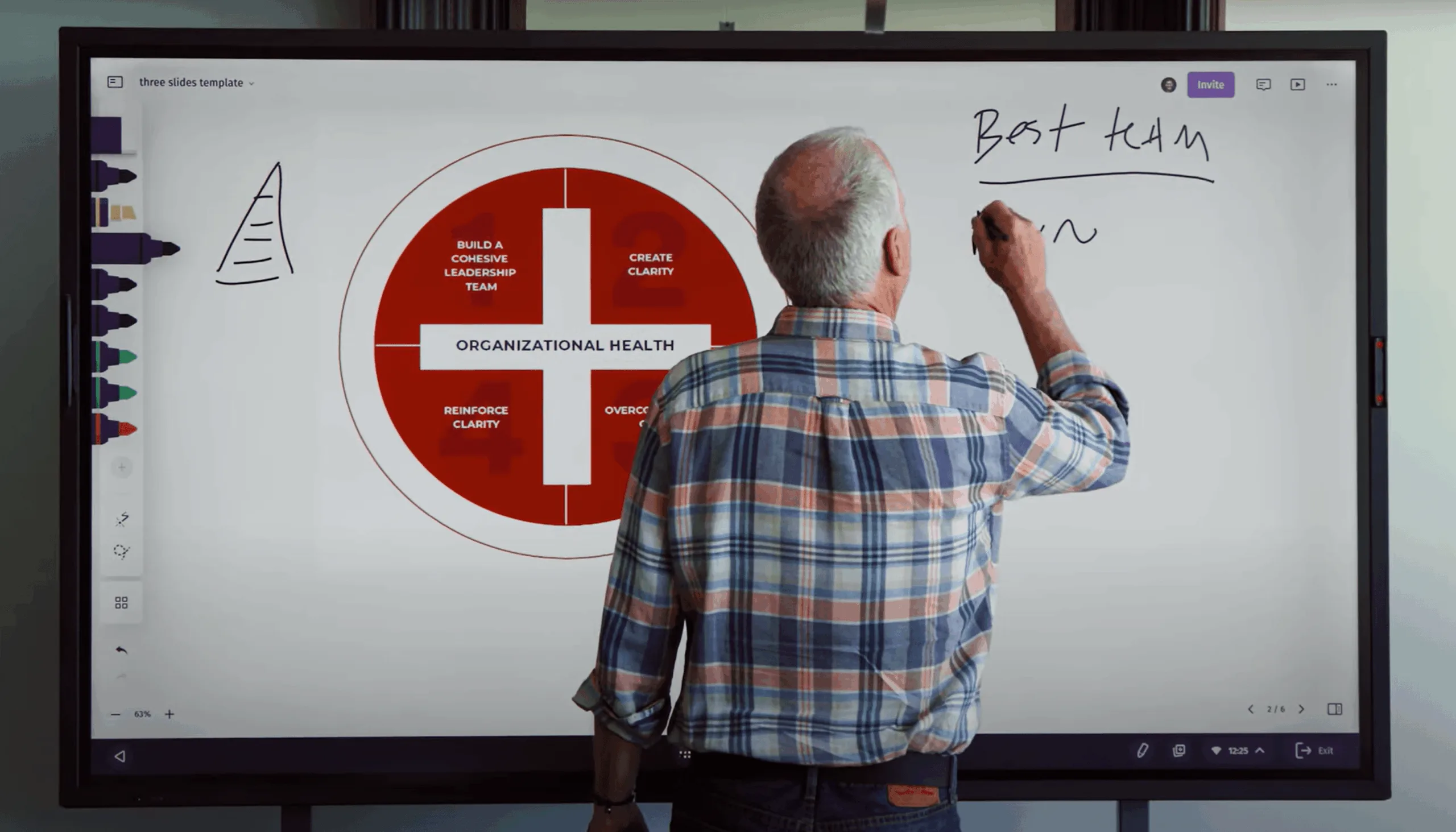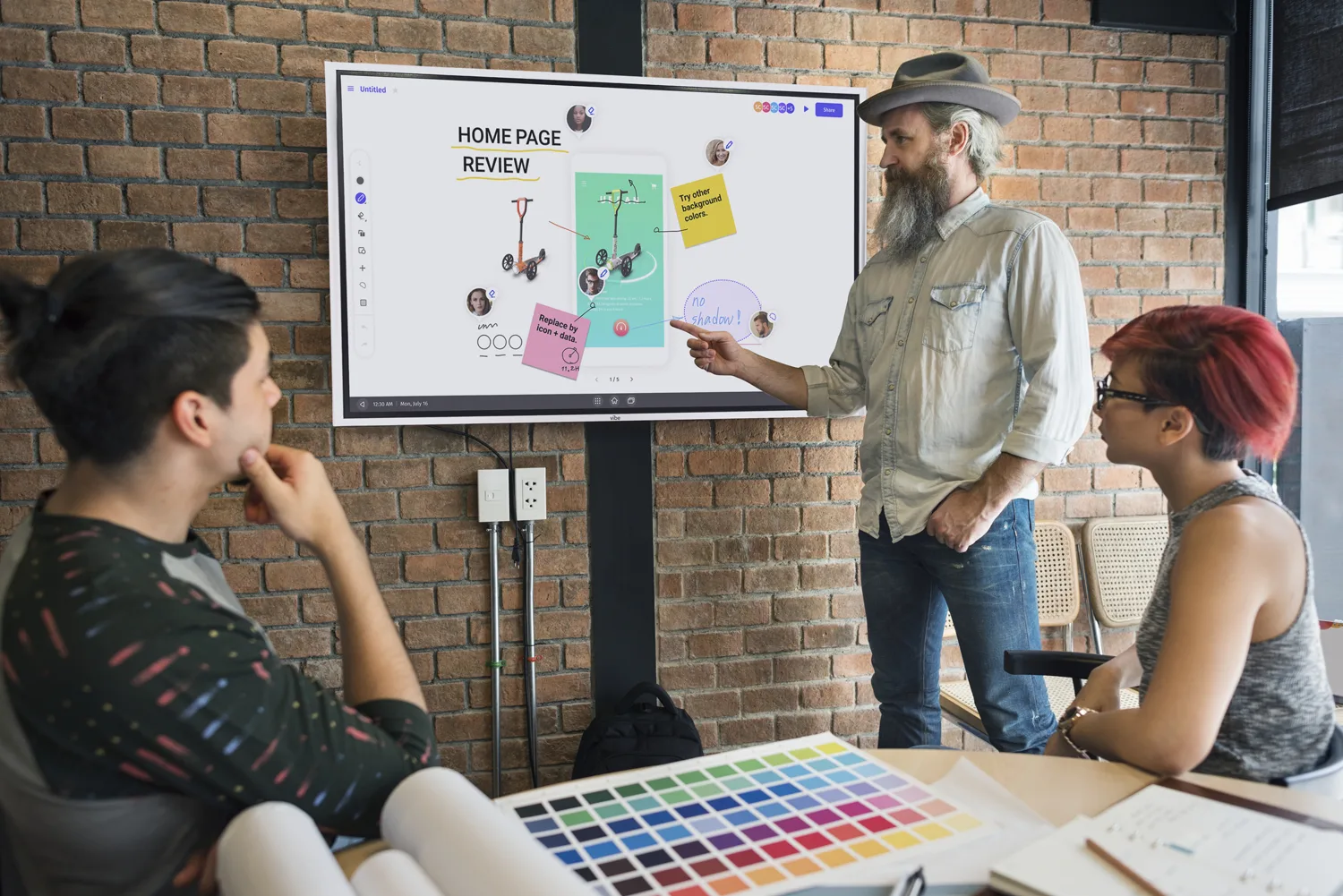

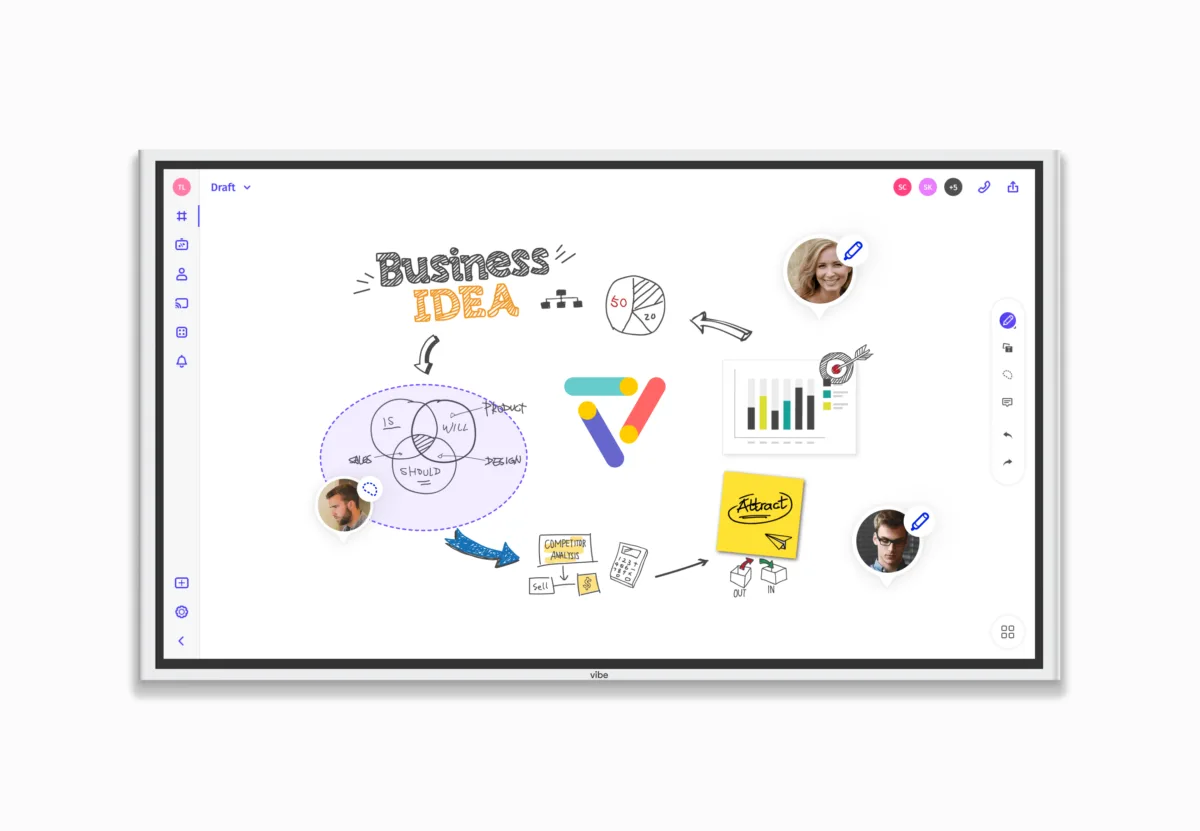
Vibe Canvas is the infinite digital whiteboard software built into every Vibe Board S1. It lets you write, draw, annotate, import files, and collaborate with your team in real time — whether everyone is in the same room or joining from a different location entirely.
If you're looking for a quick answer: to access Vibe Canvas, tap the Canvas icon from the Vibe Board home screen, or log in at app.vibe.us from any browser. The rest of this guide covers everything else — features, file support, collaboration, and how to get the most out of each session.
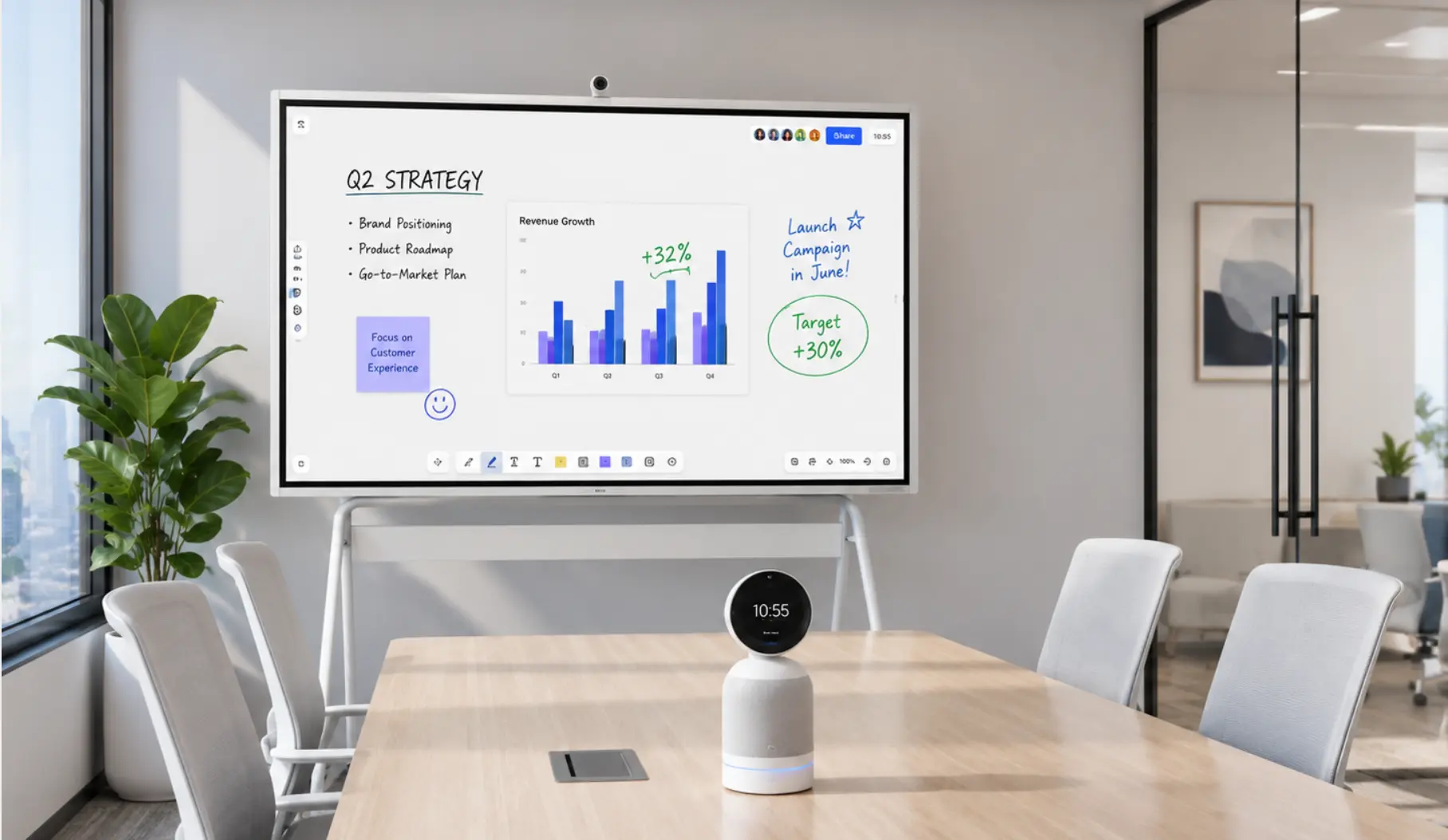 Vibe Canvas on Vibe Board S1 in a conference room
What Is Vibe Canvas?
Vibe Canvas is an infinite-canvas digital whiteboard. Unlike a fixed slide deck or a standard whiteboard, Canvas has no edges — you can keep adding content in any direction without running out of space.
It ships as the native whiteboard app on every Vibe Board S1, and is also accessible from computers, iPads, and Android tablets through app.vibe.us — so remote participants can follow along or collaborate on the same board in real time, from their own device, with no Vibe Board required on their end.
What you can do in Vibe Canvas:
-
Write and sketch freehand with multiple pen and brush types
-
Import and annotate PDFs, images, and files from Google Drive, OneDrive, Dropbox, or Box
-
Add sticky notes, shapes, text boxes, and tables
-
Use Smart Text to convert handwriting to standard font automatically
-
Share a board via link or QR code for real-time remote collaboration
-
Present through Zoom, Microsoft Teams, or Google Meet directly from the board
-
Export finished boards as PDFs to cloud storage or email
How to Launch Vibe Canvas
On your Vibe Board:
-
From the home screen or the Apps page, tap Vibe Canvas
-
The Canvas home screen opens, showing recent boards and creation options
-
Tap Whiteboard to open a new infinite canvas
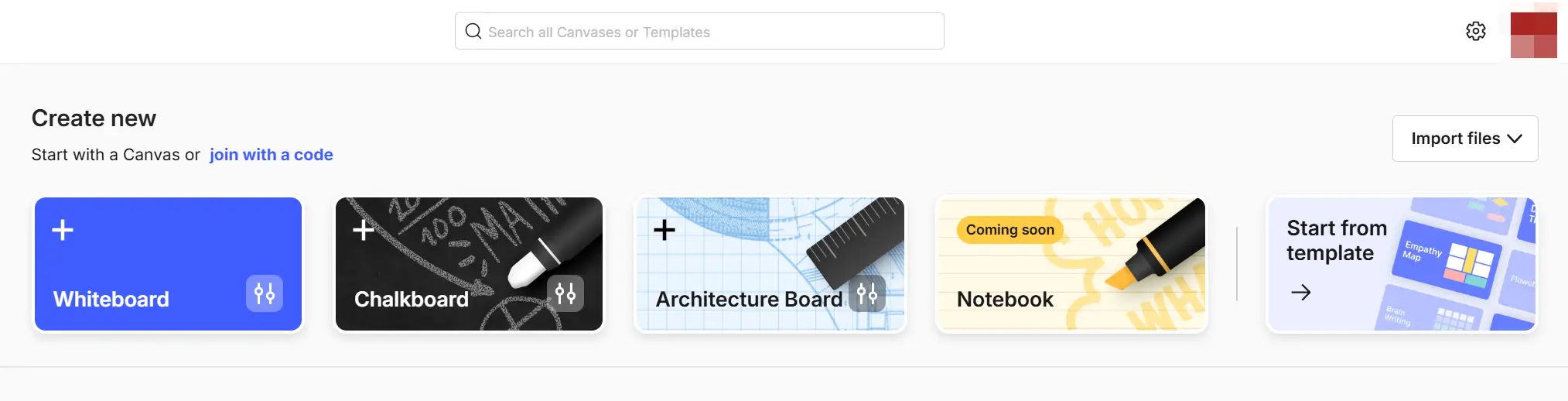 Create new section on Vibe Canvas
Guest users can open and use Canvas without signing in, but boards will not be saved to an account unless you are logged in.
From a computer or tablet (remote access):
Go to app.vibe.us in any browser and sign in with your Google, Microsoft, Slack, or Apple ID — or use an invitation link to join a board as a guest without creating an account.
On iPad: Download the Vibe Canvas app from the App Store for full collaboration access. The iPhone app is view-only.
On Android: Go to app.vibe.us on a tablet for full access. The Android phone app (Google Play) is view-only.
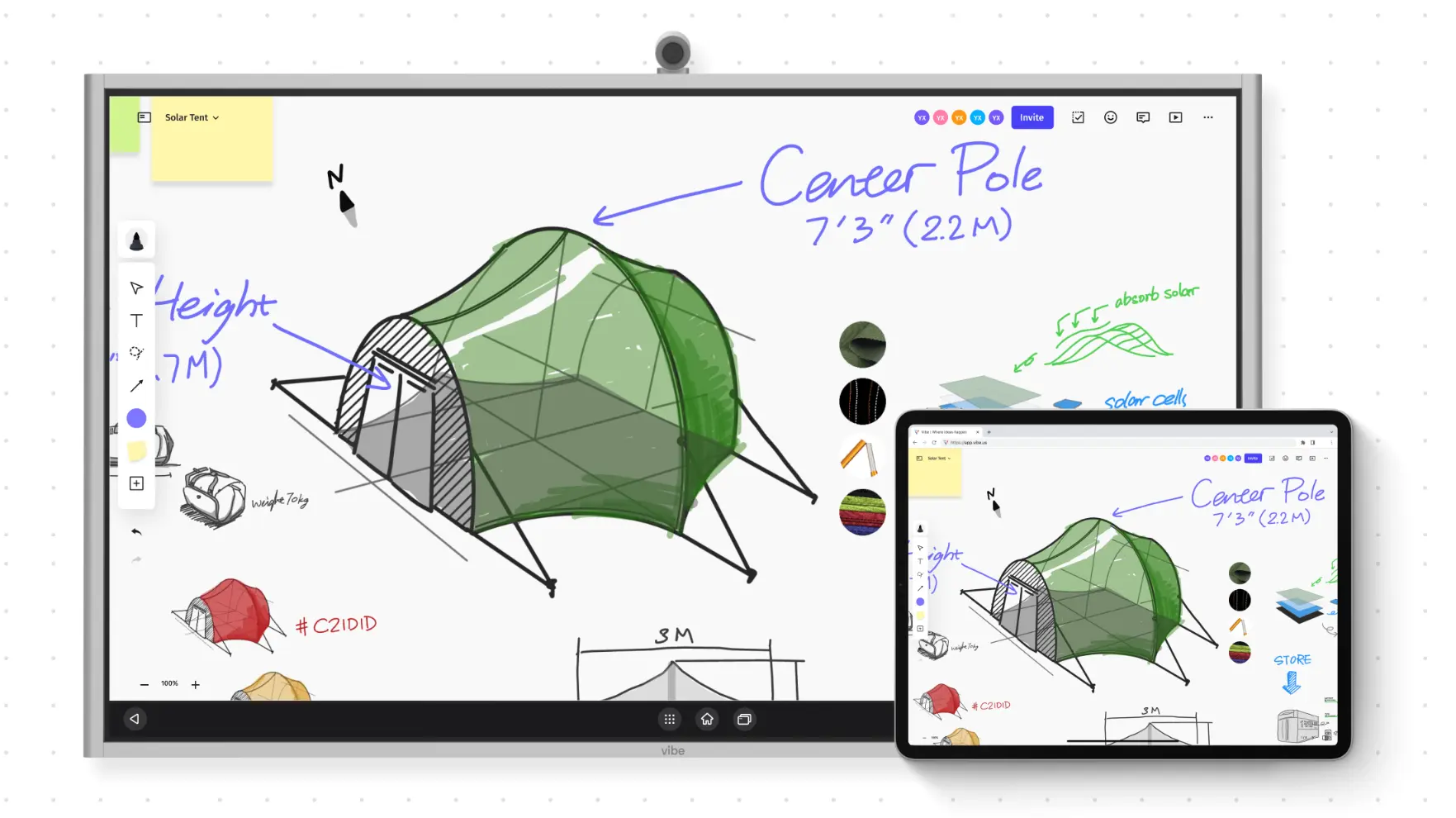
The Canvas Toolbar
The toolbar gives you access to every drawing and editing tool in Canvas. It sits along the edge of the screen and can be repositioned to the left, right, or bottom — whichever position suits your workflow.
Key tools:
-
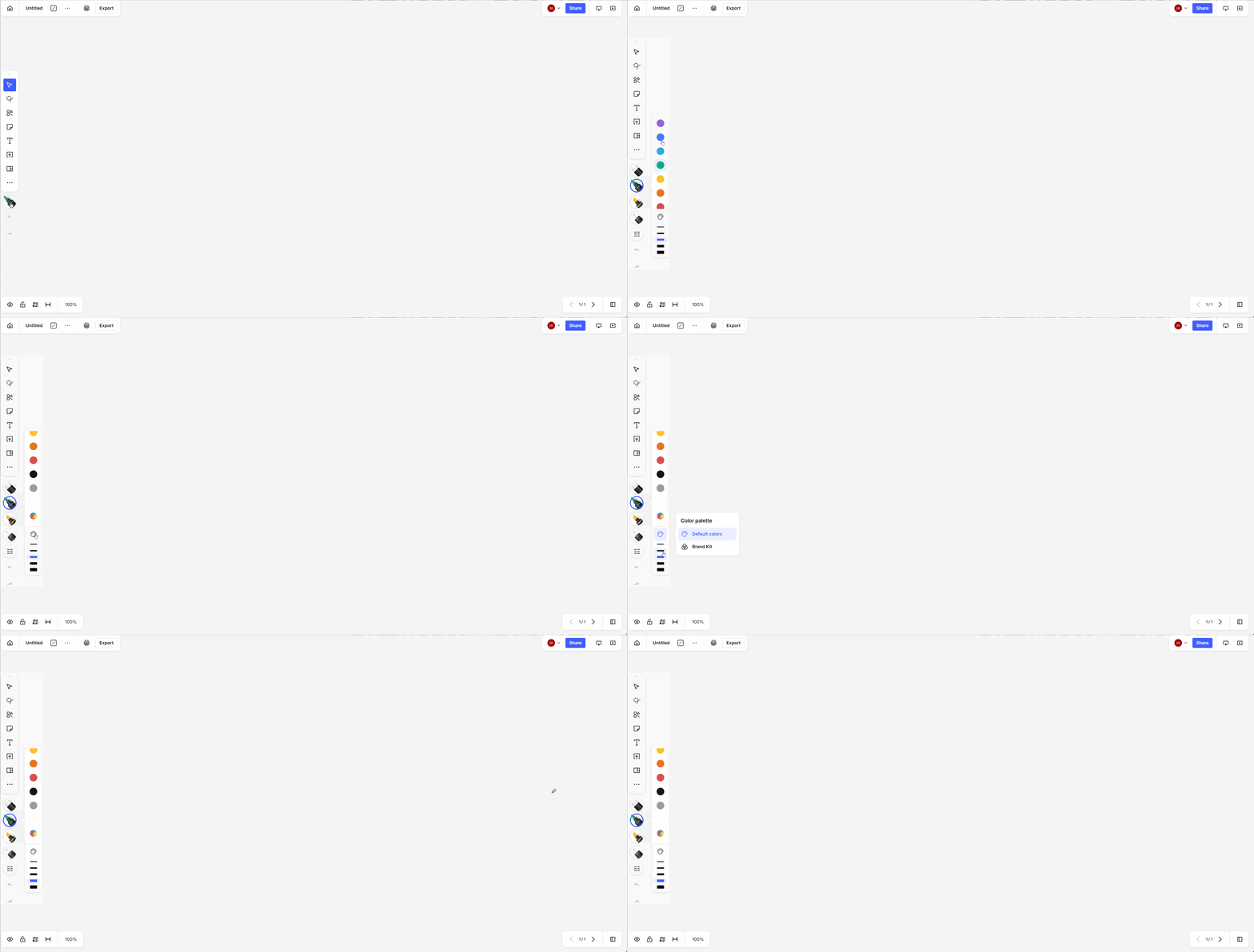
Pens and brushes — including ballpoint, chalk, and pencil; customize color using hex codes to match brand colors, and save favorite pen configurations to the Pens Panel for quick reuse
-
Smart Text — write anything freehand, then convert it to standard formatted font with a tap; works on the canvas, inside shapes, and on sticky notes
-
Smart Shapes — draw any shape roughly, hold contact at the end of your stroke, and Canvas snaps it to a clean geometric shape automatically; connect shapes with lines to build instant flowcharts
-
Sticky Notes — add by tapping the icon or by drawing a note directly with your pen
-
Shapes, tables, and text boxes — for structured layouts and organized note-taking
-
Laser pointer — draw temporary attention to any area of the canvas during a presentation
-
Templates — access directly from the toolbar; choose from Vibe's built-in library or create and save custom templates
To switch between your drawing tools and other tools like shapes or sticky notes, toggle between the Pens Panel and the Tools Panel at any time.
Importing Files into Vibe Canvas
You can bring existing documents directly into Canvas to annotate and collaborate on. Supported sources include local device storage, Google Drive, OneDrive, Dropbox, and Box.
|
File type |
Supported sources |
Limit |
|---|---|---|
|
|
Any |
100 pages |
|
PNG / JPG / GIF |
Any |
5MB per file |
|
Google Docs / Slides / Sheets |
Google Drive, Dropbox |
100 pages |
|
Microsoft Word / PowerPoint |
OneDrive, Dropbox |
100 pages |
|
Microsoft Excel |
OneDrive |
100 pages |
How to import: Tap the Insert button in Canvas and choose your source — local device, cloud drive, or Google Images.
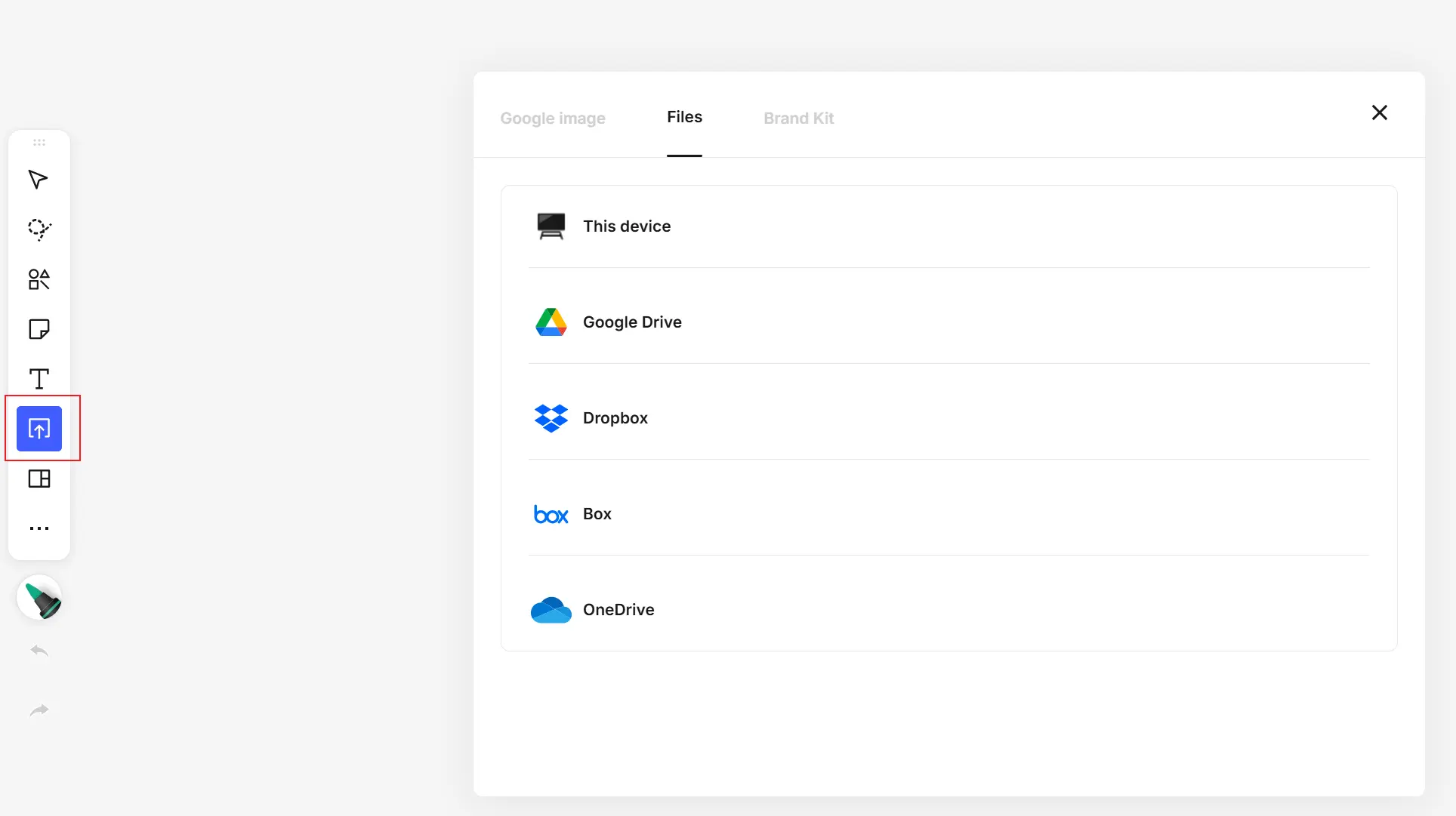 Insert files to your whiteboard
A few things worth knowing:
-
Image files import as moveable, resizable objects — treat them like sticky notes
-
Document files (PDF, Word, PowerPoint) import as canvas pages; they become part of the board and cannot be erased, but you can delete individual pages
-
PowerPoint files with animations or embedded videos will not import correctly; export as PDF first before importing from Google Drive, Box, or local storage
Exporting: When you're done, tap Export in the top right and choose Export PDF to email or Export PDF to this device, or save the canvas as a PDF to Google Drive, OneDrive, Dropbox, or Box. Multi-page boards export as a single multi-page PDF.
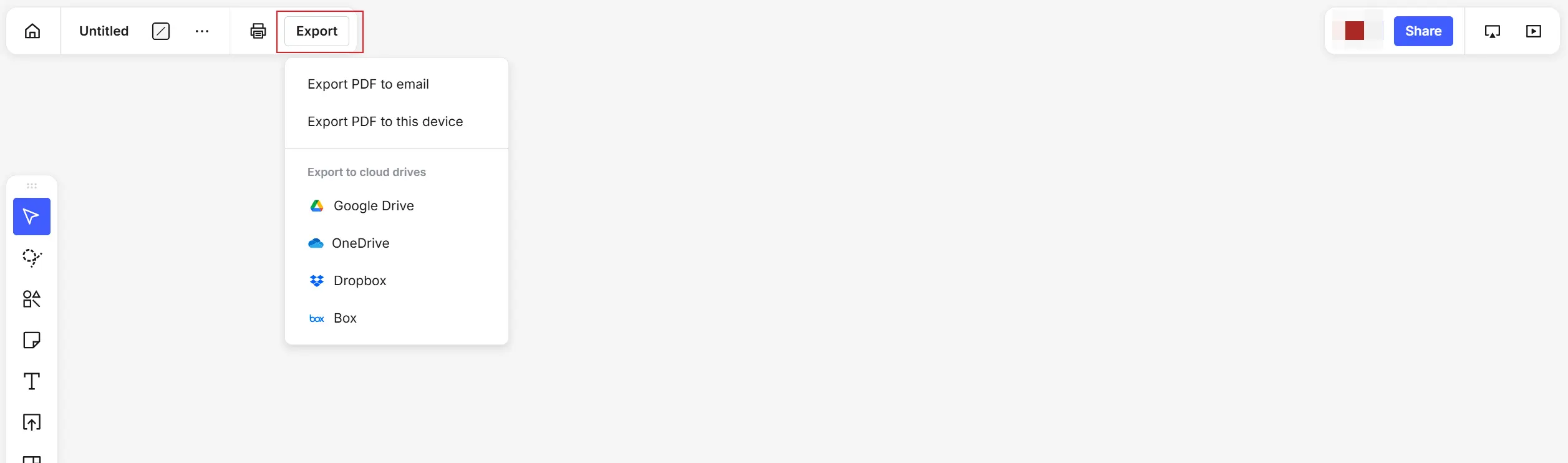 Export your files from Vibe Canvas
Collaboration and Sharing
Vibe Canvas is built for real-time collaboration — in-room and remote participants work on the same board simultaneously.
To invite others to a board:
-
Tap Share and generate a link or QR code
-
Recipients open the link in any browser — no Vibe account required to join as a guest
-
Signed-in users can edit; guest users can view and contribute depending on permissions set
During a meeting:
-
Use Canvas while presenting in Zoom, Microsoft Teams, or Google Meet — share your screen and the Canvas session appears live in the call
-
Use split-screen on the Vibe Board S1 to show Canvas on one side and your video call on the other
-
Use Cast to mirror your Canvas to another Vibe Board in the same workspace
After a meeting:
-
All changes are automatically saved to your Vibe account in real time — no manual save needed
-
Export and share the finished board via email, Slack, or cloud drive
-
Return to any board at any time to add new content or review past sessions
Staying Organized: Pages and Folders
Pages: Canvas supports multi-page boards — tap the arrow at the bottom to add a new page, and use the page list to navigate between them. Rename any page by tapping the more menu and selecting Add page title. This is particularly useful for multi-step meetings, agendas, or training sessions where you want to keep each topic on its own page.
Minimap: For large, content-heavy canvases, open the Minimap from the bottom-left corner to see your current position and quickly navigate to any area of the board.
Folders: From the Canvas home screen, organize boards into folders to keep projects separated and easy to find. Pin frequently used folders to the sidebar for one-tap access.
Recent Updates Worth Knowing
Vibe Canvas updates regularly. Here is what is current as of Canvas 3.3.0 (released August 2026):
-
Higher-resolution PDF rendering — improved viewing clarity for large PDF files
-
Quick Share during meetings — when sharing a Canvas while in a Vibe One-Click VC meeting, Canvas suggests the email addresses of meeting attendees so you can share with one tap (requires VibeOS 2.5.0 or later; Vibe One-Click VC meetings only)
-
Template access from the toolbar — the Template entry now lives directly in the toolbar for faster access mid-session
Canvas 3.2.0 (April 2026) added:
-
Tables — create a table from the toolbar or paste in a table from a third-party source
-
In-canvas search — find text content within the current page
-
Page renaming — rename any page directly from the page menu
For the complete version history, see the Vibe Canvas release history in the Help Center.
Get Started with Vibe Canvas
Vibe Canvas comes built into every Vibe Board S1, and the web and mobile apps are free to access. Whether you are brainstorming with your in-room team, annotating a client's PDF, or running a hybrid workshop where half the room is remote, Canvas is designed to keep everyone working on the same surface.
For step-by-step help, visit the Vibe Canvas section of the Help Center.
Frequently Asked Questions
How do I log in to Vibe Canvas?
Go to app.vibe.us in any browser and sign in with Google, Microsoft, Slack, or Apple ID. On a Vibe Board, tap Vibe Canvas from the home screen — if you are already signed into your Vibe account on the board, Canvas opens directly into your boards. Guest access is available via a shared link with no account required.
Can I use Vibe Canvas without a Vibe Board?
Yes. Vibe Canvas is accessible from any computer or tablet at app.vibe.us. On iPad, download the Vibe Canvas app from the App Store. On Android tablets, use the web app at app.vibe.us. Phone apps (iPhone and Android) are view-only and cannot edit boards.
What file types can I import into Vibe Canvas?
Canvas supports PDF, PNG, JPG, GIF, Google Docs, Google Slides, Google Sheets, Microsoft Word, PowerPoint, and Excel — with a 100-page limit for documents and a 5MB limit for images. Cloud sources include Google Drive, OneDrive, Dropbox, and Box. PowerPoint files with animations should be exported as PDF before importing.
Does Vibe Canvas save automatically?
Yes. All changes made on a signed-in account are saved to your Vibe account in real time. Guest users' work may not be saved after the session ends unless they sign in.
Can remote participants collaborate on a Vibe Canvas session?
Yes. Share the board via a link or QR code, and remote participants can join from any browser in real time — no Vibe account or app required to collaborate as a guest. For meeting sessions, Canvas works alongside Zoom, Teams, and Google Meet simultaneously.
How do I export a Vibe Canvas board?
Tap Export in the top-right corner of Canvas and choose Export to cloud drive (Google Drive, OneDrive, Dropbox, or Box) or download as a PDF. Multi-page boards export as a single PDF with all pages included.