Choosing a video conferencing platform for your school or university sounds straightforward until you realize that a K-12 hybrid classroom, a 200-seat lecture hall, and a solo educator recording lessons from home all need fundamentally different setups. Picking the wrong tool—or more commonly, picking the right software with the wrong hardware—is how schools end up with remote students who can barely hear the lesson and teachers who spend the first ten minutes of every class troubleshooting audio.
This guide cuts through the platform comparison noise and focuses on the question that actually matters: what does your specific teaching scenario require? We cover the four most common educational environments, match each to the right combination of software and in-room hardware, and walk through the features and compliance requirements that apply across all of them.
By the time you finish, you will have a clear framework for evaluating video conferencing solutions for education—and a short list of questions to bring to any vendor conversation.
- The right video conferencing setup depends on your classroom type, not just your platform preference.
- Software and in-room hardware are separate decisions that have to work together—getting one right and the other wrong is the most common mistake schools make.
- Hybrid classrooms need dedicated room hardware; a laptop camera pointed at the room is not a hybrid classroom setup.
- LMS integration, FERPA compliance, and recording capabilities are non-negotiable requirements for any educational deployment.
Why Classroom Type Comes Before Platform Choice
Most video conferencing comparisons for education start with a feature matrix: Zoom vs. Teams vs. Meet vs. Webex. That framing is useful but incomplete, because the platform is only half the equation. The other half is the physical space and the teaching scenario it supports.
Consider two teachers at the same school, both using Zoom. One runs a fully remote class where every student is at home—her setup is essentially a high-quality webcam and a good microphone at her desk. The second teacher has fifteen students in the room and ten joining remotely at the same time. If he relies on a laptop camera pointed at the classroom, remote students hear a hollow echo, see a wide-angle shot of the back of other students’ heads, and miss every moment the teacher turns to the whiteboard. Same platform, completely different experience.
The gap in experience between in-room and remote students is almost never a software problem—it is almost always an audio and camera problem. A laptop’s built-in microphone picks up room echo; its wide-angle camera makes the teacher look small and stops tracking the moment they step away from the desk. That is why hardware selection is part of the video conferencing decision, not a separate afterthought.
The framework below organizes the decision by four teaching scenarios. Most schools will recognize themselves in one or two of them.
The Four Educational Video Conferencing Scenarios
Scenario 1: The Hybrid Classroom (Some Students In-Room, Some Remote, Simultaneously)
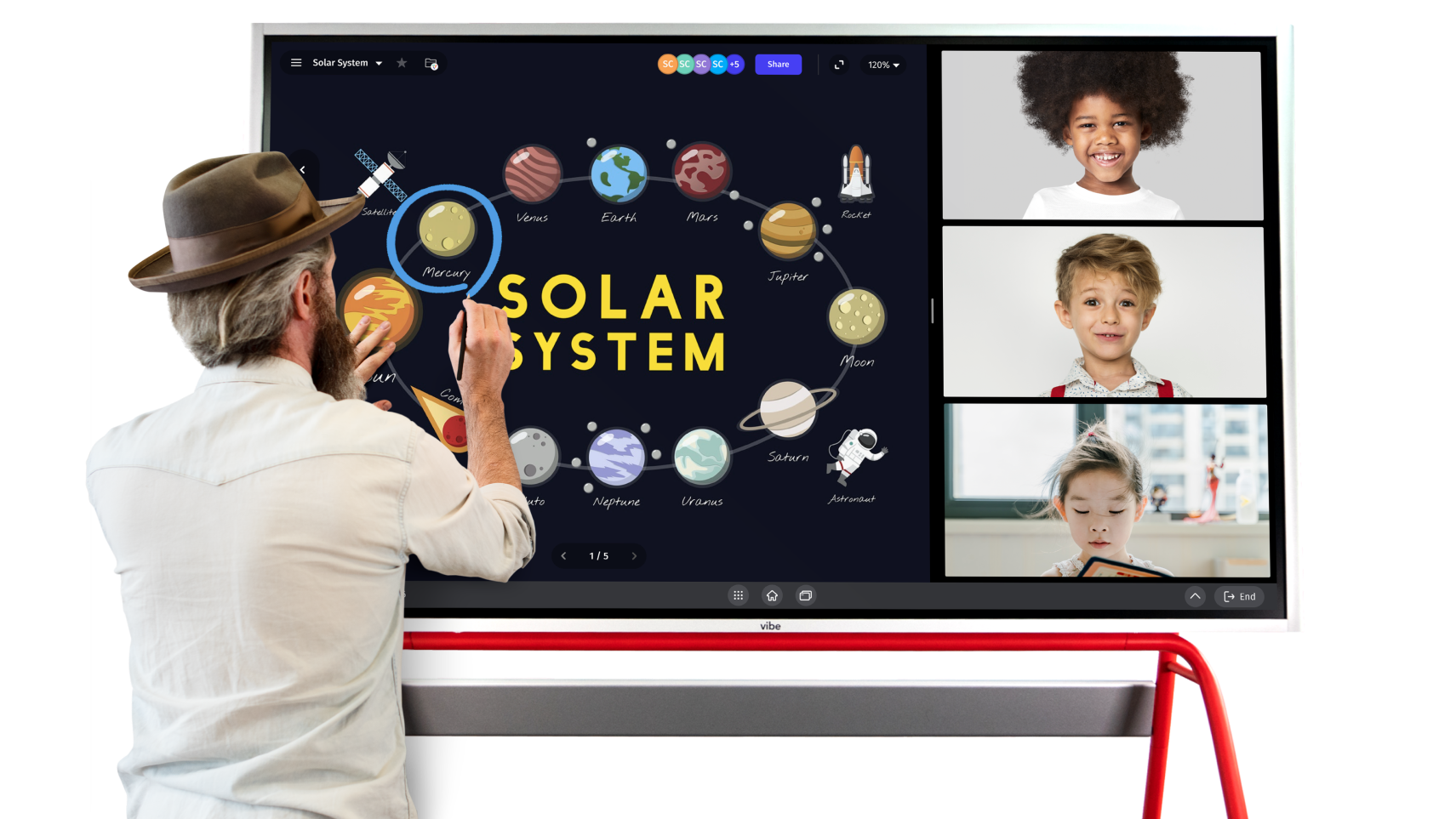
This is the most technically demanding scenario—and the one where the average school setup falls furthest short. A hybrid classroom runs a live session where in-room students and remote students participate at the same time, which means the room itself needs to be a first-class participant in the call.
What that requires in practice: a shared visual surface that both groups can see and interact with simultaneously, a microphone array that picks up the whole room clearly (not just whoever is sitting near the laptop), and a speaker system that lets remote participants’ audio fill the space naturally. A laptop sitting on the desk handles none of these well.
Software needs for hybrid classrooms:
-
Breakout rooms that can be configured quickly for small-group work
-
Screen sharing and annotation tools that remote students can interact with, not just watch
-
LMS integration so that joining a class session requires one click from the course page, not a separate meeting link
-
Recording with automatic transcription, so students who miss a session get a complete record
Hardware needs for hybrid classrooms:
-
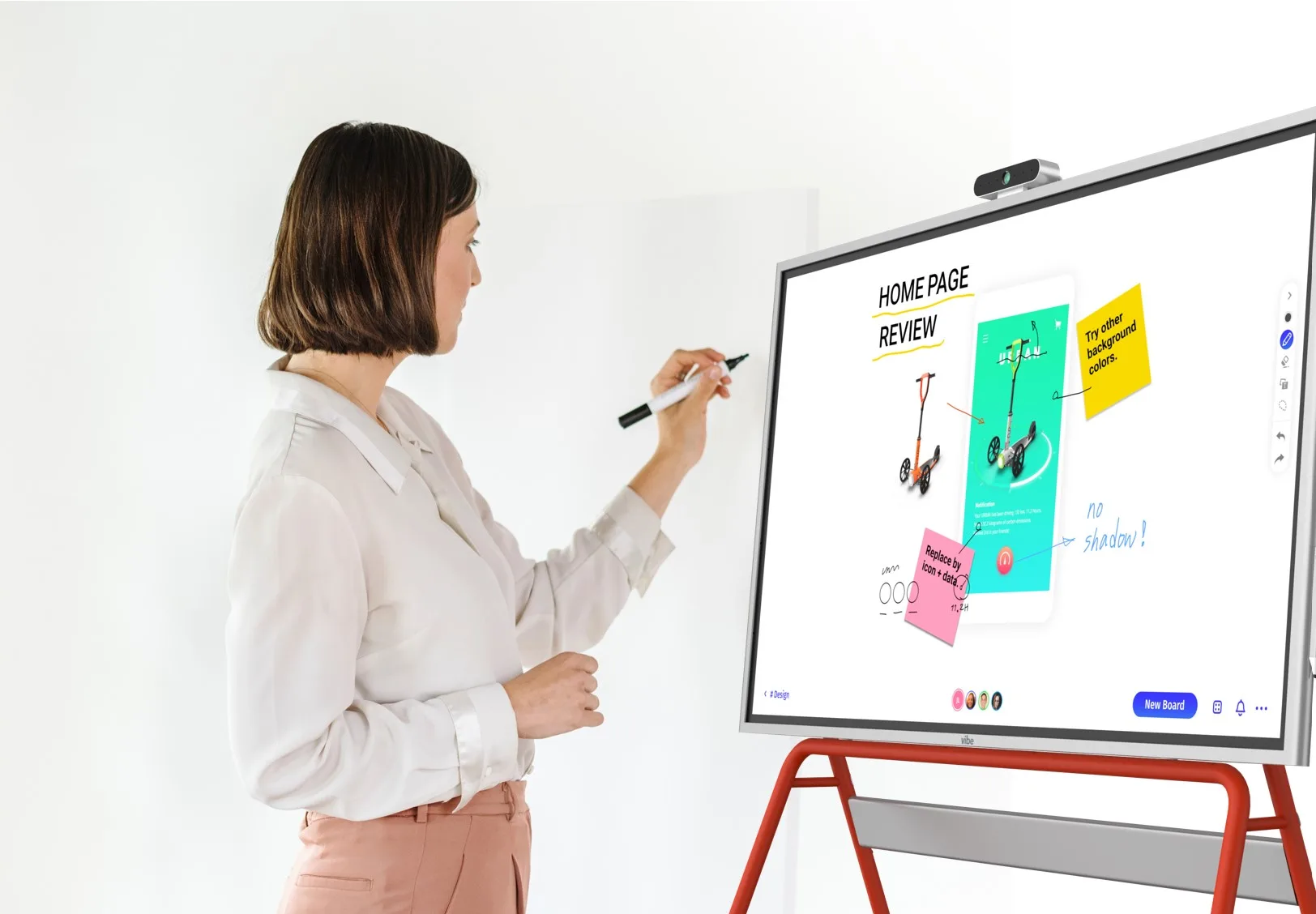
An interactive smartboard as the visual anchor—so in-room and remote students follow the same content in real time, with annotations both groups can see
-
A multi-microphone array or 360° audio capture so every voice in the room is heard clearly
-
A display large enough that in-room students and the teacher can see remote participants and shared content simultaneously
Scenario 2: The Lecture Hall or Seminar Room (Large In-Person Group with Remote Participants)
A university lecture hall or large seminar room has different constraints than a K-12 classroom. The physical space is larger, which means a single display at the front of the room cannot adequately serve a presenter who moves, and a single microphone cannot reliably pick up questions from the audience.
The primary challenge in this setting is content visibility and audio clarity—making sure remote participants can follow along with the same quality as students who are physically present. Secondary concerns include managing a high participant count on the video call side and ensuring that recordings are clean enough to serve as reference material after the session.
Software needs for lecture halls:
-
High participant capacity (most paid tiers of the major platforms support 100–1,000 participants)
-
Webinar-mode features: attendee mute controls, Q&A queues, polling, and hand-raise management
-
Cloud recording with reliable transcription for lecture capture workflows
-
LMS integration for distributing recordings back to enrolled students automatically
Hardware needs for lecture halls:
-
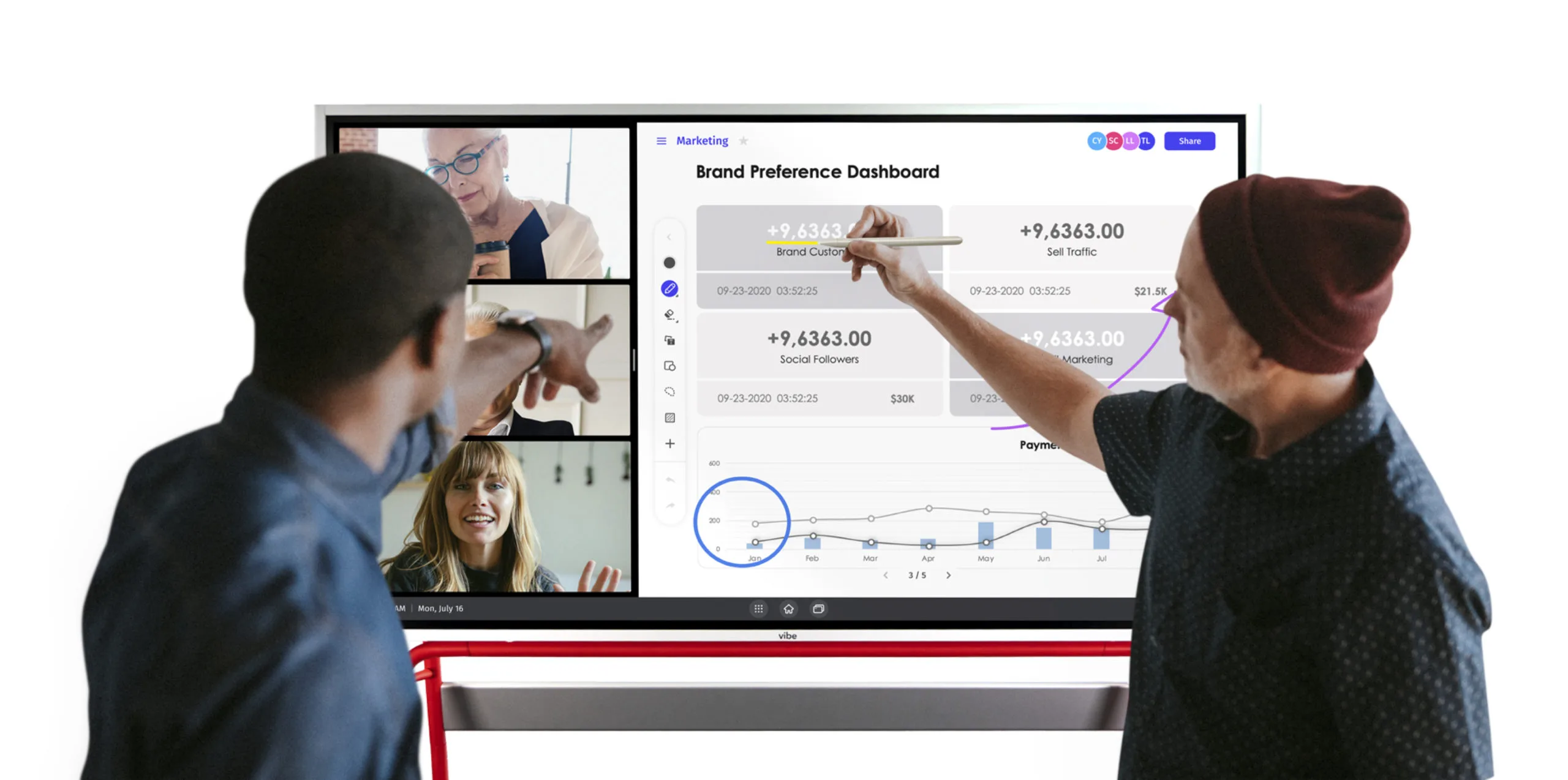
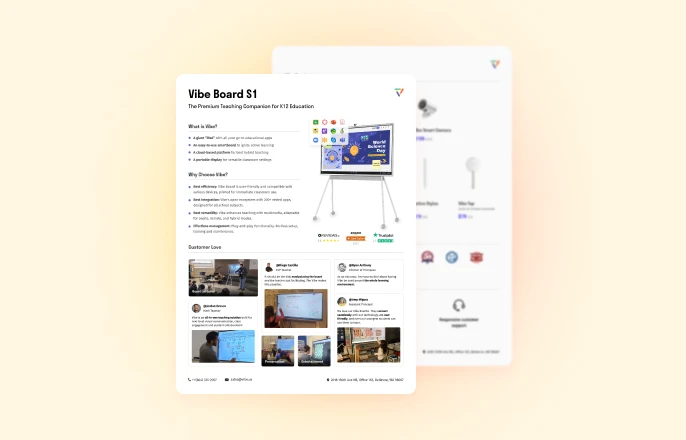
A large interactive smartboard at the front of the room—so the lecturer can present, annotate, and share content that both in-room and remote students follow in real time. The Vibe Board S1 works natively with Zoom, Microsoft Teams, and Google Meet, making it a practical anchor for lecture delivery without requiring a separate display setup
-
A ceiling microphone array or multiple directional microphones to capture audience questions clearly
-
A personal recording device for individual students who want to capture lectures for later review and note-taking—particularly useful for complex seminars where students benefit from revisiting the material at their own pace
Scenario 3: Fully Remote or Asynchronous Classes
For fully remote teaching—whether synchronous (everyone joins live) or asynchronous (students watch recorded lessons on their own time)—the hardware demands are lower but the software requirements around recording quality, LMS integration, and engagement features become more important.
The key differentiator in fully remote education is engagement: the features that keep students participating when they are not physically in a room with each other. Breakout rooms for small-group discussion, polling, reaction tools, and collaborative annotation all do real work here.
 Usage Scenario of Google Meet
Software needs for fully remote classes:
-
Polling, Q&A, reactions, and breakout rooms to substitute for in-person interaction
-
High-quality recording with cloud storage and easy sharing to the LMS
-
Reliable performance across a range of student device types and internet speeds
-
Waiting room and participant management controls for session security
Hardware needs: This scenario is the most forgiving on hardware. A good USB webcam, a quality headset or USB microphone, and stable internet are sufficient for most teachers. A ring light and a clean background help keep production quality consistent across recorded lectures.
Scenario 4: Staff Meetings, Professional Development, and Parent Conferences
Schools run a significant volume of video calls that are not student-facing: faculty meetings, department planning sessions, IEP and parent-teacher conferences, and professional development sessions. These conversations often contain sensitive information, which raises specific privacy and data-handling requirements distinct from classroom recording policies.
Key considerations for this scenario:
-
Participant management features (only staff and invited parents, no student accounts).
-
Recording policies that comply with FERPA’s handling of education records—sessions involving student information require careful handling of who can access recordings.
-
Calendar integration with the school’s existing scheduling system to reduce friction in setting up recurring sessions.
Platform Comparison: Zoom, Google Meet, Microsoft Teams, and Cisco Webex
Once you have identified your primary teaching scenario, the platform choice becomes more straightforward. Here is how the four major options compare on the criteria that matter most for educational deployments.
|
Platform |
Best-fit scenario |
LMS integration |
Free tier limits |
Education pricing (paid) |
Key strength |
Key limitation
|
|---|---|---|---|---|---|---|
|
Zoom |
K-12 hybrid and higher ed general use |
Canvas, Moodle, Blackboard, Schoology via LTI |
100 participants, 40-min cap |
School/Campus plan from $10/month (up to 300 participants) |
Widest ecosystem of education add-ons; mature breakout room controls |
Not a full LMS; free tier time limit is disruptive in class settings |
|
Google Meet |
Schools on Google Workspace for Education |
Native LTI for Canvas; deep Google Classroom integration |
100 participants, 60-min cap for group meetings |
Three paid tiers; pricing on request for 100–500 participants |
Frictionless join flow for Google schools; automatic integration with Calendar and Drive |
Fewer built-in engagement features than specialized edtech platforms |
|
Microsoft Teams |
Institutions standardized on Microsoft 365 |
LTI 1.3 across Canvas, Schoology, Brightspace, Blackboard, Moodle |
100 participants, 60-min cap |
A1 (free for eligible institutions), A3, A5; pricing on request |
Full hub: meetings, chat, assignments, files, and compliance in one place |
Higher administrative complexity; steeper learning curve for simple session use |
|
Cisco Webex |
Institutions prioritizing enterprise-grade compliance and LMS workflows |
Education Connector for Canvas, Blackboard, Moodle, Brightspace, Sakai |
100 participants; 40–50 min cap (varies by region) |
Webex Meet from $144/year (up to 200 participants); Enterprise pricing on request |
Strongest admin controls; Education Connector embeds scheduling and attendance directly in LMS |
Advanced features require paid tiers; free plan caps vary and can surprise users in different regions |
Pro tip: Before committing district-wide or campus-wide, run a pilot with a group of five to ten teachers across different classroom types. The features that feel important in a product demo often look different when you are forty minutes into a hybrid lecture with thirty students.
Five Features Every Educational Video Conferencing Solution Needs
Regardless of scenario, these five capabilities should be present in any platform you deploy in an educational setting.
1. LMS Integration That Actually Works
The best indicator of whether an LMS integration is useful is whether students can join a session with a single click from inside the course page—no separate meeting link, no copy-pasting a passcode, no separate sign-in. Canvas, Moodle, Blackboard, and Schoology all support LTI-based integrations with major platforms. Verify that the specific LTI version (preferably LTI 1.3 Advantage) is supported before signing a contract.
2. Recording with Reliable Transcription
Session recordings serve multiple functions: students who miss a class can catch up, students with learning accommodations get a text record to review, and teachers build a library of reusable content over time. Transcription quality varies significantly across platforms—test it with content that includes subject-specific vocabulary before assuming it will work reliably.
3. Engagement Tools: Breakout Rooms, Polling, and Annotation
These features are not nice-to-haves in an educational context—they are the mechanism by which active learning happens in a remote or hybrid setting. Breakout rooms that can be pre-assigned and launched quickly are significantly more useful than ones that require manual setup during a session. Annotation tools that students can interact with (not just the teacher) enable collaborative work rather than passive observation.
4. FERPA and COPPA Compliance
Any platform that records sessions involving identifiable student information is handling education records under FERPA. Key requirements include: access controls that limit who can view recordings, data retention policies that align with school policy, and a willingness to sign a data processing agreement. For K-12 platforms serving students under 13, COPPA compliance adds additional requirements around data collection and parental consent. All four platforms above offer compliant configurations at paid tiers—verify this explicitly, since compliance features are not always enabled by default.
5. Waiting Rooms and Session Security Controls
Class sessions need the same access controls as any sensitive meeting: a waiting room so the teacher can verify participants before admitting them, the ability to remove participants, and controls over screen sharing permissions (so that students cannot share their screen unexpectedly during a session). These features exist in all major platforms but need to be configured intentionally—default settings are not always appropriate for a classroom environment.
What Schools Commonly Get Wrong
Having worked with schools across K-12 and higher education environments, a few mistakes come up consistently.
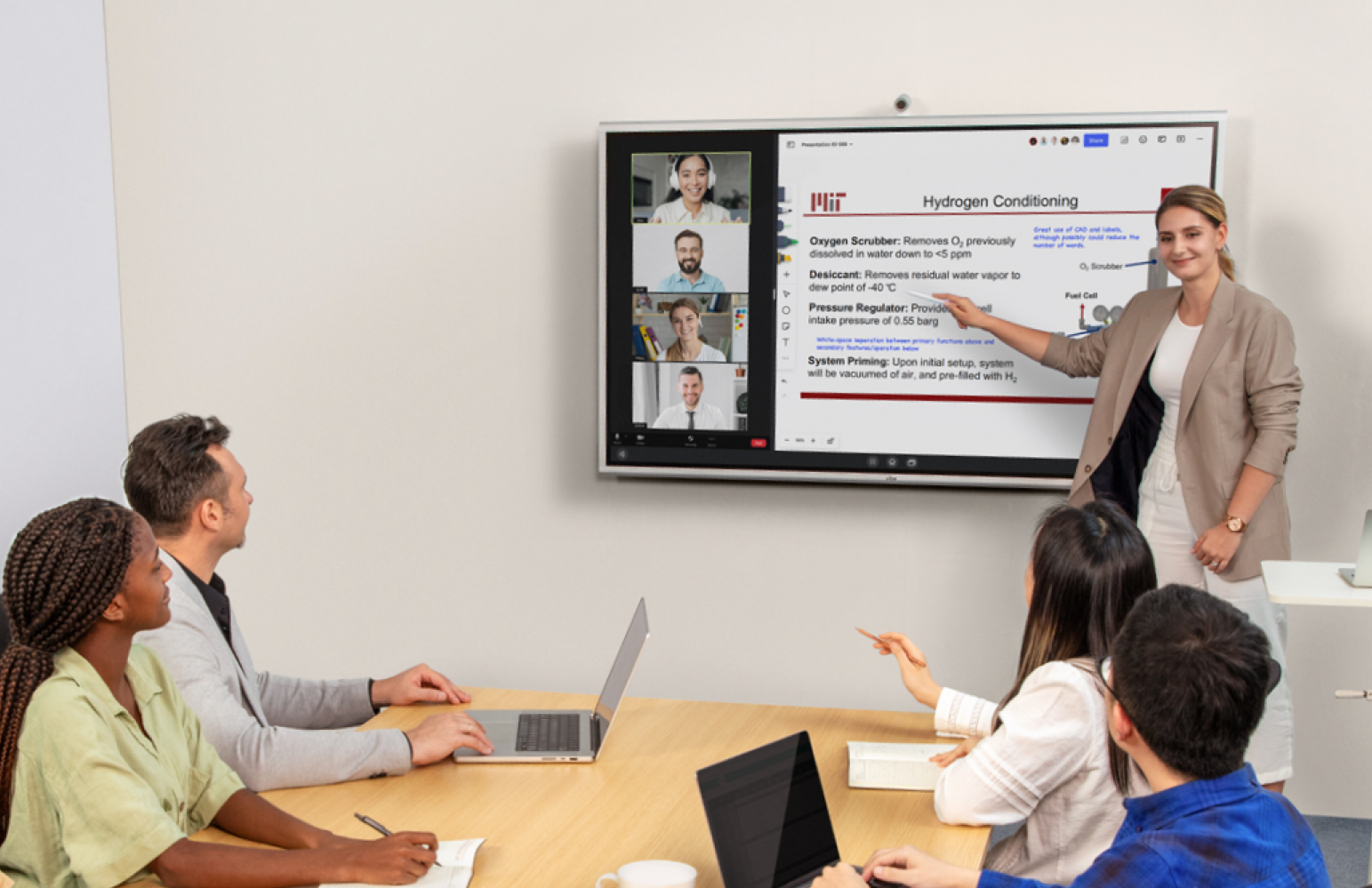
Using a whiteboard as an afterthought. Many hybrid classrooms treat the whiteboard as a backup tool rather than the primary content surface. When the teacher writes on a standard dry-erase board that remote students cannot see clearly—or switches between a laptop screen and the board mid-lesson—remote participants lose the thread. An interactive smartboard like the Vibe Board S1 serves as the single visual anchor for both groups: in-room students see it on the wall, remote students see the same canvas on their screen, and annotations are visible to everyone in real time.
Choosing a platform for its free tier. Free tiers have meeting time limits that interrupt classes at the worst possible moments. The cost difference between a free account and an education-tier subscription is almost always smaller than the cost in teacher and student time caused by a disrupted session. Budget for a paid plan from the start.
Skipping the LMS integration step. When students have to navigate to a separate platform to join a class session, dropout rates for those sessions increase. Seamless LMS integration is not a convenience feature—it is a retention mechanism.
Treating recording as an afterthought. Many schools enable recording only for formal lectures and do not set up consistent policies for hybrid sessions, parent conferences, or professional development. A clear policy about what gets recorded, where it is stored, who can access it, and how long it is retained should precede any deployment.
Advantages and Disadvantages of Video Conferencing in Education
Video conferencing expands access, creates flexibility, and opens up teaching possibilities that simply did not exist before. It also introduces real challenges that schools need to manage deliberately.

Advantages:
-
Accessibility: Students who cannot attend in person—due to illness, geography, or disability—can participate fully in a session. This is not a workaround; it is a meaningful expansion of who education can reach.
-
Flexibility for teachers: Recorded sessions give students multiple ways to engage with material. Students can revisit a confusing explanation, review at their own pace, and catch up on sessions they missed without depending entirely on classmates’ notes.
-
Global connectivity: Guest lectures, cross-school collaborations, and connections with experts or peer classrooms in other locations all become logistically straightforward rather than exceptional events requiring significant planning.
-
A library of reusable content: Over time, recorded sessions accumulate into a genuine teaching resource that can be reused across cohorts, used as review material, or adapted for asynchronous learning.
Disadvantages and challenges:
-
Technology fatigue: Extended video sessions are more cognitively demanding than in-person learning for many students. Shorter sessions with more structured breaks, or mixing synchronous and asynchronous approaches, helps manage this.
-
Equity and access gaps: 88% of U.S. public schools reported a 1-to-1 computing program in 2024–25, but home internet access remains uneven. Schools deploying remote or hybrid learning need a plan for students who face connectivity constraints outside school.
-
Setup and support burden: Hybrid and multi-platform setups require IT support and teacher training. A 2026 University of West Alabama survey found that only 37% of K-12 teachers felt they received adequate training for hybrid teaching—a significant gap that affects outcomes more than the choice of platform.
-
Privacy and compliance complexity: Recording students creates obligations that many schools underestimate initially. Building FERPA-compliant workflows into the setup from the beginning is significantly easier than retrofitting them later.
Matching Hardware to Your Teaching Scenario: A Quick Reference
|
Scenario |
Minimum hardware |
Recommended upgrade
|
|---|---|---|
|
Hybrid classroom (K-12) |
External webcam + USB microphone |
Dedicated in-room conference camera with 4K auto-tracking and 360° audio capture; large interactive display for shared content |
|
Lecture hall / seminar room |
PTZ camera + ceiling microphone array |
Multi-camera setup with speaker tracking; integrated lecture capture system |
|
Fully remote / asynchronous |
Quality USB webcam + headset |
Ring light + USB microphone for consistent recording quality |
|
Staff meetings and parent conferences |
Laptop built-in camera and microphone (acceptable for 1:1 and small groups) |
Dedicated conference speakerphone for rooms with more than three participants |
Next Steps
If you are starting the evaluation process, the most useful first step is mapping your teaching scenarios to the framework above—not starting with a platform comparison. Identify which of the four scenarios represents most of your use cases, then use the feature and hardware requirements in that section to build your evaluation criteria before talking to vendors.
For schools specifically looking to upgrade hybrid classroom infrastructure, the Vibe K-12 solutions page covers the Vibe Board S1 interactive smartboard and how it works alongside the video conferencing platform your school already uses. You can also request a demo to see how these tools work together in a classroom setting.
FAQ
What video conferencing setup allows a teacher to present to both in-room and remote students during a whole class lesson?
A hybrid classroom setup requires three things working together: a room-scale camera that captures the teacher and the board (not just a laptop camera pointed at the front of the room), a microphone array that picks up audio from across the room clearly, and a display large enough that in-room students can see remote participants. The conferencing platform itself—Zoom, Meet, or Teams—handles the software side, but none of them compensate for inadequate in-room hardware. A dedicated in-room camera device with 4K auto-tracking and 360° audio is designed specifically for this use case.
What does a school need to set up a reliable video conferencing station in a K-12 hybrid classroom?
At minimum: a dedicated camera (not a laptop webcam) with auto-framing capability, a multi-directional microphone that covers the full room, a display of at least 55 inches so remote participants are visible to in-room students, a stable wired or high-speed wireless internet connection, and a conferencing platform with an active LMS integration. Optional but valuable: a smartboard or interactive display so the teacher can annotate and share content that both groups can interact with simultaneously. For schools that want an integrated rather than pieced-together setup, an all-in-one in-room conference device handles camera, audio, and recording capture in one unit.
What is the best video conferencing setup for a university classroom that hosts both in-person and remote students?
University classrooms have more variation in size than K-12 environments, so the answer depends on the room. For a standard seminar room of twenty to thirty seats, a PTZ camera with speaker tracking, a ceiling microphone array, and a platform running in webinar-style mode for larger groups covers most cases. For lecture halls over 100 seats, a multi-camera setup with a professional lecture capture system is worth the investment, since those recordings serve as reference material for many students over multiple semesters. In all cases, the platform should integrate with the institution’s LMS so that recordings are automatically available to enrolled students.
What are the benefits of video conferencing in education?
The most meaningful benefits are expanded access (students who cannot attend in person can participate fully), flexibility for both teachers and students (recorded sessions create multiple ways to engage with material), and the ability to connect classrooms with outside experts and peer institutions without travel logistics. For schools specifically, video conferencing also creates a reusable library of lesson content over time—a significant long-term return on the initial setup investment.
What are the advantages and disadvantages of video conferencing in education?
The primary advantages are accessibility, flexibility, and the ability to record and reuse sessions. The primary disadvantages are technology fatigue for students in extended synchronous sessions, the equity gap for students with limited home connectivity, and the setup and training burden that falls on teachers and IT staff. Schools that invest in hardware, teacher training, and clear recording and privacy policies consistently see better outcomes than those that deploy software alone and expect adoption to follow.
What is the best LMS with video conferencing?
The major LMS platforms—Canvas, Moodle, Blackboard, and Schoology—do not build video conferencing natively; instead, they integrate with the major conferencing platforms via LTI. The most seamless integrations are Google Meet with Google Classroom (for schools on Google Workspace), Zoom with Canvas (the most widely deployed combination in U.S. higher education), and Microsoft Teams with any LMS that supports LTI 1.3 Advantage. The right answer depends on which platforms your school already has in place.
What video conferencing tools are best for virtual parent-teacher conferences?
For parent-teacher conferences, the priority is simplicity for the parent, not features for the teacher. A platform that allows parents to join with a single link—no account required, no app download needed—removes the most common point of failure. Google Meet and Zoom both support guest join (no account required for participants) on paid plans. For conferences involving student information, confirm that the recording and data-retention settings comply with FERPA before enabling recording on these sessions.
Are there all-in-one video conferencing solutions that work with Zoom, Teams, and Google Meet for school deployments?
Yes. Hardware-agnostic in-room conference devices are designed to work with all three major platforms—Zoom Rooms, Google Meet, and Microsoft Teams—so the school is not locked into a single platform choice. This is particularly useful for institutions that have different departments standardized on different platforms, or that want to future-proof hardware investment against platform changes.