
What Is Video Conferencing?
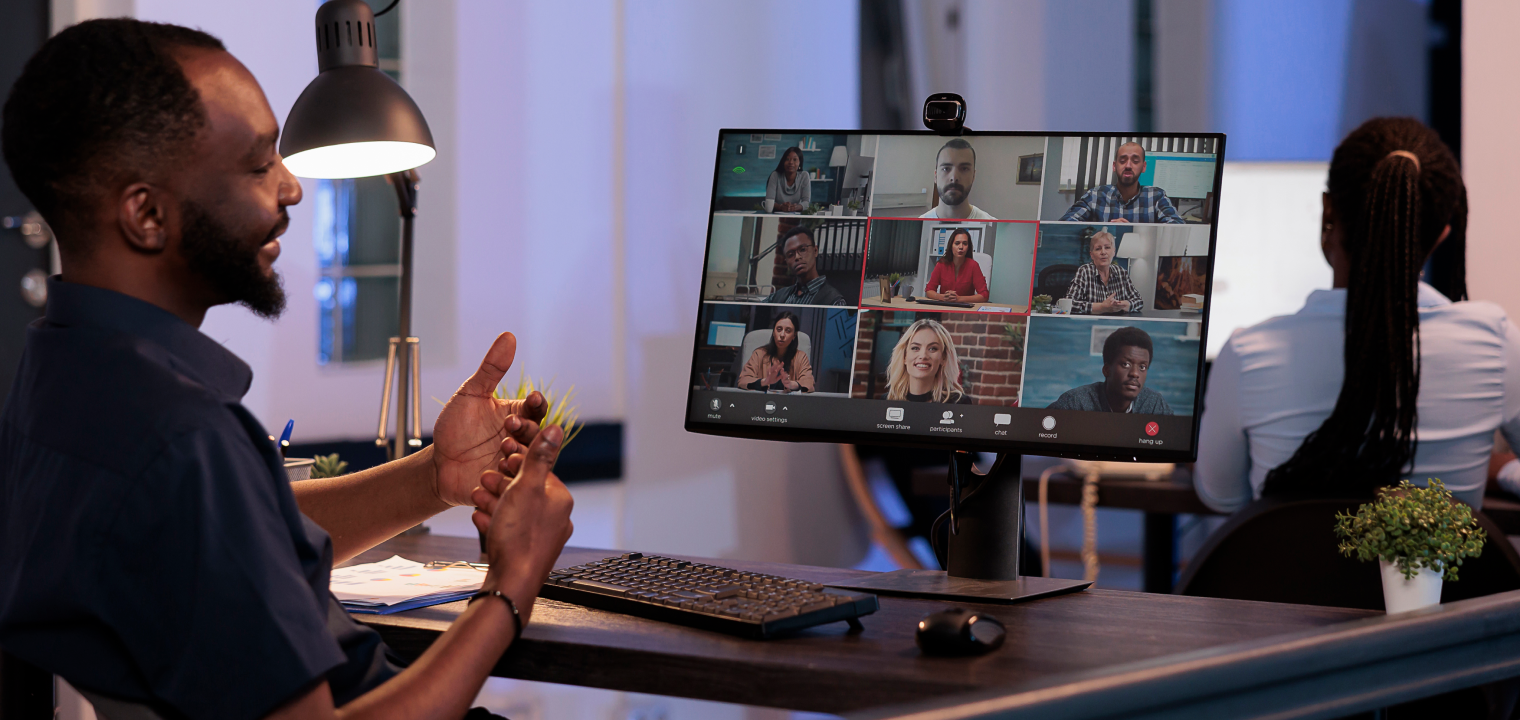
Video conferencing is live, two-way communication using audio and video over the internet, designed for groups that need to see, hear, and share information in real time. It’s distinct from a pre-recorded video or a phone call: every participant is present simultaneously, can respond immediately, and can share their screen, annotate documents, or collaborate on a whiteboard without being in the same room.
The technology has become the default medium for hybrid work, remote teams, client presentations, medical consultations, and distributed education. According to Metrigy’s AI for Business Success: 2025–26 study, 42% of companies plan to roll out AI meeting assistants in the next year, and nearly 40% have already deployed them — a sign of how central video conferencing has become to how work gets done.
The global video conferencing market was valued at approximately $10 billion in 2025 and is projected to reach $12 billion in 2026, growing at roughly 12% year-over-year (Precedence Research). That growth is no longer driven by adoption — virtually every knowledge-worker organization already uses video conferencing. It’s driven by the addition of AI, smarter hardware, and tighter integration with the rest of the work stack.
Which Platform Should You Choose? A Decision Framework
The honest answer in 2026 is that Zoom, Microsoft Teams, and Google Meet all handle basic video calls well. The difference isn’t video quality — it’s ecosystem fit, AI capability, and which use cases each handles best.
Use these three questions to narrow the choice before looking at specs:
Question 1: What ecosystem does your team already live in?
If your team runs on Microsoft 365 — Outlook, OneDrive, SharePoint — Teams is the default choice. Meetings, documents, and chat exist in one integrated space. If you live in Google Workspace — Gmail, Drive, Calendar — Google Meet is built in and adds no friction. If you operate outside either ecosystem, or regularly meet with clients and partners across organizations, Zoom’s cross-platform reach and familiarity give it a practical edge.
Question 2: Do you host large events, webinars, or external client calls?
Zoom has the strongest toolset here: webinar support up to 50,000 attendees, advanced breakout room controls, polling, and the brand recognition that makes external participants comfortable clicking a link without knowing your stack. Teams is stronger for internal-only large meetings. Google Meet scales well but has fewer controls for structured large events.
Question 3: How important is AI — and are you willing to pay for it?
Zoom’s AI Companion is included with all paid plans at no extra cost, covering meeting summaries, transcription, and action-item extraction. Google Meet’s Gemini AI is included from Business Standard tier upward. Microsoft Teams requires Copilot as an add-on ($30/user/month on top of base plan) for the most useful AI features. If AI-assisted notes and summaries are central to your workflow, factor in the full cost of each platform’s AI tier.
Platform Comparison: Zoom vs Teams vs Google Meet vs Webex (2026)
In 2026, the five platforms that collectively dominate the market are Zoom (~55% market share), Microsoft Teams (~21%), Google Meet, Cisco Webex, and RingCentral Video. Here’s how they compare on the dimensions that matter most for platform selection:
|
Platform |
Best for |
AI features |
Standout capability |
Limitation |
|---|---|---|---|---|
|
Zoom |
Cross-org calls, webinars, large events |
AI Companion included with paid plans: summaries, transcription, action items |
Best host controls; breakout rooms; widest third-party integrations |
Free tier 40-min limit; can feel heavy for simple internal teams |
|
Microsoft Teams |
Microsoft 365 organizations |
Copilot add-on ($30/user/mo): summaries, live translation, document insights |
Deepest Office integration; persistent chat alongside video |
Copilot costs extra; interface complexity; best only inside MS ecosystem |
|
Google Meet |
Google Workspace teams; simplicity |
Gemini AI (Business Standard+): "Take Notes for Me," 60+ language captions |
One-click join from Calendar; cleanest UX; Gemini-powered note summaries |
Fewer advanced controls; less useful outside Google ecosystem |
|
Cisco Webex |
Regulated industries; enterprise security |
AI Assistant: real-time translation, noise removal, meeting summaries |
Strongest built-in security and compliance; real-time multilingual translation |
Steeper learning curve; pricing less transparent; complex setup |
|
RingCentral Video |
Budget-conscious teams |
AI Notes included; meeting intelligence |
Generous free plan with no time limit; good UCaaS integration |
Less brand recognition; fewer integrations than Zoom or Teams |
Bottom line by scenario:
-
Internal teams on Office 365: Teams
-
Internal teams on Google Workspace: Google Meet
-
Client-facing calls, demos, webinars: Zoom
-
Regulated industries (healthcare, finance, government): Webex
-
Tight budget with modern AI needs: RingCentral Video
The Role of AI in Modern Video Conferencing
AI has moved from optional add-on to central capability in every major video conferencing platform. According to Metrigy’s AI for Business Success: 2025–26 study, 42% of companies plan to roll out AI meeting assistants within the next year. The AI meeting assistant market itself was valued at $2.44 billion in 2024 and is projected to reach $15.16 billion by 2032.

Here’s what AI is actually doing in video conferencing today — and where it still falls short:
What AI handles well today
Meeting summaries and transcription: All five major platforms now offer automated post-meeting summaries. Quality varies: Zoom AI Companion and Google Gemini both produce usable summaries from 30-minute meetings. Accuracy drops on jargon-heavy technical discussions or meetings with heavy accents — a limitation to be aware of for engineering standups or global teams.
Action-item extraction: AI identifies commitments made during a call ("Sarah will send the brief by Friday") and surfaces them as structured task lists. This works reliably on well-structured meetings with clear speakers. It’s less reliable on free-flowing conversations or meetings with frequent topic switches.
Real-time captions and translation: Google Meet offers live captions in 60+ languages. Zoom introduced speech-to-speech translation in December 2025, translating actual audio in real time rather than just adding subtitles — a significant improvement for multilingual teams. Webex has offered real-time translation the longest and remains the most accurate across languages.
Noise cancellation: AI-powered background noise removal is now standard on all platforms. The difference between platforms is meaningful: Zoom and Webex consistently rank highest in independent audio quality tests for noise suppression.
Where AI still falls short
Context across sessions: Every platform’s AI resets between meetings. The summary from Monday’s standup has no connection to the decision made in Thursday’s design review. Teams repeat context, re-explain decisions, and rebuild alignment from scratch every call — because no platform natively carries memory across sessions. More on how to solve this below.
Unstructured conversations: AI summarization performs significantly worse on informal brainstorming sessions, workshops with physical whiteboard work, or any meeting where multiple people talk simultaneously. These are often the highest-value meetings — and the ones AI misses most.
In-room conversations: If your call has one laptop representing a conference room of five people, the AI is working from a compromised audio signal and has no visibility into who in the room said what.
Video Conferencing for Specific Scenarios
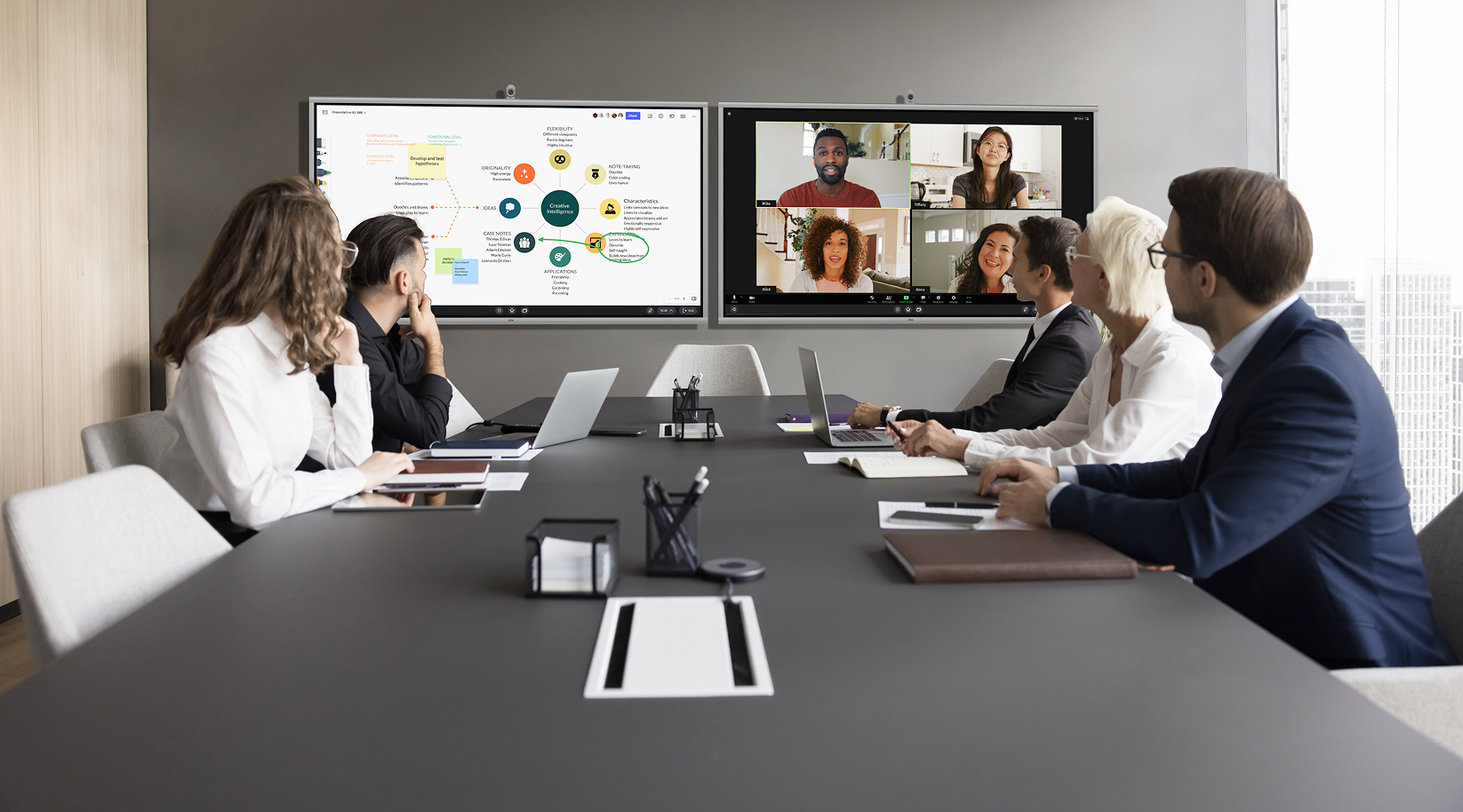
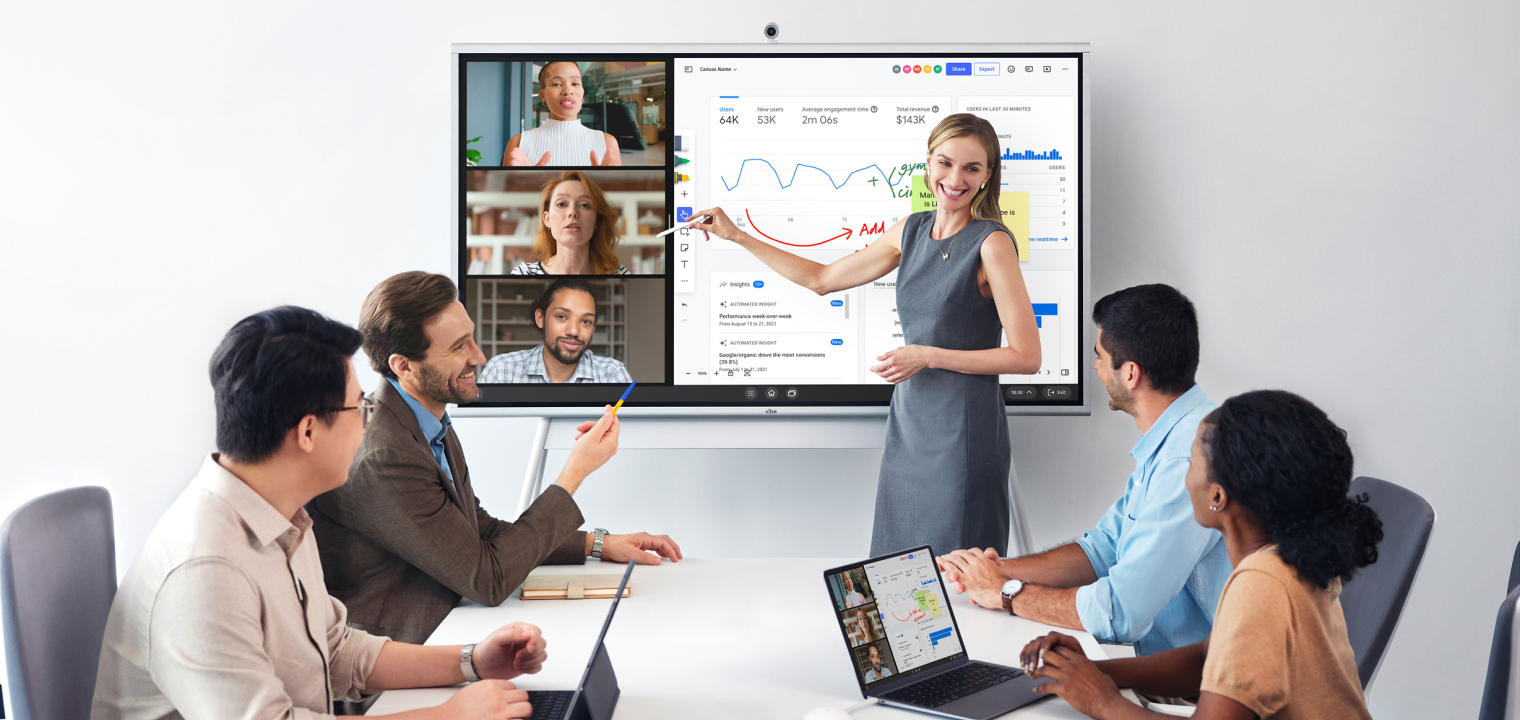 Team using a Vibe Board to share ideas in a hybrid meeting.
Hybrid teams: bridging the room and the remote
Hybrid meetings — where some participants are in a conference room and others join remotely — are consistently rated as the hardest format to run well. The room-side experience is fundamentally different from the remote-side experience, and most platforms don’t close that gap.
The key hardware upgrade for hybrid settings is a proper room camera and microphone array rather than a laptop camera. Cameras with AI auto-framing (Logitech Rally Bar, Poly Studio, or purpose-built AI devices) keep speakers centered and adjust automatically as conversation moves around the room. Multi-microphone arrays with beamforming significantly improve audio for remote participants over a single laptop mic.
For teams running hybrid meetings regularly, a dedicated meeting room system provides a meaningfully better experience than a laptop on a table.
Remote-only teams: managing meeting fatigue
Research from Microsoft’s Work Trend Index 2025 found that the average knowledge worker spends 15.4 hours per week in meetings but only 12.1 hours in uninterrupted focus work. The ratio has inverted.
Remote-only teams managing this challenge typically benefit from:
-
Asynchronous-first defaults: Reserve synchronous video time for decisions and complex problem-solving; route status updates, approvals, and information sharing to async formats.
-
Shorter meeting cadences: 25-minute and 50-minute defaults instead of 30 and 60, preserving transition time.
-
Meeting-free windows: Protected blocks of uninterrupted focus time — typically 2-4 hour windows two to three times per week.
Healthcare: HIPAA-compliant video conferencing
Healthcare providers using video conferencing for patient consultations must use platforms that support HIPAA compliance. This requires a signed Business Associate Agreement (BAA) with the vendor, end-to-end encryption, access controls for PHI, and documented security policies.
Zoom for Healthcare, Microsoft Teams (with appropriate configuration), and Cisco Webex all offer BAA agreements. Consumer-grade plans of these platforms are not HIPAA-compliant by default — the compliance features are enabled in specific healthcare tiers.
Education: FERPA and compliance considerations
Educational institutions recording lectures or student-facing sessions need to treat those recordings as education records under FERPA. Video recordings that contain personally identifiable information about students are subject to disclosure restrictions and retention policies. Google Meet for Education, Zoom for Education, and Teams for Education all include features supporting FERPA compliance, but institutions must configure them — the default settings are not automatically compliant.
Security: The Settings That Actually Matter
Most video conferencing security incidents come from misconfiguration, not from platform vulnerabilities. The NSA has noted that no single platform is fully secure by default — secure settings need to be intentionally enabled.
The non-negotiable defaults:
Unique meeting IDs and passwords. Never reuse a standing meeting link for sensitive calls. Generate a new ID and require a password for anything involving confidential information. This single setting prevents the majority of unauthorized access.
Waiting rooms. Enable the waiting room feature so the host manually admits each participant. This is the most effective defense against Zoom-bombing and prevents early arrivals from accessing the call before the host is present.
Restrict screen sharing to the host. Default screen sharing permissions to host-only, with the ability to grant participant sharing when needed. This prevents accidental or intentional display of inappropriate content.
End-to-end encryption. Zoom offers optional E2EE (note: not enabled by default, and it disables some features including cloud recording). Teams and Meet use encryption in transit, which means the platform server can technically access content. Webex and specialized platforms offer always-on E2EE. For sensitive calls in regulated industries, verify which encryption model the platform uses.
Recording controls. Store recordings in access-controlled locations, not in a general shared drive. Set an automatic deletion policy — most organizations don’t need call recordings after 90 days. Notify all participants before recording begins (required by law in many jurisdictions).
Software updates. Outdated video conferencing clients are a common attack vector. Enforce automatic updates for all team members.
Compliance-specific requirements: HIPAA calls require a BAA; FERPA requires treating recordings as education records; financial services calls may require specific data residency. Verify these requirements against your platform’s compliance documentation before relying on consumer-grade settings.
Fixing Common Problems
Audio not working
-
Check microphone permissions in browser or app settings — this is the most common cause.
-
Confirm the correct input/output device is selected (Settings → Audio in most platforms).
-
Test the microphone in another application to isolate whether the issue is the platform or the device.
Poor video quality or lag
-
Close bandwidth-heavy applications running in the background (cloud backups, streaming services).
-
Switch from Wi-Fi to a wired ethernet connection if available — especially for the meeting host.
-
Lower the video resolution in your platform’s settings to improve stability on congested networks.
Screen sharing fails
-
Confirm screen sharing is enabled in platform settings and not restricted by the host.
-
On macOS, verify Screen Recording permission is granted in System Settings → Privacy & Security.
-
Update the app — permission conflicts and screen-sharing bugs are the most frequently patched issues.
Connection drops or freezes
-
Move closer to your router or switch to a wired connection.
-
Check whether other devices on the network are consuming significant bandwidth.
-
Keep a mobile hotspot available as a backup for critical calls.
Echo or audio feedback
-
Use headphones to prevent speaker audio from feeding back into your microphone.
-
Ask participants to mute when not speaking.
-
Disable "Stereo Mix" or similar audio routing settings that can create feedback loops.
The Gap Most Platforms Don’t Solve — and What Does
Every platform on this list solves the same problem: connecting people in real time. What none of them solve natively is what happens to the context from those conversations afterward.

A product team runs a strategic planning meeting on Zoom. Decisions are made, priorities are set, action items are identified. The AI summary captures some of it. But three weeks later, when those same people are in another meeting, 30% of the time is spent rebuilding context — "wait, what did we decide about the pricing model?" — because the platforms don’t carry memory across sessions.
This is what Metrigy found when they surveyed organizations on their biggest meeting pain points: the problem isn’t the call itself, it’s the context that evaporates between calls.
Vibe AI is built specifically to solve this. It’s a contextual AI workspace powered by a proprietary Memory Graph that links decisions, conversations, and documents across sessions — not just within a single meeting. When you finish a call, Vibe AI doesn’t just generate a summary that lives in isolation. It connects that meeting to the relevant thread of prior discussions, surfaces related decisions made weeks ago, and keeps the context alive as the project evolves.
The way it captures that context matters too. Vibe Bot is a portable in-room AI device with a 360° 4K camera and six-microphone beamforming array designed specifically for conference rooms. It captures in-room conversations — including who said what and what was on the whiteboard — and feeds them directly into the Vibe AI Memory Graph. Remote participants on Zoom or Teams see a properly framed, properly mic’d room. And the in-room discussion becomes part of the same persistent memory as the digital work.
For individuals working in 1:1 meetings, client calls, or impromptu conversations, Vibe Dot is a compact AI recorder that brings the same Memory Graph capture to personal use — on a desk, in a meeting room, or on the go.
The result: teams using Vibe AI spend significantly less time in "catch-up mode" at the start of each meeting, because the context from previous sessions is already organized and accessible. The Monday morning standup stops being a recap of what was decided on Friday and becomes a genuine continuation.
All audio and video processing in Vibe AI happens on-device — nothing leaves the room. The platform is SOC 2 compliant and HIPAA-ready.
Plans: Free Starter (300 mins transcription/month, 7-day memory, basic summaries); Pro at $9/seat/month (1,200 mins, 12-month memory, Slack/Jira/Linear integrations, deep knowledge retrieval); Max at $29/seat/month (unlimited transcription, permanent memory, advanced admin controls, CRM integration).
Pair Vibe AI with whichever platform your organization uses for video calls — it works alongside Zoom, Teams, Meet, and Webex — and you close the gap between the meeting itself and the institutional knowledge it should generate.
FAQ
What is video conferencing?
Video conferencing is live, two-way audio and video communication over the internet, enabling groups in different locations to meet, collaborate, and share information in real time. It differs from a phone call (no video) and from pre-recorded video (no live interaction). Modern video conferencing includes screen sharing, recording, live captions, AI meeting summaries, and collaborative whiteboards.
What is video conferencing software?
Video conferencing software is the application that manages the connection, compression, and transmission of audio and video between participants, along with collaboration features like screen sharing, recording, and chat. Examples include Zoom, Microsoft Teams, Google Meet, Cisco Webex, and RingCentral Video. Most platforms also include AI features for transcription, meeting summaries, and noise cancellation in their paid tiers.
What is the difference between video conferencing and web conferencing?
Video conferencing emphasizes live two-way audio and video between participants — everyone can see and hear each other. Web conferencing is a broader term that includes webinars and presentations where most attendees are viewers rather than active participants. In practice, the terms are often used interchangeably, but large-scale webinars, virtual events, and one-to-many presentations are more precisely described as web conferencing.
How does video conferencing work?
Each participant’s device captures audio and video, compresses it using codecs, and transmits it over the internet to a server (or directly to other participants in peer-to-peer connections). The receiving devices decompress and play back the streams in near-real time. The quality of the call depends on internet bandwidth, network latency, and the processing power of each device. AI features like captions and summaries process the audio stream in parallel.
What are the main features of video conferencing platforms?
Core features include HD video and audio, screen sharing, meeting recording, in-call chat, and participant management (muting, waiting rooms, host controls). Modern platforms add AI meeting summaries, live transcription, noise cancellation, virtual backgrounds, breakout rooms, polls, whiteboards, and integrations with calendar and project management tools. Security features include end-to-end encryption, waiting rooms, password protection, and compliance support for HIPAA and FERPA.
Which video conferencing platform is best for hybrid teams?
For hybrid teams, the platform choice matters less than the hardware in the meeting room. A proper room camera with AI auto-framing and a multi-microphone beamforming array (rather than a laptop on a table) dramatically improves the remote-participant experience. For software: Zoom has the strongest feature set for complex hybrid sessions; Teams is best if the organization runs on Microsoft 365; Google Meet is simplest for Google Workspace teams. For capturing in-room context in a way that persists across sessions, Vibe Bot pairs with any of these platforms.
What are the best practices for video conferencing security?
Enable unique meeting IDs and passwords for every call, use waiting rooms to approve participants, restrict screen sharing to the host by default, enable end-to-end encryption for sensitive calls, and control who can access recordings. Keep platform software updated — permission conflicts and security vulnerabilities are frequently patched. For regulated industries (healthcare, finance, education), verify HIPAA, GDPR, or FERPA compliance and ensure signed Business Associate Agreements are in place before using standard consumer tiers.
How do I fix audio problems in video conferences?
Check microphone permissions in your browser or app, confirm the correct input device is selected in the platform’s audio settings, and test the microphone in another application to isolate whether the issue is the platform or the device. For echo, switch to headphones to prevent speaker audio from feeding back into the microphone. For frequent audio quality issues, a wired headset with a dedicated microphone significantly outperforms built-in laptop audio.
What is an AI meeting assistant?
An AI meeting assistant is software that processes audio from a video call in real time to generate transcriptions, meeting summaries, action-item lists, and follow-up materials automatically. Examples include Zoom AI Companion, Microsoft Copilot for Teams, and Google Gemini in Meet. Standalone AI meeting tools like Vibe AI go further, linking meeting outputs into a persistent Memory Graph that retains context across sessions rather than treating each meeting as isolated.
How is AI changing video conferencing in 2026?
AI has shifted from basic transcription to agentic functionality: identifying action items, drafting follow-up emails, updating CRM records after calls, and translating audio in real time across languages. By 2026, over 70% of remote teams are expected to use AI-powered collaboration tools (Flowtrace). The most significant remaining gap is cross-session memory — platforms generate AI summaries per call, but don’t connect decisions across meetings. Tools like Vibe AI address this by building a persistent memory layer that links meeting outputs into a searchable, continuously updated knowledge base.