You finished the Zoom call. You remember the general direction of the conversation — but the specific decision on the Q3 budget? The action item your manager assigned to you? The number your client mentioned? Gone.
It happens to everyone. A Zoom call competes for your attention in a way an in-person meeting doesn’t: you’re managing your video feed, monitoring the chat, following a shared screen, and trying to absorb information all at once. Note-taking gets squeezed out.
This guide covers every method available in 2026 — from quick manual habits to AI devices that handle the entire process for you — so you can find what works for your situation and stop losing what matters from every meeting.
Quick answer: Zoom can automatically take notes for you through Zoom AI Companion, available on paid plans (Pro, Business, Enterprise). The host enables it before or during a meeting; participants are notified when it’s active. After the call, a summary with key points and action items is available in the Zoom web portal at zoom.us/recording.
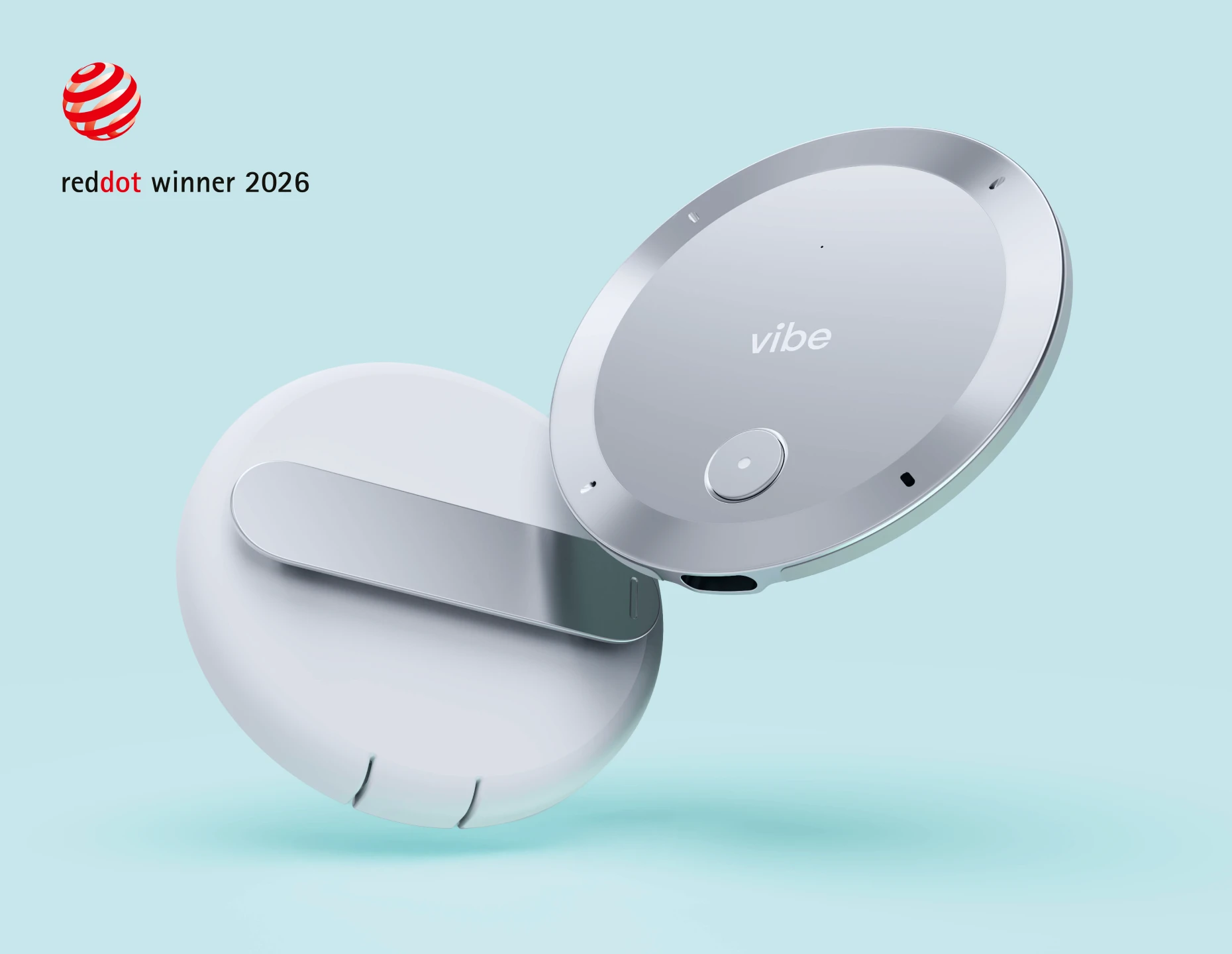
For automatic notes that also cover the physical room — including in-person participants and conversations outside of Zoom — a dedicated AI device like Vibe Bot (conference rooms) or Vibe Dot (personal use) captures and summarizes everything, regardless of which platform the meeting runs on.
|
Method |
Setup required |
Works outside Zoom |
Covers in-room audio |
|---|---|---|---|
|
Zoom AI Companion |
Host enables in-meeting |
❌ |
❌ |
|
Third-party app (Otter, Fireflies) |
Install + authorize |
✅ |
Partial |
|
Vibe Dot (personal device) |
Clip on, press record |
✅ |
✅ |
|
Vibe Bot (conference room) |
One-time room setup |
✅ |
✅ |
Why Zoom Meeting Notes Matter More Than Ever
Remote and hybrid work has made meetings more frequent and their outputs harder to track. Without notes, decisions made on a Tuesday Zoom call get relitigated on Thursday because half the team remembered it differently. Follow-up tasks slip. Context gets lost between sessions.

Good meeting notes serve three functions. They create a shared record so everyone leaves with the same understanding. They generate accountability — when action items are written down and attributed to specific people, they actually get done. And they create institutional memory, so new teammates or absent colleagues can catch up without a separate briefing call.
The challenge is taking notes that are actually useful without spending so much cognitive effort writing that you stop participating in the meeting itself.
Does Zoom Have a Built-In Notes Feature?
Yes — and it has evolved significantly. Zoom’s AI Companion (available on paid Zoom plans) can generate meeting summaries, action items, and next steps automatically after a call ends. You can access these through the Zoom web portal once the meeting concludes.

Zoom also offers a personal notes sidebar within the desktop app, which lets you jot freeform notes during a meeting that sync to your Zoom account.
That said, Zoom AI Companion has meaningful limitations. It only captures what happens inside Zoom — it won’t cover side conversations, pre-meeting alignment, or anything discussed outside the platform. The summaries are useful starting points but often require editing before sharing. And if your team uses multiple meeting platforms (Google Meet, Teams, or in-person discussions), you’ll end up with fragmented notes spread across different tools.
How to Take Notes During a Zoom Meeting: 5 Methods
1. Open a Note-Taking App Side by Side
The simplest and most reliable method: split your screen so Zoom occupies one half and your note-taking app occupies the other. This works on any device and requires no setup.

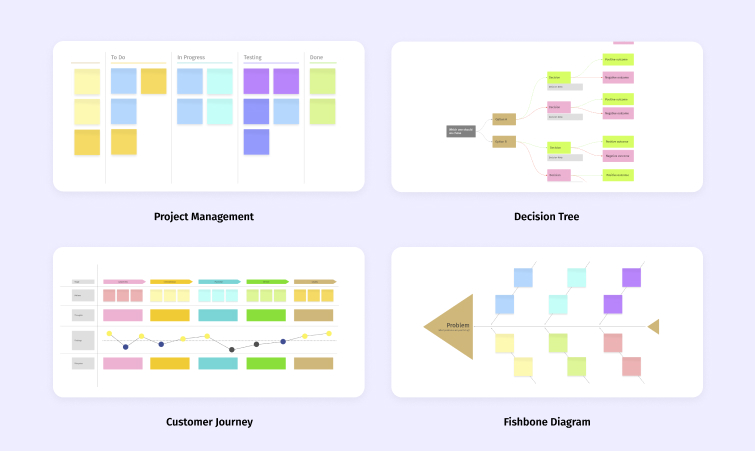
Good apps for this include Notion, Google Docs, Microsoft OneNote, and Apple Notes. The key is having a pre-built template ready before the meeting starts — a simple structure with sections for attendees, decisions, action items, and open questions takes about 30 seconds to prepare and makes your notes dramatically more useful afterward.
On Windows, snap Zoom to one side using Win + Left/Right arrow. On Mac, use Mission Control or hold the green full-screen button to tile windows. Most note apps also support their own keyboard shortcuts for creating new bullets and headers, which lets you capture information quickly without moving your hands to the mouse.
2. Use Zoom’s Built-In AI Companion
If you’re on a Zoom Pro, Business, or Enterprise plan, Zoom AI Companion is already available to you. The host needs to enable it, and participants are notified when it’s active.

After the meeting, Zoom generates a summary accessible through your Zoom portal. You can share it directly with attendees or copy it into your team’s documentation tool. This is the lowest-friction option for Zoom-only teams — no additional software required.
The limitation: Zoom AI Companion only knows what happened on Zoom. It has no memory of previous meetings, no connection to your other tools, and produces a static document rather than an ongoing record of your work.
3. Use Transcription Extensions or Third-Party Apps
Several apps integrate directly with Zoom to capture transcripts in real time. Tools like Otter.ai, Fireflies.ai, and Fathom connect via the Zoom Marketplace and join meetings as a bot participant. They record audio, generate transcripts, and produce searchable summaries.
These tools are a step up from Zoom AI Companion in terms of features — most offer cross-platform support and longer storage. The tradeoff is that they’re software-only: they join your Zoom call but can’t capture audio from a physical conference room if the meeting has in-person participants who aren’t near a laptop microphone.
4. Turn on Live Transcription in Zoom
Zoom’s native live transcription creates a real-time caption stream during a meeting — useful for following along, but not a replacement for structured notes. The host enables this under Meeting Controls → Live Transcript → Enable Auto-Transcription.
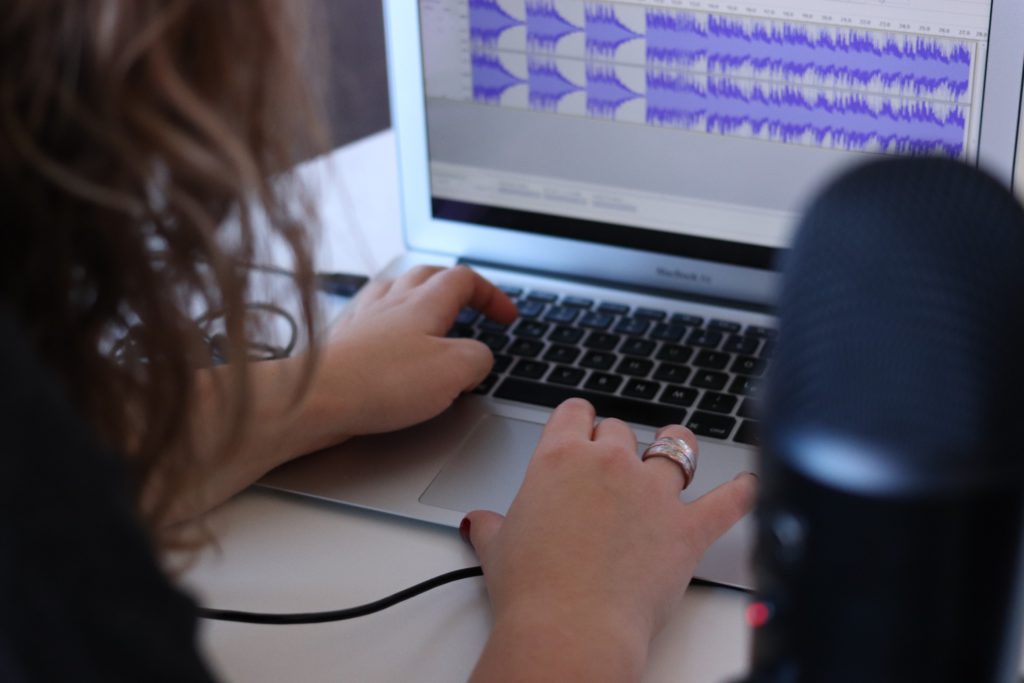
After the meeting, the transcript is available in the Zoom portal. It captures everything said but produces an unstructured wall of text. Someone still needs to extract decisions, action items, and key points from it — either manually or with an AI summarization tool.
5. Use a Dedicated AI Note Taker
This is where the gap between software and hardware becomes clear. App-based note takers only capture what enters through your laptop microphone or your Zoom call. If you’re in a conference room with multiple speakers, or if you’re in back-to-back meetings across different platforms, software notetakers miss a lot.
Dedicated AI recording devices solve this by capturing audio at the source — in the room, on you, regardless of which video platform you’re using or whether a video call is happening at all.
AI Devices That Handle Zoom Notes for You
The most significant shift in meeting productivity over the past two years isn’t a new Zoom feature — it’s the arrival of purpose-built AI hardware that treats note-taking as a solved problem. Two devices worth knowing about:
For Individual Professionals and Remote Workers: Vibe Dot
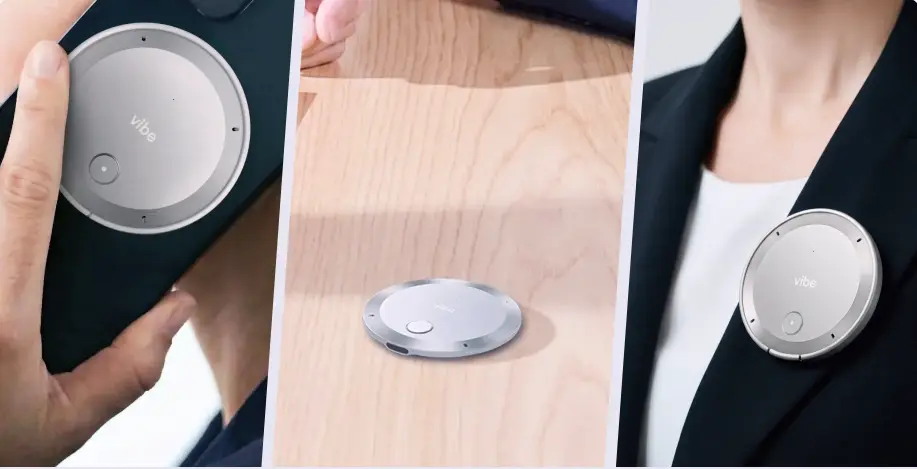
Vibe Dot is a compact AI recording device — wearable or desk-placed — that captures meetings, client calls, and conversations independently of whatever platform you’re using. Clip it to your jacket, set it on your desk beside your laptop, or snap it to the back of your phone. It runs for 30+ hours on a single charge and stores up to 64GB locally, so it keeps working even without Wi-Fi.
After each recorded session, Vibe AI (the intelligence layer powering Vibe Dot) automatically generates a full transcript, a structured summary, key decisions, and action items. Everything is organized chronologically so context builds across meetings — not just within a single call.
The five-microphone array (four air microphones plus a bone-conduction mic for voice isolation) delivers clean transcription even in noisy environments. SOC 2, HIPAA, and NDAA compliant, with hardware encryption that protects recordings if the device is lost.
Vibe Dot starts at $199. An auto-capture mode that starts recording based on your voice or a preset schedule is currently in Beta. Agentic actions — voice-commanded task execution — are coming soon.
For Conference Rooms and Hybrid Teams: Vibe Bot
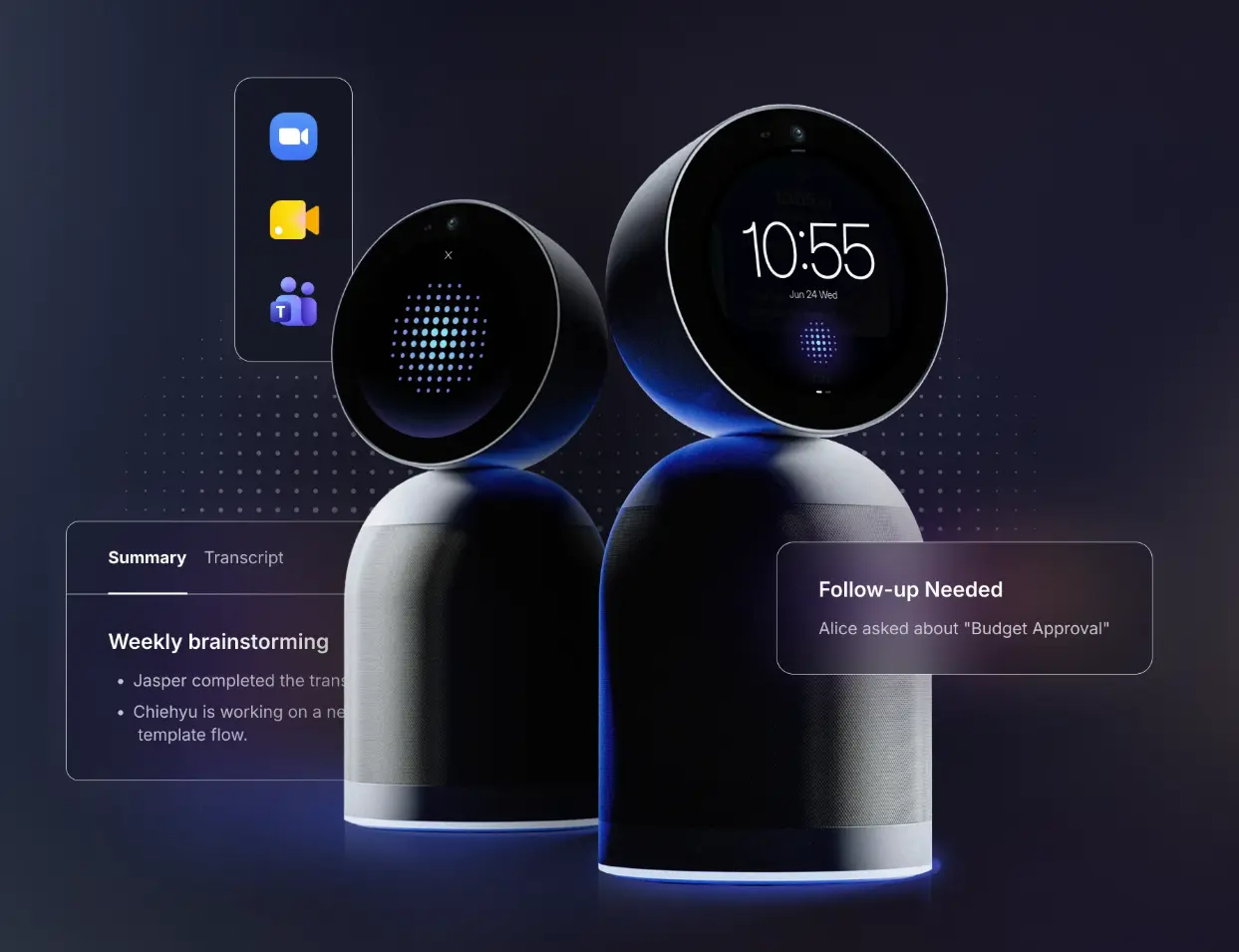
Vibe Bot is an in-room AI conference device with a 4K 360° rotating camera and a six-microphone beamforming array that tracks speakers around the table. It runs natively with Zoom, Google Meet, and Microsoft Teams — one tap to join — and simultaneously captures everything happening in the physical room.
Where Vibe Bot goes beyond a standard conferencing camera: Vibe AI generates structured meeting notes in real time, with a QR code displayed on-screen at the end of each meeting for instant access. Summaries, full transcripts, key decisions, and action items are automatically saved to the Vibe AI portal, where they can be shared with the team or accessed later when questions come up about what was decided.
Because Vibe Bot captures both the Zoom call and the room, hybrid meetings produce complete records — no more "what did the people in the room say that didn’t get picked up on the mic?" The device runs standalone on its built-in OS, no external computer required. An optional battery add-on enables wireless, room-to-room portability.
Vibe Bot starts at $1,599.
Which Approach Is Right for You?
The best method depends on how you work, not which tool has the longest feature list.
If you’re an individual contributor mostly on Zoom calls from your laptop, Zoom AI Companion or a third-party app like Otter covers the basics with minimal friction. If you want notes that persist across all your meetings — not just Zoom calls — and travel with you to client visits, coffee conversations, or phone calls, Vibe Dot gives you that continuous record.
If your team runs hybrid meetings from a conference room, app-based notetakers consistently under-capture the in-room side of the conversation. Vibe Bot solves this at the hardware level — it hears the room the way a person in the room hears it, and the notes reflect that.
The teams that get the most value from AI note-taking are the ones that stop treating notes as a personal memory aid and start treating them as shared infrastructure — something every meeting produces automatically, that anyone on the team can query, and that compounds in value the longer you use it.
Tips for More Effective Zoom Meeting Notes
Regardless of your method, a few habits make notes significantly more useful:
Start with structure, not a blank page. Before the meeting begins, write down the names of attendees and three or four topics you expect to cover. This framework helps you slot information into the right place as the conversation moves quickly. Reducing how much you have to track manually also helps with the broader problem of video call exhaustion — see how to reduce Zoom fatigue for practical strategies that complement better note-taking habits.
Capture decisions and action items in real time, verbatim. Paraphrasing a decision often changes its meaning. When something gets decided or assigned, write it down exactly as stated.
Use a consistent format. A reliable template — Decisions, Action Items, Open Questions, Next Steps — means anyone reading your notes immediately knows where to find what they need, without reading everything.
Send notes within 24 hours. Meeting notes lose half their value after a day. Share them while the context is still fresh for everyone involved.
Review notes before the next meeting. This single habit is what turns meeting notes from an archive into a working tool. Knowing what was decided and what was committed to before a meeting starts is the fastest way to make meetings shorter and more decisive.
FAQs
How do I take notes on Zoom quickly without missing the conversation?
The most effective method is a split-screen setup: Zoom on one side, a note-taking app on the other, with a template already open. Focus only on decisions, action items, and key numbers — not transcribing everything said. Alternatively, use an AI notetaker or device so you don’t have to write at all.
Can Zoom take notes for me automatically?
Yes, with limitations. Zoom AI Companion (available on paid plans) generates summaries after the meeting ends. For real-time transcription and notes that cover in-room audio, multiple platforms, or conversations outside of Zoom, dedicated AI devices like Vibe Dot (personal) or Vibe Bot (conference room) provide more complete coverage.
What’s the best AI notetaker for Zoom meetings?
It depends on your setup. For Zoom-only workflows on a laptop, Zoom AI Companion or Otter.ai are straightforward options. For meetings where people are physically present in a room — or for professionals who need notes across all their conversations, not just Zoom calls — purpose-built AI hardware delivers more reliable results.
Do I need to tell people they’re being recorded for notes?
Yes, in most contexts — both legally and as a matter of professional courtesy. Zoom notifies participants when recording is active. For standalone AI devices, it’s standard practice to let participants know at the start of a meeting.
Does Zoom take notes for you automatically?
Zoom AI Companion can generate notes automatically — but it requires a paid plan and host activation. Once enabled, it produces a summary with key discussion points, action items, and next steps, accessible after the meeting ends in the Zoom web portal. It does not take notes in real time during the meeting; the output is generated post-call from the meeting audio. If you need notes generated in real time, or notes that cover in-person participants who aren’t near a laptop mic, you’ll need a dedicated AI device — Zoom AI Companion only captures what happens inside the Zoom platform.
Does Zoom notify participants when note-taking is active?
Yes. When Zoom AI Companion is enabled, all participants receive a notification at the start of or during the meeting that AI features are active. Similarly, when a host starts a cloud recording (which underlies transcription and summary features), Zoom displays a visible recording indicator and notification to all participants. Standalone AI devices like Vibe Dot and Vibe Bot are not controlled by Zoom, so they don’t trigger Zoom’s built-in notifications — which is why it’s good practice to verbally inform participants at the start of any meeting when a recording device is in use.
How can I take Zoom meeting notes automatically for free?
Zoom’s free plan does not include AI Companion or automatic transcription. Free options include: (1) Zoom live transcription — enable under Meeting Controls → Live Transcript → Enable Auto-Transcription; this provides a real-time caption stream and a downloadable transcript after the call, but no structured summary; (2) Otter.ai free tier — up to 300 minutes of transcription per month, with basic summary features; (3) Fathom free plan — unlimited call recordings and AI summaries for individual users. For structured, action-item-level notes at no cost per meeting, these free tiers cover most individual use cases. Paid AI devices (Vibe Dot from $199, Vibe Bot from $1,599) make sense when you need notes across all your meetings — not just Zoom calls — or when in-room audio coverage matters.