In the past few years, remote and hybrid work environments have become the new norm. Many businesses are proactively looking for the best video conferencing solution to support these flexible work environments. To do this, businesses must find hybrid or remote solutions and equipment that work for their team’s specific needs.
Whether you’re stationed at home or in the office, this blog is the definitive reference to learn how to do video conferencing from any room, with insider tips on the software and hardware required for successful online sessions.
With the right video conferencing set-up, you can organize effective teleconferences, ensure discussions stay on-topic, away from technical problems, and lead to real outcomes. Learn all you need to know from this video conferencing set-up guide.
Video Conference Setup Requirements at a Glance
A functional video conference setup requires five core elements, regardless of room size:
|
Component |
Minimum Requirement |
Recommended Upgrade |
|---|---|---|
|
Camera |
1080p USB webcam |
4K AI conference camera or 360° room device |
|
Microphone |
Built-in laptop mic (individual only) |
Beamforming mic array with noise suppression |
|
Speaker |
Laptop speaker |
Dedicated conference speaker or all-in-one device |
|
Display |
24″+ monitor |
55″+ room display at eye level |
|
Internet |
10 Mbps upload/download |
25 Mbps+ wired ethernet, dedicated to the room |
For conference rooms hosting multiple participants, a standalone all-in-one device — like Vibe Bot — replaces the camera, mic, and speaker above with a single unit that also handles AI transcription and meeting summaries, with no laptop required.
- Effective video conferencing requires quality cameras, microphones, reliable software, and a stable high-speed internet connection.
- All-in-one devices with AI features simplify setup by combining camera, microphone, and speaker into a single unit.
- Interactive whiteboards enable real-time collaboration and visual communication between remote and in-office participants.
- Proper lighting, acoustics, and camera positioning are essential for professional, distraction-free virtual meetings.
The Importance of an Effective Video Conference Set-Up
Individuals working online, the rise of rapid connectivity, and the internationalization of enterprises are just a few examples of how technological developments have impacted our work. Establishing and keeping quality relationships and partnerships with vendors, team members, shareholders, and consumers is crucial for contemporary, productive companies to expand and go worldwide. Video conferencing increases output, saves time, lowers travel costs, and fosters collaboration in general. The value of video conferencing is its capacity to enable all of these advantages without requiring continuous face-to-face interaction.
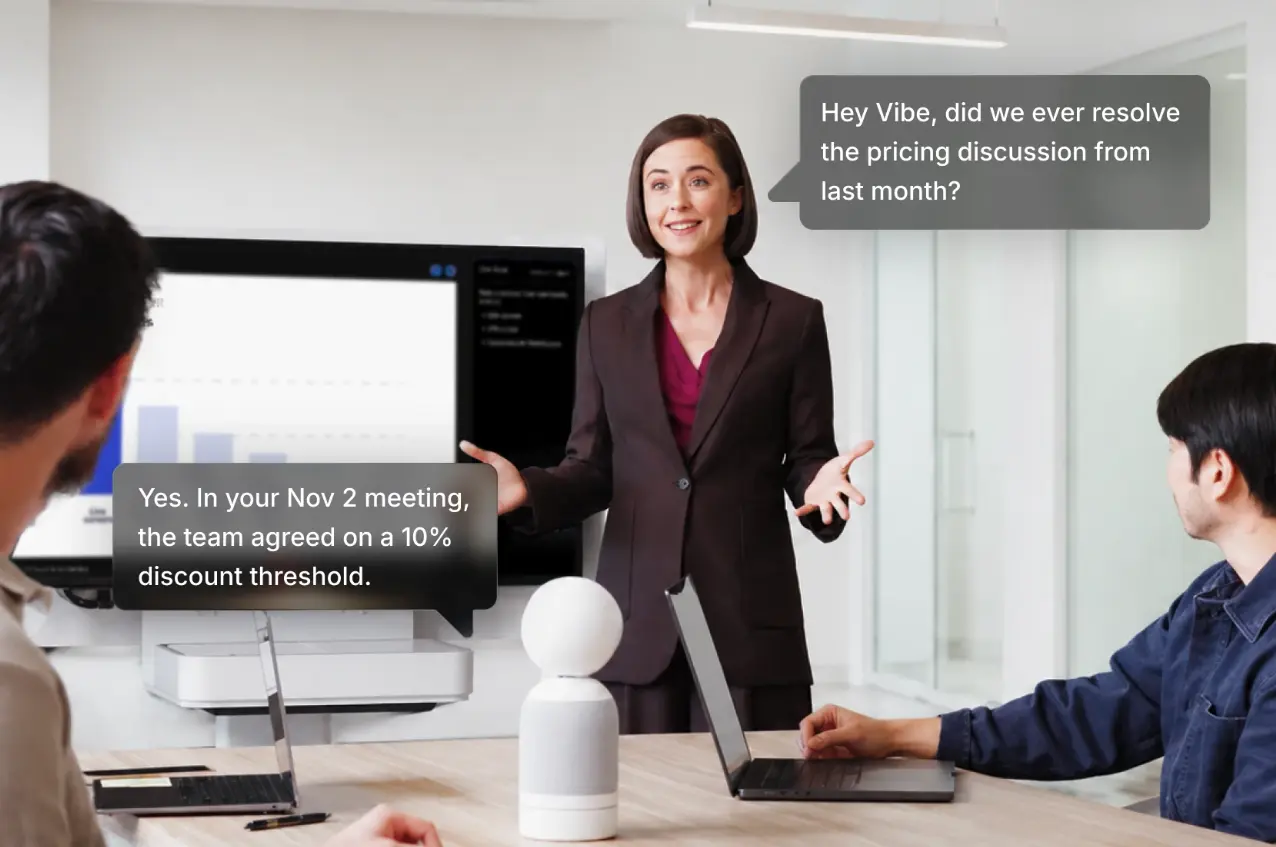 Vibe Bot AI conference camera answering a voice question by recalling past meeting details during a live discussion
Key Features of an Effective Video Conference Set-Up
The following are the necessary components businesses need to make the most of their video conferences:
High-Resolution Video
4K UHD or HD video quality produces a more natural feel, which fosters trust among colleagues, builds client buy-in, and creates a more collaborative workplace culture. It can be difficult to communicate effectively with your colleagues if you can’t see them clearly—those crucial non-verbal cues can be totally lost without clear and steady video quality.
Simple to Connect Video Conferencing
It should be possible for your clients to connect to the video conference through a computer or smartphone, enabling them to take part in the meeting from any location with the same call quality. To make it simple for everybody to participate, your program should produce conference call IDs, PINs, and unique conference URLs. Businesses should prioritize platforms that are industry-known, reliable, and easily accessible to anyone who may need to join the video conference.
Sharing and Screen Annotation
More engaging meetings are made possible through screen and file sharing. Often, information can only be shared visually or is at a minimum enhanced by being able to gather every participant around a visual, regardless of location. Everyone should be capable of sharing their screen; from there, everyone may highlight particular areas of the screen or attract attention to the details they’re discussing.
Recording of Meetings
In hybrid workplaces, not everyone will be able to attend every session. Anyone unable to join, however, may now see the entire meeting at a later time, thanks to tools that let you record the whole session and upload it effortlessly. A recording option is also fantastic if someone needs to revisit the meeting later to better understand what was said.
Features for Groups and Personal Chat
You’ll need powerful chat features to channel questions and comments that may inevitably arise during video conferencing. In a group chat, meeting participants can ask queries that anyone can see and respond to, as well as exchange information, such as URLs, to sources mentioned in a conference. Many platforms offer options for virtual hand raising, reacting with emojis, and other engaging features.
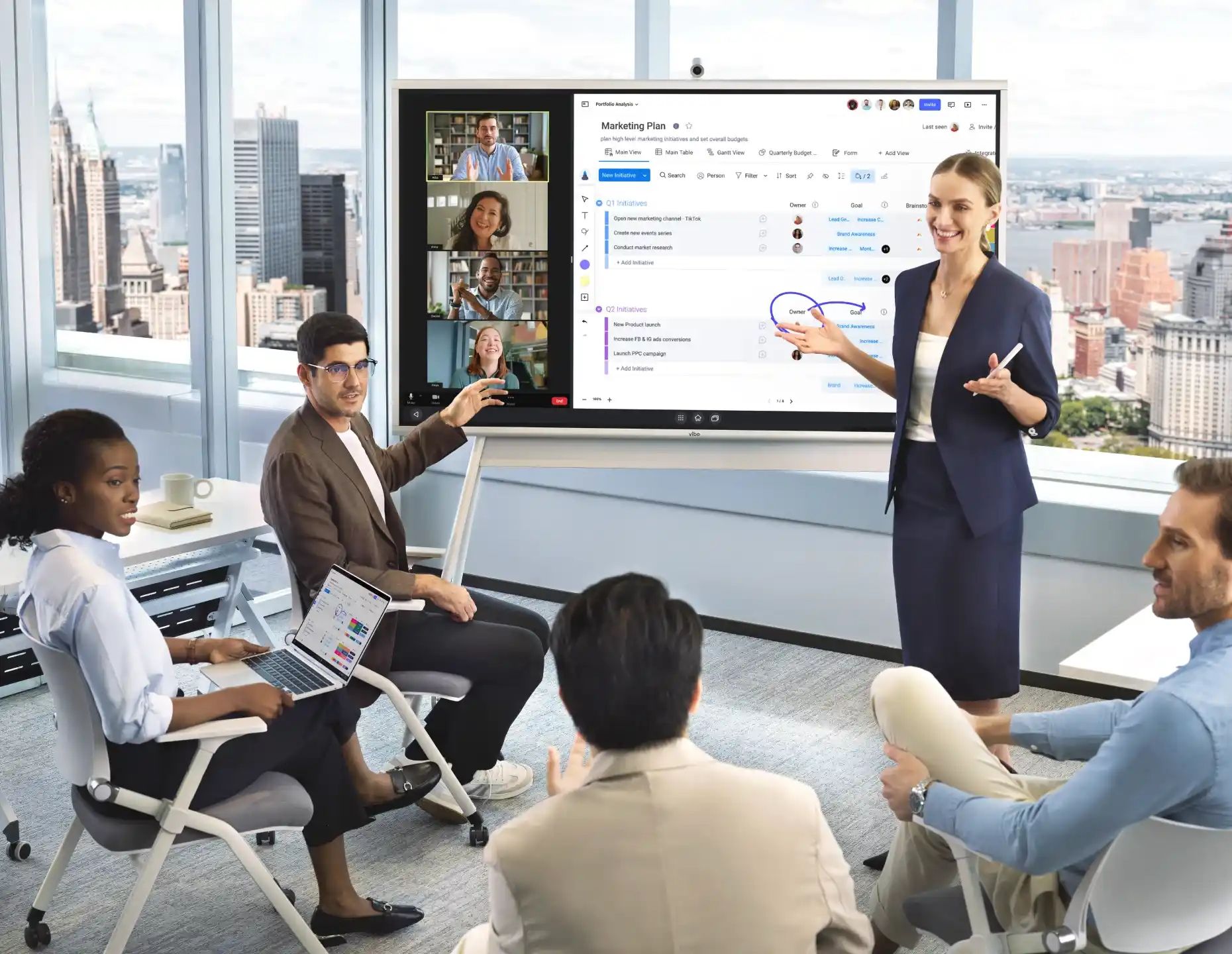
Essential Hardware
First and foremost, it’s crucial to invest in the correct equipment for video conferencing. Anyone taking part in a video conference set-up will at least need a computer, laptop, or other device that can run the right video conferencing software and provide audio and visual.
Webcams
Without a camera, your video conference set-up is nothing more than an audio call. When people join a video conference using only audio, things can get hectic, fast. Webcams are a common feature in most modern laptop computers, just like microphones. However, these gadgets, sadly, share the same shortcomings as many built-in microphones: lower-quality video or audio, a smaller field of view, and short-range microphones. Regular virtual conferences with numerous parties of varied sizes are best conducted with dedicated conference room cameras, webcams, or video conferencing equipment.
Microphones
There are two primary categories to pick from when seeking a microphone for video conferencing: built-in or external audio recording devices. Think about a laptop microphone vs. a stand-alone external microphone.
The highest quality audio and versatility are found in dedicated microphones, although they are often more costly and require more technical setup. While built-in microphones are passable for work-from-home video conferencing, they are often unsuitable for professional video conferencing meeting room environments. For this use case, we highly recommend a dedicated audio capture system.
Headphones or Headsets
Since they frequently include a good microphone and earphones, headsets can be an excellent option for one-on-one video calls or for remote employees. However, headsets and headphones are not a viable option when creating a video conference set-up for numerous people, like a huddle or conference room.
Specialized equipment like conference phones and smart devices excel in group settings thanks to advanced noise and echo reduction technology. These video conferencing devices offer easy setup and maintenance, making them ideal for professional environments. When purchasing equipment, verify compatibility with your chosen calling platform to ensure seamless integration.
All-in-One Video Conferencing Hardware Solutions
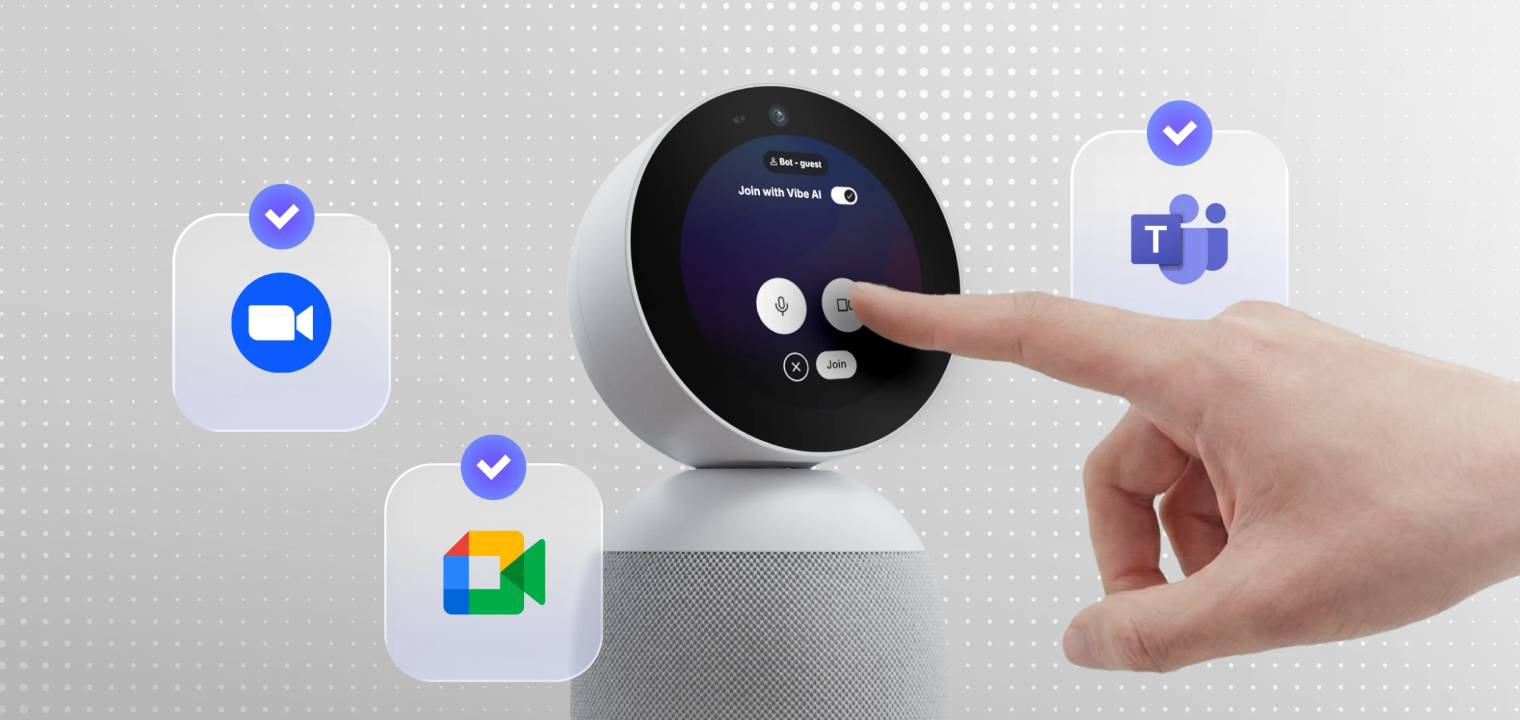 Introducing Vibe Bot: a 360° meeting device that captures the room and delivers live notes, summaries, and action items.
All-in-one video conferencing devices combine camera, microphone, and speaker into a single unit — eliminating the multi-component cable management that makes conference rooms frustrating to maintain and slow to start.
The more important distinction in 2026 is between all-in-one devices that capture the meeting and those that understand it.
Traditional all-in-one devices (USB bar-style cameras, basic room bars) handle video and audio capture. Notes, summaries, and action items still require a participant or a separate software bot added to the call.
AI meeting devices go further. Vibe Bot is a standalone device — no laptop required — that runs its own OS (BotOS) and handles the full meeting stack:
-
4K UHD 360° camera with AI speaker tracking at 60fps + HDR
-
6-microphone beamforming array with AI noise cancellation
-
On-device AI chip that processes locally — no audio routed to an external cloud during the meeting
-
Auto-generated transcript, summary, and action items displayed as a QR code on the device screen when the meeting ends
-
One-tap join for Zoom, Google Meet, and Microsoft Teams — no HDMI scramble, no driver pop-up
The practical effect: whoever sets up the room can walk out before the meeting starts. Vibe Bot handles the rest. And because the AI runs on-device, the meeting record is available immediately after the call — not dependent on a platform subscription tier or a post-processing delay.
For teams running regular meetings where decisions drive follow-up work, that shift from passive capture to active meeting intelligence is the most consequential upgrade in a video conference setup — more than resolution, more than platform.
Interactive Whiteboards or Other Collaborative Tools
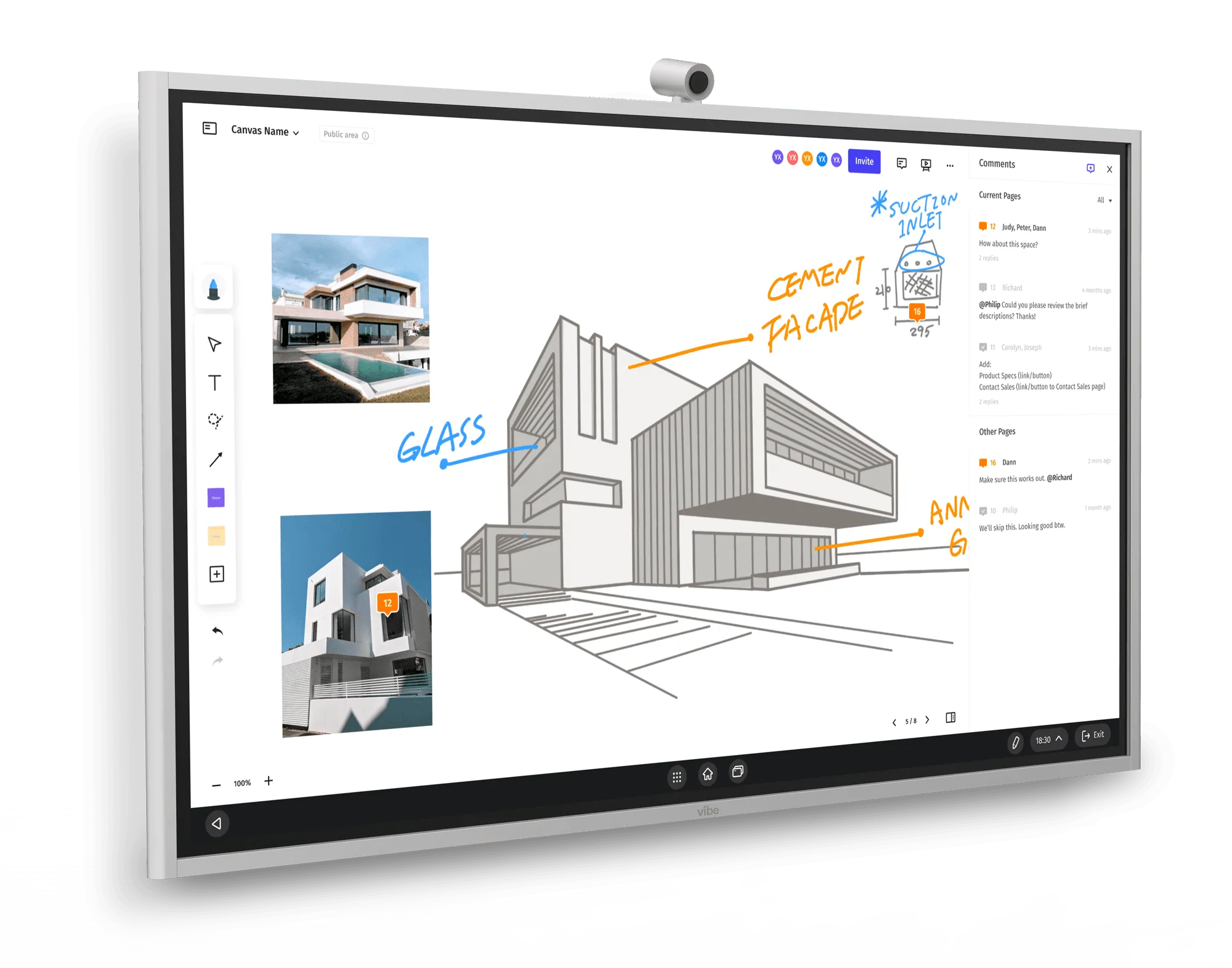
Smart interactive whiteboards transform standard video conferences into collaborative working sessions by combining display, annotation, and communication tools in one platform. These devices allow remote and in-room participants to brainstorm together, mark up documents in real-time, and save shared work instantly—making them particularly valuable for design reviews, strategy sessions, and training workshops.
Modern interactive whiteboards integrate seamlessly with popular video conferencing platforms and productivity apps, enabling participants to share presentations, whiteboard ideas, and access cloud files without switching between devices. The large touchscreen format makes visual content more engaging and easier to follow compared to traditional computer monitors, while built-in cameras and microphones eliminate the need for separate conferencing hardware.
Beyond basic video calls, these boards enhance meeting effectiveness through features like screen sharing, multi-user annotation, and persistent digital canvases that capture every note and diagram. Teams can pick up where they left off in previous sessions, export meeting boards as PDFs, and share outcomes with stakeholders who couldn’t attend. For organizations prioritizing hybrid collaboration, interactive whiteboards bridge the gap between physical and virtual workspaces more effectively than any other single solution.
Software
Without the right video conferencing software, even the best video conferencing hardware setups fall flat and fail to deliver effective virtual meetings. Choosing requires careful consideration of what your team and business need. Here are the top options:
Video Conference Software and Tools
For starters, you’ll need to find the right video conferencing platform or application for your meeting needs. On the most basic level, the program’s ability to provide simultaneous real-time communication among numerous parties is essential.
Although many different video conferencing programs are available, Microsoft Teams, Zoom, Google Meet, and Skype are some of the most trusted and well-known. Microsoft Teams excels for companies already using Microsoft 365, providing deep integration with Office apps and enterprise-grade security. Zoom remains the go-to for large webinars and breakout room functionality, while Google Meet offers seamless access for organizations using Google Workspace. Skype, though less feature-rich than newer competitors, provides reliable one-on-one communication and works well for smaller teams with basic requirements.
|
Platform |
Best For |
Participant Limit |
Key Strengths |
Integration Focus |
|---|---|---|---|---|
|
Microsoft Teams |
Enterprise organizations |
Up to 10,000 (view-only) |
Office 365 integration, persistent chat, file collaboration |
Microsoft ecosystem |
|
Zoom |
Mid-sized companies with larger meetings & webinars |
Up to 1,000 (plan dependent) |
Breakout rooms, webinar tools, and recording quality |
Third-party apps, calendar systems |
|
Google Meet |
Google Workspace users |
Up to 500 |
Simple access, no downloads, live captions |
Google Workspace apps |
A Strong Internet Connection
Your video conferencing set-up is only as strong as your Ethernet or Wi-Fi connection. An unstable internet connection can disrupt or even prevent productive meetings with dropped calls, sound delays, and poor video quality. Regardless of the system you choose, you’ll need a stable high-speed internet service.
Video conferencing is supported by the majority of current business internet plans, and you can always check with your ISP to ensure you have acceptable connection speeds. The performance of video conferences may also be significantly impacted by additional elements, like the number of concurrent users on the network or bandwidth caps.
Other Important Considerations
Lighting
Proper lighting dramatically improves video quality and professional appearance. Natural light from windows works well when you face the light source, but for consistent results, invest in adjustable LED panels or ring lights that provide soft, even illumination. For dedicated meeting rooms, avoid backlighting participants and dark rooms that hide faces.
Background and Room Setup
Your background communicates professionalism and minimizes distractions for remote participants. Choose clean, uncluttered spaces with neutral colors, and avoid high-traffic areas or positioning windows directly behind you. For shared spaces, consider portable room dividers or branded backdrops rather than relying solely on virtual backgrounds. For meeting room video conference setups, keep the area organized and clean to maintain a professional experience.
Furniture and Ergonomics
Camera positioning affects how participants perceive and engage with you—always place cameras at eye level to create natural sight lines. Invest in adjustable monitor arms or laptop stands to achieve the right height, and use ergonomic chairs to maintain good posture during longer meetings. For conference rooms, arrange furniture so all in-room participants remain visible to the camera while maintaining comfortable sightlines to the display.
Acoustic Treatment
Beyond quality microphones, room acoustics significantly impact audio clarity. Add soft materials like carpet, curtains, acoustic panels, or plants to absorb sound reflections from hard surfaces. Simple improvements like closing doors and turning off HVAC systems during meetings can eliminate distracting background noise.
Level Up and Simplify Your Video Conference Set-Up with Vibe
Creating an effective video conferencing setup with the right hardware and software has become essential for modern hybrid work. The right tools don’t just enable communication—they transform meetings into productive, engaging collaborative sessions that drive results.
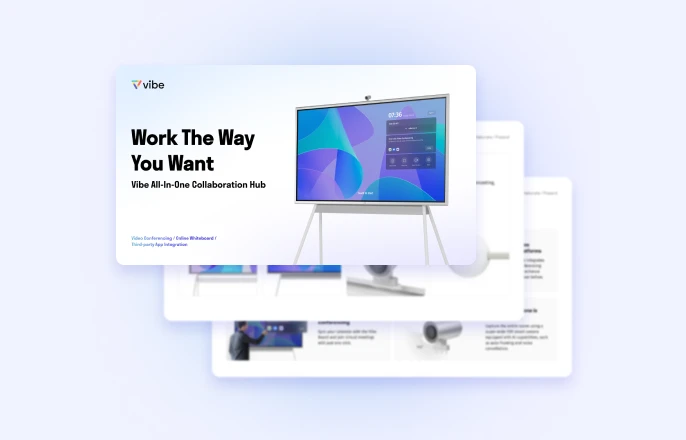
Vibe offers two powerful solutions designed to simplify and elevate your conference room experience. The Vibe Board S1 combines a smart interactive whiteboard with seamless video conferencing integration, enabling teams to brainstorm, annotate, and collaborate visually while staying connected with remote participants. For spaces that need dedicated conferencing hardware, the Vibe Bot delivers AI-powered meeting intelligence with automatic speaker tracking, advanced noise cancellation, and crystal-clear audio-visual performance.
Together or individually, these solutions eliminate the complexity of piecing together multiple devices while delivering enterprise-grade performance. Whether you’re outfitting a huddle room or a large conference space, Vibe’s all-in-one approach creates unified meeting experiences that maximize the advantages of hybrid work and leave lasting impressions on every participant.
If you’re ready to enhance your virtual meetings and improve hybrid collaboration, request a demo to see exactly how Vibe can transform your video conferencing.
FAQs
What are the requirements for a video conference setup?
A complete video conference setup requires: (1) a camera — 1080p minimum, 4K recommended for conference rooms; (2) a microphone with noise suppression — beamforming arrays for shared spaces, headset for individual use; (3) a speaker or audio output; (4) a stable internet connection — 10 Mbps minimum per participant, 25 Mbps+ recommended for rooms; (5) a video conferencing platform (Zoom, Google Meet, or Microsoft Teams); and (6) a display large enough for participants to see remote attendees clearly. For conference rooms, an all-in-one device like Vibe Bot consolidates components 1–3 into a single standalone unit and adds AI meeting intelligence on top.
How do you set up video conferencing for a business?
Business video conferencing setup differs from individual use in three key ways: room coverage (you need cameras and mics that capture the full room, not just one person), platform management (IT needs centralized device control and security settings), and meeting output (businesses typically need records of decisions and action items, not just recordings). Start by defining room types — huddle rooms, medium conference rooms, boardrooms — then spec hardware for each size. For most business conference rooms, a standalone AI meeting device handles setup complexity and adds automatic transcription and summaries, reducing the per-meeting administrative overhead that compounds across teams.
What features should I prioritize for seamless video conferencing?
In order of impact: (1) audio clarity — beamforming mics and noise suppression matter more than video resolution for remote participants following a conversation; (2) camera field of view matched to your room shape — 90–120° for end-of-table mounts, 360° for round tables or open spaces; (3) reliable platform join — one-tap join or USB plug-and-play without host laptop dependency; (4) AI features — auto-framing, speaker tracking, and noise suppression are now standard on mid-range devices; (5) meeting intelligence — transcription and summaries that work automatically, not only when someone remembers to enable them.
How do you set up a video conferencing room?
Define the room size and participant count first. For huddle rooms (2–6 people): a wide-angle USB bar camera with integrated mic and speaker, mounted at screen level, connected to a room PC or laptop. For medium rooms (7–15 people): a 360° AI camera in the center of the table or a PTZ camera at the front, with a separate beamforming mic array covering the full table length, and a 55″+ display. For either size, a standalone AI meeting device like Vibe Bot simplifies this to a single unit — no separate components, no laptop required for the call.
What is the best video conference setup for board meetings?
Board meetings have specific requirements beyond standard conference rooms: clearer audio for accurate minute-taking, stronger security (HIPAA, SOC 2, or NDAA compliance depending on the organization), and reliable meeting records for governance. The setup should include a 4K camera with speaker tracking so board members can identify who’s contributing, a professional microphone array covering the full table, and a meeting intelligence layer that produces accurate transcripts and action items automatically. Devices with HIPAA-aligned and SOC 2 certification — such as Vibe Bot — address the compliance requirements common in board-level discussions, including those in healthcare, financial, and nonprofit organizations.
Can you set up video conferencing without a laptop?
Yes. Standalone conference room devices like Vibe Bot run their own operating system and connect to Zoom, Google Meet, or Microsoft Teams via one-tap join — no connected laptop required. Traditional USB conference cameras and room bars require a laptop or room PC to initiate the call, which is the most common source of meeting start delays. Standalone devices eliminate that dependency entirely: the room is always ready, regardless of who’s presenting or whether they remembered to bring the right adapter.
What is the difference between a video conferencing setup for home and for a conference room?
Individual home setups prioritize personal ergonomics: a quality external webcam at eye level, a headset or personal speakerphone, and good front-facing lighting. The primary audience is one person on screen. Conference room setups must capture a group: wide-angle or 360° cameras, beamforming mic arrays that cover the full table, dedicated room speakers, and a large display for remote participant visibility. Room setups also require more attention to acoustics (hard surfaces create echo) and consistent performance without a host laptop as a dependency. The hardware investment is higher, but the per-person cost is lower when amortized across a room that runs multiple meetings daily.