The wrong video conferencing equipment doesn't just create awkward meetings — it costs real money. Poor audio forces people to repeat themselves. Bad camera angles exclude participants. Mismatched devices cause the kind of friction that kills momentum before a meeting even starts.
Most teams try to solve this by room size: small room gets a bar system, large room gets a modular setup. But that framework misses the more important questions — ones that determine whether you'll still be happy with your setup in 18 months.
This guide is organized around three decisions that actually drive equipment choices: whether you need a complete system or targeted upgrades, whether your meetings need AI intelligence, and whether your space needs to do more than just video calls. Answer those, and the right equipment becomes obvious.
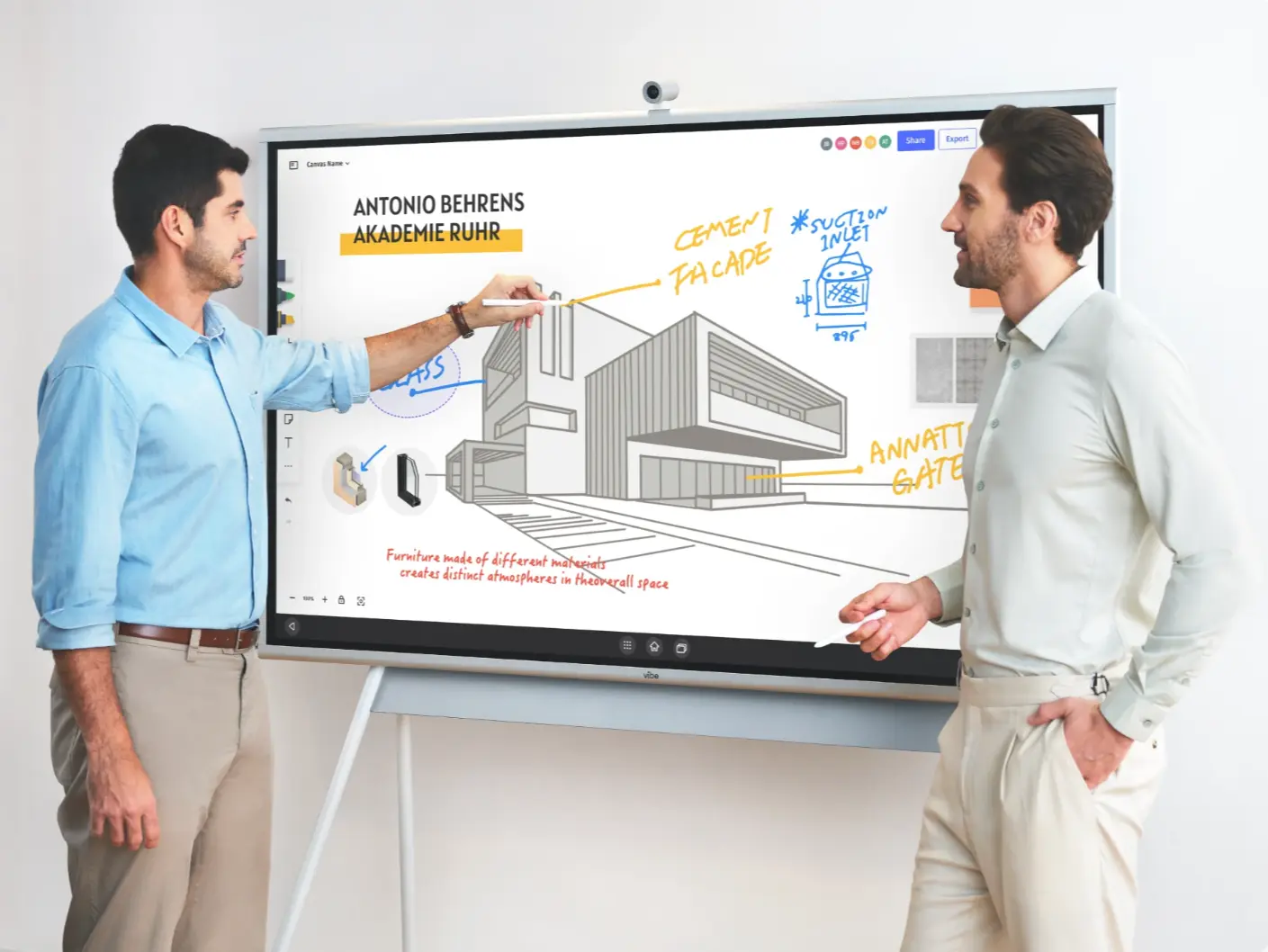
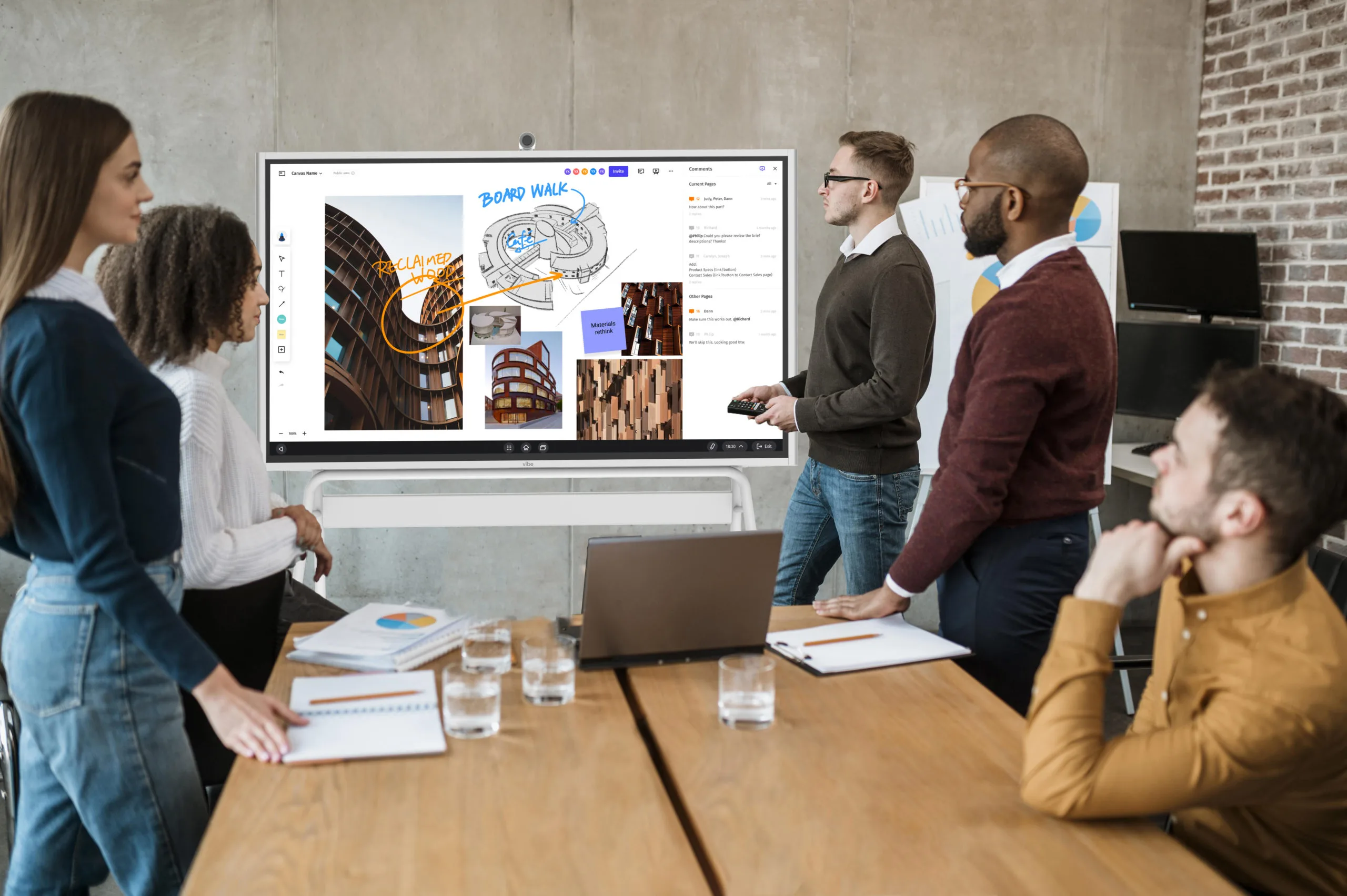 Vibe Board displayed in a conference room with a team collaborating on architectural drawings and project visuals during a meeting
Why Most Video Conferencing Setups Underperform
Most meeting room problems aren't caused by slow internet or bad software. They're caused by hardware that wasn't chosen with the team's actual workflow in mind.
A camera without a matched microphone creates sync delays. A speakerphone picked for a small room sounds hollow in a larger space. Devices from different vendors fight for control of the same audio chain. And single-call tools — cameras, microphone bars, software bots — reset after every meeting, leaving no record of what was decided or what comes next.
According to Gallup's Hybrid Work Indicator (Q1 2026), 52% of remote-capable workers are now in hybrid arrangements — meaning the conference room is no longer a luxury. It's infrastructure. And infrastructure has to work every time, for every participant, whether they're in the room or joining remotely.
The three questions below cut to what actually matters.
Decision 1: Do You Need a Complete System or Targeted Upgrades?
This is the first fork in the road. The answer shapes everything else.
If you're starting from scratch — or your current setup is fundamentally broken
Start with an all-in-one system. These integrate camera, microphone array, speaker, and display into a single device engineered to work together. No compatibility issues, no cable management headaches, no separate firmware update schedules.
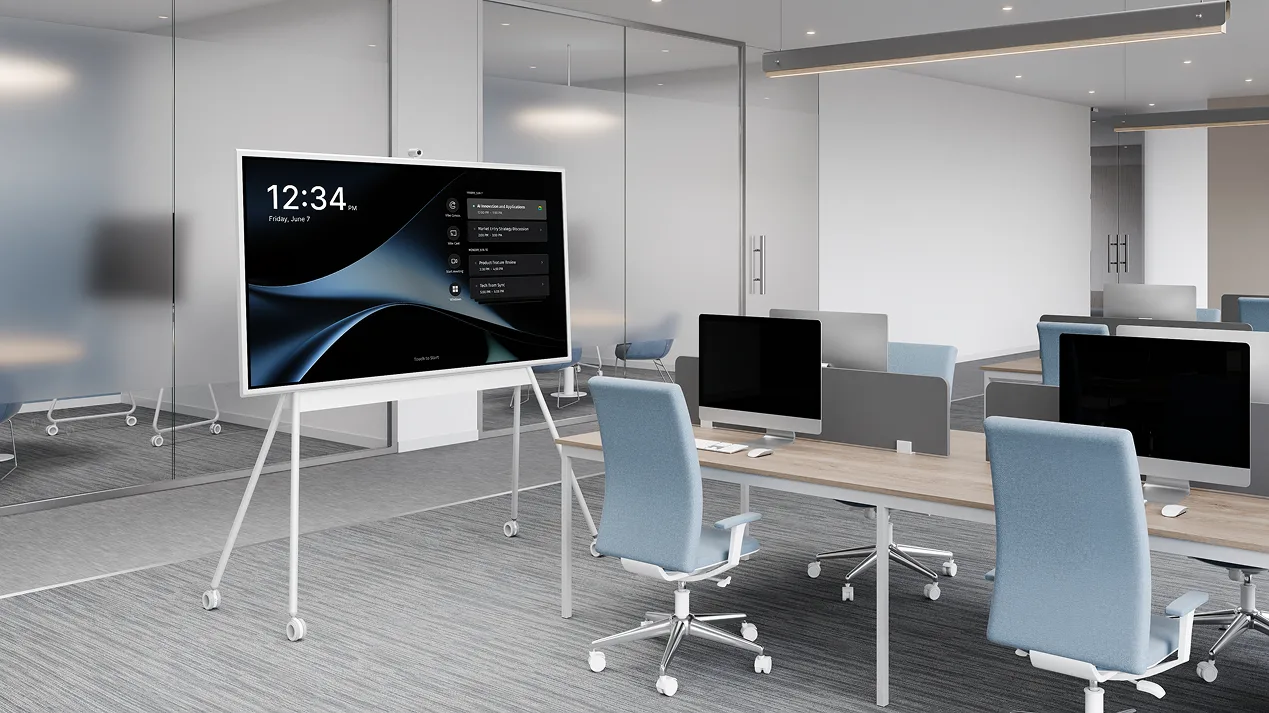
The Vibe Board S1 is the clearest example of what this category looks like at its best. It's a 55″ or 75″ touchscreen running VibeOS — powered by ChromeOS — with access to 250+ workflow apps, including Zoom, Microsoft Teams, and Google Meet, all natively integrated. Built-in speakers handle room audio out of the box. For video conferencing, an optional AI-powered Smart Camera adds a 4K sensor and 6 omni-directional microphones — no laptop required. It also includes Vibe Canvas, a built-in infinite whiteboard for brainstorming and visual collaboration. Together, it replaces not just the conference camera, but the entire presentation and collaboration stack.
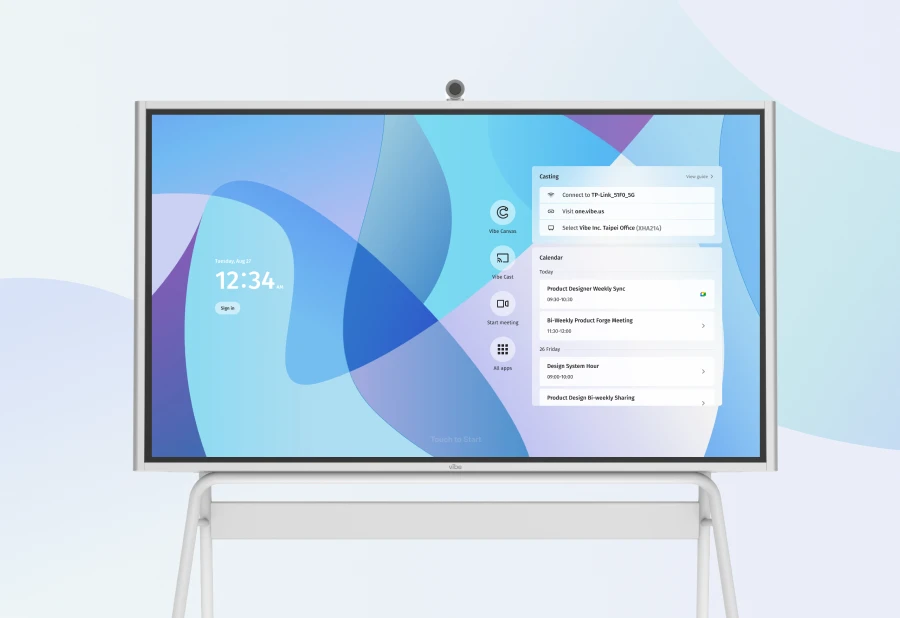
It works equally well in a huddle room, a medium conference room, or a large boardroom — which is why room size alone isn't the right starting point. The question is whether you want one device that handles everything, or a patchwork of components you manage separately.
For teams that want a modular approach — separate camera, mic, and speaker components positioned independently — that's a valid path for large rooms with complex seating arrangements. Those options are covered in the accessories and upgrade section below.
If your current setup is mostly working but has a specific weak point
A targeted accessory upgrade is almost always more cost-effective than a full system replacement. The most common weak points, and their fixes, are covered in the Accessories section below.
Decision 2: Do Your Meetings Need AI Intelligence?
This question matters more in 2026 than it did two years ago — because the gap between a basic camera setup and an AI-native meeting device has widened significantly.
What "AI meeting intelligence" actually means
Basic AI features — auto-framing, noise suppression, speaker tracking — are now standard on most mid-range hardware. They improve the live meeting experience. But they don't do anything after the meeting ends.
AI meeting intelligence goes further: real-time transcription, structured meeting summaries, action item capture, and — critically — memory that persists across sessions. When your next meeting picks up where the last one left off, without anyone having to re-explain context, that's a fundamentally different category of tool.
If your team needs AI meeting intelligence: Vibe Bot
Vibe Bot is a standalone in-room AI device built for this. Its 4K UHD 360° camera and 6-microphone beamforming array capture every participant regardless of where they sit — no laptop in the room required. The built-in AI chip handles real-time transcription and speaker identification directly on-device, not uploaded to a cloud service.
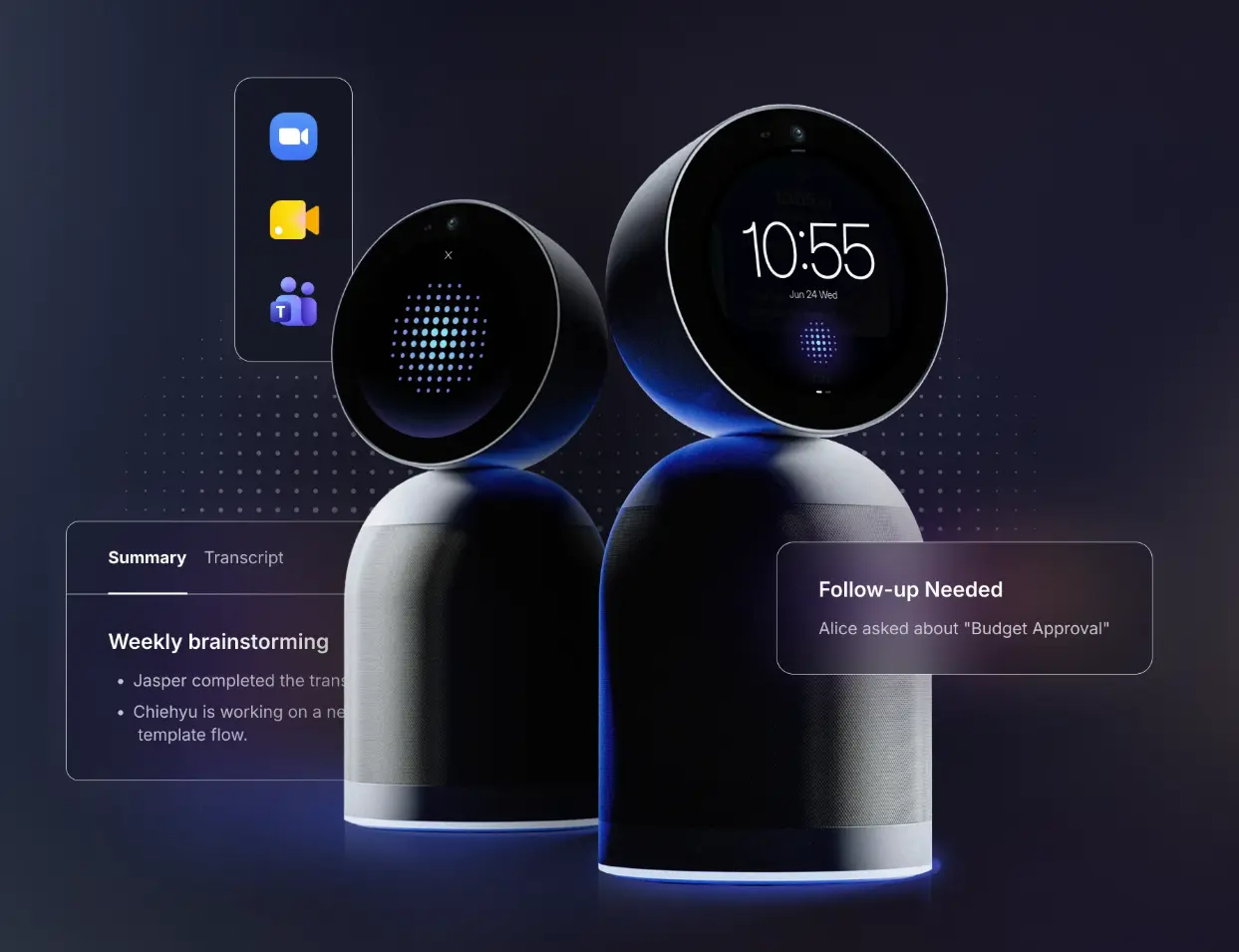 Vibe Bot conference camera with AI meeting summary, transcript, and follow-up action items with Zoom and Teams integration
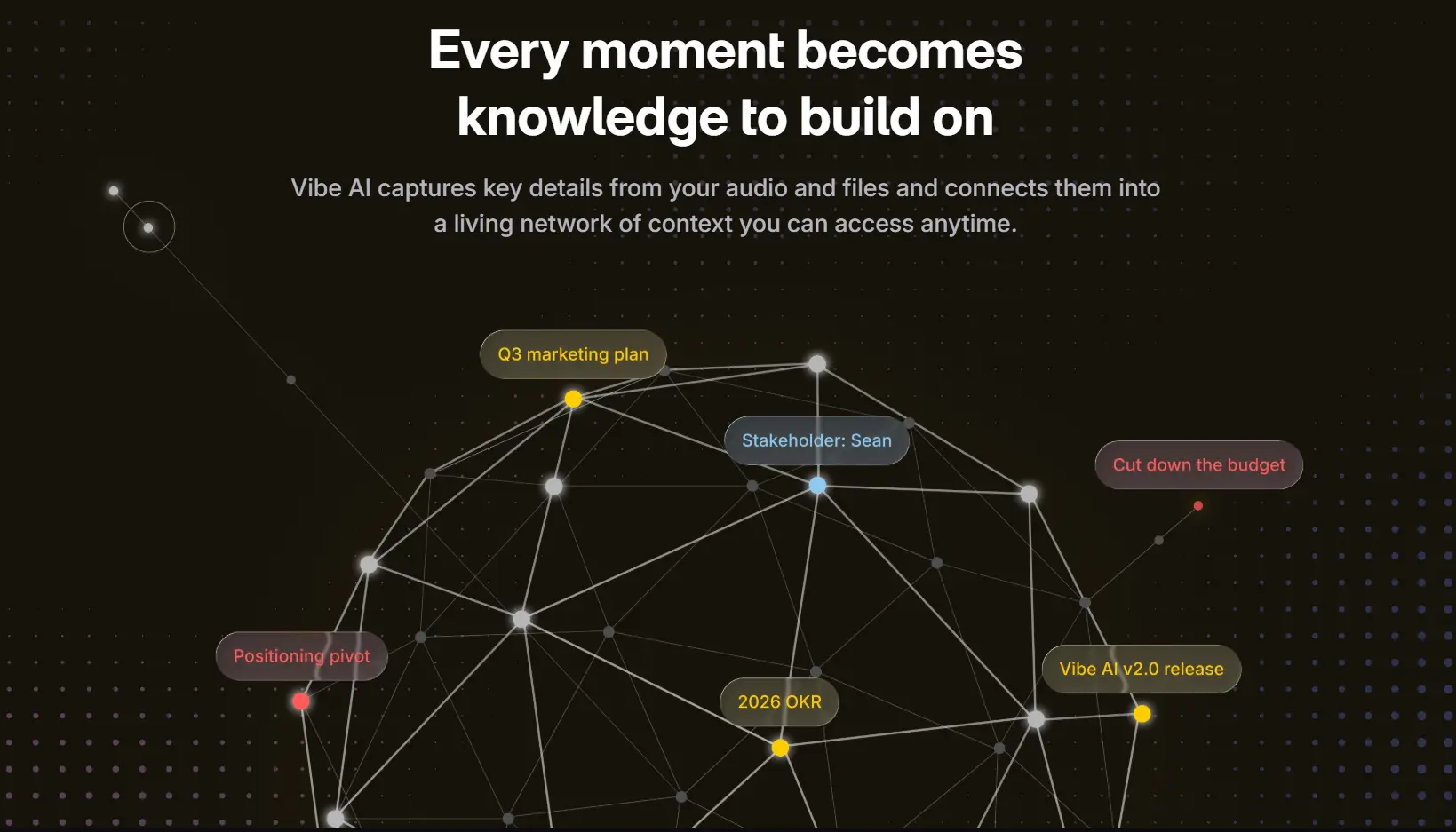
What distinguishes Vibe Bot from software-based AI note takers (Otter, Fireflies, etc.) is the Memory Graph: meeting summaries, decisions, and action items are linked across sessions through Vibe AI, so context carries forward automatically. Teams that run recurring project meetings, client calls, or sprint reviews stop re-explaining background every time.
Vibe Bot works with any existing display — mount it on a wall TV, connect it to a monitor, or pair it with a Vibe Board S1 for the full conferencing and collaboration stack. It's compatible with Microsoft Teams, Zoom, and Google Meet, and includes 300 free transcription minutes per month on the Starter plan. Pro ($9/mo) and Max ($24/mo) plans add longer memory windows and agentic workflow features.
If you need AI features but not full meeting intelligence
For teams where auto-framing and noise suppression are enough — and meeting notes are handled separately — these all-in-one bar systems cover the basics well:
|
Device |
Best For |
Platform |
Price (approx.) |
|---|---|---|---|
|
Logitech MeetUp 2 |
Compact rooms, 120° FOV |
Zoom, Teams, Meet |
$699–$799 |
|
Neat Bar BYOD |
Hybrid teams on Teams or Zoom |
Teams, Zoom |
$699–$1,000 |
|
Logitech Rally Bar |
Medium to large rooms, certified |
Zoom, Teams |
$3,299–$4,199 |
|
Yealink MVC640 |
Teams Rooms, mid-size rooms |
Teams Rooms |
$1,799–$2,200 |
|
Cisco Webex Room Kit Pro |
Enterprise boardrooms, 20+ seats |
Webex, Teams, Zoom |
$9,000–$24,000+ |
Note: software AI note takers like Otter or Fireflies can be added to any of the above — but they join as virtual bots, can't capture in-room audio directly, and reset after each call with no cross-session memory.
Decision 3: Does Your Space Need to Do More Than Video Calls?
Most meeting rooms in 2026 serve at least two purposes: video conferencing and some form of collaborative work — presenting, whiteboarding, annotating documents, running workshops. The equipment you choose should reflect both.
If your room needs conferencing + collaboration in one device
The Vibe Board S1 is built for exactly this. The 55″ or 75″ touchscreen runs Zoom, Teams, and Google Meet natively alongside Vibe Canvas — a built-in infinite whiteboard for real-time annotation, async collaboration, and visual planning. Participants can annotate over a live video call, pull up a shared canvas mid-meeting, or leave notes for teammates who weren't in the room.
For Windows-native environments, the Vibe Board S1 Pro runs full Windows 11 with the same touch interface and collaboration software.
If your room needs the full stack — conferencing, AI intelligence, and collaboration
Pair Vibe Board S1 with Vibe Bot. The Board handles the display, touch collaboration, and content sharing. Vibe Bot handles 360° capture, AI transcription, and cross-session memory through Vibe AI. Together they cover every dimension of a modern hybrid meeting room without requiring a laptop, a separate note-taker subscription, or a messy cable setup.
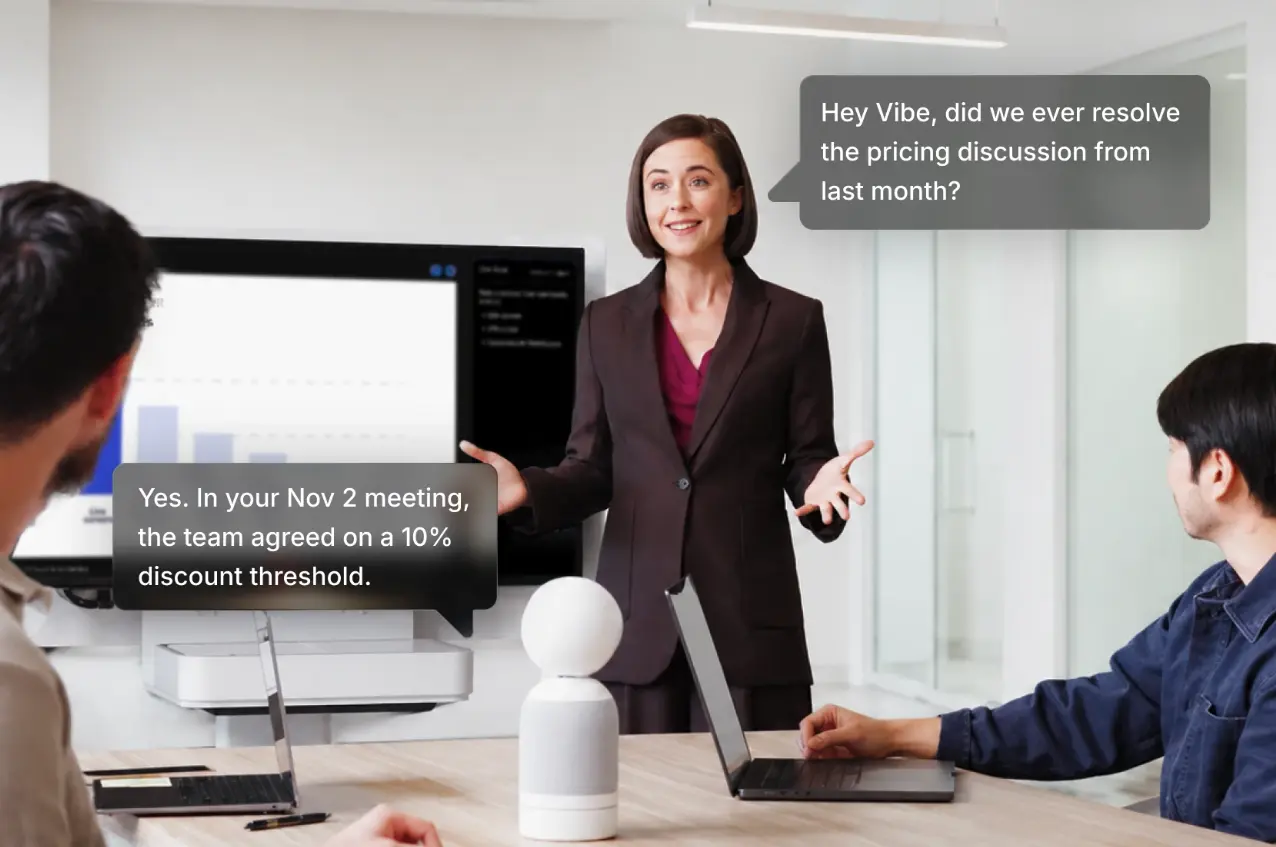 Vibe Bot AI conference camera recalling a past meeting decision about pricing during a live team meeting via voice query
If your room is purely for video calls — no whiteboarding needed
A dedicated bar system or modular AV setup is the more cost-efficient choice. Refer to the table in Decision 2 above, or the accessories section for targeted upgrades to an existing setup.
Quick Reference: What to Get Based on Your Answers
|
If you want… |
Recommended equipment |
|---|---|
|
A smart display that runs Zoom, Teams & 250+ apps out of the box | |
|
Conferencing + whiteboarding on one screen, no laptop needed |
Vibe Board S1 or S1 Pro (Windows) |
|
AI meeting notes + cross-session memory, works with any display | |
|
The full stack — smart display, AI capture, and persistent memory | |
|
A budget-friendly camera bar for Zoom or Teams |
Logitech MeetUp 2 or Neat Bar BYOD |
|
Enterprise-grade modular AV for a large boardroom |
Cisco Webex Room Kit Pro or Poly Studio X70 |
|
Teams-certified system for a mid-size room |
Yealink MVC640 or Neat Bar Gen 2 |
Accessories: Upgrading What You Already Have
You don't always need a full system overhaul. Targeted accessory upgrades can meaningfully improve a setup that's mostly working. Target the weakest link first.
Microphone Upgrades
If participants at the far end of the table are consistently hard to hear, the problem is microphone coverage. Solutions:
-
Shure MXA310 — table array mic for medium rooms, excellent directional pickup
-
Sennheiser TeamConnect Ceiling 2 — ceiling-mounted, eliminates cable clutter, ideal for large rooms with complex seating
-
Jabra Speak 750 — portable speakerphone for huddle spaces and traveling professionals; USB + Bluetooth, battery-powered
Camera Upgrades
-
Logitech Brio 4K — 4K webcam with HDR, excellent for desktop or small room setups
-
PTZ cameras (e.g., Logitech PTZ Pro 2, Huddly IQ) — for rooms where participants move and a fixed wide-angle misses coverage
Lighting
Often overlooked: a $50–$150 key light placed behind the screen eliminates the washed-out, backlit appearance that makes remote participants look like they're in witness protection. Elgato Key Light is the most commonly recommended desk solution.
Display and Whiteboard
For rooms that do both video conferencing and collaborative work, a dedicated interactive display removes the need to switch between presentation mode and whiteboarding. The Vibe Board S1 (ChromeOS, 55″ and 75″) integrates with Zoom, Teams, and Google Meet directly — camera, touch annotation, and content sharing from a single device. It also includes Vibe Canvas, a built-in infinite whiteboard for brainstorming, visual planning, and async collaboration.
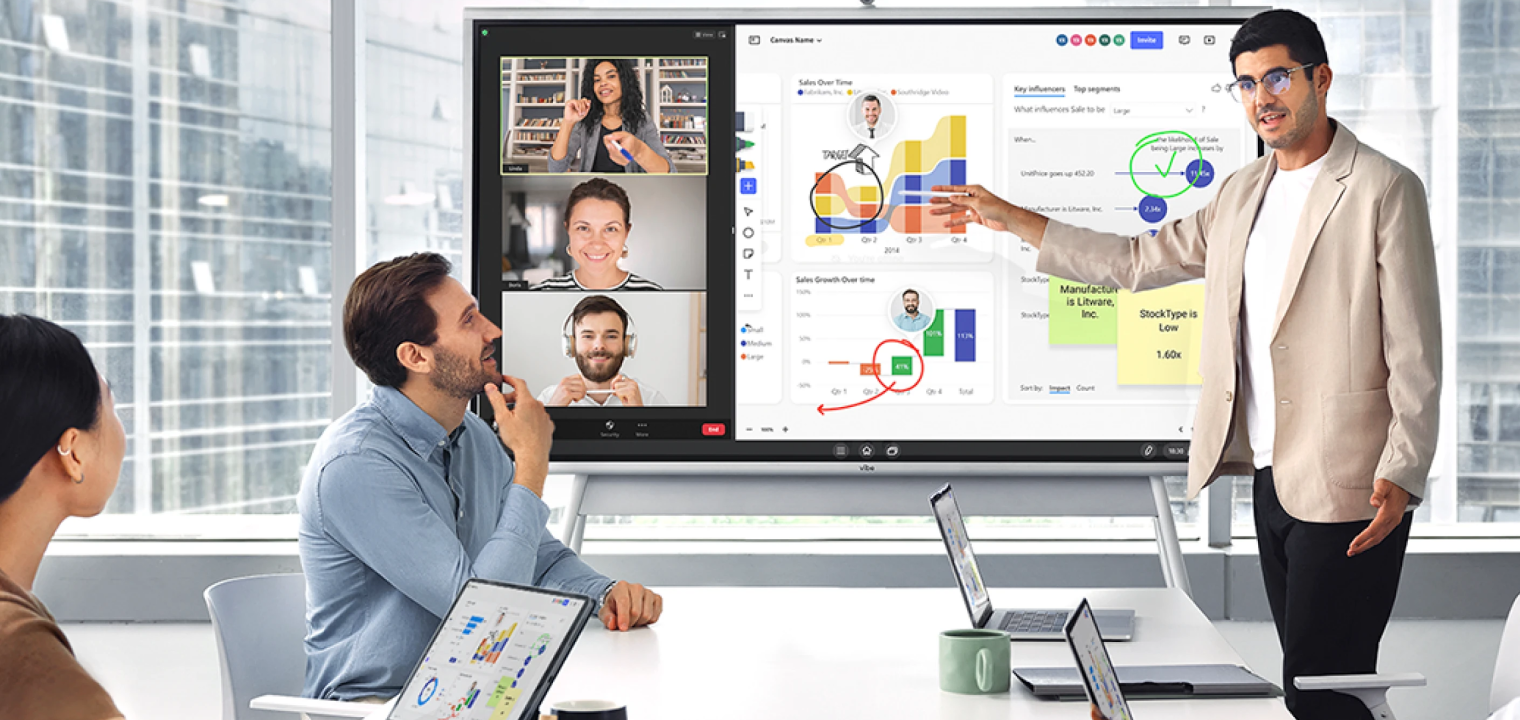
Platform Compatibility: Zoom, Teams, and Google Meet
Hardware certification matters. Devices certified for your platform go through interoperability testing that uncertified devices skip — resulting in faster connections, more predictable behavior, and support through the platform's IT management tools.
|
Platform |
Certification Program |
Recommended Hardware |
|---|---|---|
|
Zoom Rooms |
Zoom Certified |
Vibe Board S1, Logitech, Poly, Yealink, Neat |
|
Microsoft Teams |
Teams Rooms Certified |
Yealink, Logitech, Poly, Cisco, Neat |
|
Google Meet |
Works with Meet Hardware |
Logitech, Poly, ASUS, Jabra |
If your organization runs multiple platforms, prioritize hardware certified for both — or choose platform-agnostic devices that connect via USB regardless of software. The Vibe Board S1 runs Zoom, Teams, and Google Meet natively, making it one of the few all-in-one options that doesn't require a platform commitment at purchase.
Implementation: Getting the Setup Right
Equipment quality only matters if setup and adoption are handled correctly. These practices make the biggest difference post-purchase:
-
Measure before you buy. Room dimensions determine microphone coverage radius, camera field of view requirements, and speaker placement. Don't select hardware without knowing the room's square footage and the longest camera-to-seat distance.
-
Standardize across rooms. Mixing hardware brands across meeting rooms creates training overhead and IT support complexity. Standardize on one ecosystem per room tier where possible.
-
Test acoustics before launch. Hard surfaces — glass walls, exposed concrete — create echo that even good microphones struggle with. Address acoustics with panels or soft furnishings before blaming the hardware.
-
Automate firmware updates. Outdated firmware is the most common cause of mysterious AV failures. Use platform device management tools (Zoom Device Management, Teams Admin Center) to push updates automatically.
-
Establish meeting norms. The best equipment still benefits from agreed protocols: mute when not speaking, camera on during presentations, one speaker at a time. Document these in a team communication guide and revisit quarterly.
Frequently Asked Questions
What is video conferencing equipment?
Video conferencing equipment refers to the hardware used to conduct real-time video meetings — typically a combination of camera, microphone, speaker, and display. Modern systems often integrate these components into all-in-one devices that also handle transcription, meeting summaries, whiteboarding, and content sharing.
What equipment do I need for a video conference?
At a minimum: a camera, a microphone, a speaker, and a display. For professional results in a shared room, add AI auto-framing and noise suppression. For hybrid teams that need meeting records and follow-ups, add a device with native AI transcription — either a dedicated AI room device like Vibe Bot, or a software add-on paired with your existing camera.
What is the best all-in-one video conferencing system?
For teams that want conferencing and collaboration in a single device, the Vibe Board S1 is the strongest all-in-one option in 2026. It runs Zoom, Teams, and Google Meet natively on a 55″ or 75″ touchscreen, with a built-in camera, mic, speaker, and Vibe Canvas for infinite whiteboarding — no laptop required. It works across room sizes from huddle spaces to boardrooms.
What is an AI room device, and how is it different from a standard conference camera?
An AI room device like Vibe Bot integrates a conference-grade camera and microphone array with an on-device AI chip that handles real-time transcription, speaker identification, meeting summaries, and action item tracking. A standard conference camera only handles video and audio during the call. Meeting notes require a separate software subscription, and that software resets after each call with no memory of previous sessions. Vibe Bot's Memory Graph links context across meetings automatically.
How much does video conferencing equipment cost?
Costs range widely by capability level. A solid bar system for a small room runs $700–$1,200. An AI room device like Vibe Bot costs $1,599. An all-in-one smart display like Vibe Board S1 — which replaces the camera, display, and collaboration software in one device — is available in 55″ and 75″ sizes; contact Vibe for current pricing. Enterprise modular systems for large boardrooms range from $1,000 for basic kits to $24,000+ for high-end Cisco deployments.
Does video conferencing hardware need to be certified for my platform?
Certification (Zoom Certified, Teams Rooms Certified, etc.) is not mandatory, but it significantly improves reliability. Certified hardware goes through interoperability testing, connects faster, and is managed through your platform's IT admin tools. For enterprise deployments, certified hardware is strongly recommended. The Vibe Board S1 is compatible with Zoom, Teams, and Google Meet natively.
Can I use Vibe Bot with my existing display?
Yes. Vibe Bot works as a standalone unit with any existing TV, monitor, or display via HDMI. It runs on its own built-in OS — no laptop or PC required. You can also pair it with a Vibe Board S1 for a combined conferencing and whiteboarding setup.
How do I improve video conferencing quality without replacing everything?
Target the weakest link first. If audio is the issue, upgrade the microphone — a table array mic like the Shure MXA310 can dramatically improve a setup without touching the camera or display. If video quality is poor, an external 4K webcam like the Logitech Brio is a high-ROI upgrade. If lighting is the problem, a $100 key light solves it immediately. A full system replacement is rarely necessary if you diagnose the specific failure point first.