Digital Smart Whiteboards for Corporate Technical Training and Equipment Workflows
For corporate technical trainers, engineering educators, and enterprise learning specialists explaining intricate equipment schematics, hydraulic diagrams, and operational workflows, large-format 4K digital smart whiteboards deliver the visual clarity and live annotation required for deep technical comprehension.
Technical training sessions require moving effortlessly between high-resolution slide decks, animated system simulations, live software demonstrations, and spontaneous freehand whiteboarding. Training classrooms must balance seated trainee legibility with active hands-on screen interaction when trainees walk up to trace a circuit or step through an industrial logic flow.
Why technical training requires specialized interactive canvases
Traditional slide projection and static conference room TVs create passive learning bottlenecks during complex technical instruction:
| Training Classroom Requirement | Standard TV Screen / Projector Limitation | Interactive Smart Whiteboard Solution |
|---|---|---|
| Fine-pitch schematic readability | Low-contrast projectors wash out small wire tags, tolerance callouts, and component part numbers | 4K anti-glare display panels deliver crisp text rendering visible from the back of an 18-person classroom |
| Multi-source lesson pacing | Instructors must pause and switch display inputs to toggle between slides and whiteboard drawings | Picture-in-picture and multi-window split screening display live video feeds next to an active annotation canvas |
| Interactive hands-on exercises | Trainees watch passively from seats without proving direct schematic comprehension | Multi-touch surfaces allow multiple trainees to simultaneously troubleshoot parallel branches of a process diagram |
| Post-session reference distribution | Trainees take erratic phone snapshots of erased whiteboard notes with poor contrast | Session states export automatically to searchable PDF handouts containing every instructor markup |
Specifications checked against official manufacturer documentation on October 30, 2026. Recommendations represent editorial selection guidelines for enterprise learning and development.
Compare three interactive displays for technical learning centers
Reviewing commercial displays for technical education involves evaluating screen real estate, OS flexibility, and stylus precision:
| Technical Display Model | Visual & Touch Capabilities | Software Ecosystem & Compatibility | Trainee Collaboration Routes | Selection Implication |
|---|---|---|---|---|
| Vibe Board S1 Pro (75-inch) | 75-inch 4K UHD, 4,096 pressure levels, anti-glare 7H glass | Windows 11 Pro + VibeOS dual boot; native simulation app support | Trainees interact on-screen or contribute via browser from laptop seats | Recommended when training requires specialized Windows simulation suites (PLC simulators, CAD/CAM, SCADA) |
| Microsoft Surface Hub 3 (50-inch) | 50-inch 4K+, PixelSense display with active pen support | Windows 11 IoT Enterprise; Microsoft Teams Rooms native | Teams integration, whiteboard sharing across Microsoft 365 | Excellent fit for organizations standardized on Microsoft 365, though screen size is modest for large schematics |
| Samsung Flip Pro WM75B | 75-inch 4K UHD, 20 touch points, multi-pen drawing | Tizen OS; Samsung Workspace; Screen mirroring | Screen share from mobile devices and external HDMI inputs | High-contrast pen drawing board for general technical sketching, though third-party software installation is constrained |

Structuring the multi-source technical classroom
Effective technical training relies on three simultaneous visual planes:
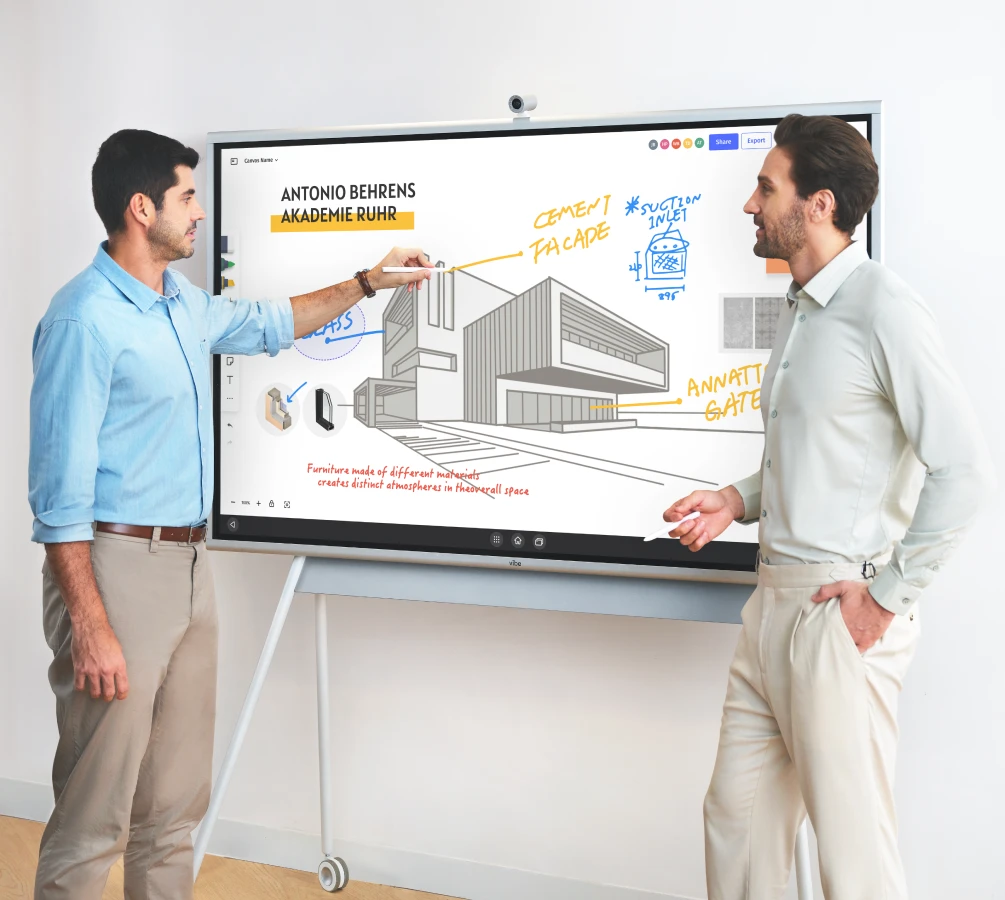
- The authoritative equipment schematic: High-resolution vector diagrams (P&IDs, electrical wiring harnesses, civil schematics) remain permanently legible without pixelation during deep zoom.
- The dynamic annotation layer: Instructors use color-coded pens (red for high-voltage, blue for fluid returns, yellow for bypass lines) to highlight operational sequences live during lectures.
- Integrated software simulations: Running live PLC emulators, network packet sniffers, or medical imaging tools side-by-side with the diagram anchors theoretical concepts in practical execution.
Classroom deployment criteria for L&D procurement
Before outfitting corporate training facilities, validate these hardware capabilities during an on-site pilot:
- Color contrast and visual acuity: Verify that 8-point schematic labels and thin electrical lines remain crisp when viewed from 20 feet away.
- Dual-presenter touch separation: Confirm that instructor and trainee inputs do not cross-talk when drawing simultaneously on opposite sides of the screen.
- Cloud repository integration: Test direct opening and saving of lesson modules to corporate Google Drive, OneDrive, or internal learning management systems.
- Remote trainee audio/video clarity: Ensure remote learners can see the active screen canvas clearly via Zoom, Teams, or Google Meet without video compression artifacts.
Frequently asked questions
Can we run licensed CAD software directly on the display during training?
Yes. On Windows-native displays such as the Vibe Board S1 Pro, licensed CAD/CAM applications, PLC simulators, and proprietary technical packages execute locally without needing a separate tethered instructor PC.
Can trainees write notes on the screen without overwriting the original master drawing?
Yes. The digital canvas operates with distinct non-destructive layers. Markups are drawn on top of the underlying vector schematic, allowing the instructor to clear notes instantly while keeping the base diagram intact.
How do trainees take home the annotated diagrams after class?
Instructors export the completed lesson canvas as a single vector PDF or image package, distributing it via email or classroom cloud drives in seconds.
Explore Vibe Board S1 Pro for corporate training