
Whether you’re leading a brainstorm from a home office or running a design sprint across time zones, online whiteboarding tools are now the backbone of modern team collaboration.
The problem? There are dozens of options—and most teams pick the wrong one.
We reviewed 7 of the best online whiteboarding tools of this year, covering free options for small teams, enterprise platforms with AI features, and the one setup that bridges remote and in-room collaboration better than anything else on the market.
What’s covered:
-
Side-by-side tool comparison
-
Honest pros and cons per platform
-
Clear guidance on who each tool is best for
-
How to choose the right fit for your team’s workflow
Quick Comparison: Best Online Whiteboarding Tools (2026)
|
Tool |
Best For |
Free Plan |
Standout Feature |
|---|---|---|---|
|
Vibe Canvas |
Hybrid teams + meeting rooms |
✓ |
Built for business team collaboration, even better on Vibe Board |
|
Miro |
Large remote teams |
✓ (3 boards) |
100+ app integrations |
|
Mural |
Facilitated workshops |
Trial only |
400+ structured templates |
|
ClickUp |
Project-focused teams |
✓ |
Whiteboard → task in one click |
|
Microsoft Whiteboard |
Microsoft 365 orgs |
✓ |
Native Teams integration |
|
Canva |
Visual presentations |
✓ |
Design-quality outputs |
|
FigJam (Figma) |
UX/UI design teams |
✓ (limited) |
Seamless Figma handoff |
What Are Online Whiteboarding Tools?
Online whiteboarding tools are digital platforms that replicate—and dramatically extend—the functionality of a physical whiteboard. They give distributed teams a shared visual workspace to brainstorm, plan, design, and present together in real time, from any device, anywhere.
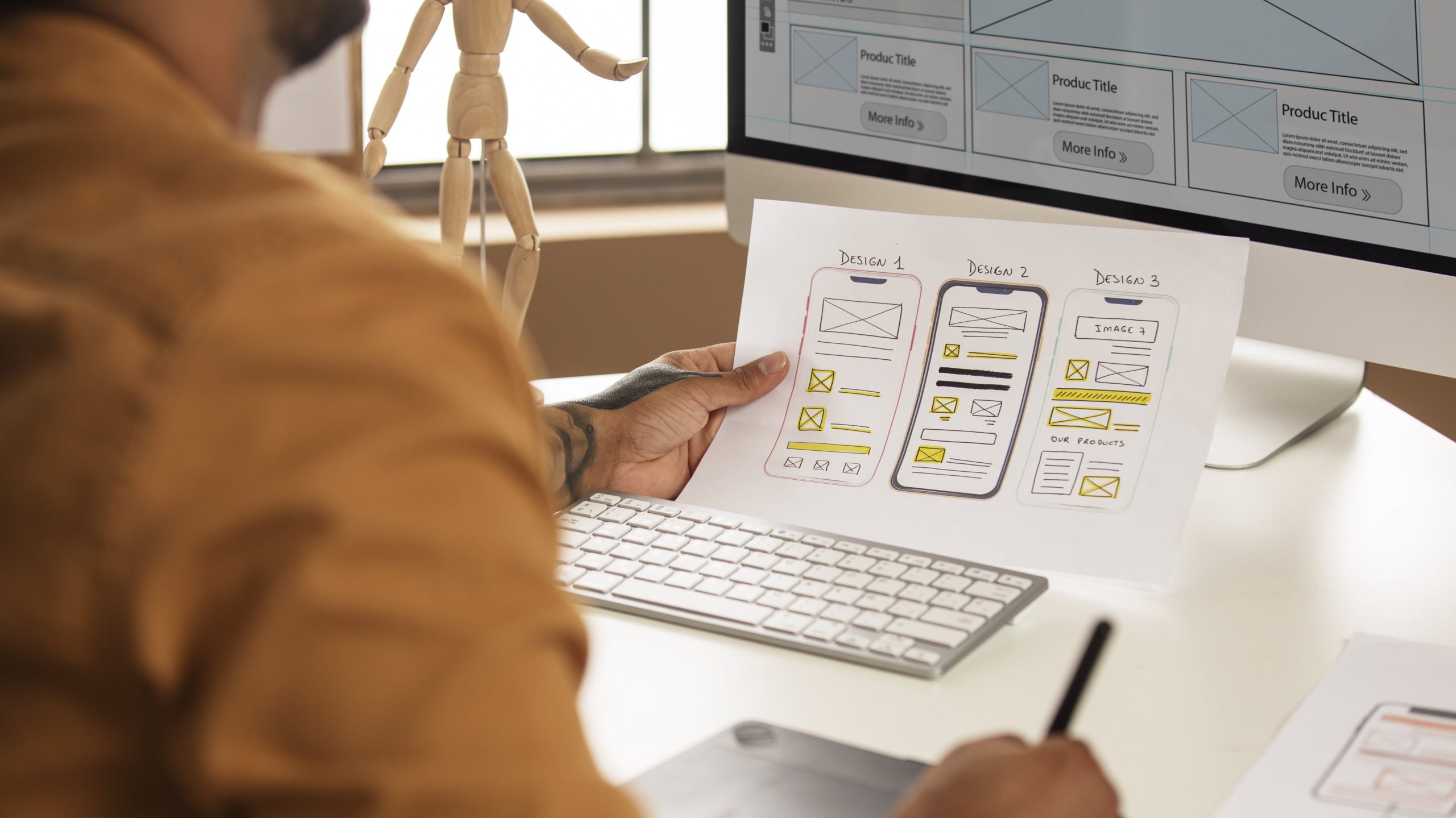
Unlike static documents or video calls, online whiteboards are spatial and visual—which makes them uniquely effective for:
-
Brainstorming and ideation — sticky notes, mind maps, free-form drawing
-
Project planning — visual timelines, workflow maps, task tracking
-
Design and prototyping — wireframes, user flows, design reviews
-
Education — interactive lessons with real student participation
-
Client presentations — live annotation and collaborative review
-
Retrospectives and workshops — structured team activities with templates
The best tools balance ease of use with depth—templates, integrations, AI assistance, and seamless cross-device access.
The 7 Best Online Whiteboarding Tools in 2026
1. Vibe Canvas — Best for Hybrid Teams and Meeting Rooms
Rating: ⭐⭐⭐⭐⭐ 4.9/5
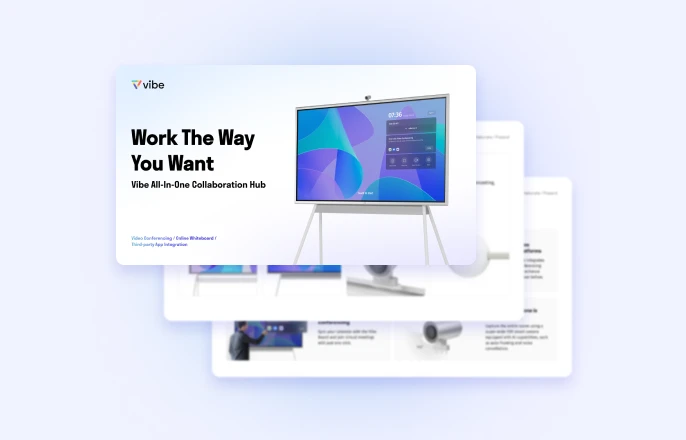
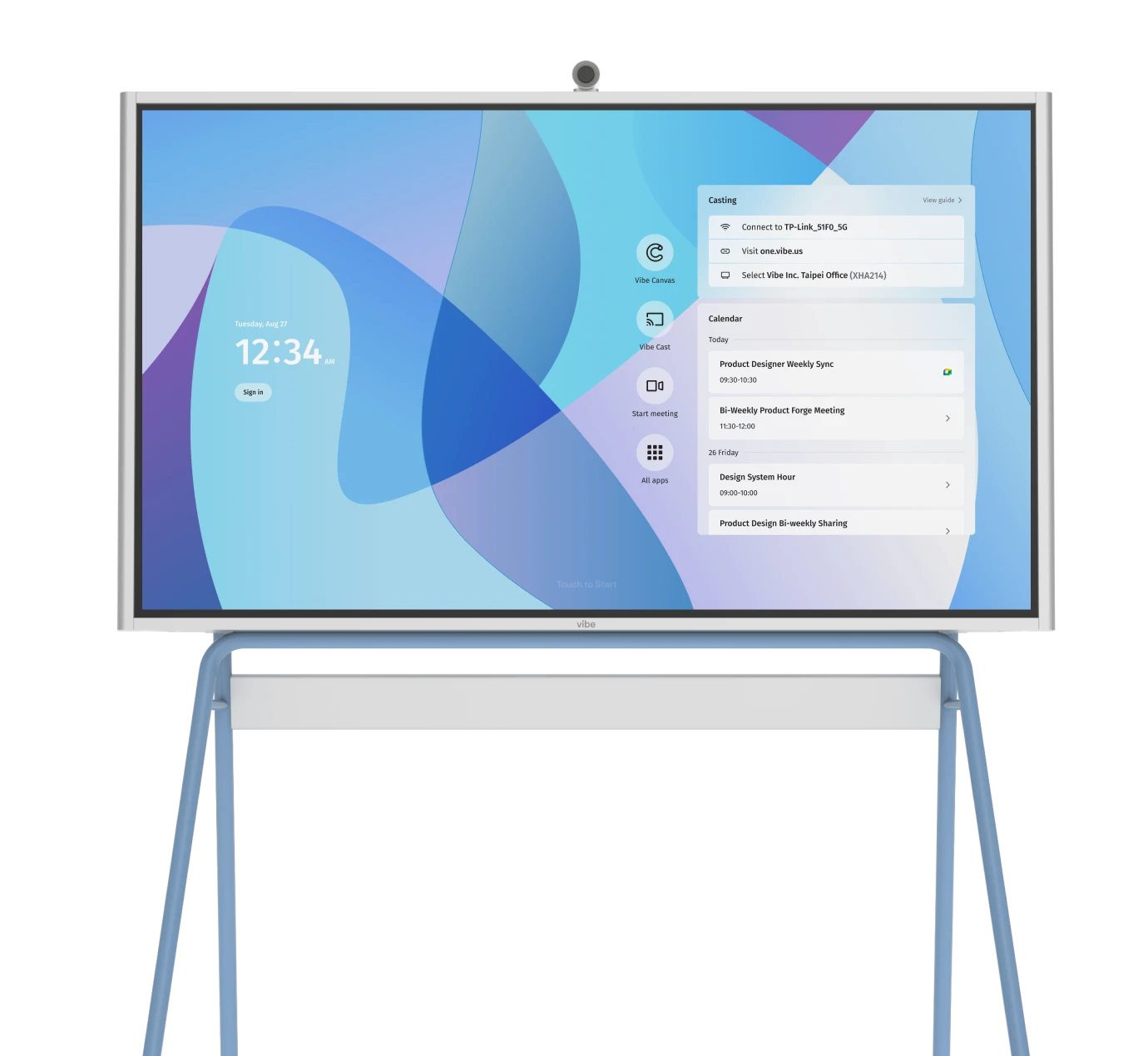
Most online whiteboarding tools stop at the screen. Vibe Canvas goes further. Vibe Canvas is both a web-based whiteboarding app and the software powering the Vibe Board S1—an interactive smart display available in 55″ and 75″ sizes. The result is something no other tool on this list can offer: a single infinite canvas that in-room participants touch directly on a large display while remote teammates collaborate on the exact same board, simultaneously, with zero friction.
Key features:
-
Infinite canvas with real-time multi-user collaboration
-
PDF / PPT / Image annotation and document markup built in
-
Multi-touch up to 20 simultaneous touchpoints (on Vibe Board)
-
Automatic cloud sync — sessions are never lost
-
AI-powered shape recognition and smart formatting
-
Works standalone on any browser or device
Pros:
-
Bridges remote and in-room collaboration in a way software-only tools can’t
-
Clean, intuitive interface — minimal learning curve
-
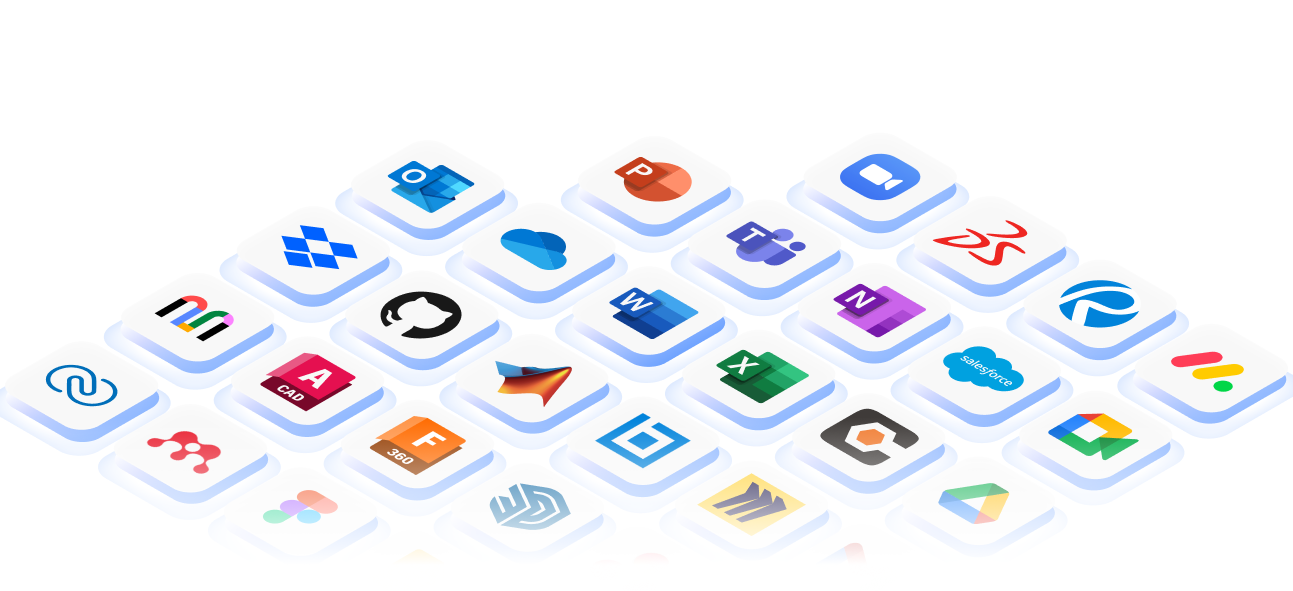
Pairs with Vibe Board for a seamless hardware + software experience when you need it, featuring 250+ app integrations (Zoom, Google Meet, Slack, Microsoft Teams, Google Workspace)
Cons:
-
Vibe Canvas's free plan has limited storage and export options compared to Miro or MURAL
-
Advanced admin controls and SSO require a paid plan
Best for:
Hybrid teams, education institutions, training facilities, and any organization that wants their meeting room display and collaboration software to be the same system.
Pricing:
Free plan available for Vibe Canvas. Vibe Board S1 hardware — request a free demo to see pricing and sizing options.
2. Miro — Best for Large Remote Teams
Rating: ⭐⭐⭐⭐½ 4.7/5
Miro is the most widely deployed online whiteboarding tool in the world, and it earns that position. Its infinite canvas, deep integrations, and workshop facilitation features make it a reliable choice for distributed teams running complex collaborative workflows.
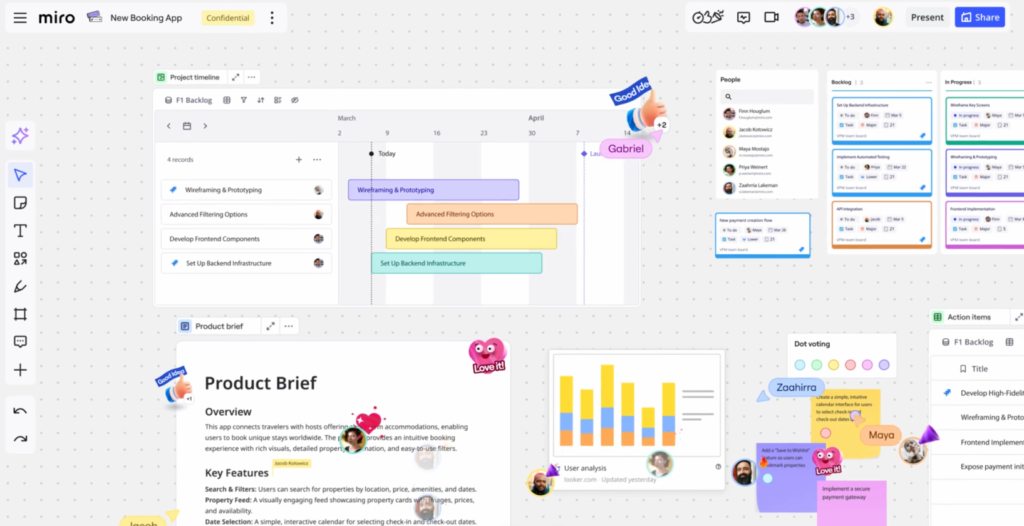 Example of Miro whiteboarding tools.
Key features:
-
Massive template library: agile ceremonies, customer journey maps, org charts, and more
-
Integrations with Jira, Slack, Asana, Zoom, and 100+ more tools
-
Voting, timers, and facilitation controls for live workshops
-
Robust guest access and enterprise permissions
-
Mind mapping, flowcharting, and diagramming built in
Pros:
-
Best-in-class integration ecosystem
-
Scales well from 2-person startups to enterprise org
Cons:
-
Free plan capped at 3 editable boards
-
Interface can overwhelm new users
-
Cost scales quickly for large teams
Best for:
Mid-to-large remote or hybrid teams running regular sprint planning, design thinking, or cross-functional workshops.
Pricing:
Free (3 boards). Starter at $10/user/month.
3. Mural— Best for Structured Workshops and Facilitation
Rating: ⭐⭐⭐⭐½ 4.6/5
Where Miro goes broad, Mural goes deep on facilitation. It’s purpose-built for structured collaboration: design thinking sessions, team retrospectives, innovation sprints, and strategic planning workshops.
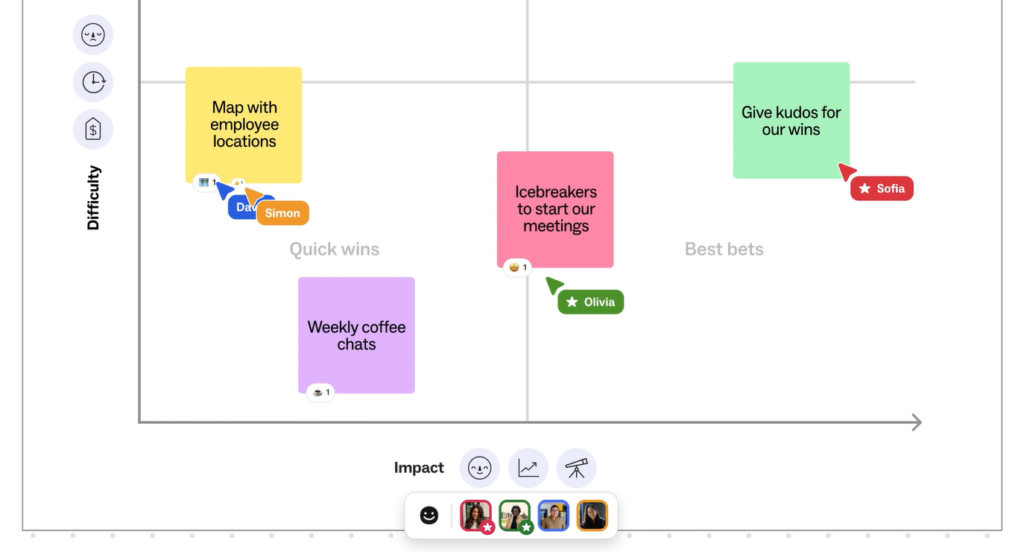 Example of Mural whiteboarding tools.
Key features:
-
400+ professionally curated templates
-
Built-in facilitation tools: timers, anonymous voting, guided activities
-
AI-assisted canvas organization (MURAL Intelligent Canvas)
-
Strong enterprise security and compliance support
Pros:
-
Exceptional for guided, outcome-focused workshops
-
Templates designed by facilitation experts
-
Great facilitator controls
Cons:
-
Free plan restricts collaboration to a trial period
-
Less suited for casual or general-purpose whiteboarding
-
Steeper learning curve than Miro for new facilitators
Best for:
HR teams, design thinking facilitators, OD consultants, and enterprises that run structured collaboration programs.
Pricing:
Free 30-day trial. Paid plans from $9.99/user/month.
4. ClickUp — Best for Project-Focused Teams
Rating: ⭐⭐⭐⭐½ 4.5/5
ClickUp is primarily a project management platform—but its native Whiteboard feature has matured into a genuinely useful tool for teams that want to brainstorm and execute in one place, without switching apps.
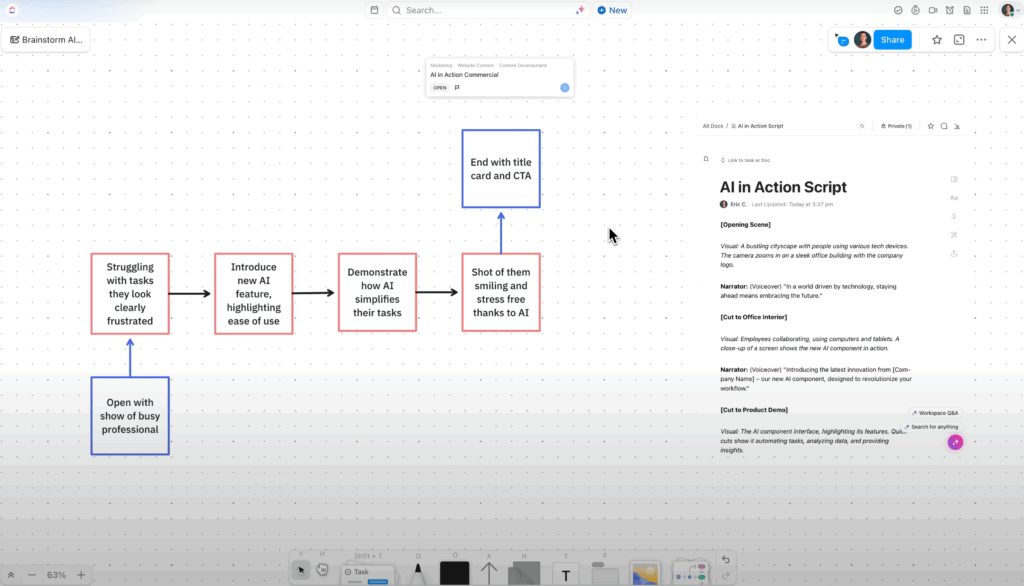 Example of ClickUp whiteboarding tools.
Key features:
-
Convert sticky notes directly into tasks with one click
-
Drag-and-drop canvas anyone can learn in minutes
-
1,000+ native and Zapier integrations
-
All-in-one workspace: docs, tasks, dashboards, and whiteboards
Pros:
-
Best choice if you already use ClickUp for project management
-
Generous free plan with most core features
-
No context-switching between whiteboard and task management
Cons:
-
Whiteboard feature is secondary — not as deep as dedicated tools
-
Can feel cluttered with all features enabled
-
AI features require paid plan
Best for:
Teams already using ClickUp who want lightweight whiteboarding without adding another subscription.
Pricing:
Free plan available. Paid plans from $7/user/month.
5. Microsoft Whiteboard — Best for Microsoft 365 Environments
Rating: ⭐⭐⭐⭐ 4.3/5
If your organization runs on Microsoft 365, Microsoft Whiteboard is already in your toolbox—free, embedded in Teams, and improving steadily with Microsoft’s Copilot AI investments.
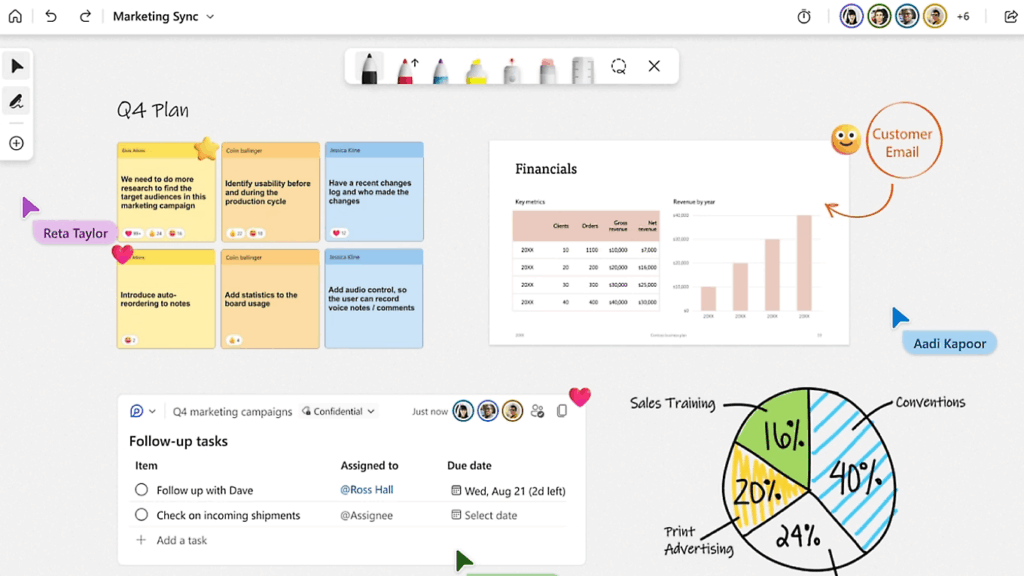 Example of Microsoft whiteboarding tools.
Key features:
-
Free with Microsoft 365 subscription
-
Launches directly inside Microsoft Teams meetings
-
Ink-to-shape and ink-to-table conversion
-
Surface device and touchscreen optimization
-
Copilot AI integration in newer builds
Pros:
-
Zero cost for existing Microsoft 365 subscribers
-
Lowest adoption friction for Microsoft-native teams
-
Improving rapidly with Copilot additions
Cons:
-
Significantly less powerful than dedicated whiteboarding tools
-
Little value outside the Microsoft ecosystem
-
Limited template and integration options
Best for:
Enterprise teams standardized on Microsoft 365 and Teams who need fast, frictionless whiteboarding without adding new tools.
Pricing:
Included with Microsoft 365.
6. Canva — Best for Design-Forward Visual Collaboration
Rating: ⭐⭐⭐⭐ 4.4/5
Canva isn’t a traditional whiteboard—it’s a design platform—but its whiteboard mode has become a useful option for teams that blur the line between ideation and visual presentation.
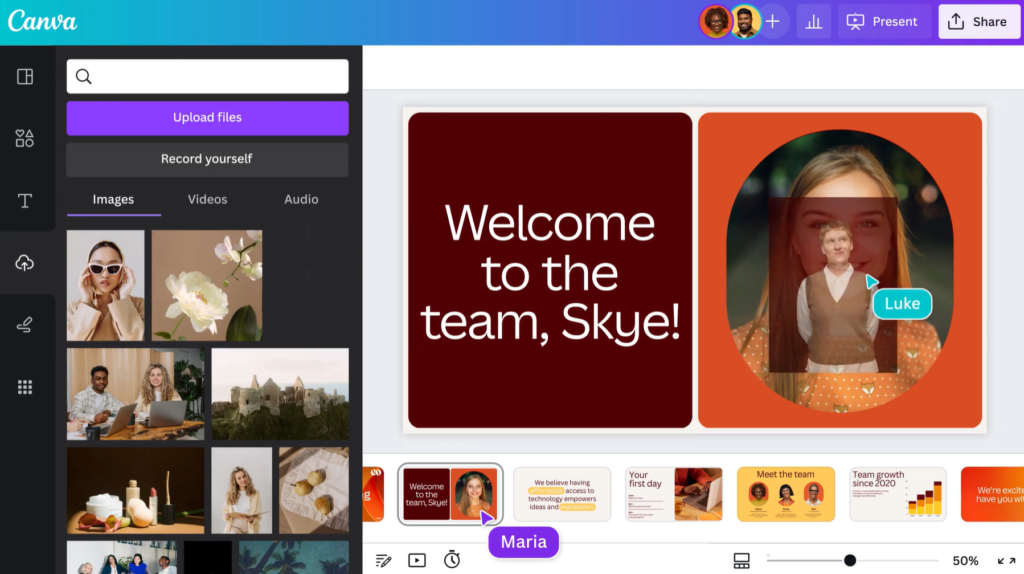 Example of Canva whiteboarding tools.
Key features:
-
Thousands of beautifully designed templates
-
Intuitive drag-and-drop editor
-
Export to PDF, PNG, animated video, and presentation formats
-
Brand kit and asset management for marketing teams
-
Strong free plan
Pros:
-
Best-looking outputs of any tool on this list
-
Extremely easy to learn and use
-
Great for stakeholder-facing deliverables
Cons:
-
Not built for real-time brainstorming at scale
-
Weaker for technical workflows (flowcharts, wireframes)
-
Whiteboard is an add-on feature, not the core product
Best for:
Marketing teams, educators, and anyone who needs polished, visual outputs from their collaborative sessions.
Pricing:
Free plan available. Canva Pro at $15/user/month.
7. FigJam (Figma) — Best for UX/UI Design Teams
Rating: ⭐⭐⭐⭐½ 4.6/5
FigJam is Figma’s dedicated whiteboarding product, designed for design teams who need to ideate, align, and hand off—all within the Figma ecosystem.
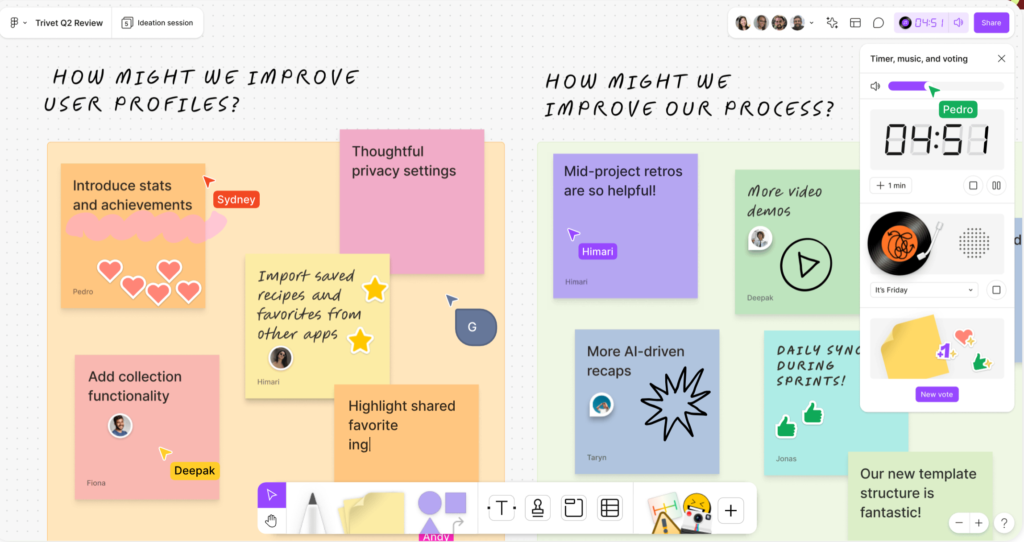 Example of Figma whiteboarding tools.
Key features:
-
Purpose-built for design sprints and UX ideation
-
Stamps, emotes, and audio for engaging remote sessions
-
Direct handoff from FigJam ideation into Figma design files
-
Extensive plugin support
-
Strong async commenting and review tools
Pros:
-
Seamless for teams already in the Figma workflow
-
Keeps ideation and design in one connected system
-
Great facilitation tools for design critiques
Cons:
-
Less valuable outside of product design contexts
-
Template library skews heavily toward design use cases
-
Can feel like overkill for non-design teams
Best for:
Product designers, UX researchers, and product teams using Figma as their primary design environment.
Pricing:
Free plan (unlimited FigJam files). Full Figma plan from $15/user/month.
How to Choose the Right Online Whiteboarding Tool
Use this simple decision framework:
1. What’s your primary use case?
-
General brainstorming + project planning → Miro or ClickUp
-
Structured workshops and facilitation → Mural
-
UX/UI design and prototyping → FigJam
-
Visual presentations and marketing → Canva
-
Hybrid meeting rooms + remote → Vibe Canvas
2. Where does your team work?
-
Fully remote → Miro, Mural, or ClickUp
-
Hybrid (some in-room, some remote) → Vibe Canvas + Vibe Board S1 is the standout solution
-
Microsoft 365 environment → Microsoft Whiteboard as a starting point
3. What tools do you already use?
Start with the whiteboarding tool that integrates best with your existing stack. Switching costs add up.
4. Do you need a physical display too?
If you want a large-format interactive screen in your conference room or classroom—not just a web app—Vibe Board S1 is the only purpose-built hardware + software solution on this list.
5. What’s your budget?
Every tool here has a free tier. Start free, run real sessions, and upgrade only when you hit real limits.
Features to Look for in Online Whiteboarding Tools
Before committing to any platform, evaluate it across these dimensions:
-
Real-time collaboration — Can multiple users edit simultaneously without lag or conflicts?
-
Template library — Does it include templates relevant to your specific workflows?
-
Integrations — Does it connect to the tools your team already uses (Slack, Zoom, Jira, etc.)?
-
Annotation tools — Pen styles, sticky notes, shapes, comments—do they meet your needs?
-
Device compatibility — Browser, mobile app, tablet, and large-format display support
-
AI features — Shape recognition, auto-formatting, content generation becoming table-stakes in 2025
-
Security and permissions — Guest access controls, SSO, data residency for enterprise teams
Frequently Asked Questions
What is the best online whiteboarding tool in 2026?
The best online whiteboarding tool depends on your use case. Vibe Canvas is the top pick for hybrid teams that need both software flexibility and hardware-room integration. Miro leads for feature-depth across large remote teams. FigJam is the best choice for product design workflows. All three offer free plans to get started.
What is the best free online whiteboard?
Microsoft Whiteboard is fully free with Microsoft 365. Miro’s free plan supports up to 3 boards with real collaboration features. Vibe Canvas, ClickUp, and Canva all offer meaningful free tiers. For design teams, FigJam offers unlimited boards on the free plan.
What are online whiteboarding tools used for?
Online whiteboarding tools are used for brainstorming sessions, design sprints, agile retrospectives, UX wireframing, project planning, educational lessons, client presentations, and remote team alignment—anywhere visual, real-time collaboration adds value over a static document or video call alone.
Can I use online whiteboarding tools on a tablet or touchscreen?
Yes. Most tools support mobile and tablet browsers, with dedicated iOS and Android apps. Vibe Canvas also works on the Vibe Board S1, a large-format touchscreen display built specifically for collaborative whiteboarding in meeting rooms and classrooms.
Does the Vibe Board work with other whiteboarding tools like Miro or MURAL?
Yes. The Vibe Board S1 is an open touchscreen display, which means it runs virtually any whiteboarding app — Miro, MURAL, FigJam, ClickUp, Microsoft Whiteboard, and more. You're not locked into Vibe Canvas. Whatever tool your team already uses, the Vibe Board makes it more intuitive with large-format multi-touch — pinch, draw, and annotate directly on screen instead of clicking around with a mouse. Think of it as upgrading any software whiteboard from a laptop window to a room-sized interactive display.
How do online whiteboarding tools compare to physical whiteboards?
Physical whiteboards are limited to one room, one moment, and one erasing. Online whiteboards let any number of participants collaborate from anywhere, preserve session history in the cloud, integrate with your existing workflow tools, and scale infinitely. For hybrid teams, tools like Vibe Canvas bridge both worlds—connecting a physical room display with remote participants on a shared canvas.
Do online whiteboarding tools work with Zoom or Microsoft Teams?
Most major tools integrate with both. Vibe Canvas, Miro, and Mural all support Zoom and Teams. Microsoft Whiteboard is natively embedded in Teams. Check each tool’s integration page for the latest compatibility.
Ready to Transform How Your Team Collaborates?
The right online whiteboarding tool can cut meeting time, sharpen creative output, and make distributed collaboration feel genuinely natural.
If your team works in any kind of physical space—a conference room, a classroom, a training center—and you want that space to connect seamlessly with remote participants, Vibe Canvas and the Vibe Board S1 are worth a serious look.
Get a Free Demo →
See the Vibe Board S1 in action with a live demo from the team.
Shop the Vibe Board S1 →
Available in 55″ and 75″ to fit any meeting space.