
Quick answer: A digital Kanban board is an online tool that visualizes tasks as cards moving through workflow columns (like To Do → In Progress → Done), giving teams a shared, real-time view of work. The best Kanban tools in 2026 are Trello for simplicity, Jira for software teams, Asana for cross-functional structure, Miro and Vibe Canvas for visual-first and hybrid teams, Kanbanchi for Google Workspace, and Microsoft Planner for Microsoft 365.
Imagine your team juggling dozens of tasks across projects, with updates buried in email threads or scattered across spreadsheets. Meetings drag on because no one can see what's blocked, who's overloaded, or what actually shipped last week.
That's why more teams are turning to digital Kanban boards. 87% of Kanban adopters say it's more effective than their previous approach, and the Kanban software market is projected to grow from $1.42B in 2025 to $3.10B by 2034. This guide explains what digital Kanban boards are, compares the 7 best Kanban tools of 2026, and shows you how to roll one out so your project management board actually gets used.
- Digital Kanban boards give teams a shared, real-time view of work in progress, improving visibility and flow across hybrid and remote environments.
- The right Kanban tool depends on team size, workflow complexity, and which ecosystem (Google, Microsoft, Atlassian) you already live in — most offer free tiers to start.
- Successful adoption depends less on features and more on upkeep: clear WIP limits, update ownership, and regular board reviews.
What Is a Digital Kanban Board?
A digital Kanban board is an online tool that visualizes tasks as "cards" moving through workflow stages ("columns") so the whole team can see work progress from idea to done. It preserves the clarity of a physical sticky-note board while adding what a wall can't: remote access, persistent history, search, notifications, integrations (Slack, Google Drive, Git), and automation.
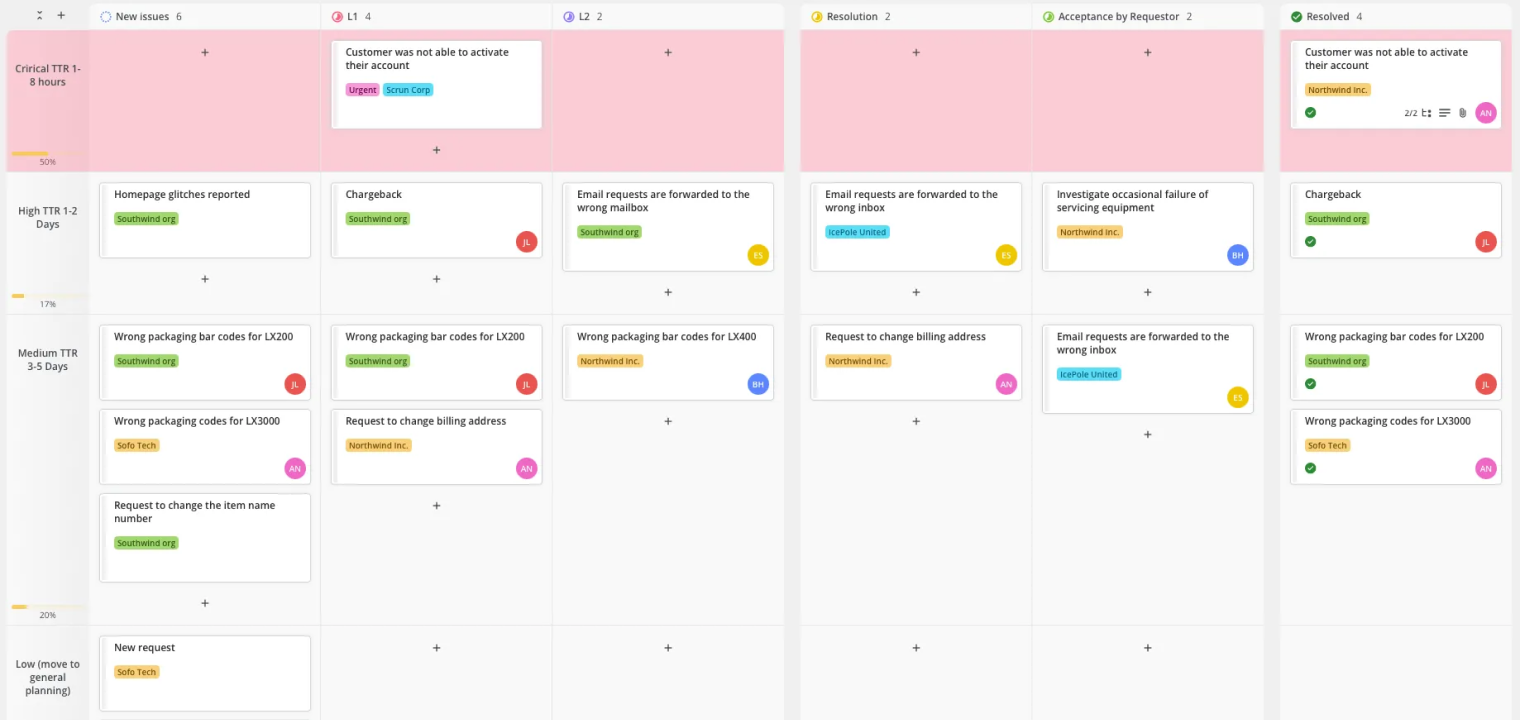 Creating Kanban board in Teamhood.
Most tools share the same core structure:
-
Columns and cards: Cards migrate left-to-right as work moves through stages.
-
Drag-and-drop: Reordering cards feels as simple as moving stickies.
-
Card details: Assignees, due dates, comments, attachments, and checklists keep context with the work.
-
Optional layers: Swimlanes for parallel workstreams, WIP limits, saved views, and templates for repeatable processes.
The terminology is interchangeable — "Kanban board software," "Kanban tools," and "digital Kanban boards" all describe the same category.
Why Teams Are Switching to Digital Kanban
Behind the category's growth are three everyday needs: leaders want visibility without micromanaging, teams want less context switching, and stakeholders want reliable forecasts. It's not just small teams either — 41% of organizations report applying Kanban across 10+ teams or company-wide, according to Kanban University's State of Kanban report.
The benefits teams report most often:
-
Visibility and transparency: Everyone sees status at a glance — fewer "quick status check" meetings.
-
Flow control: WIP limits and visual queues surface bottlenecks before they become delays.
-
Measurable improvement: Lead time, cycle time, and throughput turn process debates into data.
-
Built-in accountability: Comments, assignees, and mentions keep context attached to the work itself.
The 7 Best Kanban Tools Compared
|
Tool |
Core strength |
Best for |
Pricing highlights* |
|---|---|---|---|
|
Trello |
Simplicity; fastest to learn |
Small to mid-size teams that want a friendly visual board |
Free tier; Standard $5/user/mo (annual) |
|
Jira |
Deep agile/engineering workflows |
Software development teams needing custom configuration |
Free for small teams; Standard ~$8–9/user/mo |
|
Asana |
Versatile views; tasks-to-projects middle ground |
Marketing, ops, and cross-functional teams |
Free up to 10 users; Starter $10.99/user/mo |
|
Miro |
Infinite canvas + Kanban templates |
Remote teams mixing brainstorming with task tracking |
Free plan; Starter $8/user/mo |
|
Vibe Canvas |
Visual ideation + Kanban in one hybrid workspace |
Hybrid teams working across smart boards, laptops, and phones |
Free tier; included with Vibe hardware |
|
Kanbanchi |
Deep Google Workspace integration |
Teams that live in Drive, Gmail, and Calendar |
From $5.99/user/mo |
|
Microsoft Planner |
Native Microsoft 365 / Teams integration |
Teams already working in Teams and Office 365 |
Included with most M365 business plans |
*Pricing snapshots for reference; verify current pricing for your region and billing cadence.
1. Trello
Trello is the tool that made Kanban mainstream: boards, lists, and cards with an interface anyone can learn in minutes. Its Butler automation handles repetitive moves (auto-assign, due-date nudges, card archiving) without admin expertise, and Power-Ups connect it to Slack, Google Drive, and hundreds of other apps.
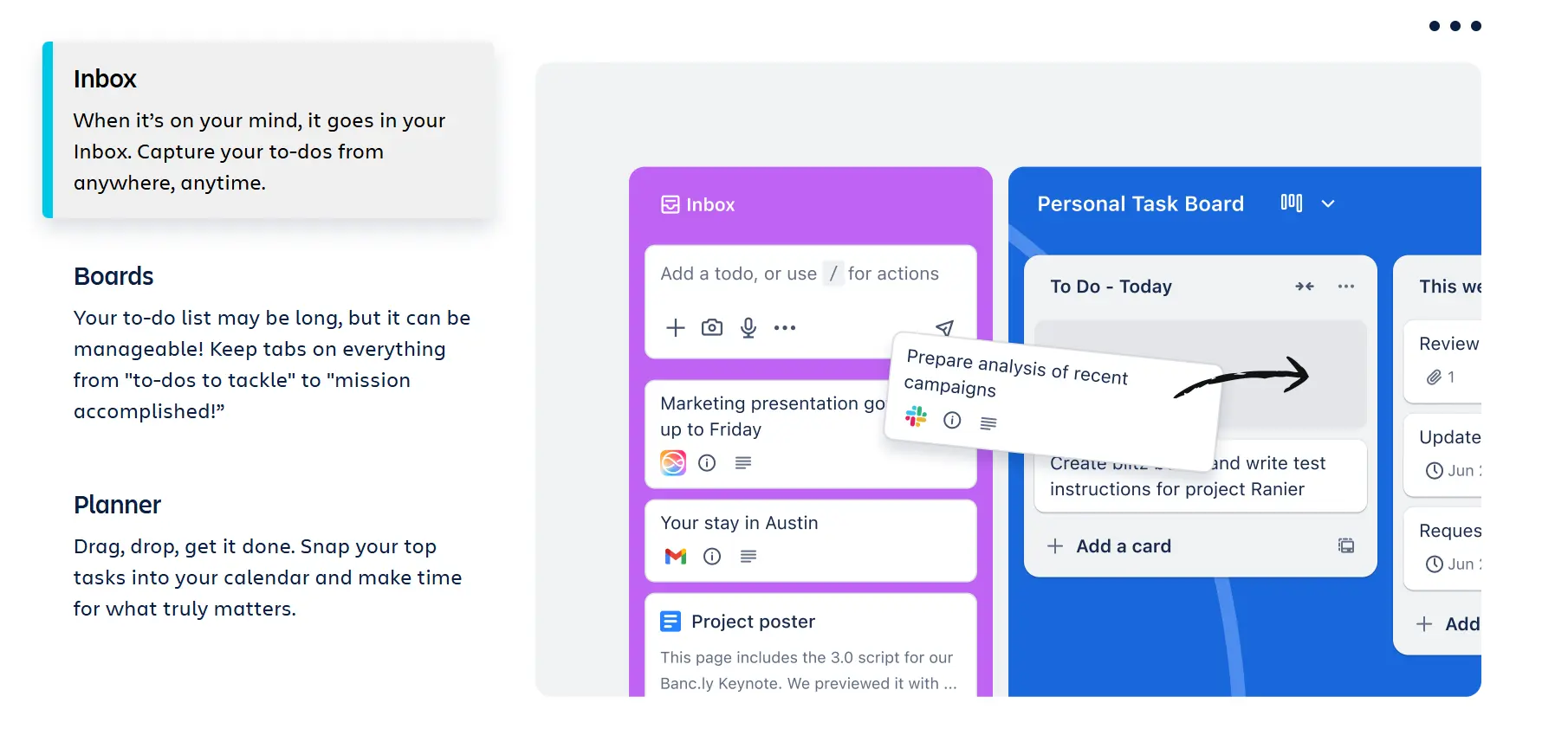 Trello homepage
Best for: Small to mid-size teams that want a visual board running today, not after a configuration project.
Pros: Near-zero onboarding; generous free tier; large template gallery. Cons: Reporting and analytics are thin without paid Power-Ups; scales awkwardly for complex multi-team dependencies.
2. Jira
Jira is Atlassian's work management platform and the default Kanban (and Scrum) home for software teams. Boards connect directly to code repos, releases, and backlogs, with custom workflows, advanced permissions, and the deepest agile reporting in the category — control charts, cumulative flow diagrams, and velocity tracking out of the box.
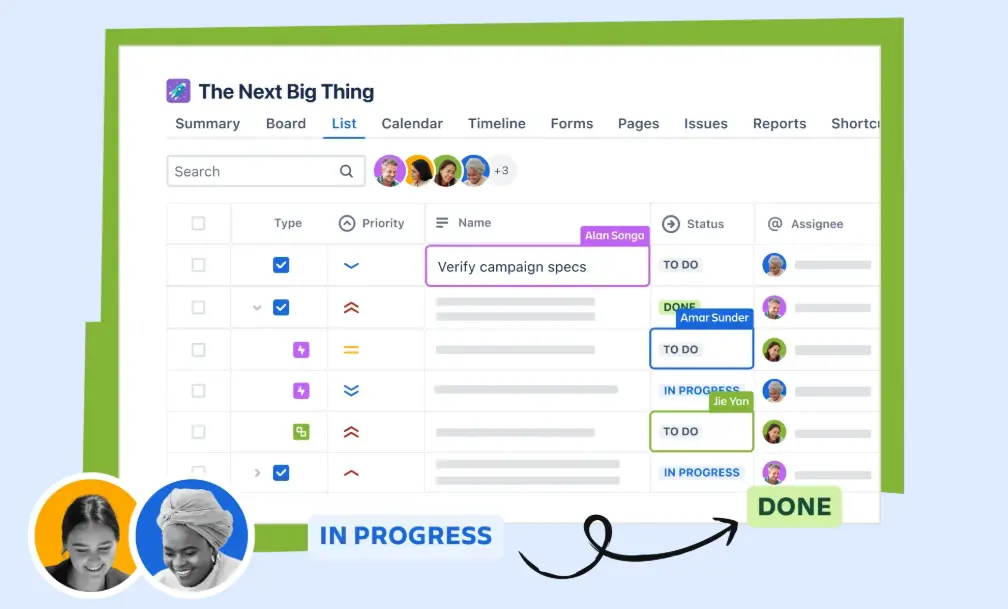 Jira product page
Best for: Engineering organizations that need Kanban tied to development workflows and detailed flow metrics.
Pros: Unmatched workflow customization; native dev-tool integration; powerful analytics. Cons: Steep learning curve for non-technical teams; admin overhead grows with complexity.
3. Asana
Asana sits in the sweet spot between a simple board and a heavyweight project platform. Every project can flip between Kanban board, list, timeline, and calendar views, so different roles can read the same work their own way, and rules-based automation keeps statuses current without manual wrangling.
 Asana homepage
Best for: Marketing, operations, and cross-functional teams that need more structure than a basic board, without Jira-level complexity.
Pros: Multiple views on the same data; strong automation on paid tiers; clean UX. Cons: Free plan caps at 10 users; per-seat cost climbs quickly for larger teams.
4. Miro
Miro approaches Kanban from the canvas side: its boards live on an infinite visual workspace alongside mind maps, flowcharts, and sticky-note brainstorms. That makes it ideal for teams whose work starts as messy ideation and gradually structures into tracked tasks — all without switching tools.
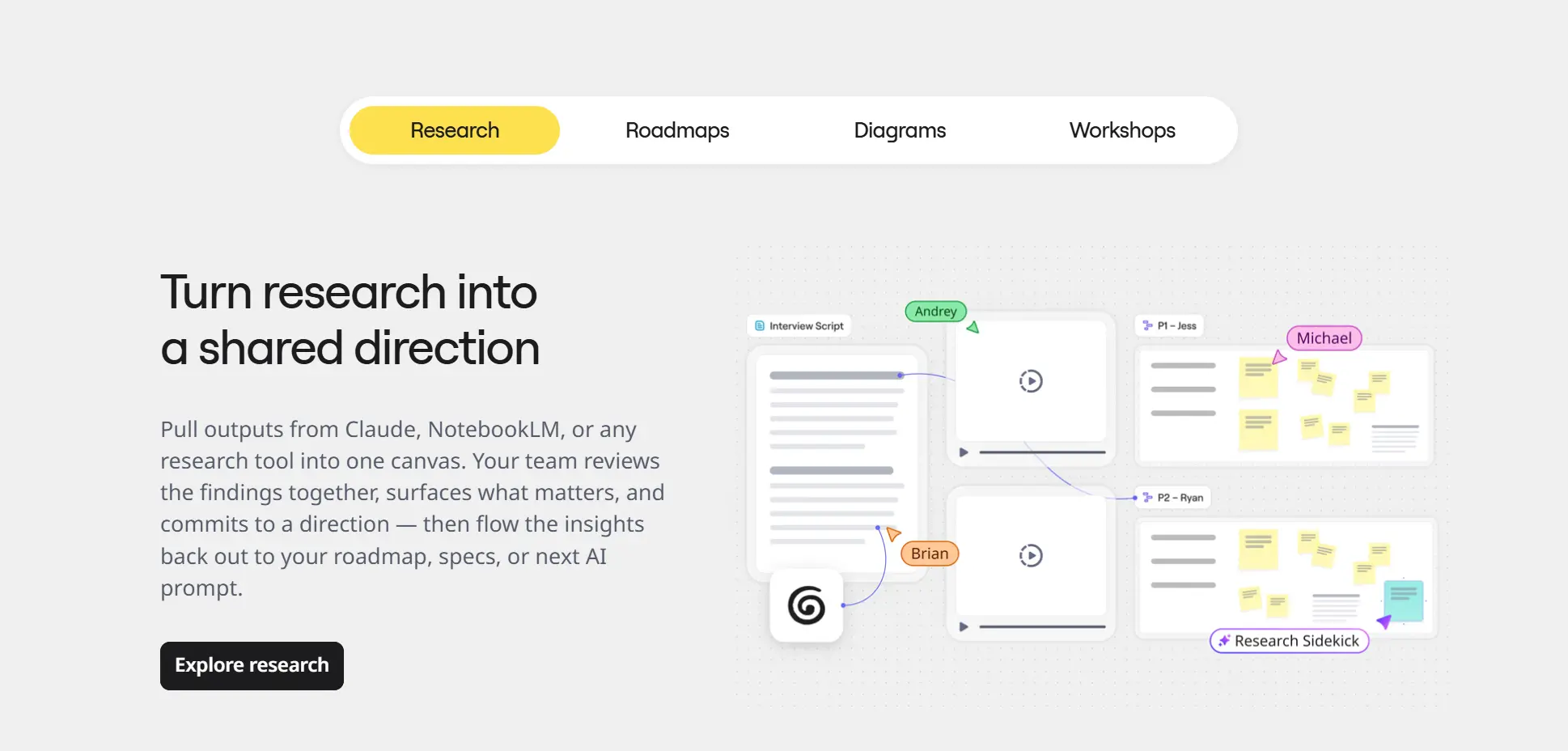 Miro homepage
Best for: Remote and hybrid teams that want brainstorming and Kanban on one shared canvas.
Pros: Seamless ideation-to-execution flow; huge template library; strong real-time collaboration. Cons: Lighter on task management depth (dependencies, workload) than dedicated PM tools; large boards can get slow.
5. Vibe Canvas
Vibe Canvas is a touchscreen-first infinite canvas that combines whiteboarding, templates, and Kanban-style task boards in one shared workspace. Its differentiator is the hybrid setting: a board built during an in-room standup on a smart board is instantly editable by remote teammates on laptops, tablets, or phones, with cloud save keeping every session persistent.
 Vibe Canvas – Kanban-style task board
Best for: Hybrid teams that run standups and planning in a physical room but need the board to live on for distributed members.
Pros: One workspace for ideation, planning, and tracking; unlimited collaborators join via link; free tier available, with full integration into Vibe Board hardware.
Cons: Task-management depth (automation rules, flow analytics) trails dedicated PM platforms; strongest value comes when paired with the Vibe ecosystem.
6. Kanbanchi
Kanbanchi is purpose-built for Google Workspace: boards live in Google Drive, cards sync with Calendar, and Gmail converts emails into tasks. For Google-centric teams it removes the "yet another login" problem entirely, with time tracking and Gantt views on higher tiers.
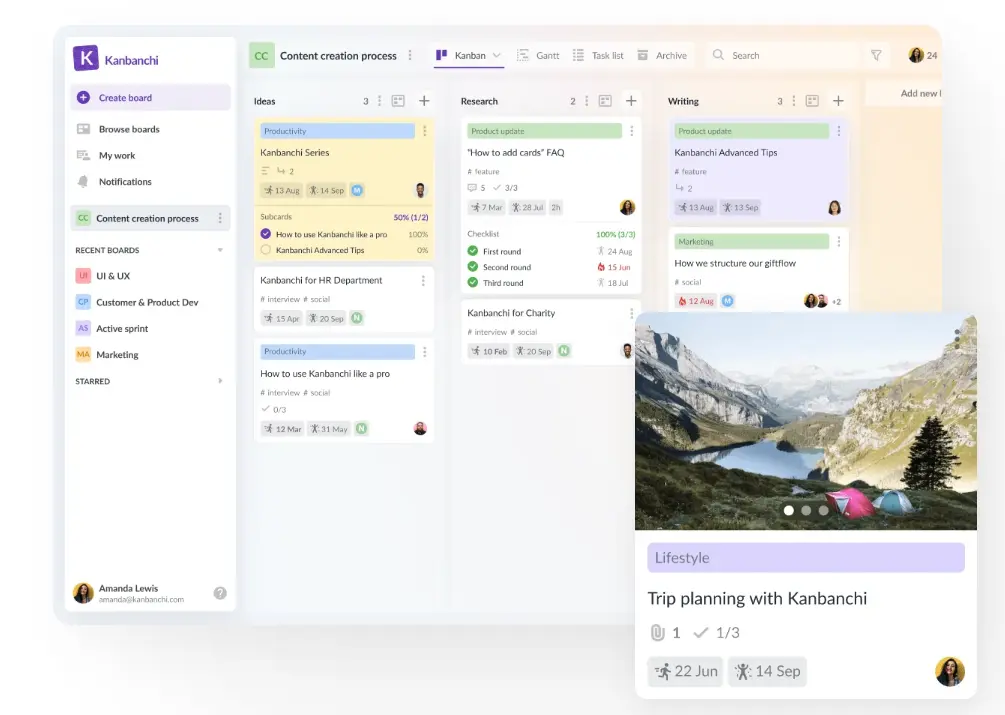 Kanbanchi – an example
Best for: Teams fully invested in Google Drive, Gmail, and Calendar.
Pros: Deepest Google integration in the category; familiar Drive-style sharing and permissions. Cons: Limited value outside the Google ecosystem; smaller integration marketplace than the big platforms.
7. Microsoft Planner
Microsoft Planner gives Microsoft 365 organizations a Kanban-style board inside the tools they already use — boards embed directly into Teams channels, and tasks roll up into To Do and Outlook. The 2024+ unification with Project brings premium scheduling features under the same roof.
 Microsoft Planner homepage
Best for: Organizations standardized on Microsoft 365 that want Kanban without buying another tool.
Pros: Included with most M365 business plans; zero new-vendor procurement; native Teams embedding. Cons: Feature depth lags dedicated Kanban tools; advanced capabilities require Planner/Project premium plans.
How to Choose the Right Kanban Tool
Anchor the decision to your context, not to feature checklists:
-
Map your ecosystem first. Google-centric → Kanbanchi; Microsoft 365 → Planner; Atlassian/dev stack → Jira; hybrid rooms with smart boards → Vibe Canvas. Ecosystem fit predicts adoption better than any feature.
-
Match depth to complexity. A 5-person team running weekly content? Trello. Thirty engineers with release trains and dependencies? Jira. Cross-functional campaigns? Asana.
-
Check the free-tier ceiling. Most tools let you pilot free — but verify limits on users, boards, and automations before you build your workflow inside one.
-
Verify the enterprise basics. SOC 2 / ISO 27001 certification, SSO support, and uptime SLAs matter the moment the board becomes your source of truth.
Implementing Your Digital Kanban Board: A Quick-Start Checklist
Adoption — not features — determines success. If you're migrating from a physical wall or spreadsheet, map your existing columns and fields directly into the new tool so the mental model carries over, then pilot with one team for 2–4 weeks.
-
Define workflow stages with clear, action-oriented column names.
-
Set WIP limits per column to prevent multitasking overload.
-
Establish policies: entry/exit criteria per column and a shared definition of done.
-
Create templates for recurring work (campaigns, bugs, lesson plans).
-
Connect existing tools: Slack/Teams for notifications, calendars for due dates, Git for code.
-
Automate the routine: auto-assignment on column moves, due-date alerts, archive rules.
Common pitfalls (and fixes)
-
Board neglect: Make the board the work — assign update ownership and run short daily reviews rather than treating updates as separate admin.
-
Overcustomization: Start with core stages only; add columns, labels, and rules when a real pain appears, not before.
-
Metric overreaction: Watch trends (cumulative flow, aging cards), not single spikes. Schedule a retrospective only when deviation sustains for weeks.
Key Metrics That Make Kanban Work
Track these four and you'll see most of what matters: lead time (creation to completion), cycle time (active work duration), throughput (cards completed per week), and WIP/aging cards (what's stuck and for how long). Rising card age in one column is the earliest, cheapest bottleneck alarm you'll ever get.
Taking Your Kanban Board Into the Meeting Room
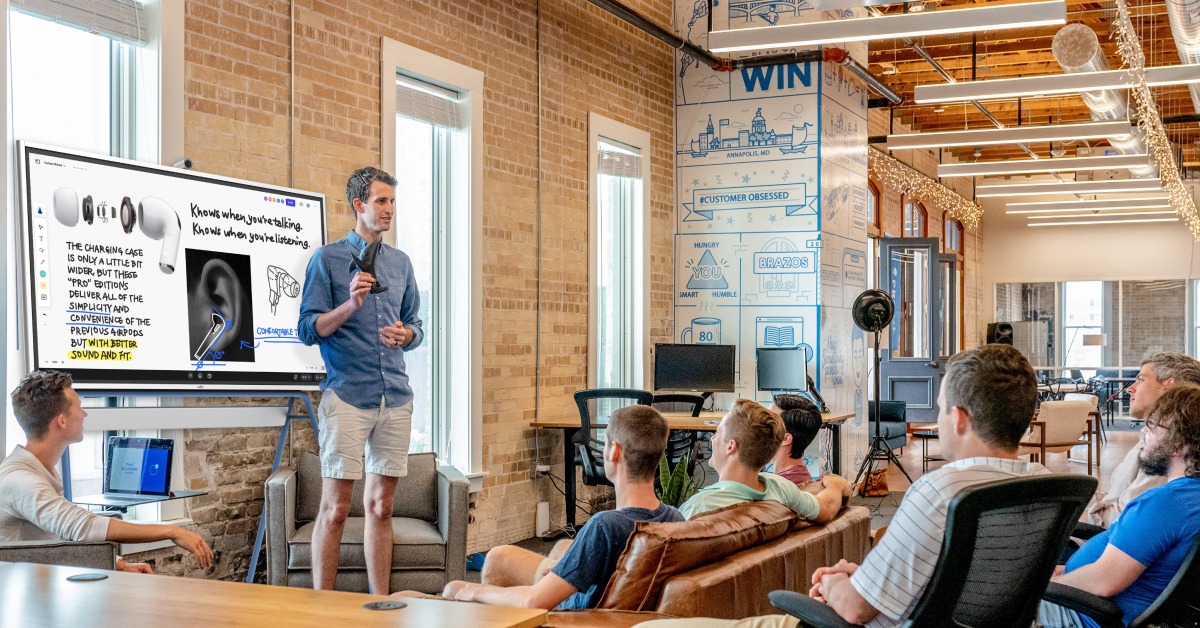
Digital Kanban tools are built for laptops and phones — but the moments that decide whether a board stays alive are collective: standups, sprint planning, stakeholder reviews. That's when the board needs to be on the wall, touchable, with in-room and remote people editing the same view.
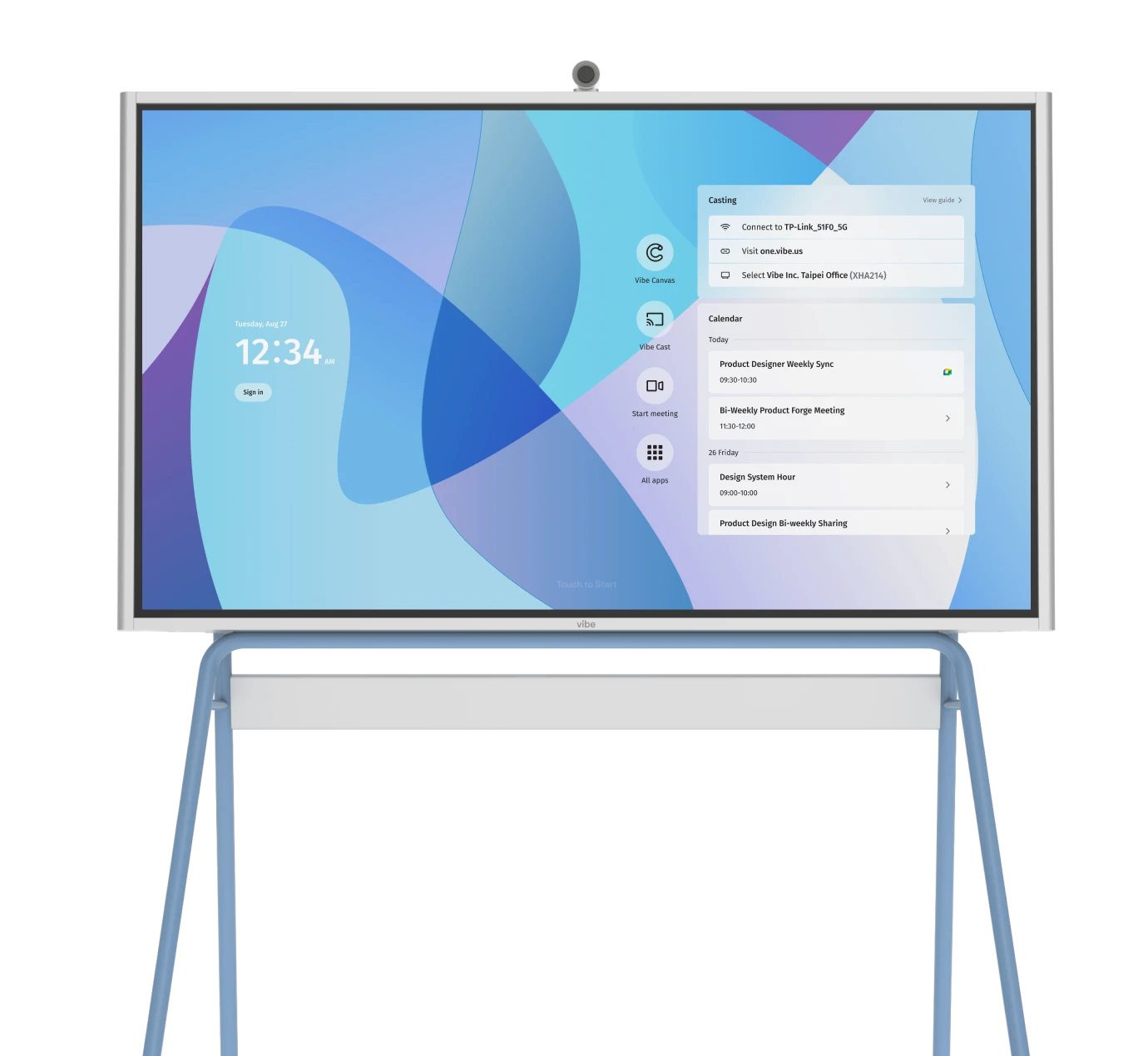
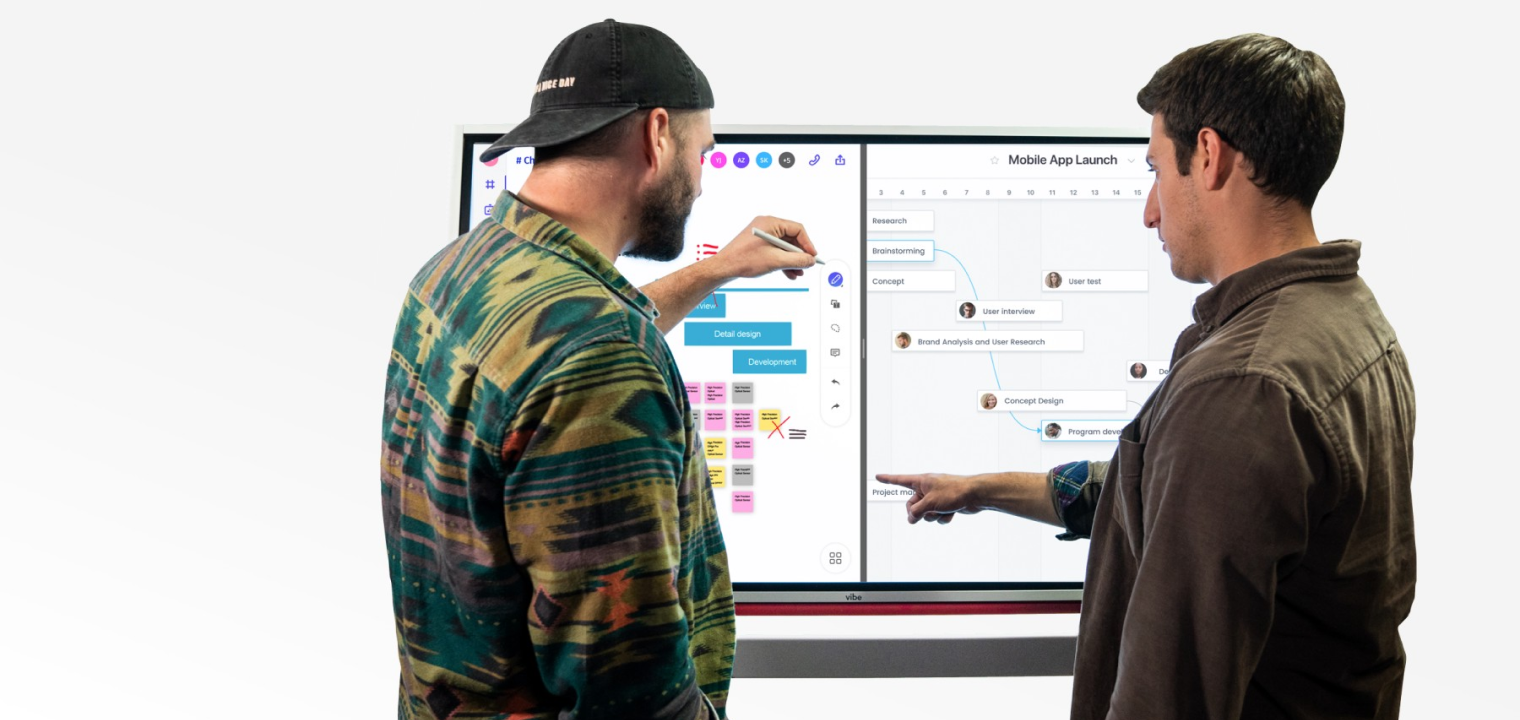
This is where pairing software with an interactive display pays off. On a Vibe Board S1, your Kanban app runs split-screen next to a canvas or doc; the team annotates live, drags cards during the standup, and cloud save keeps the session's context for whoever joins next — across 200+ integrations including Google Workspace, Microsoft 365, Zoom, Slack, and Asana.
FAQ
What is the best Kanban tool?
The best Kanban tool depends on your ecosystem and complexity: Trello for simplicity, Jira for software development, Asana for cross-functional teams, Miro or Vibe Canvas for visual-first and hybrid teams, Kanbanchi for Google Workspace, and Microsoft Planner for Microsoft 365 organizations. Most offer free tiers, so pilot your top two before committing.
What is a digital Kanban board?
A digital Kanban board is an online tool that visualizes tasks as cards moving through workflow columns such as To Do, In Progress, and Done. It gives teams a shared, real-time view of work — with remote access, history, notifications, and integrations that a physical board can't provide.
Is there a free Kanban tool?
Yes. Trello, Asana (up to 10 users), Jira (up to 10 users), Miro, and Vibe Canvas all offer free tiers suitable for individuals and small teams. Free plans typically limit boards, automations, or integrations, so check those caps before building your core workflow on one.
Does Microsoft have a Kanban board app?
Yes. Microsoft Planner provides a Kanban-style board and integrates natively with Microsoft Teams and the rest of Microsoft 365. It's included in most business subscriptions, with advanced scheduling features available through premium Planner/Project plans.
Does Google have a Kanban board app?
Not natively. Google doesn't ship a built-in Kanban tool, but Kanbanchi is built specifically for Google Workspace, integrating with Drive, Calendar, and Gmail — and Google-centric teams can also run Kanban templates in tools like Miro or Vibe Canvas.
How is Kanban different from Scrum?
Kanban is a continuous-flow system focused on visualizing work and limiting WIP, while Scrum organizes work into fixed-length sprints with defined roles and ceremonies. Many teams blend the two ("Scrumban"), keeping Kanban's flow while borrowing Scrum's cadence. See our full Scrum board vs. Kanban board comparison.