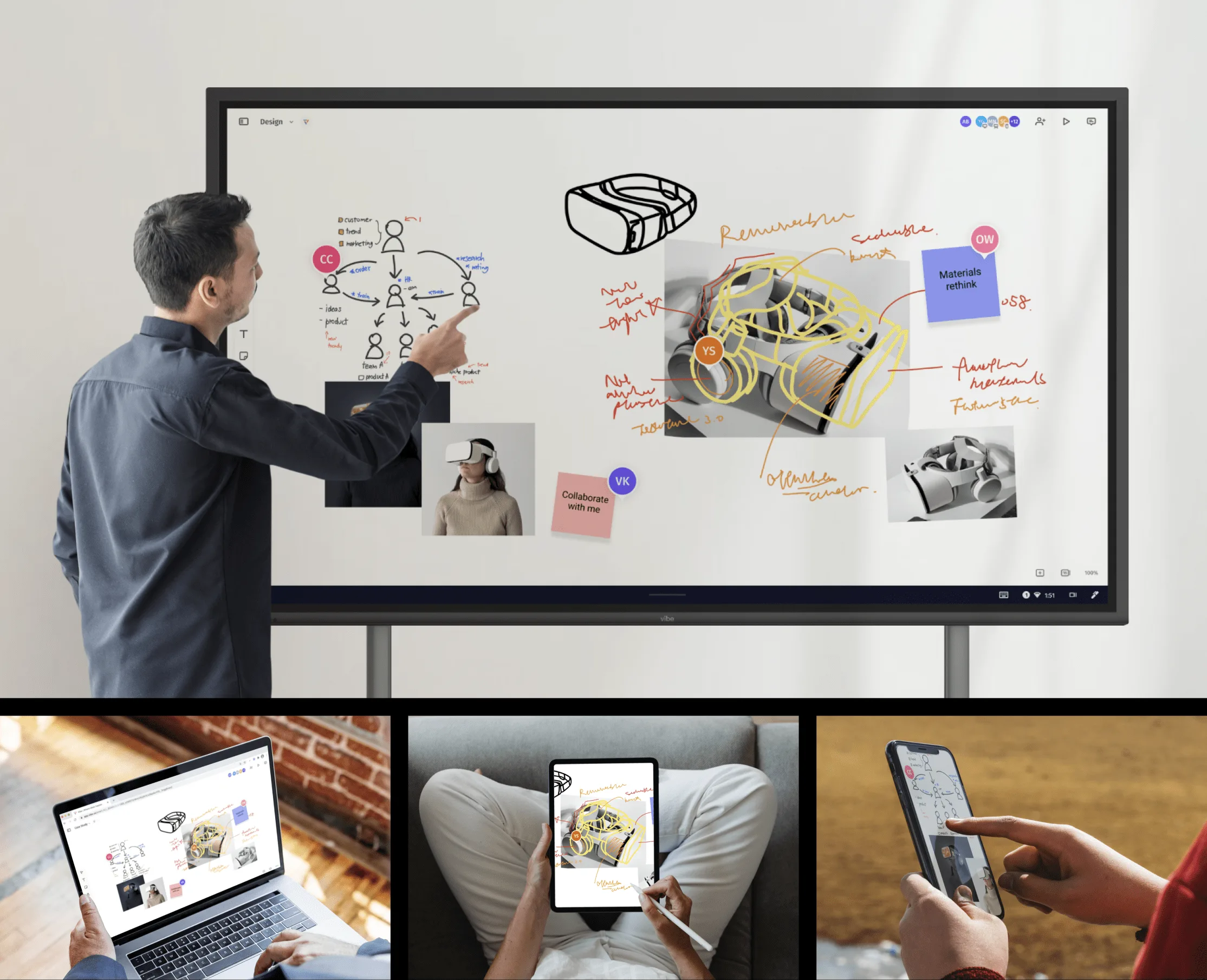
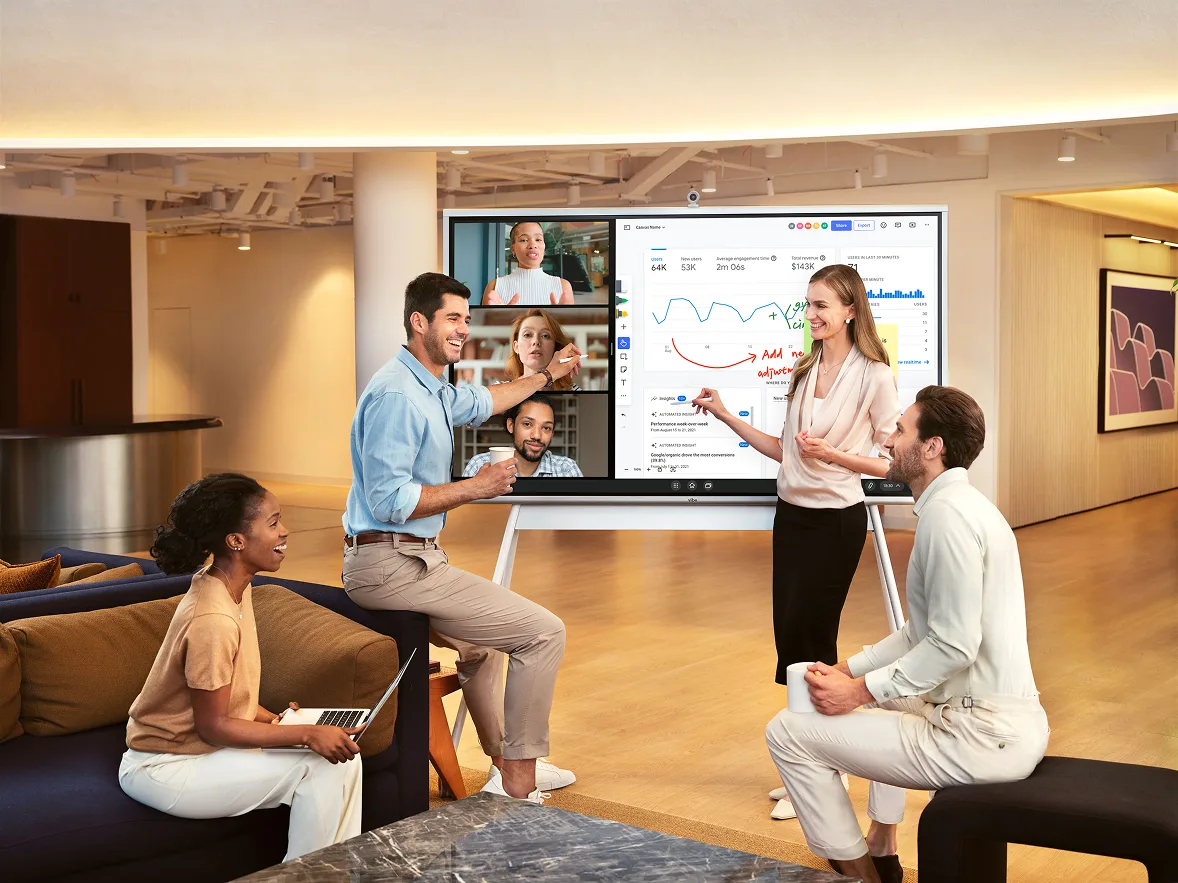
Meetings aren’t what they used to be—and that’s a good thing. Hybrid work and digital brainstorming have changed the way teams connect. But if your office still relies on static whiteboards and scattered notes, keeping up with these changes can be challenging.
Good thing smart boards for the office exist! More than just an upgrade, these boards transform the way teams communicate. Say goodbye to outdated tools—it’s time to fully lean into interactive displays and cloud-based collaboration to make video conferencing seamless. Whether you’re leading strategy sessions, training employees, or presenting to clients, a smart board helps bring ideas to life in ways a traditional setup simply can’t match.
But not all smart boards are created equal. We’ll show you how to modernize meetings and streamline collaboration with confidence using the best of the best smart board for the office.
What is a Smart Board?
A smart board for office use is a touchscreen display that lets you write, draw, present, and collaborate digitally. It replaces traditional whiteboards and projectors with a single, interactive workspace where teams can brainstorm, annotate, and work together—whether they’re in the same room or across the globe.
Think of a smart board as the next evolution of the office whiteboard—only smarter, faster, and built for modern teams. Multi-touch support, cloud connectivity, real-time screen sharing—it’s an upgrade in every way.
The Role of Smart Boards in the Modern Office
Yes, smart whiteboards for business use are fancy, but they are more than just a pretty face. Digital meetings have created a new frontier for collaboration that isn’t possible with a traditional whiteboard and office space. Smart boards make remote collaboration effortless.
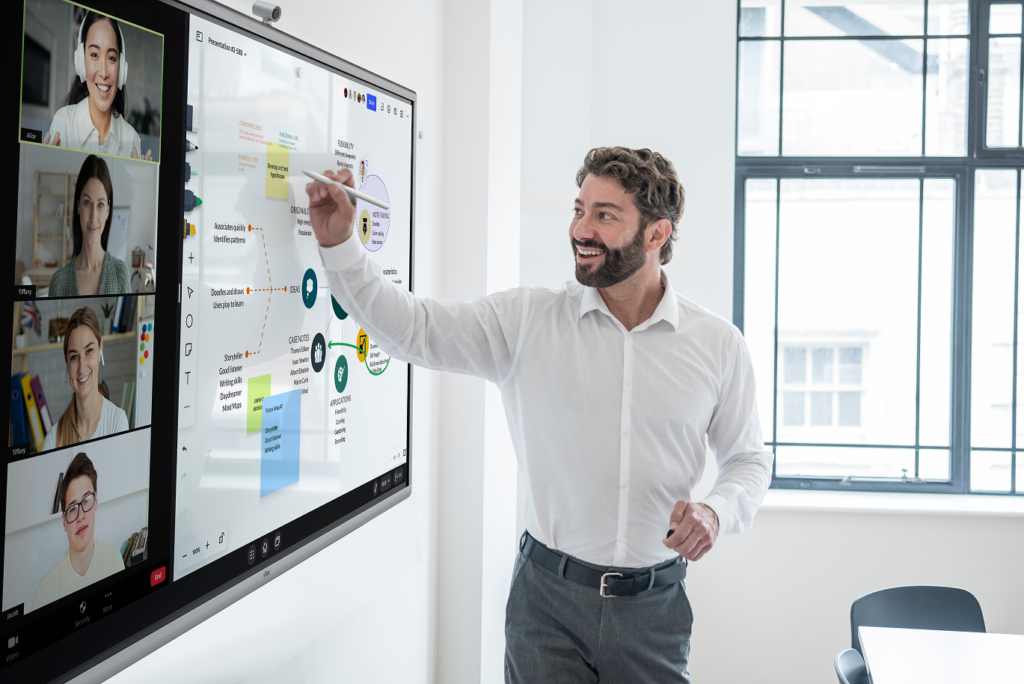 Team members conducting remote collaboration using a smart board with video conferencing
For hybrid teams, it’s a game-changer. A smart board doesn’t just mirror your laptop—it creates a shared workspace where remote and in-person employees can strategize and make decisions together. Instead of scribbling notes that get erased or forgotten, a smart board captures, saves, and shares ideas instantly.
Meetings used to mean marker-smudged hands and a whiteboard full of ideas that vanished by the next coffee break. Now? Offices that want to keep up need tools that keep work moving. Future-proofing how you work together is one of the best ways to future-proof your business, and smart boards do this by helping everyone operate at the top of their game.
Use Cases for Smart Boards in the Office
Smart boards go beyond presentations and instead provide the ultimate teamwork tool. Whether you’re mapping out strategies, training new employees, or keeping remote teams connected, smart boards help offices work smarter, not harder. Here’s how teams are putting them to use:
Brainstorming and Idea Mapping
Forget the messy Post-its and half-erased scribbles. Smart boards let teams capture and organize ideas in real time with digital sticky notes, interactive diagrams, and cloud-based saving. No lost notes. No "Wait, what did we decide?" moments.
Hybrid and Remote Meetings
Hybrid meetings can feel like an awkward first date—some people talk, others just nod. Smart boards break the silence with real-time annotations, screen sharing, and interactive whiteboarding. Now, everyone participates, no matter where they are.
Presentations and Client Meetings
A static slide deck can only do so much. With a smart board, presentations become dynamic and interactive—think live annotations, embedded videos, and instant feedback. Impress clients and ditch the "Sorry, let me pull that up" shuffle.
Employee Training and Onboarding
Training shouldn’t feel like watching a long PowerPoint on repeat. With smart boards, teams can annotate live, record sessions, and integrate quizzes and videos—turning training into an engaging, interactive experience. New hires get up to speed faster and with a much more impactful and positive impression of your team.
 Team conducting employee training session using a smart board
Visual Project Planning
Spreadsheets are great—until they’re a chaotic mess of rows and columns. Smart boards bring projects to life with interactive timelines and task tracking. Assign tasks, make adjustments, and keep everyone on the same page—literally.
7 Features to Look for in a Smart Board for Office Use
Some boards boost collaboration while others collect dust in the corner because they are too complicated to use. The right features can make or break how well a smart whiteboard for office spaces fits into your workflow. Here’s what to look for.
1. Screen Size and Resolution
Go too small, and your team squints through meetings. Too big, and it overwhelms the space. The sweet spot depends on room size and visibility needs. Most offices do well with 55" to 75" screens, and 4K resolution is a must for crisp visuals—especially when displaying detailed reports, design mockups, or data-heavy presentations.
2. Multi-Touch and Stylus Support
A great smart board shouldn’t feel like a solo activity. Look for multi-touch support so multiple users can collaborate at once. A stylus with pressure sensitivity makes writing smoother and more precise, mimicking the feel of pen on paper for detailed diagrams, signatures, and professional annotations.
3. Wireless Connectivity and Device Integrations
No one wants to waste 15 minutes troubleshooting cables. A smart board with wireless casting, screen mirroring, and integrations like AirPlay and Google Cast means instant connection, no tech headaches.
4. Built-in Video Conferencing Capabilities
If your meetings involve half the team on Zoom and half in the room, a smart board with integrated cameras, microphones, and speakers makes virtual meetings feel seamless. Huge bonus points if it works with Google Meet, Microsoft Teams, Zoom, or your favorite video conferencing app.
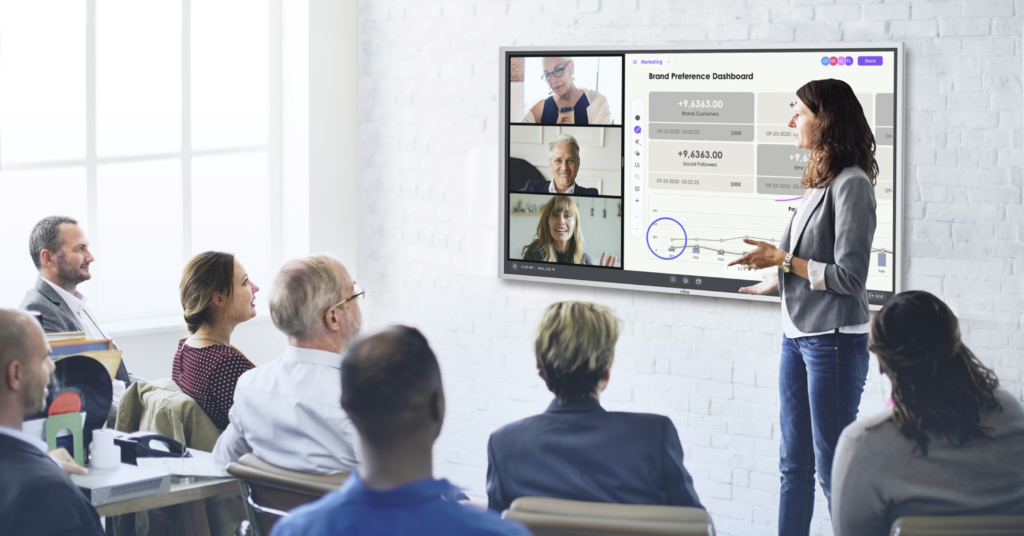 Remote team meeting with participants using smart board
5. Intuitive and Responsive User Interface
If you need a full training session just to turn the board on, it’s already a problem. A smart board should have an easy-to-use interface and intuitive menus so teams can jump in and get started without memorizing the user manual. The best smart boards allow for customizable toolbars and quick access to favorite apps, cutting down on the learning curve.
6. Cloud Storage, Software Integrations, and Compatibility
Your smart board should work seamlessly with the tools you already rely on, not lock your notes and files into an unfamiliar system. Look for cloud-based saving with integrations for Google Drive, OneDrive, Dropbox, and Microsoft 365, as well as project management platforms like Trello, Asana, and Monday.com. Compatibility with your existing software and operating systems is essential—otherwise, it’s just an expensive monitor. Ensure it supports the apps your team uses daily, such as popular online whiteboarding tools like Miro, to enhance collaboration and streamline your workflow. Remember, the smart board should improve your productivity and efficiency, the right integrations and compatibility make this all possible.
7. Durability and Long-Term Reliability
A smart board is an investment, so it needs to last. Look for models with scratch-resistant, anti-glare glass to withstand heavy daily use, plus a sturdy frame that won’t flex or degrade over time. Check for regular software updates and strong manufacturer warranties—ideally, a minimum of three years. Some providers offer extended warranties or on-site service, which can be worth it for high-traffic office environments.
Top Smart Boards for Office Use in 2026
With the key features in mind, here are the top-rated options currently available for business environments, ranging from collaborative conference rooms to executive suites.
1. Vibe Board S1 — Best Overall for Hybrid Teams
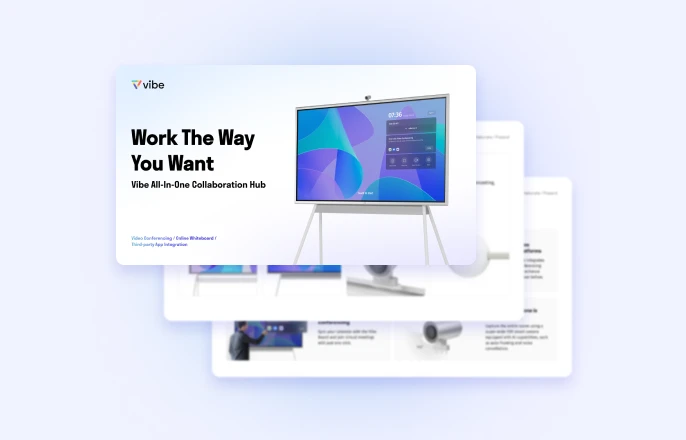
The Vibe Board S1 is a 4K UHD ChromeOS-based smart whiteboard starting at $3,699 (55″). It integrates with 250+ apps including Zoom, Google Meet, Microsoft Teams, Google Workspace, and Microsoft 365 — with no additional software subscription required. Multi-touch support for up to 20 simultaneous points, wireless casting, and cloud-based canvas saving make it the strongest all-around option for hybrid teams. Available in 55″ and 75″.
Best for: Hybrid teams, conference rooms, organizations on Google Workspace or Microsoft 365.
2. Vibe Board S1 Pro — Best for Windows-Native Environments
The Vibe Board S1 Pro runs full Windows 11 Pro, starting at $5,699 (55″). It supports the complete Windows app ecosystem, Zoom Room certification, and enhanced IT/security controls — making it the right choice for enterprises that need native Windows workflows or managed device deployment.
Best for: Enterprise IT environments, organizations standardized on Windows, Zoom Rooms deployments.
3. Samsung Flip Pro — Best for Flexible Spaces
The Samsung Flip Pro offers 4K UHD touch with up to 20 simultaneous touchpoints and strong wireless screen mirroring from Apple and Google devices. Starting at $1,999 for the 55″ model, it's one of the more affordable premium options. It integrates with Samsung's MagicINFO content management system, which suits offices that want centralized display management across multiple rooms.
Best for: Flexible meeting spaces, organizations already using Samsung infrastructure.
4. Promethean ActivPanel 10 — Best for Training Rooms
The Promethean ActivPanel 10 supports Android, Windows, and ChromeOS and is designed with structured content delivery in mind. It runs between $2,000–$6,500 depending on size and configuration, with exact pricing available through sales. Strong educator-oriented software tools translate well to corporate training rooms and onboarding environments.
Best for: Corporate training, onboarding programs, L&D teams.
Other Important Considerations Before Purchasing
A smart board’s features matter, but they’re only part of the equation. Before making a purchase, consider how it fits into your workspace, workflow, and long-term budget. Keep these points in mind when you’re getting closer to clicking that "Add to Cart" button.
Room Size and Layout
Where will the smart board go? A wall-mounted board works best for conference rooms and training spaces, while a mobile stand adds flexibility for huddle rooms or breakout areas. If your meeting space is large, you’ll want a bigger screen (65"–75") to ensure everyone can see clearly from any seat.
Team Size and Use Case Needs
How many people will use the board at once? Smaller teams may need basic collaboration tools, while larger groups benefit from multi-user touch and video conferencing. Executives may prioritize polished presentations, while creative and product teams need design review tools. Smart boards also bridge cross-team collaboration. For major projects, marketing, data, and design teams can refine ideas together in real time, leading to faster decisions and better business results.
 Smart board-powered meeting with multi-functional team for efficient decision-making
Budget
Smart boards vary widely in price. More expensive doesn’t always mean better, but cutting corners can lead to frustration if essential features are missing. Instead of focusing solely on upfront costs, consider:
-
Long-term value. Will this board scale with your needs?
-
Warranty & support. Does it include free software updates and reliable customer service?
-
Hidden costs. Are there subscription fees or additional accessories required?
Tips for Using a Smart Board Effectively in Your Office
The best part about a truly well-designed smart board is that it doesn’t take a tech wiz to operate. But, to get the most out of it, you want to optimize when and how you use it. After all, buying a smart board is step one—getting your team to use it every day is what makes it worth the investment. Here are tips for reducing any friction that might make you hesitate to fully embrace your smart board.
Set Up Your Smart Board for Success
Where you place your smart board matters more than you think. Consider how diverse workspaces—meeting rooms, huddle spaces, executive offices, open work areas, even front desks and lounges—can benefit from having one. A well-placed smart board should work with your space, not against it. Make sure it’s:
-
Easily visible. No one should have to crane their neck to see.
-
Glare-free. Avoid positioning it near direct sunlight or bright overhead lights.
-
Connected and ready. Double-check Wi-Fi, software updates, and any necessary integrations before meetings.
-
Easily accessible. If people have to shuffle chairs or move furniture to use it, it won’t get used as often.
Train Your Team for Confident Use
It sounds obvious, but the easier it is to use, the more your team will actually use it. So how do you reduce the learning curve and make every person comfortable with the tech? A quick walkthrough or demo helps teams get familiar with key features like real-time annotation and file saving. For ongoing support, consider:
-
A simple training document. A quick-reference guide for new users.
-
Short team workshops. Hands-on practice beats trial and error.
-
Preloaded templates. Ready-to-use formats for brainstorming, project tracking, and client meetings.
 Team discussion using Vibe's built-in template for effective collaboration
Prepare Content Ahead of Meetings
A well-prepared smart board keeps meetings efficient and focused. Instead of scrambling for files or troubleshooting tech issues, set up your board to support seamless collaboration. Avoid last-minute delays by:
-
Set up essential apps. Use project management tools like Trello and Asana or online whiteboarding apps like Miro to keep discussions interactive and organized.
-
Leverage cloud storage. Ensure your board is connected to Google Drive, OneDrive, or Dropbox for instant access to past notes and files.
-
Customize shortcuts and settings. Arrange quick-access tools, favorite apps, and frequently used features to minimize setup time.
-
Preload key documents. Upload presentations, reports, or brainstorming templates in advance so everything is ready when the meeting starts.
Make Smart Boards a Daily Collaboration Tool
A smart board isn’t just for big meetings—it’s a powerful tool for everyday teamwork. Put it to use in:
-
Morning stand-ups. Outline key tasks, blockers, and priorities in real time.
-
Live brainstorming sessions. Capture ideas, rearrange them instantly, and save everything for later.
-
Progress tracking. Keep project timelines visible, updating them as tasks move forward.
The more your team incorporates the smart board into their workflow, the more natural it becomes—turning meetings into action, rather than just conversations.
Modernize Your Office with a Smart Board
An office that runs on sticky notes and scattered meeting recaps can only move so fast. A smart board for office collaboration clears the clutter and helps everyone work together more efficiently. But of course, this is only true if the tool you’re using is a solution that actually solves collaborative problems, not creates them.
Some smart boards require clunky workarounds. Others lock you into rigid software ecosystems. Vibe does it differently. With an open ecosystem, best-in-class integrations, and an intuitive all-in-one design, the Vibe Board S1 transforms collaboration without disrupting how you already work. Built for fast-moving and often hybrid teams, Vibe helps you create, connect, and collaborate—all in one place, without the friction.
See exactly how the Vibe Board S1 can transform your workspace today.
FAQs: Smart Boards for Office Use
What is the best smart board for a conference room?
For most conference rooms, the Vibe Board S1 offers the best combination of display quality, app compatibility, and ease of setup at $3,999 for the 55″ model. For larger rooms (25+ people), the 75″ version or an 86″ option from Promethean or BenQ may be more appropriate. The most important factors for conference rooms are built-in video conferencing support (Zoom/Teams), wireless casting from laptops, and multi-touch for group annotation.
What is the best smart board for business use?
It depends on your software ecosystem. For Google Workspace organizations, the Vibe Board S1 (ChromeOS) is the most seamless fit. For Microsoft 365 and Windows-native teams, the Vibe Board S1 Pro or a Windows-based board is the better choice. For teams that primarily need a video conferencing display with minimal whiteboarding, the Samsung Flip Pro is worth considering.
How much does a smart board for the office cost?
Office smart boards typically range from $2,000 to $9,000+ depending on size, OS, and features. A 55″ mid-range board with full collaboration features (like the Vibe Board S1 at $3,999) covers most business needs. Add $150–$1,500 for a wall mount or mobile stand, and $200–$1,000 for professional installation if needed.
What size smart board do I need for a conference room?
As a general rule: 55″ for rooms up to 10 people at a standard meeting table distance; 65″–75″ for rooms with 15–20 participants; 85″+ for large training rooms or auditorium-style spaces. For video conferencing specifically, ensure the display is large enough that remote participants can see faces and shared content clearly on their end.
Do smart boards work with Zoom and Microsoft Teams?
Yes. Most modern smart boards including the Vibe Board S1, Vibe Board S1 Pro, Samsung Flip Pro, and Promethean ActivPanel 10 support both Zoom and Microsoft Teams natively. The Vibe Board S1 Pro is certified for Zoom Rooms. Always verify that the specific version you're purchasing supports your conferencing platform before buying.