Most manufacturing teams already have their work instructions in a file somewhere. A PDF in SharePoint. A Word document on a shared drive. A CAD drawing the engineering team updates when the process changes. A set of annotated photos that a process engineer built during the last changeover.
The problem is not that the instructions do not exist. It is that getting them in front of the people who need them — at the workstation, during a review, at the right scale — requires either printing or passing a laptop around. Neither holds up in a busy production environment, and neither lets the team do anything with the document except read it.
This guide covers how to display work instructions on a shared screen where teams can actually review them together — zoom into a detail, mark up a step, compare the current revision to the last one — without printing, without a laptop in the middle of the table, and without a dedicated authoring platform.
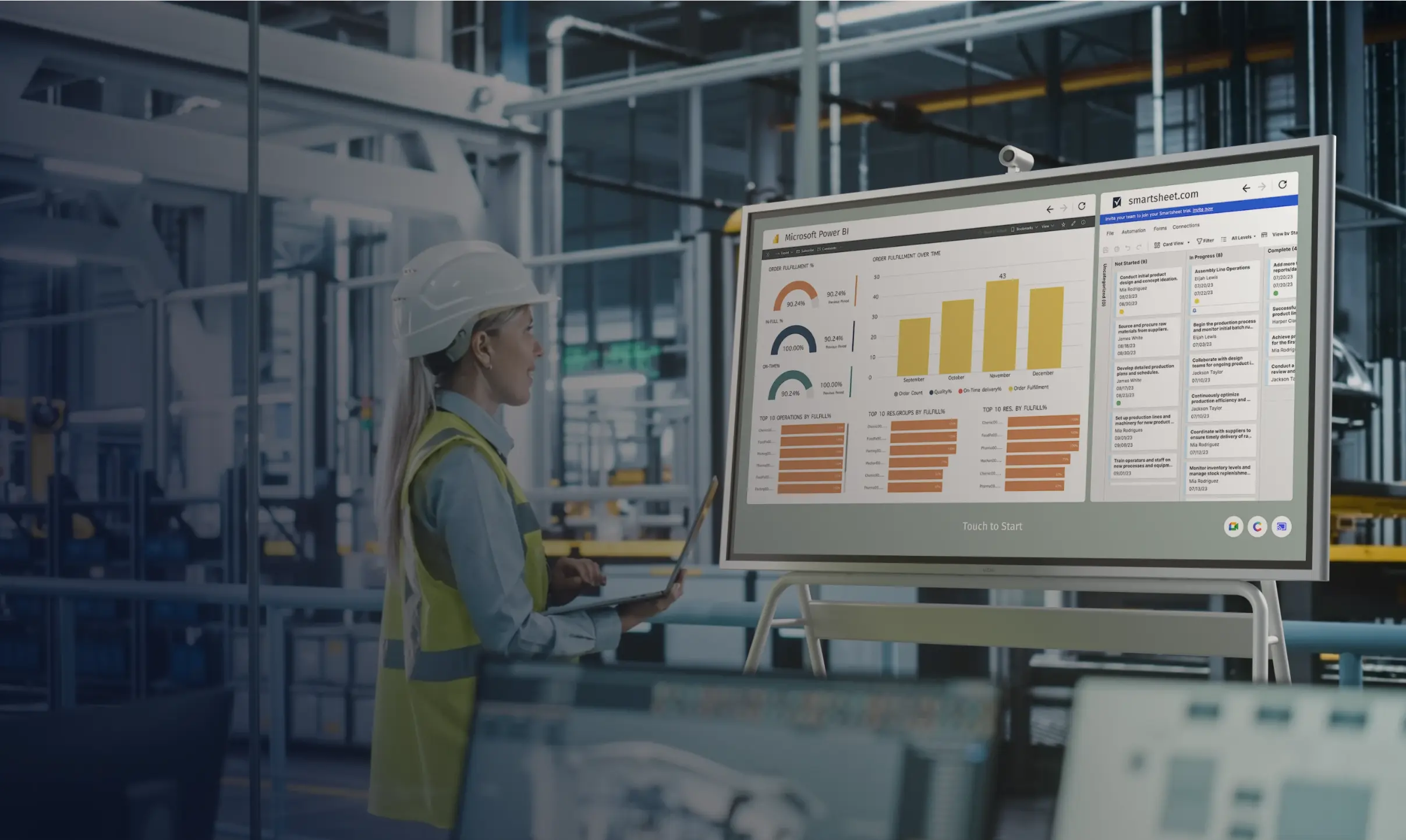
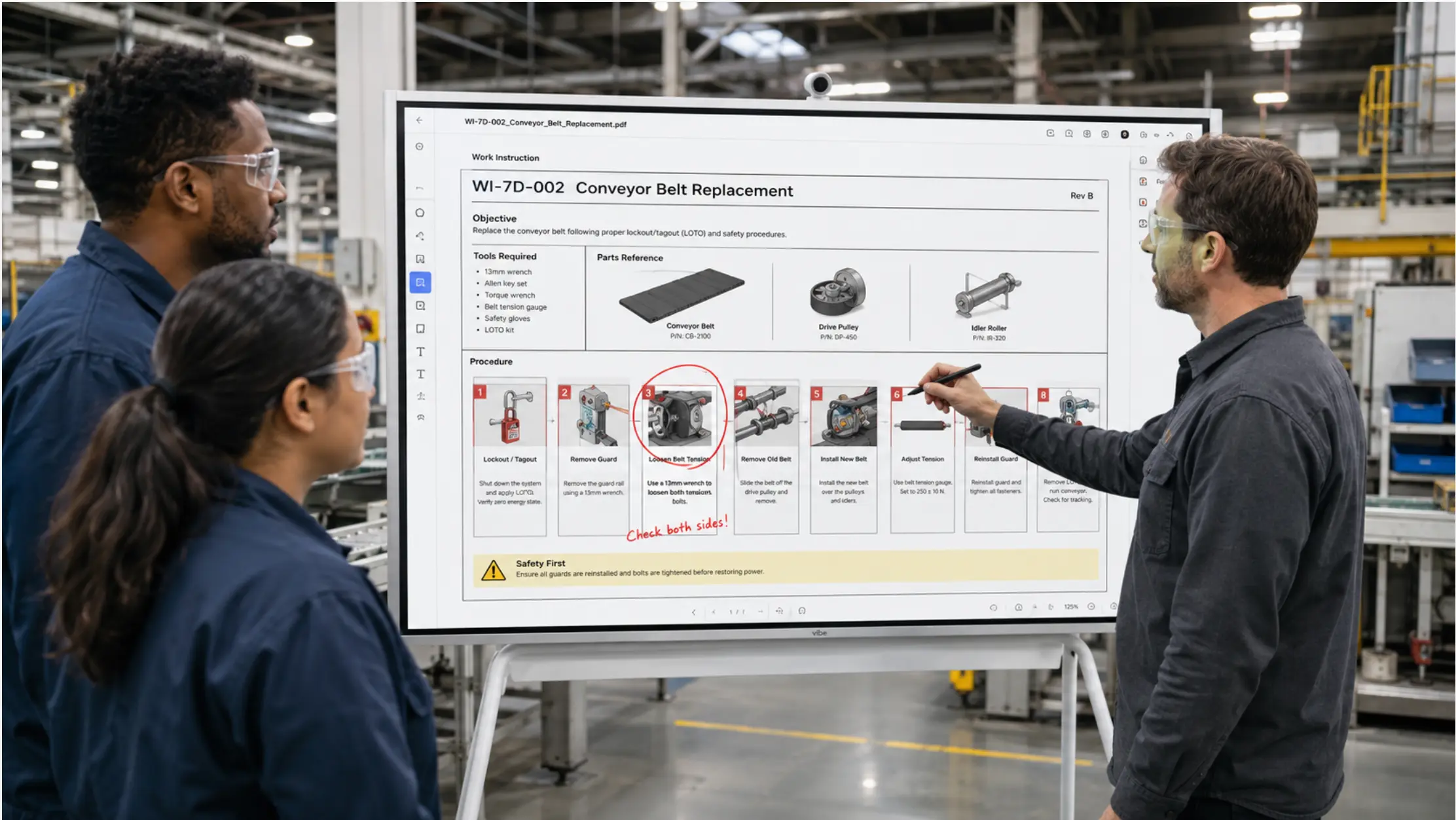 A Vibe Board in a manufacturing setting showing an annotated PDF work instruction at full scale — a process engineer circling a step on the screen with a stylus while two operators look on
The Gap Between "Having" Instructions and "Using" Them
Work instructions fail at the point of use more often than at the point of creation. The instruction exists. It is reasonably accurate. It is in the right format. But when the operator needs it, retrieving it takes long enough that they skip it — or they work from memory, which is the version in their head from the last time they did the task.
On a busy factory floor, each step of a work instruction needs to instantly communicate three things: what to do, what tools are needed, and what the correct result looks like — without requiring the operator to stop and parse dense text. According to Deloitte's 2025 Smart Manufacturing Survey, more than 35% of manufacturing executives identify preparing employees for advanced technologies as a top workforce challenge. That standard is hard to meet with a document that lives on a shared drive and has to be retrieved, opened, and zoomed in on a laptop.
The same gap shows up in review sessions. When a process engineer needs to walk a team through an updated SOP, the options are typically: print copies for everyone, project from a laptop onto a screen nobody can interact with, or huddle around a monitor. None of these let the group do the thing that makes a review productive — mark up the document together, zoom into the step that is causing problems, and save the annotated version as the new reference.
A purpose-built interactive display that opens the document directly and lets everyone in the room interact with it closes this gap without requiring a new authoring system or a content platform.
What "Displaying" Work Instructions Actually Requires
There is a meaningful difference between displaying a work instruction and making it useful on a shared screen. A TV showing a static image of a procedure technically displays it. It does not let anyone zoom into a detail, annotate a step, switch to a different revision, or update the document when something changes.
For work instruction review and display to be genuinely useful in a manufacturing setting, four things need to be true:
The document opens from where it lives. If the instruction is a PDF in SharePoint, it should open directly from SharePoint — not from a downloaded copy, not from a screenshot. When the engineer updates the file, the board opens the current version automatically. There is no "did you get the updated one?" question.
The display is large enough to be readable at workstation distance. A 55-inch or 75-inch screen running a PDF at full resolution is a different experience from a 14-inch laptop. Steps that require zooming on a laptop are legible at full scale on a large display. For engineering drawings specifically, full-scale display changes what is possible in a review — the team can see the entire drawing at once rather than panning around a zoomed-in section.
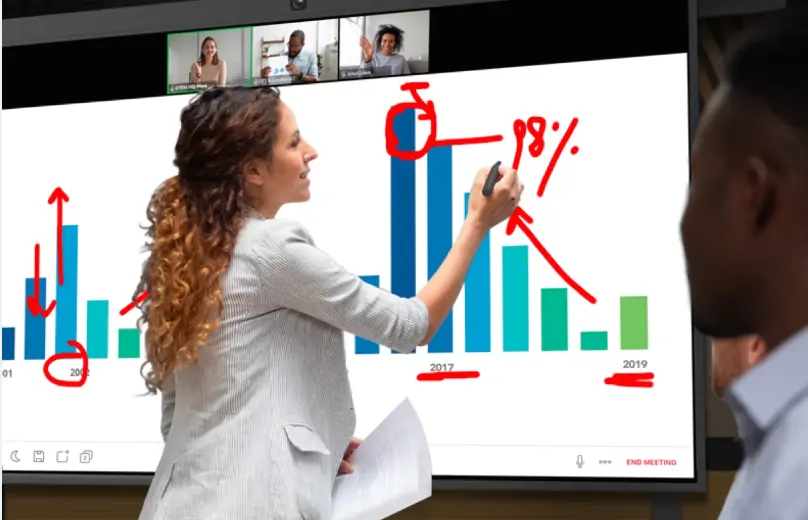
The group can interact with the document during the review. Circling a step that is causing problems, adding a note to a specific callout, comparing two revisions side by side — these are the actions that make a review productive rather than passive. A display that supports touch and stylus annotation directly on the document lets the group do this without switching to a separate markup tool.
Annotations save back to the source. If the engineer marks up a drawing during a review and those annotations disappear when the session ends, the review produced no artifact. Annotations that save back to the shared file — or export to a new version in the same folder — create a record that the next reviewer can start from.
Three Scenarios Where a Shared Display Changes the Review
1. Changeover and Setup Verification
When a line changes over to a new product or configuration, operators need to verify their setup against the current work instruction before production starts. On a printed sheet, this is a page-by-page check. On a shared screen at the workstation, the operator can pull up the specific step they are on, zoom into the torque spec or the assembly detail, and compare their setup directly to the visual reference.
The Vibe Board S1 Pro opens PDF and Word documents directly from SharePoint or OneDrive, at full scale on a 75-inch screen. For changeover verification — the same context where digital vs. physical visual management boards most clearly diverge — this means the setup instruction is visible at the workstation without requiring a printed copy — and when engineering updates the instruction after a process improvement, the board opens the current version automatically.
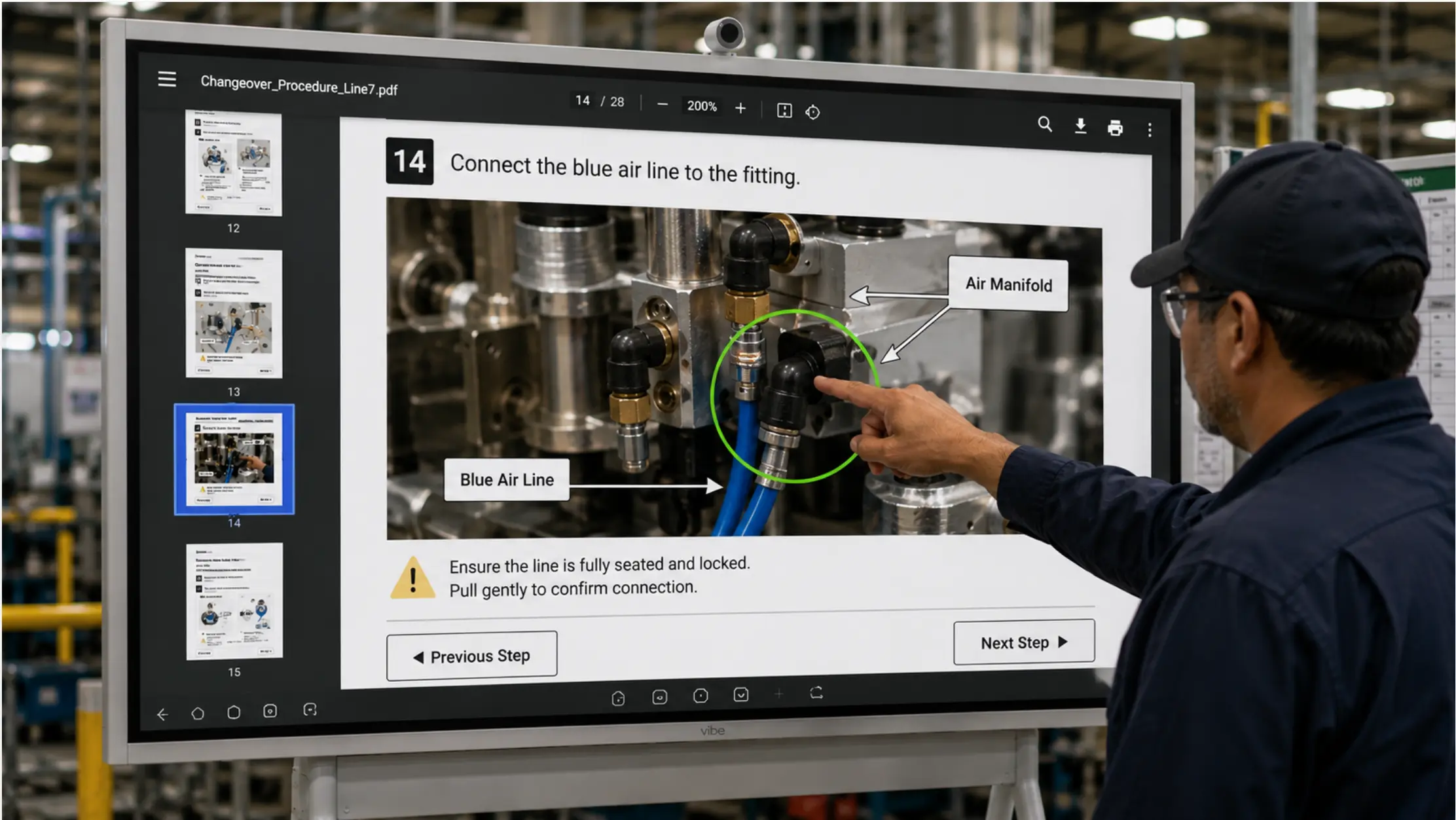 Close-up of a Vibe Board showing a changeover procedure PDF with a specific assembly step zoomed in
2. SOP Review and Update Sessions
When a process engineer needs to update a standard operating procedure — because a process changed, a quality issue surfaced, or a new piece of equipment came in — the review session typically involves walking a group through the current document and capturing what needs to change.
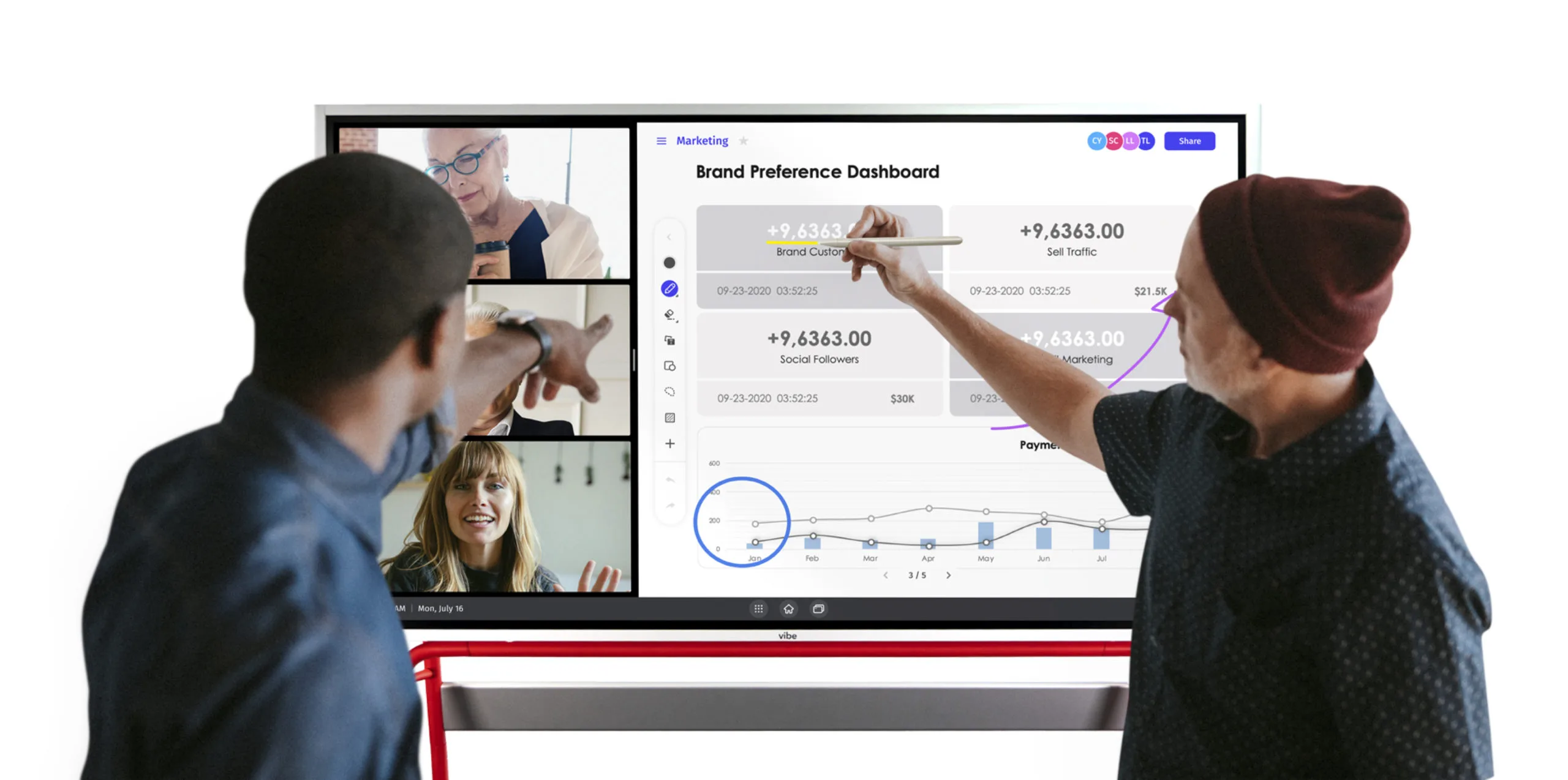
On a shared display, that session looks different. The engineer opens the current SOP from SharePoint. The group reviews it together on the large screen. When someone identifies a step that needs updating, the engineer annotates it directly on the document — circling the step, adding a note, marking the change needed. Those annotations save to the file as the draft for the updated version.
This is faster than taking notes and redlining a printed copy later, and it produces an annotated document that is immediately actionable rather than a set of notes that need to be reconciled with the original.
3. New Operator Onboarding at the Workstation
For a new operator learning a process, the difference between reading a work instruction on paper and seeing it demonstrated on a shared screen at the workstation is the difference between understanding abstractly and understanding in context. The process engineer can pull up the instruction, walk through each step on the screen, annotate the steps the new operator found unclear, and leave the annotated version on the board for reference during the first independent run.
Because the Vibe Board S1 Pro runs Windows natively, the engineer can also pull up a video clip alongside the PDF — a short recording of the correct technique next to the written step — without switching devices or setting up a separate playback system. The instruction and the demonstration are on the same screen.
How to Set This Up Without a Dedicated Authoring Platform
The tools most manufacturing teams already have are sufficient to make this work. No specialized VWI platform is required if the goal is shared display and review — as opposed to creating instructions with embedded animations, AR overlays, or machine-linked step verification.
Step 1: Organize existing documents in a shared location. PDF procedures, Word SOPs, annotated images, CAD drawings — if they live on individual desktops or in email threads, they cannot be opened directly on a shared display. Moving them to a SharePoint or OneDrive folder that the engineering and operations team both have access to is the prerequisite. This is a file management task, not a technology project.
Step 2: Open the display to the shared folder. The Vibe Board S1 Pro connects to SharePoint and OneDrive using Microsoft 365 credentials. Once authenticated, the engineering team can browse to the document folder directly from the board and open any file — PDF, Word, Excel, CAD file — without transferring it to the board's local storage. The board reads from the shared source. Updates to the document are visible the next time it is opened.
Step 3: Use the board's annotation tools for review sessions. The Vibe Board S1 Pro supports stylus and touch annotation over any open document. During a review, the engineer can draw directly on the displayed PDF — circling steps, adding notes, drawing arrows to specific callouts — and save the annotated version back to SharePoint. The annotation layer is non-destructive: the original document remains unchanged, and the annotated version is saved as a separate file in the same folder.
Step 4: Define a revision naming convention. For work instructions that are updated frequently, a simple naming convention — SOP_AssemblyA_v3_2026-08-01.pdf — keeps the shared folder organized and makes it easy for the board to always open the current version. Without a convention, the folder fills with files named "final," "final_v2," and "final_revised_USE THIS ONE," which defeats the purpose of having a shared authoritative source.
When a Dedicated VWI Platform Makes Sense
A shared display connected to existing files is sufficient for most review and reference use cases. It is not the right tool for every situation.
Dedicated VWI authoring platforms (Knowby, Anark, Tulip, and similar tools) make sense when the instructions need embedded video at each step, machine-linked step verification, multilingual display, or structured completion tracking tied to a quality system. These are capabilities that a PDF on a shared screen cannot provide, and the investment in a specialized platform is justified when the use case requires them.
The shared display approach described in this article is complementary to those platforms, not a replacement. Teams that use a dedicated VWI platform for complex processes still benefit from a shared display for reviews, update sessions, and on-the-spot reference during changeovers — because the review workflow is different from the step-by-step guided workflow the platforms are designed for.
For teams evaluating whether a specialized platform is warranted, the practical test is whether the floor staff would actually use it. Effective visual work instructions rely on images, videos, and streamlined language — removing language barriers and reducing reliance on heavy reading, which matters especially on multilingual floors. The Deloitte 2025 Smart Manufacturing Survey also found that human capital sits at the lowest maturity level of all smart manufacturing categories — meaning the workforce readiness gap is real, and accessible instructions are one of the more direct tools for addressing it. If the existing PDF instructions already meet that standard, a shared display may be all that is needed.
IT and Version Control Considerations
Who can edit the displayed document? On a shared display connected to SharePoint, the permissions on the source file determine who can edit. If the SOP folder has edit access limited to process engineers, operators can view and annotate locally but cannot save changes back to the source. This is the appropriate setup for procedures that require controlled document management — annotations generated during a review session are saved to a separate draft file, not written back to the controlled version.
How do we ensure operators see the current revision? Opening the document from SharePoint rather than from a local cached copy ensures the board always opens the file that was last saved to the shared location. For documents under revision control, a simple workflow — the engineer saves the approved version to the shared folder and archives the prior version — keeps the board pointed at the current revision without requiring any action from the floor.
What happens to annotations between sessions? The Vibe Board S1 Pro keeps the last-used application state between sessions — if the board is displaying a work instruction when a shift ends, it will be displaying the same document when the next shift starts. Annotations that have been saved to SharePoint persist. Annotations that were added to the local session view and not saved are cleared when the session ends, which is the appropriate behavior for review-mode markup that has not been approved for inclusion in the document.
The Point of Use Is Where Instructions Need to Work
Work instructions that live in a shared drive and get retrieved on request are not accessible at the point of use. They are accessible to people who think to retrieve them. On a production floor where operators are focused on the task in front of them, the friction between "instruction exists" and "instruction is visible" determines whether it gets used.
A shared display at the workstation or in the review room — showing the current document, at readable scale, with the ability to annotate and save — removes that friction. The instruction is where the work happens, in the form the team can actually use, without requiring a print run every time the process changes.
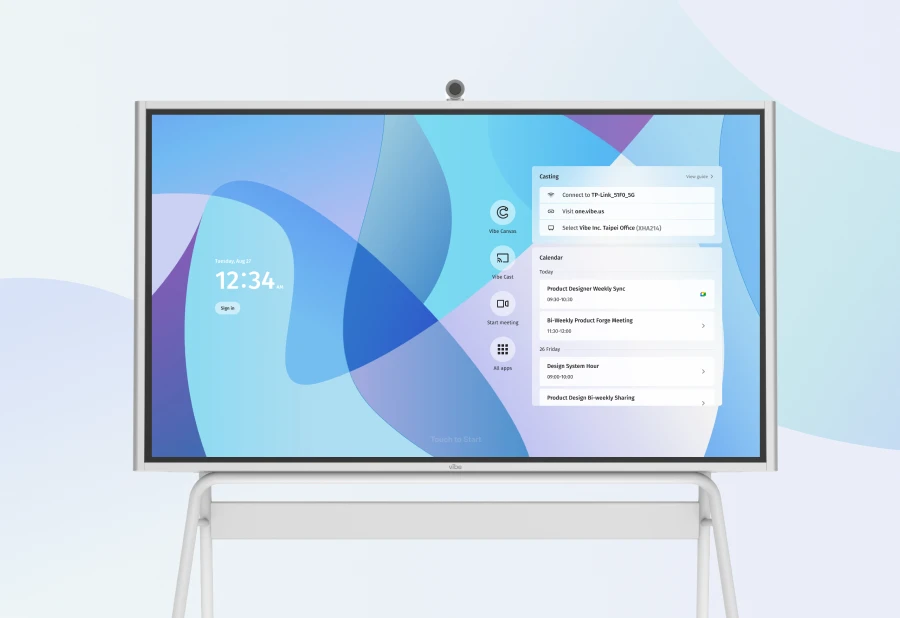
Request a demo to see how work instructions run on the Vibe Board S1 Pro, or request a quote if you are ready to deploy.
Frequently Asked Questions
Do we need to replace our existing work instruction documents to use this approach?
No. The approach works with PDF, Word, Excel, and most common document formats. CAD files that open in the native application (AutoCAD, SolidWorks, Bluebeam) also run on the Vibe Board S1 Pro, since it is a full Windows smart board. The documents do not need to be reformatted or converted — they open on the board the same way they open on a workstation.
Can the board display work instructions for multiple workstations simultaneously?
Each board displays one primary document at a time, though the Windows environment supports side-by-side windows for comparing two documents or showing an instruction alongside a related drawing. For multiple workstations that need different instructions simultaneously, a board at each workstation — or a rolling board that moves between workstations during changeover — is the practical setup.
What if the process engineer is not on-site when an update is needed?
Because the documents live in SharePoint or OneDrive, the engineer can update a work instruction from any device with internet access. The updated version is available on the board the next time it is opened from the shared location. For urgent updates mid-shift, the engineer can make the change remotely and notify the floor supervisor, who opens the updated document on the board without waiting for the engineer to arrive.
How is this different from just projecting from a laptop?
A projected laptop requires the laptop to stay connected for the duration of the session, shows only what the presenting person navigates to, and does not allow others in the room to interact with the document. A shared display connected to SharePoint stays on the current document between sessions, allows anyone in the room to interact with it directly, and does not depend on any individual's device being present.