A hybrid classroom setup combines a physical teaching space with live video access for remote students, using a shared display (typically an interactive whiteboard) as the visual anchor and a conferencing platform like Zoom, Google Meet, or Microsoft Teams as the connection layer. The whiteboard carries the lesson content — notes, diagrams, slides, annotations — while the video call carries the people. Neither one does the other’s job well on its own, which is exactly why most "video conferencing in the classroom" setups fall short: a laptop camera pointed at a room is not a hybrid classroom, it’s a webcast.
Hybrid teaching is no longer a pandemic-era workaround. It has quietly become permanent infrastructure. The harder question for most schools now isn’t whether to support remote and in-person learners at once — it’s how to do it without turning every lesson into a compromise for one group or the other.
Why Hybrid Classrooms Need More Than a Video Call
Video conferencing software solves connection, not classroom experience. Two structural problems show up as soon as a school treats a video call as the whole solution:
The room isn’t built for it. Across meeting and learning spaces generally, fewer than 15% are actually equipped with dedicated video conferencing technology, and most of what does exist runs mismatched or entry-level gear that struggles with audio pickup, framing, or reliable connectivity. A classroom retrofitted with just a webcam and a laptop speaker inherits all of that infrastructure gap — remote students get a shaky, hard-to-hear view of a whiteboard three rows away.
Remote students become second-class participants. When the only shared surface is a slide deck or a camera feed of a physical board, in-person students interact with the lesson directly while remote students watch a video of someone else interacting with it. The fix isn’t a better camera alone — it’s designing the lesson so a remote student can point, write, and respond on the same canvas as everyone in the room, with the video layer used for presence and discussion rather than as the sole interface.
Hybrid delivery is also proving durable rather than transitional: hybrid or blended models are now standard practice in a majority of K-12 and higher-ed institutions, and interactive whiteboards and virtual classroom tools are core parts of that shift, not optional add-ons layered on top of an existing video call.
The Core Setup: Whiteboard + Video Conferencing, Working Together
A working hybrid classroom setup needs four pieces functioning as one system, not four separate tools bolted together.
1. A shared visual surface
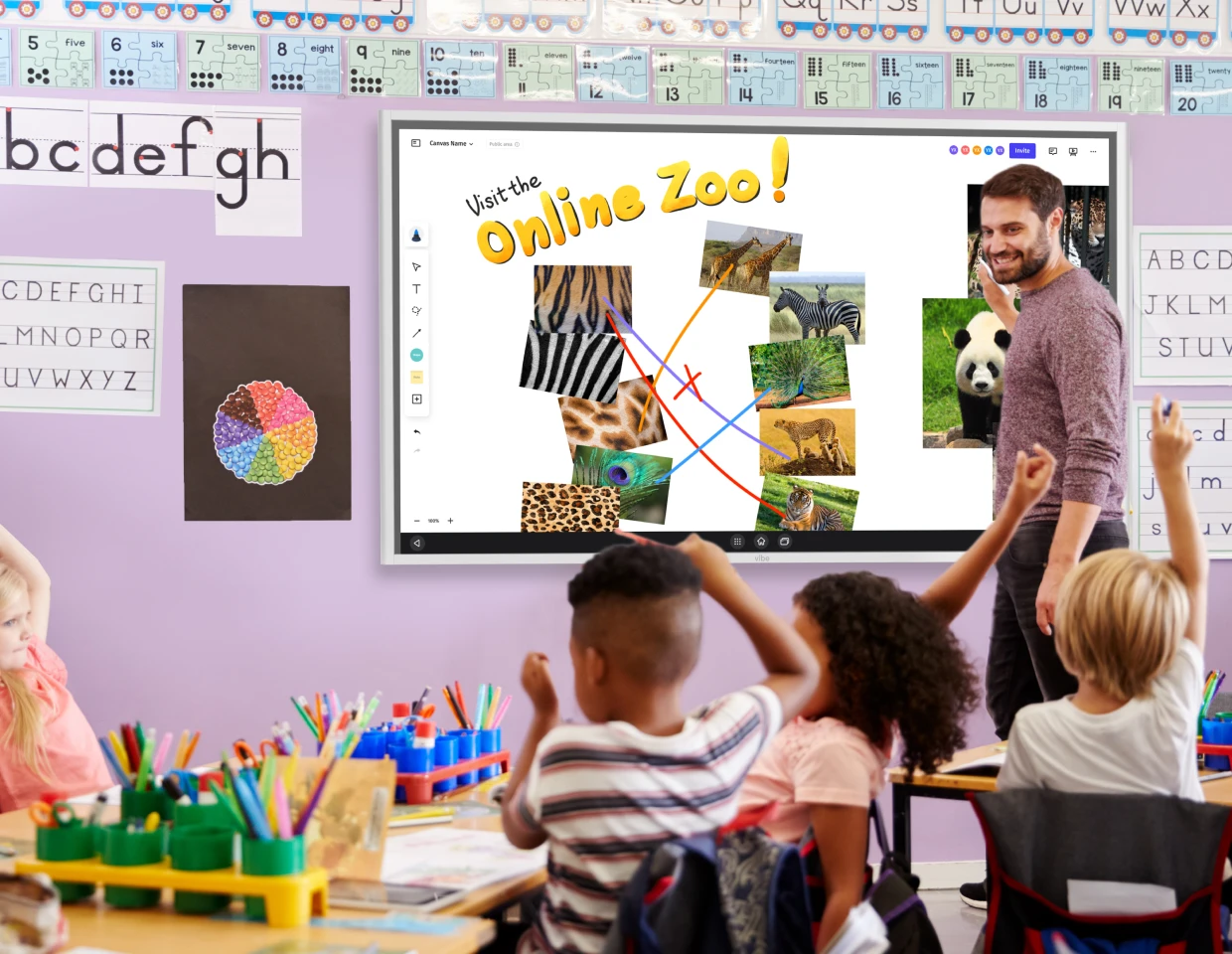
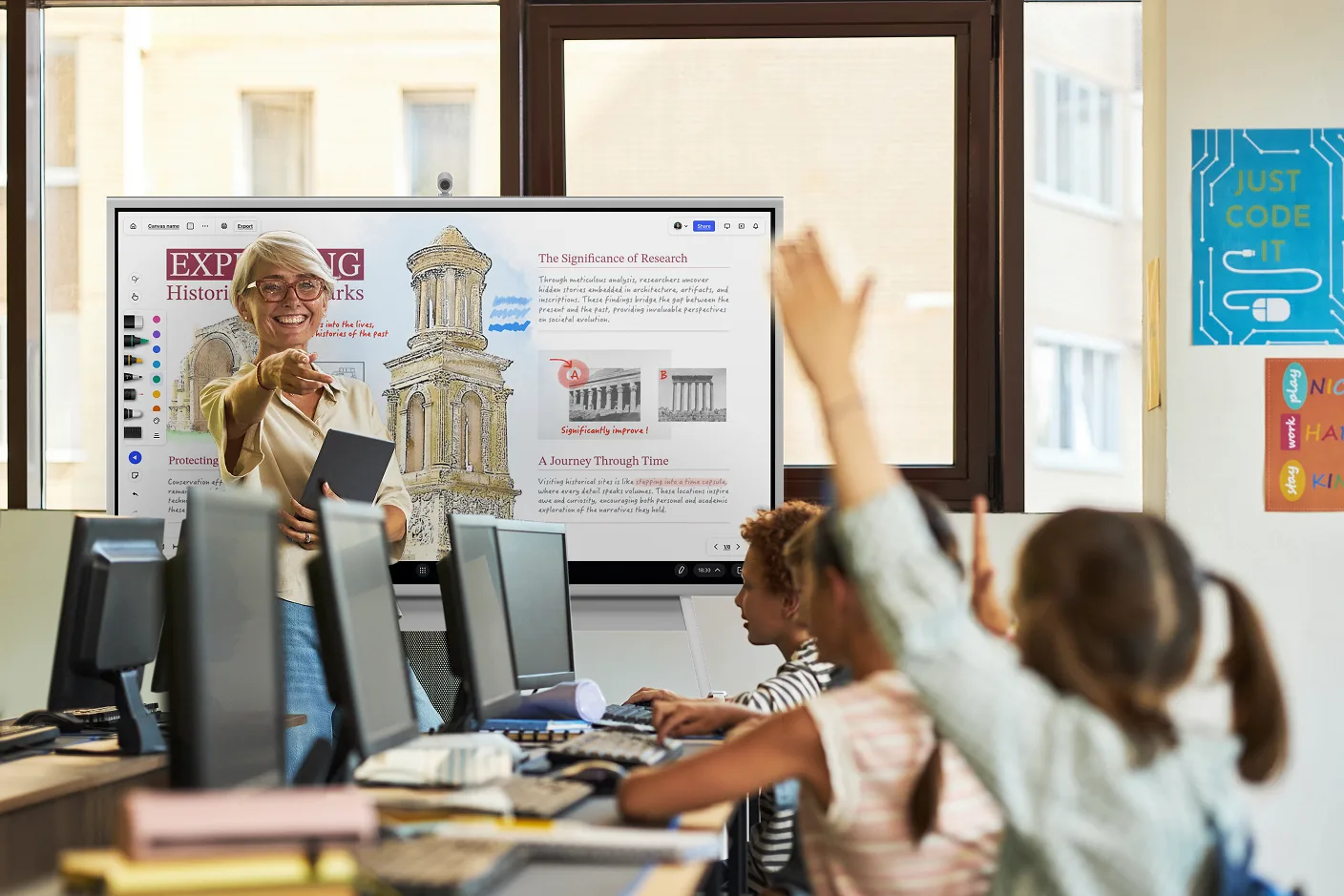
An interactive whiteboard — not a projector screen or a shared slide deck — should be the lesson’s home base. It needs to display content, accept handwritten annotation, and be visible in the video feed at the same time. Static slides can’t take a mid-lesson question and turn it into a diagram; a shared canvas can.
2. Camera and audio built for the room, not the laptop
Built-in laptop cameras and mics are the single most common point of failure in hybrid setups. A wide-angle or AI-tracking camera mounted at the board, paired with an omnidirectional microphone array, closes most of the gap between "remote students can technically see the class" and "remote students can actually follow it."
3. Conferencing software that runs where the lesson happens
Whatever platform a school already standardizes on — Zoom, Google Meet, Microsoft Teams — should run directly from the teaching space rather than from a separate laptop the teacher has to babysit. This keeps screen sharing, camera control, and whiteboard content in one place instead of forcing the teacher to manage two devices mid-lesson.
4. A deliberate "remote-first" habit, not just remote-possible technology
Equipment solves visibility; it doesn’t solve participation. Calling on remote students as often as in-person ones, having in-person students narrate or share responses in chat so remote students see the same back-and-forth, and recording sessions for asynchronous catch-up are low-cost habits that matter as much as the hardware.
Matching the Right Device to Each Hybrid Scenario
A hybrid classroom isn’t the only hybrid setting on a campus, and it doesn’t need a single device to solve every version of the problem. It’s worth separating three scenarios that come up across a school or university, since each one calls for a different tool.
In the classroom: the shared canvas comes first
For day-to-day teaching, the whiteboard is not a video conferencing platform, and it shouldn’t try to be — its job is the shared canvas that remote and in-person students look at, write on, and reference together. The video call still runs on whatever conferencing software the school already uses.
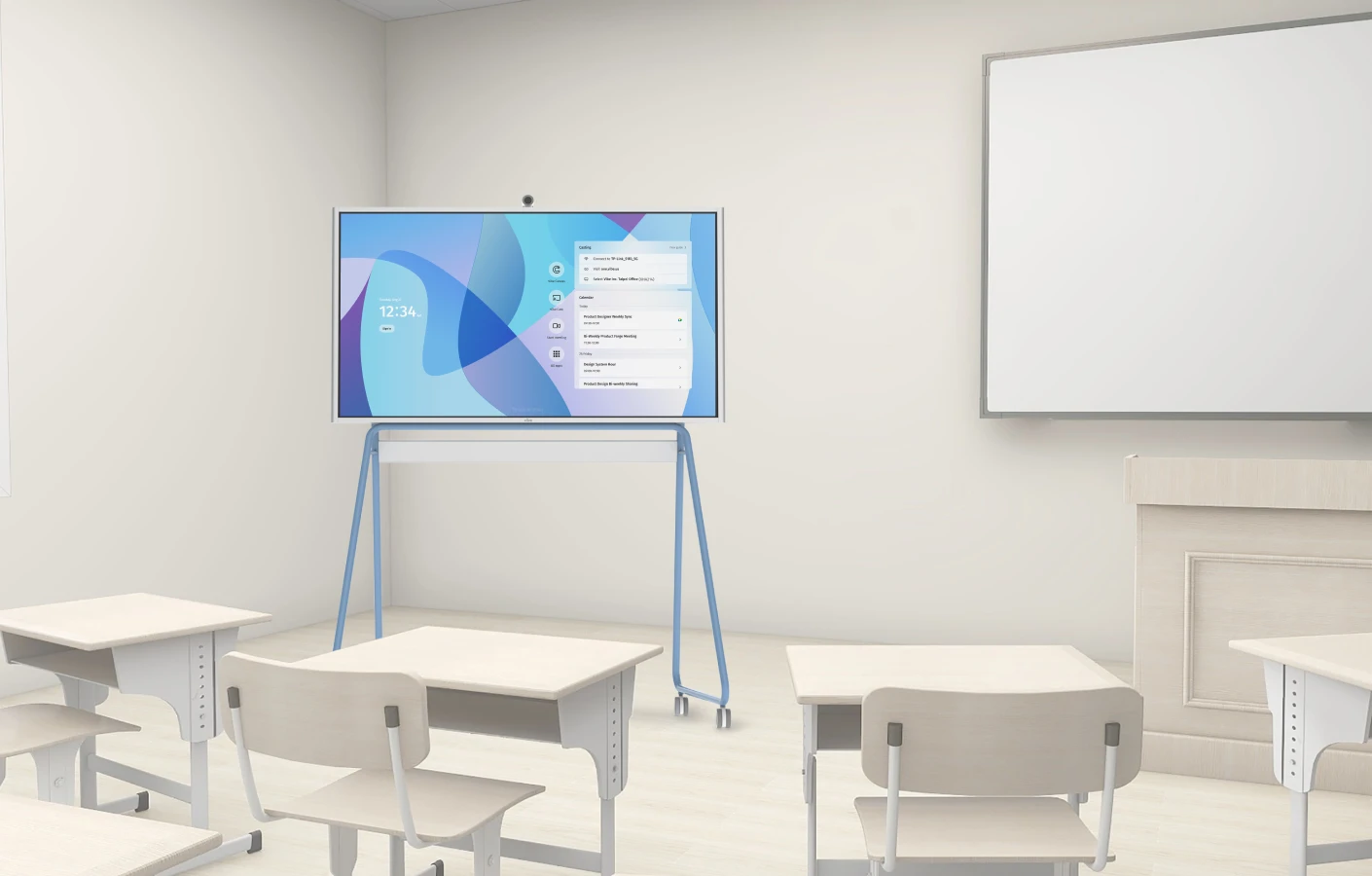
Vibe Board is built around that division of labor. It runs Zoom, Google Meet, Microsoft Teams, and Google Classroom as apps directly on the board, so a teacher isn’t juggling a separate laptop for the call and the board for content. Paired with its optional Smart Camera — a 4K sensor with a six-microphone array — it addresses the framing and audio problems that make so many "just add a webcam" setups hard for remote students to follow.
In lecture halls, seminars, and faculty meetings: capturing the conversation matters as much as the call
Guest lectures, department meetings, and professional development sessions need more than a screen to project slides onto — the room needs a shared surface where ideas actually get worked through. Vibe Board turns into that surface: a large interactive display where a guest speaker can annotate directly, a department can build out an agenda together, or a facilitator can capture decisions as they come up, all visible to everyone in the room at once.
For an individual educator: capturing notes without a fixed room
Not every conversation worth keeping happens in a room with equipment installed — office hours, a hallway follow-up with a student, or personal notes during a conference session. Vibe Dot is a small, clip-on recorder built for that: a 5-microphone array, 30+ hours of recording on a charge, and on-device transcription and summaries that sync to an educator’s phone. It’s a personal tool, not a classroom system — the fit is one person’s notes and follow-ups, not a lesson delivered to a room.
Together, these cover distinct parts of a hybrid campus rather than competing for the same job: the whiteboard for lesson delivery, the in-room device for meetings and lecture capture, and the personal recorder for individual note-taking. None of them replace the video conferencing platform itself — they sit alongside it.
FAQ
What is a hybrid classroom?
A hybrid classroom is a teaching setup where some students attend in person and others join remotely at the same time, using a shared display for lesson content and a video conferencing platform to connect everyone live.
What equipment do you need to set up a hybrid classroom?
At minimum: an interactive whiteboard or large display for shared content, a room-scale camera and microphone (not just a laptop’s built-in hardware), and a video conferencing platform the school already uses. Reliable internet bandwidth in the room is a prerequisite, not an optional extra.
Does a hybrid classroom need a dedicated conferencing device, or will a laptop work?
A laptop can technically host the call, but its camera and mic weren’t designed to cover a full room. If more than a handful of remote students regularly join, a room-scale camera and mic setup makes a measurable difference in whether they can actually follow the lesson.
Can an interactive whiteboard replace video conferencing software?
No. A whiteboard displays and captures lesson content; it doesn’t host the video call itself. The two work together — the whiteboard as the shared canvas, the conferencing platform as the connection — and neither substitutes for the other.
Which video conferencing platform should a school standardize on?
Whichever one the school’s existing accounts and IT policies already support — Google Meet for Google Workspace schools, Teams for Microsoft 365 schools, or Zoom where it’s already the district standard. The whiteboard and camera setup should work with that platform rather than dictate a switch.
How do you keep remote students from disengaging in a hybrid classroom?
Structure participation deliberately: call on remote students on the same rotation as in-person ones, use the shared whiteboard so they can annotate alongside the class, and record sessions so missed content isn’t a dead end.
Is a webcam alone enough for a hybrid classroom?
Usually not for a full-size room. A single webcam typically covers one narrow field of view and lacks the microphone range to pick up a whole classroom clearly, which is why most functional hybrid setups pair a wide-angle or AI-tracking camera with a multi-microphone array instead.
How much does a basic hybrid classroom setup cost?
Costs vary by scale, but the two line items that matter most are the shared display (an interactive whiteboard) and the camera/audio hardware for the room. Software licensing for video conferencing is often already covered by an existing school subscription, so hardware is usually the larger one-time investment.