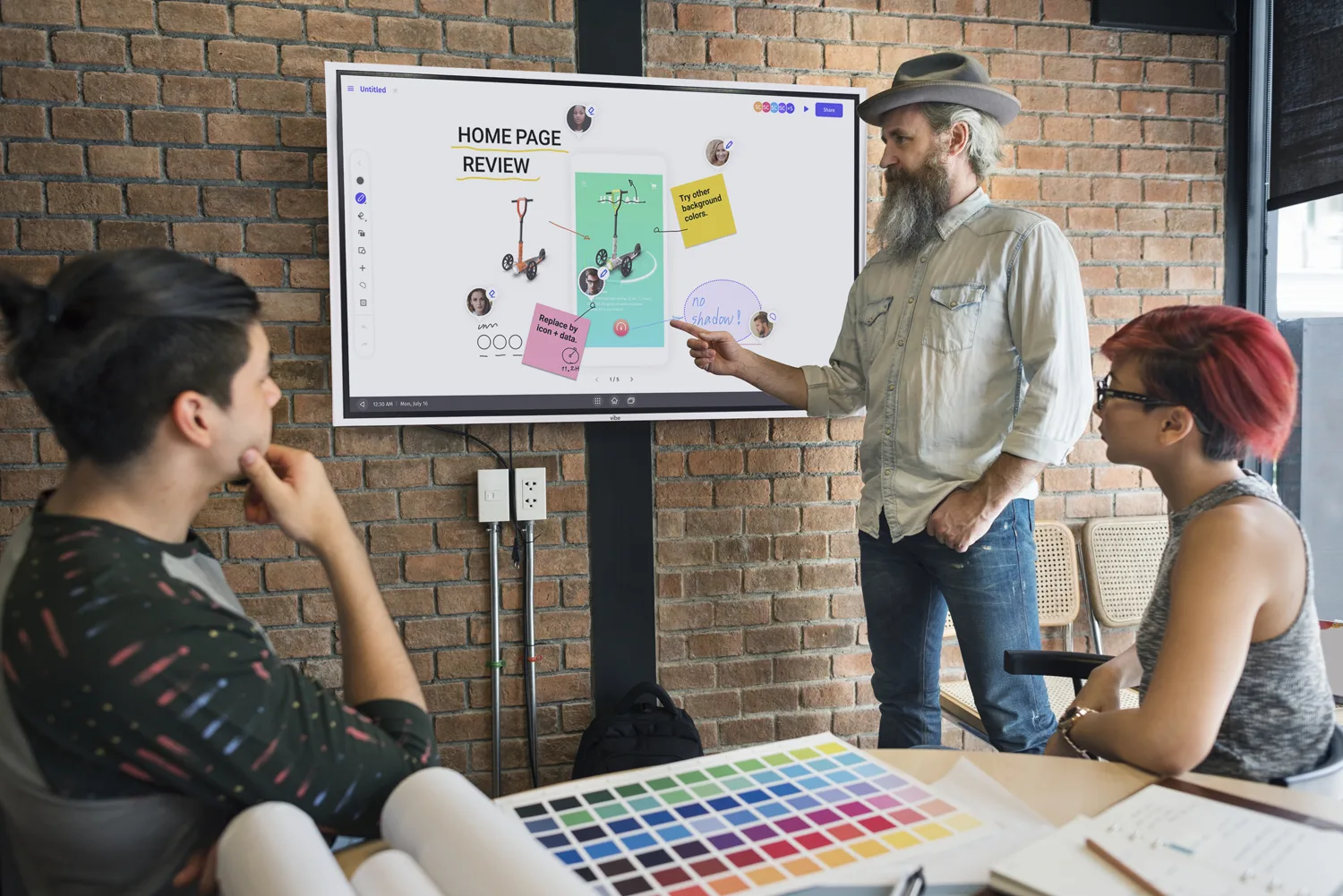
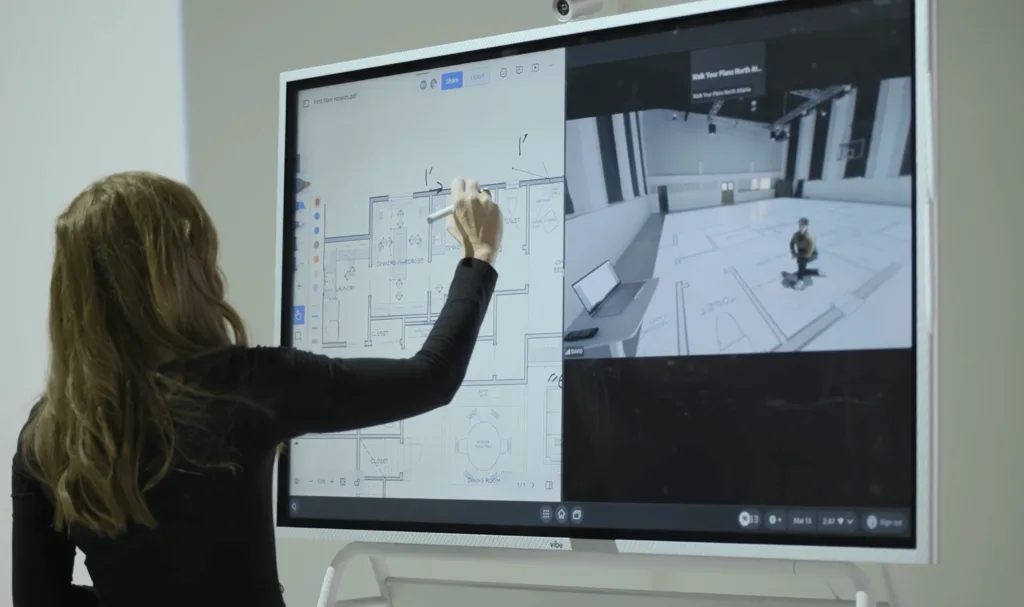
What is Screencasting
Screencasting is the process of sharing your device’s screen content with another display or audience—either as a live real-time broadcast or as a recorded video file saved for later viewing. The term covers two related but distinct uses: live screen sharing (sometimes called casting or screen mirroring), where your screen appears on another display in real time, and screen recording, where your screen activity is captured as a video file you can edit and distribute.
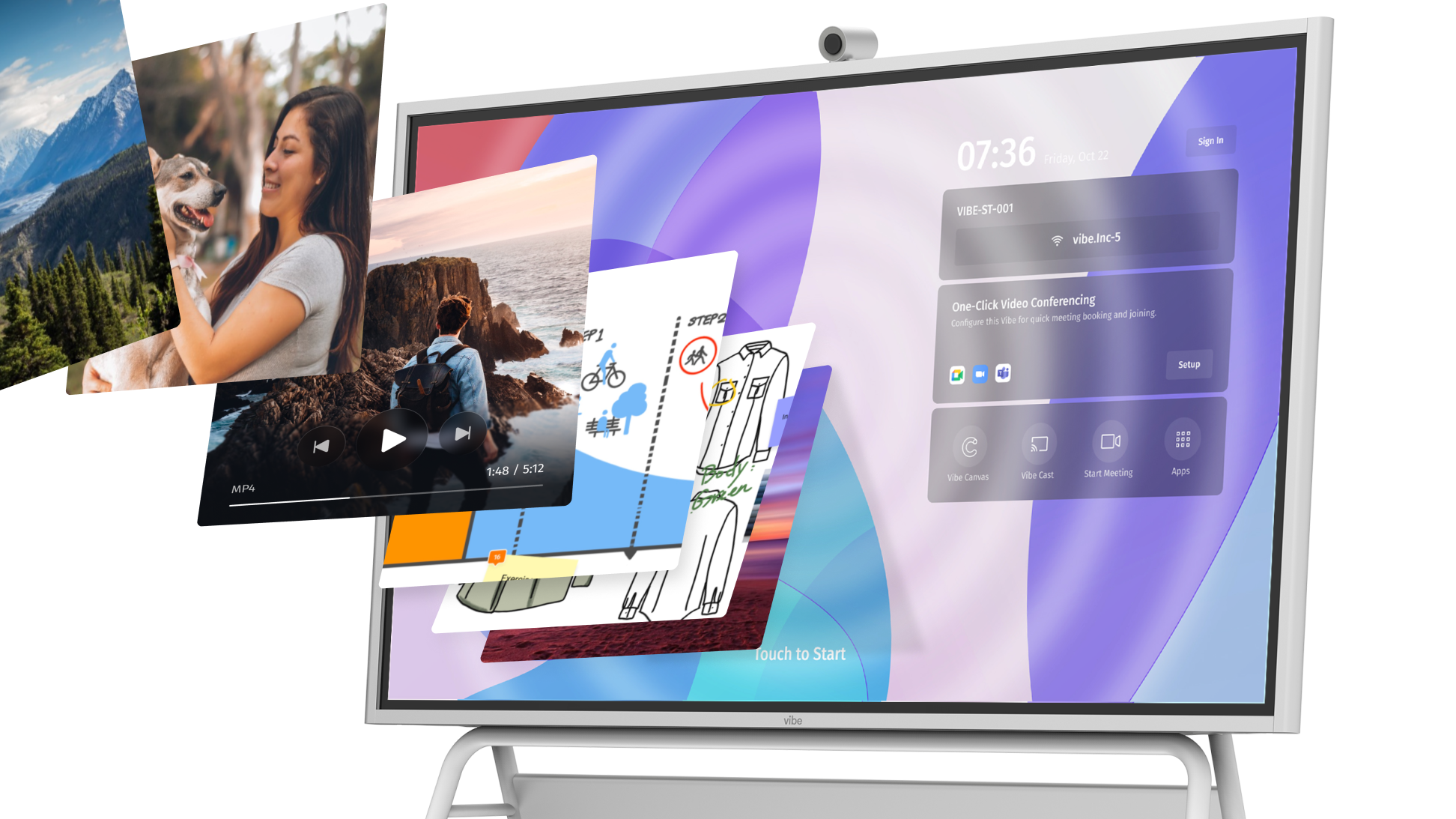 Using the screencasting function to display content on a Vibe Board during a presentation or meeting.
Screencasting vs. screen recording vs. screen mirroring — what’s the difference?
|
Term |
What it does |
Output |
|---|---|---|
|
Screencasting |
Shares or records your screen for an audience |
Live broadcast or saved video |
|
Screen recording |
Captures your screen as a video file |
Saved video file (.mp4, etc.) |
|
Screen mirroring |
Duplicates your screen on another display in real time |
Live display only, no file saved |
In practice, many people use these terms interchangeably, but the distinction matters when choosing the right tool. If you need to create a tutorial or training video, you want screen recording. If you’re presenting slides wirelessly to a conference room display, you want screen mirroring or live casting. Screencasting tools often support both.
The key advantage of live screencasting is that you maintain full control of your device while your audience sees everything on a shared display—no cables, no dedicated hardware required in most setups. You can move freely, switch between applications, and engage with your audience directly. For teams using a Vibe Board S1, screencasting from any device—Windows via cast.vibe.us, Mac and iOS via AirPlay, or any device via Vibe Tap—takes under a minute to set up.
Modern screencasting goes beyond simple display mirroring. The sections below cover the five main methods, how to choose between them, and how to enable real-time annotation and collaboration on top of a shared screen.
- Screencasting wirelessly shares your screen content in real-time, unlike screen recording which creates saved video files
- Five main methods available: hardware adapters, browser platforms, native integrations, direct wireless protocols, and traditional wired connections
- Your choice depends on three factors: environment constraints, presentation style, and technical requirements
- Decision matrix approach helps: prioritize reliability, flexibility, security, cost-effectiveness, or guest-friendliness based on your needs
5 Major Screencasting Methods
1. Hardware-Assisted Solutions
These dedicated devices take the guesswork out of connections. You plug a small adapter into your laptop, press a button, and you’re instantly connected to your display. Think of it as having a universal key that works with any compatible screen. The main advantage? Consistency—the same simple process works every time, regardless of network conditions or device differences.
Pros:
-
Reliable connection
-
Works offline
-
Minimal setup
Cons:
-
Additional hardware cost
-
Extra device to carry
2. Browser-Based Platforms
This approach turns any web browser into a screencasting tool. No apps to install, no IT approvals needed—just open a browser tab and connect. It’s particularly valuable in mixed environments where people bring different devices or when you’re hosting guest presenters who can’t install software on their company laptops.
Pros:
-
Universal compatibility
-
No software required
Cons:
-
Internet dependent
-
Potential latency
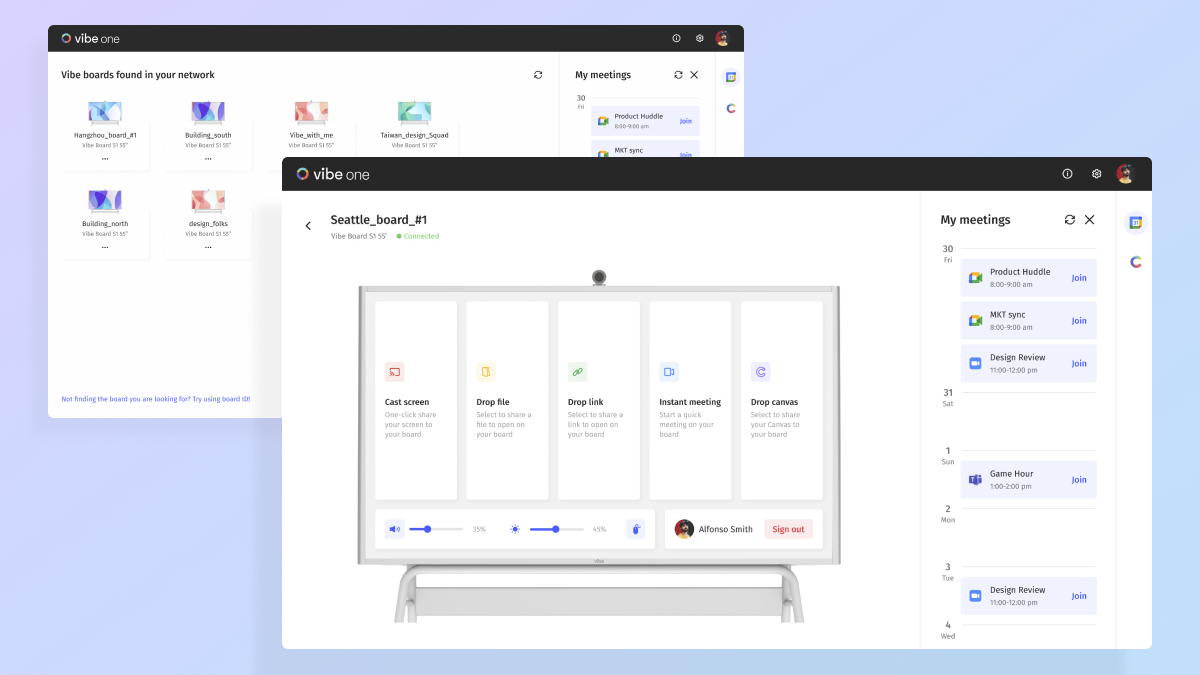 Using browser-based platforms to display content on the Vibe Board for flexible, app-free collaboration and presentations.
3. Native Ecosystem Integration
Apple’s AirPlay, Google Cast, and Microsoft’s wireless display protocols represent this category. If your team lives within one ecosystem, these built-in solutions offer seamless experiences. Your devices automatically discover compatible displays, and the connection process feels like magic because it’s designed specifically for that hardware family.
Pros:
-
Zero setup
-
Automatic discovery
-
Optimized performance
Cons:
-
Limited to specific brands
-
Poor cross-platform support
4. Miracast and Wi-Fi Direct
These industry standards enable direct device-to-device connections without requiring internet access. They’re particularly useful in secure environments or locations with restricted networks. The connection happens directly between your device and the display, creating a private communication channel.
Pros:
-
No internet required
-
Private channels
-
Secure environments
Cons:
-
Limited compatibility
-
Setup Complexity
5. Traditional Wired Connections
HDMI, USB-C, and DisplayPort connections still have their place, especially when you need guaranteed reliability or maximum quality. While they might seem old-fashioned, modern implementations often include touchback capabilities and can deliver features that wireless methods sometimes can’t match.
Pros:
-
Maximum reliability
-
Unlimited bandwidth
Cons:
-
Limited mobility
-
Cable management
-
Setup time
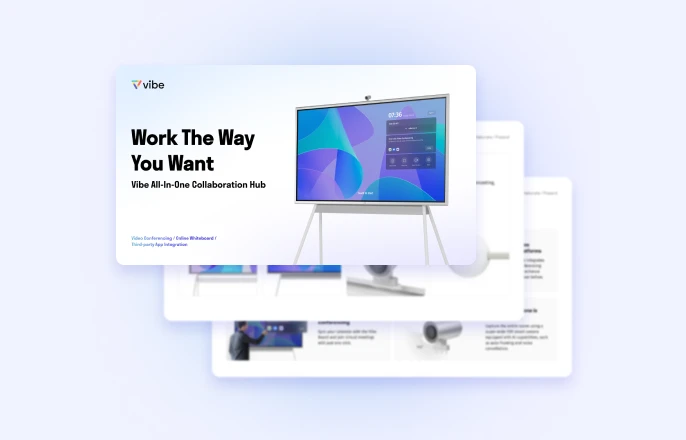
3 Factors to Help You Decide Screencasting Method
Choosing the right screencasting method depends on three key factors: your environment, presentation style, and technical needs. Here’s how to make the best decision for your situation.
1. Your Environment Determines Your Options
Working in secure or restricted networks? Miracast, Wi-Fi Direct, or traditional wired connections become your best friends. These methods don’t rely on internet access and keep your data contained within your immediate environment.
Managing teams with different devices? Browser-based platforms and hardware-assisted solutions shine here. When your team brings MacBooks, Surface tablets, and Android phones to the same meeting, you need something that works across all platforms without forcing everyone to download specific apps.
Everyone using the same ecosystem? This is where native integration methods like AirPlay, Google Cast, or Microsoft’s wireless display really excel. When your entire team lives in the Apple world or commits fully to Microsoft, these built-in solutions offer the smoothest experience possible.
2. Match Your Presentation Style
High-stakes presentations call for maximum reliability. Whether you’re pitching to investors or presenting quarterly results to executives, wired connections or dedicated hardware-assisted solutions eliminate the "what if the WiFi fails" worry.
Interactive collaboration sessions work best with wireless methods that support real-time sharing and annotation. Browser-based platforms and native integration methods typically offer the most collaborative features, letting multiple people contribute to the shared content.
Mobile presenting style benefits most from wireless solutions. If you prefer walking around the room, engaging directly with your audience, or presenting from different positions, native integration or browser-based methods give you that freedom.
3. Technical Requirements Matter
Maximum quality presentations with 4K content or large file demonstrations need the unlimited bandwidth that wired connections provide. When you’re showcasing detailed design work or video content, cables still offer the best performance.
Frequent guest presenters make browser-based platforms invaluable. External speakers shouldn’t need to install software on their company devices or struggle with unfamiliar hardware.
Limited IT support or budget points toward solutions that leverage what you already have. Native integration methods use built-in capabilities, while browser-based platforms require minimal additional investment.
Screencasting Best Practises
|
Priority |
Best Method |
Backup Option |
|---|---|---|
|
Reliability |
Wired |
Hardware-Assisted |
|
Flexibility |
Browser-Based |
Hardware-Assisted |
|
Security |
Miracast/Wi-Fi Direct |
Wired |
|
Cost-Effective |
Native Integration |
Browser-Based |
|
Guest-Friendly |
Browser-Based |
Hardware-Assisted |
Pro Tip: Most successful teams maintain two methods—a primary wireless solution for daily use and a wired backup for critical presentations.
From Simple Screencasting to Advanced Collaboration
While basic screencasting solves the fundamental challenge of sharing your screen, the most productive teams discover they want to do more with their shared content. Once reliable connectivity is established, natural questions emerge: "Can we annotate this slide together?" "How do we capture the ideas that come up during the presentation?" "Can remote team members contribute in real-time?"
This evolution from passive viewing to active collaboration represents the next frontier in screencasting technology. Modern interactive displays support multiple screencasting methods while adding real-time annotation capabilities that transform how teams work together.
Advanced Tips: Enable Interactive Screencasting
Real-Time Annotation During Presentations
Teams can mark up shared content as discussions unfold—highlighting key points, sketching solutions, or adding notes directly on presentations. The screencasted content becomes a collaborative workspace rather than just a display.
Hybrid Team Integration
Remote participants can contribute annotations and ideas alongside in-room presenters, ensuring virtual team members remain active contributors rather than passive observers.
Content Capture and Continuity
The ideas generated during screencasting sessions are automatically preserved, allowing teams to pick up where they left off and share outcomes with stakeholders who weren’t present.
Choosing Platforms That Grow With Your Needs
The most effective approach integrates multiple screencasting methods into a single platform that supports this evolution. Solutions like the Vibe Board S1 demonstrate this integration—supporting hardware adapters, browser compatibility, native ecosystem protocols, and reliable wired connections while adding the annotation and collaboration capabilities that teams naturally want.
When evaluating screencasting solutions, consider not just the connection methods they support, but how they enable the collaborative work that follows. The 4K displays ensure your content remains crisp regardless of connection method, while features like infinite Vibe Canvas let teams build on ideas that emerge during presentations.
The result? Meetings evolve from simple content sharing into dynamic collaboration sessions where screencasting becomes the foundation for more engaging, productive teamwork. Experience this transformation by requesting a demo to explore our screencasting capabilities and see what’s possible for your team.
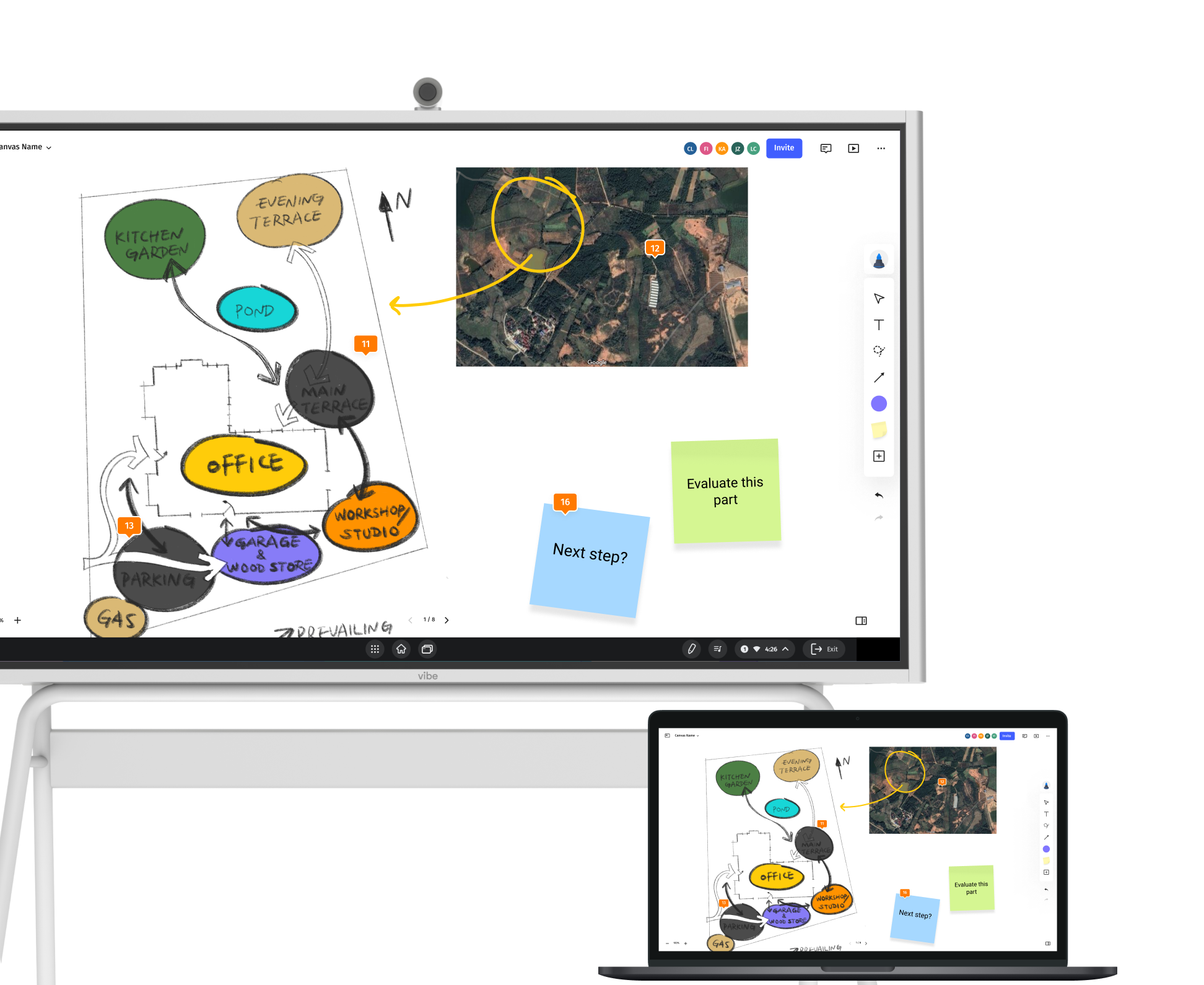 Using the Vibe Board for seamless content sharing, enabling boundary-free collaboration.
FAQs
What’s the difference between screencasting and screen recording?
Screencasting is live, real-time sharing of your screen to other devices or displays. Screen recording creates a video file of your screen activity for later viewing. Think live TV broadcast versus a recorded show.
Do I need special software for screencasting?
Not necessarily. Most devices have built-in screencasting capabilities (AirPlay, Google Cast, Windows wireless display). Browser-based solutions work without any software installation.
Can I screencast without internet connection?
Yes. Miracast, Wi-Fi Direct, and wired connections work offline. Some hardware-assisted solutions also operate without internet access.
I already have a Vibe Board, what are the screencasting options?
You can connect and cast your screen to a Vibe Board using four main methods:
-
Vibe One – Browser-based wireless casting from any device (complete Vibe One casting guide)
-
Vibe Tap accessory – One-touch wireless connection for instant screen sharing (Vibe Tap setup instructions)
-
AirPlay – For Mac, iPhone, and iPad users to wirelessly mirror their screens (learn how to use AirPlay with Vibe Board)
-
HDMI/USB-C cable – Direct wired connection with touchback support for any device (see HDMI setup and annotation features)