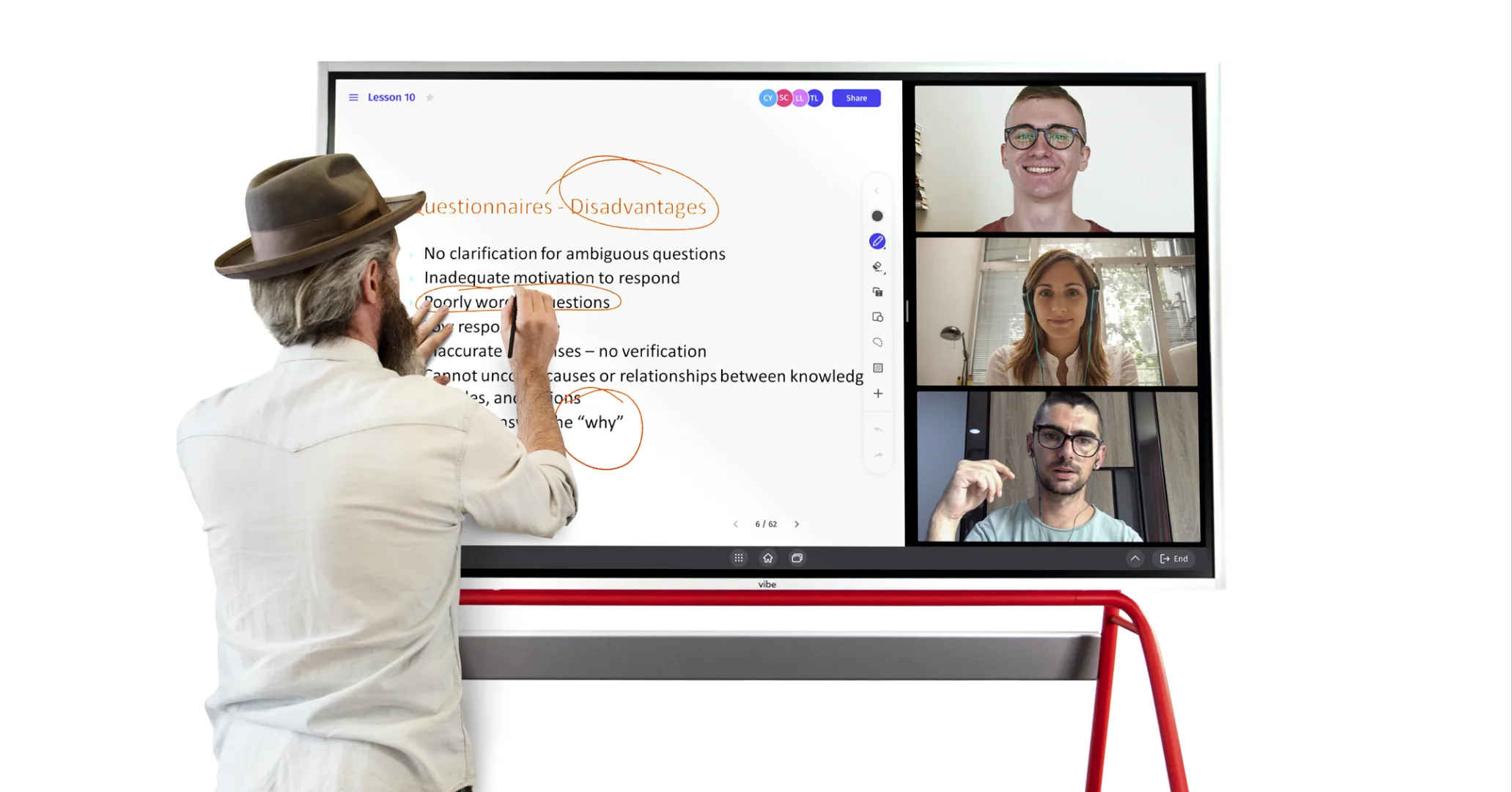
Whether you’re setting up a home office on a tight budget, outfitting a classroom without wall space to spare, or looking for a digital tool to replace marker-and-eraser sessions with remote teams — there’s a whiteboard alternative that fits your situation better than you might expect.
This guide covers all three categories: physical substitutes you can install or buy today, digital whiteboard software for teams that collaborate online, and smart whiteboards for offices and classrooms that need a permanent upgrade. We’ll walk through the real tradeoffs so you can make the right call for your space and budget.
Physical Whiteboard Alternatives
If your question is "what can I actually write on instead of a whiteboard," you’re in the right place. These options work without Wi-Fi, software subscriptions, or a power outlet.
1. Whiteboard Paint (Dry-Erase Wall Coating)
Whiteboard paint — also called dry-erase paint — transforms any smooth wall, door, or even a glass surface into a writable canvas. You apply it like regular paint, let it cure (typically 48–72 hours), and you have a marker-ready surface that can last a decade or more with proper care.
Best for: Renters who can negotiate with landlords, open-plan offices that want a wall-sized writing surface, STEM classrooms, therapy spaces.
Pros:
-
No frame, no footprint — the entire wall becomes the canvas
-
Permanent and low-maintenance once cured
-
Works with standard low-odor dry-erase markers
-
More cost-effective per square foot than purchasing a large board
Cons:
-
Requires wall access and preparation (not for renters who can’t paint)
-
Curing time before use (48–72 hours minimum)
-
Quality varies significantly by brand — cheaper formulas ghost badly
Cost range: $30–$80 for a 40–50 sq ft kit
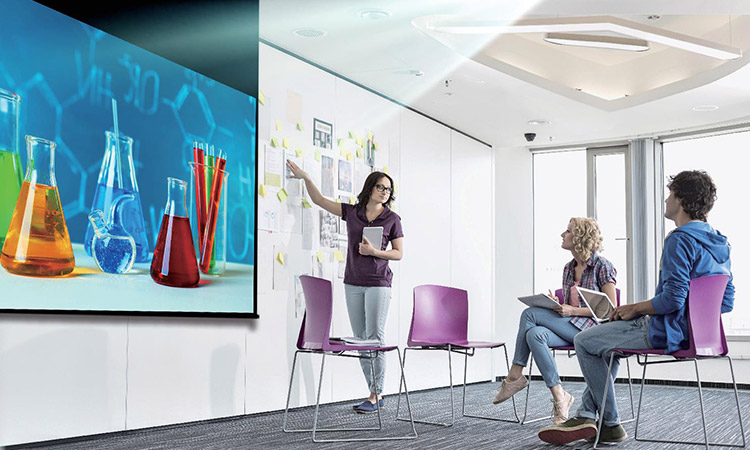 Actual white surface is used as the projector screen
2. Chalkboard Paint
The lower-tech cousin of whiteboard paint. Chalkboard paint creates a matte, dark writing surface that works with chalk and chalk markers. It’s widely available, inexpensive, and doesn’t require specialty supplies.
Best for: Kitchens, kids’ rooms, art classrooms, casual home use where a modern aesthetic isn’t the priority.
Pros:
-
Cheap and widely available (most hardware stores)
-
Forgiving surface — even low-cost formulas work reasonably well
-
Chalk marker versions give a chalk look with easier cleanup
Cons:
-
Chalk dust is a real issue in professional or clinical settings
-
Dark surface is harder to photograph or share digitally
-
Doesn’t suit everyone aesthetically in a modern workspace
Cost range: $15–$40 for a quart covering ~30–40 sq ft
3. Peel-and-Stick Dry-Erase Sheets and Decals
Self-adhesive dry-erase film — brands like BLIK and various Amazon options — peel and stick to most flat surfaces. They’re the go-to whiteboard alternative for renters, temporary workspaces, or anyone who needs a writing surface without committing to paint.
Best for: Home offices in rented spaces, temporary project rooms, travel setups, student dorms.
Pros:
-
No wall prep, no curing time — install in minutes
-
Removable without wall damage (check product specs)
-
Can be cut to any size
Cons:
-
Surface quality is noticeably worse than a real whiteboard — markers can feather, erasing leaves more residue
-
Edges lift over time, especially in humid conditions
-
Not a long-term solution
Cost range: $15–$45 depending on size
4. Glass Panels and Glass Boards
Tempered glass whiteboards — frameless or framed — are the premium physical alternative. Glass doesn’t absorb marker ink the way melamine or painted surfaces do, so they erase completely, never ghost, and look sharp in a modern office.
Best for: Executive offices, design studios, client-facing meeting rooms where appearance matters
Pros:
-
Zero ghosting — erases perfectly every time
-
Sleek, frameless options integrate with modern interiors
-
Durable: doesn’t dent, scratch, or degrade like melamine boards
Cons:
-
Price: good glass boards start at $150 for desktop sizes, $400+ for wall-mount
-
Heavy — requires proper wall anchoring
-
Glare can be an issue in brightly lit rooms
Cost range: $50 (small desktop) to $600+ (large wall-mount)
5. Flip Charts and Paper Pads
Old-fashioned but still effective in the right context. A flip chart on a stand gives you a portable writing surface that doubles as a record — tear off the sheet and it becomes a physical artifact you can post on the wall
Best for: Workshops, client meetings, training sessions where you want to keep visible notes as a physical display.
Pros:
-
No installation required — set up anywhere in minutes
-
Paper sheets double as wall posters mid-session
-
Completely offline and foolproof
Cons:
-
Not erasable — a mistake means a new sheet
-
Consumable cost adds up
-
Can’t scale to full-wall brainstorming
Cost range: $30–$80 for a stand + pads of 50–100 sheets
6. Window and Mirror Writing (Temporary)
In a pinch, glass windows and large mirrors work with standard dry-erase markers and clean up easily with glass cleaner. It’s not a polished solution, but it’s genuinely useful in home offices where a dedicated board doesn’t make sense.
Best for: Temporary planning, home offices, anyone who needs a one-time writable surface.
Pros:
-
Zero cost — you already have the surface
-
Erases completely with standard glass cleaner
-
Surprisingly legible on frosted or textured glass
Cons:
-
Looks improvised — not appropriate for client-facing settings
-
Limited by available glass surface area
-
Marker odor can be an issue in small rooms
Digital Whiteboard Alternatives (Software)
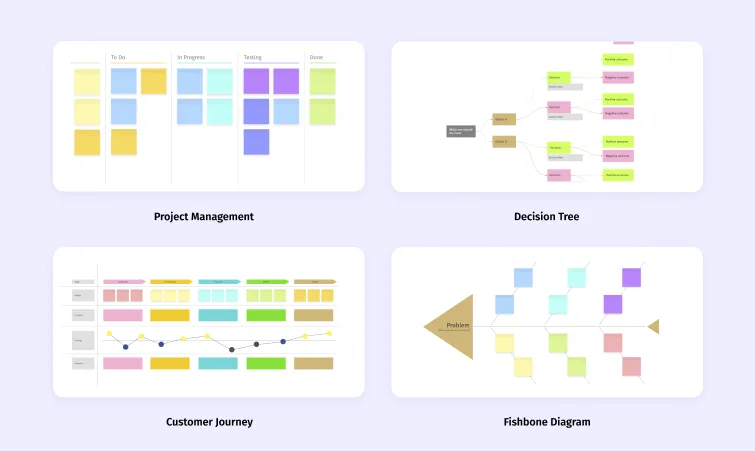
If your team collaborates remotely, asynchronously, or across locations, a physical whiteboard isn’t the answer — a digital whiteboard is. These tools run in the browser or as apps, require no hardware investment, and give distributed teams a shared canvas.
[IMAGE: Screenshot of a digital whiteboard tool (e.g., Miro or Vibe Canvas) in use with sticky notes, a flowchart, and annotations visible]
Vibe Canvas
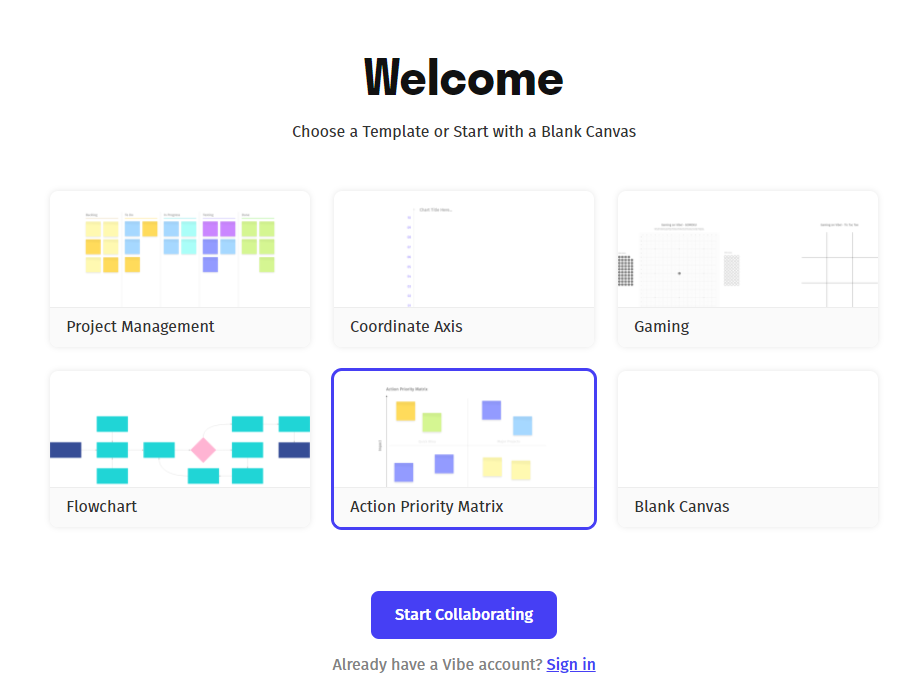
Vibe Canvas is Vibe’s infinite digital whiteboard, available as a web app and as the native whiteboarding layer on the Vibe Board S1. It supports real-time collaboration, template import, screen annotation, and video conferencing integration — and it works across devices without a hardware requirement.
Best for: Teams that use or are considering Vibe Board hardware, or want a whiteboard canvas that scales from software-only to a physical smart board without switching platforms.
Miro
Miro is the most widely adopted collaborative whiteboard platform for remote and hybrid teams. It offers an infinite canvas, a library of templates (for everything from sprint planning to journey maps), and strong integrations with Jira, Slack, and Zoom.
Best for: Large remote teams, product and UX teams, agile workflows.
Pricing: Free tier (3 editable boards); Team from $8/member/month.
Limitation: The free tier is limited enough that most real team use requires a paid plan. At scale, costs add up.
Mural
Mural is Miro’s closest competitor and is particularly strong for structured workshops and facilitation. It ships with guided templates for retrospectives, design sprints, and stakeholder alignment sessions.
Best for: Facilitators, design thinking teams, structured remote workshops.
Pricing: Free tier (3 active murals); Team from $9.99/member/month.
Microsoft Whiteboard
Microsoft Whiteboard is included with Microsoft 365 subscriptions and integrates natively with Teams. If your organization is already paying for M365, it’s essentially free.
Best for: Organizations already on Microsoft 365 who want a simple, no-cost collaborative canvas inside Teams.
Limitation: Feature set is narrower than Miro or Mural; works best inside the Microsoft ecosystem and lacks the deep template libraries and integrations of dedicated platforms.
FigJam (by Figma)
FigJam is optimized for design and engineering teams. It feels fast and low-friction for quick diagrams, user flows, and design critiques — and it connects directly to Figma files.
Best for: UX/UI teams, product designers, design-engineering collaboration.
Pricing: Free for up to 3 files; from $5/editor/month on paid plans.
Smart Whiteboard Alternatives (Hardware Upgrade)
If your situation calls for a permanent, room-level solution — a conference room, a classroom, a hybrid workspace — a smart whiteboard is a different category from the physical and digital options above. It’s hardware that replaces a traditional whiteboard and adds: touchscreen interactivity, wireless screen sharing, video conferencing, and built-in apps.
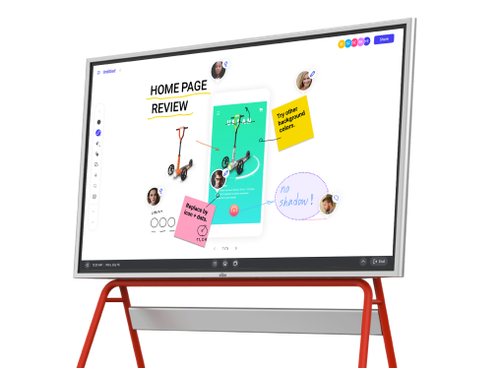 Vibe smart whiteboard for team collacation
Interactive Projectors
Interactive projectors work by projecting an image onto a surface (including a traditional whiteboard) and tracking touch or pen input with infrared or DLP technology. They’re often used in classrooms where budget is tight but a large interactive surface is needed.
Best for: Schools or training rooms that already have projector infrastructure, large-venue presentations.
Pros:
-
Can create a very large interactive surface at lower hardware cost than a flat panel
-
Works with existing whiteboards as the projection surface
Cons:
-
Setup complexity — projector placement, camera alignment, and feedback loop avoidance take time and expertise
-
Image quality degrades with ambient light
-
Calibration can drift and require re-setup
Cost range: $800–$3,000+ depending on interactivity level
Smart Boards (Interactive Flat Panel Displays)
Smart boards — also called interactive flat panels (IFPs) — are large touchscreen displays that replace both the whiteboard and the display in a room. Unlike a traditional whiteboard, they save your work automatically, connect remote participants over video conferencing, and run apps directly on the screen.
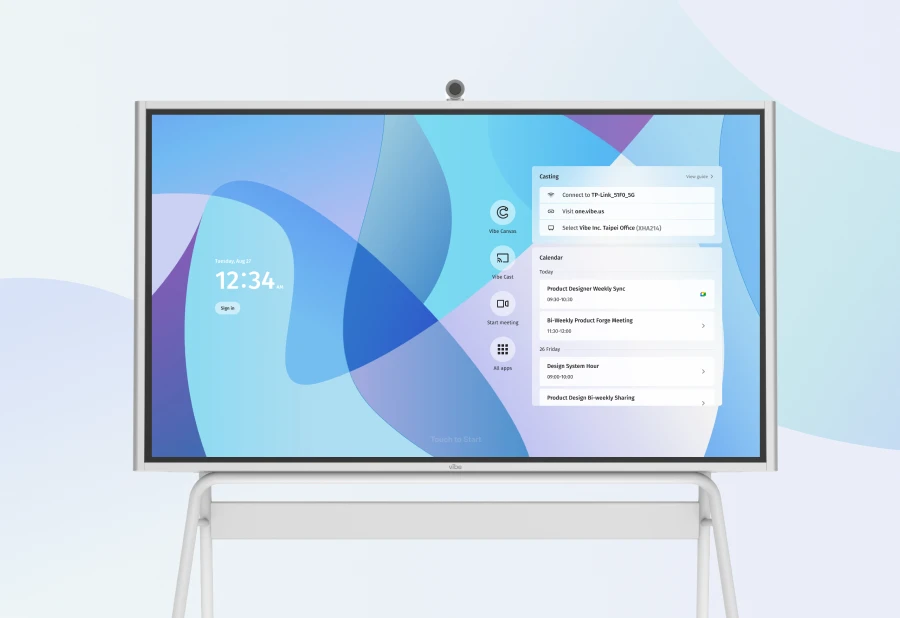
The Vibe Board S1 is a strong example of what this category offers. It’s a 4K interactive whiteboard available in 55″ (3,699)and75″(7,299), runs VibeOS (ChromeOS-based), and ships with Vibe Canvas built in for infinite-canvas whiteboarding. It integrates with 250+ apps — Google Meet, Zoom, Microsoft Teams, Google Workspace — so the room is ready for hybrid meetings without extra hardware.Neither S1 model has a built-in camera or microphone, but both are designed with flexible options: the optional Vibe Smart Camera mounts directly onto the board and adds a Sony 4K sensor, a 6-mic array with AI-powered noise and echo cancellation, and auto-framing that adjusts to however many people are in the room. The S1 is also compatible with most USB-connected cameras and microphones — including Logitech BRIO and Polycom Studio — if you already have room hardware in place. For AI-powered meeting summaries and action item tracking, the S1 pairs with Vibe Bot. It’s Amazon’s #1 Best Seller in its category with a 4.5-star customer rating.
Best for: Conference rooms, classrooms, and training spaces that want a permanent all-in-one hub — whiteboarding, screen sharing, video conferencing, and annotation in one device.
How to Choose: Which Whiteboard Alternative Is Right for You?
|
Situation |
Best option |
|---|---|
|
Renting, can’t paint walls |
Peel-and-stick dry-erase sheet |
|
Own your space, want wall-sized canvas |
Whiteboard paint |
|
Premium home office, no ghosting |
Glass board |
|
Kids’ room or casual home use |
Chalkboard paint |
|
Remote team, no hardware needed |
Miro, Mural, or Vibe Canvas |
|
Microsoft 365 shop |
Microsoft Whiteboard (built-in) |
|
Design/engineering team |
FigJam |
|
Conference room upgrade, budget-conscious |
Vibe Board S1 |
|
Classroom with large-format needs |
Vibe Board S1 or interactive projector |
The Bottom Line
There’s no single best whiteboard alternative — there’s the right one for your situation.
For physical writing surfaces: whiteboard paint for the best value per square foot, glass boards for no-ghosting premium setups, and dry-erase decals for renters who can’t touch their walls. For remote collaboration: Miro or Mural for teams that need structure and templates, Microsoft Whiteboard if you’re already on M365. And for conference rooms and classrooms ready for a permanent upgrade: the Vibe Board S1 bridges the physical and digital — it’s a whiteboard, a display, and a video conferencing hub in a single device.

Frequently Asked Questions
What can I use instead of a whiteboard at home?
The most practical home whiteboard alternatives depend on your setup. In a rented space, a peel-and-stick dry-erase sheet is the lowest-commitment option. If you own your home, whiteboard paint turns any smooth wall into a writable surface for $30–$80. Glass boards are the premium choice for dedicated home offices — they never ghost and look clean in any setting. For home offices that collaborate remotely, a free digital whiteboard like Miro or Vibe Canvas eliminates the need for anything physical.
What can I use instead of a whiteboard for remote collaboration?
For remote or hybrid teams, digital whiteboard apps replace physical whiteboards entirely. Miro and Mural are the most feature-complete options for structured team collaboration. Microsoft Whiteboard is a strong no-cost choice if your organization is on Microsoft 365. Vibe Canvas works across devices and scales to a physical smart board if your team eventually upgrades to an in-room setup.
What are whiteboard alternatives for classrooms?
Classrooms have several good options. Interactive projectors create a large interactive surface at a modest cost, especially in rooms with existing projector infrastructure. Whiteboard paint is cost-effective for adding writable wall space beyond the main board. For K-12 and higher education institutions that want a permanent all-in-one solution for hybrid and in-person teaching, smart whiteboards like the Vibe Board S1 replace the physical whiteboard and the classroom display in one device — and the S1 carries NDAA and FERPA certifications for education environments.
How are digital whiteboards replacing physical ones in offices?
In offices that have shifted to hybrid or fully remote work, physical whiteboards lose their value — a marker on a wall in an empty conference room doesn’t help a remote participant. Digital whiteboard tools like Miro, Mural, and Vibe Canvas replace that shared surface with a browser-based canvas that every participant can contribute to in real time, regardless of location. Smart whiteboards like the Vibe Board S1 bridge both worlds: they serve as the physical whiteboard for people in the room while simultaneously sharing the canvas with remote participants over video conferencing.
What’s the difference between a smart board and a whiteboard?
A traditional whiteboard is a passive writing surface — you write, erase, and that’s it. A smart board (interactive flat panel) adds touchscreen interactivity, wireless display casting, video conferencing integration, built-in apps, and cloud-based session saving. Work done on a smart board is automatically preserved and shareable; work on a traditional whiteboard disappears when you erase it. The tradeoff is cost: a good smart board starts at $3,500–$5,000, while a traditional whiteboard can be had for under $100.
Is whiteboard paint as good as a real whiteboard?
High-quality whiteboard paint performs comparably to a traditional melamine whiteboard and significantly better than most peel-and-stick alternatives. Premium brands offer no-ghosting performance and 10+ years of use. The key differences: whiteboard paint requires wall access and a curing period before first use, and quality varies significantly between brands — lower-cost formulas tend to ghost and streak where premium coatings don’t.
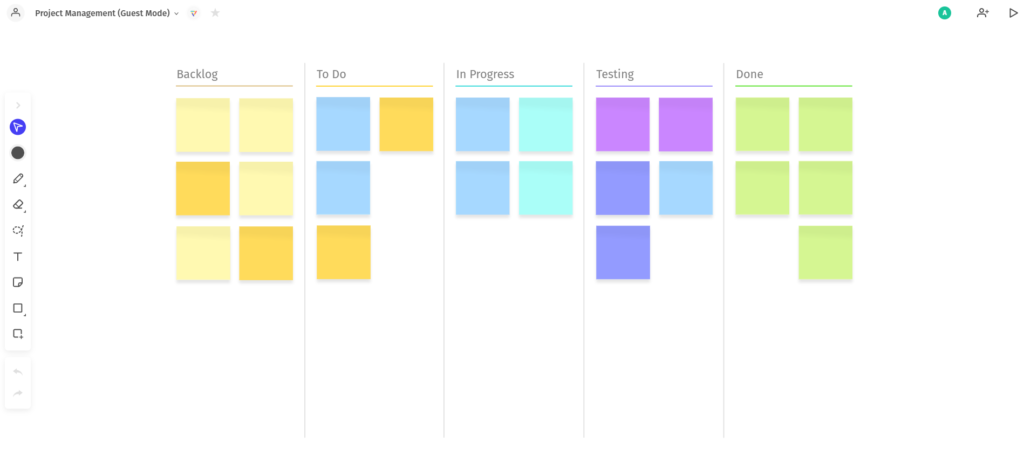 project management with an online whiteboard
Identifying Which Tools Best Fit Your Workplace
The priorities of a Fortune 500 company when seeking out a collaboration tool are likely to be different from a school district seeking a technological solution to facilitate hybrid classrooms. While the principal goals of each might be similar — share data, promote engagement, increase interactivity, and so on — a presentation to thousands of employees will probably require different functions and capabilities than issuing a digital pop quiz to students attending school from home.
To help you determine the best whiteboard option for your business, we’ve listed the common functions and capabilities of each below. Take a look at the advantages and potential downsides to each of these tools while considering your biggest areas of need to learn which method of collaboration you can see your business adopting in the future.
How to Know if an Interactive Projector is Worth it
Interactive projector setups need two elements to function: the projector itself providing the "output" across team members (so that everyone is looking at the same thing) and a camera serving as the "input," picking up notes and comments from the team and transmitting them in real-time. Interaction through this projector setup works by tracking movements with infrared or DLP technology — it sounds complicated. Still, it works effectively as a remote option for those able to set it up properly.
In an educational setting or in cases of presenting to large groups, projectors excel at holding an audience’s attention and improving levels of engagement with your audience. Depending on the quality of the projector, a digital "pen" or even your finger can be used to annotate slides, highlight text, and otherwise engage with your own material to emphasize important points.
The obvious downside to this advanced technology is the space and setup needed to make it function correctly. Projectors are generally low-profile but need to be mounted on the ceiling or to a wall — and you’ll still need something to act as a blank canvas to project the images onto.
It can also be easy to run into problems with the camera capturing video of your writing or gestures and the projected images. In addition, there is the risk of distorted images due to a feedback loop that occurs when devices are bouncing the same image back and forth, leading to the "visual echo" effect. Troubleshooting these problems can delay or derail a lesson quickly and negate the positive benefits of an interactive remote setup.
Pros and Cons to Online-Only Whiteboards
Pros of Online-Only Whiteboards
Fully online collaboration tools eliminate potential hardware problems entirely and have a lot to offer in terms of different functionalities, thanks to an interface that tends to play well with third-party apps and other useful add-ons.
In fact, one of the biggest advantages to online-only tools is the backend engineering at work to constantly refine the tool’s usability. No need to worry about damaged hardware or an outdated UI — online tools are undergoing constant updates and fixes to keep things running smoothly (and helping you avoid an IT emergency in the middle of a big presentation).
Frequently these tools are employed in cases of brainstorming and planning out projects. Still, with a variety of templates (depending on the specific tool you use), you can also expect to easily illustrate workflows and visualize new tasks without the need to draw up a new slide from scratch.
Cons of Online-Only Whiteboards
As with any innovative technology, there are still some potential risks to online-only tools. The first is fairly intuitive but important nonetheless — access to a device and reliable internet access isn’t always a given, particularly for employees working from home without access to office wifi. An office infrastructure built on an online-only foundation is susceptible to outages, updates, and bugs.
Additionally, despite the absence of a physical board or projector setup, apps can still fail and require troubleshooting to get everyone back online with access to their projects. Issuing a company-wide mandate to remove and re-download an app due to a sudden glitch can cause obvious issues if experienced frequently.
Pros and Cons to Interactive Whiteboards
Pros of Interactive Whiteboards
Working remotely is still a new development for many of us, which means one of the best things a tool can do when introduced to the workplace is quickly making life easier for everyone involved. Smart whiteboards make for easy integration with other commonly-used tools like Google Hangouts and other cloud-based apps, but with the added bonus of sparking engagement through the use of a physical board sharing images and project information in real-time.
Just like tasks performed over Google Drive, interactive whiteboards save your work (and version histories!) automatically, so long as it maintains an internet connection. Like online-only tools, smart whiteboards are designed to work alongside numerous integrations and online tools to your liking. That way you can tailor the available functions of your smart whiteboard precisely to your requirements.
The physical board acts as an expansive canvas for both shared remote planning sessions and as a capable stand-in for a typical workplace whiteboard. It’s important that even in a remote work environment, teams feel connected to one another and not dissociated by the physical distance — interactive smart whiteboards are helpful tools to include in your business’ repertoire to encourage continued connection and collaboration among employees.
Common functions you might find yourself frequently using on your smart whiteboard include handwriting and shape recognition, mark-up and eraser tools, text boxes, "laser" pointer functions, changing backgrounds (including a grid for charts and graphs), zoom in/out, and even an undo button.
Cons of Interactive Whiteboards
As with all the tools listed in this article, there are still some caveats when it comes to adding an interactive smart whiteboard to your workplace toolbelt.
Many industries adapting to remote work are brand new to the world of apps and collaboration tools, and employees are not always comfortable using interactive whiteboards. They can be complex at first glance due to the sheer amount of functions offered, and workers might feel inclined to ignore collaboration tools to remain in their comfort zone if not properly trained and onboarded to the technology.
It also may not appeal to decision-makers who prefer to use freely available tools instead. Schools and businesses operating on tight budgets may need some convincing before they recognize the advantages of an interactive whiteboard in their workplace.
Taking Team Collaboration to the Next Level with Vibe Interactive Whiteboards
The Vibe Board was designed to incorporate the most useful collaboration tools available to fit seamlessly into virtually any workplace. Its suite of built-in integrations aid in strategizing, mapping, presenting, educating and project management — not to mention, they work pretty well as multitasking tools for educators. Presenting in-person, broadcasting remotely to students or employees in their own homes, recording demos or lesson plans, or any combination of the above can be done simply and effectively through Vibe’s host of available tools and integrations.
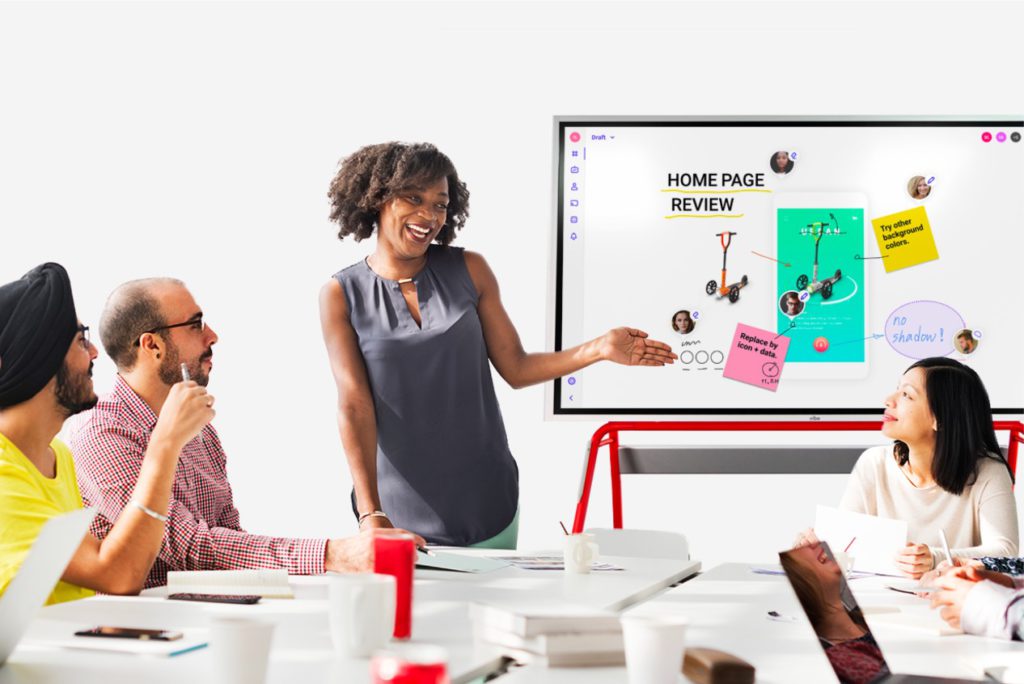
The physical specs of Vibe Boards include a 55-inch, 4K touchscreen that doesn’t require the difficult price-point of its competitors. It also boasts an unlimited canvas — meaning you won’t ever have to worry about running off of the side of the page before an exciting new idea is fully explained. Vibe Boards are also low-latency products (which means no awkward delay when presenting) and provide the ability to quickly mark up, save and share presentations, pictures, and files from other apps.
Curious to learn more? Get a virtual demo of Vibe today.
FAQs
How do interactive whiteboards differ from whiteboards?
Interactive whiteboards make erasing a thing of the past. They allow you to save all of your work using cloud-backed whiteboard software. They allow for simultaneous collaboration between teams whether they’re meeting together in one room, or spread across time zones.
Are interactive whiteboards better than whiteboards?
Absolutely. An interactive whiteboard is the natural successor to a whiteboard. It allows you to draw just like a whiteboard, but also connect to the internet, collaborate with your team, and save your work forever.
Can you use interactive whiteboards in place of a whiteboard?
Of course. An interactive whiteboard will only expand the capabilities of your current whiteboard.