
It happens in the middle of a lesson. You’re explaining a math concept, slides up on the projector. A student asks a question that needs a diagram. You walk to the whiteboard, pick up a marker, draw it out. You walk back to your laptop. Forty-five seconds have passed. The slide is still there. The diagram you drew isn’t connected to anything. Three students have checked out.
You haven’t done anything wrong. Your projector is working fine. Your whiteboard is working fine. The problem is that they don’t work together — and getting from one to the other costs you momentum, every single time.
The real issue isn’t the projector. It’s the disconnected workflow.
This guide compares two classroom setups not by specs — not by lumens or resolution — but by what actually happens during a lesson. How do you move from presenting to writing to collaborating to saving, and back again? That workflow is what determines whether your technology helps you teach or slows you down.
If you’re evaluating classroom collaboration tools for your teaching setup, this comparison is where most teachers find their answer.
- Projector-based teaching requires constant context switching between tools and physical locations, costing up to 15% of classroom instruction time.
- An interactive whiteboard consolidates presenting, annotating, collaborating, and saving into a single uninterrupted surface.
- Teachers using interactive displays consistently report faster setup, fewer mid-lesson interruptions, and reduced reliance on IT support compared to projector-based setups.
- Projectors still make sense for large auditoriums, portable setups, and tight budget environments.
- The adjustment period for interactive whiteboards is typically 5–10 school days before the workflow feels natural.
How Projector-Based Teaching Actually Works (The Full Workflow)
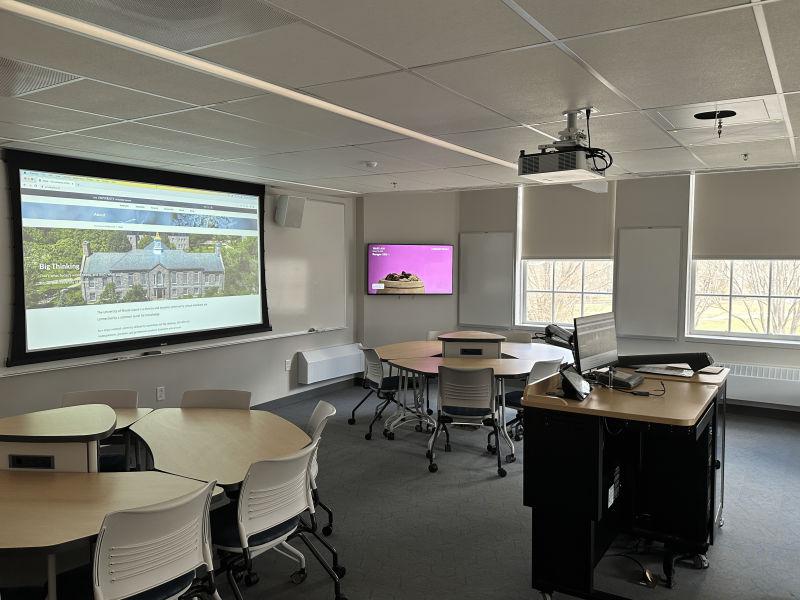
Interactive whiteboard vs projector is often framed as a hardware comparison. It shouldn’t be. It should be a workflow comparison. Here’s what a projector-based classroom actually requires to function through a single lesson.
The Setup Sequence Before Class Begins
Step 1: Connect Your Laptop
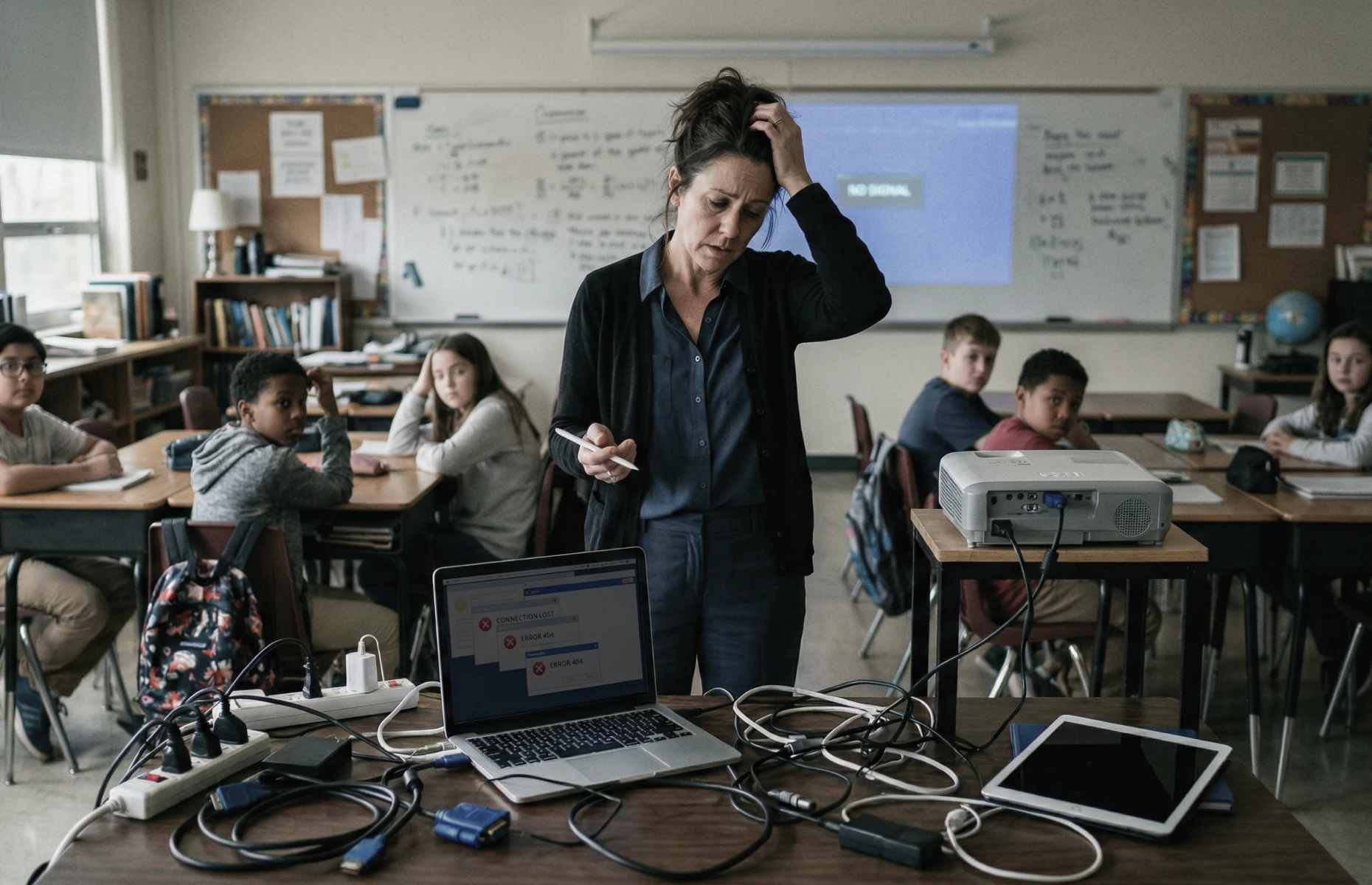
Before students arrive, you connect your laptop to the projector — typically via HDMI or VGA cable. If the cable is at the wrong end of the room, you adapt. If the cable doesn’t match your laptop’s port, you find an adapter. This is baseline setup, and on most days it works.
Step 2: Configure the Display
Your laptop and projector need to agree on resolution and display mode. Windows + P or macOS display settings. This takes 30 to 90 seconds on a good day. On a bad day, the projector doesn’t detect the signal and you restart both.
Step 3: Open Your Materials
Your slide deck, document, or browser is already open on your laptop. You’re projecting from there. The projector is a passive mirror of your screen — it shows what you show it.
The classroom is ready. You walk to the front and begin teaching.
The Mid-Lesson Switching Problem
Teaching rarely follows a slide deck exactly. Students ask questions. Concepts need to be drawn out. You want to annotate a diagram. You need to pull up a website. Each of these transitions requires a decision about which tool to use — and every transition costs time.
According to a 2023 study by the RAND Corporation on teacher time use, instructional transitions and tool-switching account for an estimated 10–15% of classroom time across a typical school day. That’s time students are not receiving instruction.
Three common mid-lesson friction points with a projector:
-
Annotating a slide: Switch to an annotation app and draw with a mouse (awkward), use a separate annotation layer (requires setup), or walk to the whiteboard and draw there — disconnected from your slide content.
-
Student contributions to a shared diagram: No native mechanism exists. Additional software, a student response system, and a separate setup layer are all required.
-
Saving what you’ve written: The slide deck saves automatically. Whiteboard content does not. A student photographs the board. Sometimes they don’t.
The Projector Workflow, Summarized
Open laptop → connect cable → configure display → teach from laptop
→ [need to annotate] → walk to whiteboard → write → walk back to laptop
→ [student question needs diagram] → walk back to whiteboard → draw
→ walk back to laptop → [end of class] → whiteboard content lost
Every arrow in that sequence is a context switch. Some take seconds. Some take minutes. All of them interrupt teaching momentum.
How Interactive Whiteboard Teaching Works (The Workflow)
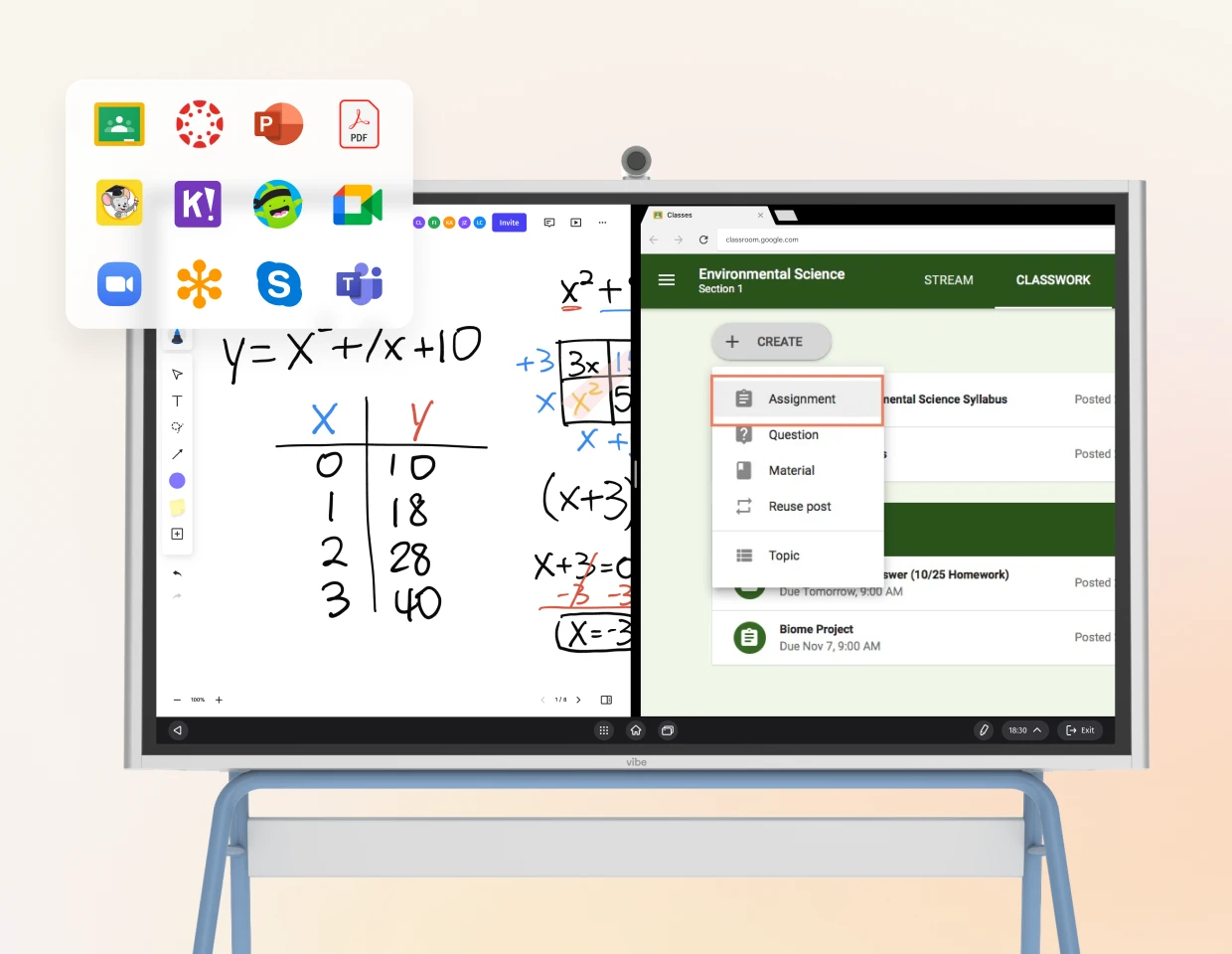
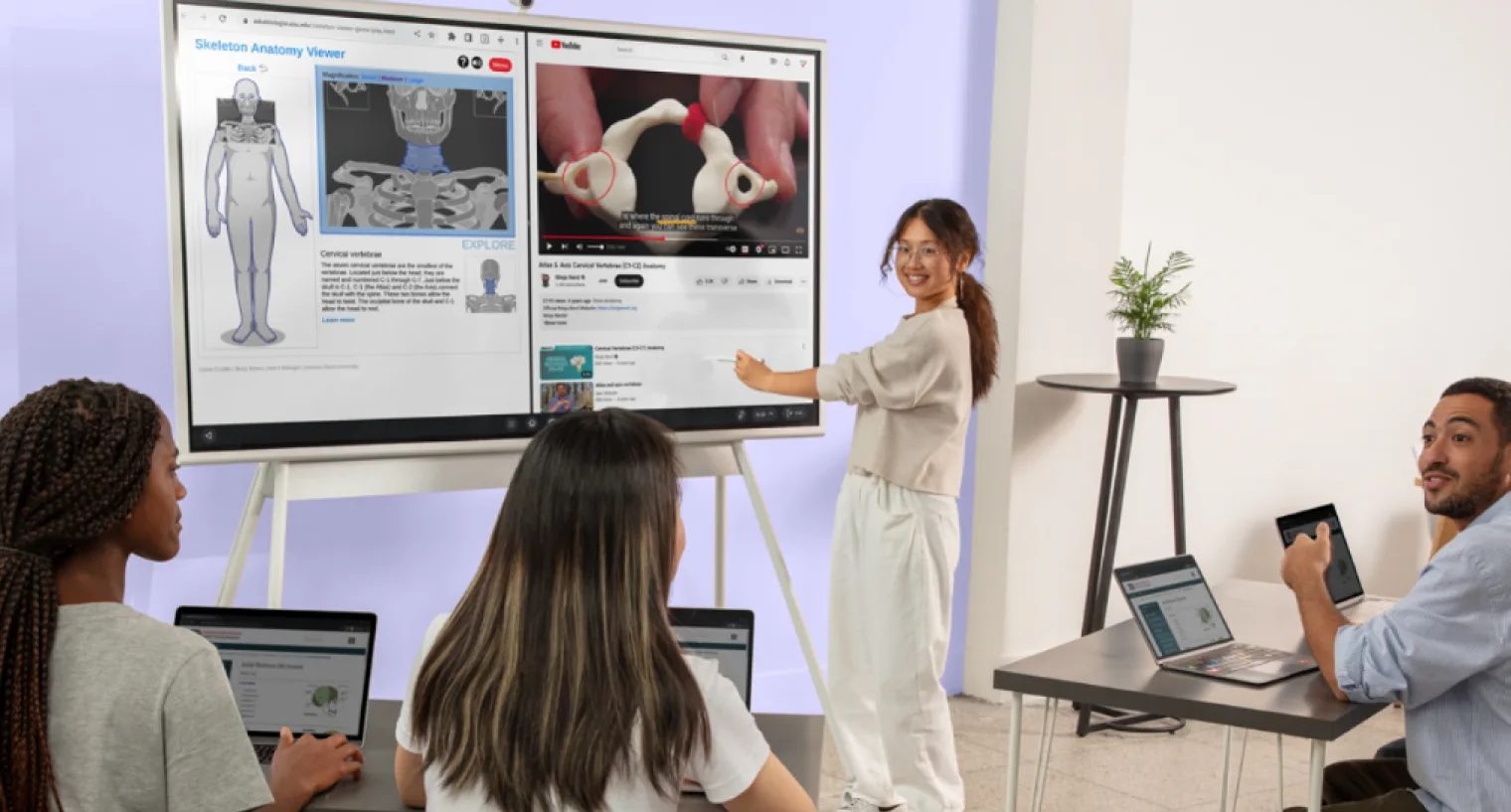
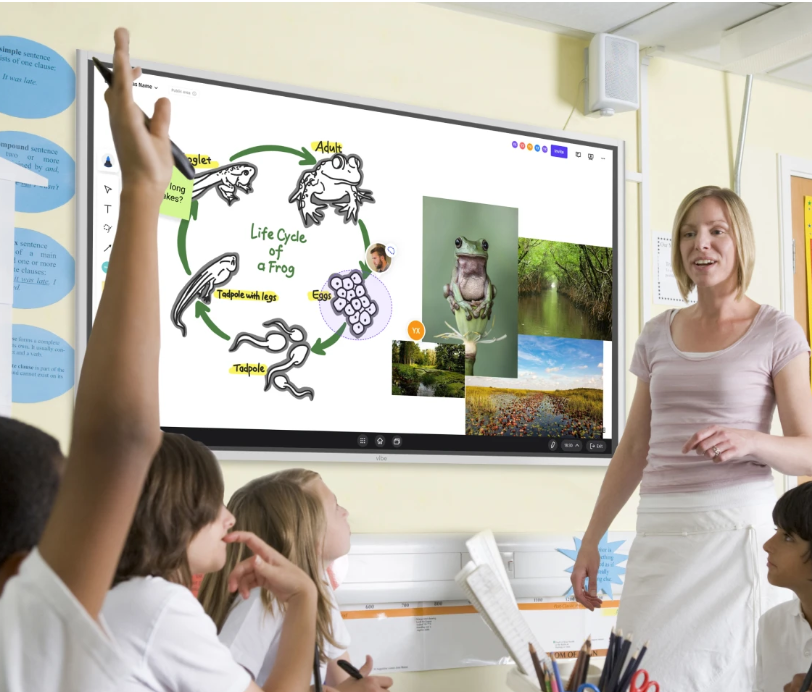
An interactive whiteboard — also called a classroom interactive panel or interactive display for education — consolidates the projector, laptop screen, whiteboard, and collaboration layer into a single device. Here’s how the workflow changes.
Setup: Walk In and Start
The interactive whiteboard is always on the wall. There’s no cable to connect. You walk in, tap the screen, and your lesson materials are there — either from a connected device, cloud storage, or the board’s own apps. Setup for a standard lesson is measured in seconds, not minutes.
Teachers using all-in-one interactive displays consistently report a dramatic reduction in setup friction compared to projector-based classrooms. Because the display is always on, display mode is pre-configured, and there are no cables to negotiate, the "walk in and start" experience is the norm rather than the exception. A 2026 total cost analysis by IQBoard notes that if a teacher spends just 3 minutes on setup before each class, that time repeats hundreds of times across a school year — making daily setup reduction one of the most measurable advantages of interactive flat panels.
Teaching: One Surface, Every Mode
With an interactive whiteboard, the surface itself is the teaching workspace. You can:
-
Present: Display your slides, PDFs, or browser content directly on the screen.
-
Annotate: Touch the screen to write, draw, or highlight over any content — without switching tools or walking anywhere.
-
Collaborate: Pull up a blank canvas, invite students to contribute via their own devices, or call a student to the board to demonstrate.
-
Save: Everything you write on the board is automatically saved as part of the lesson session. Students get a link, not a photo.
-
Share: Screen share to remote students, export to PDF, or post directly to your LMS — without leaving the board.
The Interactive Whiteboard Workflow, Summarized
Walk to board → teach (present, annotate, collaborate, save — all in one place)
That’s the entire workflow. There’s no cable. No context switch. No whiteboard content that disappears at the end of class. You just teach.
Side-by-Side Comparison: Projector vs Interactive Whiteboard (Workflow Criteria)
This table compares by what happens during a lesson — not by specifications. Resolution, brightness, and port counts belong in a product manual. Teaching workflows belong here.
|
Workflow Criterion |
Projector Setup |
Interactive Whiteboard |
|---|---|---|
|
Teaching flow continuity |
Interrupted — annotating, writing, and presenting require switching between tools or physical locations |
Continuous — all modes available at the same surface without switching |
|
Student interaction level |
Passive — students watch projected content; hands-on interaction requires separate setup |
Active — students can participate directly on the board or via connected devices |
|
Setup time per lesson |
2–5 minutes to connect, configure, and verify display |
Under 30 seconds — board is always ready; walk in and start |
|
Saving lesson content |
Manual — slide decks save, whiteboard content does not; photos are the workaround |
Automatic — entire session (slides, annotations, drawings) saves to cloud |
|
Reliability mid-lesson |
Cable and signal failures are common; display dropouts interrupt class |
No cable dependency; most failures are software-level and resolvable without restarting |
|
Learning curve for teachers |
Low initial setup; workarounds for annotation and collaboration require separate learning |
Moderate initial learning; most teachers report full comfort within 2–3 weeks |
|
Total cost (including workflow) |
Lower hardware cost upfront; hidden costs include IT support time, lost content, and instruction time lost to transitions |
Higher hardware cost; lower ongoing cost when you include reduced IT calls, saved prep time, and recovered instruction time |
A Note on Learning Curve
The interactive whiteboard does require adjustment. Teachers familiar with a laptop-and-projector setup will spend the first few days relearning muscle memory. Most report that the adjustment period is 5–10 school days before the new workflow feels natural. After that, they stop noticing the technology at all — which is the goal.
When a Projector Still Makes Sense
This comparison is honest. There are real situations where a projector is the right tool.
Large Auditoriums and Assembly Spaces
For spaces where 200 or 300 students need to see content on a large screen, a high-lumen projector paired with a large screen is both cost-effective and practical. An interactive whiteboard is designed for classroom-scale spaces, typically 65 to 86 inches diagonal. That’s ideal for 25–35 students; it does not scale to auditorium presentations.
Temporary or Portable Setups
If your setup needs to move between rooms — a teacher cart that travels from classroom to classroom, or a shared device for a specific subject area — a compact projector can be more practical than installing a wall-mounted interactive display in every room.
Budget-Constrained Environments
The upfront cost of an interactive whiteboard is higher than a projector. For a school or department operating under tight budget constraints and evaluating technology for the first time, a projector may be the appropriate entry point while making the case for a larger upgrade.
In each of these scenarios, a projector is a reasonable choice. But none of them describe a standard daily classroom teaching environment.
When an Interactive Whiteboard Is the Clear Upgrade
For daily classroom instruction, the interactive whiteboard wins on workflow — not just features. If you’re researching the best interactive whiteboards for teachers, understanding these workflow advantages is the clearest place to start.
You Teach Every Day in the Same Classroom
If you’re in the same room teaching 4–6 periods a day, the one-time installation cost of an interactive whiteboard is paid back in recovered instruction time within a semester. The RAND time use research suggests that even recovering 5 minutes per class period returns over 30 hours of instruction time per year per teacher.
You Annotate, Modify, or Improvise During Lessons
If your teaching style involves responding to students in real time — drawing diagrams, annotating text, marking up images — a projector forces you into a workaround every time. An interactive whiteboard makes this the default mode.
You Want Students to Participate, Not Just Watch
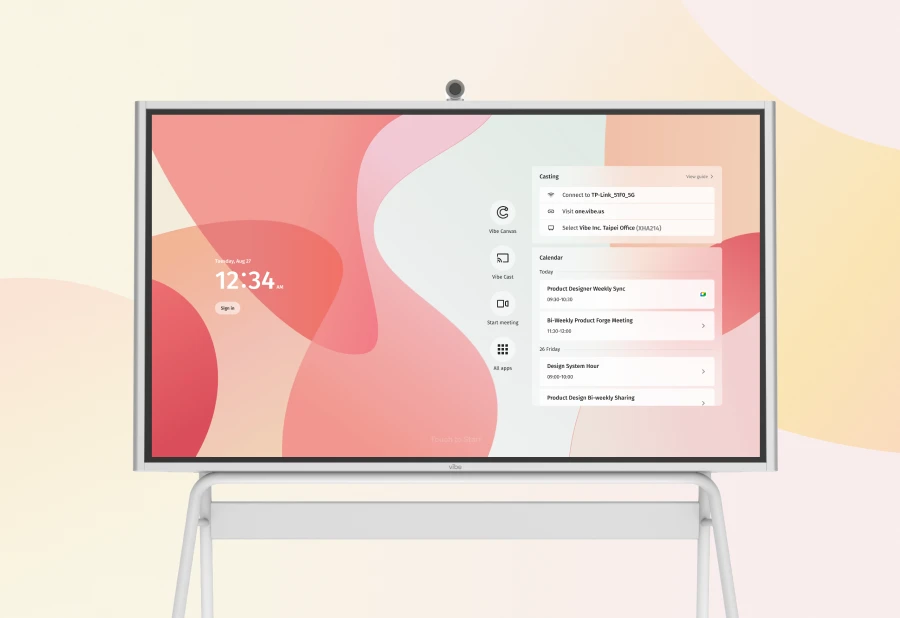
Research published by the U.S. Department of Education in the National Education Technology Plan documents consistent evidence that active student interaction with content — rather than passive viewing — improves comprehension and retention. An interactive display for education makes active participation the default. A projector makes it an add-on that requires separate tools.
You Want to Stop Losing Whiteboard Content
If you have ever had students photograph the board at the end of class because there was no other way to preserve lesson notes, an interactive whiteboard eliminates that problem. Every session saves automatically. Content is shareable as a link, not a JPEG.
Classroom Scenarios: What the Difference Looks Like in Practice
Scenario 1: 7th Grade Science, Lab Report Day
Projector setup: Ms. Chen connects her laptop, projects the lab report template. She writes the key vocabulary on the physical whiteboard. Midway through, a student asks about one of the steps. She disconnects her laptop, opens a browser to pull up a reference diagram, reconnects the cable, re-establishes the display signal (40 seconds), shows the diagram. The vocabulary on the board stays disconnected from the slide content. At the end of class, a student photographs the board. Two students who were absent get the slide deck but not the whiteboard notes.
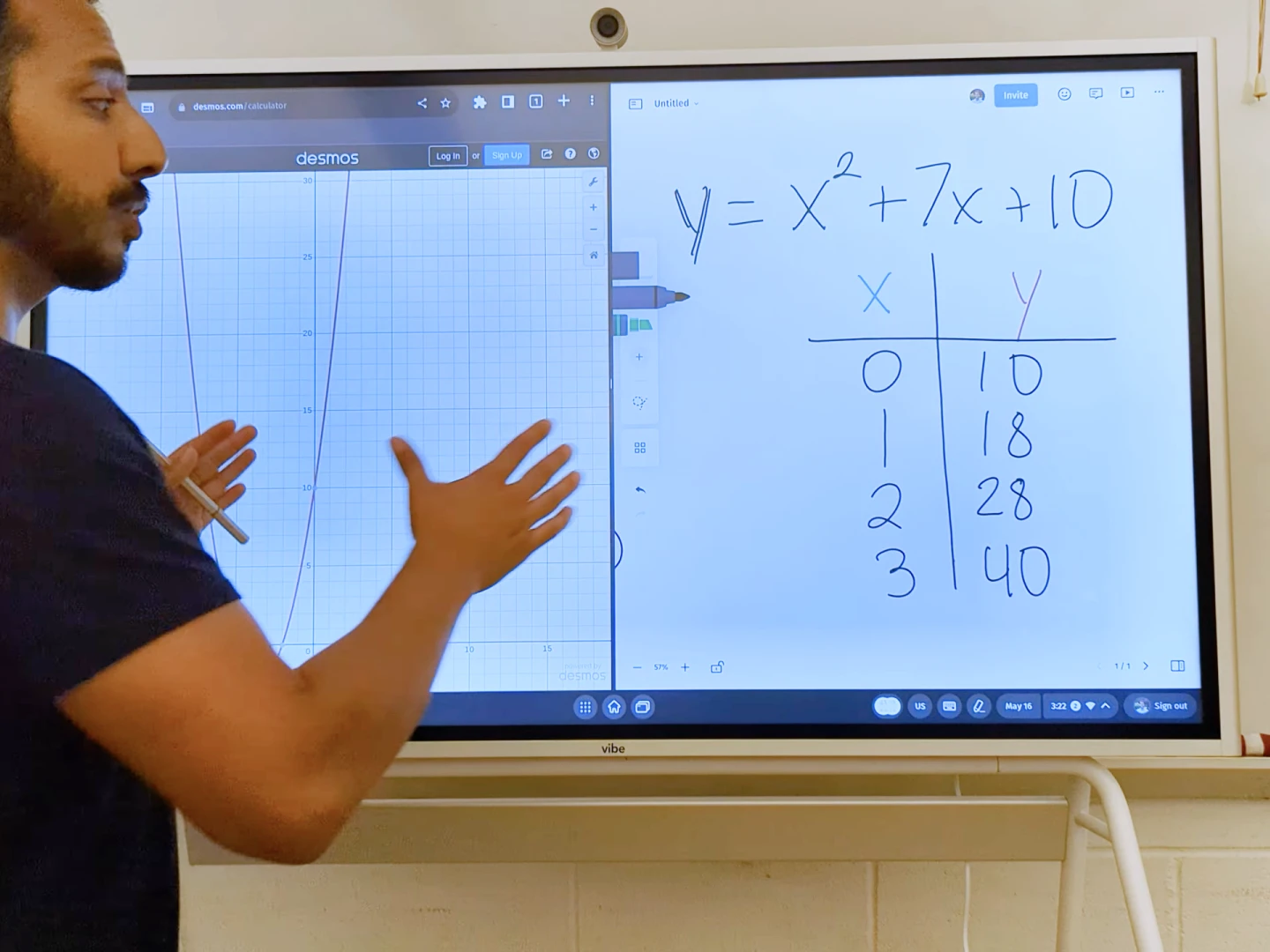
Interactive whiteboard setup: Ms. Chen walks in and opens her lab report template on the board. She annotates directly on the projected template — key vocabulary appears as handwritten notes overlaid on the slide. When the student asks about the step, she swipes to a browser tab, pulls up the reference diagram, annotates it with her finger, then swipes back to the template. No cables. No signal reconfiguration. At the end of class, she taps "save session" — every annotation, every overlay, every diagram is saved and shared to the class folder automatically.
The lab content was the same. The workflow was entirely different.
Scenario 2: 10th Grade English, Socratic Seminar
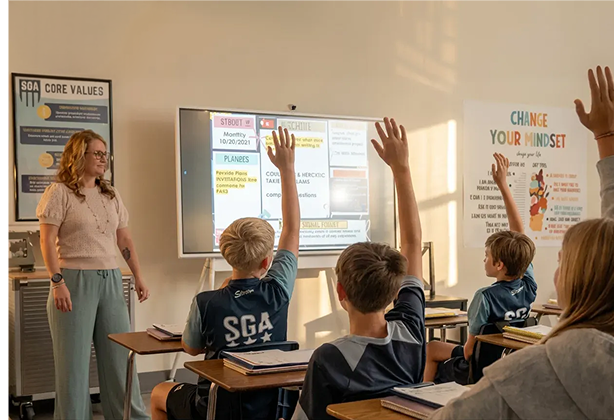
Projector setup: Mr. Rivera projects the reading passage. During discussion, he walks to the physical whiteboard to record student ideas. Students on opposite ends of the room strain to see both the projected passage and his whiteboard notes at the same time. When a student references a specific line from the text, Mr. Rivera has to choose between keeping the board visible (students can’t see the passage) or switching back to the laptop (whiteboard notes are no longer the focus). The conversation fragments between two surfaces.
Interactive whiteboard setup: Mr. Rivera opens a split-screen view: passage on one half, live annotation canvas on the other. As students contribute, he writes their ideas directly onto the canvas — visible alongside the text they’re referencing. Any student can come to the board to highlight a passage. At the end of the discussion, the full annotated session — text and discussion notes together — is saved and pushed to each student’s device. The conversation stayed in one place.
Making the Case to Your School Administrator
If you’re a teacher who wants to make the transition from a projector to an interactive whiteboard, the conversation with your administrator goes better when it’s framed in terms they care about: instruction time, professional development investment, and total cost of ownership.
Frame it as a workflow upgrade, not a technology purchase. Administrators who hear "we need a new screen" think about the budget line. Administrators who hear "we lose 5 minutes of instruction time per period to tool-switching" think about outcomes. Both are true. Lead with the second.
Quantify the hidden costs of the current setup. IT support calls for projector failures, replacement lamp costs (projector bulbs typically cost $150–$400 and need replacement every 2,000–5,000 hours), and the value of recovered instruction time all belong in this conversation. The Hardware Comparison resources at Vibe include cost frameworks teachers have used when presenting to school leadership.
Start with a pilot. A single classroom installation is a low-risk way to gather evidence before requesting school-wide deployment. Offer to document your outcomes — setup time, instruction time recovered, student engagement — and present findings to the department or school leadership team. For district administrators evaluating a larger rollout, see how districts are standardizing classroom technology for a broader framework.
Reference peer examples. A growing number of K-12 schools have transitioned from projector-based classrooms to interactive displays and documented the outcomes. Your administrator is more persuadable when they hear what schools like theirs found.
FAQ
Q: Is an interactive whiteboard just an expensive projector replacement?
An interactive whiteboard replaces more than a projector — it replaces the projector, the separate whiteboard, and the annotation/collaboration software layer that most projector setups require. The cost comparison is more accurate when you account for all three components plus the IT support overhead of maintaining them separately. For a teacher who uses all three of those tools in daily lessons, the interactive whiteboard typically has a lower total cost when measured over 3–5 years.
Q: Can I use my existing projector with interactive whiteboard software to get the same result?
Partially. Some software products add a layer of interactivity to projected content via a stylus or touch-sensitive overlay panel. These systems can replicate some annotation features. They typically do not replicate the physical touchscreen experience, the collaborative multi-touch capability, or the all-in-one integration of modern classroom interactive panels. They also still require the projector to be connected and functioning — they don’t eliminate the cable dependency.
Q: How long does it take teachers to learn an interactive whiteboard?
Most teachers report feeling comfortable with basic functions — presenting, annotating, saving — within 3–5 days of use. Full comfort with collaboration features, split-screen modes, and app integration typically takes 2–3 weeks of regular classroom use. Research from ISTE on technology adoption in K-12 indicates that structured onboarding — a half-day training plus two weeks of supported use — accelerates adoption significantly. The learning curve is real, but it’s short. Once past it, most teachers describe the experience as "I just teach."
Q: What happens if the interactive whiteboard has a technical issue during class?
An interactive screen for classroom use typically fails in one of two ways: software-level issues (app crash, connectivity to a cloud service) or hardware-level issues (touchscreen unresponsive, display problem). Software issues are usually resolved in seconds. Hardware failures are rare with quality boards but do require IT support. Projector failures — lamp burnout, signal loss, cable failure — tend to occur more frequently and with less warning. Most teachers who have used both systems report that the interactive whiteboard is more reliable for daily use.
Q: Do students actually engage more with an interactive whiteboard vs a projector?
The evidence is consistent.A meta-analysis of classroom technology integration published in the Journal of Computer Assisted Learning found that classrooms using touch-interactive displays showed higher rates of student participation, more on-task behavior, and improved recall of lesson content compared to projector-only classrooms. The mechanism is straightforward: when students can physically interact with content — rather than passively viewing it — engagement increases. The interactive whiteboard makes that interaction the default, not an add-on.
Q: Is an interactive whiteboard better for hybrid or remote teaching?
Yes, significantly. An interactive display for education supports real-time screen sharing to remote students with minimal setup — the board’s built-in apps handle the video conferencing layer, so remote students see exactly what in-room students see, including live annotations. A projector setup requires a separate webcam pointed at the screen, a separate device running the video call, and a separate audio system. The interactive whiteboard consolidates all of this, which matters especially in hybrid classrooms where room students and remote students need to be on the same page simultaneously.
Q: What size interactive whiteboard is right for a standard classroom?
For a typical classroom of 25–35 students, a 75″ or 86″ interactive screen for classroom use provides adequate visibility from all seating positions at standard row depths (up to approximately 25–30 feet). Smaller classrooms (under 20 students) can function well with a 65″ board. For spaces larger than 35 students or with long seating depths, a second display or a large-format projector may supplement the board. The Vibe Board includes a classroom sizing guide based on seating configurations.
Q: How does the cost of an interactive whiteboard compare to a projector over time?
The upfront cost of a quality classroom interactive panel runs $1,500–$4,000 depending on size and features. A projector setup (projector + screen + mounting) typically runs $500–$1,500 upfront but requires lamp replacements ($150–$400 every 2,000–5,000 hours), cable and adapter maintenance, and higher IT support frequency. Over a 5-year period, total cost of ownership for interactive whiteboards and well-maintained projector setups tends to converge. When you include the value of recovered instruction time — a factor most hardware cost comparisons omit — the interactive whiteboard’s case strengthens further. See Vibe for current board pricing and school purchasing options.