
It’s the middle of a math lesson. You’re mid-explanation on the projector, and a student wants to annotate the problem on the whiteboard. You walk to the side of the room, pick up a marker, draw on the physical board — then realize you need to switch back to the laptop to load the next slide. You pause, log back in, click through the file, and by the time the next slide is up, you’ve lost the thread. Three tools. Three moments of friction. One interrupted lesson.
This scenario plays out in classrooms across the country every day. And the question most teachers ask when they start looking for solutions is: "Which interactive whiteboard should I buy?"
The real issue isn’t outdated hardware — it’s fragmented classroom workflows that force teachers to context-switch mid-lesson. The right interactive whiteboard for teachers doesn’t just replace the projector. It replaces the need to switch between the projector, laptop, and whiteboard in the first place.
This guide evaluates the best interactive whiteboards for teachers in 2026, ranked by how well they support uninterrupted teaching — not by pixel count or processor speed.
- The best interactive whiteboard for teachers eliminates mid-lesson context switching between projector, laptop, and whiteboard.
- Ease of use, LMS integration, annotation quality, student collaboration, and setup simplicity are the five criteria that matter most to teachers.
- Vibe Board S1 leads for collaborative classrooms; SMART Board MX for established ecosystems; Promethean ActivPanel 9 for built-in lesson tools.
- Android-based boards (Vibe, BenQ, ViewSonic) offer native Google Classroom access without additional setup.
- Price range spans $800 (BenQ Board Pro) to $2,800+ (Promethean ActivPanel 9) depending on features and ecosystem depth.
What Makes an Interactive Whiteboard Good for Teachers (Not Just Good Hardware)
An interactive whiteboard that works well for IT procurement is not necessarily the same as one that works well during a lesson on Wednesday morning. Teachers evaluate these tools differently than administrators do, and for good reason. For a broader look at how these devices fit into the classroom technology stack, see our guide to classroom collaboration tools.
Ease of Use During a Live Lesson
The best interactive whiteboard for classroom use is the one a teacher can operate without stopping to think about it. According to Promethean’s State of Technology in Education Report, 74% of teachers say that ease of use is the most important factor when adopting classroom technology — ranking above price, technical specs, and brand reputation.
What to Look For
-
Wake-from-sleep in under 5 seconds
-
Touch annotation that works without switching modes
-
No required stylus for basic interaction
-
Simple, fast screen-sharing from student devices
App Compatibility with Google Classroom and Canvas
Most K-12 teachers already live inside Google Classroom or Canvas. A smartboard for teachers that doesn’t integrate with these platforms requires teachers to duplicate their workflow. According to ISTE research on edtech adoption, classroom technology that integrates with existing LMS platforms sees 40% higher sustained usage rates than standalone tools after the first semester of deployment.
What to Look For
-
Native Google Classroom or Canvas app access
-
One-tap sign-in with school Google accounts
-
Direct access to Drive files without downloading
-
Ability to assign annotated content directly from the board
Touch and Annotation Quality
Annotation is the core use case for most teachers using interactive whiteboards in the classroom. Lag between touch and mark — even 100ms — breaks the flow of an explanation. The best smart boards for classroom use in 2026 offer multi-touch input across the entire screen surface, pressure-sensitive stylus support, and palm rejection.
What to Look For
-
Less than 30ms touch response latency
-
Palm rejection enabled by default
-
Multi-touch support (minimum 10-point simultaneous touch)
-
Both finger and stylus annotation without switching modes
Collaboration Features for Student Participation
A classroom display that only projects the teacher’s content misses half the value of an interactive whiteboard. The best options in 2026 support real-time student contribution — students joining a shared workspace from their Chromebooks or tablets, submitting annotations, and participating in collaborative activities without the teacher needing to manage a separate platform.
What to Look For
-
Student device join via URL or QR code (no app install required)
-
Real-time whiteboard collaboration with student devices
-
Teacher control over student contribution permissions
-
Session save and share after class
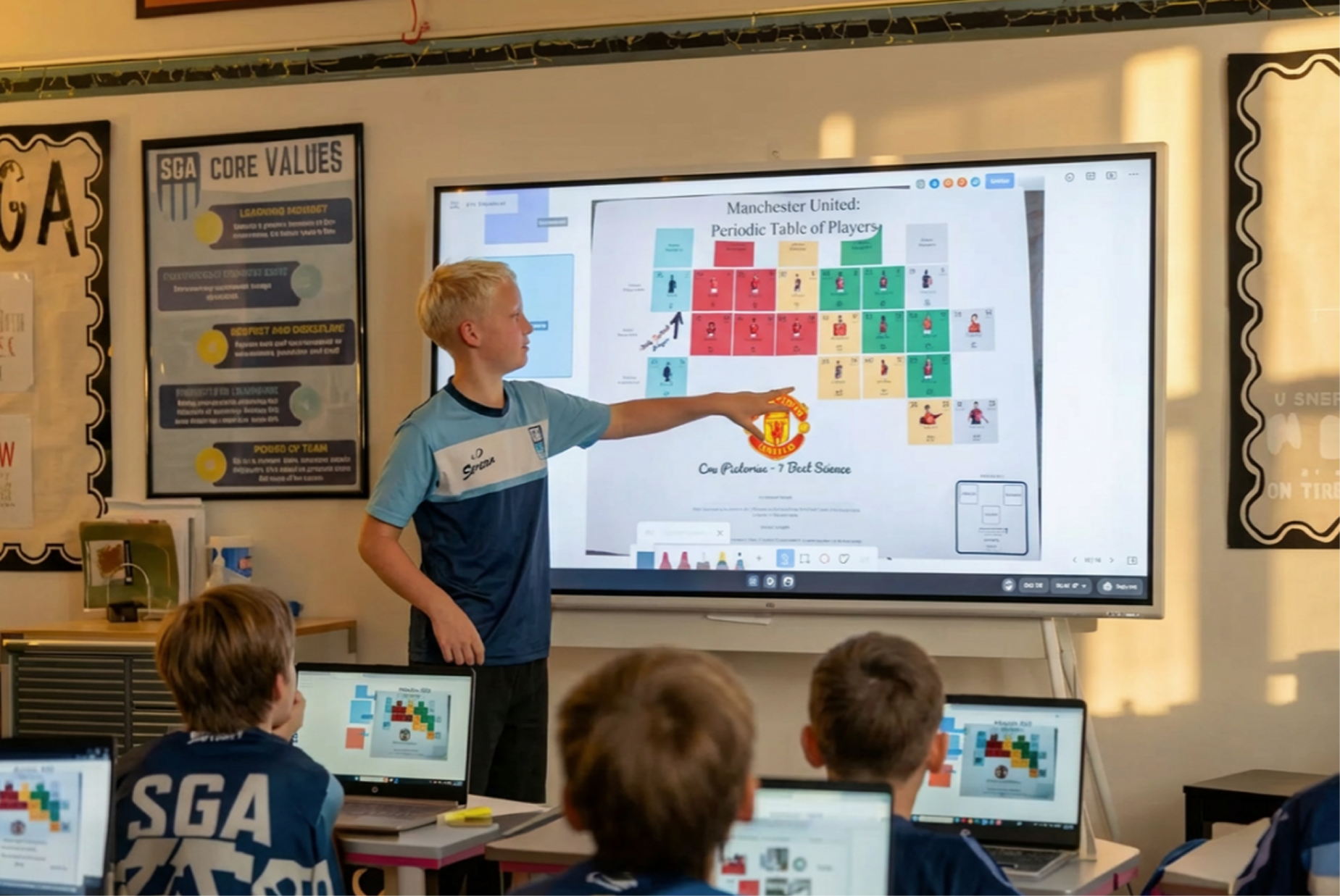 A student is using Vibe Board for assignment presentation.
Setup Simplicity
A smartboard for teachers that requires IT intervention every time a new app is needed adds invisible overhead to the teaching day. According to EdSurge classroom technology adoption research, unreliable technology is cited by 68% of teachers as the primary reason they stop using edtech tools within the first year.
What to Look For
-
Automatic software updates that don’t interrupt class schedules
-
Single account login that persists between sessions
-
Ability to start a lesson from the previous session’s state
-
No required IT support for day-to-day classroom use
Top Interactive Whiteboards for Teachers in 2026
Each board below is evaluated based on the five teaching criteria above — not technical specifications.
1. Vibe Board S1 55″ — Best for Collaborative Classroom Workflows
Who it’s for: Teachers who run collaborative activities regularly and need a board that connects students’ devices without friction.
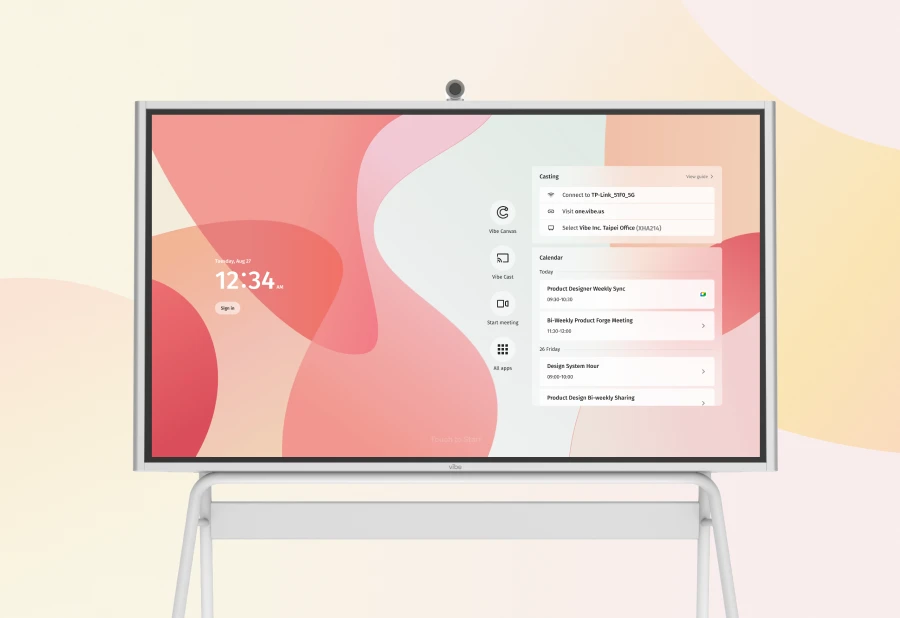
The Vibe Board S1 is built around a collaboration-first model. Rather than functioning as a classroom display that happens to accept touch input, the S1 is designed as a shared workspace — one that students can join from their own devices in real time.
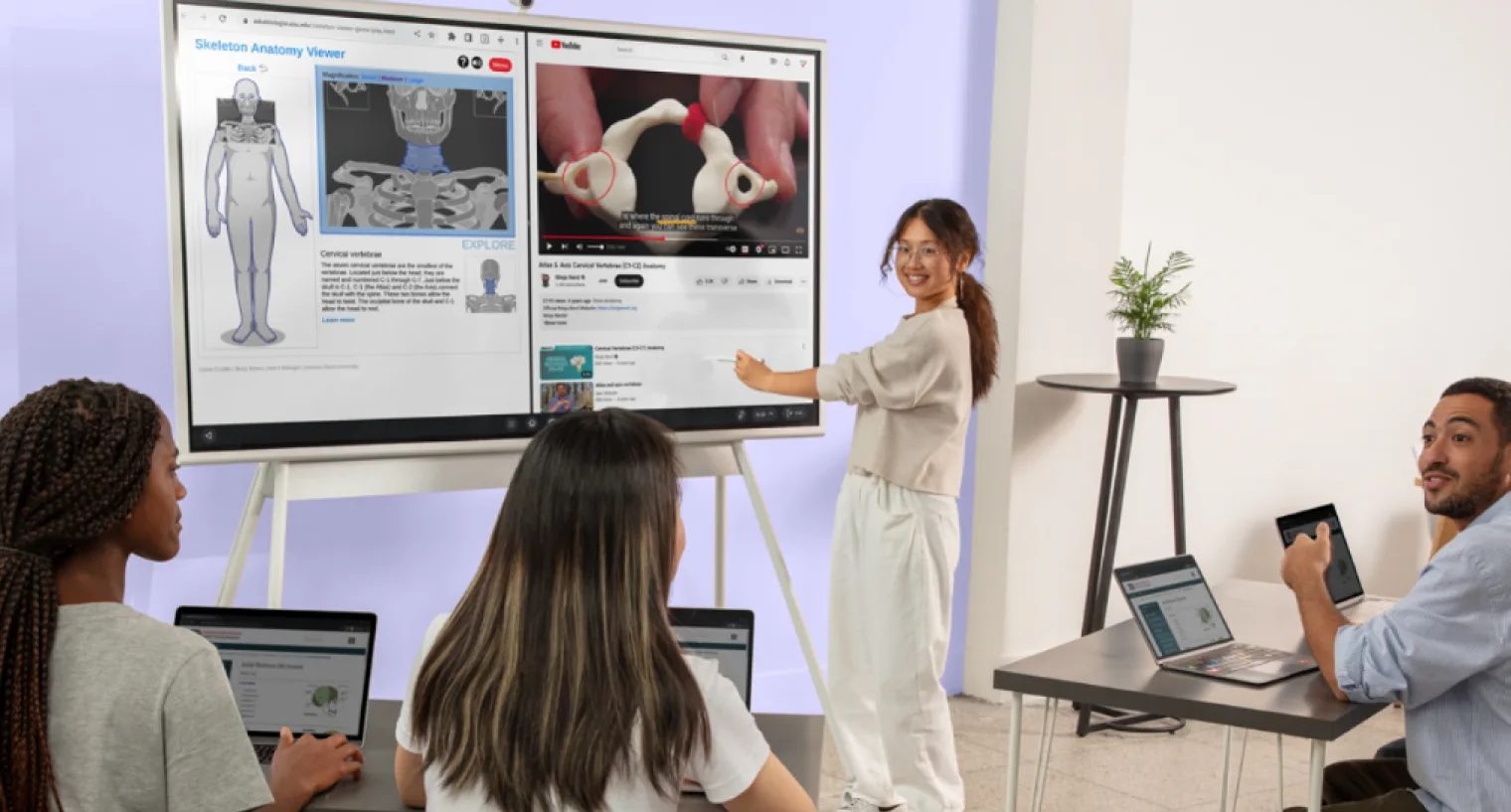
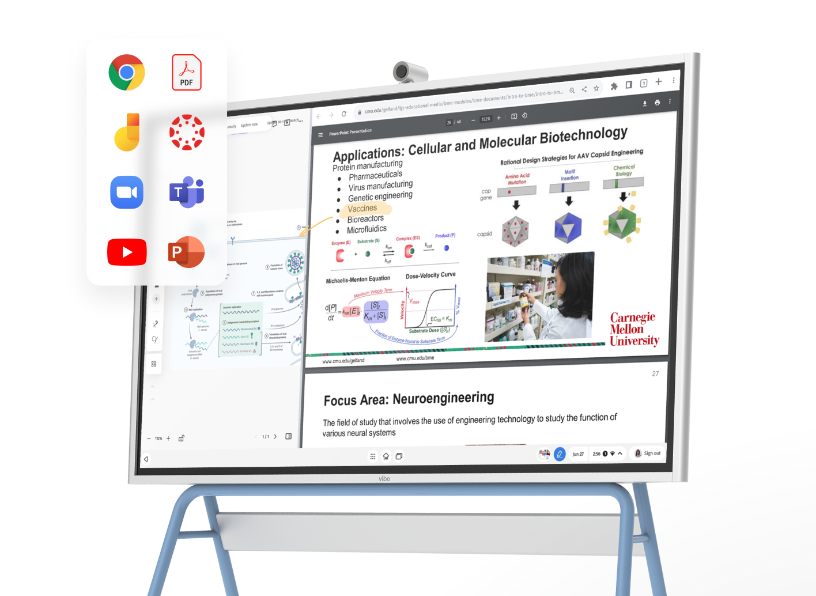 Vibe Board higher education solution for interactive classroom teaching and collaborative student learning
Teaching Workflow Fit
The S1 runs on an open Android-based OS, which means teachers access Google Classroom, Canvas, and other LMS platforms directly from the board without a connected laptop. Annotations made during a presentation stay on screen even when switching between apps.
Students join the shared board canvas via a browser link or QR code from any device. No app installation required. Up to 32 participants can annotate simultaneously on the same canvas. The teacher controls who can contribute and when.
Key Considerations
-
55″ screen size suits individual classrooms; 75″ option available for larger rooms
-
Requires Wi-Fi for full collaboration features
-
No built-in lesson activity library (compared to Promethean)
-
Best suited for teachers comfortable with cloud-based workflows
2. SMART Board MX Series — Best for Established Education Ecosystems
Who it’s for: Teachers in districts already using SMART software, or who want an extensive library of pre-built lesson activities.
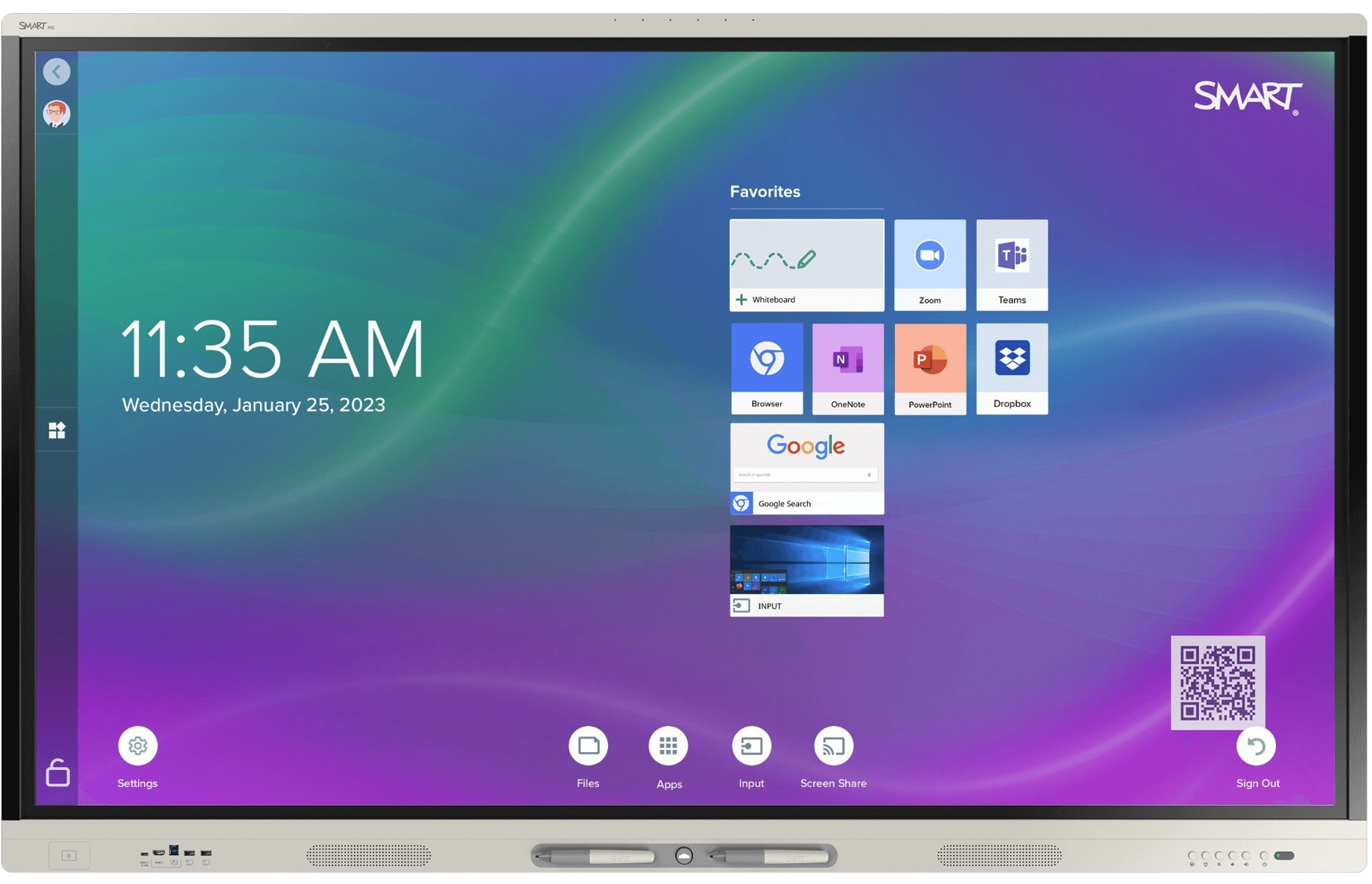
SMART Technologies is the most recognized name in classroom interactive displays, and the MX Series is their current flagship for K-12 education. The MX Series integrates tightly with SMART Learning Suite.
Teaching Workflow Fit
The SMART Board MX Series excels in structured lesson delivery. The board’s iQ technology eliminates the need for a connected computer for most tasks, and SMART’s Lumio software extends the lesson to student devices during collaborative moments.
The friction point comes when teachers work outside the SMART ecosystem. Accessing Google Classroom or using non-SMART apps requires additional setup.
Key Considerations
-
SMART Learning Suite requires an annual subscription (additional to hardware cost)
-
Strong district-level support and IT management tools
-
Largest installed base in K-12
-
Touch response and annotation quality are among the best in category
3. Promethean ActivPanel 9 — Best Built-In Lesson Tools
Who it’s for: Teachers who want purpose-built lesson delivery software integrated directly into the board without additional subscriptions.
The board ships with Promethean’s ActivInspire and ClassFlow software — lesson delivery and student engagement tools built specifically for classroom use — included in the hardware price.
Teaching Workflow Fit
The ActivPanel 9’s built-in activity library lets teachers pull up subject-specific interactive activities — math manipulatives, science diagrams, language arts exercises — without building them from scratch.
The steeper learning curve of ActivInspire software is the most commonly cited friction point. Teachers report a 4–6 week adjustment period before feeling fluent.
Key Considerations
-
ActivInspire lesson library is a genuine differentiator for subject-specific teaching
-
Software learning curve is steeper than competitors
-
Largest K-12 specific teacher community and resource library
-
Less open to third-party app integration than Android-based boards
4. BenQ Board Pro — Best Budget Option for Classroom Teachers
Who it’s for: Teachers in schools with limited technology budgets who need a reliable, capable interactive display without enterprise pricing.
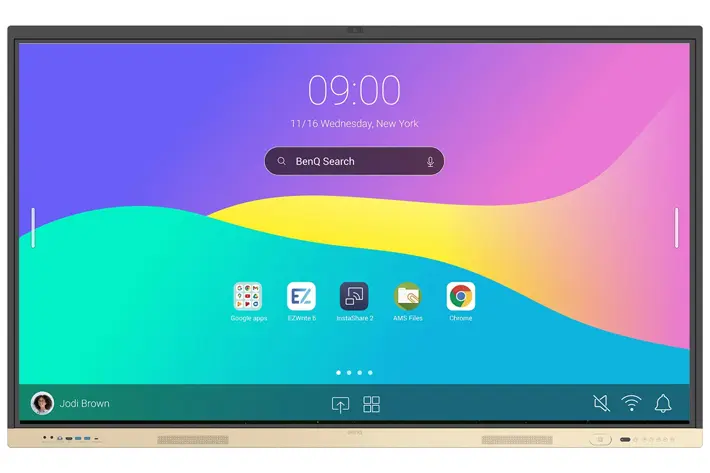
BenQ Board Pro runs on Android, supports Google Classroom and standard cloud apps, and delivers solid annotation performance at a price point that fits single-classroom or small-school procurement budgets.
Teaching Workflow Fit
A clean, functional Android tablet experience at classroom scale. Teachers who primarily use the board for presentation, annotation, and screen-sharing will find it covers those use cases reliably.
The board’s EyeSafe certification reduces eye strain over a full school day.
Key Considerations
-
Strong value per dollar relative to SMART and Promethean
-
Limited built-in lesson software; depends on third-party apps
-
Annotation and touch quality are good but not best-in-class
-
Works well as a first interactive display for classrooms moving off projectors
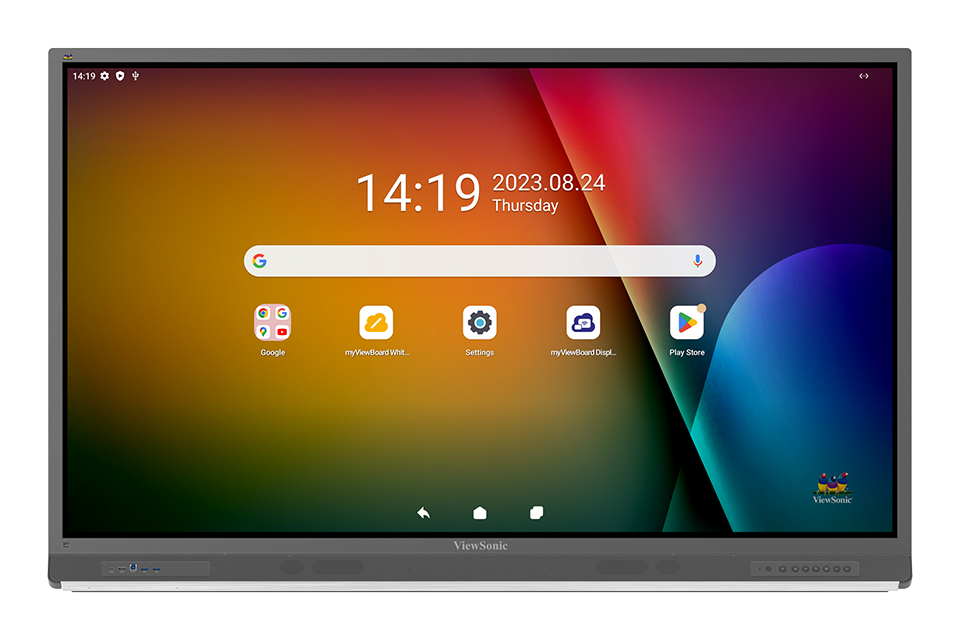
5. ViewSonic ViewBoard IFP52 — Best Enterprise-Grade Display for Classroom Use
Who it’s for: Teachers in schools with existing ViewSonic infrastructure, or districts standardizing on a single vendor.
ViewSonic designed the ViewBoard IFP52 series primarily for business meeting room use, but the product has found adoption in educational settings.
Teaching Workflow Fit
The IFP52 covers core teaching tasks — annotation, whiteboarding, screen-sharing from student devices — but lacks the education-specific features that purpose-built classroom tools offer.
Key Considerations
-
Enterprise-grade hardware reliability and warranty support
-
myViewBoard is functional but not K-12 optimized
-
Good choice for districts standardizing across classroom and admin spaces
-
Price-competitive with SMART and Promethean at equivalent sizes
Comparison Table: Teaching Workflow Criteria
|
Vibe Board S1 |
SMART Board MX |
Promethean ActivPanel 9 |
BenQ Board Pro |
ViewSonic ViewBoard IFP52 | |
|---|---|---|---|---|---|
|
Ease of use in a live lesson |
Excellent — single platform, no switching |
Good — requires SMART ecosystem |
Good — after learning curve |
Good — clean Android UX |
Moderate — enterprise-oriented |
|
Google Classroom / Canvas |
Native — direct app access |
Requires setup |
Requires setup |
Native Android |
Native Android |
|
Touch & annotation quality |
Excellent (< 30ms latency) |
Excellent |
Excellent |
Good |
Good |
|
Student collaboration |
Real-time multi-device canvas |
Via Lumio (subscription) |
Via ClassFlow |
Basic screen-share |
Basic screen-share |
|
Built-in lesson tools |
No built-in library |
Extensive (subscription) |
Extensive (included) |
Minimal |
Minimal |
|
Setup simplicity |
High — cloud-native, no IT needed |
Moderate — IT setup recommended |
Moderate |
High |
Moderate |
|
LMS without a laptop |
Yes — full Android OS |
Yes — iQ technology |
Yes — Android OS |
Yes — Android OS |
Yes — Android OS |
|
Price range (55″) |
~$1,299 |
~$1,800–$2,400 |
~$2,000–$2,800 |
~$800–$1,100 |
~$1,000–$1,400 |
|
Best for |
Collaborative activities |
SMART ecosystem schools |
Lesson-tool-heavy teaching |
Budget-first classrooms |
District-wide standardization |
Classroom Scenarios
Scenario 1: Running a Collaborative Math Lesson
Ms. Rivera teaches 8th-grade algebra. Students work through a multi-step equation problem together.
Old workflow: Ms. Rivera writes the problem on the physical whiteboard. Students come up one at a time — 25 students waiting for 1 student to finish writing.
With a collaboration-first interactive whiteboard: Ms. Rivera opens the lesson on the Vibe Board S1, shares the join link via Google Classroom. Every student joins from their Chromebook. She divides the canvas into sections. Students annotate simultaneously. She can see every student’s work in real time. The lesson ends with a full worked solution saved and shared to Google Classroom in two taps. She can just teach.
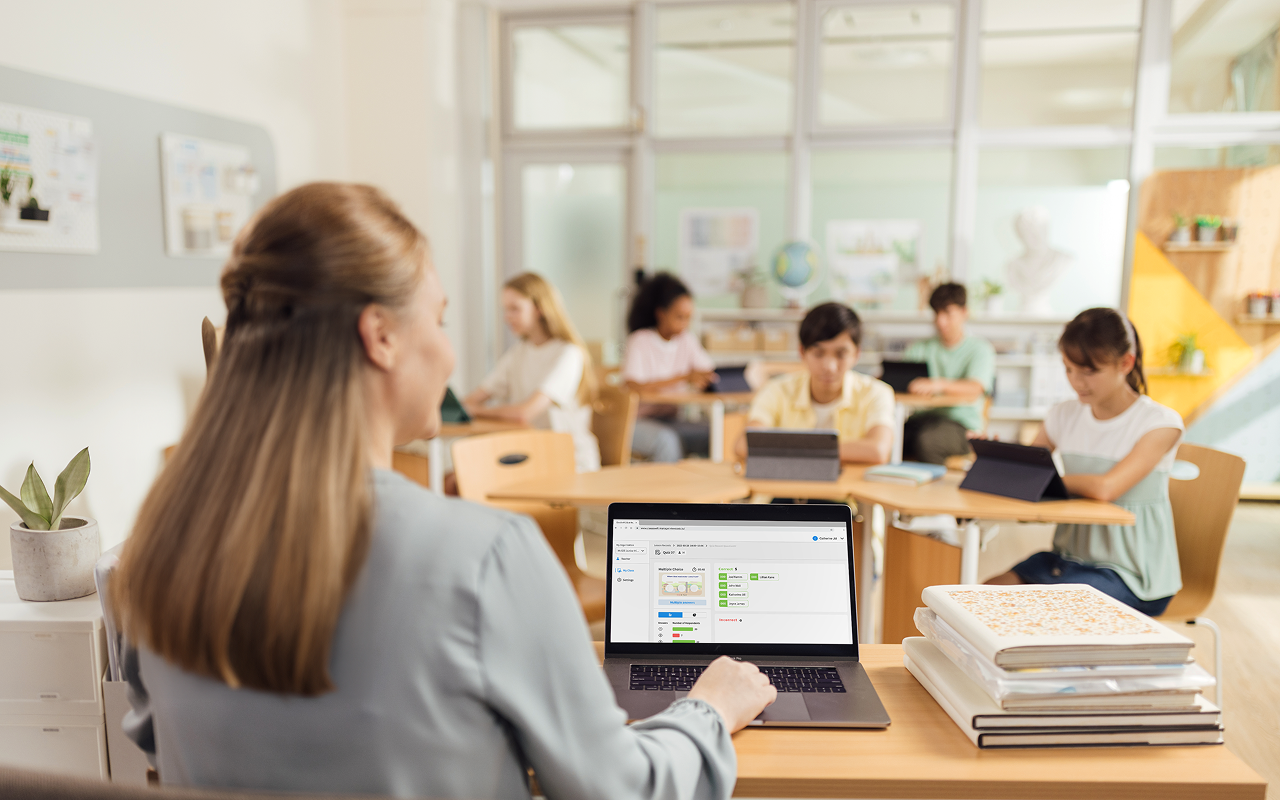
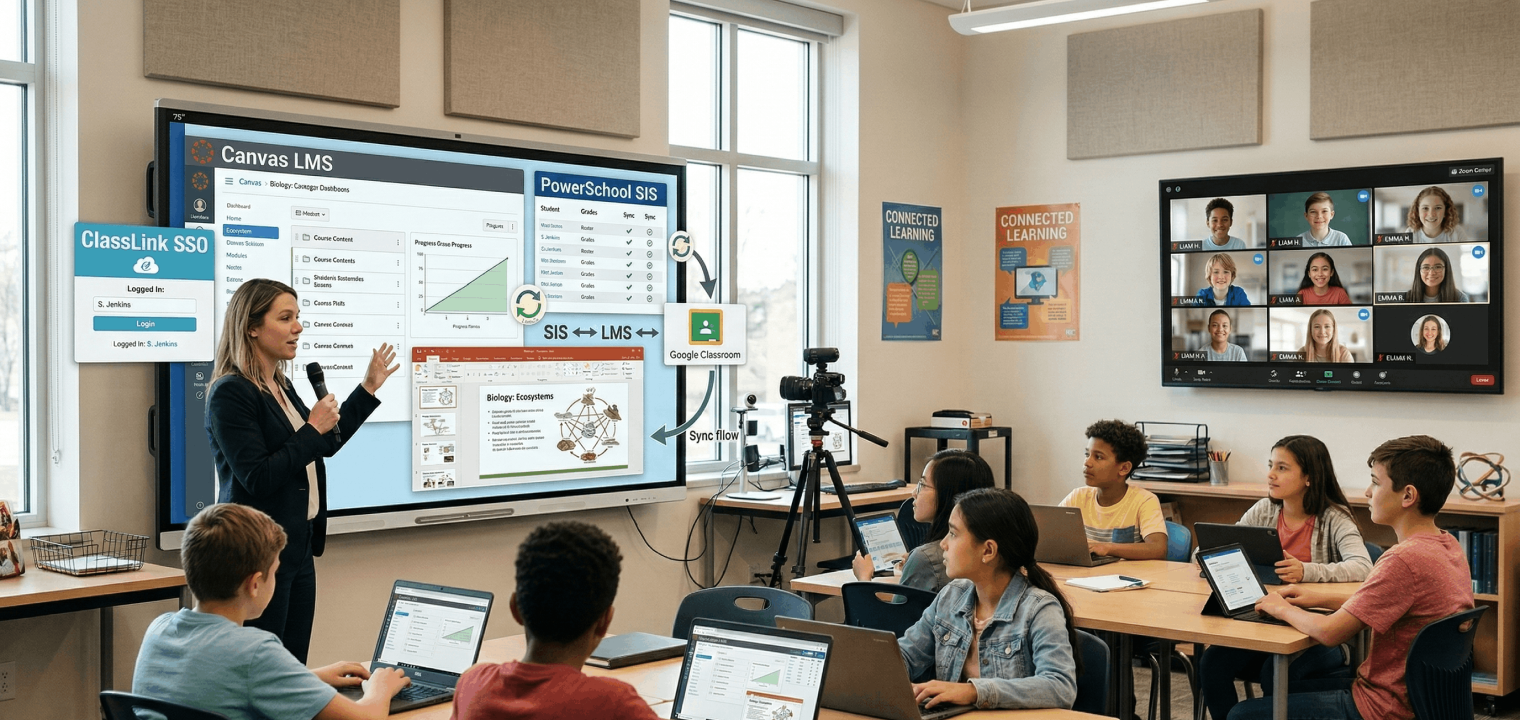 Students and teachers collaborating in a classroom using interactive whiteboard technology for real-time group learning
Scenario 2: Presenting and Annotating a Science Diagram
Mr. Okafor teaches 10th-grade biology. He has a detailed cell diagram he needs to walk through step-by-step.
Old workflow: He opens a PDF on the projector-connected laptop. He annotates using a screen annotation tool that requires clicking through a toolbar every time he switches between pointer, pen, and highlighter.
With an integrated interactive whiteboard: Mr. Okafor opens the diagram directly on the board from Google Drive. He annotates with his finger — no mode-switching. When it’s time for students to label the diagram, he duplicates the canvas, removes his annotations, and shares the blank version to student devices. No paper, no separate platform, no pausing. Learn more about how to use an interactive whiteboard in the classroom to set up similar workflows from day one.
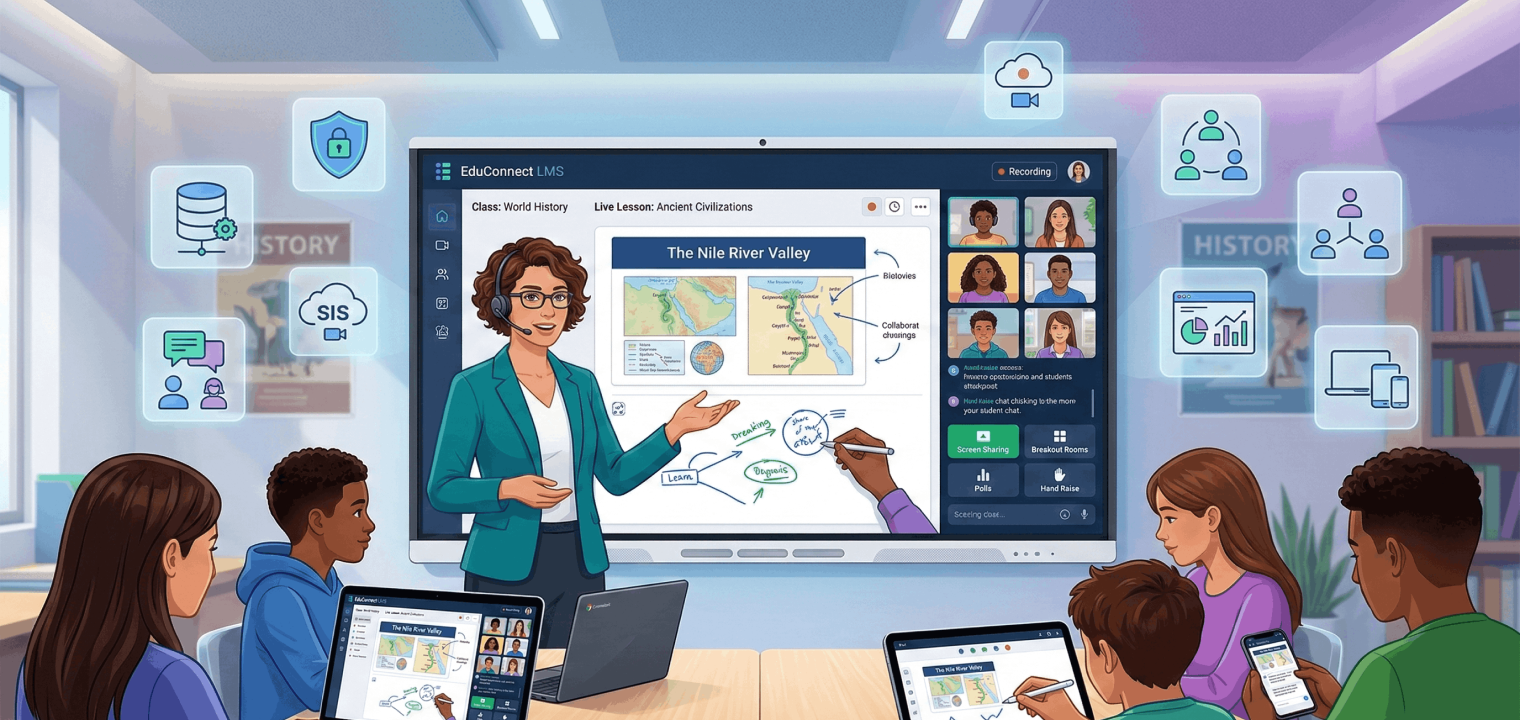 Biology teacher annotating a science diagram on a classroom interactive display for step-by-step student instruction
FAQ: Interactive Whiteboards for Teachers
Q: What is the best interactive whiteboard for teachers in 2026?
The best interactive whiteboard depends on the primary use case. For collaborative activities, the Vibe Board S1 leads. For teachers in the SMART ecosystem, the SMART Board MX Series offers the most polished experience. For built-in lesson tools, the Promethean ActivPanel 9 is strongest. For budget-conscious classrooms, the BenQ Board Pro delivers reliable performance at the lowest price point.
Q: What is the difference between a smartboard and an interactive whiteboard?
A smartboard is a branded product made by SMART Technologies. Interactive whiteboards (IWBs) are the broader category. The term "smart board" is commonly used as a generic term for any interactive classroom display.
Q: How much does an interactive whiteboard cost in 2026?
Prices range from approximately $800 to $3,000 for the display itself. BenQ Board Pro starts around $800–$1,100. Vibe Board S1 55″ is ~$1,299. SMART Board MX runs ~$1,800–$2,400. Promethean ActivPanel 9 starts around $2,000. Some require additional annual software subscriptions.
Q: Do interactive whiteboards work with Google Classroom?
Yes — most modern interactive whiteboards work with Google Classroom, but integration quality varies. Android-based boards (Vibe, BenQ, ViewSonic, Promethean) allow direct native app access.
Q: Can students use an interactive whiteboard from their own devices?
Yes, but the extent of participation depends on the platform. Vibe Board S1 allows up to 32 students to join a shared canvas from any browser-enabled device without installing software. SMART’s Lumio requires an active subscription. Promethean’s ClassFlow works within the Promethean ecosystem.
Q: What should teachers look for in an interactive whiteboard?
Five criteria: ease of use during live lessons, LMS integration without a laptop, touch and annotation quality, student collaboration features, and setup simplicity.
Q: Is an interactive whiteboard better than a projector?
Interactive whiteboards offer meaningful advantages: visible in normal lighting, direct touch annotation, student device input. U.S. Department of Education research on interactive displays associates interactive displays with higher engagement outcomes in classroom settings.
Q: How do I choose between Vibe, SMART, and Promethean?
The choice comes down to your existing software environment, primary classroom activity type, and budget. Google Workspace + collaboration = Vibe. Existing SMART infrastructure = SMART Board MX. Built-in lesson tools = Promethean ActivPanel 9.