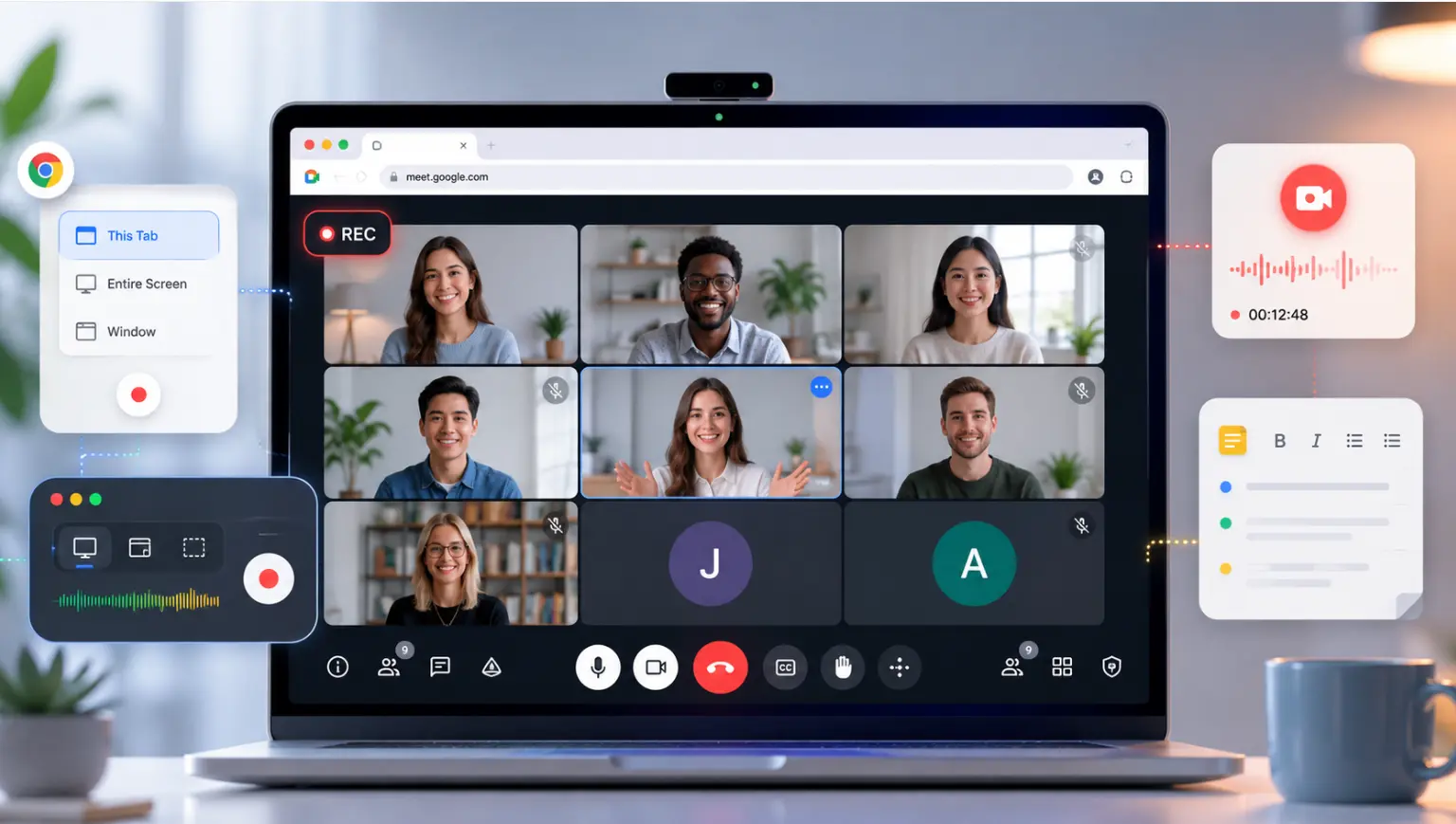
Recording a Zoom meeting is one of the most reliable ways to make sure nothing important slips through the cracks — whether you’re capturing a client call, an internal strategy session, or a training you’ll need to reference later. Zoom’s built-in recording tools are straightforward once you know where to look, but the options vary significantly depending on your plan, your role in the meeting, and what device you’re on.
This guide walks through every scenario: recording as a host, as a participant, on mobile, without permission, and what to actually do with the recording once you have it.
Find Your Situation First
Not everyone’s starting point is the same. Use this to jump directly to what applies to you:
|
Your situation |
What to do |
|---|---|
|
You’re the host, free Zoom account, on desktop |
Local recording on desktop |
|
You’re the host, paid Zoom account |
Cloud recording — more flexible, accessible from anywhere |
|
You’re on a mobile device |
Mobile recording — requires paid plan |
|
You’re a participant, not the host |
Participant recording — need host permission |
|
You can’t get host permission |
Third-party options |
|
Recording is greyed out or missing |
Troubleshooting |
What You Need Before You Start
Before recording your first Zoom meeting, check these three things:
-
Your Zoom plan. Free accounts can record locally (to your computer) but cannot use cloud recording. Cloud recording requires a paid Zoom plan (Pro, Business, or Enterprise).
-
Your role in the meeting. Only the host or a co-host can start a recording by default. Participants need explicit permission from the host.
-
Your device. Desktop (Windows/Mac) supports both local and cloud recording. Mobile (iOS/Android) only supports cloud recording, which requires a paid account.
How to Record a Zoom Meeting on Desktop (Local Recording)
Local recording saves the video and audio file directly to your computer as an MP4. It works on any Zoom account, including free plans, as long as you’re the host.
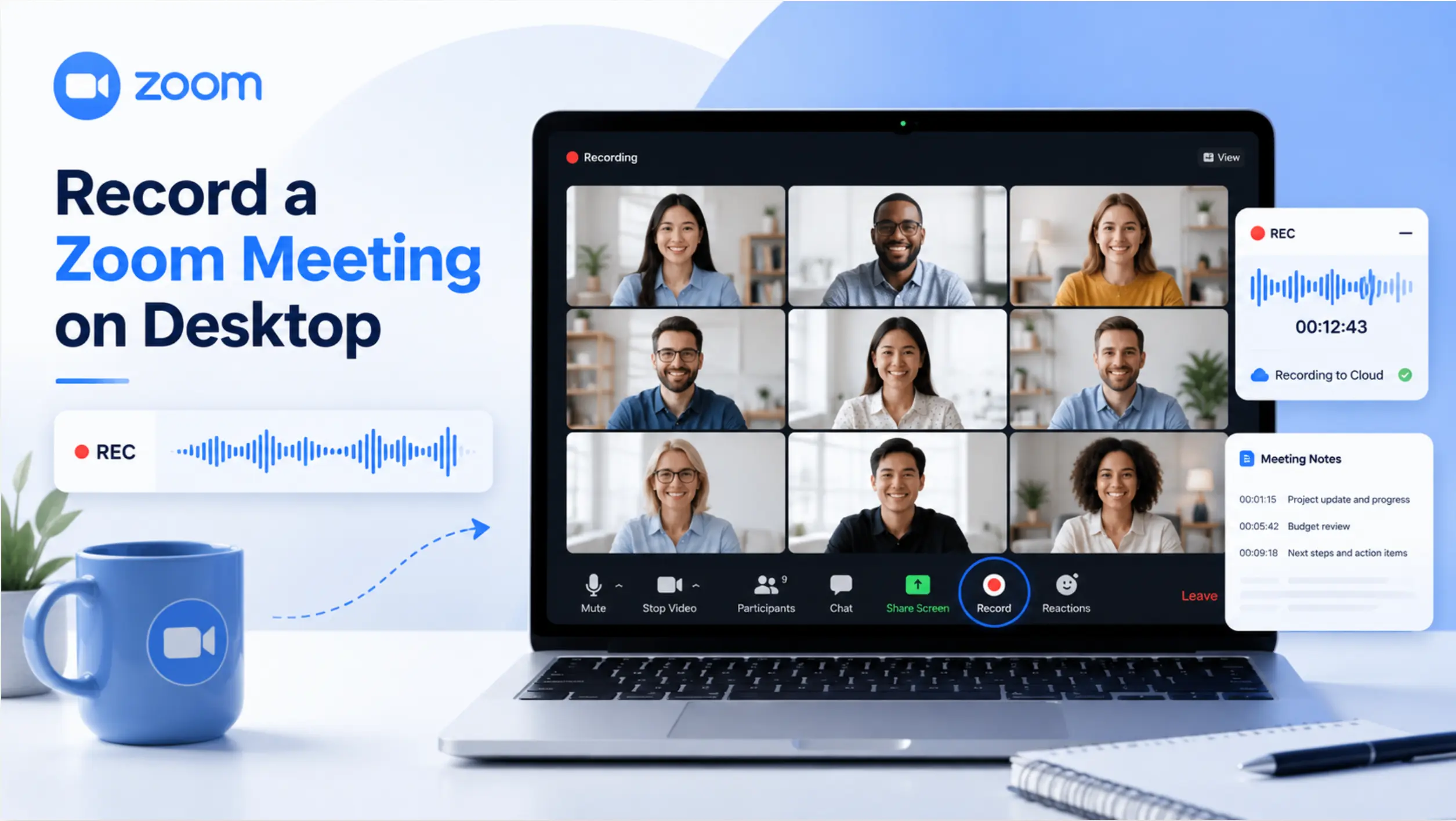
Step 1: Enable local recording in settings
Before your first recording, confirm the setting is turned on:
-
Sign in to the Zoom web portal at zoom.us.
-
Go to Settings → Recording.
-
Toggle Local Recording on. If it’s grayed out, your organization’s Zoom admin controls this setting — contact them to enable it.
Step 2: Start your meeting and begin recording
-
Launch Zoom and start or join your meeting.
-
In the meeting control bar at the bottom of the screen, click Record.
-
Select Record on This Computer.
-
A recording indicator ("●REC") appears in the top-left corner. All participants receive an automatic notification that the meeting is being recorded.
Step 3: Pause, resume, or stop
-
To pause, click the pause icon in the control bar. Zoom stitches the segments together in the final file.
-
To stop, click the stop icon or end the meeting.
Step 4: Find your recording
After the meeting ends, Zoom converts the file. Once processing completes, it opens the folder automatically. The default save path:
-
Windows: C:\Users\[Username]\Documents\Zoom
-
Mac: /Users/[Username]/Documents/Zoom
You can change this path under Settings → Recording → Local Recording → Change.
Each recorded meeting generates a folder containing an MP4 video file, an M4A audio-only file, and a text chat file.
How to Record a Zoom Meeting to the Cloud
Cloud recording saves files to your Zoom account online, accessible from any device. This requires a paid Zoom plan.
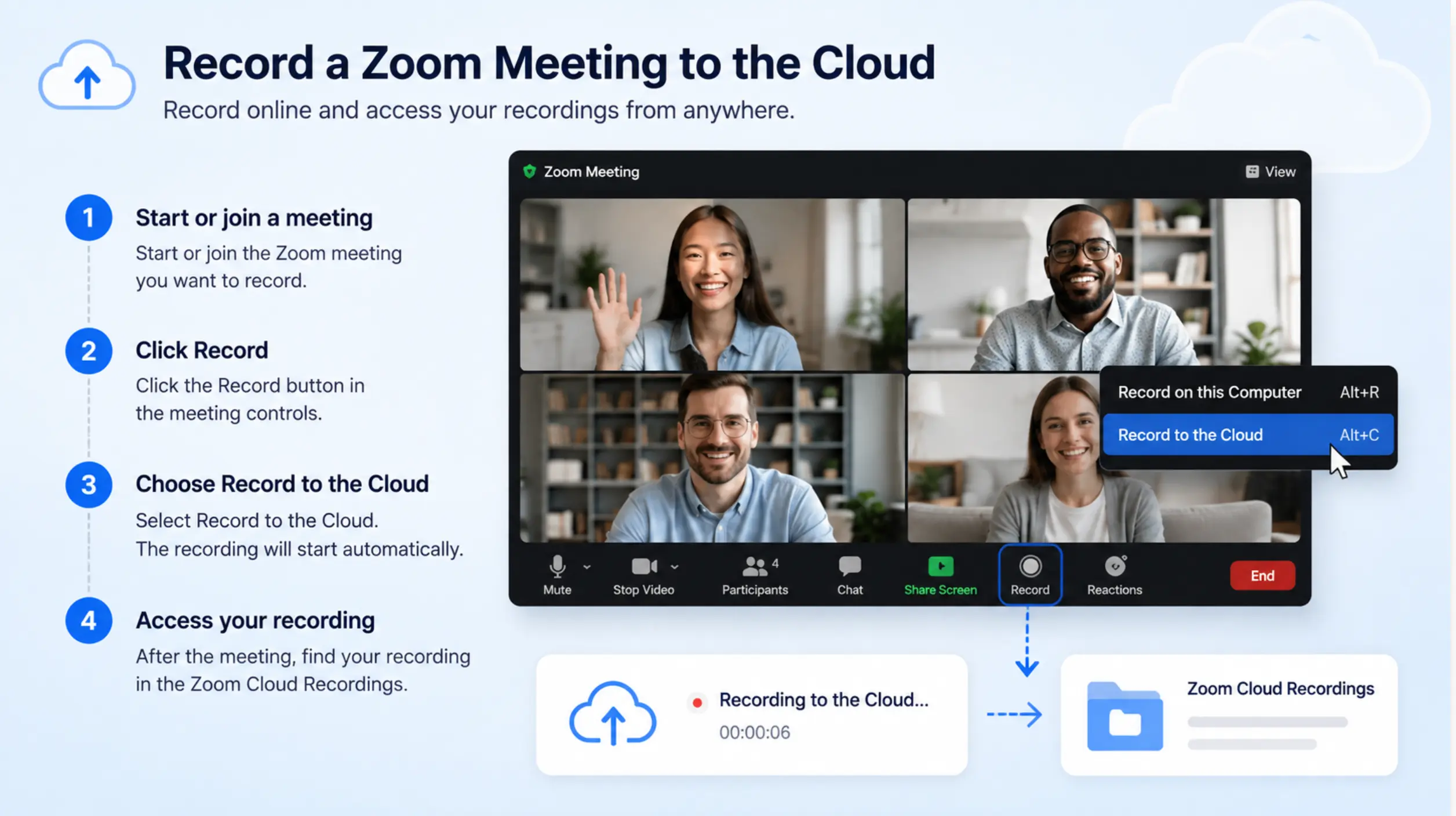
Step 1: Enable cloud recording
-
Sign in to the Zoom web portal.
-
Go to Settings → Recording → toggle Cloud Recording on.
-
In the cloud recording options, choose what gets captured: active speaker view, gallery view, shared screen, separate audio files, and an auto-generated transcript.
Step 2: Record to the cloud during a meeting
-
Start your meeting as host.
-
Click Record in the control bar.
-
Select Record to the Cloud.
-
The "●REC" indicator appears in the corner for all participants.
Step 3: Access the recording after the meeting
-
After the meeting ends, Zoom processes the file (typically a few minutes).
-
Log in to zoom.us and go to My Account → Recordings.
-
Your recording appears there with options to play, download, share, or delete.
Zoom also emails the host when the cloud recording is ready, with a direct link.
Storage note: Zoom cloud recordings count against your plan’s storage quota. Check your current plan’s retention policy at zoom.us — storage limits and auto-deletion timelines vary by tier.
How to Record a Zoom Meeting on Mobile (iOS and Android)
Mobile recording on Zoom requires a paid account, since the only available option is cloud recording.
-
Join or start a meeting in the Zoom mobile app.
-
Tap More (the three-dot icon) in the bottom-right corner.
-
Tap Record to the Cloud.
-
To stop, tap More → Stop Recording, or end the meeting.
The recording processes after the call ends and becomes available in zoom.us → My Recordings.
How to Record a Zoom Meeting as a Participant
By default, participants cannot record — only the host or co-host can. There are two ways to get access:
Option 1: Ask the host for permission during the meeting
-
The host opens the Participants panel.
-
Hovers over your name → clicks More → selects Allow Record.
-
You can now click Record in your control bar.
Option 2: Have the host configure participant recording in advance
In the Zoom web portal under Settings → Recording, hosts can configure who can request recording permission before the meeting starts. This is worth setting up for recurring meetings where multiple people routinely need to capture sessions.
If you can’t get host permission: Zoom’s built-in recording is not available to you. See the "third-party options section" below.
How to Record a Zoom Meeting Without Permission (Third-Party Options)
When you’re a participant without recording access, or when you want richer outputs than Zoom’s MP4 provides, a third-party capture tool is the practical alternative.
The most common approaches:
-
AI meeting bots (Fathom, Otter.ai, Fireflies.ai): Join the Zoom call as a virtual participant, record and transcribe in real time, and deliver a structured summary after the call. Other participants see the bot in the participant list, which has consent implications in some contexts.
-
Screen recording software (QuickTime on Mac, Xbox Game Bar on Windows): Captures your screen and system audio without host permission and without notifying other participants, but produces raw video only — no transcript, no summaries.
For professionals who want to capture meetings without a visible bot in every call, a hardware recorder worn during the meeting captures your side of the conversation and room audio independently of Zoom’s platform entirely — more on that in the section below.
Is It Legal to Record a Zoom Meeting?
This is the question most guides skip, and it’s the one that matters most if you’re recording client calls, sales conversations, or anything involving people in multiple states.
The short answer: it depends on where your participants are located.
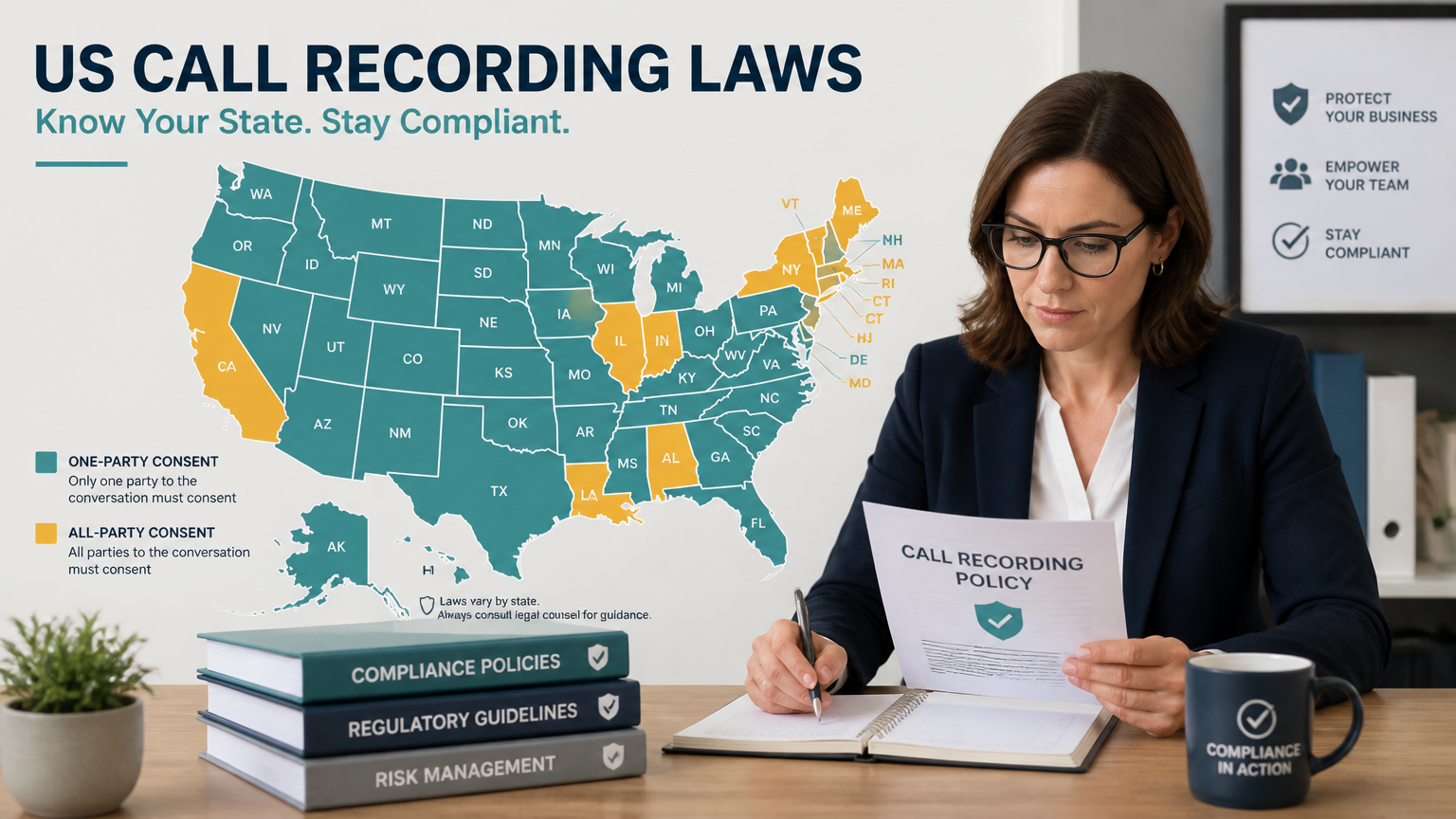
Under US federal law (the Wiretap Act), one-party consent is the floor — meaning your own consent as a participant is technically sufficient. But 13–14 states override federal rules and require all-party consent, meaning every person on the call must know about and agree to the recording before it starts. The states with the strictest rules include California, Florida, Illinois, Pennsylvania, and Massachusetts.
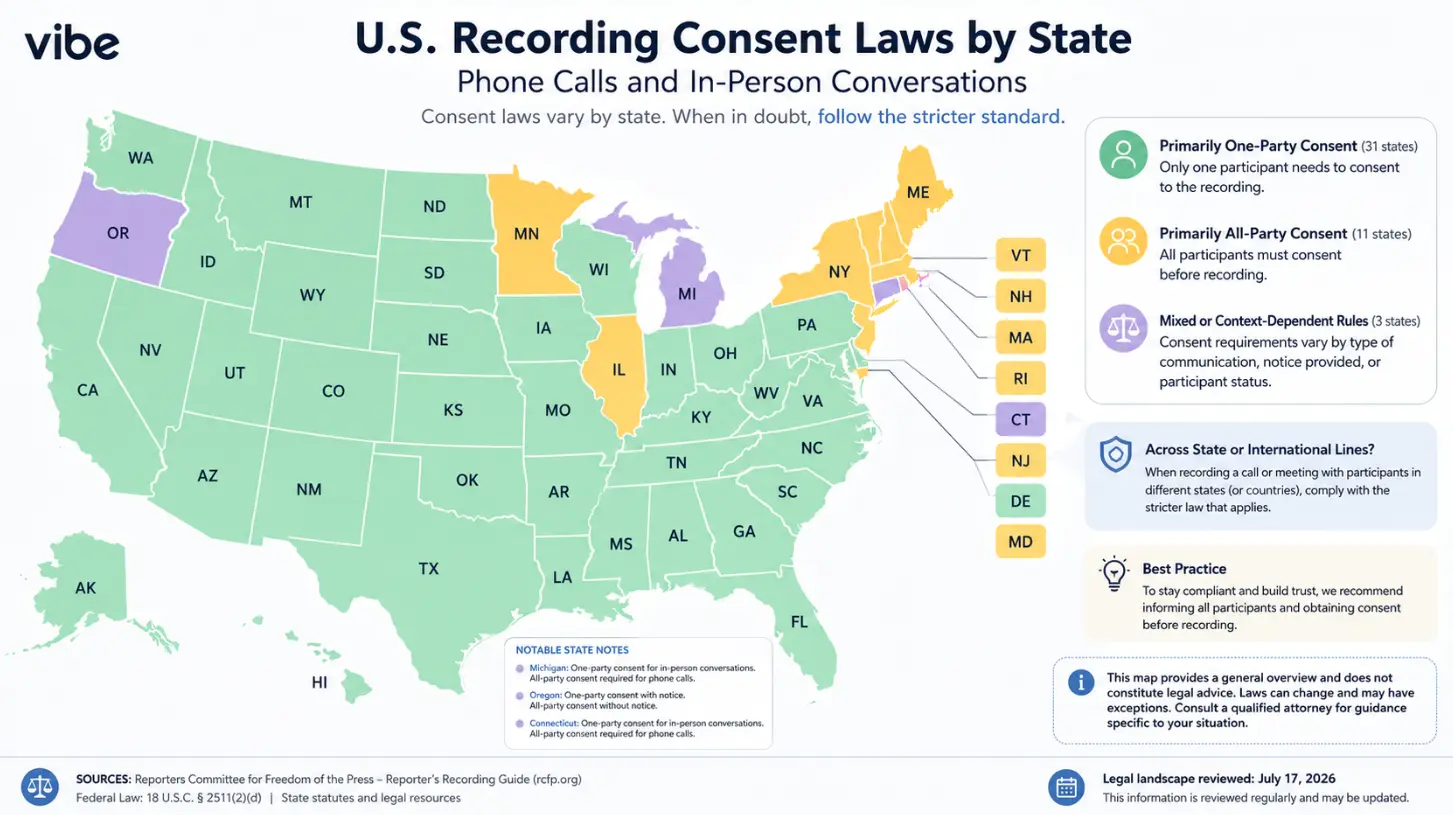 Vibe infographic: U.S. recording consent laws by state map showing one-party, all-party, and mixed consent rules for calls and meetings
The practical problem for Zoom recordings is interstate calls. If you’re in New York (one-party consent) and your client is in California (all-party consent), California’s stricter standard applies to the entire call. Courts have consistently ruled that when participants are in different states, the more protective law governs.
What Zoom’s automatic notification does and doesn’t do:
Zoom does display an on-screen notification to all participants when recording starts, and participants can choose to leave. This satisfies a transparency requirement, but legal experts note it does not automatically constitute explicit consent in all jurisdictions — particularly in states that require affirmative agreement rather than passive acceptance.
Practical compliance rules for business recordings:
-
If any participant might be in a two-party consent state, announce the recording verbally at the start of the call and get acknowledged agreement before starting.
-
For recurring meetings with distributed teams, add a consent line to your calendar invite or meeting agenda.
-
For client calls in regulated industries (legal, financial, healthcare), consult your legal team — company recording policies are often stricter than state law requires.
For a full breakdown of state-by-state consent requirements, see our US call recording consent laws guide.
Zoom Recording Settings Worth Knowing
A few settings that affect recording quality and workflow, found under zoom.us → Settings → Recording:
|
Setting |
What it does |
|---|---|
|
Record active speaker with shared screen |
Keeps the speaker’s video in frame alongside any screen share |
|
Audio transcript |
Auto-generates a VTT transcript file saved with the recording (cloud recording only) |
|
Automatic recording |
Starts recording as soon as the host joins — removes the risk of forgetting |
|
Record gallery view |
Saves a separate file showing all participants’ video tiles |
|
Add a timestamp |
Overlays the date and time on the video |
For teams that record every meeting, enabling Automatic Recording in the meeting settings eliminates the most common failure mode: forgetting to hit Record.
Beyond the Recording: What to Do After the Meeting Ends
Most Zoom recordings sit in a folder — or a cloud account — and never get watched again. That’s not a technology problem; it’s a workflow problem. A raw MP4 is not a useful artifact unless someone has a specific reason to scrub through it.
The follow-up work that actually matters is almost never "watch the recording." It’s: what did we decide, who owns what, and what do I need to remember for the next conversation with this person?
 Manual note-taking during a business meeting presentation
Zoom’s built-in tools give you a partial answer. Cloud recording on paid plans generates an auto-transcribed VTT file, and Zoom AI Companion (on eligible paid plans) can produce a meeting summary and extract action items after the call ends. That covers the immediate session — but it has no memory of what was discussed last Tuesday, or last month, or how this conversation fits into a longer project arc.
A different model: continuous capture with Vibe Dot
Vibe Dot is a wearable AI recorder — a small clip-on device that you wear to any meeting. Unlike a Zoom cloud recording that lives in your video conferencing account as a static file, Vibe Dot feeds audio into Vibe AI’s Memory Graph, which builds a searchable, cross-session record of your work.
The practical difference: instead of a recording, you get a memory layer. Ask "What did we agree on in the Q3 budget call?" and get an answer drawn from your actual meetings — not a keyword search through a folder of MP4 files.
A few specifics relevant to Zoom users:
-
Works alongside Zoom, not instead of it. Wear Vibe Dot during any call to capture your side of the conversation and room audio, with the full context connecting to everything else you’ve discussed across sessions.
-
Five-microphone array (four air mics plus a bone-conduction mic for voice isolation) delivers clean transcription even when Zoom audio quality is inconsistent or you’re in a noisy environment.
-
SOC 2, HIPAA, and NDAA compliant, with hardware encryption — relevant if you’re recording sensitive client, patient, or regulated conversations where cloud-based bots raise data residency concerns.
-
Vibe Dot starts at $199.
Troubleshooting Common Zoom Recording Problems
"Record" button is missing from my control bar
-
You may not have local recording enabled. Check zoom.us → Settings → Recording → Local Recording.
-
If the setting is locked by an admin, contact your Zoom administrator to unlock it.
-
Make sure your Zoom desktop app is up to date — older versions don’t support all recording features.
Recording is greyed out on mobile
-
Mobile recording requires cloud recording, which is only available on paid Zoom plans.
Recording file is missing after the meeting
-
For local recordings: check the default save path (Documents → Zoom) and confirm Zoom had enough storage space to write the file.
-
For cloud recordings: the file may still be processing. Check zoom.us → My Recordings; files typically appear within 5–10 minutes of the meeting ending.
Why is my Zoom cloud recording greyed out even though I’m the host?
Three common reasons: (1) your Zoom plan doesn’t include cloud recording — check your plan at zoom.us; (2) cloud recording is disabled at the account admin level; (3) you’re trying to record from a mobile device on a free plan. Only paid plans support cloud recording on mobile.
How do I record a Zoom meeting when I’m not the organizer?
You need the meeting host to grant you recording permission. During the meeting, the host can do this via Participants → hover over your name → More → Allow Record. If the host is unavailable or unwilling, a screen recorder or third-party AI note-taker is the workaround.
Does Zoom recording capture screen share and video at the same time?
Yes, but only if you configure it. Under Settings → Recording, enable both "Record active speaker with shared screen" and "Record gallery view" to get separate files for each layout. By default, Zoom records whichever view is active — it doesn’t automatically create separate files for both.
Recording quality is poor or participants can hear an echo
This is usually an audio input issue, not a recording setting. Check that you’re using the right audio source in Zoom Settings → Audio, and that your microphone isn’t picking up speaker output (which creates echo in the recording).
Conclusion
Recording a Zoom meeting comes down to three variables: your plan, your role, and what you want to do with the recording afterward. Free accounts and hosts have the most direct path — click Record, choose local or cloud, done. Participants need permission or a workaround. And anyone recording across state lines needs to think about consent law before hitting that button.
The harder question is what happens after the recording ends. A static MP4 answers "did we record it?" — not "what did we decide and what happens next?" If you need a record that connects across meetings and actually surfaces when you need it, the native Zoom recording is a starting point, not the full solution.
For more on recording meetings across platforms, see our guides on how to record a Google Meet and how to record a WhatsApp call.
Frequently Asked Questions
Can I record a Zoom meeting for free?
Yes. Free Zoom accounts can record meetings locally, saving the video to your computer as an MP4 file. Cloud recording — which saves to your Zoom account and is accessible from any device — requires a paid plan (Pro, Business, or Enterprise). If you’re on a free plan and joining someone else’s meeting as a participant, you’ll need the host’s permission to use local recording.
Why is my Zoom recording greyed out even though I’m the host?
The most common reasons are: local recording is disabled in your Zoom settings (check zoom.us → Settings → Recording), your organization’s admin has restricted recording permissions, or you’re on a mobile device using a free plan (cloud recording on mobile requires a paid account). If the setting appears locked, contact your Zoom administrator.
How do I record a Zoom meeting when I’m not the organizer?
You need explicit permission from the meeting host. The host can grant you recording access during the meeting by opening the Participants panel, hovering over your name, clicking More, and selecting Allow Record. If permission isn’t available, a third-party screen recorder or AI note-taker is the practical alternative.
Does Zoom notify participants when they’re being recorded?
Yes. Zoom automatically displays an on-screen notification to all participants when a host starts recording, and shows a "●REC" indicator throughout the session. Participants are given the option to leave the meeting. This notification is built into the platform and cannot be disabled — but it does not automatically satisfy legal consent requirements in all US states.
Does Zoom recording capture screen share and video at the same time?
Yes, but you need to enable both options. Under Zoom Settings → Recording, turn on "Record active speaker with shared screen" and "Record gallery view" to capture separate files for each layout. Without this configuration, Zoom records only the currently active view.
How long does Zoom keep cloud recordings before deleting them?
Zoom’s cloud recording retention varies by plan and admin settings. By default, cloud recordings are not automatically deleted, but account admins can set custom retention periods. Free trial recordings may be subject to shorter retention windows. Check your specific plan’s storage terms at zoom.us or ask your account admin.
Is it legal to record a Zoom meeting without telling participants?
Under US federal law, one-party consent is the minimum — your own consent is sufficient in most states. However, 13–14 states (including California, Florida, and Illinois) require all-party consent, meaning every participant must be informed and agree before recording starts. For interstate calls, the stricter state’s law applies. Zoom’s automatic recording notification provides transparency but may not satisfy explicit consent requirements in all jurisdictions. Always announce the recording verbally for calls involving participants in all-party consent states. See our full recording consent laws guide for a state-by-state breakdown.