You’re halfway through a Google Meet call when a client finally says yes to a proposal you’ve been working on for weeks. The details are flying — timelines, deliverables, budget. Everyone nods. Then the meeting ends.
By Monday morning, three people remember three different numbers.
Recording the meeting would have fixed that. Here’s exactly how to do it — and what to do when Google’s built-in recorder isn’t enough.
Does Google Meet Have a Built-In Recording Feature?
Yes — but with a catch. Google Meet’s native recording is locked behind paid Google Workspace plans. Specifically, you need:
-
Business Standard or Business Plus
-
Enterprise (Essentials, Standard, or Plus)
-
Education Plus (for teachers and admins — Staff license required)
If you’re on a free Gmail account or the entry-level Business Starter plan, the recording option either won’t appear or will be greyed out. You’re not doing anything wrong — Google simply doesn’t include it at those tiers.
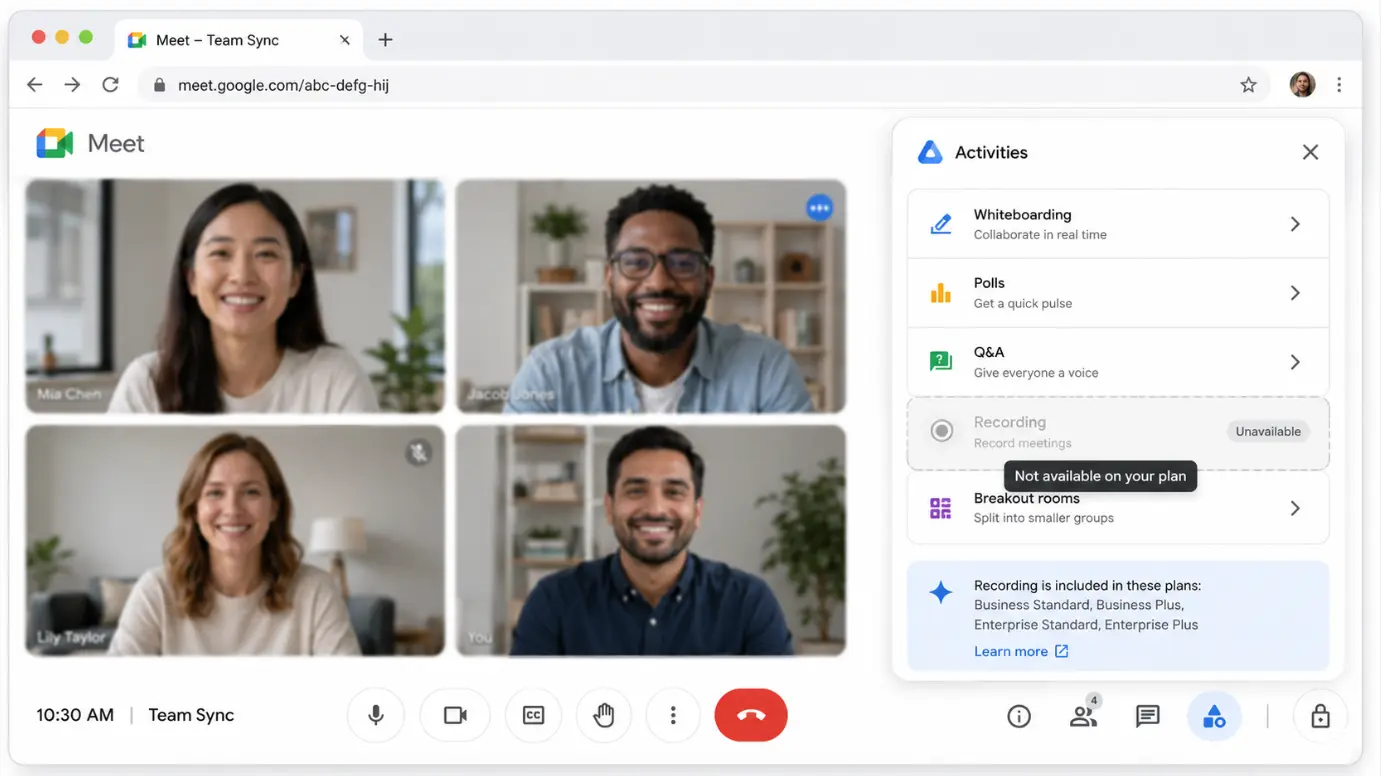 Google Meet Activities panel with Recording option highlighted
Method 1: Google Meet’s Native Recording (Workspace Users)
If your organization is on an eligible Workspace plan and your admin has enabled recording, here’s how to use it.
Before you start, confirm:
-
Your Google Workspace admin has enabled recording in the Admin console (Apps → Google Workspace → Google Meet → Meet video settings → Recording)
-
You are the meeting host or co-host — guests cannot start recordings without host permission
-
The organizer’s Google Drive has sufficient storage space (both the individual and the organization must have available quota)
Steps:
-
Start or join the Google Meet call
-
Click Activities in the bottom-right corner of the screen
-
Select Recording
-
Click Start Recording
-
Choose a caption language if you want automatic captions saved alongside the recording
-
Confirm when prompted — all participants will be notified automatically that recording has begun
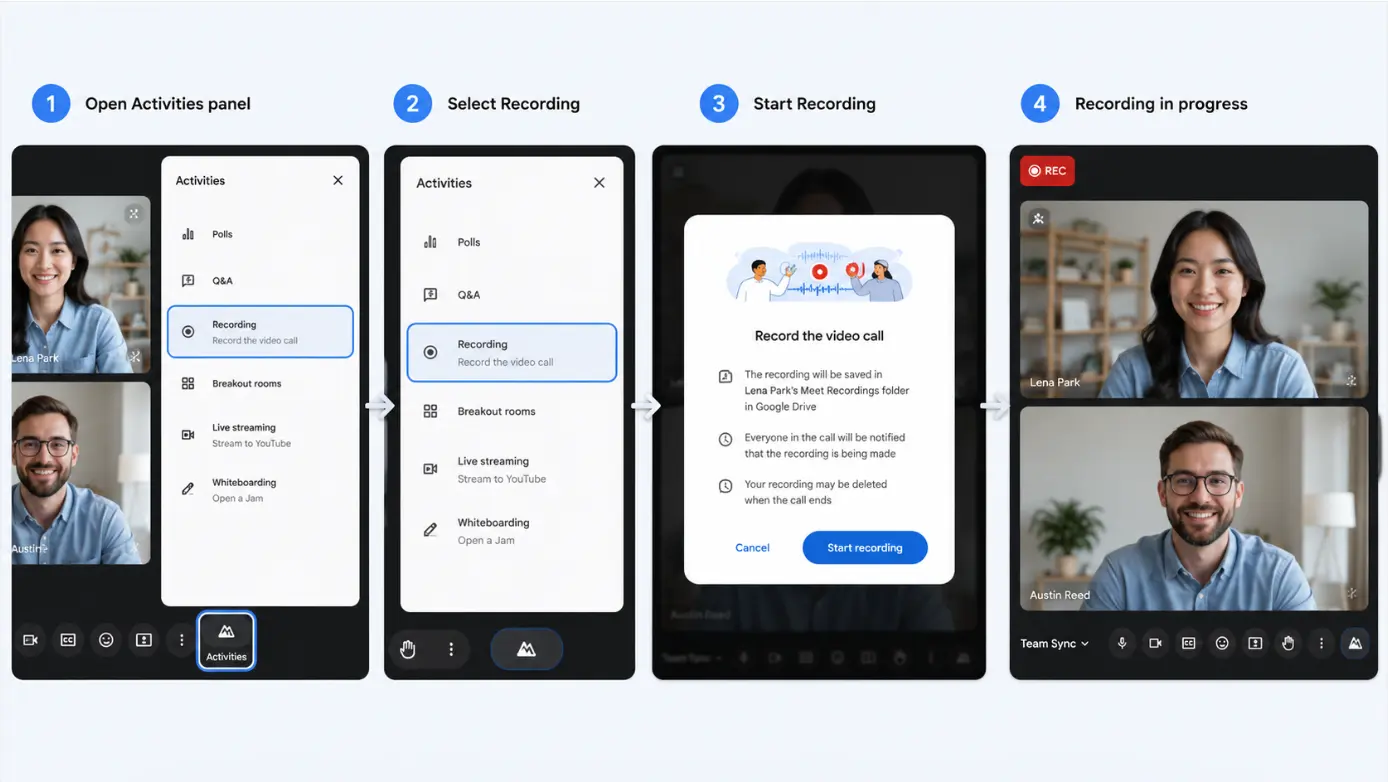 Step-by-step screenshots showing how to start a recording in Google Meet
When recording is active, a red indicator appears in the top-left corner. To stop, go back to Activities → Recording → Stop Recording.
The recording saves automatically to the meeting organizer’s Google Drive, in a folder called "Meet Recordings." You’ll receive an email with the link once processing is complete — typically within a few minutes to an hour, depending on length. Per Google’s documentation, the link is also added automatically to the original Calendar event.
Note: If you join a meeting only to present (screen share), you cannot record. Join the video meeting first, start your presentation, then record.
Method 2: Screen Recording (Works on Any Plan)
If your account doesn’t support native recording, screen recording captures everything regardless of your Workspace tier or admin settings.
On Mac
Use QuickTime Player (built-in, no install required):
-
Open QuickTime → File → New Screen Recording
-
Select your microphone as the audio input
-
Click Record, then click the Google Meet window (or drag to select a region)
-
Stop recording with the menu bar icon or ⌘ + Control + Esc
On Windows
Use the Xbox Game Bar (built-in on Windows 10/11):
-
Open Google Meet in your browser
-
Press Win + G to open Game Bar
-
Click the Record button (or press Win + Alt + R)
-
Stop with Win + Alt + R again — the clip saves to your Videos/Captures folder
On Chrome (Browser Extension)
Several Chrome extensions can capture your Meet tab directly from the Chrome Web Store. Most let you select a specific browser tab, which keeps your recording clean without capturing other windows or notifications.
Third-Party Screen Recorders
OBS Studio (free, open-source) offers more control: separate audio tracks, configurable resolution up to 1080p, and local storage. Setup takes a few extra minutes but is worth it for recurring recording needs.
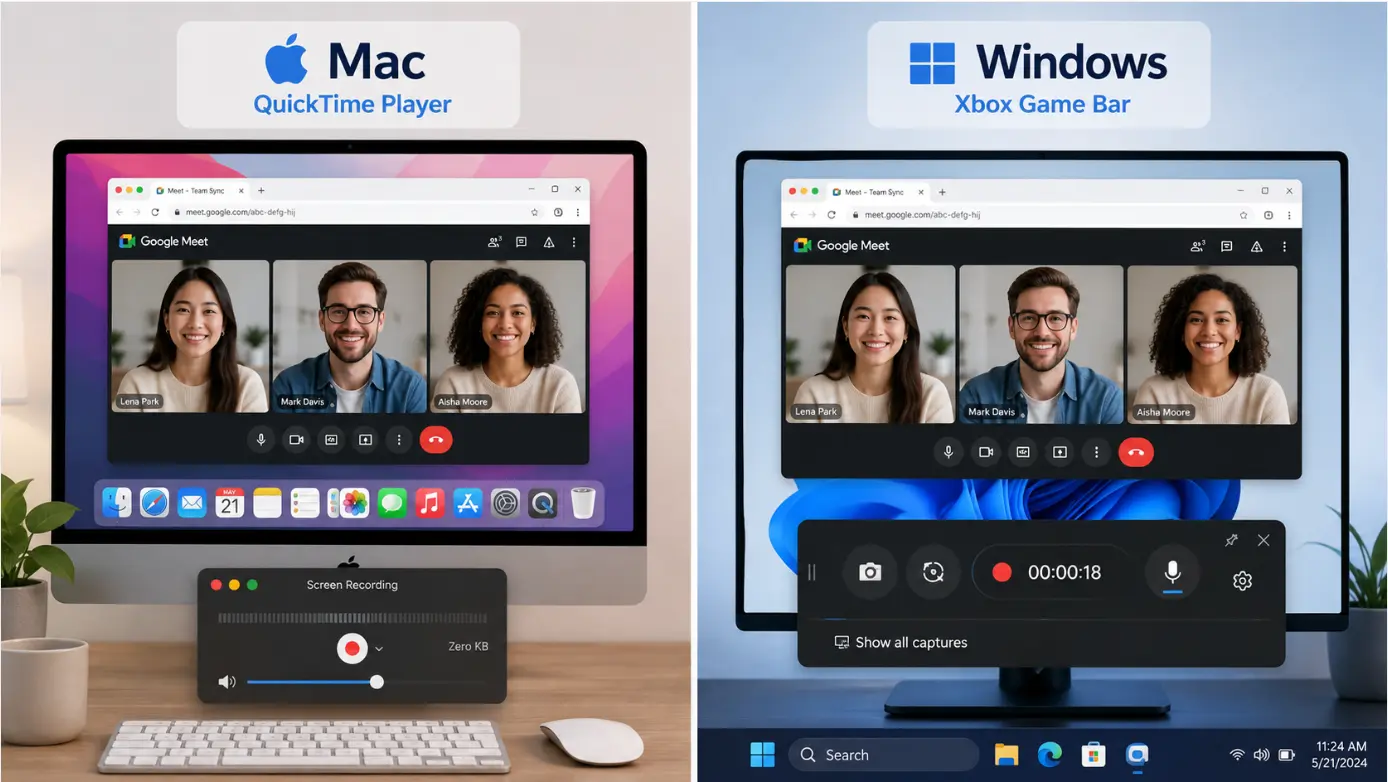 Screen recording options for Google Meet on Mac and Windows
The limitation you need to know: Screen recording captures video and audio — but that’s it. No automatic transcript, no speaker labels, no searchable notes. Finding a specific moment means scrubbing through the full video.
Method 3: Use an AI Note Taker
Screen recording solves the access problem. It doesn’t solve the usefulness problem.
A 90-minute recording is still 90 minutes you have to watch. If what you actually need is a searchable transcript and a clean action item list, an AI note taker is a faster path than scrubbing through video.
AI note takers join your Google Meet as a bot participant. Once added, they transcribe the conversation in real time, label speakers, and generate summaries automatically after the call ends. Most also send a meeting recap email to all participants.
Popular options include Otter.ai, Fireflies.ai, Fathom, and Notion AI Meeting Notes — all of which integrate directly with Google Calendar so the bot joins automatically without you having to remember to start it.
The tradeoff: AI note takers only work for scheduled video calls. They require you to be the host (or have the host add them), they can’t capture in-person conversations, and their memory is siloed — each meeting is a separate document, with no connection across sessions.
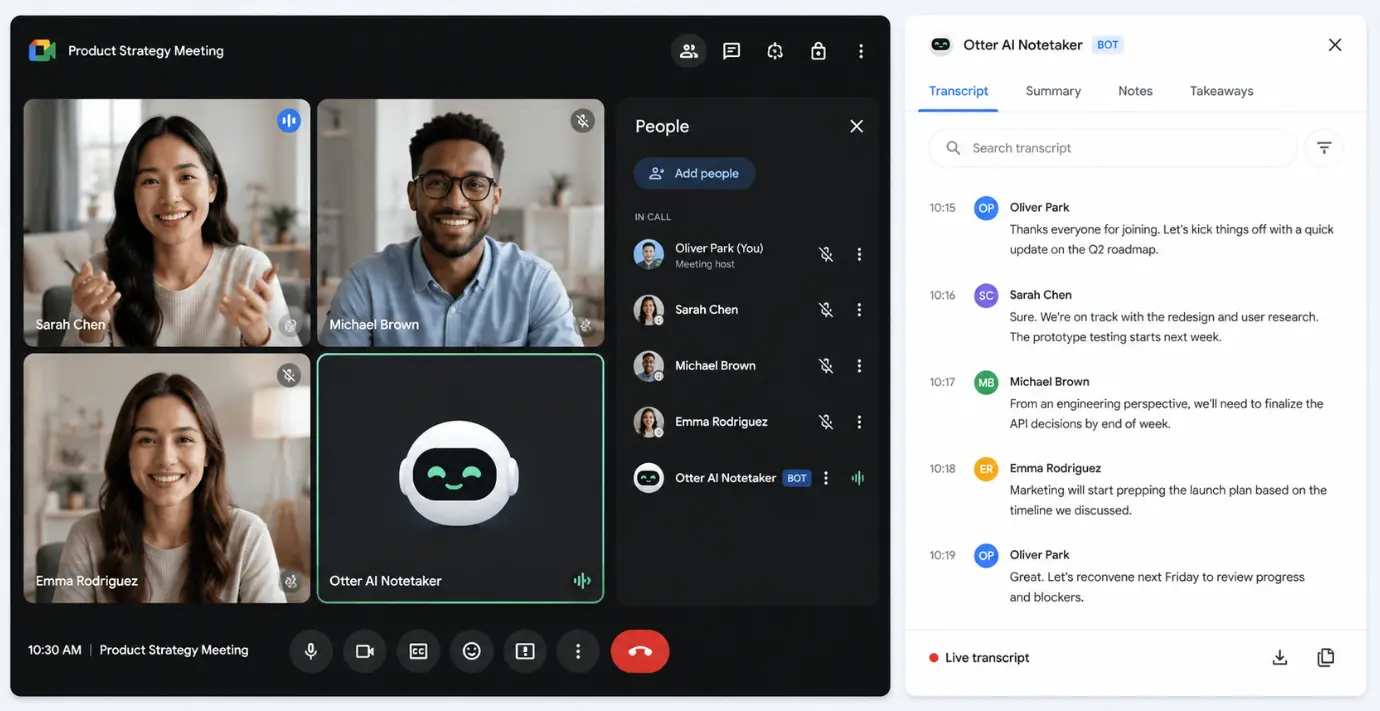 AI note taker bot generating a transcript during a Google Meet session
Method 4: Use a Dedicated AI Meeting Recorder
Screen recording solves the access problem. It doesn’t solve the usefulness problem.
A 90-minute recording is still 90 minutes you have to watch. What most professionals actually need isn’t a video file — it’s the intelligence from the meeting: who said what, what was decided, what needs to happen next.
This is where wearable AI recorders and dedicated AI meeting devices change the workflow entirely.
For Individuals and Mobile Professionals: Vibe Dot
For anyone who bounces between calls, takes client meetings outside the office, or attends meetings they don’t host — Vibe Dot is a different kind of solution.
Vibe Dot is a wearable AI recorder that captures conversations at the physical layer, regardless of what platform the meeting is on. It works whether you’re on Google Meet, a phone call, an in-person client conversation, or a conference session where screen recording isn’t even an option.
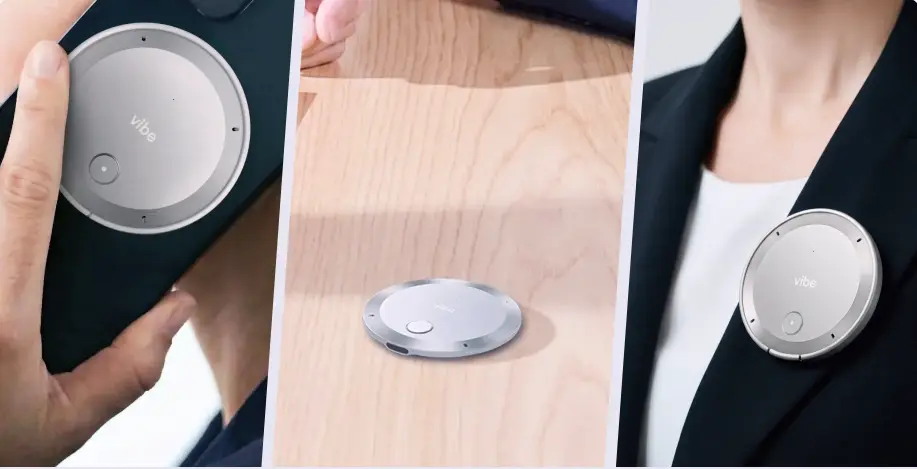 Vibe Dot AI recorder shown in three usage modes: held in hand, placed on a desk, and clipped to a jacket lapel
What makes Vibe Dot more than a recorder:
-
Memory Graph — your conversations connect across sessions. Vibe Dot doesn’t just log what was said; it builds context over time, so you can ask questions across multiple meetings and get intelligent answers.
-
Platform-agnostic — not dependent on having host permissions, admin access, or even being the one who called the meeting. Works on Google Meet, Zoom, Teams, phone calls, and in-person.
-
FERPA and NDAA certified — relevant for teams in education, government contracting, or any industry where data compliance matters.
The result isn’t a recording you have to review — it’s an AI layer that understands your meeting history and surfaces what you need, when you need it.
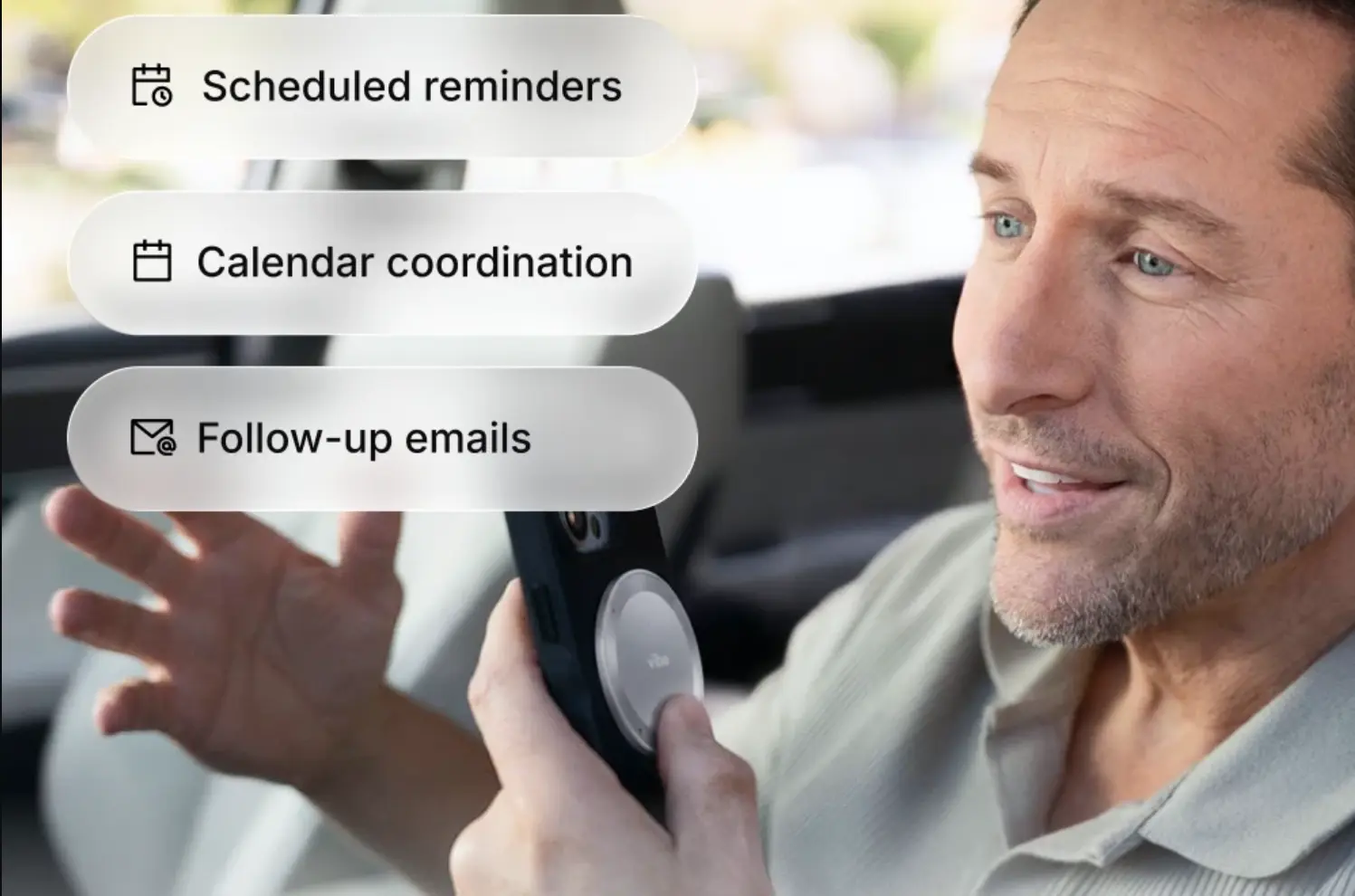
For Conference Room Teams: Vibe Bot
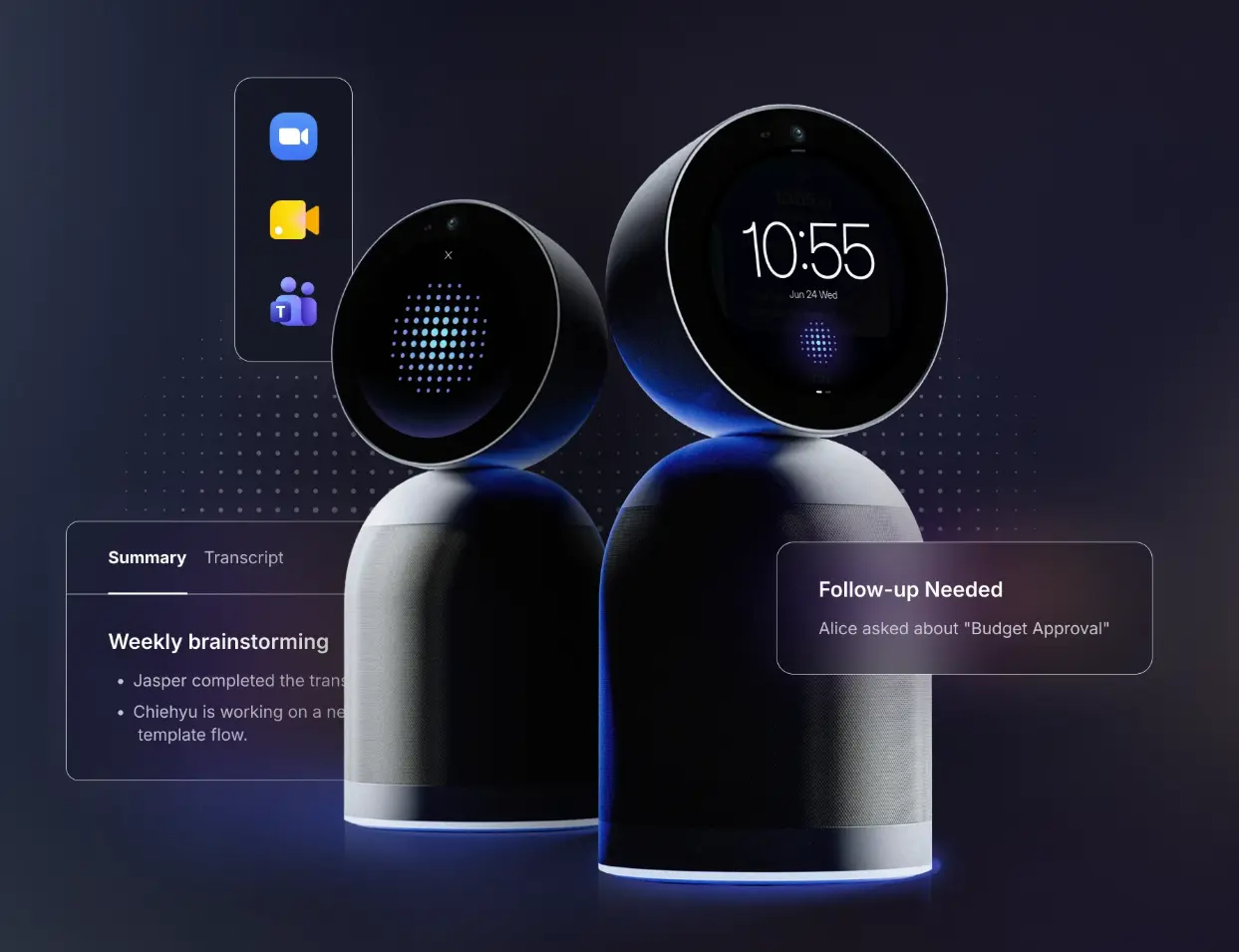
If your team has a dedicated meeting room running Google Meet calls, Vibe Bot is built for that environment. It’s an AI conference room device that joins as a participant, delivers real-time transcription, and surfaces action items as the conversation happens — without anyone managing a recording manually.
Unlike screen recordings that require someone to remember to hit record, Vibe Bot is always on. It works with Google Meet natively alongside your existing room AV setup.
Comparing Your Options
|
Method |
Who Can Use It |
Gets a Transcript |
Works In-Person |
Requires Host Permissions |
|---|---|---|---|---|
|
Google Meet native |
Paid Workspace plans only |
Auto-captions only |
No |
Yes |
|
Screen recording |
Anyone |
No |
No |
No |
|
AI note taker |
Anyone (host or invited) |
Yes, auto-generated |
No |
Usually yes |
|
Vibe Dot |
Individuals, any context |
Yes, with Memory Graph |
Yes |
No |
|
Vibe Bot |
Conference room teams |
Yes, real-time |
N/A (room device) |
No |
Legal Considerations: Always Notify Participants
Regardless of which method you use, recording without consent can create legal and professional problems. A few rules of thumb:
-
Google Meet’s built-in recorder notifies all participants automatically when recording starts — you’re covered
-
Screen recording and third-party tools do not notify anyone. You are responsible for disclosing that the meeting is being recorded
-
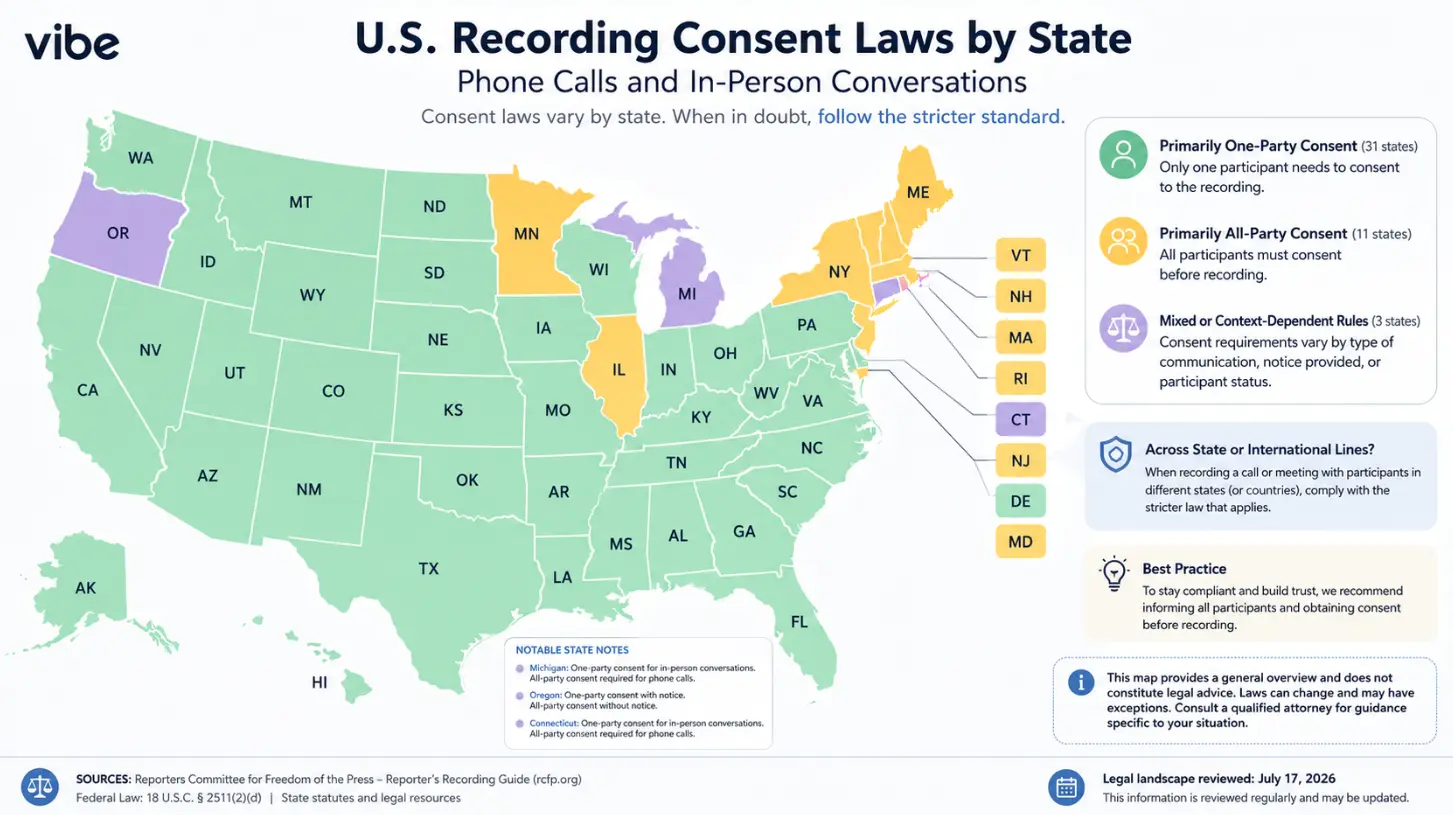
Two-party (all-party) consent states — California, Florida, Illinois, Pennsylvania, and others — require that all parties agree to be recorded, not just the person initiating
-
International calls may involve GDPR or other regional privacy regulations that set a higher bar for consent
The simplest approach: say it out loud at the top of the meeting. "Just a heads-up, I’m recording this for notes." It takes five seconds and removes all ambiguity.
 US states that require all-party consent for call recording
Which Method Is Right for You?
Use Google Meet’s native recording if: You’re the host on a qualifying Workspace plan and primarily need a shareable video archive saved to Drive.
Use screen recording if: You’re on a free or Starter plan, don’t need a transcript, and just want a quick one-time capture.
Use an AI note taker if: You’re the host of a scheduled Google Meet and primarily need an auto-generated transcript and meeting summary — without managing any recording yourself. Tools like Otter.ai or Fireflies.ai connect to Google Calendar and handle the rest automatically.
Use Vibe Dot if: You attend meetings across platforms, move between the office and the field, or want your notes to connect across sessions into a persistent, searchable memory — not just a folder of recordings no one goes back to. See how it compares to other wearable AI recorders.
Use Vibe Bot if: Your team has a dedicated conference room running Google Meet and you want real-time transcription and AI meeting intelligence built into the room itself.
The goal was never to have a recording. The goal was to remember what happened and act on it.
FAQs
Can I record a Google Meeting for free?
Google Meet’s built-in recorder requires a paid Workspace plan, so it’s not available on free Gmail accounts. That said, you can record for free using your device’s built-in screen recorder — QuickTime on Mac, Xbox Game Bar on Windows — at no cost and with no plan restrictions.
Where do Google Meet recordings get saved?
Recordings are saved automatically to the meeting organizer’s Google Drive, in a folder called "Meet Recordings." Both the organizer and the person who started the recording receive an email with the link, which is also added to the original Google Calendar event.
Do participants get notified when a Google Meet is being recorded?
Yes — when you use Google Meet’s native recording, all participants receive an automatic on-screen notification the moment recording starts. If you use a screen recorder or third-party tool instead, no notification is sent, so you’re responsible for informing participants yourself.
Why is the recording button greyed out?
Three common reasons: your Workspace plan doesn’t include recording (Business Starter and free Gmail are excluded), your admin hasn’t enabled recording in the Admin console, or Google Drive storage is full — either for your account or at the organization level.
Can I record a Google Meet on my phone?
The native recording feature is desktop-only. The Google Meet mobile app does not support built-in recording. Your options on mobile are a third-party screen recorder app, or a tool like Vibe Dot — which captures the conversation at the audio layer regardless of device or platform.
Is it legal to record a Google Meet without telling people?
It depends on where your participants are located. In the US, federal law requires one-party consent, but states like California, Illinois, and Florida require all parties to consent. In the EU, GDPR sets a higher bar. The safest practice regardless of jurisdiction: say at the start of the meeting that you’re recording. It takes five seconds and protects everyone.