Can you record phone calls on iPhone? In 2026, the answer is a clear yes—but how you do it depends on your iOS version, region, carrier, and the laws where you and your caller are located.
This guide covers every working method, walks you through Apple’s native iOS 18/iOS 26 recording feature step by step, compares the best third-party apps, and gives you a plain-English breakdown of US call recording consent laws so you stay fully compliant. Whether you’re a sales professional who needs call notes, a journalist conducting a source interview, or just someone who wants to preserve an important conversation, you’ll find the right approach here.
Quick Answer: Which Method Is Right for You?
|
Your Situation |
Best Method |
|---|---|
|
iPhone with iOS 18.1+, US/Australia/Canada/UK |
iOS Native Recording (Method 1) |
|
Older iPhone or unsupported region |
TapeACall Pro or CallRecorderIOS (Method 2) |
|
Recording incoming calls only, US number |
Google Voice (Method 3) |
|
No app, occasional use |
Voicemail trick (Method 4) |
|
Professional use—need both sides clearly recorded + AI transcription |
AI hardware recorder (Method 5) |
Method 1: iOS Native Call Recording (iOS 18.1 / iOS 26)
What it is
Apple introduced built-in call recording with iOS 18.1 in October 2024—the first time in iPhone history that users could record calls without a third-party app or workaround. The feature was refined further in iOS 26 (released 2025–2026), where the button moved from the top-left of the call screen to under the More menu, and gained tighter Notes integration, Live Translation, and AI-generated summaries powered by Apple Intelligence.
Which iPhones and regions are supported?
Device support: All iPhones capable of running iOS 18.1 or later—from iPhone XS through the current iPhone 17 lineup—can access the recording feature. Automatic AI transcription and summaries require an Apple Intelligence-capable device (iPhone 15 Pro / Pro Max and iPhone 16 or newer).
Regional availability: This is the most important variable. Apple enables the feature only where local law permits its mandatory dual-announcement system. As of July 2026, native call recording is not available in: the European Union, Azerbaijan, Bahrain, Egypt, Iran, Iraq, Jordan, Kuwait, Morocco, Nigeria, Oman, Pakistan, Qatar, Russia, Saudi Arabia, South Africa, Turkey, the United Arab Emirates, and Yemen. If you’re in one of these regions, skip to Method 2 or Method 5.
For the full and current list, check Apple’s Feature Availability page.
How to enable it
-
Open the Settings app.
-
Go to Apps → Phone → Call Recording.
-
Toggle Call Recording on.
You only need to do this once.
How to record a call (iOS 18.1–18.x)
-
Start or receive a phone call in the Phone app.
-
Tap the waveform icon in the top-left corner of the call screen.
-
A 3-second countdown plays, followed by an automated announcement: "This call will be recorded." Both parties hear this—it cannot be disabled.
-
To stop recording, tap the icon again.
-
After the call ends, the recording saves automatically to the Notes app, along with a full transcript (on supported devices).
How to record a call (iOS 26)
In iOS 26, the button moved. During an active call:
-
Tap More (the three-dot icon or additional options button).
-
Select Call Recording from the list.
-
The same announcement plays. Stop recording by returning to More and tapping the stop button.
Recordings still save to Notes, now with better organization and the option to view Live Translation transcripts if your iPhone supports it.
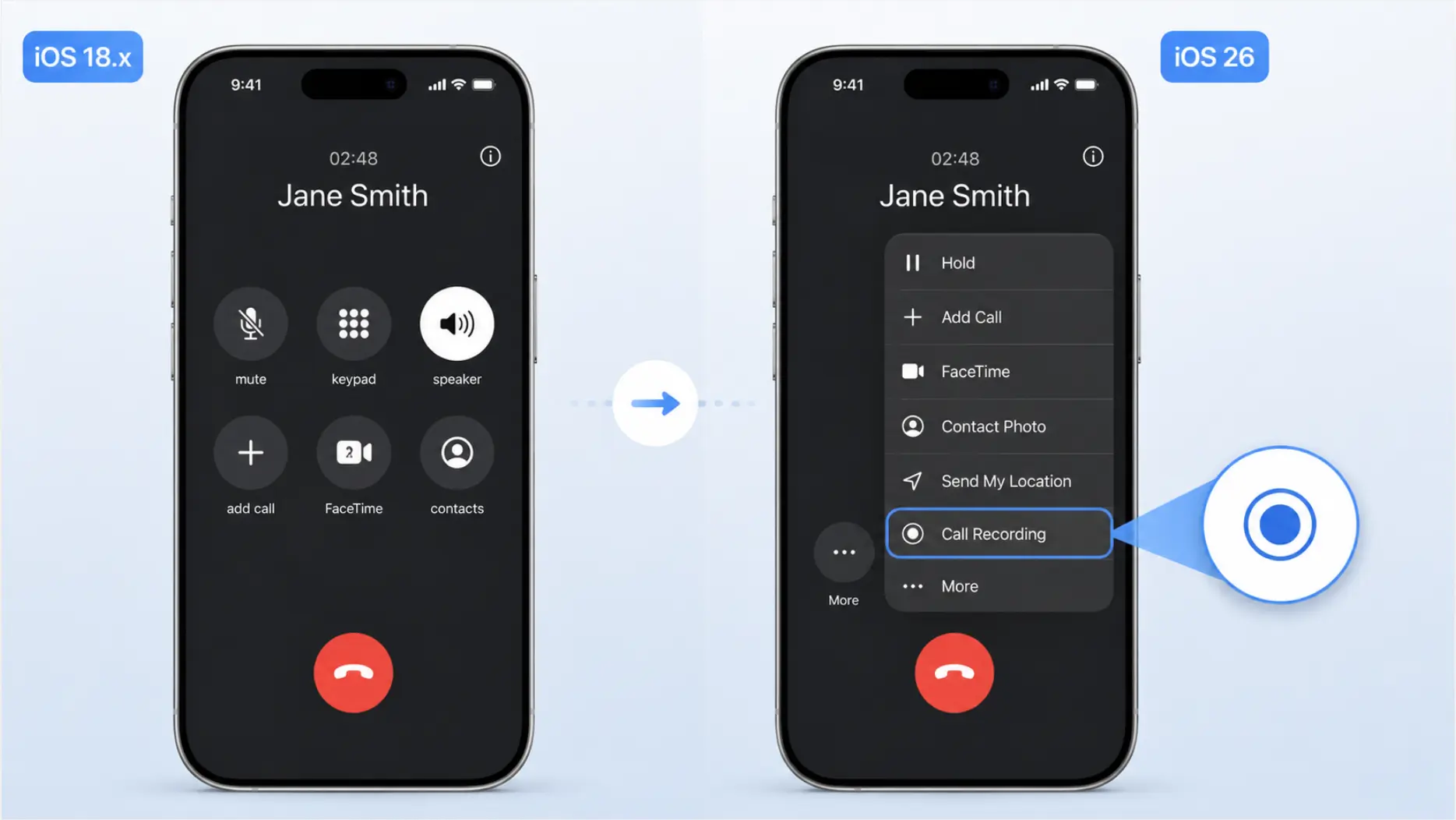 How to find the Call Recording button in iOS 18 vs iOS 26
Key limitations
-
No silent recording. The announcement is mandatory and cannot be skipped, muted, or disabled. Apple built this in by design.
-
No auto-record for all calls. You must manually start recording each call—there is no "record all calls" toggle.
-
Transcription language limits. Automatic transcription currently supports English (US, Australia), Spanish (US, Mexico), Mandarin Chinese (mainland China), Cantonese (Hong Kong), and Korean.
-
Not available on FaceTime audio in all regions; check current Apple documentation.
Method 2: Third-Party Call Recording Apps
Because iOS prevents apps from directly accessing the phone call audio stream, all third-party call recording apps on the App Store use a three-way call workaround: the app dials a recording server and you merge it into your existing call, so the server captures audio from its end of the conference.
This is legitimate, carrier-supported, and works without jailbreaking. The downside is an extra step per call and, in some cases, audio quality that depends on your cellular signal.
Best third-party call recording apps for iPhone in 2026
TapeACall Pro
-
The most widely used iPhone call recorder with 4 million+ users across 50+ countries.
-
Records both incoming and outgoing calls; saves as MP3 with unlimited storage.
-
Shares to Dropbox, Google Drive, Email, and more.
-
Pricing: subscription-based (check current App Store listing); free trial available.
-
Best for: users outside native-recording regions who need a reliable long-term solution.
CallRecorderIOS
-
Ranked #1 Business app in 25 countries with 4.6 stars across 80K+ App Store ratings.
-
Works in 80+ countries; supports unlimited call duration and saved recordings.
-
Share via email, AirDrop, or iMessage directly from the app.
-
Free to download with core features.
-
Best for: international users who want a no-subscription entry point.
Speakwise
-
AI-powered: delivers summaries, transcripts, and action items post-call, with 100+ language support.
-
Native Notion integration; 94% reported action item accuracy.
-
4.9 stars on the App Store; offers a full-featured free trial.
-
Best for: professionals who need AI processing on top of the recording.
Google Voice (see Method 3)
A note on Rev Call Recorder: Rev Call Recorder, which was previously a popular free option in this space, has been discontinued. If you relied on it, switch to TapeACall, CallRecorderIOS, or the iOS native feature.
If you’re also looking for tools that go beyond phone calls—covering Zoom, Google Meet, and in-person meetings—see our best AI note takers guide for a full comparison across all recording contexts.
Method 3: Google Voice (US Only)
Google Voice offers a free way to record incoming calls for US users. Here’s how it works:
-
Set up a free Google Voice number at voice.google.com.
-
In the Google Voice app, go to Settings → Calls → Incoming call options and enable them.
-
When an incoming call arrives on your Google Voice number, press 4 on your keypad to start recording.
-
Press 4 again to stop. Google Voice automatically informs all parties that recording has begun.
Limitations:
-
Only works for calls made to your Google Voice number—not your regular cell number.
-
Does not record outgoing calls.
-
US-only.
-
Requires the other party to call your Google Voice number, which limits practical use.
Best suited for journalists, podcasters, or researchers who can direct sources and interviewees to a dedicated line.
Method 4: Voicemail Trick (No App Required)
This is an old-school workaround that requires no app download, though it depends on carrier support and produces lower audio quality.
-
Start a call with your contact.
-
While on the call, tap Add Call and dial your own phone number.
-
Your voicemail picks up. Tap Merge Calls to create a three-way call.
-
Your voicemail system records the conversation.
-
After the call, retrieve the recording from your voicemail.
Limitations:
-
Audio quality is limited by voicemail compression.
-
Recording length is capped by your voicemail limit.
-
Carrier support varies—some carriers block this.
-
Legal compliance is your responsibility; the other party will not hear an automated announcement.
This method is best as a true last resort when no other option is available.
Method 5: External Hardware Recorder or AI Wearable
For professionals who need reliable, two-sided call recordings with high audio clarity—regardless of iOS version or region—a dedicated hardware recorder remains the most consistent solution.
How it works
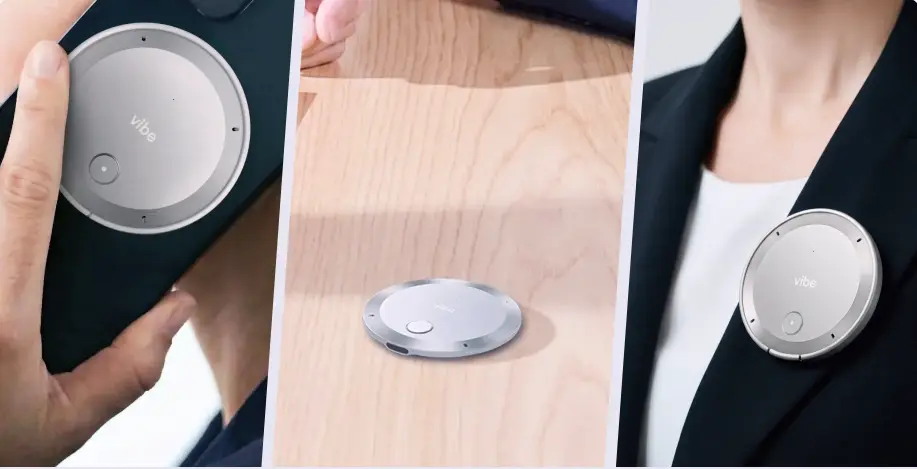
Hardware AI recorders designed for phone calls use a Vibration Conduction Sensor (VCS) that attaches to the back of your iPhone. This sensor picks up the vibrations from your phone’s speaker during a call, capturing both sides of the conversation without routing audio through the iOS call stack—meaning iOS restrictions simply don’t apply. For a deeper look at how different listening device technologies compare, see our guide to listening devices and AI recorders.
What to look for
When evaluating a hardware recorder for phone calls, prioritize:
-
Dual-mode recording (phone call mode + in-person ambient mode)
-
VCS or equivalent phone-contact capture technology—not all wearables support phone calls; for example, some clip-on wearables lack this sensor and are in-person only
-
AI transcription with speaker labels
-
Local storage (so recordings aren’t dependent on a cloud connection mid-call)
-
Compatibility with your workflow integrations (CRM, notes apps, etc.)
Where Vibe Dot fits
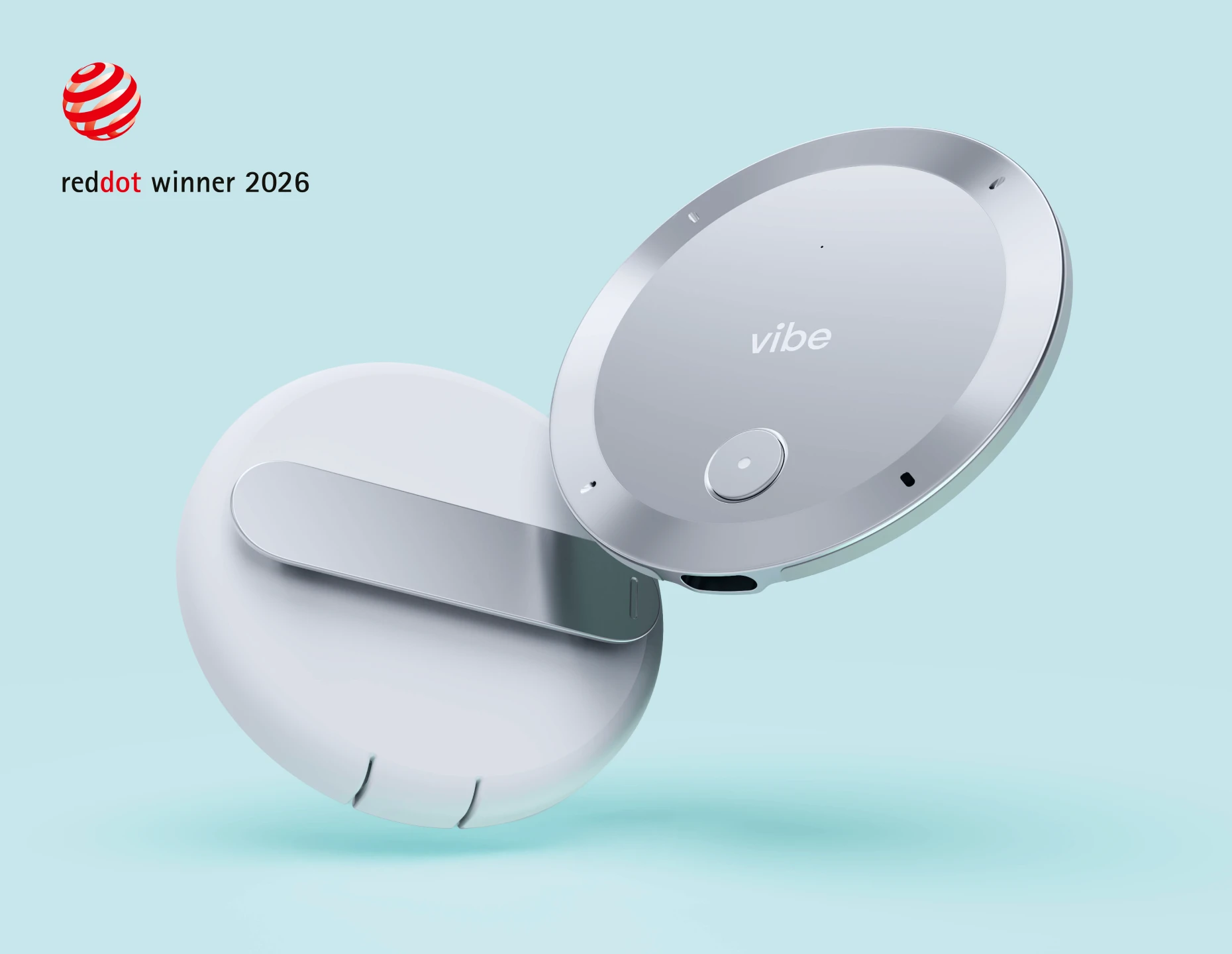
Vibe Dot is a wearable AI recorder built for professionals who move between phone calls, in-person meetings, and hybrid work environments throughout the day. Unlike single-context devices, Vibe Dot is designed as an all-context solution—recording high-quality audio whether you’re on a call, in a conference room, walking between meetings, or at your desk. It connects to Vibe AI, which cross-references your recordings across contexts to surface insights, action items, and memory across scenes. This makes it particularly useful for teams who need consistent note-taking across every type of conversation, not just phone calls.
If your workflow includes recording calls and then needing that information to connect to what was discussed in your afternoon in-person meeting or your evening team sync, a unified AI ecosystem matters—which is where single-mode recorders fall short. For a side-by-side comparison of Vibe Dot against other hardware AI recorders on the market, see Best Plaud Alternatives in 2026.
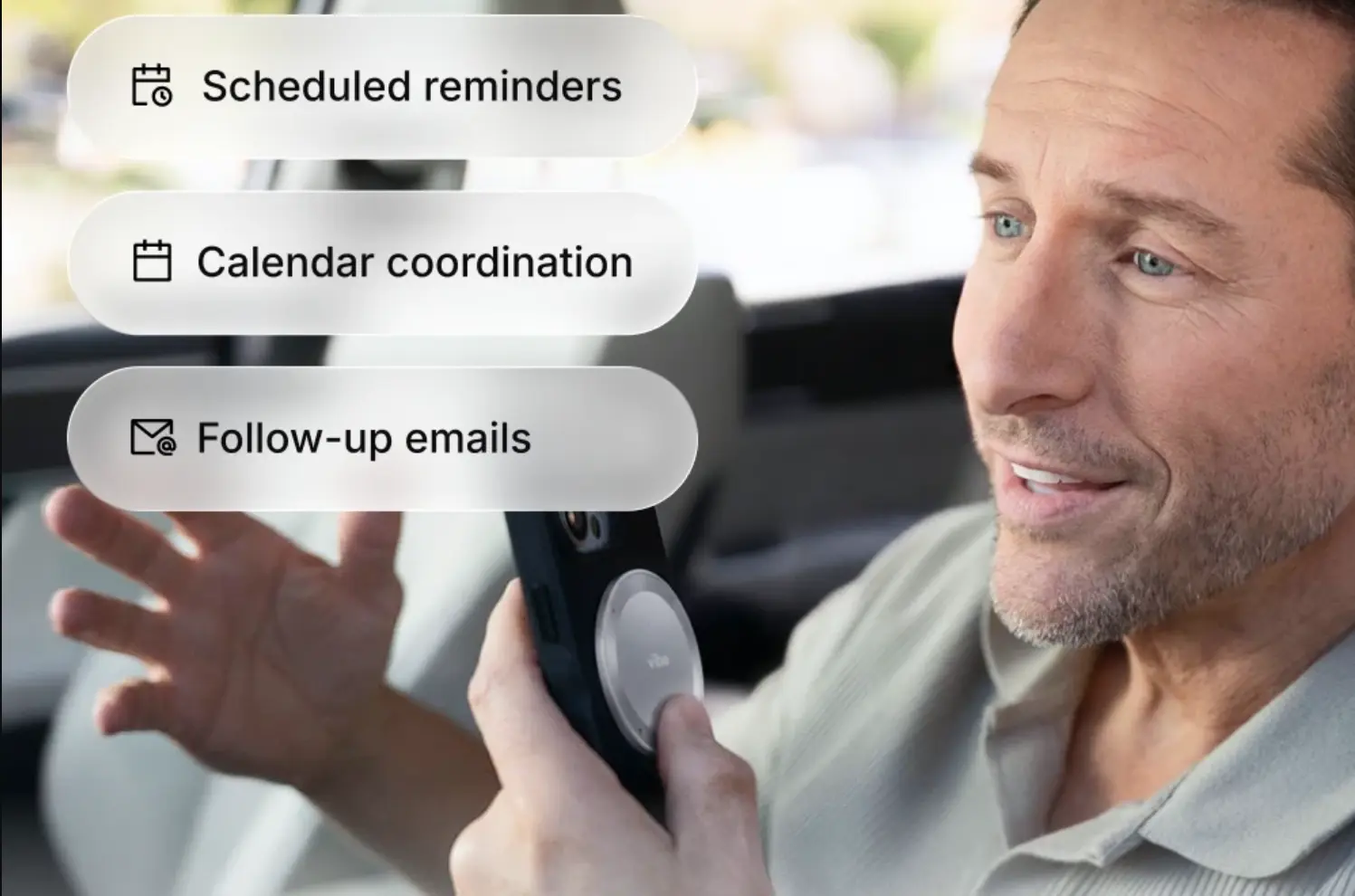 Vibe Dot wearable AI recorder attached to iPhone for phone call recording
Call Recording Laws: US State-by-State Guide
Before you record any call, you need to understand the legal framework. Getting this wrong can result in criminal charges, civil liability, and inadmissible recordings.
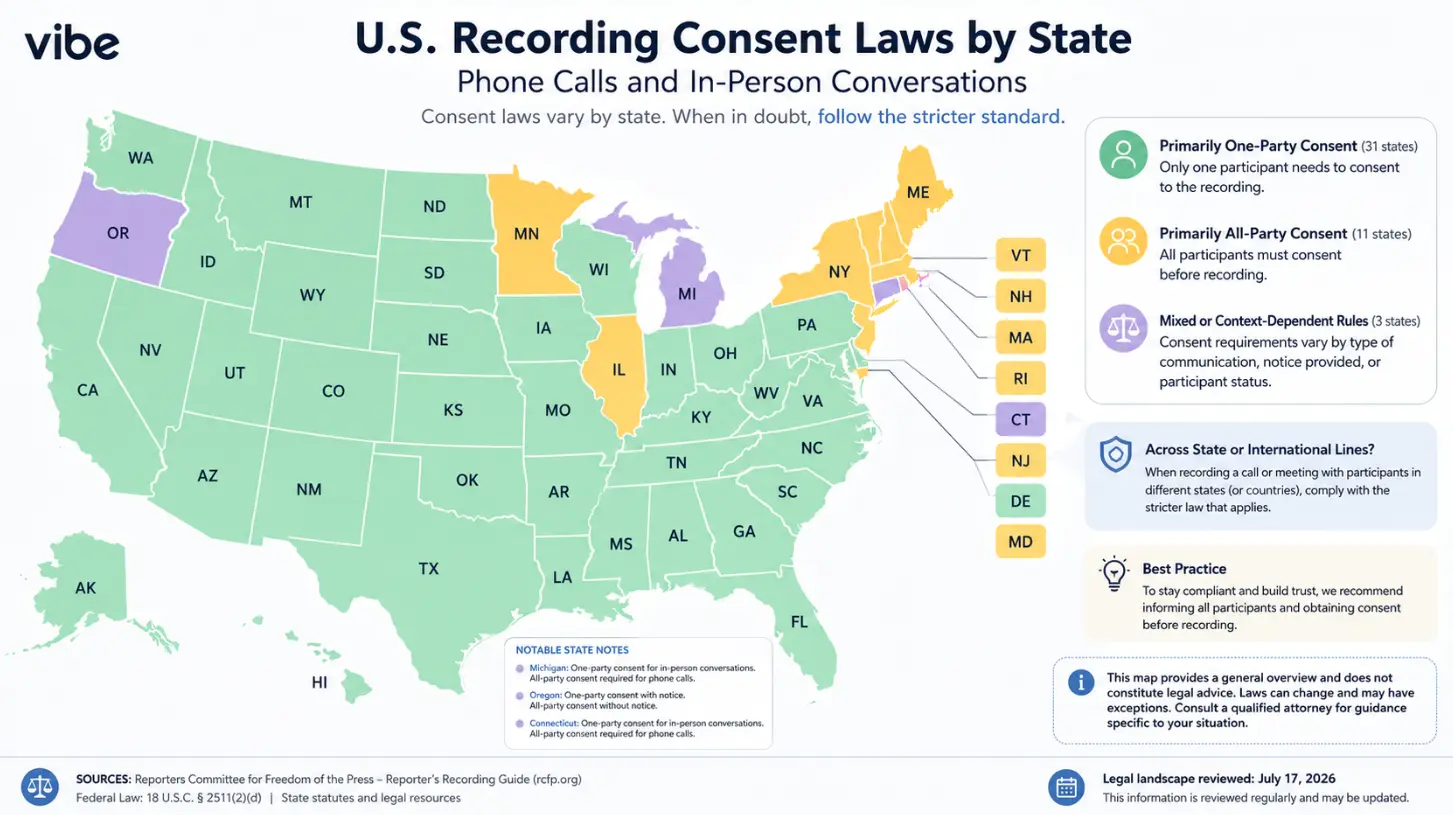 US map showing one-party vs. two-party (all-party) consent states for call recording as of 2026
The federal baseline
Under the federal Electronic Communications Privacy Act (ECPA, 18 U.S.C. § 2511), recording a phone call is legal if at least one party to the call consents. If you are on the call and you decide to record it, your own participation satisfies the one-party consent requirement under federal law.
However, states can—and many do—impose stricter standards. States cannot be more permissive than federal law, but they can require more.
One-party consent states (38 states + DC)
In these states, you can legally record a call you’re a participant in without notifying the other party. As of 2026: Alabama, Alaska, Arizona, Arkansas, Colorado, DC, Georgia, Hawaii (phone calls), Idaho, Indiana, Iowa, Kansas, Kentucky, Louisiana, Maine, Minnesota, Mississippi, Missouri, Nebraska, New Jersey, New Mexico, New York, North Carolina, North Dakota, Ohio, Oklahoma, South Carolina, South Dakota, Tennessee, Texas, Utah, Virginia, West Virginia, Wisconsin, Wyoming, and others.
Safest practice even in one-party states: Announce the recording anyway. It builds trust, reduces disputes, and protects you if the call crosses state lines.
Two-party (all-party) consent states (12 states)
These states require every person on the call to be informed and to consent before recording is legal. As of 2026, the two-party consent states are:
|
State |
Key Notes |
|---|---|
|
California |
Strictest enforcement. Violation is a misdemeanor (§ 632). Civil penalties up to $5,000 per violation. |
|
Connecticut |
All-party for phone calls. |
|
Delaware |
All-party consent required. |
|
Florida |
Felony exposure for intentional violations. |
|
Illinois |
All-party; important for Chicago-based business calls. |
|
Maryland |
All-party consent required. |
|
Massachusetts |
One of the strictest; criminal charges possible. |
|
Montana |
All-party consent required. |
|
New Hampshire |
All-party consent required. |
|
Oregon |
All-party for in-person; verify for phone calls. |
|
Pennsylvania |
All-party consent required. |
|
Washington |
All-party consent required. |
Michigan is often treated as a 13th all-party state due to conflicting court interpretations; take the conservative posture and treat it as all-party.
The interstate call problem
When a call crosses state lines, apply the stricter state’s law. If you’re in Texas calling someone in California, California’s all-party requirement applies. This is the most common compliance mistake on business calls.
Universal best practice: Start every recorded call with: "I’d like to let you know this call will be recorded—is that okay?" This single sentence protects you in every US jurisdiction.
Penalties for violations
-
California: misdemeanor criminal charge + civil damages up to $5,000 per call
-
Florida: felony charge for intentional violations
-
Federal: criminal prosecution under ECPA for egregious cases
Recordings made in violation of consent laws are also typically inadmissible as evidence—the opposite of why most people record.
International Call Recording Rules
Call recording law varies significantly across countries. Here’s a practical snapshot for the most common regions:
European Union: Under GDPR, recording personal phone calls without explicit consent from all parties is generally prohibited. Apple’s native call recording is unavailable in all EU countries for this reason. Business calls have some exceptions depending on the purpose and data handling, but you should consult local counsel.
United Kingdom: One-party consent applies for personal calls, but GDPR-equivalent UK data protection law applies for business calls. Apple’s native recording is available in the UK.
Canada: Federal law (PIPEDA) requires one-party consent, but provincial laws vary. Apple’s native recording is available.
Australia: Commonwealth law generally requires one-party consent; state laws vary. Apple’s native recording is available.
India, China, South Korea: Generally allow one-party consent but have specific telecommunications regulations. Check local law before recording business calls.
When in doubt: Inform all parties and get verbal confirmation before recording. This is the internationally accepted best practice regardless of local law.
Troubleshooting: Why Can’t I See the Record Button?
If you’ve enabled call recording in settings but the option isn’t appearing during calls, work through these checks:
-
Confirm your region is supported. Apple’s native recording is unavailable in dozens of countries. Check Apple’s Feature Availability page to verify your region. If your country is excluded, the toggle in Settings may appear grayed out or absent entirely.
-
Check your iOS version. Call recording requires iOS 18.1 or later. Go to Settings → General → Software Update to check and update.
-
Look in the right place. On iOS 26, the recording button moved from the top-left of the call screen to inside the More menu. If you’re on iOS 26 and looking in the wrong place, you’ll think the feature is gone.
-
Verify storage space. Recordings save locally before syncing. If your iPhone storage is full, recording will fail. Clear space via Settings → General → iPhone Storage.
-
Restart your iPhone. Minor software bugs can cause the feature to disappear. A full restart often resolves it.
-
Reset All Settings (last resort). Settings → General → Transfer or Reset iPhone → Reset → Reset All Settings. This restores settings to factory defaults without deleting your data, and can resolve conflicts causing the feature to not appear.
Summary: Choosing the Right Method in 2026
The landscape of iPhone call recording is better than it’s ever been. For most US users on a current iPhone with iOS 18.1 or later, Apple’s native recording is the simplest starting point—it’s free, built-in, legally transparent, and produces a transcript automatically.
If you’re outside a supported region, on an older device, or need features like AI action items, workflow integrations, or cross-context memory across both phone calls and in-person meetings, third-party apps and AI hardware recorders fill the gap meaningfully.
Whatever method you choose, the legal principle is the same: inform the other party. In all-party consent states and most international jurisdictions, consent isn’t optional. The announcement Apple hardcodes into its native system exists for exactly this reason. Building that transparency into every recorded call—regardless of which method you use—keeps you compliant, builds trust, and ensures your recordings are actually usable when you need them.
This article is for informational purposes only and does not constitute legal advice. Call recording laws change and vary by jurisdiction. Consult a licensed attorney in your jurisdiction before making recording decisions with significant legal implications.
FAQs
Does Apple’s native recording work on FaceTime calls?
Native call recording in the Phone app is for standard cellular and carrier calls. FaceTime audio call recording support varies by iOS version and region—check Apple’s current documentation for the latest.
Can the other person disable my recording?
No. Once recording is initiated and the announcement plays, the other party cannot stop the recording from their end. They can, however, choose to end the call.
Where are recordings stored?
iOS native recordings save to the Notes app, organized by contact and date. Third-party apps store recordings in their own cloud infrastructure (TapeACall, CallRecorderIOS) or locally (varies by app).
How long are recordings kept?
iOS native recordings are kept as long as you don’t delete them from Notes. They sync to iCloud if iCloud Notes is enabled. Third-party app retention depends on the app and your plan.
Can I record a call on iPhone without the other person knowing?
Apple’s native recording system makes silent iPhone call recording impossible—the announcement is mandatory and unbypassable. Third-party apps and hardware recorders do not trigger Apple’s announcement, but in all-party consent states, recording without informing the other party is illegal regardless of the technical method used.
Is call recording admissible in court?
It depends on how it was obtained and the jurisdiction. A recording made legally (with proper consent) in a one-party state is generally admissible. Recordings made in violation of consent laws are typically inadmissible and may expose you to criminal and civil liability. Consult an attorney before relying on any recording for legal purposes.
Does recording affect call quality?
The iOS native recording runs on-device and does not measurably affect call quality. Third-party apps that use the three-way call method can occasionally affect audio clarity depending on signal strength, since a third party is joined to the call.
Can I record calls on iPhone for free?
Yes. The iOS native recording feature is free for users on supported devices in eligible regions. Google Voice offers free incoming call recording for US numbers. Many third-party apps offer limited free tiers; full-featured use typically requires a subscription.