Recording a phone call on Android sounds simple—but the reality in 2026 is that your options depend heavily on your specific phone brand, Android version, region, and whether you’re using Wi-Fi calling. What works on a Google Pixel 9 may not work on a Samsung Galaxy S25. What’s available in the US may be blocked in the EU.
This guide breaks it down by device, walks through every working method, covers the third-party app landscape after Google’s 2022 Play Store restrictions, and explains the legal rules you need to follow before hitting record.
Quick Answer: Which Method Fits Your Phone?
|
Your Device |
Best Starting Point |
|---|---|
|
Google Pixel 6 or newer, Android 14+ |
Native Pixel call recording (Method 1) |
|
Samsung Galaxy with One UI 7+ |
Samsung built-in recording (Method 2) |
|
Xiaomi, OnePlus, Huawei |
Check native dialer first (Method 3) |
|
Any Android, recording not available natively |
Cube ACR or ACR Phone (Method 4) |
|
US users, recording incoming calls only |
Google Voice (Method 5) |
|
Any phone, no app needed |
Speakerphone + second device (Method 6) |
|
Professional use, need both sides clearly + AI |
AI hardware recorder (Method 7) |
Important: Call recording does not work when Wi-Fi calling is enabled on any Android device. Disable Wi-Fi calling before recording a call, regardless of method.
Why Android Call Recording Is More Complicated Than You’d Expect
Android’s open nature once made call recording straightforward—any app could access call audio. That changed incrementally:
Starting with Android 10 (2019), Google restricted direct microphone access during calls for third-party apps. Developers adapted by using the Accessibility API as a workaround.
Then in May 2022, Google updated Play Store policy to ban the Accessibility API workaround entirely: "The Accessibility API is not designed and cannot be requested for remote call audio recording." This wiped out hundreds of call recording apps from the Play Store overnight.
The result in 2026: third-party call recording apps on Android are a fraction of what they once were, and what remains requires workarounds or sideloading. The most reliable path is your phone manufacturer’s native dialer—which is why this guide is organized by device brand first.
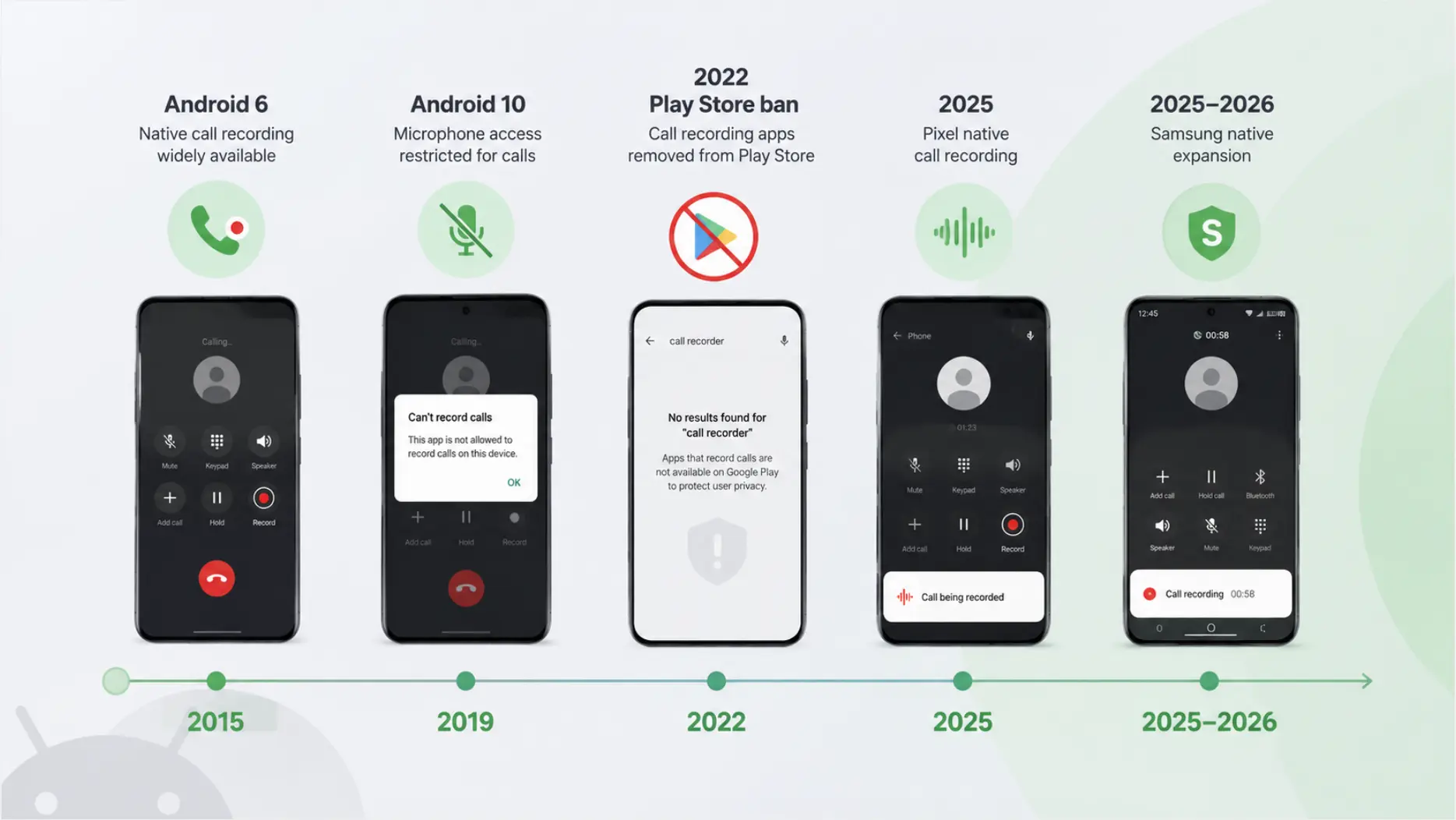 Timeline of Android call recording policy changes from Android 6 to 2026
Method 1: Google Pixel — Native Call Recording
Who this works for
Google Pixel 6 and newer, running Android 14 or later, with the latest version of the Phone app. As of early 2026, Google has rolled out call recording to all supported Pixel models in all countries where local law permits—a significant expansion from the previous US-only availability.
How to enable
-
Open the Phone app.
-
Tap More options (three dots, top right) → Settings.
-
Tap Call Recording.
-
You’ll see options to turn on recording for:
-
All calls — records every call automatically
-
Numbers not in your contacts — useful for unknown callers
-
Selected numbers — set specific contacts to always record
-
Enable your preferred option. A toggle also appears on the live call screen for manual, per-call recording.
How to record during a call
-
Start or receive a call in the Phone app.
-
During the call, tap the Record button on the call screen.
-
An audio announcement plays: "This call is being recorded." Both parties hear this—it cannot be bypassed.
-
Tap Stop recording when done. The recording saves to the Phone app’s call history.
Pixel-specific features
-
Call Notes (Pixel 8 and newer, select regions): AI-generated summaries of calls, available even if full recording isn’t enabled in your region.
-
Automatic transcription: Available in English and expanding to additional languages.
-
Auto-delete: Some regions support automatic deletion of recordings after a set period.
-
Android Auto integration: Call Notes and Call Screen now work with Android Auto, added in late 2025.
Limitations
-
Requires Android 14+. Pixel 5 and older, or devices that haven’t updated, won’t have access.
-
Auto-delete and transcription vary by region.
-
Does not work during Wi-Fi calls.
Method 2: Samsung Galaxy — One UI Call Recording
Who this works for
Samsung Galaxy phones running One UI 7.0 or later (Android 15+). One UI 7 brought call recording and the Transcript Assist feature (record, translate, and summarize calls via Galaxy AI) to the US Galaxy lineup—a feature that was previously unavailable for US Samsung users in earlier One UI versions.
Availability still varies significantly by region. In some markets (including parts of Europe), Samsung disables the feature due to local recording laws.
How to enable auto-recording
-
Open the Phone app.
-
Tap More options (three vertical dots) → Settings.
-
Tap Record calls.
-
Tap Auto record calls and toggle it on.
-
Choose your recording scope: All calls, Unsaved numbers, or Specific numbers.
How to record manually during a call
-
During an active call, tap More options (three dots).
-
Tap Record call.
-
An announcement plays notifying all parties the call is being recorded.
-
Tap the record icon again to stop. Recordings save to My Files → Internal Storage → Recordings → Call.
One UI 7 Transcript Assist
On Galaxy S25 and supported Galaxy AI devices, Transcript Assist lets you:
-
View a live transcript while the call is in progress
-
Get an AI-generated summary after the call ends
-
Translate calls in real time (supported languages vary)
Note: Transcript Assist requires a Samsung account login. Galaxy AI basic features are currently free; advanced AI features may be subject to future fees.
Limitations
-
Not available during Wi-Fi calling—disable Wi-Fi calling first.
-
Feature may be absent or grayed out in certain regions.
-
Transcript Assist not available on Galaxy A56 5G, A36 5G, A26 5G, or A17 5G.
-
On older One UI versions (6 or below), the path to enabling auto-record may differ slightly.
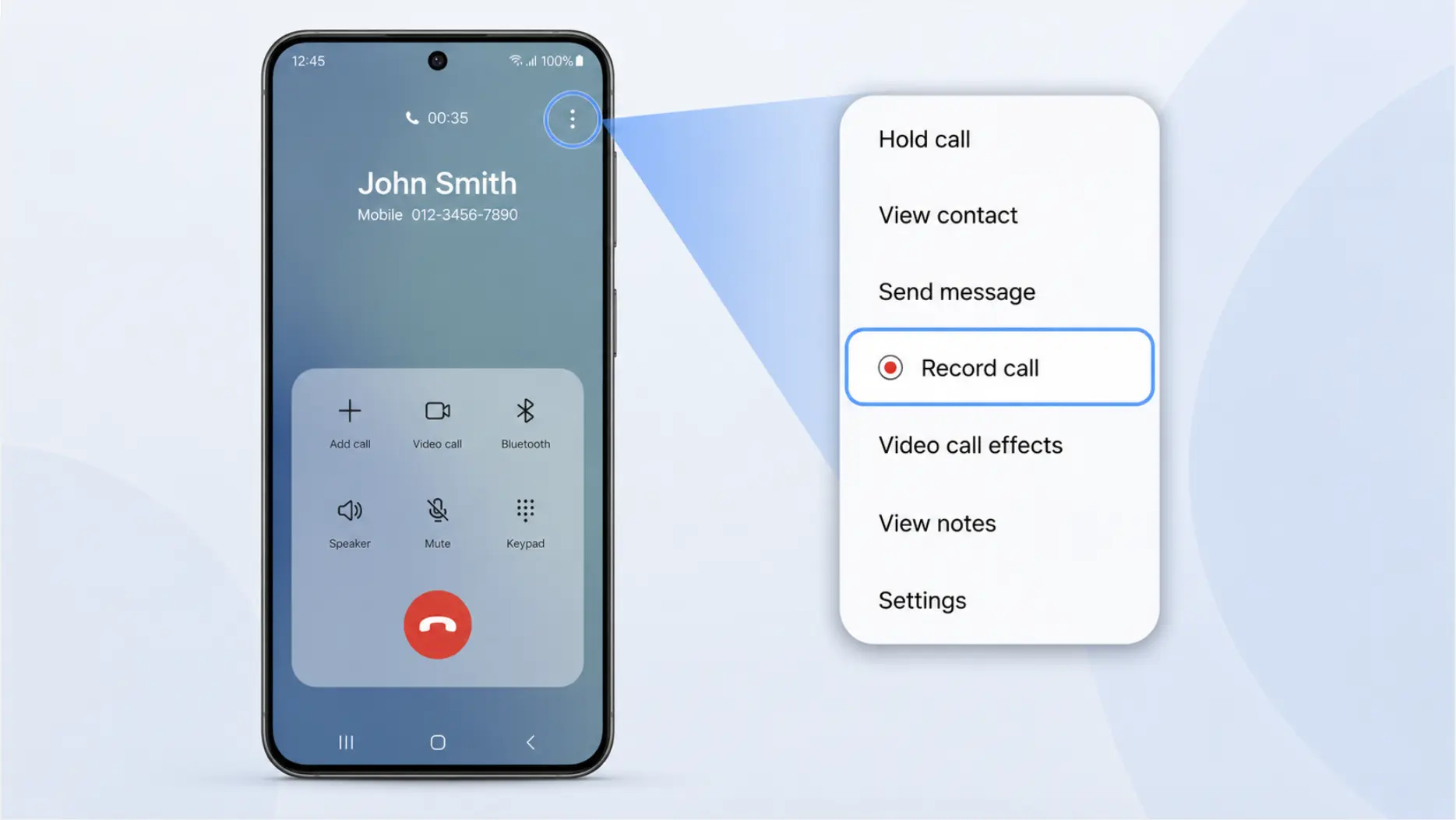 How to tap Record call on a Samsung Galaxy One UI 7 call screen
Method 3: Other Android Brands
Many Android manufacturers outside of Google and Samsung ship phones with native call recording in their dialer apps—often with more flexible regional availability than Pixel or Galaxy devices.
Xiaomi / HyperOS (formerly MIUI)
Xiaomi phones running HyperOS or MIUI generally include call recording directly in the Phone app. The option appears as a Record button on the live call screen, or can be enabled as auto-record in Phone app settings. Xiaomi’s implementation is available in more regions than Pixel or Samsung, making it a popular choice for users in markets where other brands disable the feature.
Steps: During a call → tap More → Record. The recording saves to the File Manager under Recordings.
OnePlus (OxygenOS)
OnePlus phones with OxygenOS include a Record button directly on the call screen for many regions. No separate settings toggle is typically required—the button is visible during active calls. Access recordings through the Phone app’s call log or the local file manager.
Huawei / Honor (EMUI / HarmonyOS)
Huawei and Honor devices generally include built-in call recording available from the call screen during active calls. Recordings save locally to the phone.
Motorola
Motorola phones with stock or near-stock Android vary by model and market. Some models show a Record option during calls; others rely on Google’s Phone app natively. Check the active call screen first—if no Record button appears, the feature isn’t enabled for your region/model.
General approach for any Android phone
If you’re unsure whether your device has native call recording:
-
Start a test call (voicemail or a trusted contact).
-
Look for a Record button on the active call screen, or tap the three-dot menu for a "Record call" option.
-
If neither appears, check Phone app Settings → Call Recording.
-
If it’s still absent, the feature isn’t available natively—move to Methods 4–7.
Method 4: Third-Party Apps (What Still Works After the 2022 Ban)
The 2022 Google Play Store ban eliminated most call recording apps from the Play Store. In 2026, the landscape is limited—but two options still function:
Cube ACR
Cube ACR is the most capable third-party call recorder still standing. It’s available on the Play Store, but to record both sides of a call on recent Android versions, it requires a helper app that uses the Accessibility API, distributed separately (through the Galaxy Store on Samsung devices, or directly from the developer’s website for others).
What it records:
-
Standard phone calls (both sides, with helper app installed)
-
VoIP calls: WhatsApp, Telegram, Google Meet, and others
-
Works on Android without rooting
Setup:
-
Install Cube ACR from the Google Play Store.
-
Go to Cube ACR settings → Miscellaneous → enable Cube ACR App Connector.
-
Install the App Connector (available from Galaxy Store on Samsung, or the Cube developer site for others).
-
Grant Accessibility Service permissions when prompted.
-
Set recording audio source to Voice Recognition (Software) in settings → Recording, and enable Force In-Communication Mode.
Recording quality varies significantly by device. On some phones both sides come through clearly; on others only one side records. Test before relying on it.
Important: Sideloading the helper app outside the Play Store requires enabling "Install from unknown sources" in Android settings. Be aware of the security implications and only download from the official developer source.
ACR Phone
ACR Phone is a full dialer app (not just a recorder add-on) available on the Google Play Store. It bundles call recording directly into the dialer, which allows it to access call audio through the phone system rather than the restricted microphone path. It supports caller ID, call blocking, and auto-recording alongside the recording function.
Best for: Users who are willing to switch to a different default dialer to get reliable recording without sideloading.
What no longer works
-
Automatic Call Recorder (ACR) by NLL — was removed from Play Store in 2022 after the API ban.
-
Any app that relies solely on the microphone to capture call audio — will only record your side of the conversation, not the caller’s.
-
Rev Call Recorder — discontinued as of 2024. No longer available.
Method 5: Google Voice (US Incoming Calls)
Google Voice offers free incoming call recording for US users. The setup differs slightly on Android compared to iOS:
-
Set up or sign into your Google Voice account at voice.google.com.
-
In the Google Voice app, go to Settings → Calls.
-
Enable Incoming call options.
-
When a call comes in on your Google Voice number, press 4 on the keypad to start recording. Press 4 again to stop.
-
Google Voice announces to all parties that recording has begun.
Limitations:
-
Only records calls made to your Google Voice number—not your regular carrier number.
-
Outgoing call recording not supported.
-
US only.
-
Requires the caller to dial your Google Voice number, which limits use to situations where you can direct people to that number in advance.
Best suited for journalists, researchers, and podcasters who conduct scheduled interviews.
Method 6: Speakerphone + External Device
This is the most universal fallback—no app, no setup, works on any Android phone in any region.
-
Start your call and put it on speakerphone.
-
Use a second device (another phone, tablet, or dedicated voice recorder) to record the audio from the room.
-
Place the second device near the phone for best audio capture.
Limitations:
-
Audio quality is lower than native recording—room echo, ambient noise, and uneven volume between your voice and the caller’s.
-
Privacy: anyone in the room hears the conversation.
-
Not practical in offices or public spaces.
-
Legal compliance is still your responsibility—no automatic announcement is played.
This method works in emergencies when every other option has failed, but produces recordings that are rarely professional-grade.
Method 7: AI Hardware Recorder
For professionals who need consistently reliable, high-quality, two-sided call recordings regardless of Android version, carrier, or region, a dedicated AI hardware recorder bypasses the software restrictions entirely.
How hardware recording works on Android
Unlike iPhone (which uses Vibration Conduction Sensor technology), Android’s more open audio routing means some hardware recorders can connect via the headphone jack or USB-C audio adapter to tap the call audio signal directly—capturing both sides of the call at the electrical signal level, outside the reach of Android’s software restrictions entirely.
Wearable AI recorders that work as ambient microphones during in-person meetings can also capture phone calls when the call is placed on speakerphone, offering a higher-quality alternative to the basic speakerphone + phone method.
What to look for
-
Dual-mode recording: Both phone call capture and in-person ambient recording in one device
-
AI transcription with speaker labels: So recordings become searchable, actionable notes—not just audio files
-
Local on-device storage: Recordings shouldn’t depend on a cloud connection during the call
-
Cross-context memory: If your work spans phone calls, in-person meetings, and video calls, a recorder that connects all three contexts is far more valuable than one optimized for a single scenario
Vibe Dot for Android users
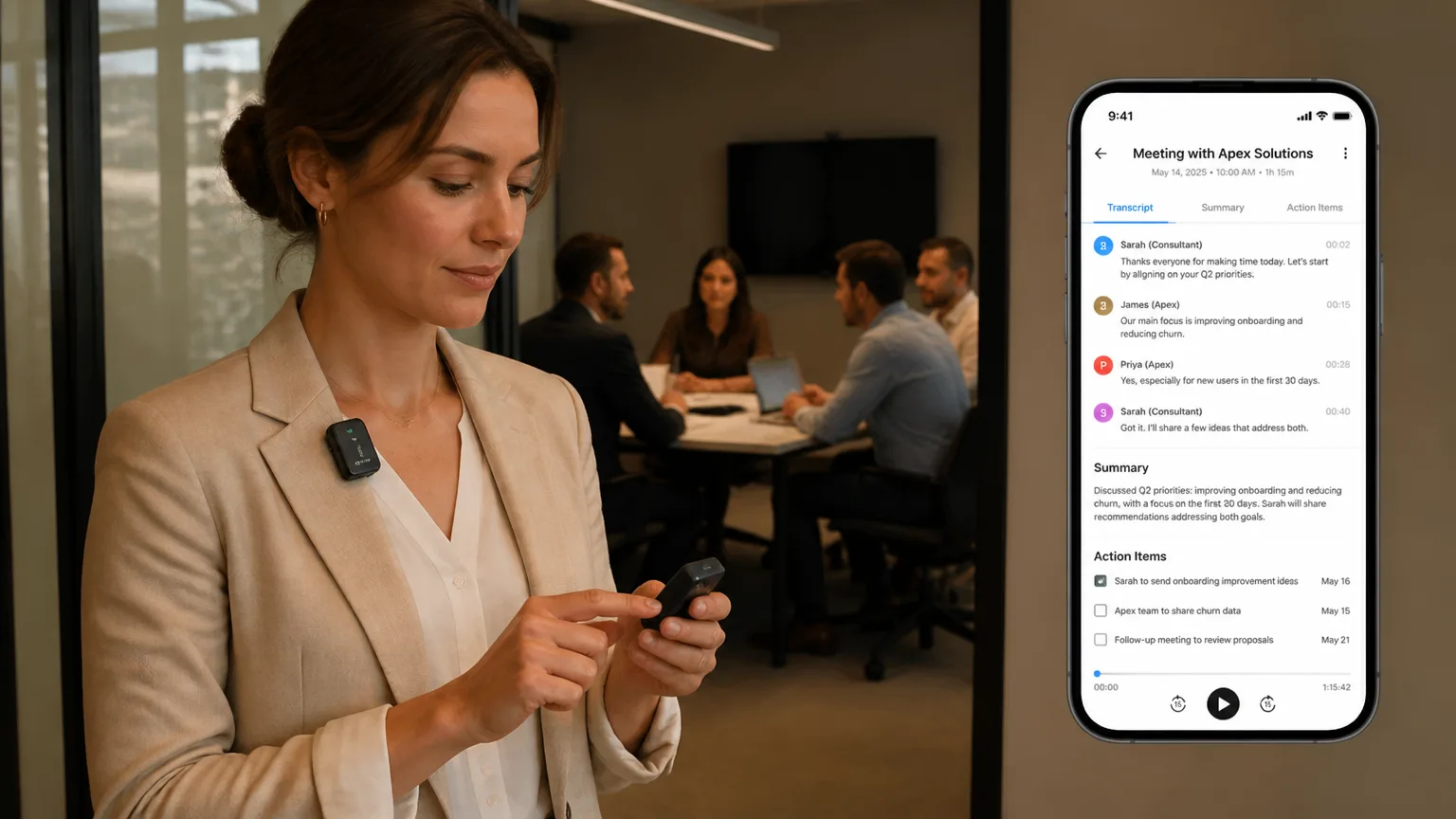
Vibe Dot is a wearable AI recorder built for professionals whose work spans multiple contexts throughout the day—phone calls, in-person meetings, client visits, and team syncs. Rather than recording only one type of conversation, Vibe Dot captures audio across all of them, with Vibe AI organizing the information into transcripts, summaries, and action items that persist and connect across sessions.
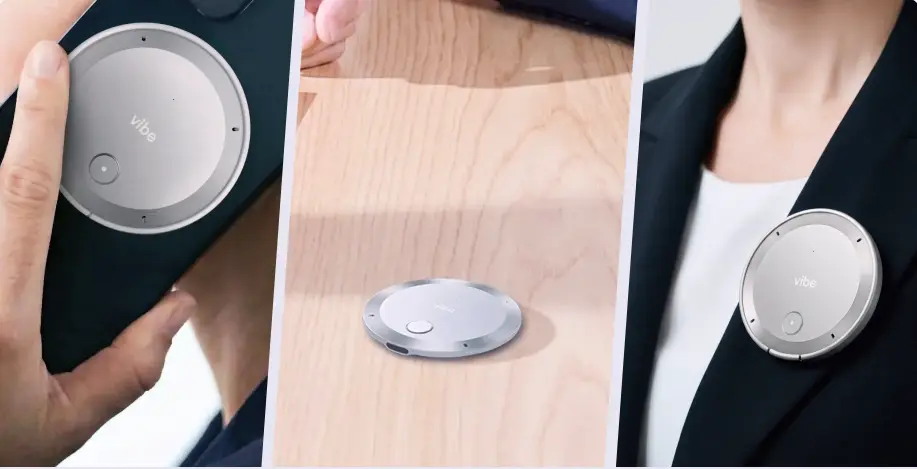 Vibe Dot wearable AI recorder for Android and iPhone users who need all-context call recording
For Android users who need recordings that go beyond what’s available natively—or who want a hardware solution that works equally well on Android and iPhone—Vibe Dot’s all-context approach removes the need to manage separate tools for different recording scenarios. See how it compares to other options in the best wearable AI recorders guide and the full best AI note takers guide.
Call Recording Laws You Must Know
The legal framework for Android call recording is identical to iPhone call recording—the laws apply to the act of recording, not the device you use. Here’s what matters most.
US federal law
Under the Electronic Communications Privacy Act (ECPA), you can legally record a call you’re participating in without telling the other party, as long as you’re in a one-party consent state. If you’re in a two-party (all-party) consent state, everyone on the call must be informed and agree.
Two-party consent states (as of 2026)
California, Connecticut, Delaware, Florida, Illinois, Maryland, Massachusetts, Montana, New Hampshire, Oregon, Pennsylvania, and Washington require all-party consent. Michigan is effectively treated as all-party due to conflicting court interpretations.
The interstate rule
When a call crosses state lines, apply the stricter state’s law. Calling someone in California from Texas? California’s all-party requirement applies.
International
-
European Union: GDPR generally requires explicit consent from all parties. Recording without informing participants is prohibited for personal data.
-
UK, Canada, Australia: Generally one-party consent with nuances—Apple’s native recording is available in these countries, signaling their compliance frameworks allow it.
-
India, Xiaomi’s home market: One-party consent generally applies; Xiaomi and other manufacturers have historically made call recording widely available here.
The universal rule
Whatever your region, announcing that a call is being recorded is the safest practice everywhere. Android’s native recorders on Pixel and Samsung play an automatic announcement—this is by design, not just a courtesy. If you’re using a method that doesn’t announce recording, that compliance burden falls entirely on you.
Troubleshooting Common Problems
No Record button on the call screen The most common cause: Wi-Fi calling is enabled. Disable it in Settings → Connections → Wi-Fi Calling (exact path varies by device). Also check that call recording is enabled in Phone app settings—on Samsung One UI 7, the in-call Record button only appears after enabling Auto record in Settings first.
Record button is grayed out or missing entirely Your region may not support the feature. Samsung and Pixel both enforce regional availability at the software level. If you’re in a region where call recording is prohibited (many EU countries, for example), the option will be hidden or disabled regardless of your settings.
Recording only captures one side (your voice) This is a common issue with third-party apps that capture via the microphone rather than the call audio stream. Switch to a native recording method, or use Cube ACR with the App Connector helper properly installed and Accessibility Service enabled. Also confirm Wi-Fi calling is disabled.
App Connector won’t install On Samsung, try installing the Cube ACR App Connector from the Galaxy Store rather than a third-party site. On other devices, enable "Install from unknown sources" (Settings → Security) before installing from the developer’s website. Re-enable security restrictions afterward.
Recordings save but have no audio / are silent This often happens when the Force In-Communication Mode setting isn’t enabled in Cube ACR, or when the recording audio source is set incorrectly. Go to Cube settings → Recording → set audio source to Voice Recognition (Software) and enable Force In-Communication Mode.
Call Notes available but not full recording (Pixel) Pixel 9 and newer have Call Notes (AI summaries without full audio recording) in more regions than full Call Recording. If you see Call Notes but no recording option, full recording isn’t yet available in your country.
Feature disappeared after an OS update Android updates can reset call recording settings or move the feature’s location. After a major update, re-verify your settings path. On Samsung, One UI updates sometimes require re-enabling the auto-record toggle.
Android vs. iPhone Call Recording: Key Differences
If you’re reading this after also looking at iPhone call recording, here’s the bottom line comparison:
|
Android (Pixel/Samsung) |
iPhone (iOS 26) | |
|---|---|---|
|
Native recording |
Yes (Pixel 6+, Samsung One UI 7+) |
Yes (iOS 18.1+, supported regions) |
|
Auto-record all calls |
Yes (Pixel and Samsung) |
No—manual only |
|
Announcement to other party |
Yes, mandatory |
Yes, mandatory |
|
Third-party apps |
Limited (post-2022 ban) |
Limited (iOS architecture) |
|
VoIP recording |
Cube ACR (workaround) |
Not supported natively |
|
Regional availability |
Broader (especially Xiaomi/OnePlus) |
Narrower (EU blocked) |
For users who move between Android and iPhone, or who work in teams with mixed devices, an AI hardware recorder remains the most consistent cross-platform solution.
This article is for informational purposes only and does not constitute legal advice. Call recording laws vary by jurisdiction and change over time. Consult a licensed attorney before making recording decisions with significant legal implications.
FAQs
Does Android call recording work on WhatsApp and other VoIP calls?
Standard native call recording (Pixel, Samsung) only captures regular cellular calls—not WhatsApp, Signal, FaceTime, or other VoIP apps. Cube ACR with the App Connector is the only third-party option that can record VoIP calls on Android, though results vary by app and device.
Can I record calls automatically without touching the phone?
Yes, on Pixel (Android 14+) and Samsung One UI 7+: enable Auto record in Phone app settings → Call Recording, set it to "All calls" or "Numbers not in your contacts," and recording starts automatically. Manual action isn’t required per call.
Does Android’s native call recording notify the other person?
Yes. Both Google Pixel and Samsung Galaxy play an automatic announcement when recording begins. This cannot be disabled. If you use a third-party app or hardware recorder, no automatic announcement plays—you are legally responsible for obtaining consent where required.
Where are recordings stored?
Pixel: in the Phone app’s call history (audio accessible from there, may also appear in Files). Samsung: My Files → Internal Storage → Recordings → Call. Third-party apps: in their own in-app library or a folder you specify during setup.
Does call recording work on a carrier-locked phone?
The carrier lock affects which network you use, not which features are available in the Phone app. Call recording availability is determined by your Android version, manufacturer, and region—not carrier lock status.
Can I record a call on Android without the other person knowing?
In one-party consent states and countries, you can legally record without notifying the other party. However, both Pixel and Samsung’s native systems play an automatic announcement—so if you’re using native recording, the other party will always know. Third-party apps and hardware recorders do not trigger this announcement. Legal responsibility remains yours regardless of method.
Do call recording apps work on Android 15/16?
Native manufacturer apps (Pixel, Samsung One UI 7+) work fine. Third-party Play Store apps that rely on the microphone only capture your side. Cube ACR with the App Connector workaround still functions but requires sideloading the helper app.
Can I use the same AI recorder for both my Android and my team’s iPhones?
Hardware AI recorders like Vibe Dot work across both platforms—the recording hardware is phone-agnostic, and the Vibe AI app is available for Android and iOS. This makes it the most practical solution for teams using mixed devices.