Working remotely means your tools are your office. The apps you choose determine whether your day flows—or whether you spend it hunting for files, repeating yourself in meetings, and losing track of what was decided. According to Gallup's 2026 State of the Global Workplace report, hybrid and remote workers now represent the majority of office-compatible roles worldwide, and the gap between workers with the right tools and those without shows up directly in output and engagement.
This guide covers 25 of the best remote work tools in 2026—organized by what you actually need to get done, with current pricing so you can build a stack that works for you.
Top 7 Video Conferencing Tools
1. Zoom
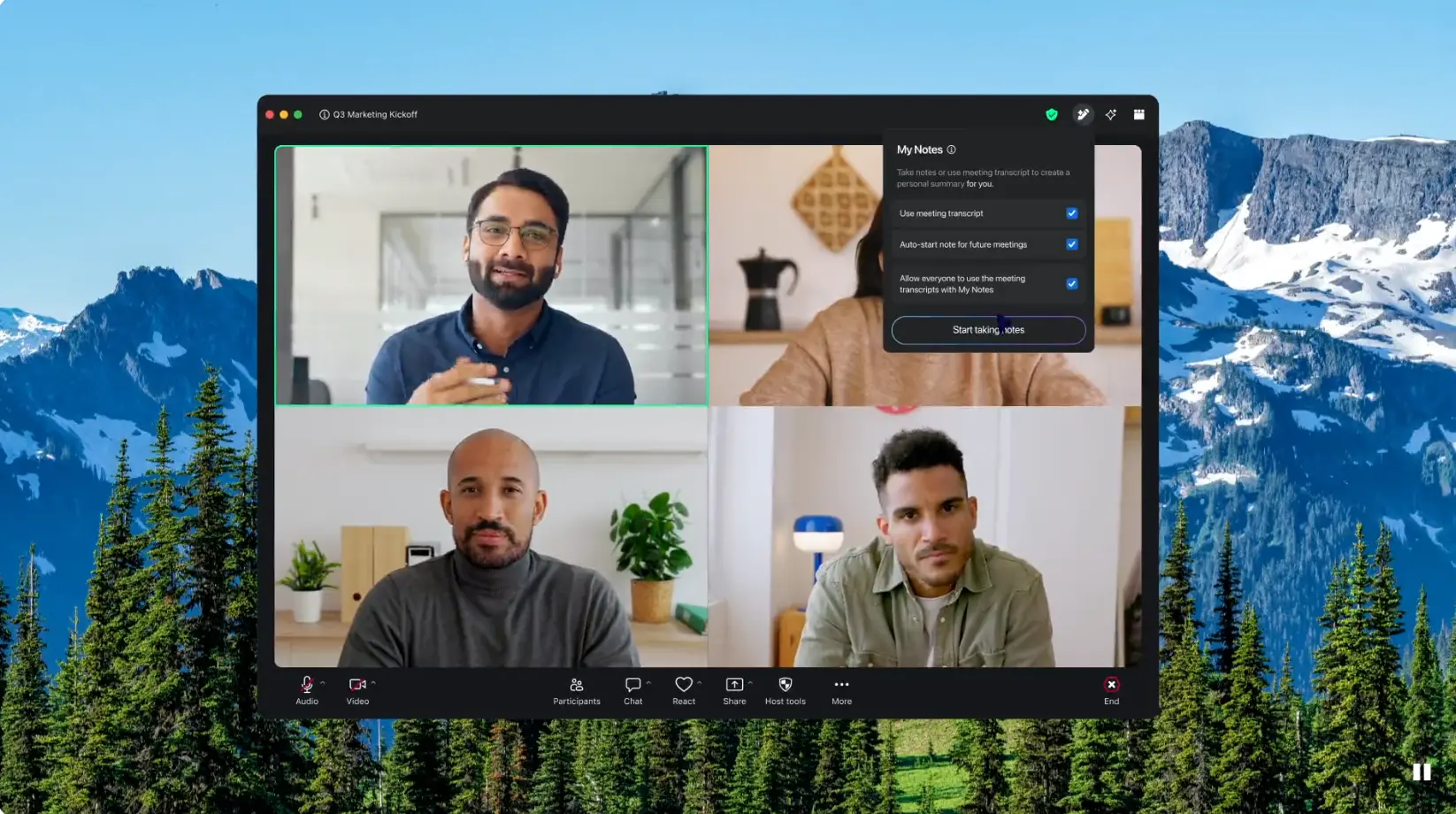
Zoom is the tool most people default to when they need a reliable video call—and for good reason. Whether you're presenting to a client, running a team standup, or jumping on a quick one-on-one, it works consistently across devices and connections.
 Zoom
ZoomKey features
-
HD video and audio, works in-browser or via app
-
Built-in meeting recording and AI-generated transcription
-
Breakout rooms for smaller group conversations within a meeting
-
Integrations with Slack, Google Calendar, Outlook, and more
-
Free plan available for meetings under 40 minutes
Pricing: Free plan available. Pro starts at $13.33/user/month.
2. Google Meet
Google Meet is the easiest option if you're already living in Gmail and Google Calendar. Meetings show up in your calendar automatically, guests join with one click—no app download required—and recordings go straight to your Drive.
Key features
-
Browser-based—no download required for guests
-
AI-generated captions and meeting summaries
-
Integrated directly with Google Calendar, Drive, and Docs
-
Noise cancellation and live translation
-
Included with any Google Workspace plan
Pricing: Free with a Google account (60-minute group call limit). Included with Google Workspace from $6/user/month.
3. Microsoft Teams
If your workplace runs on Microsoft 365, Teams is already available to you. It's more than a video call tool—it's a full communication hub where you can chat, share files, co-edit documents, and join meetings without switching apps.
 Teams
TeamsKey features
-
HD video with AI-powered background blur and noise suppression
-
Real-time chat and file sharing alongside video calls
-
Deep integration with Word, Excel, PowerPoint, and Outlook
-
Up to 1,000 participants in a single meeting
-
App integrations with 700+ third-party tools
Pricing: Free plan available. Microsoft 365 Business Basic starts at $6/user/month.
4. Webex
Webex is worth knowing about if you work in an industry with strict compliance requirements—healthcare, government, financial services. It offers end-to-end encryption and government-grade security at higher tiers, with AI transcription and meeting summaries built in.
 Webex
WebexKey features
-
AI-powered transcription, highlights, and action item detection
-
Noise removal for both ends of the call
-
Breakout sessions and in-meeting polling
-
HIPAA and FedRAMP compliance available
-
Works on desktop, mobile, and browser
Pricing: Free plan available. Paid plans from $14.50/user/month.
5. Dialpad
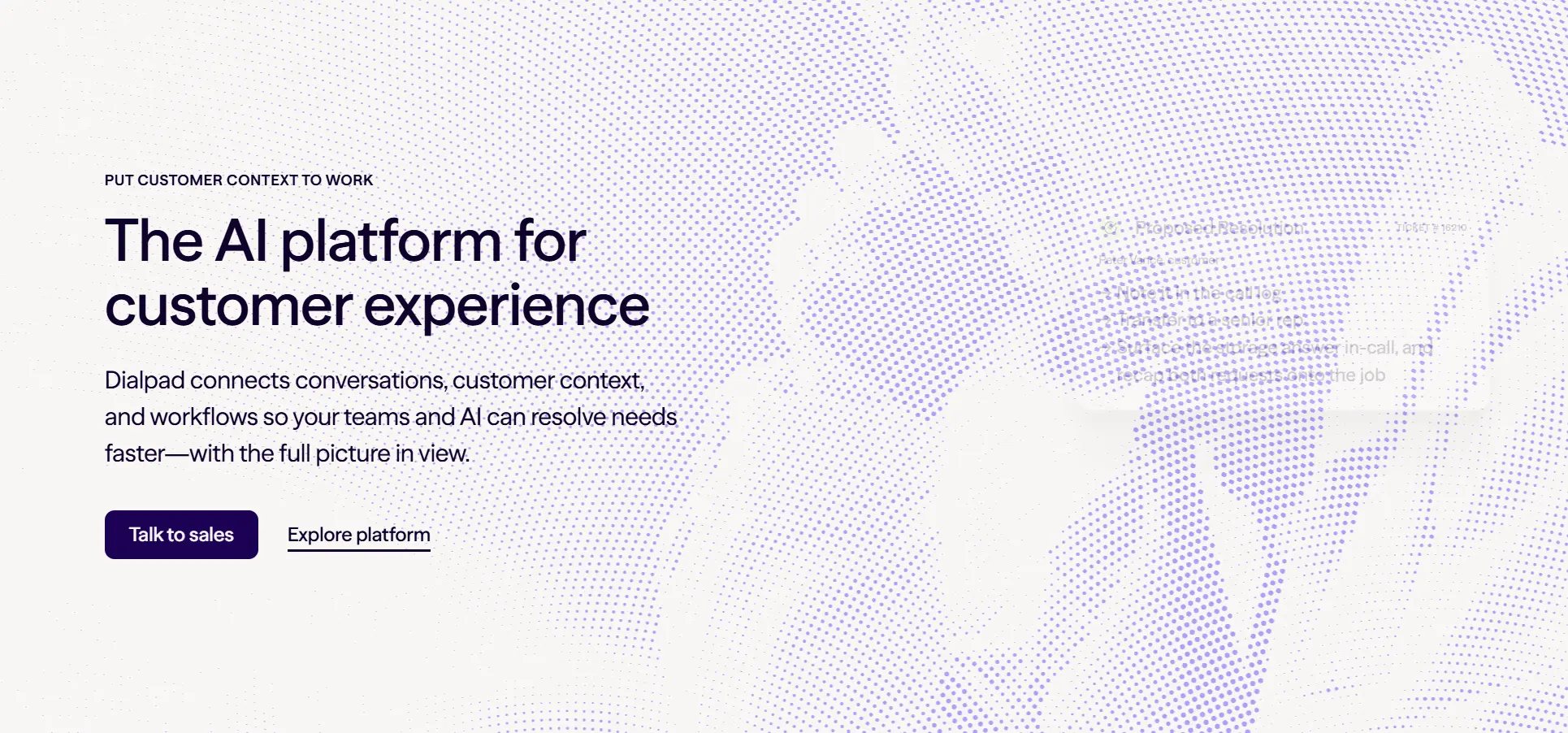
Dialpad is the call tool for people who need to capture everything. It transcribes your calls in real time, generates AI summaries automatically, and includes a built-in phone system—so you can handle video meetings, phone calls, and SMS from one app.
 Dialpad
Key features
-
Real-time voice transcription during every call
-
AI-generated meeting summaries and action items
-
Built-in cloud phone system with SMS and voicemail transcription
-
Unlimited call and meeting recording
-
Integrations with Salesforce, HubSpot, Slack, and Google Workspace
Pricing: Standard plan from $15/user/month.
6. Whereby
Whereby is the no-friction option for quick calls. You get a permanent personal meeting room with your own URL—share it once, and anyone can join whenever you're ready, no account or download required on their end.
 Whereby
Key features
-
Browser-based with no downloads for guests
-
Persistent personal room URL that never changes
-
Breakout groups and a built-in collaborative whiteboard
-
Works on any device without setup
-
Integrations with Slack, Google Calendar, and Trello
Pricing: Free plan (1 host room). Paid plans from $6.99/host/month.
7. Vibe Bot
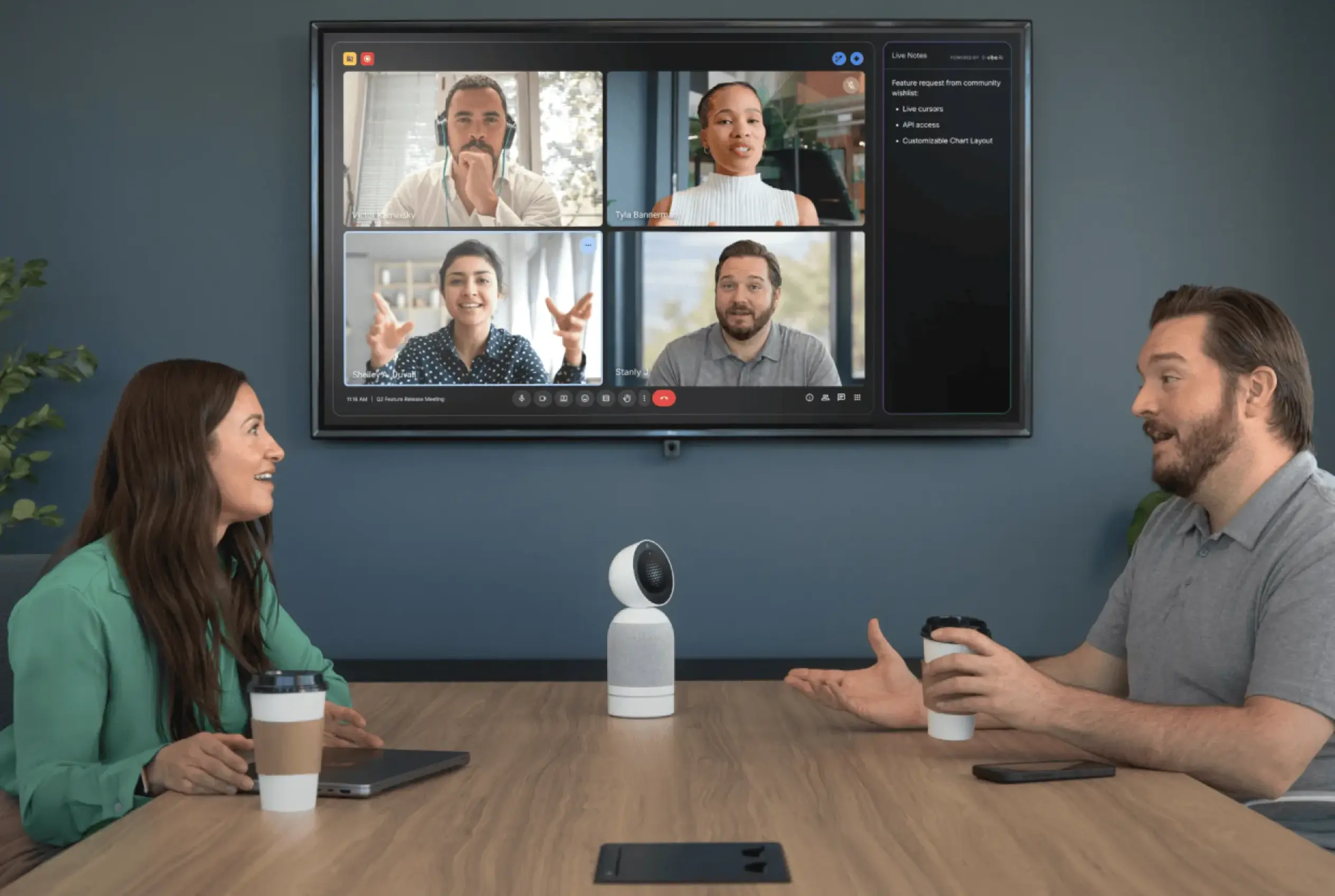
Vibe Bot is the conference room upgrade for hybrid workers who are tired of being the remote participant who can't hear half the conversation. It sits on the table, captures the full room with a 6-mic beamforming array and 360° 4K auto-framing camera, and joins Zoom, Google Meet, or Microsoft Teams with one tap—no laptop required. Every meeting ends with a speaker-tagged transcript and AI summary available instantly via QR code or the Vibe portal.
 Vibe Bot
Key features
-
6-mic beamforming array and 360° 4K auto-framing camera
-
Joins Zoom, Google Meet, and Microsoft Teams with one tap
-
Live in-room Ask AI: ask questions during the meeting and get answers on the device
-
Speaker-tagged transcripts, AI summaries, and action items at meeting end
-
Workflow integrations with Slack, Jira, Linear, and CRM tools (coming soon)
Pricing: Starting at $1,599. Vibe AI includes a free tier; advanced AI features available on paid plans.
Top 9 Task and Project Management Tools
8. Vibe Dot
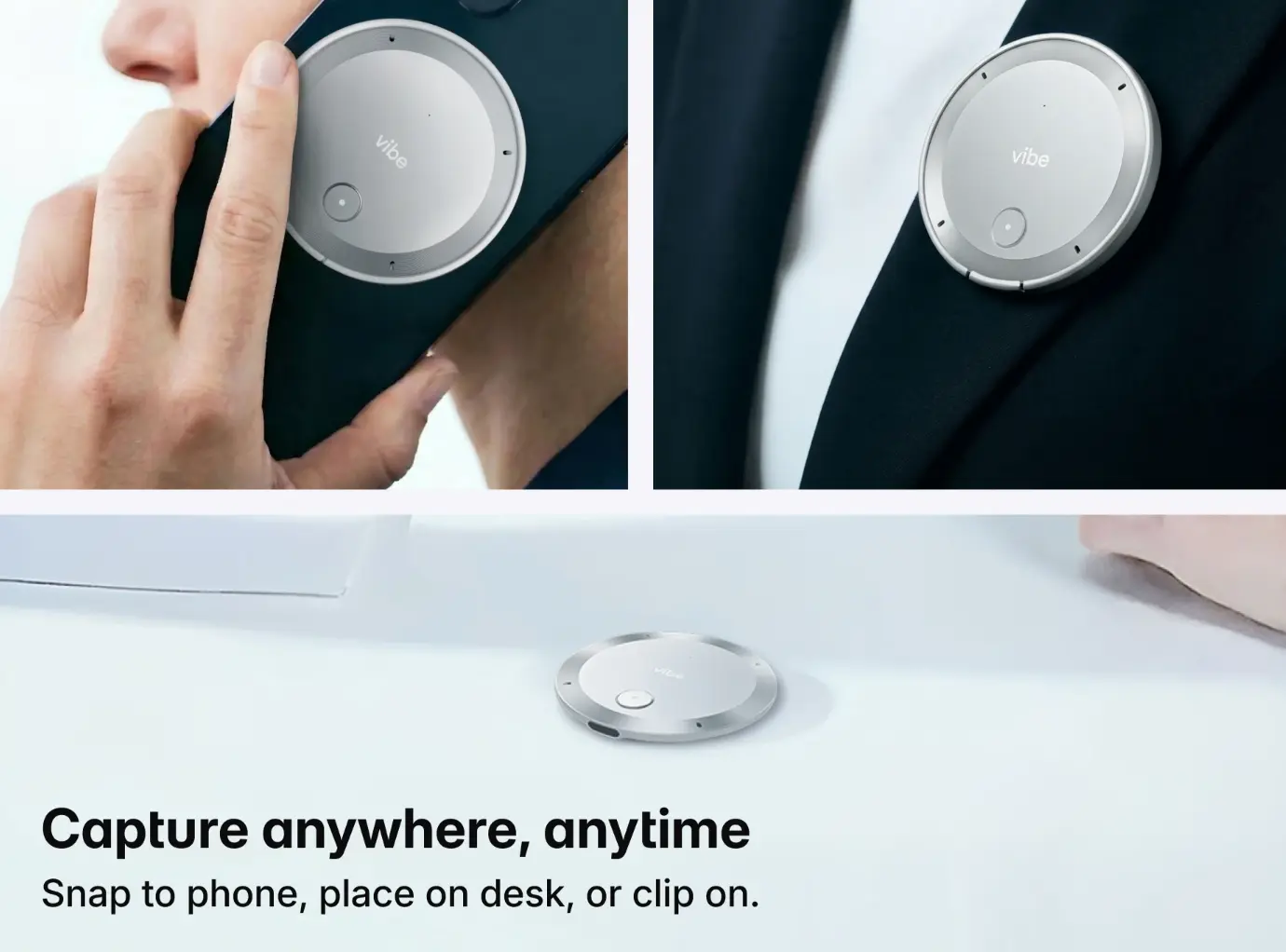
Most remote workers have the same problem: decisions get made on calls, action items get assigned in meetings, and by the next day half of it is gone. Vibe Dot is a wearable AI recorder that makes sure nothing falls through the cracks. Clip it to your lapel or snap it to your phone, and it captures every conversation—client calls, one-on-ones, field visits—then generates speaker-labeled transcripts, AI summaries, and action items automatically, ready the moment the conversation ends.
 Vibe Dot
Everything feeds into Vibe AI's Memory Graph: a cross-session knowledge layer that connects decisions and context across days and weeks. Ask it what was decided on last Tuesday's call and get a sourced answer. For sales reps, this matters even more—the details missed between calls are often what costs the deal. For field workers and project managers, it's the difference between a meeting that drives work forward and one that gets forgotten. On Pro plans and above, Vibe Dot can connect to Claude and other AI models for agentic actions—turning meeting output directly into tasks and follow-ups in your project management tools (coming soon).
Key features
-
5-mic array with voice isolation in noisy environments
-
Auto-capture by voice recognition or scheduled time window
-
Speaker-separated transcripts and AI summaries at conversation end
-
Memory Graph connects context and decisions across all past sessions
-
Ask AI questions about any past meeting and get sourced answers
-
Agentic actions via Claude and other AI models (coming soon)
Pricing: Starting at $199. Includes Vibe AI Starter free forever—300 mins of AI transcription/month, speaker-labeled transcripts, meeting summaries, action items, and Ask AI for the last 7 days. Pro ($9/seat/month) extends memory to 12 months and adds task creation in Jira, Asana, and Linear.
9. Asana
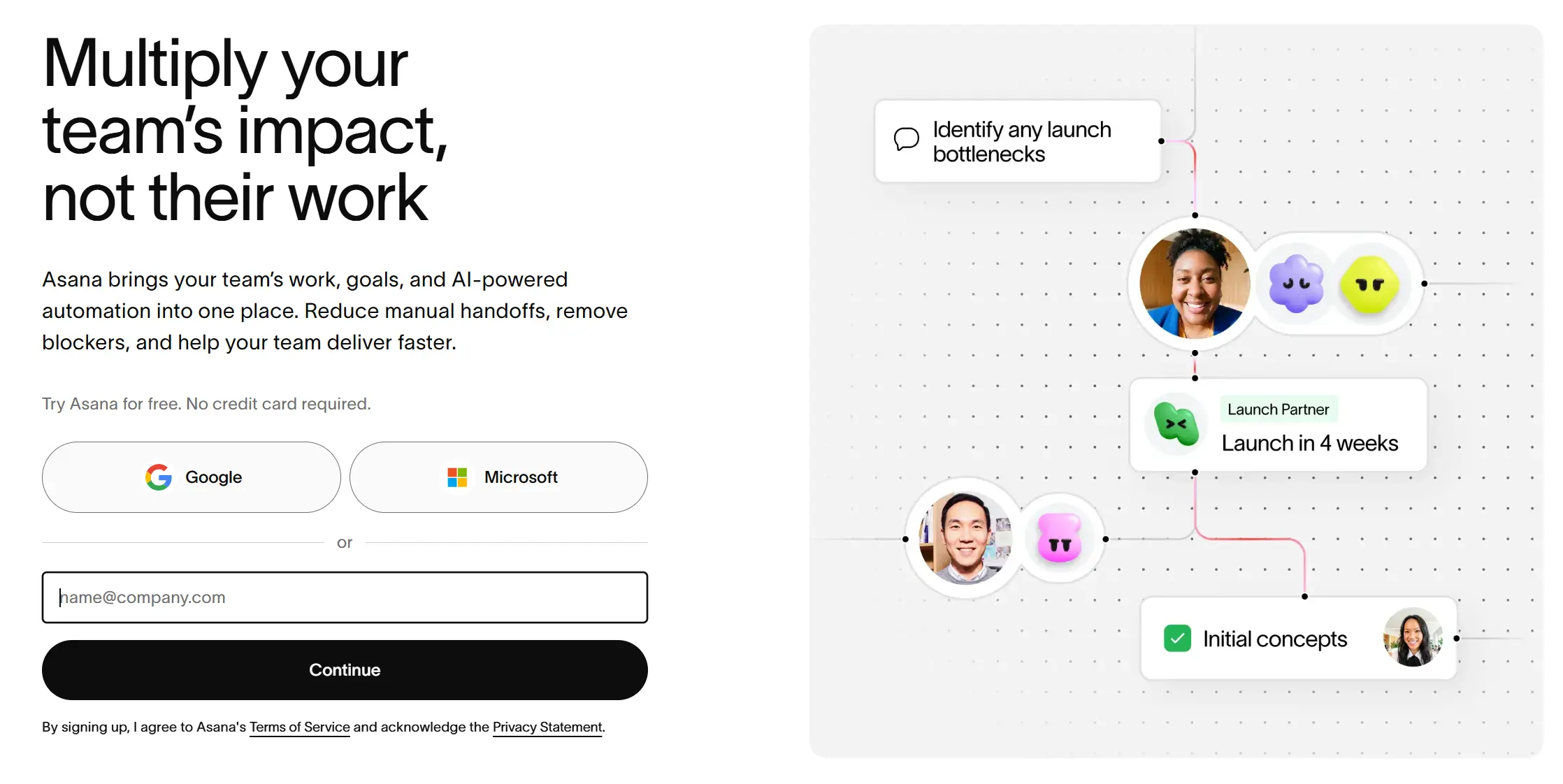
Asana is built for people who need to track a lot of moving parts at once. You can manage your own tasks, coordinate with others, set deadlines, and see exactly where every project stands—without a meeting to check in.
Key features
-
Tasks, projects, and timelines in one place
-
Multiple views: list, board, calendar, Gantt, and workload
-
Automated workflows to handle repetitive handoffs
-
My Tasks view for personal daily planning
-
Integrations with Slack, Google Workspace, Zoom, and 200+ more
Pricing: Free plan available. Premium from $10.99/user/month.
10. Trello
Trello is the visual to-do list that most people can pick up in ten minutes. Drag cards between columns to track progress, add checklists and due dates, and share boards with anyone who needs visibility into your work.
Key features
-
Kanban-style boards with drag-and-drop cards
-
Checklists, due dates, attachments, and labels per card
-
Multiple view options: board, timeline, calendar, and table
-
Butler automation for repetitive actions
-
Free iOS and Android apps
Pricing: Free plan available. Standard from $5/user/month.
11. Notion
Notion is the tool for people who want their notes, tasks, wikis, and project tracking in one place rather than spread across five apps. You can build it to work exactly how you think—whether that's a simple daily journal or a full project database.
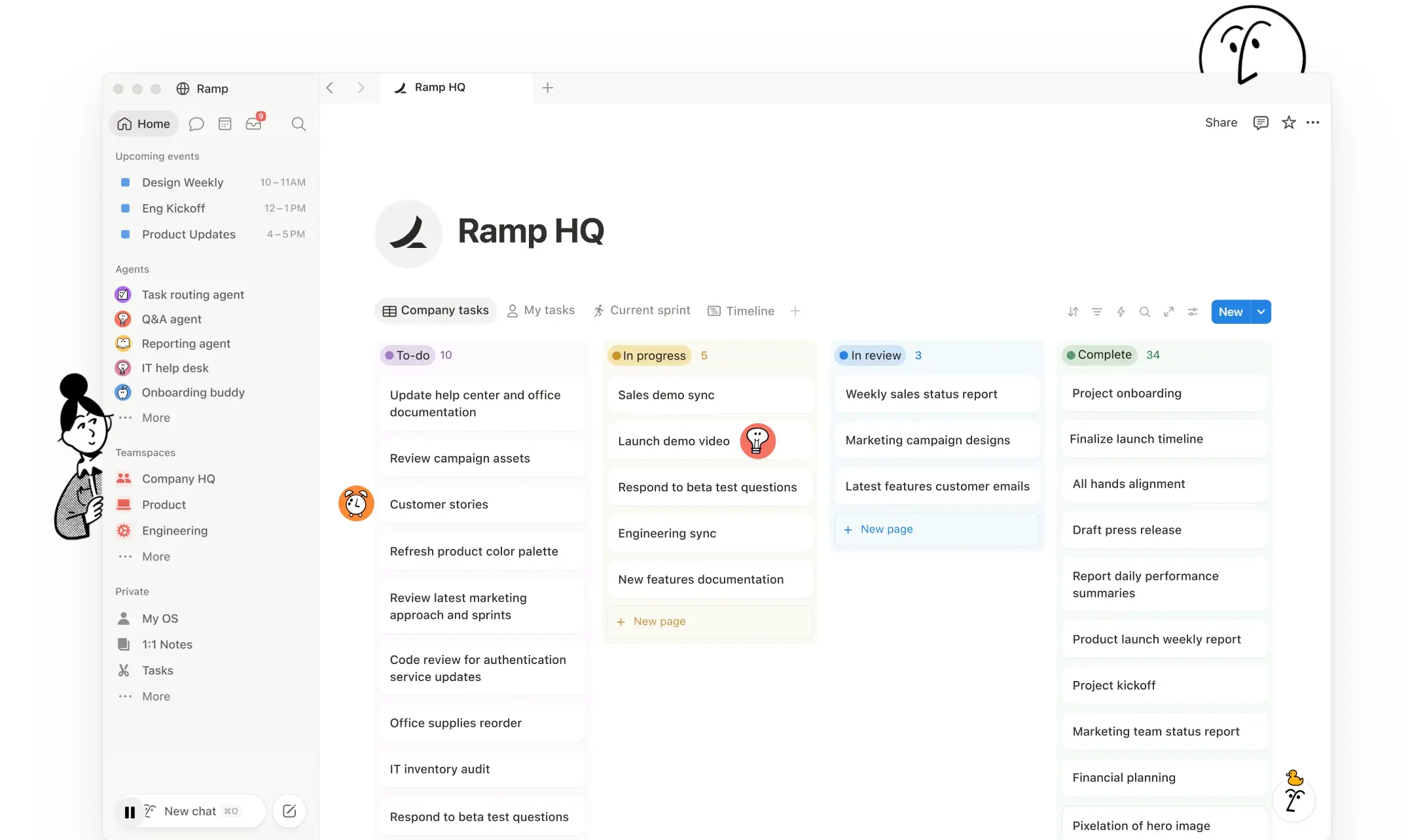 Notion
Key features
-
Flexible pages that work as notes, databases, or project boards
-
Real-time collaborative editing
-
AI writing and summarization built in
-
Templates for meeting notes, project plans, personal wikis, and more
-
Integrations with Slack, GitHub, Jira, and Google Drive
Pricing: Free plan available. Plus plan at $8/user/month.
12. Linear
Linear is the task tracker built for speed. If you're in software or a fast-moving team, Linear's keyboard-driven interface and opinionated structure—cycles, priorities, milestones—keeps work moving without the overhead of configuring a complex system.
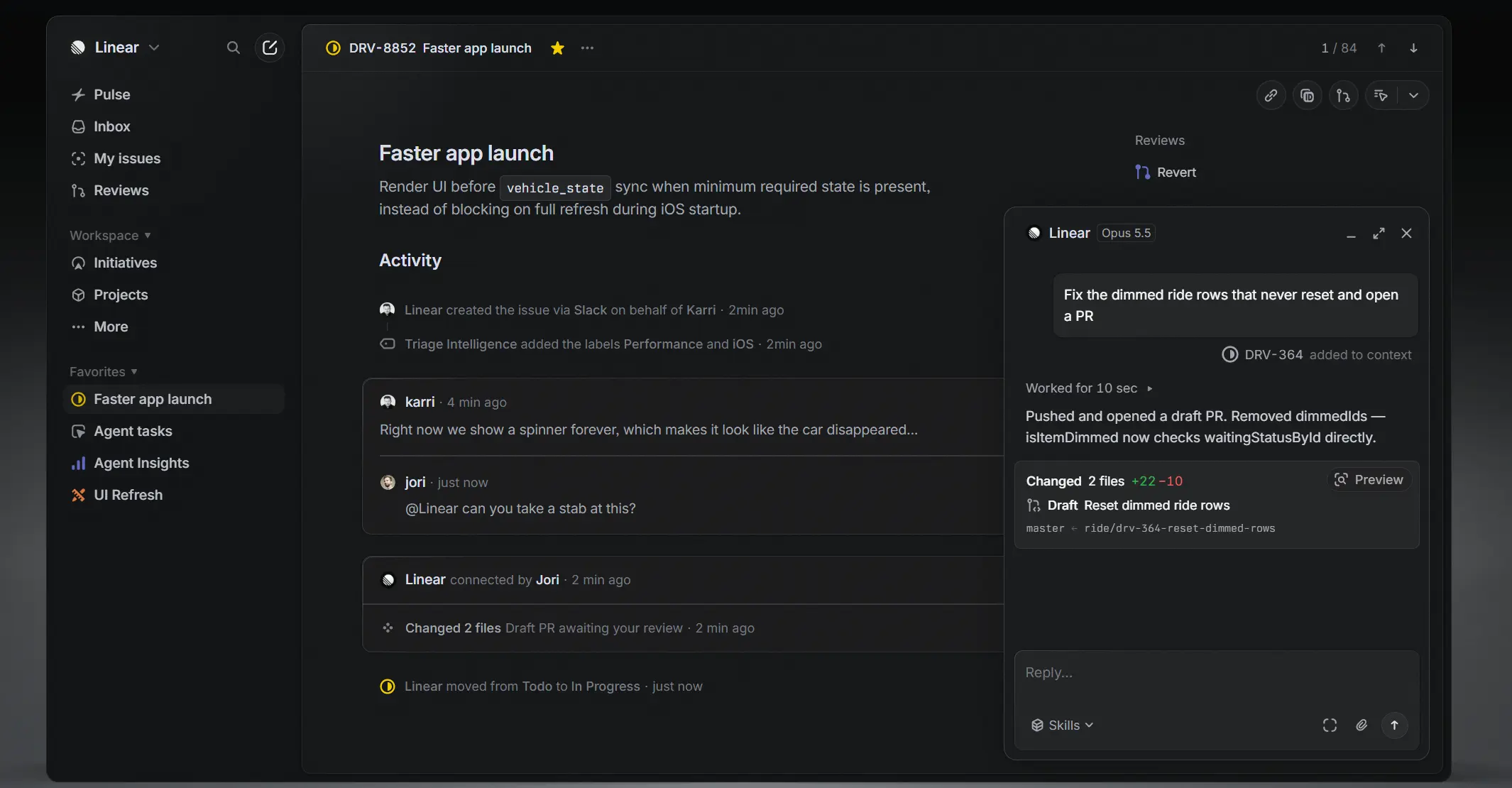 Linear
Key features
-
Issue tracking with cycles, milestones, and roadmaps
-
Git integration with GitHub, GitLab, and Bitbucket
-
Automated status updates from pull requests and commits
-
Fast keyboard-driven interface
-
Slack integration for issue creation and notifications
Pricing: Free plan available. Business plan at $8/user/month.
13. Monday.com
Monday.com gives you a visual dashboard for everything you're working on—tasks, timelines, budgets, and progress—customizable enough to match how you actually work rather than forcing you into a preset structure.
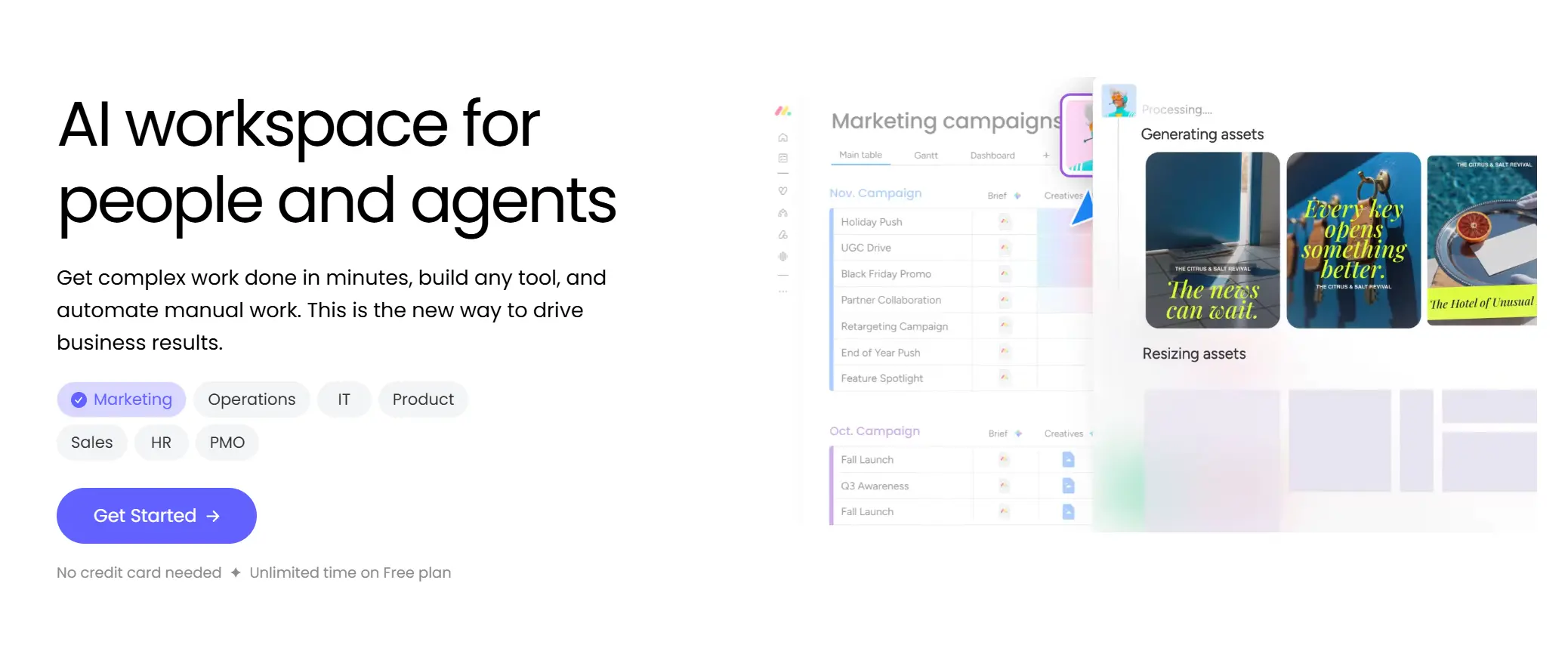 monday.com
Key features
-
Customizable boards for any type of work
-
Multiple views: Kanban, Gantt, calendar, and timeline
-
Automations and integrations with 200+ tools
-
AI assistant for task creation and status updates
-
Mobile app for iOS and Android
Pricing: Free for up to 2 seats. Basic from $9/user/month.
14. Basecamp
Basecamp puts everything for a project—messages, tasks, files, and scheduling—into one organized space. If you find yourself losing track of conversations across email, Slack, and separate docs, Basecamp's consolidated format is worth trying.
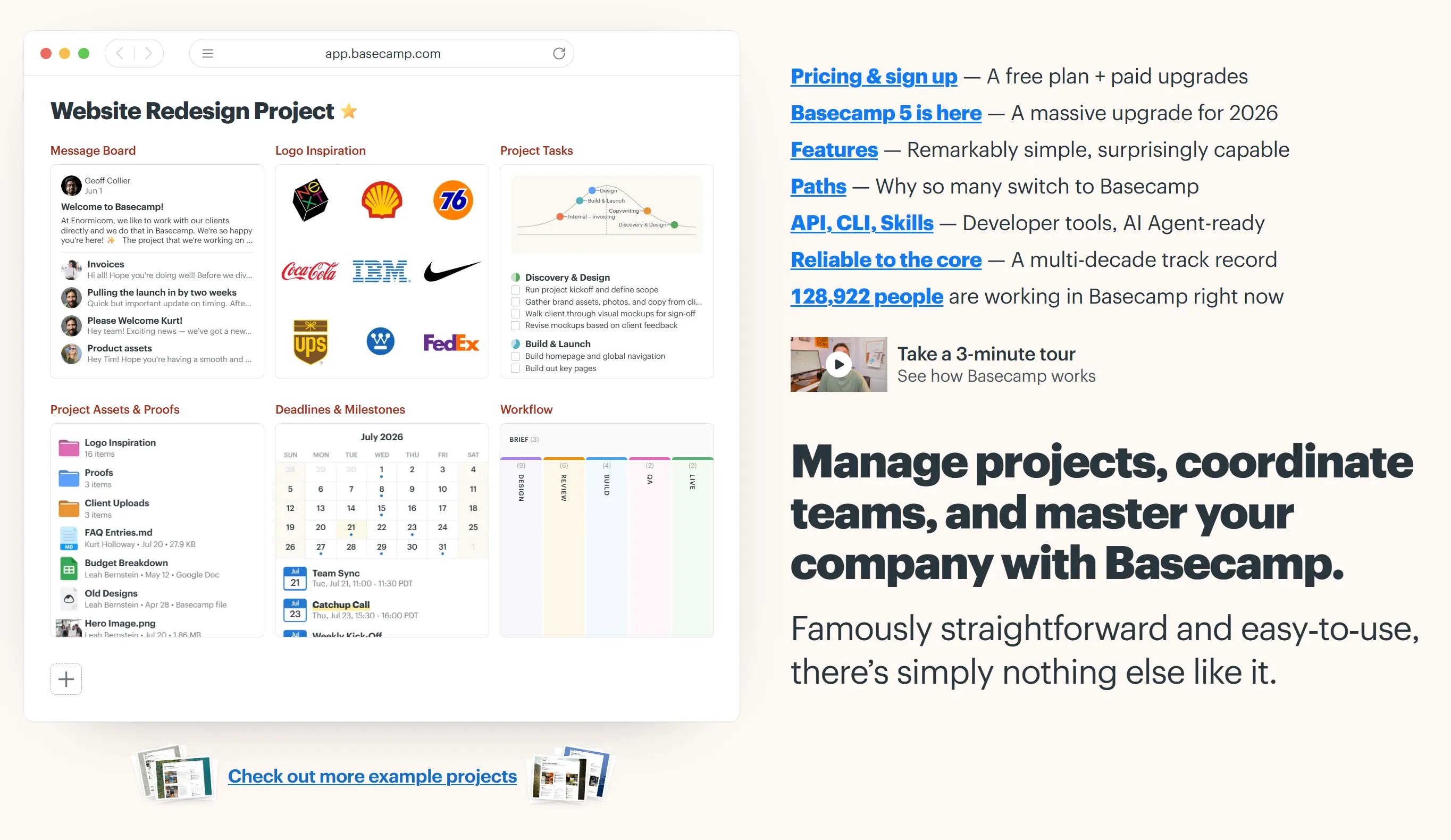 basecamp
Key features
-
Message boards, to-do lists, file storage, and group chat in one place
-
Client-facing project views for external collaboration
-
Automatic check-ins and team schedules
-
Flat-rate pricing regardless of how many users you add
-
Works on desktop and mobile
Pricing: Basecamp at $15/user/month. Pro Unlimited at $299/month flat for unlimited users.
15. Confluence
Confluence by Atlassian is where you put the things that shouldn't live in a chat thread or a meeting note—SOPs, onboarding guides, decision logs, team playbooks. It keeps institutional knowledge searchable and organized as your work scales.
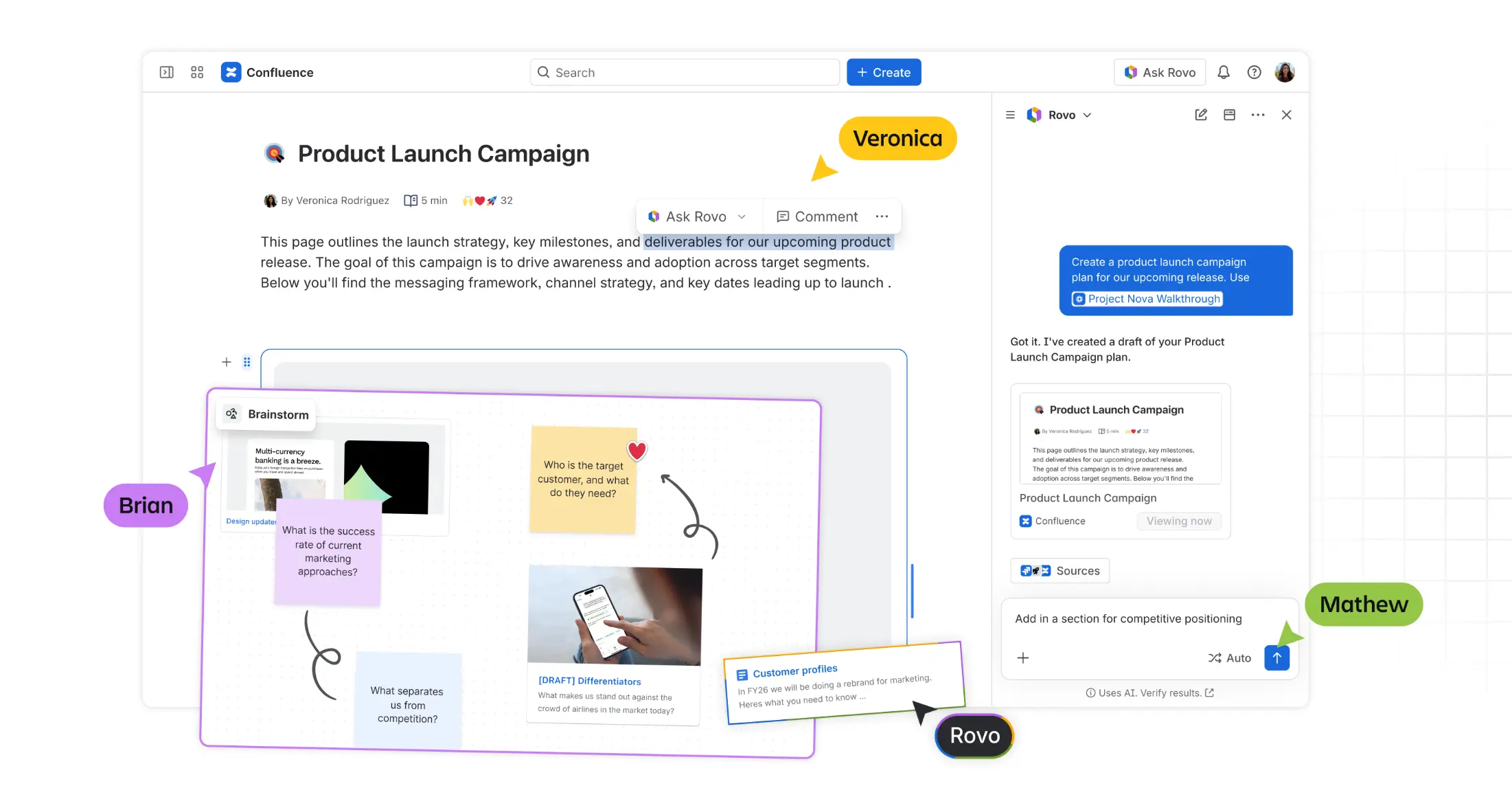 Confluence
Key features
-
Collaborative wiki pages with templates for every team type
-
Native Jira integration for linking docs to active projects
-
Page versioning and inline comments for async review
-
AI-assisted page creation and summarization
-
Organized by spaces: team, project, or topic
Pricing: Free for up to 10 users. Standard from $4.89/user/month.
16. Zapier
Zapier handles the repetitive handoffs between your apps so you don't have to. If you find yourself copying data from one tool to another, sending the same notification every time something happens, or doing the same five clicks after every form submission—Zapier can automate it.
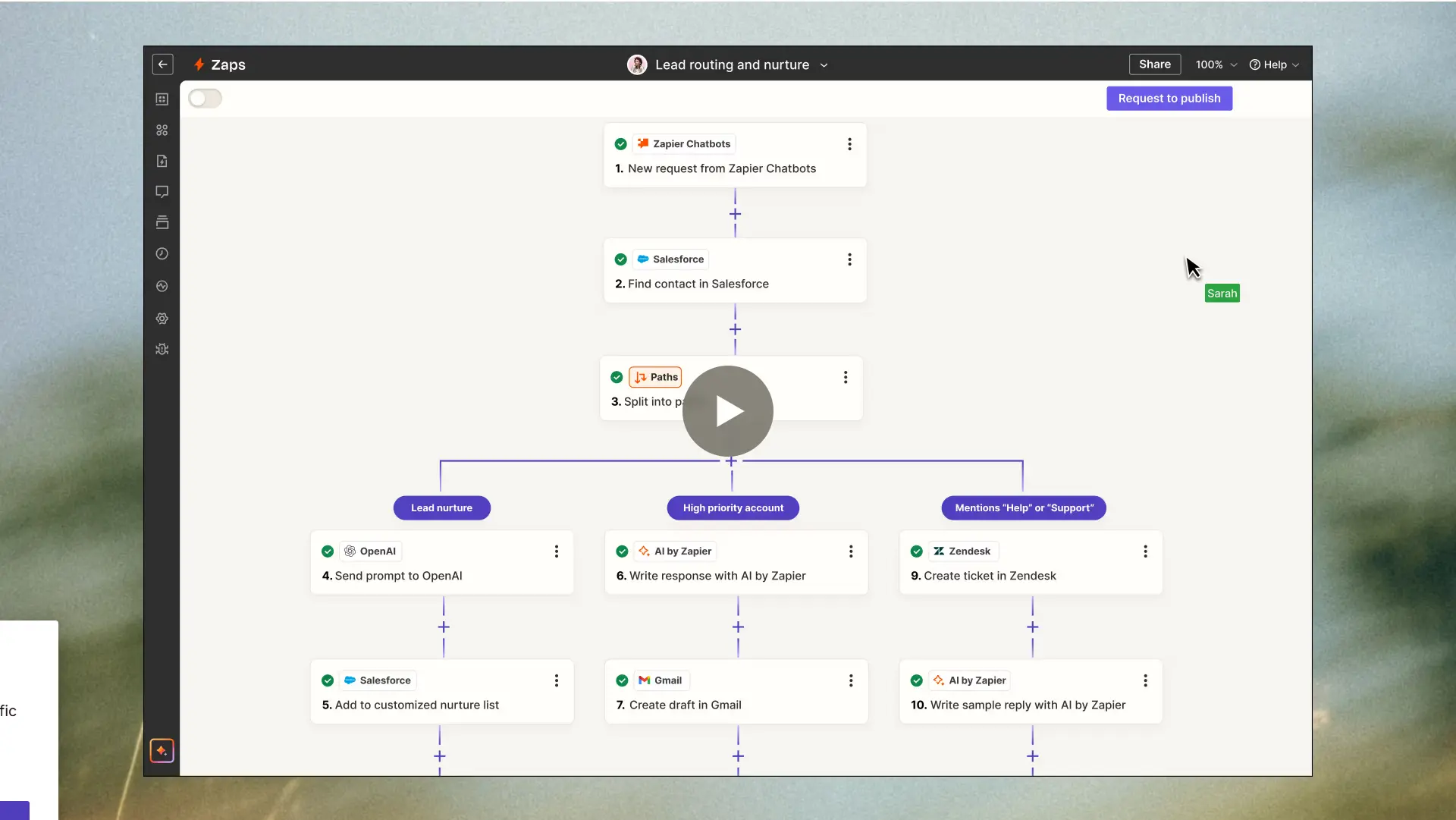 Zapier
Key features
-
Automated workflows between 7,000+ apps
-
Multi-step Zaps with conditional logic and filters
-
AI-powered Zap builder from plain-language descriptions
-
Tables and Interfaces for lightweight data management
-
Shared workspace for team automation
Pricing: Free plan (100 tasks/month). Paid from $19.99/month.
Top 2 Communication Tools
17. Slack
Slack is the communication layer most remote workers live in. Organized channels keep conversations from turning into one long thread, and with 2,600+ integrations, most of your other tools can surface updates there too. The right Slack integrations make it even more powerful.
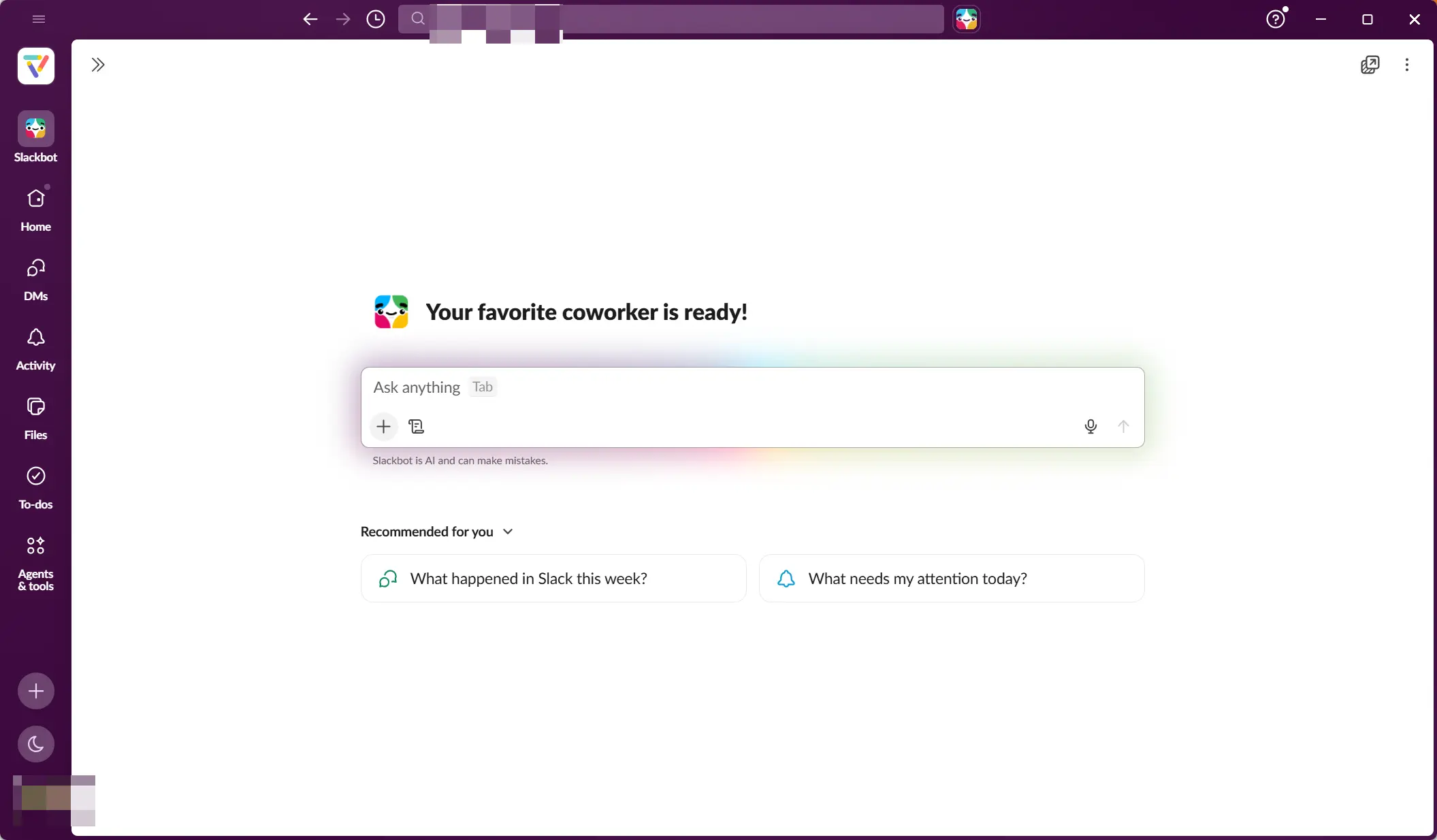 Slack
SlackKey features
-
Channel-based messaging organized by team, project, or topic
-
Threaded conversations to keep discussions focused
-
Slack Huddles for quick audio calls without scheduling a meeting
-
AI-powered search and channel summarization
-
2,600+ app integrations
Pricing: Free plan (90-day message history). Pro at $7.25/user/month.
18. Rocket.Chat
Rocket.Chat is the open-source Slack alternative for people who want full control over where their data lives. Self-host it on your own infrastructure, or use the cloud version—the feature set is comparable, with end-to-end encryption available.
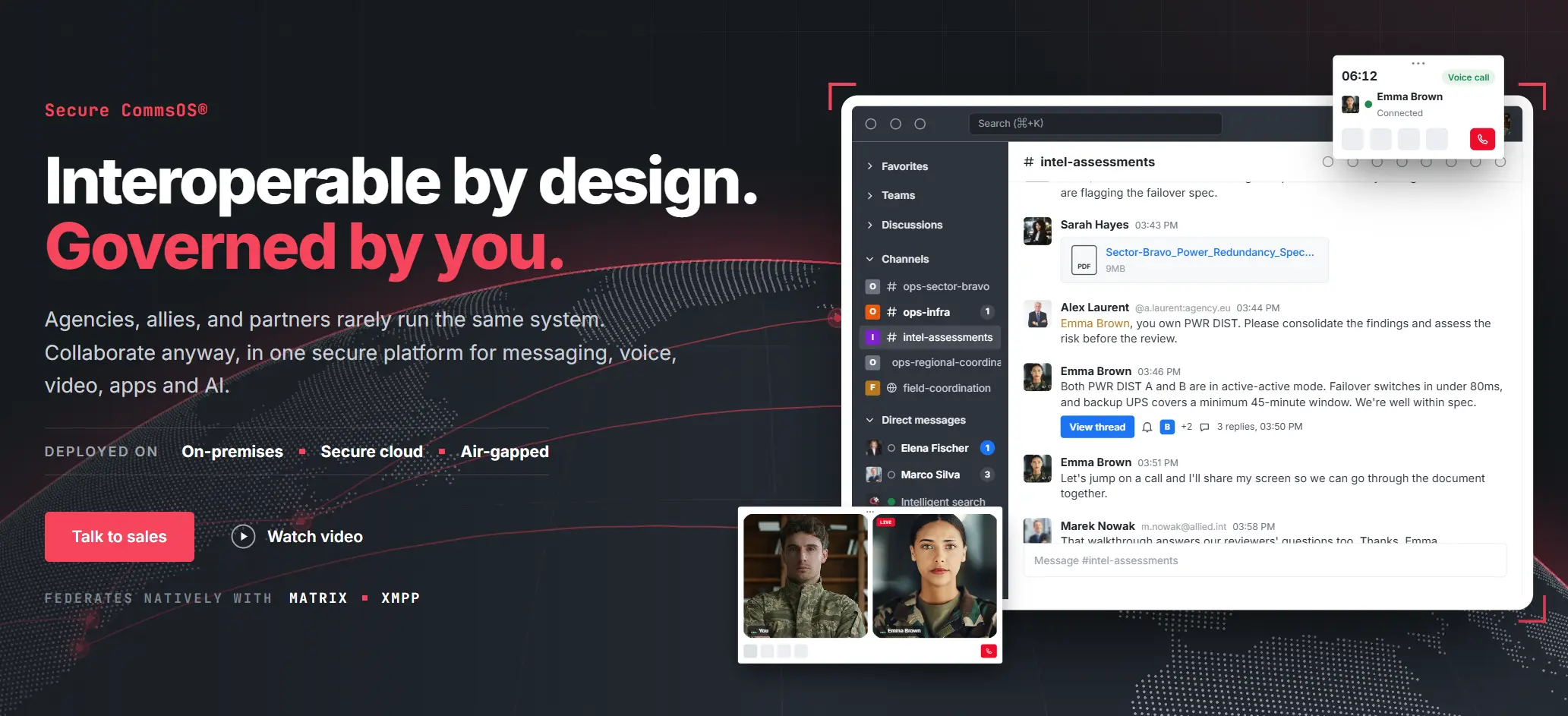 rocket.chat
Key features
-
Real-time messaging with channels, DMs, and threads
-
HD audio and video calls
-
End-to-end encrypted messaging option
-
Self-hosted or cloud deployment
-
Integrations with Gmail, Trello, Google Docs, and Dropbox
Pricing: Free (self-hosted). Cloud plans from $2/user/month.
3 Tools for Tracking Time and Visualizing Work
19. Clockify
Clockify is the free time tracker most remote workers reach for first. Start a timer when you begin a task, stop it when you're done, and get a clear picture of where your hours are actually going—useful for personal productivity or for client billing.
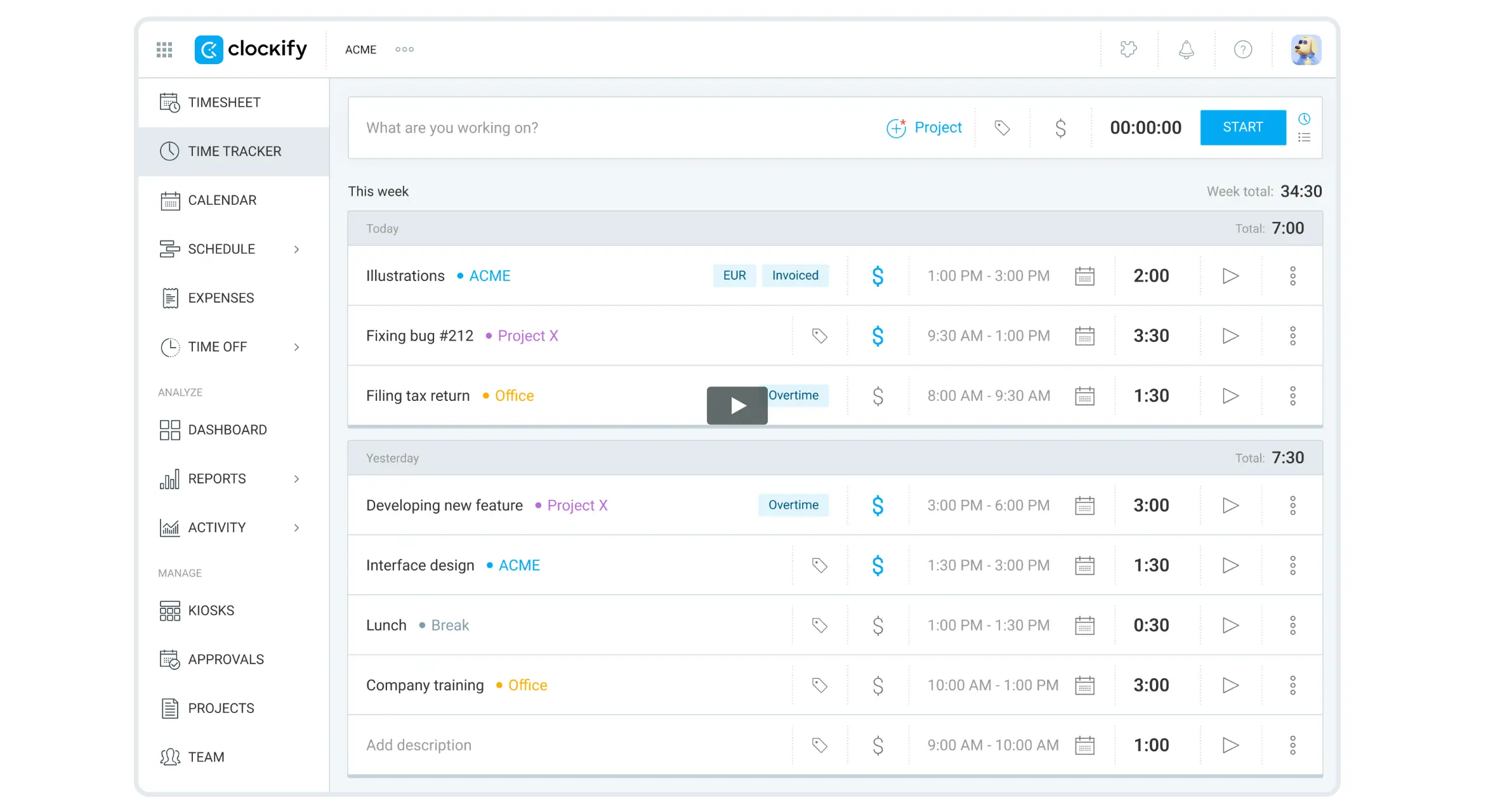 Clockify
Key features
-
One-click time tracking with manual entry option
-
Project and client-based tracking with billable hour support
-
Detailed weekly and summary reports
-
Works in-browser, on desktop, and on mobile
-
Integrations with Asana, Trello, Jira, and 80+ other tools
Pricing: Free plan available. Paid plans from $3.99/user/month.
20. Time Doctor
Time Doctor goes deeper than basic time tracking—it monitors how you're spending your computer time, flags distractions, and gives you detailed reports on where productivity is going. More suited to workers who want accountability or managers who need visibility across a distributed team.
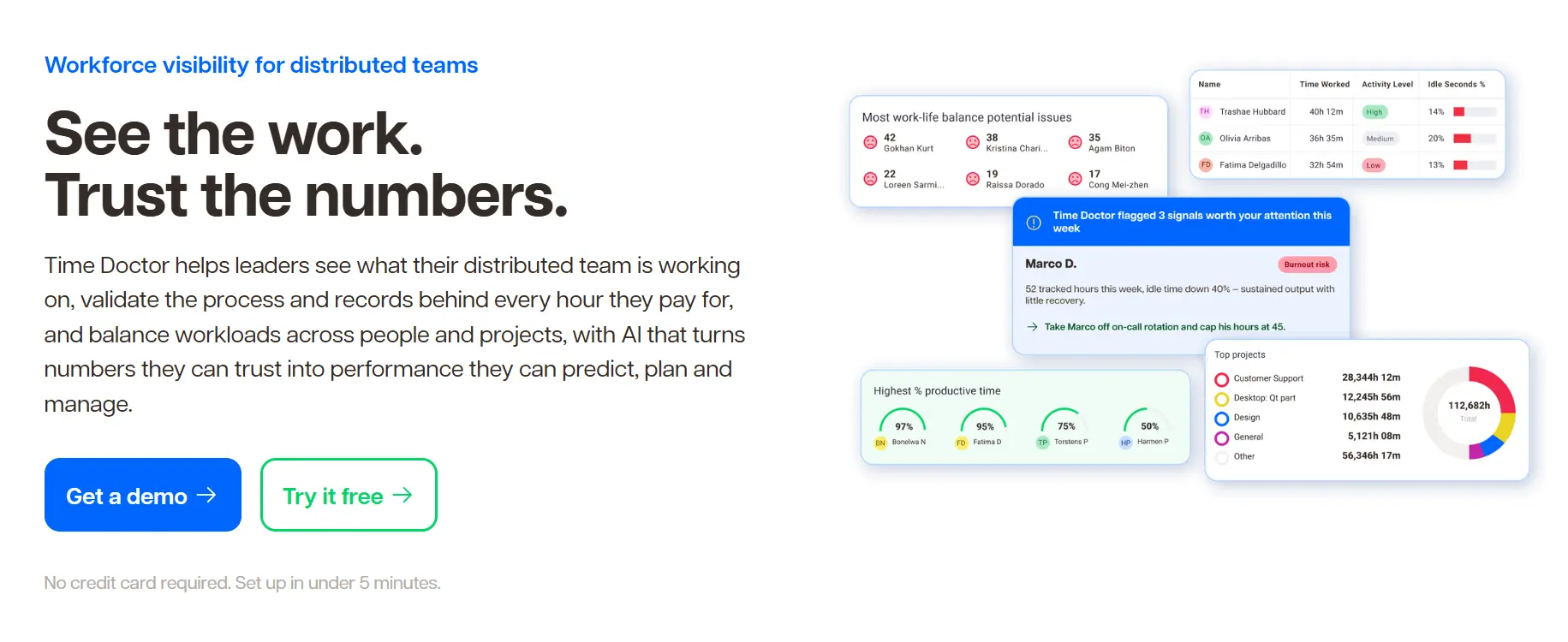 Time Doctor
Key features
-
Time tracking with automatic distraction alerts
-
Screenshots and activity monitoring (configurable)
-
Online timesheets and payroll integration
-
Project and task-level reporting
-
Integrations with Asana, Trello, Basecamp, and QuickBooks
Pricing: Basic from $7/user/month, Standard from $10/user/month.
21. LucidChart
LucidChart is the tool for when you need to explain something that's too complex for a paragraph of text. Build flowcharts, org charts, process diagrams, and network maps—then share them with anyone, even if they don't have an account.
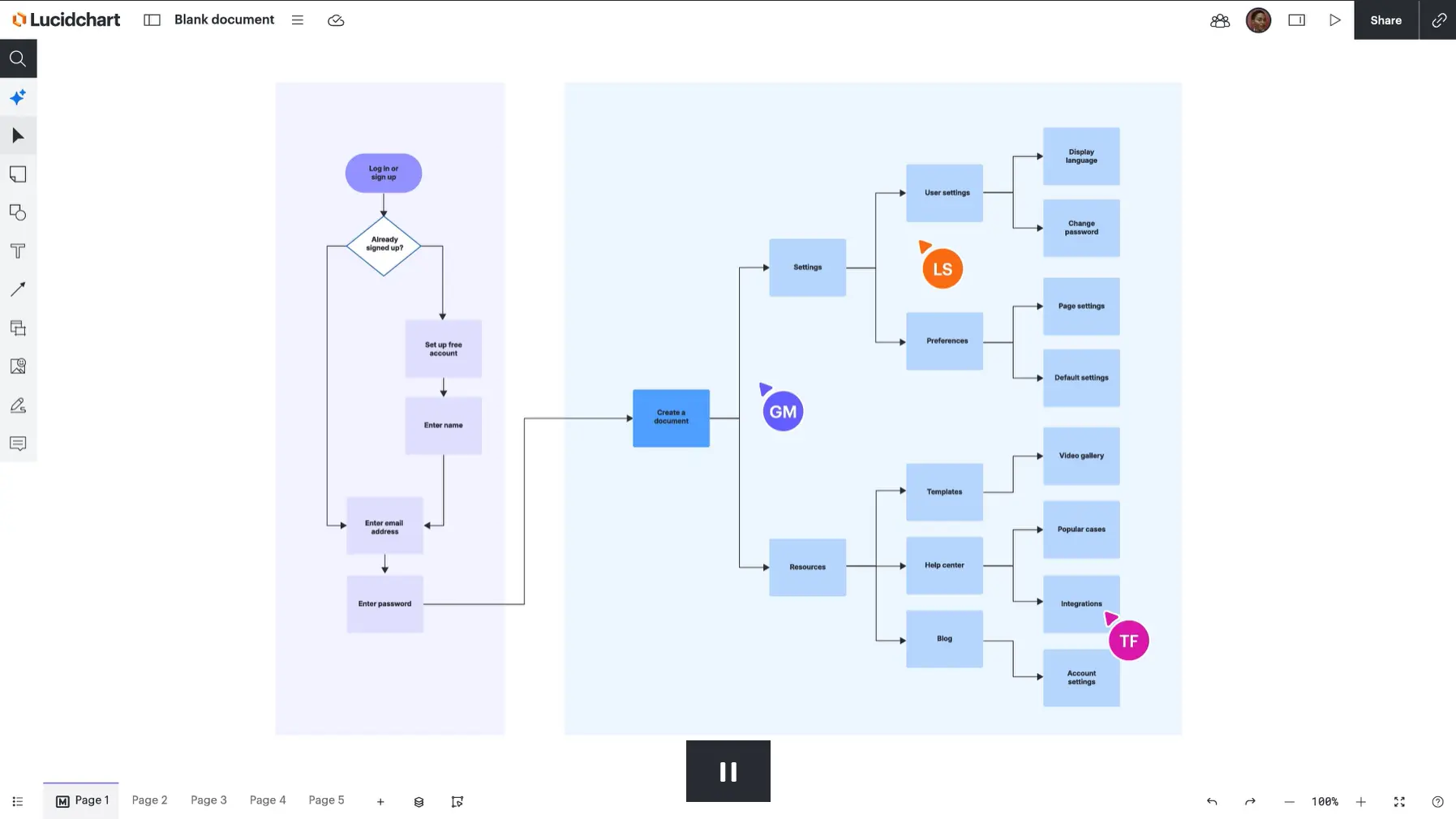 LucidChart
Key features
-
Drag-and-drop diagram builder with 1,000+ templates
-
Real-time collaborative editing
-
AI-assisted diagram generation from text descriptions
-
Export to PDF, PNG, SVG, and Visio
-
Integrations with Google Workspace, Slack, Confluence, and Jira
Pricing: Free plan available. Individual plan at $7.95/month.
3 Visual and Creative Tools
22. Canva
Canva is the design tool for people who aren't designers. Create presentations, social posts, reports, and internal docs from templates—without needing to know anything about design software.
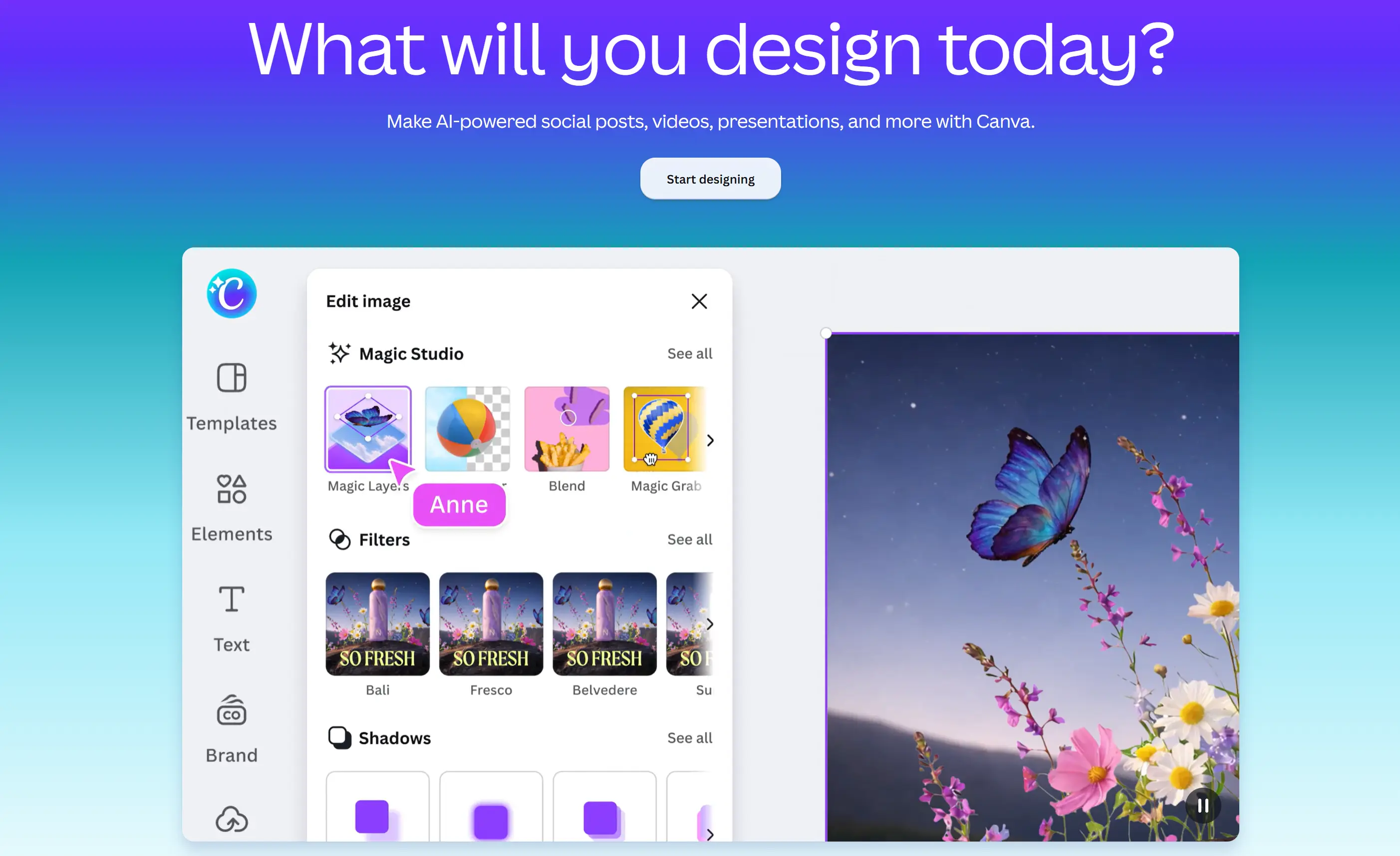 Canva
CanvaKey features
-
250,000+ templates across dozens of content formats
-
AI image generation, background removal, and text-to-design tools
-
Real-time collaborative editing and commenting
-
Brand kit to keep your visuals consistent
-
Integrations with Slack, Google Drive, Dropbox, and HubSpot
Pricing: Free plan available. Pro at $15/user/month.
23. Vibe Canvas
Vibe Canvas is a virtual whiteboard built for touchscreens and designed to work across every device—browser, mobile, tablet, and Vibe Board hardware. Where Canva is for polished output, Vibe Canvas is for thinking in progress: mapping out a process, running a brainstorm, annotating a document live with a client, or presenting directly from your board without switching apps. Canvases are saved to your Vibe account and stay accessible across sessions, so you can pick up exactly where you left off.
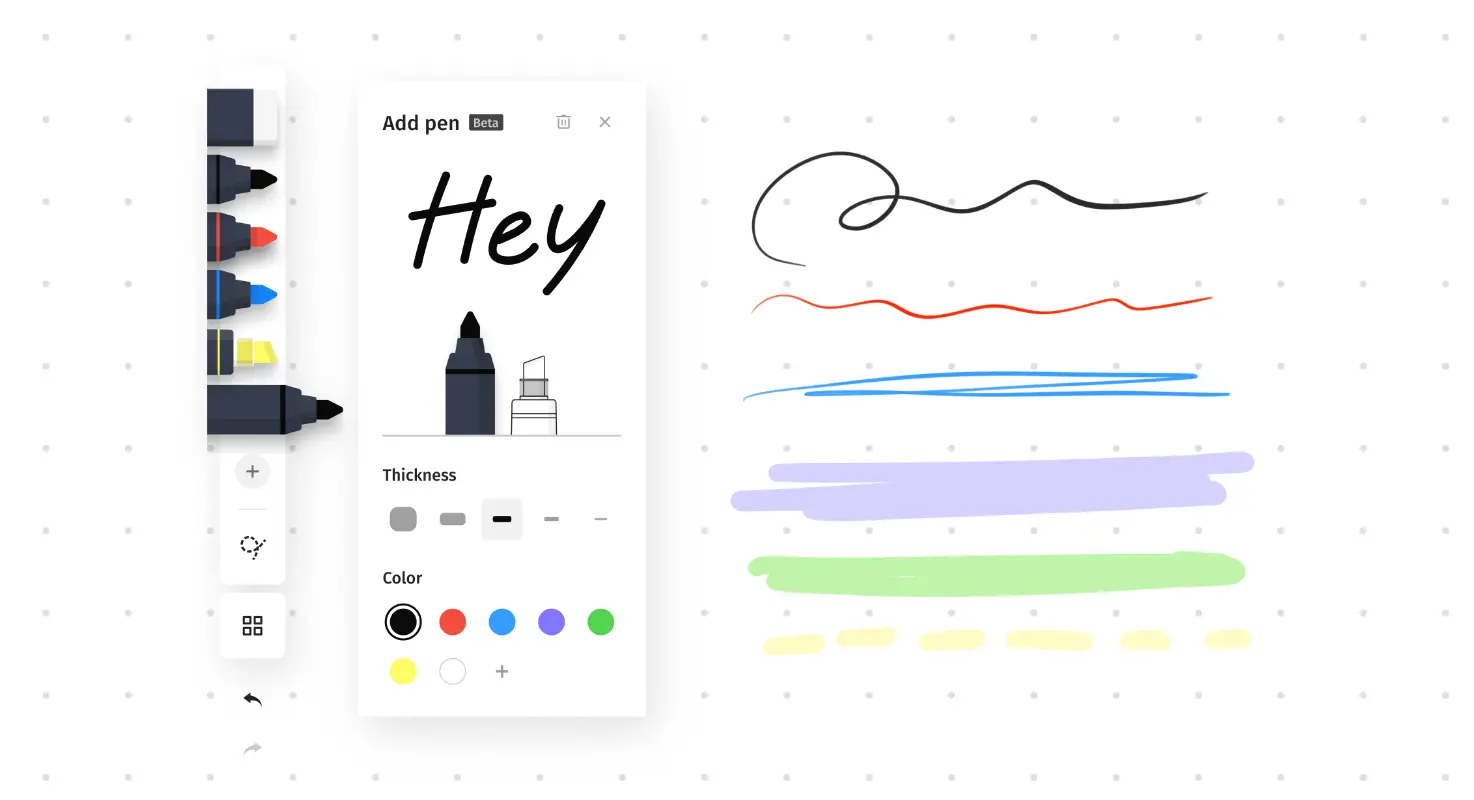 Vibe Canvas
Key features
-
Infinite canvas with pens, shapes, sticky notes, text, images, and PDFs
-
AI handwriting recognition converts handwritten notes to text
-
Smart Shape converts hand-drawn shapes into clean vector forms
-
Presentation mode with follow-along and transition effects
-
Share via link, QR code, or canvas code—no account needed for guests
-
Works in browser and on Vibe Board hardware; sessions sync across devices
Pricing: Free to start at app.vibe.us.
24. Loom
Loom lets you record a quick video instead of writing a long explanation or scheduling a call. Record your screen, your face, or both—then share a link. Your teammates watch it when it works for them and leave comments at the exact moment they have a question.
Key features
-
Screen, camera, and audio recording in one click
-
AI-generated transcripts, chapters, and summaries
-
Time-stamped comments from viewers
-
Custom CTAs and engagement tracking
-
Integrations with Slack, Notion, Gmail, and Jira
Pricing: Free (5-minute limit). Business at $12.50/user/month.
Home Office Setup
25. Vibe Board S1
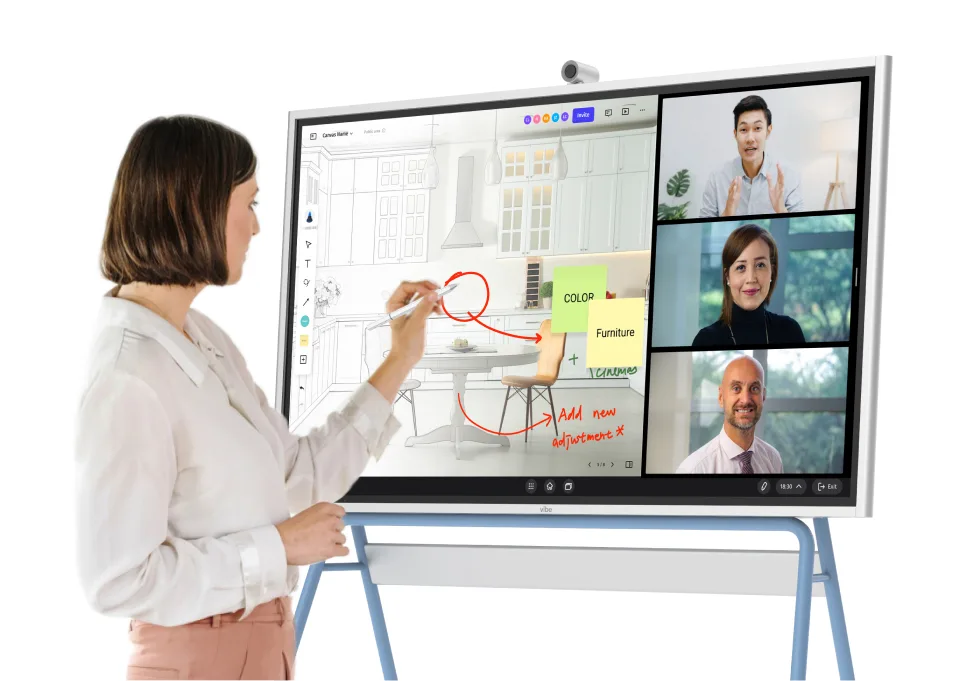
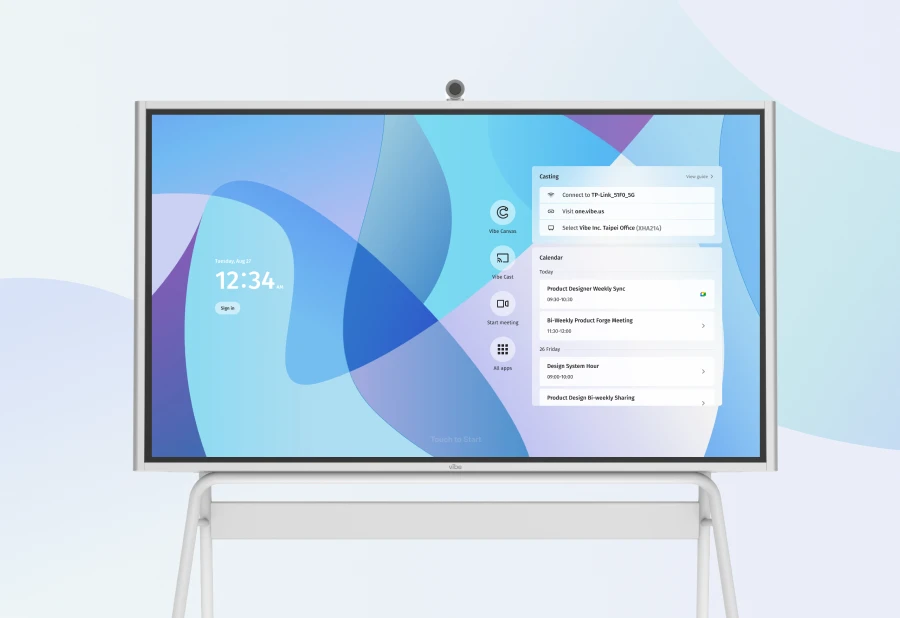
If you work from a dedicated home office or a hybrid setup with a permanent desk, Vibe Board S1 is the hardware upgrade that makes the biggest difference. It's a 55″ or 75″ smart interactive whiteboard—not a monitor, not a TV—designed to run brainstorms, presentations, and video calls from a single screen, with wireless screencasting from any device and 250+ app integrations built in including Zoom, Google Meet, Microsoft Teams, Slack, Jira, and Asana. With Vibe Canvas running on it natively, your whiteboard sessions are automatically saved to the cloud, shareable by link, and accessible from any device between meetings.
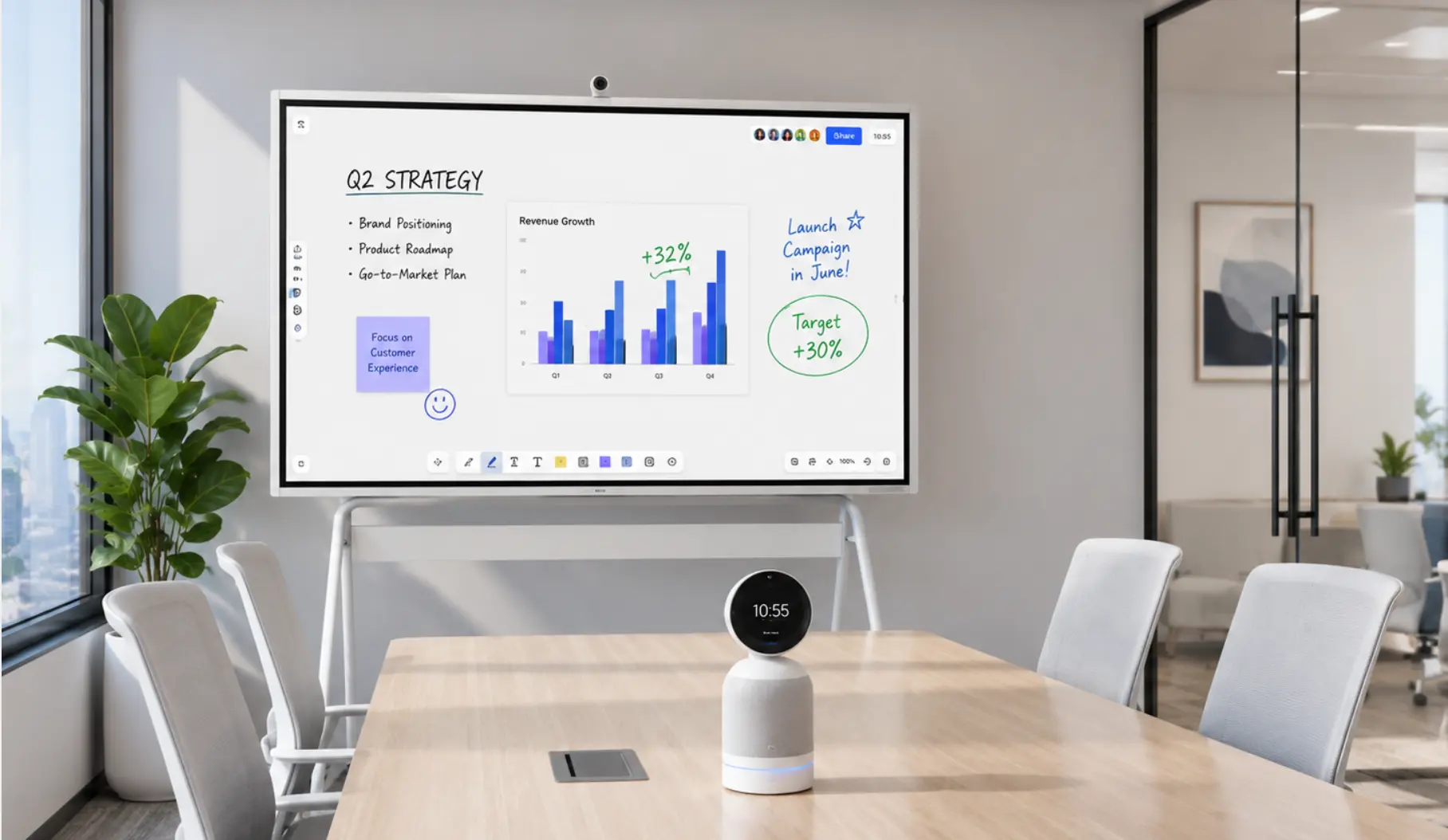 Vibe Board S1 + Vibe Bot
Key features
-
20-point multi-touch display with 8ms stylus response and 130Hz refresh rate
-
Available in 55″ (ChromeOS) and 75″ (ChromeOS or Windows)
-
Wireless screencasting from any device
-
Vibe Canvas runs natively—infinite canvas with real-time collaboration
-
250+ app integrations including Zoom, Google Meet, Slack, and Jira
-
No monthly software fee
Pricing: Starting at $3,699 for S1 55″.
The Vibe Home Office: One Stack That Doesn't Lose Context
Most remote work stacks have a gap: the meetings, conversations, and whiteboard sessions where real decisions happen aren't connected to the tasks and docs where work gets done. You end up re-explaining context, re-creating notes, or chasing down what was actually agreed.
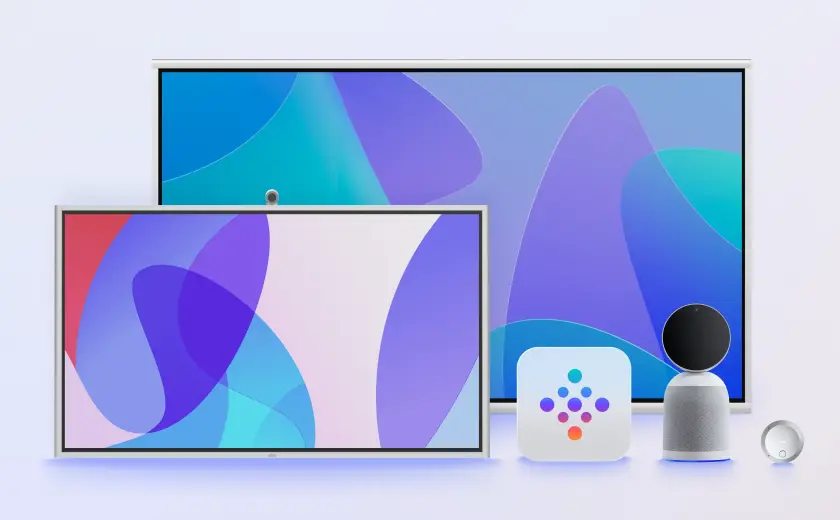 Vibe Stack
Vibe's products are built to close that gap. Vibe Dot captures your calls and one-on-ones and turns them into searchable memory. Vibe Bot does the same for the conference room—so whether you're remote or in-person, the meeting record is there. Vibe Canvas gives you a visual workspace that's infinite, persistent, and accessible from any device. And Vibe Board S1 brings it all together in one touchscreen—your whiteboard, your video call hub, and your app ecosystem in one place, no switching required.
Whether you're building your first remote setup or upgrading an existing one, Vibe's home office solution is worth a look.
Frequently Asked Questions
What are the best tools for remote work in 2026?
The core stack most remote workers rely on covers five layers: a video call tool (Zoom or Google Meet), a task manager (Asana, Trello, or Notion), a communication platform (Slack), a documentation tool (Confluence or Notion), and a way to capture meeting output so decisions don’t get lost. For the last layer, Vibe Dot handles personal calls and one-on-ones, while Vibe Bot covers the conference room—both feed into Vibe AI, which tracks action items and builds a searchable memory of your work.
What’s the difference between Vibe Dot and Vibe Bot?
Vibe Dot is a wearable AI recorder for personal use—clip it to your lapel and it captures any conversation you’re in, wherever you are. Vibe Bot is a conference room device with a 6-mic array and 360° camera that captures the full room and joins Zoom, Google Meet, or Teams with one tap. Both generate transcripts, AI summaries, and action items via Vibe AI; the right choice depends on where your conversations happen.
Is Vibe AI free to use?
Yes. Every Vibe Dot and Vibe Bot comes with Vibe AI Starter free forever—300 minutes of AI transcription per month, speaker-labeled transcripts, meeting summaries, action items, and Ask AI for the last 7 days of meetings. Pro ($9/seat/month) extends memory to 12 months and adds task creation in Jira, Asana, and Linear, follow-ups via Gmail and Slack, and Claude/ChatGPT sync via MCP.
What is Vibe Canvas and how is it different from Miro?
Vibe Canvas is Vibe’s virtual whiteboard app—free to use in any browser, on mobile, and natively on Vibe Board hardware. Both tools offer infinite canvas and real-time collaboration, but Vibe Canvas is optimized for touchscreen use and integrates directly with Vibe Board S1, so your in-room whiteboard sessions are automatically saved to the cloud and shareable by link. Miro is the stronger option for large-scale workshop facilitation with extensive template libraries.
Do I need all 25 tools on this list?
No. Most remote workers do well with five to seven tools covering communication, video, task management, documentation, and meeting capture. The goal is a stack where information flows between tools—not one where you’re copying the same update into four different apps. Start with what you actually need and add from there.
What tools work best for a home office setup?
For a dedicated home office, the highest-impact additions beyond the standard software stack are hardware: a quality webcam or a device like Vibe Bot that handles both video conferencing and meeting capture, and a large-format interactive display like Vibe Board S1 that replaces a monitor, a whiteboard, and a presentation screen in one. Software-wise, Notion or Confluence for documentation and Vibe Dot for on-the-go capture round out a setup that doesn’t lose context between sessions.