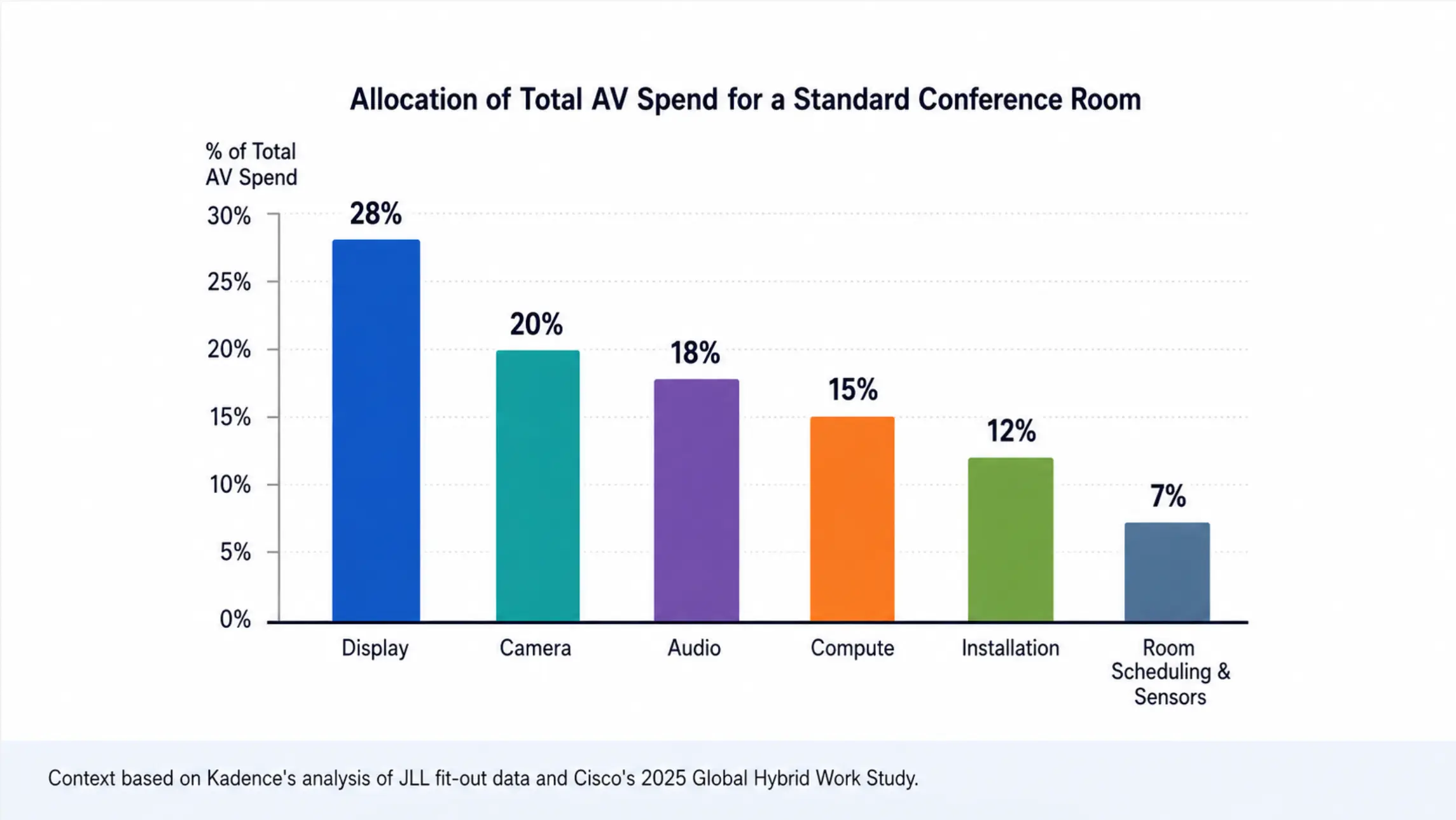
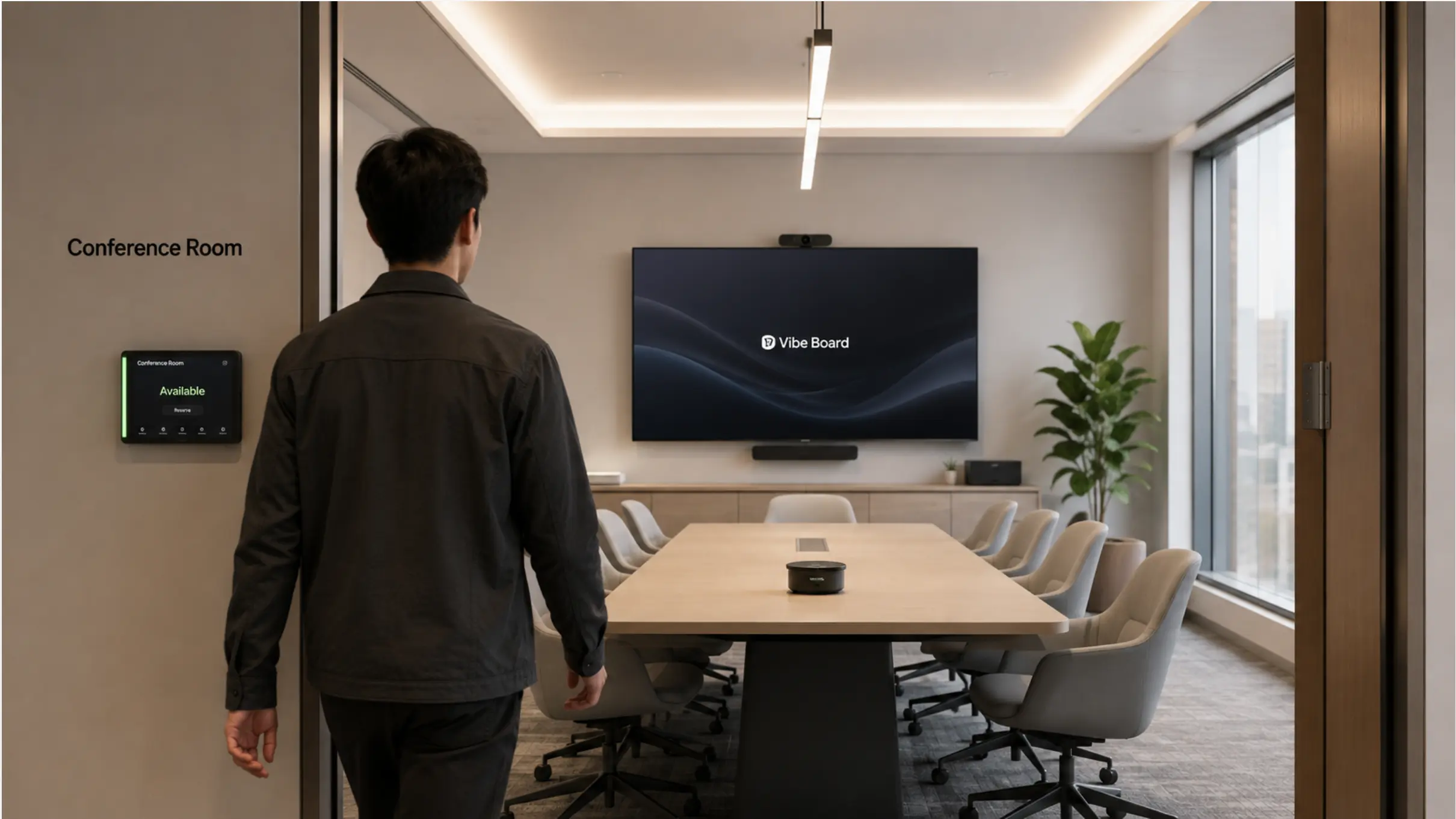
Most conference room AV equipment doesn't fail dramatically. It fails slowly — a camera that's technically still working but can't produce the frame quality your video conferencing platform needs, a compute unit that physically powers on but stopped receiving Teams app updates six months ago, an audio system that was certified for a platform version that's now two major releases behind. The room looks fine. The meetings are quietly worse than they should be.
Knowing when to refresh AV equipment — and which components to prioritize — is the difference between a planned technology lifecycle and a reactive scramble when a critical room stops working the week before a board presentation.
This guide breaks down refresh cycles by component type, explains the triggers that matter more than calendar age, and provides a framework for planning upgrades before equipment forces the decision.
Why Calendar Age Is the Wrong Metric
The instinct is to replace equipment on a fixed schedule — every 5 years, say, or every budget cycle. The problem is that conference room AV doesn't age uniformly. A display panel that was installed in 2020 may still produce perfectly adequate image quality in 2026. The compute unit sitting behind it may have stopped receiving security updates in 2025.
There are three clocks running simultaneously on any AV system, and they tick at different speeds:
1. Physical hardware lifespan — How long until the device stops working or degrades below acceptable performance. Displays: 7–10 years. Cameras and audio: 5–7 years. Compute units: 3–5 years.
2. Platform certification lifecycle — How long until the major video conferencing platforms (Zoom, Teams, Meet) drop active support for the hardware. This clock is shorter and less predictable than the hardware lifespan. Zoom enforces the shortest lifecycle through a quarterly Software Lifecycle Policy requiring a new minimum software version every three months — devices that cannot run the minimum version are blocked from joining meetings.
3. Feature currency — How long until the hardware falls meaningfully behind on AI features, resolution standards, or hybrid meeting capabilities that your team needs. This is the softest signal but often the earliest one.
For most AV components, the platform certification clock — not physical failure — is what forces the replacement decision. Microsoft Teams Rooms on Windows tied its lifecycle to Windows 10 end-of-support on October 14, 2025. Rooms running on compute modules with 6th or 7th generation Intel processors could not upgrade to Windows 11 because they lack TPM 2.0 support — those rooms stopped receiving Teams app updates and security patches.
Refresh Cycles by Component
Display: 7–10 Years (Physical), 5–7 Years (Practical)
Displays are the most durable AV component and the one most likely to outlast everything around them. A commercial-grade LCD panel installed in 2020 will physically function well into the 2030s. The practical replacement trigger is almost never hardware failure.
When to replace your display:
-
The room has been reconfigured and the display is undersized for the new seating layout (most common reason)
-
Resolution standard has shifted — a 1080p display at 86″+ shows pixelation at normal viewing distance, where 4K is now the standard
-
Brightness has degraded below usable levels for the room's ambient light conditions (LCD panels lose ~50% brightness over 50,000 hours of operation)
-
The panel is a consumer TV running in a commercial context — not rated for continuous operation, warranty already voided
-
The new compute unit or room system requires a display interface the old panel doesn't support
What doesn't justify replacement: A display that produces acceptable image quality but is "a few years old." If the resolution and brightness still work for the room, the display is not the right place to spend refresh budget.
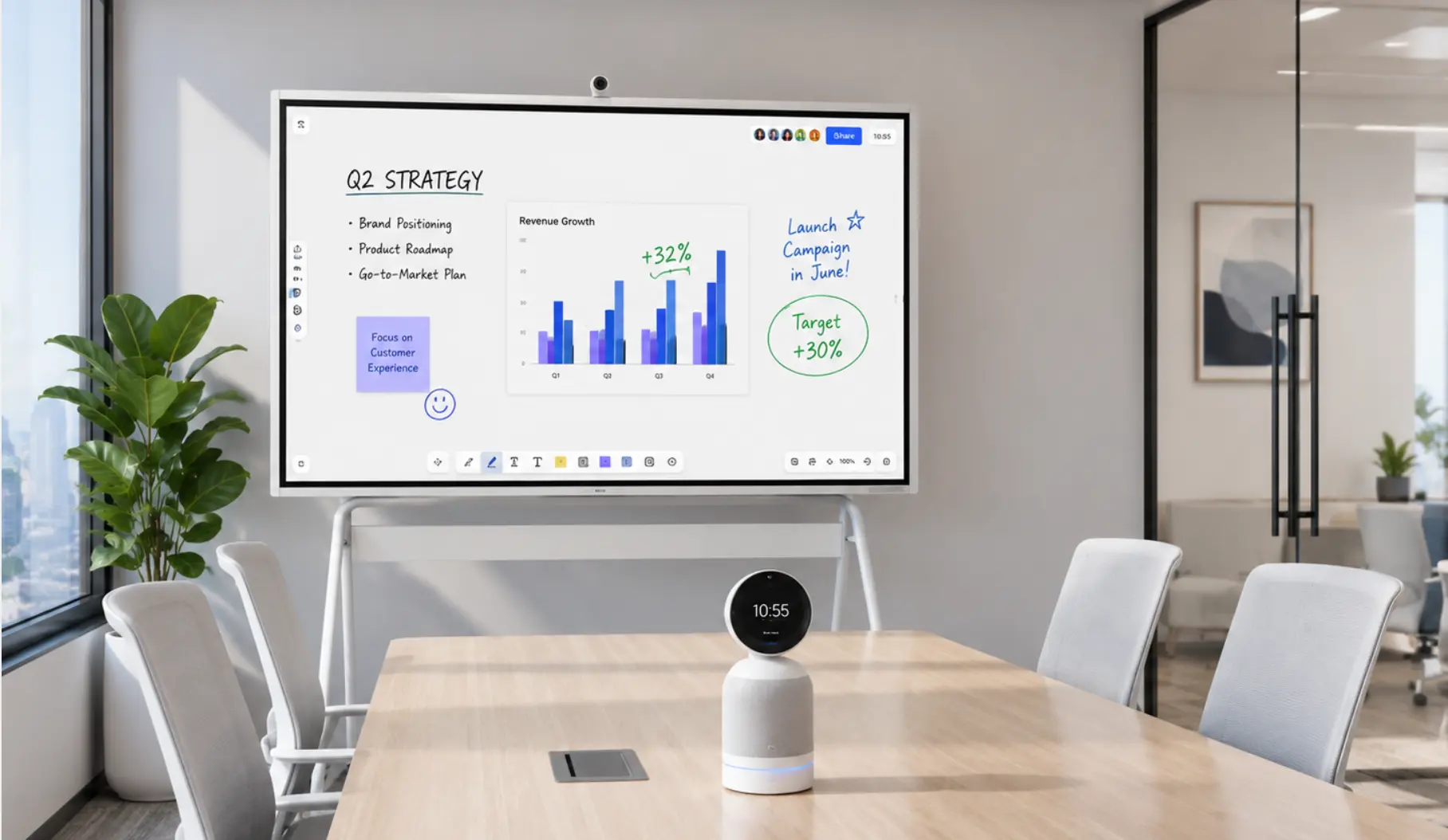
Camera: 4–6 Years (Practical Refresh Point)
Cameras age faster than displays for two reasons: AI feature sets have advanced dramatically since 2020, and platform certification cycles apply directly to camera firmware.
Modern smart cameras and audio systems maintain much of their lifespan through continuous AI updates — the integrator should be able to provide an architecture for direct large-scale remote device updates. The flip side: cameras that can't receive these updates fall behind quickly.
When to replace your camera:
-
The camera model has lost active certification from your primary platform (Zoom, Teams, or Meet)
-
Remote participants consistently report difficulty seeing faces clearly — most common in rooms where room depth has increased due to layout changes
-
The camera lacks AI auto-framing and your room is deeper than 10–12 feet — fixed wide-angle lenses don't compensate for distance
-
The camera resolution cap is below 4K before cropping — AI auto-framing on a 1080p sensor produces soft output when tracking a speaker at distance
-
The camera firmware is no longer receiving security updates from the manufacturer
The AI inflection point: Cameras purchased before 2021 were largely designed for a world where AI auto-framing was a premium feature, not a standard one. If your current camera requires manual PTZ control or produces a static wide-angle shot in a room larger than a huddle space, that's a functional gap — not just a feature gap.
 Comparison of a 2019-era fixed wide-angle camera output vs. a 2025 AI auto-framing camera output in the same 12-person conference room
Audio (Microphones + DSP + Speakers): 5–7 Years (Hardware), 3–4 Years (Compute-Dependent DSP)
Audio hardware is the most acoustically stable component but the one most affected by software and platform dependencies when it involves compute.
Microphone arrays and passive audio hardware (ceiling beamforming arrays, passive speakers) have the longest practical lifespan — 7–10 years — because they don't run platform software and don't have certification requirements. A Shure ceiling array that works well acoustically today will still work well in 2030.
DSP units and compute-dependent audio systems age faster. Crestron's 3-Series control processors reached end-of-sale in January 2021 and end-of-maintenance in March 2024 — three years of support. The hardware has no moving parts and will run programs for another decade, but it does so without security patches, without compatibility updates, and without manufacturer support when something breaks.
When to replace audio hardware:
-
Echo and noise complaints from remote participants persist despite software noise cancellation being enabled — this usually indicates hardware-level echo cancellation (DSP) is no longer keeping up
-
The DSP firmware is no longer receiving updates from the manufacturer
-
USB speakerphone no longer certified by Zoom or Teams — loses access to platform noise suppression features that depend on the certified audio path
-
Room has been reconfigured and the current microphone coverage zone no longer reaches all seats
-
Acoustic treatment was added to the room — sometimes this changes the audio calibration requirements enough that recalibration reveals the DSP is undersized
The mid-cycle audio refresh: USB speakerphones, table-mounted microphones, and audio accessories warrant a review at 3 years even if the ceiling system is fine. These are higher-wear items that interact directly with users.
Compute Unit: 3–5 Years
The compute unit is the shortest-lived component in the stack and the one most likely to create platform support problems before its physical failure.
The typical lifecycle for video conferencing systems is 3–5 years — this figure usually surprises clients since the newest displays have a lifespan of up to 7 years, and products like speakers and amplifiers remain updated for 10 years or longer. The gap exists because compute units run operating systems and platform software that have their own end-of-support cycles, independent of the hardware's physical lifespan.
When to replace your compute unit:
-
The OS running the room system has reached end-of-support (Windows 10 EOL: October 2025; ChromeOS device support varies by model)
-
The hardware can't run Windows 11 due to TPM 2.0 or CPU generation requirements
-
The platform software (Zoom Rooms, Teams Rooms) has dropped support for the current compute unit model
-
Meeting startup time exceeds 60 seconds — typically indicates the compute unit is resource-constrained by current platform software requirements
-
Remote device management (Zoom Device Management, Teams Pro Portal) can no longer reach the device
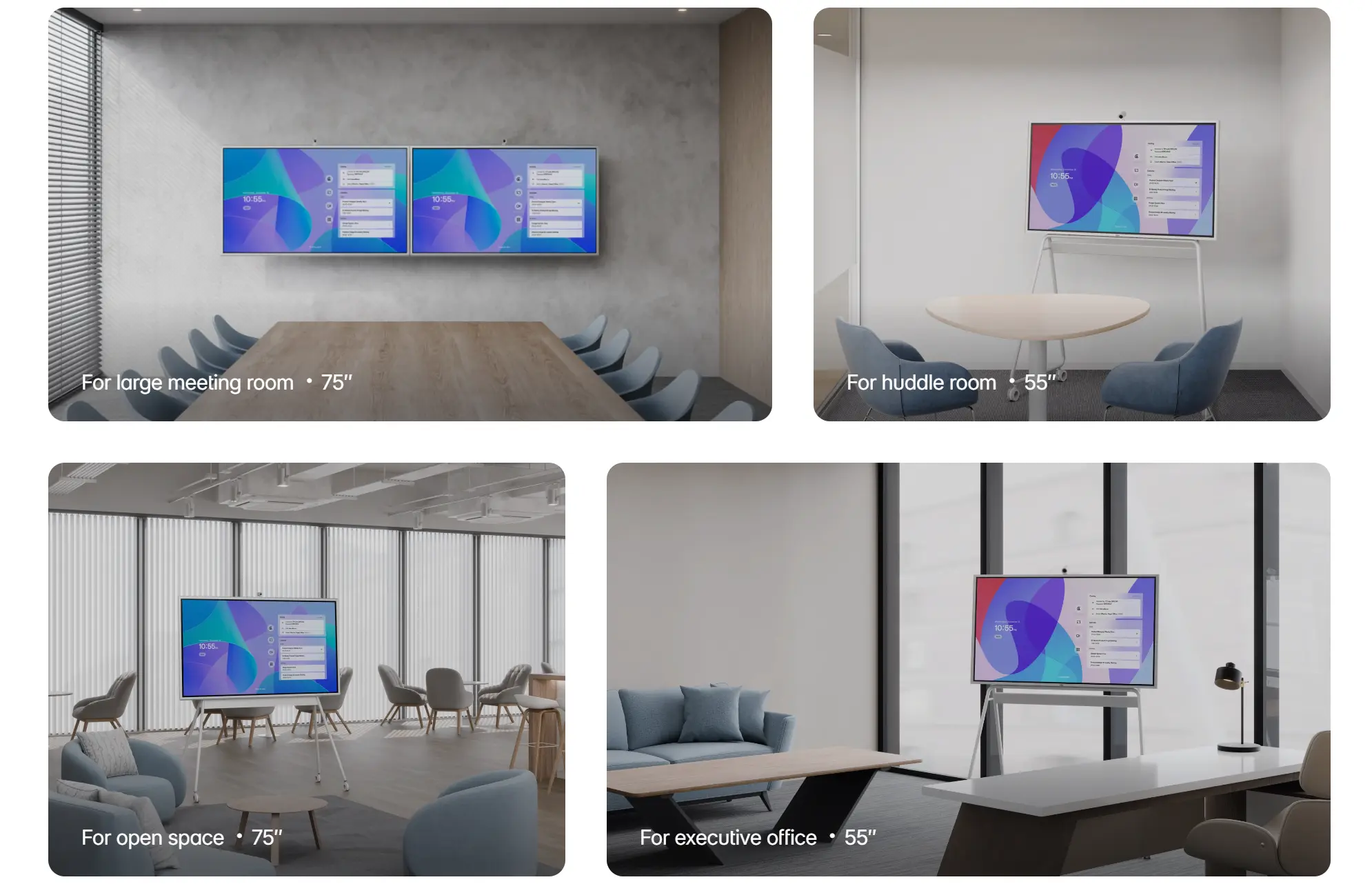
The all-in-one exception: Devices that combine display and compute — like Vibe Board S1 (VibeOS) and S1 Pro (Windows 11 Pro) — extend the practical compute lifecycle because the OS and software updates are managed centrally by the device manufacturer rather than depending on IT manually updating a Windows mini PC or NUC. The display and compute refresh happen together, reducing the scenario where a physically working display is paired with a compute unit that's lost platform support. For teams evaluating which room tier to prioritize in a refresh cycle, the conference room AV cost guide provides budget ranges by room size.
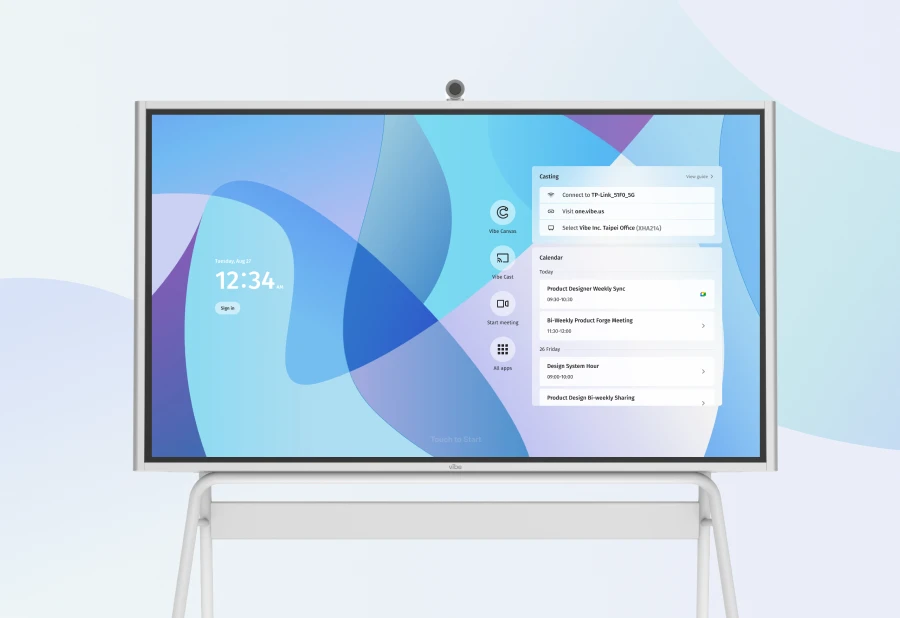
Room Scheduling Panel: 3–5 Years
Scheduling panels and control tablets are high-touch devices with shorter useful lives than the room hardware they control. Battery degradation, screen wear, and OS updates combine to create reliability issues well before the hardware physically fails.
When to replace:
-
Battery no longer holds charge through a full business day
-
Touchscreen responsiveness has degraded — common after 3–4 years of daily use
-
The device OS is no longer receiving security updates (many scheduling panels run Android or iOS; check manufacturer EOL dates)
-
The room scheduling software no longer supports the panel's OS version
Cabling and Connectivity: 5–7 Years (or on Interface Change)
Cabling is the most overlooked refresh category. HDMI 1.4 cables that worked fine for 1080p video will not reliably carry 4K signals. USB-A peripheral connections are increasingly replaced by USB-C. AV-over-IP systems require higher-bandwidth ethernet than was typically installed 5–7 years ago.
When to refresh cabling:
-
Moving from 1080p to 4K display — HDMI 2.0 or DisplayPort 1.4 required for reliable 4K 60Hz
-
Adding AI cameras that require USB 3.0+ — USB 2.0 connections throttle bandwidth
-
Network upgrade that changes switch configurations — existing cable runs may need re-certification
-
Any room where visible cable management issues are causing connection failures
The Platform Certification Trigger: The Most Important Signal
Across all component categories, the most important refresh trigger is platform certification status — not age, not physical condition.
When Zoom or Teams drops certification support for a device, the consequences compound:
-
Platform-specific features stop working first (smart gallery, one-touch join from calendar, front row layouts)
-
Software updates stop arriving — the device is frozen at the last supported version
-
Security patches stop — the room becomes a network vulnerability
-
Eventually, the device is blocked from joining meetings on the platform entirely
Equipment should be replaced based on a predetermined lifecycle — typically 3–5 years for corporate hardware — before obsolescence begins to limit hybrid collaboration and disrupt workflows, ensuring meeting equity.
How to monitor certification status:
-
Zoom publishes a hardware compatibility list updated quarterly — check your camera and compute unit models annually
-
Microsoft Teams Rooms hardware is certified by device model and OS version — check the Teams certified devices list annually
-
Set a calendar reminder to check manufacturer EOL dates for compute units 12 months before expected end-of-support
Component Lifecycle Summary
|
Component |
Physical lifespan |
Practical refresh point |
Primary refresh trigger |
|---|---|---|---|
|
Display (commercial LCD) |
7–10 years |
7–10 years |
Room layout change, brightness degradation, resolution standard shift |
|
Camera |
5–8 years |
4–6 years |
Platform certification loss, AI feature gap, room depth change |
|
Microphone array (passive) |
8–12 years |
7–10 years |
Coverage zone change, acoustic reconfiguration |
|
USB speakerphone |
4–6 years |
3–4 years |
Platform decertification, physical wear |
|
DSP unit |
7–10 years (hardware) |
3–5 years (software) |
Manufacturer end-of-support, platform compatibility |
|
Compute unit |
5–7 years (hardware) |
3–5 years (software) |
OS EOL, platform software support drop, TPM requirements |
|
Room scheduling panel |
4–6 years |
3–5 years |
Battery degradation, OS EOL, touchscreen wear |
|
Cabling |
7–10 years |
On interface change |
Resolution upgrade, USB-C transition, bandwidth requirement |
Building a Refresh Plan
Year 1–2: Baseline assessment
Document every component in every room: model, installation date, firmware version, platform certification status, and manufacturer EOL date. This is the foundation for a predictable refresh cycle rather than a reactive one.
Year 3: Mid-cycle review
Refresh high-touch and short-cycle components: USB speakerphones, scheduling tablets, cables. Assess compute units for OS support status — this is when Windows-based compute units purchased in 2020–2022 begin approaching EOL risk. If a refresh coincides with an office move or renovation, review the office fit-out technology budget guide to align the AV refresh with broader infrastructure spend.
Year 5: Full hardware assessment
Evaluate all rooms against current platform certification requirements and AI feature baselines. Cameras purchased before 2021 are typically at or past their practical refresh point. Compute units running Windows 10 are at end-of-OS-support. Identify rooms for full replacement vs. targeted component upgrades.
Year 7+: Planned replacement
Displays, passive microphone arrays, and speakers that are still performing may carry past year 7 — but compute and camera should be treated as fully depreciated and replaced proactively, not reactively.
The staggered refresh approach: Rather than replacing all AV in all rooms simultaneously — a budget shock — plan staggered refreshes by room tier. Huddle rooms (shorter-cycle compute) refresh on a 3–4 year cycle. Standard conference rooms on a 5-year cycle. Large rooms and boardrooms on a 6–7 year cycle with mid-cycle compute refreshes.
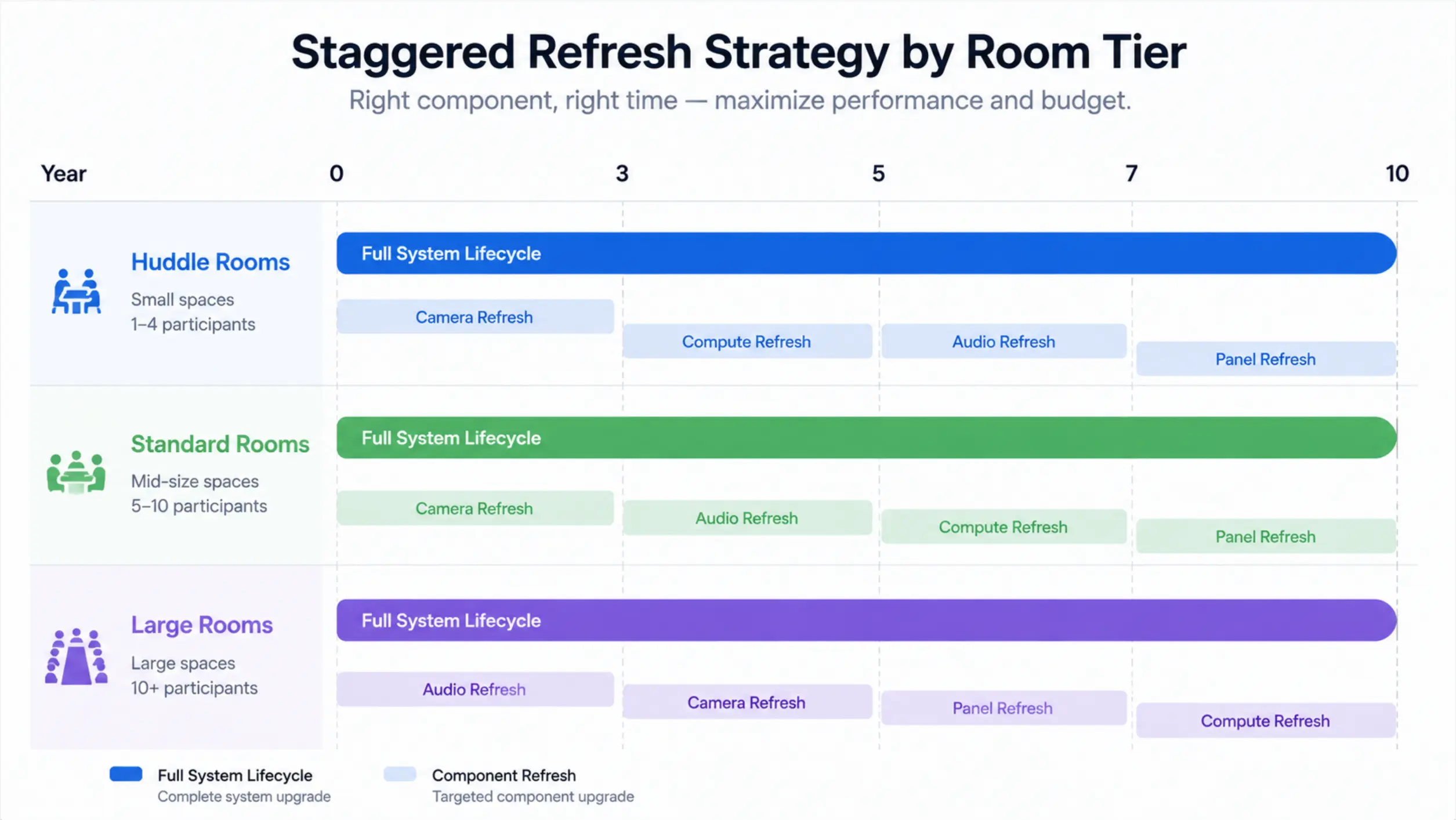 Gantt-style chart showing staggered refresh timelines for huddle rooms, standard rooms, large rooms — with mid-cycle component refreshes shown as smaller bars within each room tier's lifecycle
How All-in-One Devices Change the Refresh Calculus
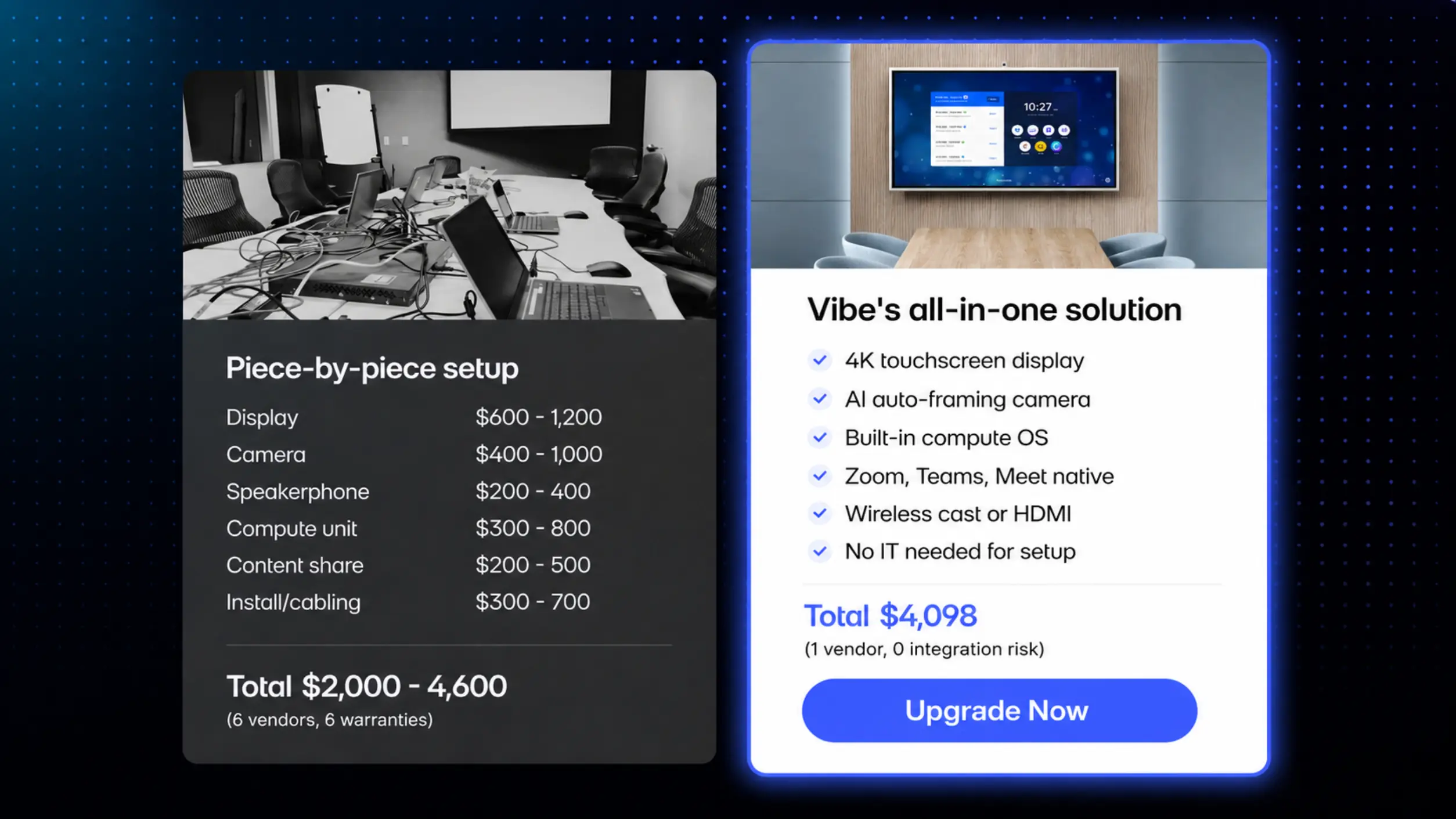
The traditional multi-vendor AV stack creates a refresh planning problem: each component has a different lifecycle, a different manufacturer's EOL schedule, and a different certification dependency. Managing a room with 5–6 separate devices means tracking 5–6 separate refresh timelines, often from different vendors.
All-in-one room devices consolidate this. Vibe Board S1 (VibeOS) and S1 Pro (Windows 11 Pro) combine the display and compute into a single device with centrally managed software updates — eliminating the scenario where the display is fine but the compute unit has lost platform support and needs emergency replacement. The paired camera and audio accessories have their own shorter lifecycle, but the primary device refresh is a single decision rather than a coordinated multi-vendor upgrade.
For teams managing multiple rooms across a growing office, this reduces both planning overhead and the risk of a staggered component failure creating an emergency mid-cycle replacement.
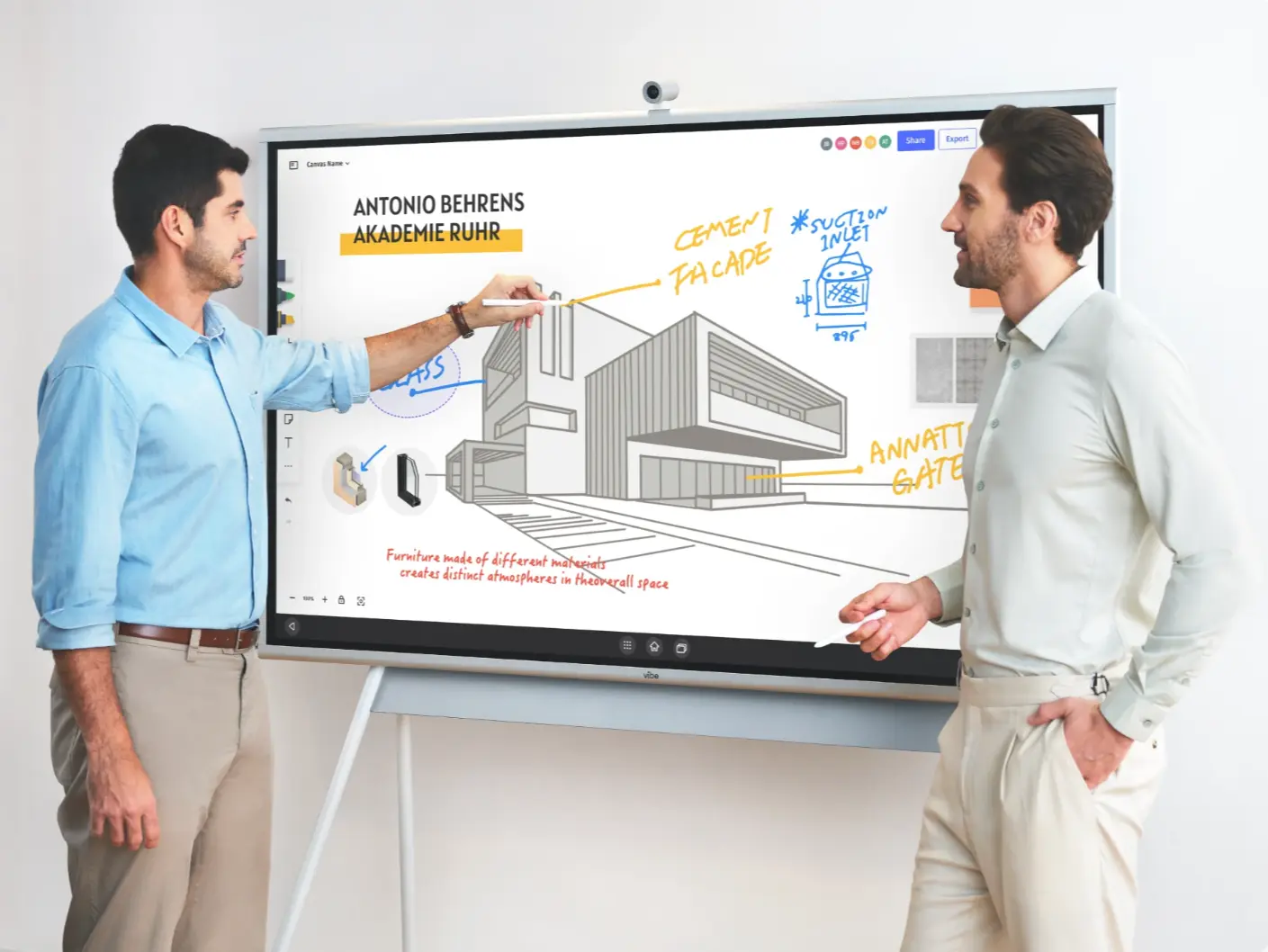
The Bottom Line
Conference room AV equipment doesn't have one lifecycle — it has several, running simultaneously at different speeds. The display you installed in 2020 may still be fine. The compute unit running behind it may have stopped receiving Teams updates. The camera may still physically work but can no longer produce frames that your platform can use for AI features.
The organizations that avoid emergency AV replacements are the ones that track platform certification status rather than installation dates, plan mid-cycle component refreshes for short-lived items, and treat the year-3 and year-5 marks as structured review points rather than waiting for a room to stop working.
For a complete view of what each room needs from the ground up — before the refresh question becomes relevant — see the full conference room AV setup guide:
c
Frequently Asked Questions
How often should conference room AV equipment be replaced?
There's no single answer — it depends on the component. Displays last 7–10 years physically but may need replacement sooner if the room layout changes or resolution standards shift. Cameras and audio have a practical refresh point of 4–6 years, driven by AI feature gaps and platform certification cycles. Compute units are the shortest-lived component, typically requiring replacement or update within 3–5 years due to OS end-of-support and platform software requirements. Plan a full assessment at year 3 and a comprehensive refresh evaluation at year 5.
What's the most common reason conference room AV equipment needs early replacement?
Platform certification loss. When Zoom or Microsoft Teams drops support for a specific compute unit or camera model, the device progressively loses access to platform features, then software updates, then the ability to join meetings at all. This happens well before the hardware physically fails — and it happens on the platform's schedule, not yours. Monitoring certification status annually is the most effective way to avoid emergency replacements.
Should I replace all conference room AV at once or upgrade component by component?
For large rooms with separate components, targeted upgrades make sense when one component has clearly reached its refresh point while others are still performing well. Replacing a compute unit without replacing a functioning display is a legitimate and cost-effective approach. For huddle rooms and standard conference rooms using all-in-one devices, the compute and display refresh happen together — which simplifies the decision but means a more significant single-event cost. The staggered approach — refreshing room tiers on different cycles — is more manageable than attempting a fleet-wide replacement simultaneously.
How do I know if my conference room AV equipment is still certified?
For Zoom: check the Zoom Certified Products list and search for your specific camera and compute unit models. For Teams: check the Microsoft Teams certified devices list. For Google Meet: check the Google Meet hardware catalog. If your device appears on the list with an "end of support" date rather than "supported," begin planning the replacement — don't wait for the support date to pass.
Is it worth repairing aging AV equipment or should I replace it?
For component failures on hardware that's still within its certification lifecycle and under 5 years old, repair is usually worth pursuing — especially for high-cost items like DSP units and ceiling microphone arrays. For compute units that have lost OS support, repair is rarely the right answer: replacing a failed power supply in a compute unit that can't receive Teams updates restores a device that's still functionally outdated. The repair vs. replace decision should be made against platform certification status, not just whether the device can be made to power on again.
When is the right time to plan an AV refresh — before or after a problem appears?
Before. The organizations that handle AV refresh best treat it like a network infrastructure refresh: planned, budgeted, and executed before failure creates urgency. Reactive AV replacement — triggered by a critical room failing during a board meeting or a client presentation — almost always costs more than a planned replacement, because it adds emergency sourcing, expedited delivery, and rushed installation on top of the hardware cost. The planning trigger should be certification monitoring and the year-3/year-5 review cycle, not a support ticket.