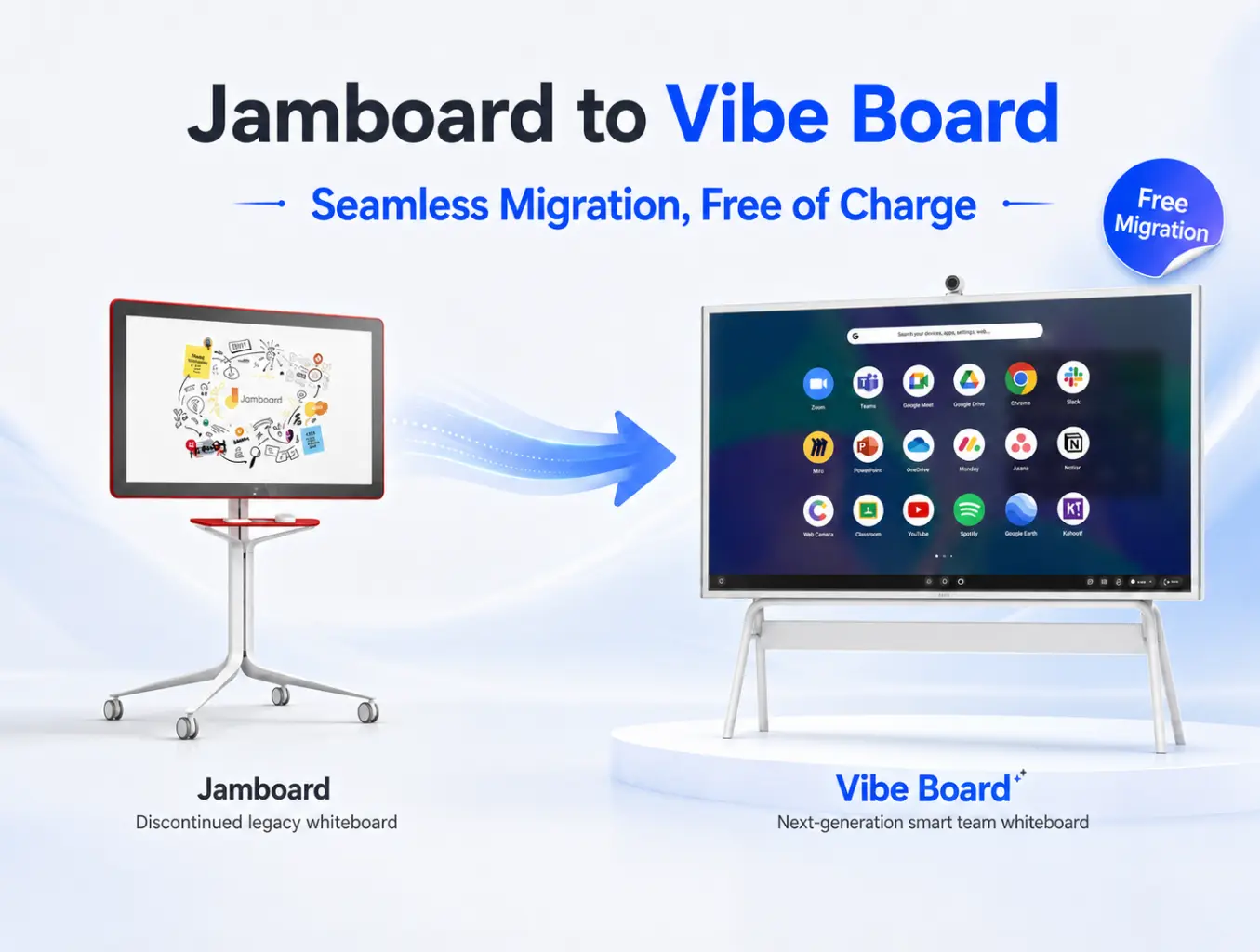
Google Jamboard is permanently shut down — the 55-inch device reached end of life on October 1, 2024, and the Jamboard app followed on December 31, 2024, across Web, iOS, Android, and Google Meet. There’s no bringing it back, and Google has said it isn’t building a direct successor. If your team is still searching for "Jamboard alternative," the short answer is Vibe Board.
Why Vibe Board Is the Best Jamboard Alternative
Most lists of "Jamboard alternatives" are really lists of whiteboarding apps — FigJam, Miro, Microsoft Whiteboard. They’re worth knowing about, but none of them solve what Jamboard actually was: a piece of hardware sitting in a room, not just software running in a browser tab. That’s the gap that matters most, and it’s where Vibe Board is built differently.
-
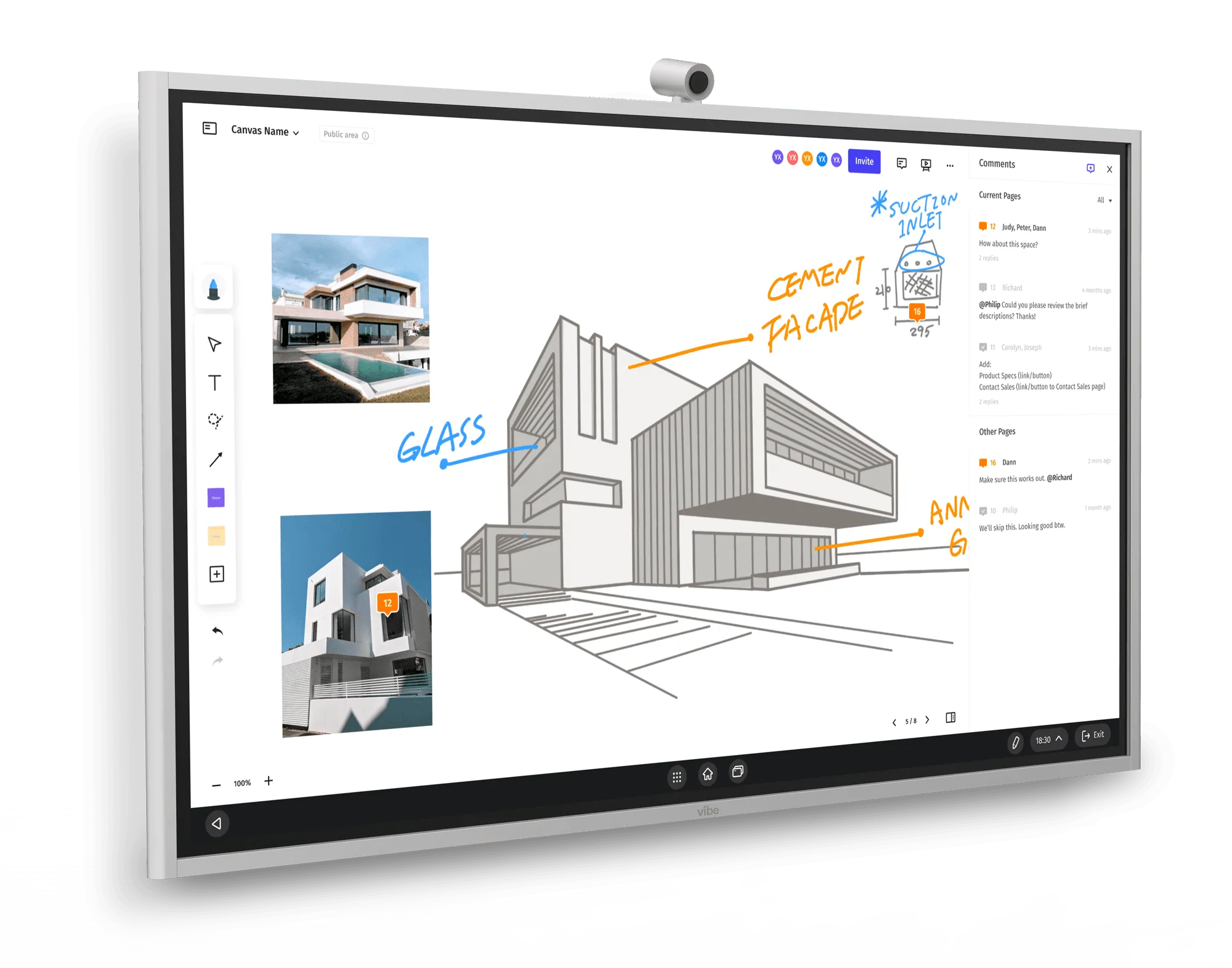
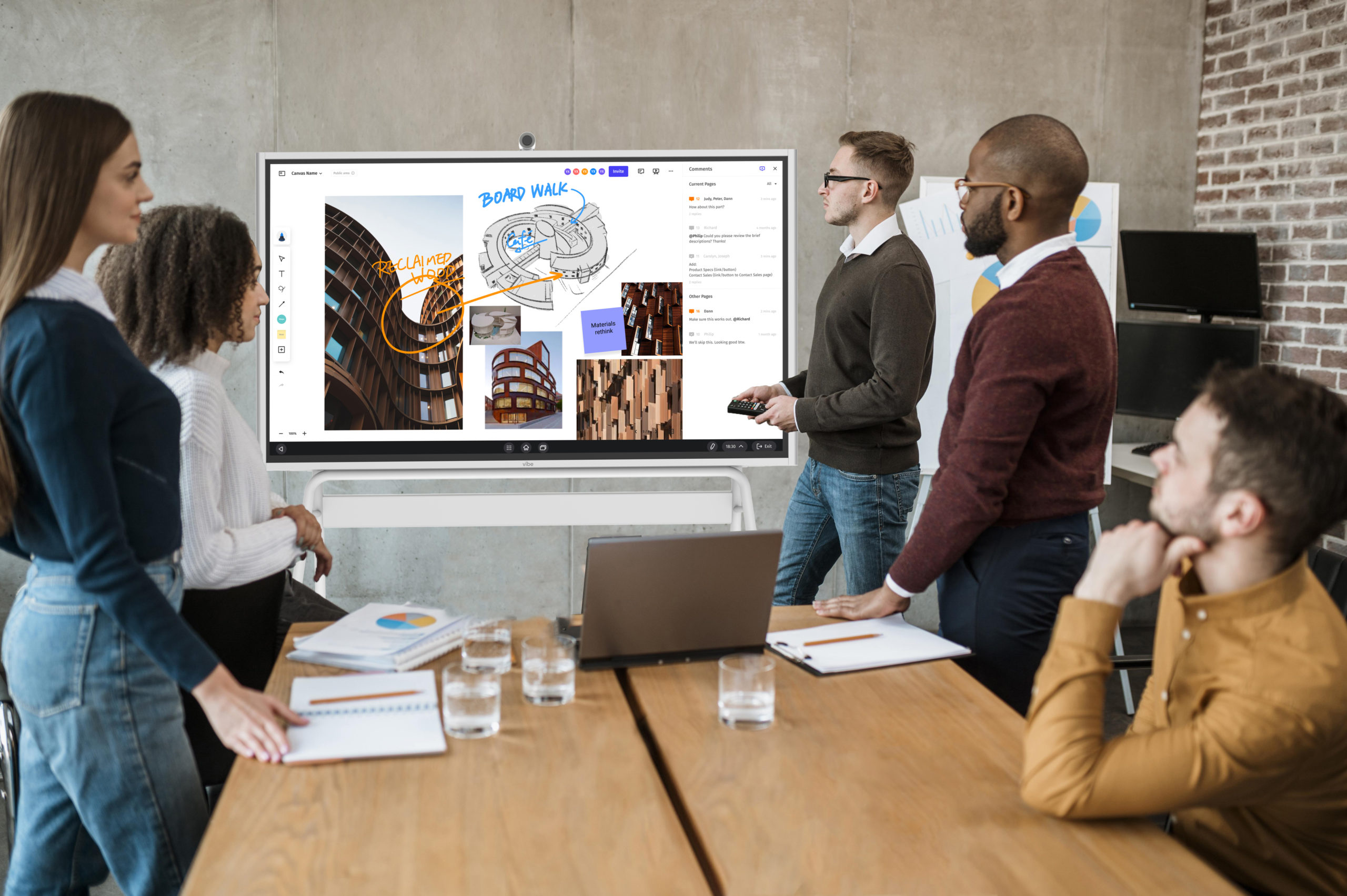
It replaces the hardware, not just the app. Vibe Board is a 4K touchscreen smart whiteboard, available in the same 55″ size Jamboard shipped in, plus a 75″ option for larger rooms. Software-only alternatives leave you needing to figure out a display separately; Vibe Board is the display.
-
It brings your old Jamboard content with you. Jamboard files (recovered as PDFs — see [Step 1 below](#step-1)) import directly onto Vibe’s canvas as an editable layer, not a flat image. Few competitors treat Jamboard migration as a first-class feature rather than an afterthought.
-
It doesn’t lock you into one ecosystem. Jamboard only worked inside Google Workspace. Vibe Board connects with Google Drive, Google Classroom, and Google Meet, and just as natively with Microsoft 365 and Teams, plus 250+ other apps through the Vibe Store — so switching away from Jamboard doesn’t force a switch away from Google Workspace, or a commitment to any single platform going forward.
-
Video calls run on the board itself. Zoom, Google Meet, and Microsoft Teams run directly on Vibe Board, the same way Jamboard integrated natively with Google Meet — no separate laptop required to host a hybrid session.
-
It’s already the market’s most-adopted option. Vibe Board is used by 40,000+ business and education customers and holds a 4.7-star rating on Reviews.io, which matters for a hardware purchase you’re not going to want to replace again in two years.
Pricing starts at $3,699 for the 55″ model (current promotional pricing; check vibe.us for the live rate).
One more thing worth knowing, even though it’s not why most people start looking: Vibe also makes Vibe AI, a memory layer that can transcribe and summarize what happens around the whiteboard — the discussion, decisions, and follow-ups, not just what got drawn. It’s not something Vibe Board does on its own, though; Vibe AI runs off a separate capture device, either Vibe Bot or Vibe Dot, placed alongside the board. If you’re just here for a board replacement, Vibe Board covers that completely by itself. If the idea of sessions being remembered sounds useful too, that’s a second, optional piece — covered in Step 4 below.
Step 1: Recover Your Old Jams Before They’re Gone for Good
If you haven’t touched this since the shutdown, don’t assume your boards are unreachable — Google auto-converted most Jams into PDFs and dropped them into Google Drive during the transition. Here’s how to find them:
-
Go to drive.google.com or open the Google Drive app.
-
In the search bar, type type:Jam and search. This surfaces every converted Jam file in the account.
-
Select individual files, or select all and download the folder as a batch.
-
Note: PNG exports only capture a single frame of a multi-frame Jam — PDF is the more complete format if a board had multiple pages.
If a file shows up as a blank PDF, the original Jam was likely corrupted during conversion and isn’t recoverable — that’s a known limitation of Google’s auto-conversion process, not something on your end.
Step 2: Set Up Vibe Board
Order the 55″ or 75″ Vibe Board S1 depending on room size — 55″ for huddle rooms and classrooms, 75″ for larger meeting spaces. It ships ready to run Vibe Canvas out of the box, and connects to your Google or Microsoft accounts during setup so Drive, Classroom, or 365 files are accessible right away.
Step 3: Move Your Old Content Into Vibe
Once you’ve recovered your Jam files as PDFs (Step 1), bringing them into Vibe Board is straightforward:
-
Open Vibe Canvas on the board, or from a browser at app.vibe.us.
-
Use the import option to pull files directly from Google Drive — no need to re-download and re-upload manually.
-
Select the converted Jam PDFs. Vibe places them onto the canvas as an annotatable layer, so you can keep writing, drawing, and adding sticky notes on top of the old content rather than treating it as a flat, read-only image.
-
For boards with content you want to rebuild rather than just preserve — templates, recurring retro formats, planning boards — it’s usually faster to recreate the structure directly in Canvas using its built-in templates than to fight with a converted PDF layout.
For more details, see our complete guide.
Step 4 (Optional): Add AI Memory With Vibe Bot or Vibe Dot
Here’s the gap that shows up a year into using any straight whiteboard replacement: the board itself was never the most valuable part of a Jamboard session — the conversation around it was. A sticky-note board with no record of who said what, what got decided, or what happened right after the session ends is exactly as ephemeral as Jamboard was, just on different hardware.
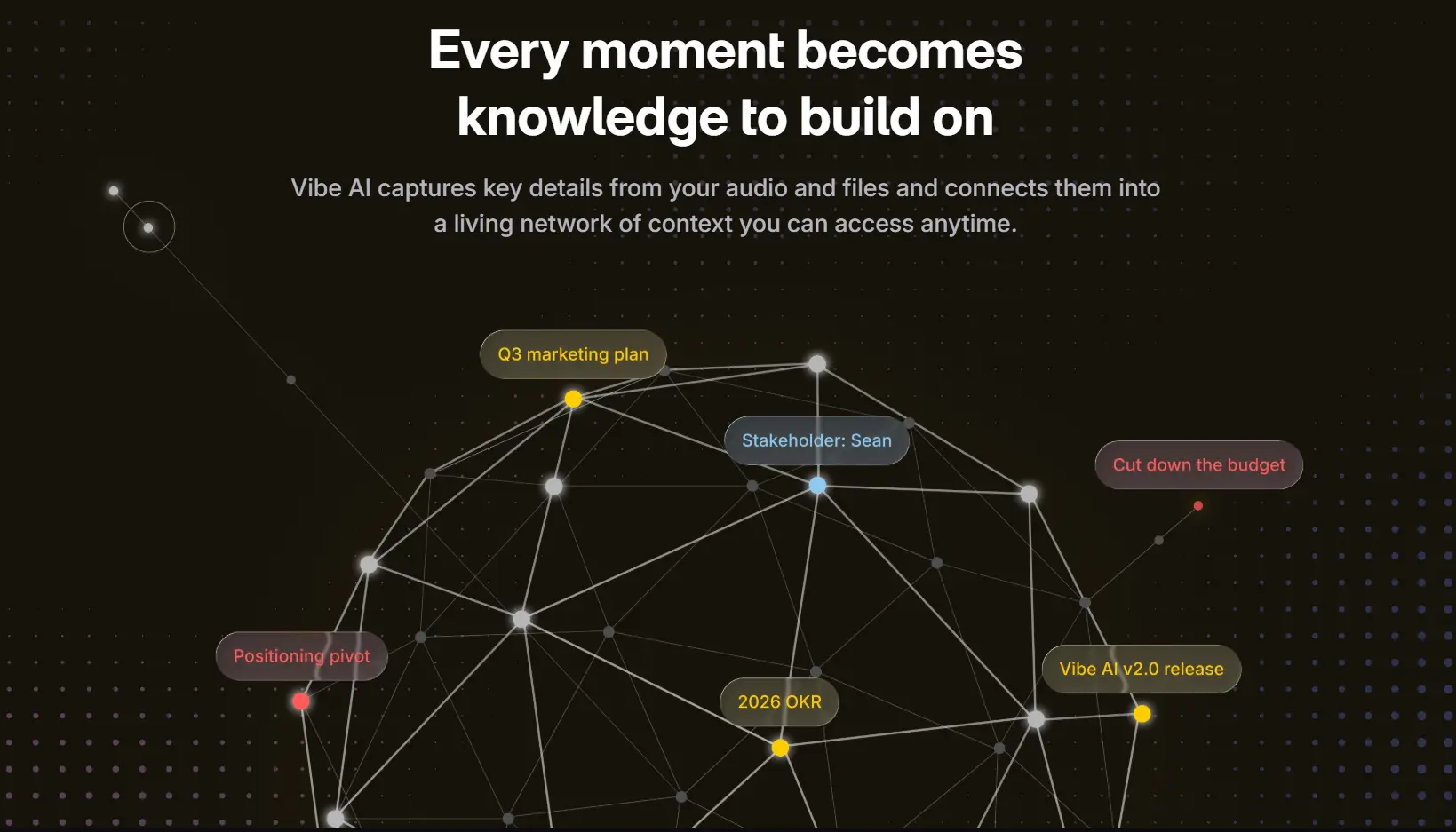
With Vibe Bot or Vibe Dot connected to your Vibe Board, Vibe AI’s Memory Graph can help you keep a session’s context past the moment the board gets erased — capturing the discussion, decisions, and follow-ups around it, so a brainstorm becomes something you can search and revisit later, not just a board that gets wiped for the next meeting. Which device to pair depends on where the session happens:
-
Vibe Bot fits a dedicated meeting or brainstorm room where the Vibe Board lives permanently — placed in the room, it listens while the team works, transcribes live, and generates a structured summary with decisions and action items once the session ends.
-
Vibe Dot fits smaller or less formal sessions — a quick huddle around the board without booking a fully equipped room, or a conversation that starts at the board and continues elsewhere. It clips on, records, and syncs to a phone for AI transcription and summaries.
Whichever device you add, it’s what feeds the Vibe AI Memory Graph — a running record that links a session’s whiteboard activity to the discussion, decisions, and follow-ups that came out of it. In practice, that means:
-
A session isn’t just a board anymore. The recording from Bot or Dot links to that session’s context, so it survives after the whiteboard is cleared for the next meeting.
-
You can ask about it later. Instead of scrolling back through old boards, ask directly — "what did we land on for the Q3 roadmap brainstorm?" — and get an answer sourced from that session’s transcript and summary.
-
Follow-ups don’t rely on someone remembering to write them down. Action items surfaced during a session get tracked rather than left as an unstructured sticky note that nobody revisits.
None of the software-only Jamboard alternatives — FigJam, Miro, Microsoft Whiteboard — offer anything like this, with or without extra hardware. They’re good at the canvas. None of them are built to remember the conversation that happened around it.
Where Other Alternatives Still Make Sense
To be fair, Vibe Board isn’t the right fit for every case. If a team just needs lightweight, browser-only whiteboarding with no hardware and no interest in an AI memory layer — occasional brainstorms on laptops, no dedicated room — a free tool like FigJam or Microsoft Whiteboard (bundled with Microsoft 365) covers that without any hardware spend. The tradeoff is exactly what this guide has been pointing at: a screen-only whiteboard doesn’t solve the room problem Jamboard solved, and it doesn’t remember anything once the tab closes.
FAQ
Is Google Jamboard completely shut down?
Yes. The hardware reached end of life on October 1, 2024, and the app itself was fully discontinued on December 31, 2024. Existing Jams were converted to PDF and moved to Google Drive; there’s no way to create or edit new Jams.
Can I still get my old Jamboard files?
In most cases, yes. Search Google Drive for type:Jam to find PDF versions of your old boards. If a specific Jam was corrupted during Google’s conversion process, it may show up as a blank PDF and isn’t recoverable.
What’s the closest replacement to the physical Jamboard device?
Vibe Board is the closest like-for-like hardware replacement — a similarly sized 4K touchscreen smart whiteboard that runs real-time collaborative whiteboarding software and integrates with Google Workspace and Microsoft 365.
Do I need to buy new hardware, or is a software-only alternative enough?
It depends on whether Jamboard’s physical device was doing real work for your team. If people relied on a shared room display for in-person brainstorming, a software-only tool like FigJam or Miro doesn’t replace that — you’d need a display of some kind either way. If Jamboard was mainly used as a virtual whiteboard app, software-only options are a lighter-weight fit.
Does Vibe Board work with Google Workspace?
Yes. Vibe Board connects with Google Drive, Google Classroom, and Google Meet, along with Microsoft 365 and Teams, so switching away from Jamboard doesn’t require moving off Google Workspace.
Can I use Vibe AI directly with Vibe Board, with no other hardware?
No. Vibe Board has no microphone or camera and can’t record a room on its own, so it can’t connect to Vibe AI by itself. Vibe AI requires a separate capture device — Vibe Bot or Vibe Dot — to generate the transcripts and summaries that feed its Memory Graph. Vibe Board alone is a complete Jamboard replacement; it just doesn’t include the AI memory layer without one of those devices.
Which should I get, Vibe Bot or Vibe Dot?
Vibe Bot fits a dedicated room where the Vibe Board stays put — it’s built to sit in that space and capture whatever happens there. Vibe Dot fits situations without a fixed room: quick huddles, informal conversations, or sessions that move between spaces. Both feed the same Vibe AI Memory Graph.