WhatsApp does not have a built-in call recording feature — and unlike Zoom or Google Meet, there is no setting to turn on, no cloud archive, and no "record" button waiting in a menu somewhere. This is a deliberate design choice tied to the platform’s end-to-end encryption model. The result is that recording a WhatsApp call always requires a workaround, and not every workaround actually captures both sides of the conversation reliably.
This guide covers every method that works in 2026 — on iPhone, Android, desktop, and as a last resort — along with the ones that sound like they should work but don’t, and the legal rules you need to know before you record anyone.
Why WhatsApp Doesn’t Have Built-In Recording
Understanding the technical constraint matters, because it explains why so many third-party recording apps fail or only capture one side of the call.
WhatsApp processes call audio at the OS level through encrypted VoIP channels. On iOS, Apple’s audio routing architecture blocks third-party apps from intercepting the audio stream of another app’s VoIP call — this is a privacy protection built into iOS itself, not a WhatsApp-specific restriction. On Android, the restriction is less absolute, but manufacturers implement audio routing differently, and many devices block internal audio capture for VoIP calls even when it’s technically allowed by Android’s framework.
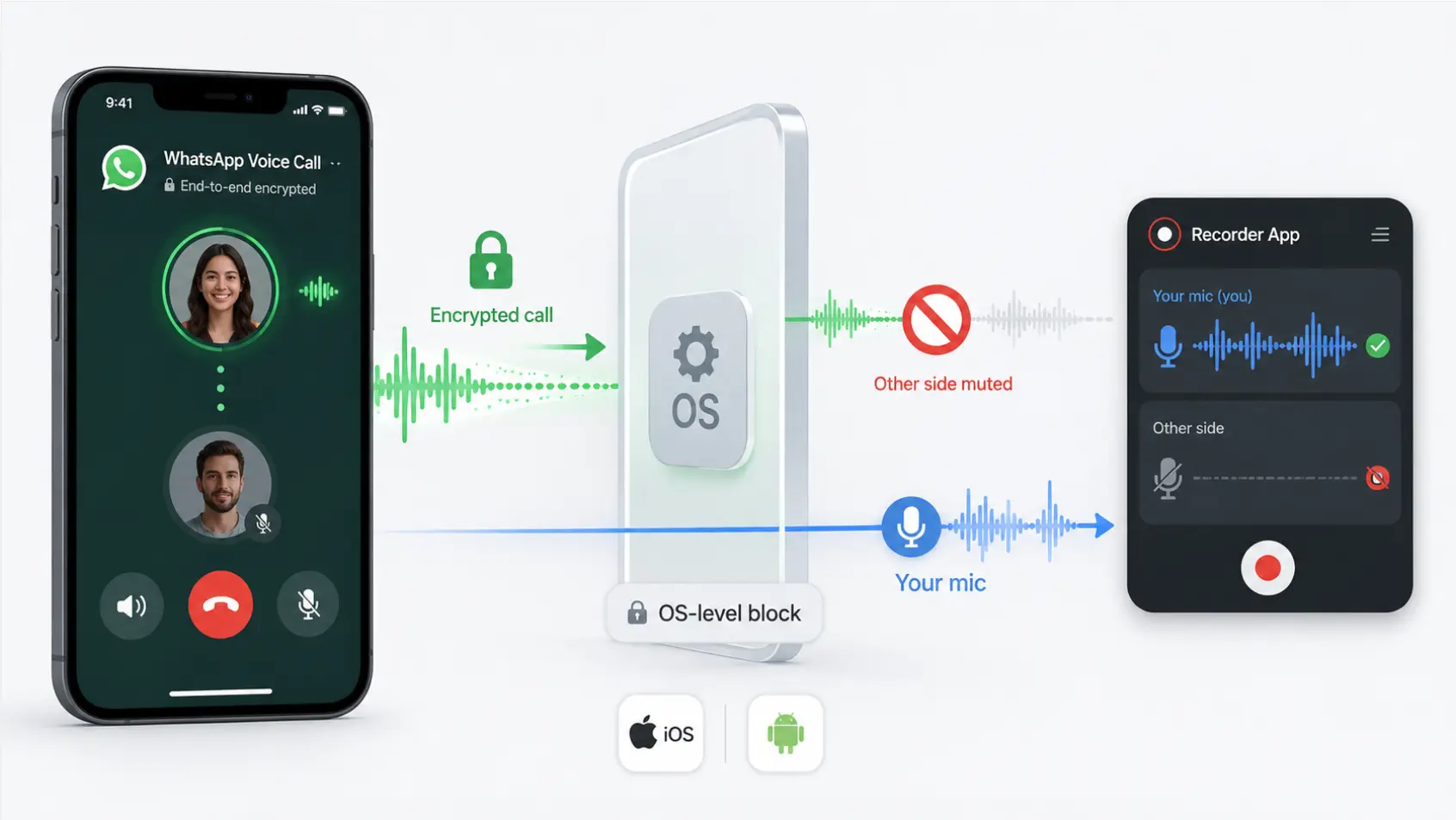 Why WhatsApp call recording fails on iPhone and Android — OS-level block mutes other side in recorder app
The practical result: apps that claim to "record WhatsApp calls" often capture only your microphone input — your own voice — and produce a recording where the other person’s side is silence. This is not a bug in the app. It’s a system-level limitation the app cannot work around.
Methods that reliably capture both sides:
-
Screen recording with speakerphone (Android — varies by device)
-
QuickTime via iPhone + Mac cable connection
-
Desktop/web version with screen recording + loopback audio (Windows/Mac)
-
External hardware recorder (works everywhere, every time)
Methods that often fail or capture only one side:
-
iOS Screen Recording without speakerphone
-
Third-party call recording apps on iPhone
-
Third-party apps on Android with restricted audio access
Read This Before You Record Anyone
WhatsApp is used for personal conversations, business calls, and everything in between — often across international borders. The legal picture is more complicated than for Zoom or Google Meet, where the platform itself provides a consent notification.
WhatsApp does not notify the other person if you record the call. Unlike Zoom, which displays a "●REC" indicator to all participants, WhatsApp has no recording notification mechanism. That makes the consent obligation entirely the recorder’s responsibility — and it makes secret recording legally riskier.
In the United States: Federal law requires one-party consent (your own is sufficient in most states), but 13–14 states including California, Florida, and Illinois require all-party consent — meaning everyone on the call must know they’re being recorded. For interstate calls, the stricter law applies. (See our full US state-by-state recording consent guide)
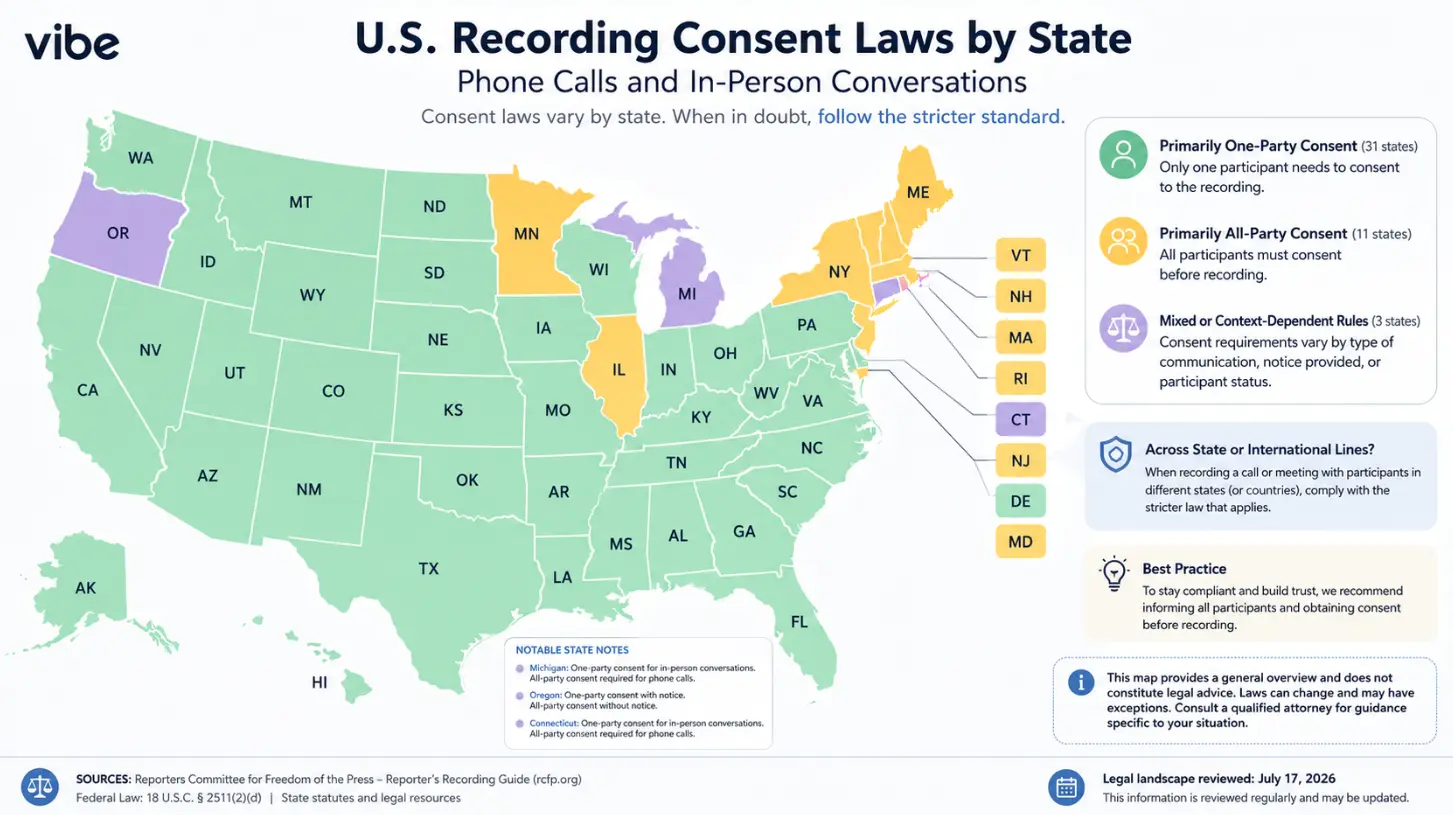 U.S. recording consent laws by state — one-party vs. all-party consent map
In the EU and UK: Under GDPR, a voice recording of an identifiable person is personal data. Recording requires a lawful basis — typically explicit consent or documented legitimate interest — before the recording begins. Germany, France, Spain, and most EU member states require all-party consent under their domestic criminal codes, regardless of GDPR. In practice, this means announcing the recording and getting acknowledgment is not optional in most of Europe.
The practical rule for any WhatsApp call: Tell the other person you’re recording and get their verbal acknowledgment before you start. This takes five seconds and protects you in every jurisdiction.
Find Your Method
|
Your device |
Best method |
|---|---|
|
Android phone |
Built-in screen recorder with internal audio |
|
iPhone |
iOS Screen Recording with speakerphone — or iPhone + Mac via QuickTime for better audio |
|
Windows PC (WhatsApp Desktop or Web) |
Xbox Game Bar + loopback audio |
|
Mac (WhatsApp Desktop or Web) |
QuickTime screen recording + system audio |
|
Any device, reliably |
External hardware recorder — the only method guaranteed to capture both sides on every platform |
Method 1: Android Built-In Screen Recorder
Reliability: Medium–High (varies by device and Android version)
Android 10 and later on most major devices (Samsung, Pixel, Xiaomi, OnePlus) include a built-in screen recorder that can capture internal audio — meaning both sides of a VoIP call — when the call is on speakerphone. Whether it works depends on your specific device, Android version, and whether the manufacturer has restricted internal audio capture for VoIP.
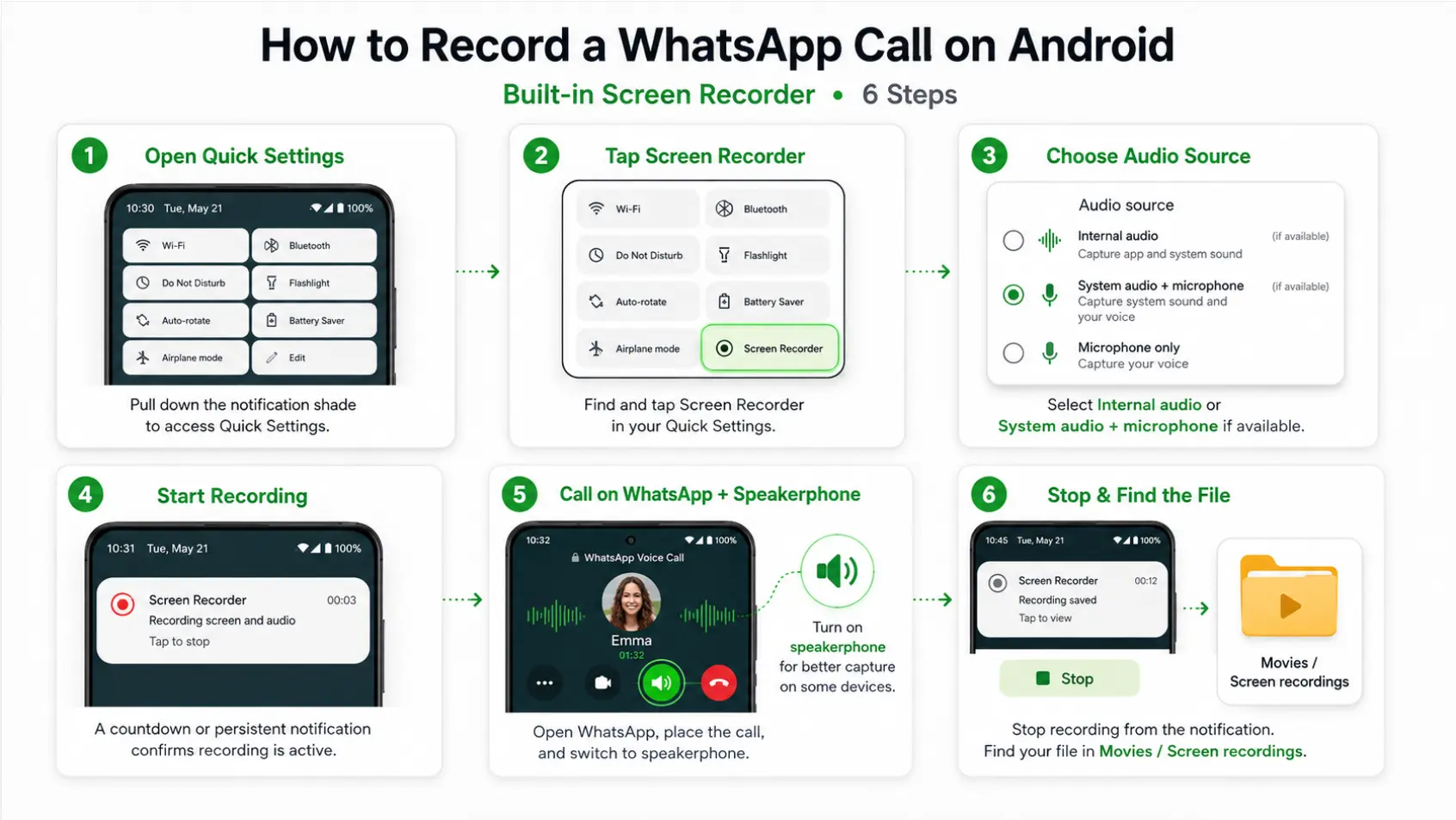 How to record WhatsApp call on Android — step-by-step guide using screen recorder, audio source settings, and speakerphone
Steps:
-
Before starting the call, pull down your notification shade and look for Screen Recorder in your quick settings tiles. If it’s not visible, tap the edit icon to add it.
-
Tap Screen Recorder to launch it. In the audio settings (usually a gear or settings icon within the recorder), select Internal audio or System audio + Microphone if the option is available. If only Microphone is available, you will likely only capture your own voice.
-
Start the recording. A countdown or persistent notification confirms it’s active.
-
Open WhatsApp and place your call. Switch to speakerphone immediately — this maximizes the chance that the microphone picks up both sides if internal audio capture is restricted on your device.
-
When the call ends, stop the recording from the notification shade or screen recorder overlay.
-
Find the file in your Gallery or in the Movies / Screen recordings folder.
If the recording only captures your voice: Your device is blocking VoIP internal audio capture. Switch to Method 6 (external hardware) or a third-party app like Cube ACR, which works on some Android devices by using accessibility permissions to intercept call audio at a different system level.
Method 2: iPhone — iOS Screen Recording
Reliability: Low–Medium (audio capture of the other side is not guaranteed)
iOS Screen Recording can capture WhatsApp call audio, but with a significant limitation: Apple’s audio routing architecture means the microphone input (your voice) is captured, but the speaker output (the other person’s voice coming from WhatsApp’s encrypted audio stream) may not be reliably recorded. In testing, results vary — some users report capturing both sides in speakerphone mode; others get only their own voice or silence on the far end.
Use this method for video calls where having the video matters more than perfect audio. For voice-only calls where the content of both sides needs to be captured reliably, use Method 3 (QuickTime via Mac) instead.
Steps:
-
Go to Settings → Control Center and add Screen Recording if it’s not already there.
-
Before starting your WhatsApp call, open Control Center (swipe down from the top-right corner on Face ID iPhones, swipe up on older models).
-
Long-press the Screen Recording button — a menu appears.
-
Tap the Microphone icon to turn it ON (it turns red). This ensures your microphone is active.
-
Tap Start Recording and wait for the 3-second countdown.
-
Open WhatsApp and start or answer the call.
-
Put the call on speakerphone — this is the only way the microphone can pick up the other person’s voice from your phone’s speaker. Audio quality will reflect ambient noise.
-
When the call ends, stop the recording from the Control Center or the red status bar at the top.
-
The recording saves to the Photos app.
Known limitation: iOS will often capture your voice clearly but produce a weak or absent far-end recording even on speakerphone, depending on your device and iOS version. If accurate two-sided capture is required, use Method 3.
Method 3: iPhone + Mac via QuickTime (Most Reliable on iOS)
Reliability: High
Connecting your iPhone to a Mac and recording through QuickTime Player routes the iPhone’s audio output through the Mac, bypassing iOS’s VoIP audio restrictions. This is the most reliable software-based method for iPhone users who need to capture both sides of a WhatsApp call.
What you need: An iPhone, a Mac, and a USB cable (or USB-C cable for newer models).
Steps:
-
Connect your iPhone to your Mac via USB cable. If prompted on iPhone, tap Trust This Computer.
-
On your Mac, open QuickTime Player (Applications folder or Spotlight search).
-
Go to File → New Audio Recording (for voice calls) or File → New Movie Recording (for video calls).
-
Click the dropdown arrow next to the red Record button.
-
Under Microphone, select your iPhone from the list. This routes the iPhone’s audio — including WhatsApp call audio — to QuickTime.
-
Click the Record button in QuickTime.
-
On your iPhone, open WhatsApp and start your call normally. No speakerphone required.
-
When the call ends, stop the recording in QuickTime.
-
Save the file (File → Save) to your Mac in your preferred location.
Why this works where iOS Screen Recording doesn’t: QuickTime captures the iPhone’s audio output stream directly over USB, rather than trying to intercept it through the iOS screen recording API. WhatsApp’s audio reaches QuickTime before iOS’s VoIP audio restrictions apply.
Method 4: Windows Desktop + WhatsApp Web
Reliability: High (with correct audio routing setup)
Using WhatsApp on your Windows PC (either the WhatsApp Desktop app or WhatsApp Web in a browser) gives you access to screen recording tools that can capture both sides of the call through your computer’s audio system.
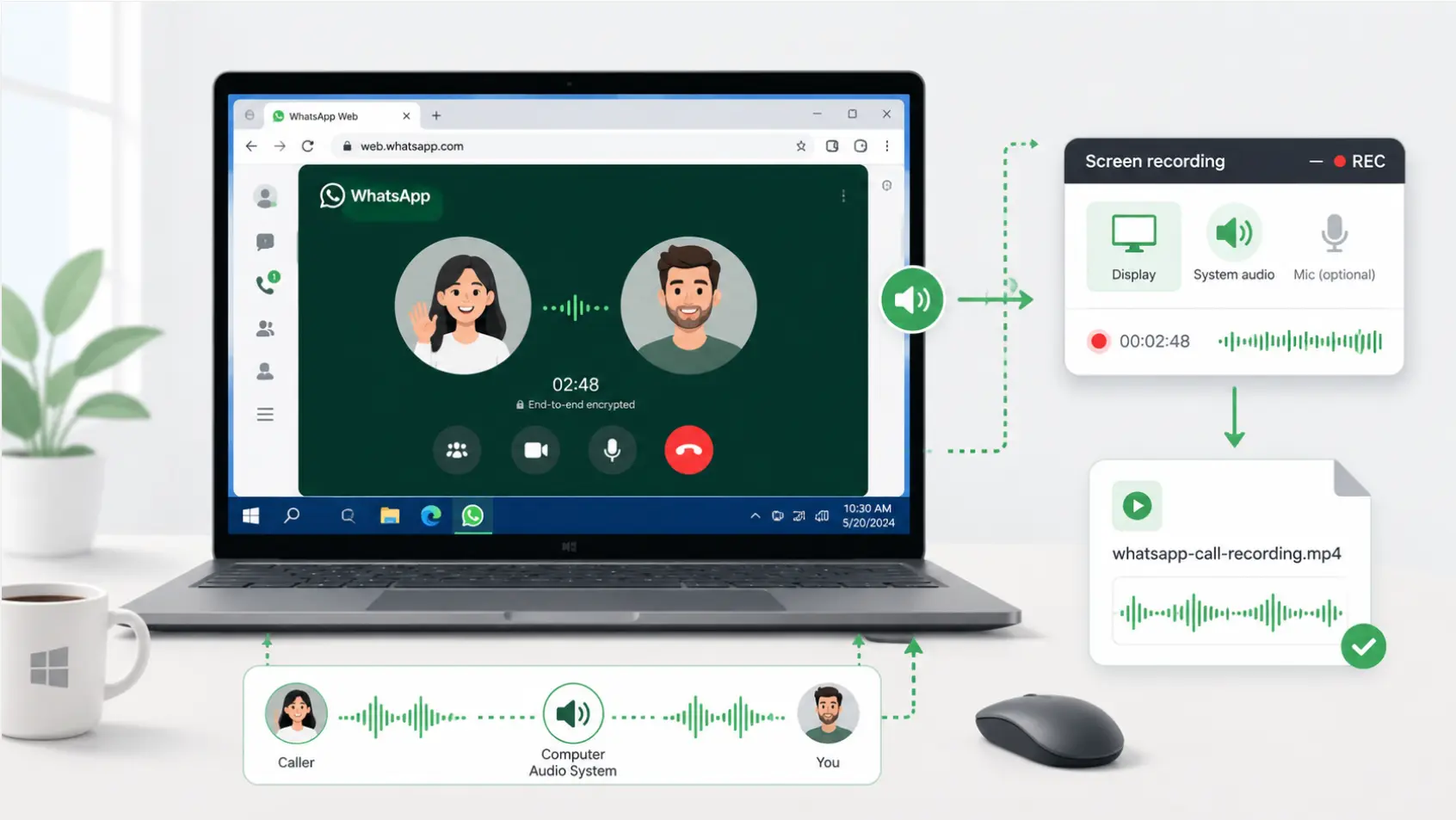 ecord WhatsApp call on desktop — WhatsApp Web with screen recording software capturing display, system audio, and saving as MP4 file
Steps:
-
Open WhatsApp Desktop or web.whatsapp.com in Chrome or Edge on your Windows PC.
-
Press Windows key + G to open Xbox Game Bar.
-
In the Capture widget, click the ● (record) button, or use the shortcut Windows + Alt + R to start recording.
-
Start your WhatsApp call through the desktop app or web.
-
Make sure your audio output (speakers or headphones) and microphone are both active — Xbox Game Bar captures system audio, which includes the call audio coming through your speakers.
-
When the call ends, press Windows + Alt + R to stop recording.
-
Find the recording in This PC → Videos → Captures.
For cleaner audio: If you’re using headphones, the recording may only capture your microphone (since the other person’s voice goes to your headphones, not the system audio output). Use your PC speakers during the call, or configure a virtual audio cable (like VB-Audio Virtual Cable) to route both audio streams into the recording simultaneously.
Method 5: Mac Desktop + WhatsApp Web
Reliability: High (with system audio routing)
Steps:
-
Open WhatsApp Desktop or web.whatsapp.com in Safari or Chrome.
-
Press Command + Shift + 5 to open the macOS screenshot/recording toolbar.
-
Select Record Entire Screen or Record Selected Portion.
-
Click Options and set the Microphone to your Mac’s built-in microphone or your headset.
-
Click Record, then start your WhatsApp call.
-
When done, click the Stop button in the menu bar or press Command + Control + Esc.
Note on audio routing: macOS does not natively capture system audio (the other person’s voice through your speakers) in screen recordings — it only captures your microphone. To record both sides, install a free virtual audio routing app like BlackHole (free, open source) to create a loopback device that captures system audio alongside your microphone input. This requires a one-time setup but produces clean two-sided recordings consistently.
Method 6: External Hardware Recorder (Works Everywhere)
Reliability: Highest — works on every device, every time
When software methods fail, are inconsistent, or add too much friction, an external hardware recorder is the only approach that reliably captures both sides of any phone call on any device. The principle is simple: put the call on speakerphone, position a recorder near the phone, and capture what comes out of the speaker along with your microphone input.
The limitation of a basic physical recorder is audio quality — you’re capturing speaker output in a room, which picks up ambient noise and can introduce echo. The more capable solution is a dedicated AI recorder that captures audio with hardware-grade microphones, processes it for transcription, and builds it into a searchable record rather than just a raw audio file.
Vibe Dot is a wearable AI recorder that clips onto your collar or lapel and works independently of any phone or software platform. Because it captures audio through its own five-microphone array — including a bone-conduction microphone for voice isolation — rather than intercepting a digital audio stream, it sidesteps iOS and Android’s VoIP audio restrictions entirely.

Put your WhatsApp call on speakerphone, and Vibe Dot captures both your voice and the audio from the phone’s speaker with clean separation. The recording feeds into Vibe AI’s Memory Graph, which links it to your other meetings and conversations rather than leaving it as an isolated audio file. Ask "What did the client say about pricing last week?" and get an answer drawn from your actual recorded conversations — across WhatsApp calls, Zoom meetings, in-person discussions, or any session Vibe Dot was present for.
Relevant specifics for call recording:
-
Works regardless of platform. WhatsApp, phone calls, Zoom, in-person — Vibe Dot doesn’t care what app the call is on.
-
No software to configure, no permissions to grant, no compatibility issues. Hardware capture is immune to OS-level audio restrictions.
-
SOC 2, HIPAA, and NDAA compliant, with hardware encryption — relevant if you’re recording business-sensitive or regulated conversations.
-
Auto-capture mode (Beta) can start recording based on your voice or a preset schedule, so you don’t have to remember to start it.
-
Vibe Dot starts at $199.
Method Comparison
|
Method |
Works on |
Captures both sides? |
Audio quality |
Setup required |
|---|---|---|---|---|
|
Android screen recorder |
Android |
Usually, if device supports internal audio |
Good |
Low |
|
iOS Screen Recording |
iPhone |
Unreliable |
Fair–Poor |
Low |
|
iPhone + Mac QuickTime |
iPhone + Mac |
Yes, reliably |
Good |
Medium (cable + QuickTime) |
|
Xbox Game Bar |
Windows |
Yes (with speakers) |
Good |
Low |
|
Mac screen recording + BlackHole |
Mac |
Yes (with loopback setup) |
Good |
Medium (one-time app install) |
|
External / hardware recorder (Vibe Dot) |
Any device |
Yes, always |
Excellent |
None |
Troubleshooting Common Problems
My Android screen recording shows video but has no audio from the call
WhatsApp may be blocking internal audio capture on your device. Check your screen recorder’s audio settings — if only "Microphone" is available (not "Internal audio"), your device restricts VoIP audio capture. Try Cube ACR from the Play Store, which uses a different audio interception method and works on some devices where the built-in recorder fails. If that also fails, use an external recorder.
My iPhone Screen Recording only captures my voice, not the other person’s
This is iOS’s VoIP audio routing restriction at work. Switch to the QuickTime + Mac method (Method 3) for reliable two-sided capture. Alternatively, use an external recorder with speakerphone.
The QuickTime method shows my iPhone in the dropdown but records no audio
Make sure you tapped Trust when the iPhone prompted you after connecting the cable. Disconnect and reconnect the cable, re-open QuickTime, and select the iPhone as the microphone source again before recording.
Recording quality is very poor or echoey
This usually means you’re using speakerphone in a reverberant space. Move to a smaller room or closer to the phone, or switch to an external recorder with directional microphones to reduce room noise.
The other person found out I was recording the call
WhatsApp does not send a notification when a call is being recorded. If the other person knew, it was because you told them (which is the right approach) or because they heard you announce it, heard the recording beep from a third-party app, or noticed your behavior change. There is no recording indicator built into WhatsApp.
Conclusion
Recording a WhatsApp call is harder than recording a Zoom meeting, and that gap is by design. WhatsApp built its platform around end-to-end encryption and deliberately chose not to include a recording feature — which means every method here is a workaround, and some workarounds work better than others depending on your device.
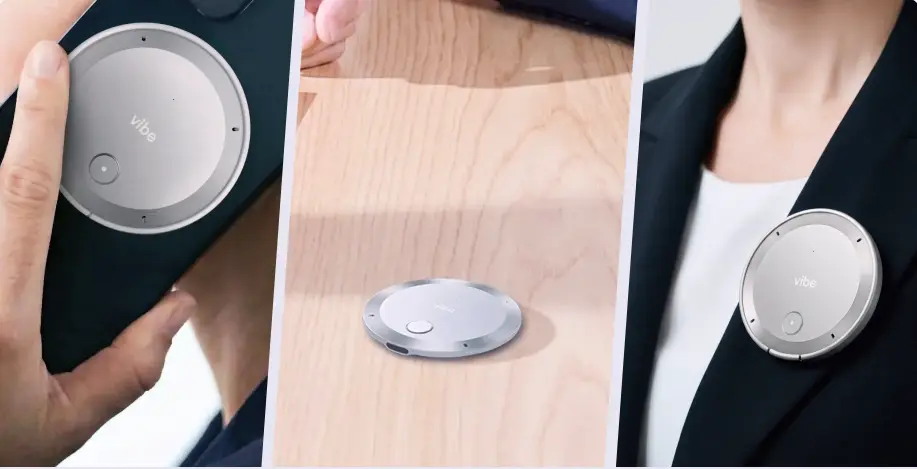 Vibe Dot portable AI meeting recorder shown held in hand, placed on desk, and clipped to jacket as a wearable device
The hierarchy in practice: Android screen recording is the easiest path if your device supports internal audio capture. iPhone users get the most reliable results with QuickTime via Mac. Desktop recording on Windows or Mac with the right audio routing works well. And when software methods are inconsistent or your situation requires capturing calls across multiple platforms in one place, an external hardware recorder removes all the variables.
Before any of it: tell the other person you’re recording. WhatsApp won’t do it for you.
For more on recording across platforms, see our guides on how to record a Zoom meeting and how to record a Google Meet.
FAQs
Does WhatsApp notify the other person when you record a call?
No. Unlike Zoom or Microsoft Teams, WhatsApp has no built-in notification when a call is being recorded. The platform does not display a recording indicator to any participant. This means the obligation to disclose recording falls entirely on the person doing the recording — which also means secret recording carries greater legal risk, particularly in all-party consent states and under GDPR.
Why does my WhatsApp call recording only capture my voice?
This is caused by iOS or Android’s VoIP audio routing architecture. The platform processes the other person’s audio through an encrypted stream that screen recording and most third-party apps cannot intercept. The fix is either the QuickTime + Mac method (iPhone), a third-party app with VoIP support on Android, or an external hardware recorder positioned to capture the call’s speaker output.
Is it legal to record a WhatsApp call without telling the other person?
In most jurisdictions, no. In the US, 13–14 states require all-party consent for call recording, and WhatsApp’s lack of an automatic notification means you are solely responsible for disclosing the recording. In the EU, GDPR requires a lawful basis (typically explicit consent) before recording begins. The safest approach anywhere is to tell the other person at the start of the call and get their verbal confirmation.
Can I record a WhatsApp call on iPhone without a Mac?
Yes, using iOS Screen Recording — but with low reliability for capturing the other person’s voice. Enable the Microphone in the Screen Recording settings, put the call on speakerphone, and start recording before the call begins. Audio quality and completeness will vary. For reliable two-sided capture on iPhone, the QuickTime + Mac method is the better option. For a device-agnostic solution, an external hardware recorder works on every phone.
What is the best way to record a WhatsApp call and get a transcript?
The most reliable approach is a hardware recorder that captures both sides of the call independently of the platform, then feeds the audio into an AI transcription and memory system. Vibe Dot captures any call on any platform, produces clean audio from its five-microphone array, and connects the recording to Vibe AI’s Memory Graph for cross-session search and summaries — rather than producing an isolated audio file you have to manually transcribe.
Does Cube ACR work for WhatsApp calls?
Cube ACR works on some Android devices for WhatsApp VoIP recording, but reliability varies significantly by device manufacturer, Android version, and how WhatsApp routes audio on that specific hardware. It does not work on iPhone. If Cube ACR captures only your voice on your device, the hardware is restricting VoIP internal audio access and no app-based solution will work reliably — switch to an external recorder.