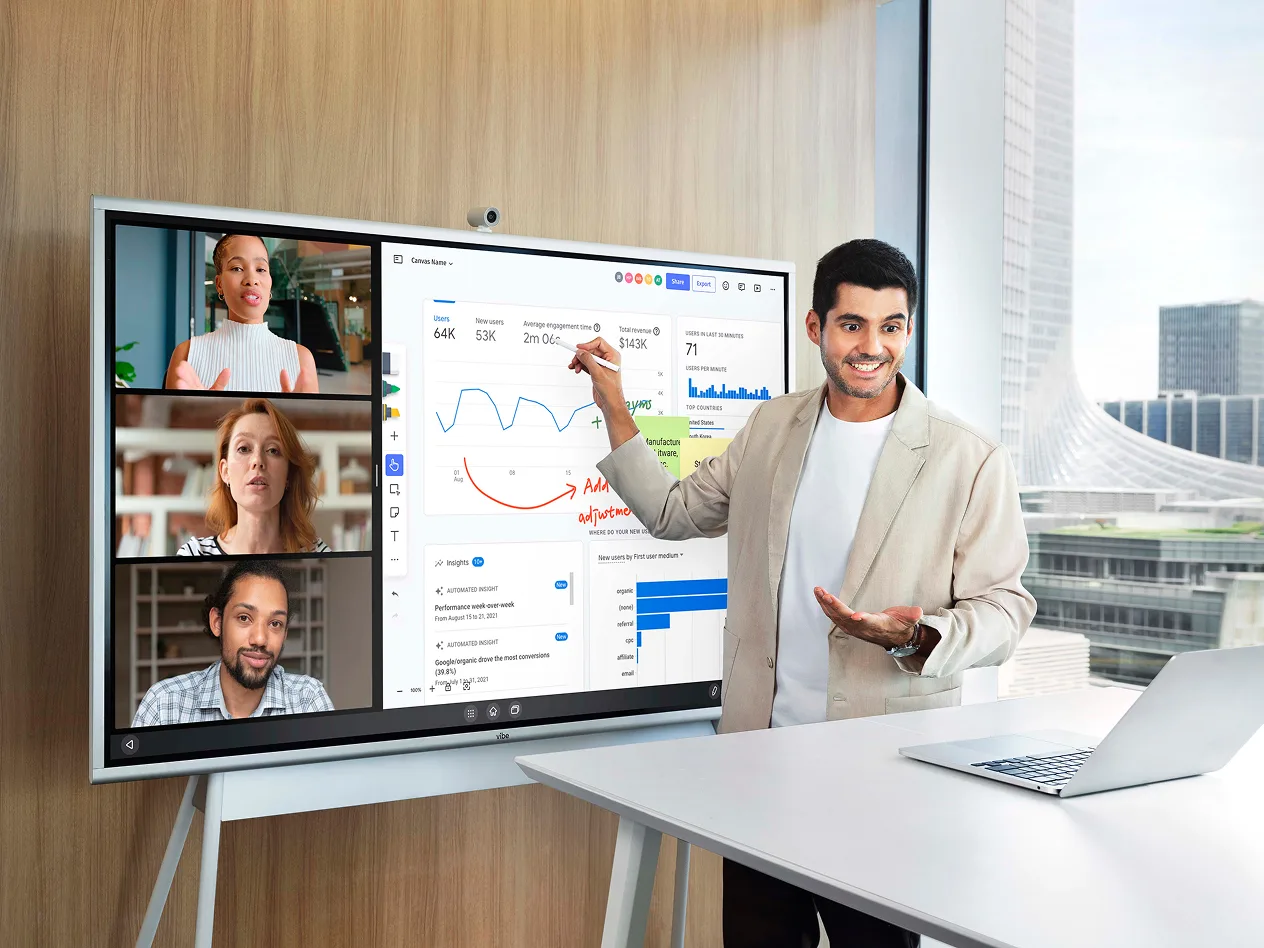

An interactive display for law firms is a large touchscreen that lets attorneys, clients, and experts review exhibits, mark up documents, and join video calls from one shared screen. In 2026 a Vibe Board starts at $3,699 for the S1, and a typical conference room setup with a stand, camera, and wireless adapter lands near $4,900 at current promotional prices. This guide covers where firms use the technology, how to size a display for your farthest seat, a go-live checklist, the confidentiality settings to decide first, and a line-by-line cost breakdown.
This article is general information, not legal advice. Court rules and recording laws vary by jurisdiction. Consult an attorney licensed in your state before setting firm policy.
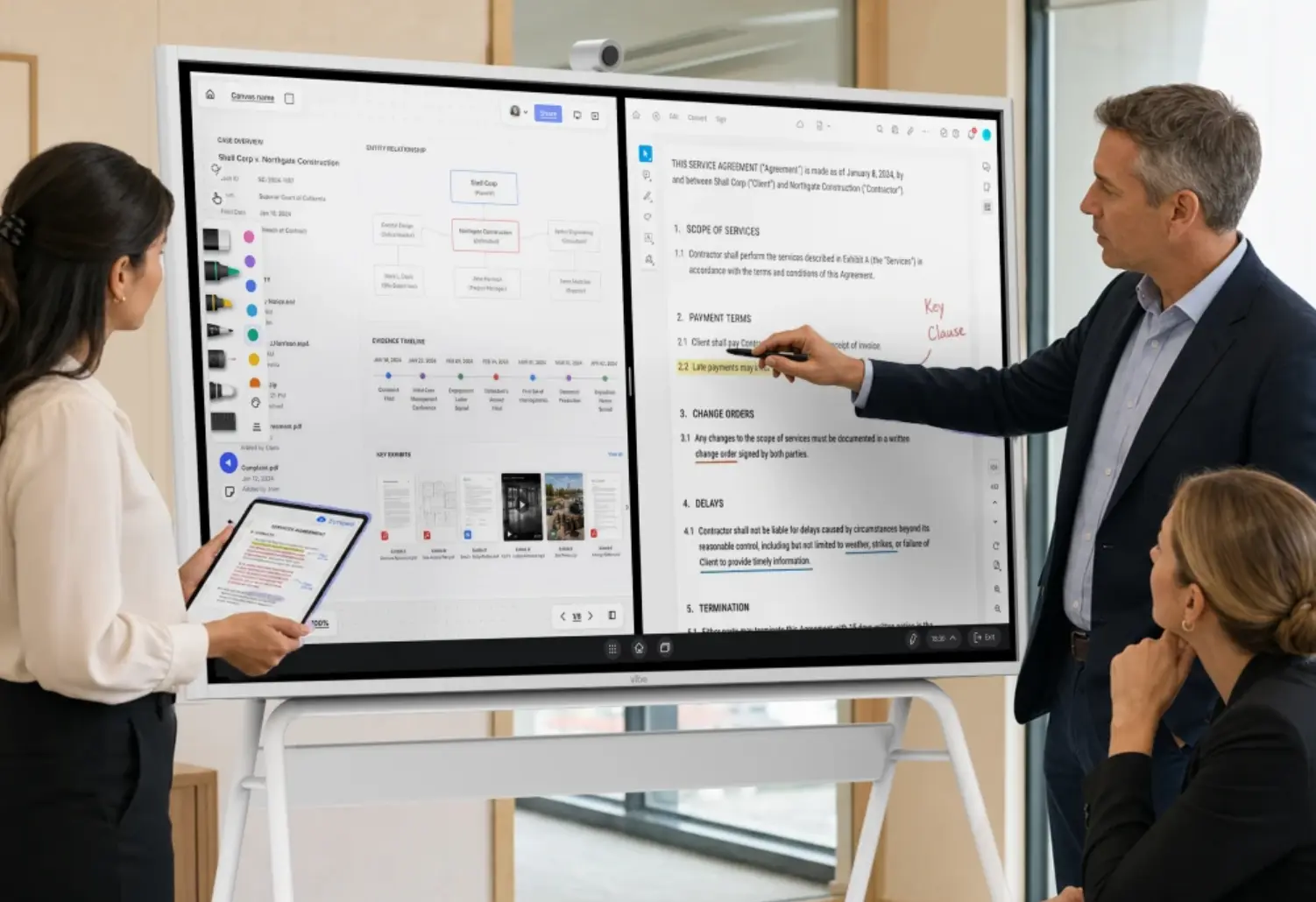 Partner and associate marking up a PDF exhibit on a Vibe Board in a law firm conference room
What Is an Interactive Display for Law Firms?
An interactive display for law firms is an all-in-one touchscreen that combines a large 4K screen, a computer, and collaboration software, so a room can show, annotate, and save case material without a projector, a cable tangle, or printed copies. A digital whiteboard for lawyers does the same job with the added ability to write on a blank canvas, and many products, including the Vibe Board, cover both.
It differs from the usual law office improvisations:
-
A TV on a cart shows what a laptop sends it. It doesn’t let anyone write on the exhibit, and the laptop stays tied to the screen.
-
A projector usually needs a dim room, a clear wall, and calibration, and nobody can mark up the image.
-
A tablet or laptop passed around a table keeps the document in one person’s hands.
The categories overlap. Many people say smart board, interactive whiteboard, or interactive flat panel for the same device. What matters in a firm is what the device does: show a document to a whole room, accept markup from several people, and connect to the tools the firm already uses.
How Law Firms Use Interactive Displays
Law firms use interactive displays wherever a case has to be seen by more than one person at once: client consultations, mediations, depositions and prep, trial preparation, and internal strategy sessions. Vibe’s legal landing page describes the common friction: exhibits reprinted every time a document changes, footage that plays on one laptop only, an expert on video who can’t see what the attorney is pointing at, and sessions delayed by cables and adapters.
Three law firm customers describe the effect in their own words, as published on that page:
-
Christina Spears, Office Manager, D.C. Bar. Sharing documents on a larger screen lets everyone participate in the discussion, and preparing for litigation has become much easier.
-
Will MacKay, CFO, Finney Injury Law. The firm often takes a board on wheels to trial to put exhibits in front of the jury, and has referred it to at least half a dozen other people.
-
Ryan Gregerson, Managing Partner, RCG Law Group. In divorce mediations, clients can clearly see what the mediator is sharing, and demand for the boards inside the firm is high.
These are customer statements, not independent findings. Here is how the main use cases work in practice.
Client consultations and intake
A consultation goes better when the client can see what the attorney is looking at. Put the engagement letter, a timeline, or a draft agreement on the display, mark it up together, and save the marked-up version to the matter file before the client leaves. The setup is a conference room, a display at table height of view, and a camera if the client or a family member joins remotely. See How to Set Up a Client Meeting Room at a Law Firm for room layouts.
Mediation and settlement conferences
Mediation sessions bounce between rooms and between documents. A display on a rolling stand lets the mediator or an attorney show a proposal, a damages model, or a settlement term sheet to everyone in the room at once, and revise it live. The point of the screen is shared sight: no one is reading a laptop over someone’s shoulder.
Depositions and prep rooms
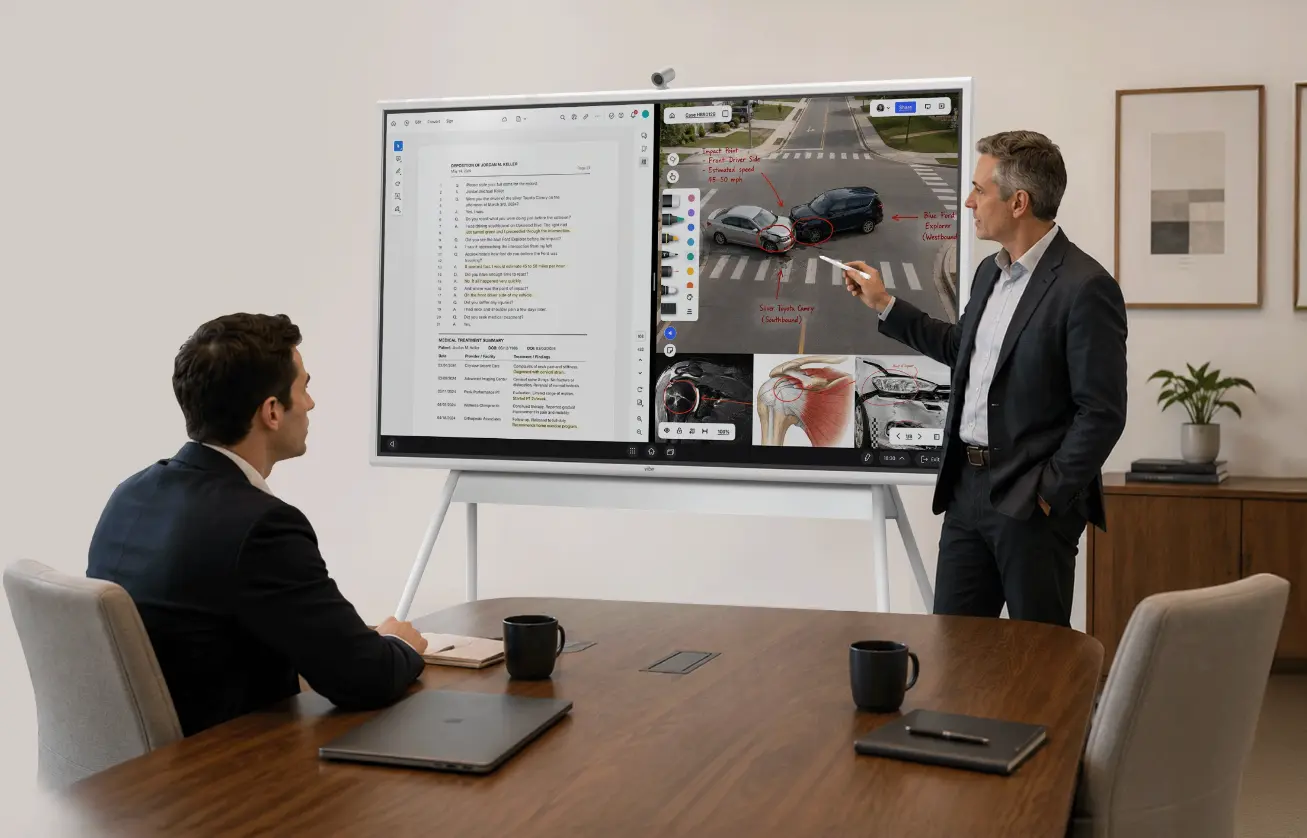
Deposition prep depends on exhibits. A display lets the examining attorney pull up a document, zoom to a clause, and mark it for the witness, while a remote participant sees the same screen. Rules for remote depositions vary, so confirm court and stipulation requirements before relying on any setup. See Remote and Hybrid Deposition Room Setup.
Trial preparation and war rooms
Litigation teams spend weeks in a prep room with timelines, witness maps, and exhibit lists on the walls. A board lets the team build and revise the same timeline on one screen, with the file saved to the cloud instead of photographed off a whiteboard. See How to Build a Trial Prep War Room and Case Timeline and Case Mapping Templates for Litigators.
Courtrooms
Some firms bring a rolling board to trial, as Finney Injury Law describes above, but court technology rules vary by judge and jurisdiction. Confirm with the clerk before bringing any equipment, and treat the courtroom as a supporting use rather than the reason to buy. See Interactive Displays in the Courtroom: What Works.
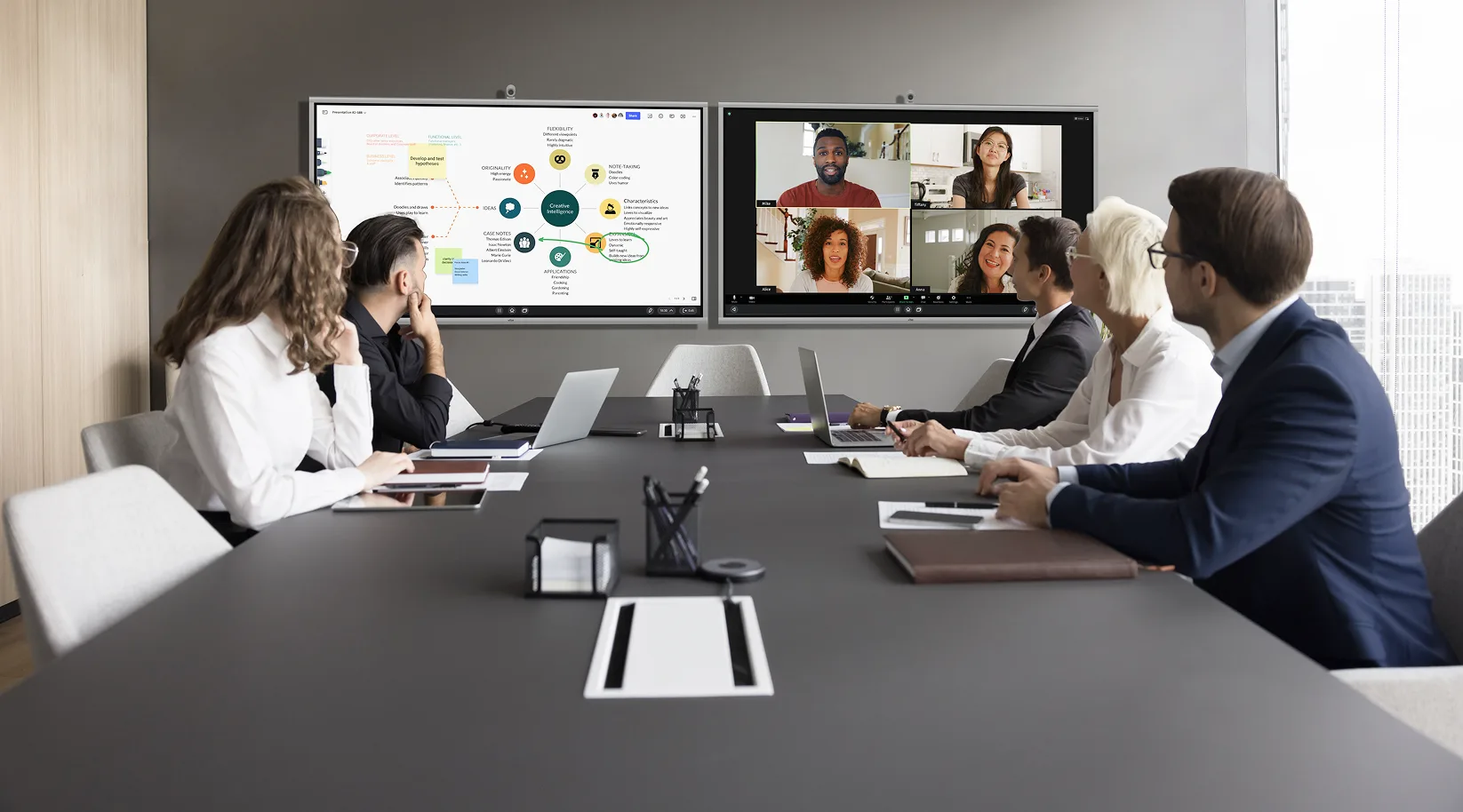
Hybrid meetings with remote experts and co-counsel
Expert witnesses, co-counsel, and out-of-town clients often join by video. A display with a camera and microphone lets them see the same material the room sees. See Hybrid Meetings at Law Firms and Video Conferencing for Law Firms.
What a Law Firm Needs From a Digital Whiteboard
A law firm needs five things from a digital whiteboard: clear markup of PDFs, easy file access, multi-person input, simple casting for visitors, and reliable video connection. Features that sound impressive but don’t serve those five are secondary.
Document markup. Most exhibits, contracts, and filings are PDFs. The Vibe Board lets users annotate directly on images, PDFs, and apps, and the S1 Pro runs Adobe Acrobat and Bluebeam as full Windows applications.
File access. The S1 imports files from local storage, Google Drive, Dropbox, and OneDrive, and supports Microsoft 365 and Google Workspace, so a document opens from where it already lives.
Multi-person input. On the S1 Pro, up to four people can write at the same time. Remote participants can join the same Canvas from a browser, tablet, or phone.
Casting for visitors. Clients, experts, and opposing counsel bring their own devices. The board takes HDMI-in and USB-C, and casts wirelessly through Vibe Tap (4K) or AirPlay (up to 1080p).
Video. The boards work with Teams, Zoom, and Google Meet. They have no built-in camera or microphone, so plan for a Smart Camera or a Vibe Bot.
One behavior matters more in practice than any spec. With the exhibit on the board, the attorney’s laptop is free for whatever they need mid-session without the room watching it.
Which Size and Model: A Room-by-Room Setup Guide
Size the display from the farthest seat, not the room’s square footage, and choose the model by the software your firm actually runs. AVIXA’s display image size standard, ANSI/AVIXA V202.01:2026, sizes screens by the farthest viewer’s distance, and expresses the result as a viewing ratio, the farthest viewer’s distance divided by the image height. AVIXA publishes a free calculator that applies the standard to your room and content type.
You can estimate the ratio yourself. The Vibe Board S1 55″ is about 29.3″ tall overall and the 75″ is about 39.9″ tall, so for a table of readers:
|
Farthest viewer |
55″ board (29.3″ tall) |
75″ board (39.9″ tall) |
|---|---|---|
|
10 feet |
ratio ≈ 4.1 |
ratio ≈ 3.0 |
|
12 feet |
ratio ≈ 4.9 |
ratio ≈ 3.6 |
|
15 feet |
ratio ≈ 6.1 |
ratio ≈ 4.5 |
|
20 feet |
ratio ≈ 8.2 |
ratio ≈ 6.0 |
These ratios are calculated from Vibe’s published dimensions, which include the bezel, so the actual image is slightly shorter and the true ratios slightly higher. A lower ratio means text is easier to read from the back. GPA’s summary of the AVIXA categories puts general viewing, such as slides and video calls, at a ratio of 6 or less, and detailed work such as spreadsheets and technical documents at 4 or less. Reading fine print on a contract is detailed work. By that yardstick, a 55″ board suits a farthest seat of about 10 feet for contract review and about 14 feet for general discussion, and a 75″ board suits about 13 feet and 20 feet. Run your own room through AVIXA’s calculator before you buy.
Room-by-room recommendations
|
Room |
Display |
Mounting |
Add-ons |
|---|---|---|---|
|
Client conference room |
75″ S1 |
Wall mount included with the 75″ |
Smart Camera or Vibe Bot for remote participants |
|
Prep room or war room that moves |
55″ S1 |
Mobile stand (sold separately) |
Vibe Tap for visitors’ laptops |
|
Partner office or huddle room |
55″ S1 |
Stand or wall mount (mount not included for 55″) |
Vibe Tap |
|
Firms running Windows-only software |
S1 Pro, 55″ or 75″ |
Stand or wall mount |
Smart Camera, Intune for IT management |
|
Rooms that must capture the meeting |
S1 plus Vibe Bot |
Wall mount or stand |
Vibe Bot for camera and AI notes |
Physical specifications that affect installation
|
Spec |
S1 55″ |
S1 75″ |
|---|---|---|
|
Dimensions (W × H × D) |
50.7″ × 29.3″ × 3.0″ |
67.7″ × 39.9″ × 3.4″ |
|
Weight |
50.7 lb |
127.9 lb |
|
VESA mount |
200 mm × 200 mm |
800 mm × 400 mm |
|
Built-in speakers |
2 |
3 |
|
Ports |
3 USB-C, 1 HDMI-in |
3 USB-C, 1 HDMI-in |
|
Built-in camera or microphone |
None |
None |
The S1 Pro has the same screen sizes and adds an Intel Core i7 processor with 16GB of RAM and 512GB of storage, four USB-C ports, and one HDMI-in. The 75″ S1 Pro weighs 129 lb and the 55″ weighs 50 lb.
S1 or S1 Pro?
Choose the S1 when the firm lives in browsers and Microsoft 365 or Google Workspace. It runs VibeOS, which is based on ChromeOS, and installs apps from the Vibe Store, Google Play, and Chrome extensions. Choose the S1 Pro when the firm needs full Windows applications, Microsoft Intune management, or Zoom Rooms integration. The S1 Pro runs Windows 11 Pro and behaves like any Windows 11 Pro computer.
 Hybrid meeting in a conference room with a Vibe Board whiteboard mind map beside a video call with remote participants
Setup Checklist: From Delivery to First Meeting
Setting up an interactive display takes eight decisions, most of them before the box arrives. Work through them in order.
-
Measure the farthest seat. Use the table above or AVIXA’s calculator to confirm the display size.
-
Pick the operating system. S1 for browser and cloud workflows, S1 Pro for Windows-only software.
-
Choose mount or stand. The 75″ board ships with a wall mount, and the 55″ doesn’t. Mobile stands are sold separately. If the board must move between rooms, budget for a stand and plan the route, since the 55″ board alone weighs about 51 pounds.
-
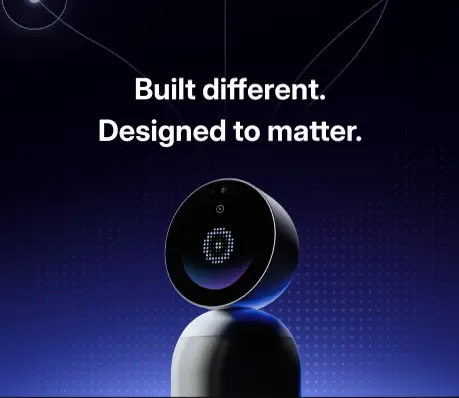
Add the camera and microphone. Neither model has one built in. The Vibe Smart Camera has a 4K sensor and six microphones, or you can use a compatible USB-C microphone. A Vibe Bot brings its own 360° camera and microphone array.
-
Decide how visitors connect. Choose Vibe Tap for 4K wireless casting, AirPlay for Apple devices, or HDMI-in and USB-C for a wired connection.
-
Set up accounts and sign-in. Use the admin console for fleet and policy settings, and single sign-on where the firm has an identity provider. The S1 Pro also supports Microsoft Intune.
-
Lock down sharing and sessions. See the next section for the settings that matter for client confidentiality.
-
Run a dry meeting. Present an exhibit, mark it up, cast a visitor’s laptop, and join a video call before the first client sees the room.
Confidentiality and Consent Settings to Decide Before Go-Live
Before a shared screen goes into a client room, decide who can sign in, how long a session stays open, who can cast, and whether anything records the conversation. Vibe’s security page describes the controls available on the Board:
-
Dedicated user accounts. In a shared workspace, each user signs in to their own account to prevent unauthorized access to apps and sensitive information.
-
Automatic sign-out. Admins can set a predefined time for the board to log users out, and users can sign out remotely from their phone with the Vibe One app.
-
Casting protection. Password protection for screencasting stops anyone from casting content onto the board by accident.
-
Sharing limits. Admins can disable link sharing on the Canvas team workspace to keep files from leaving the organization.
-
Restricted guest access. Admins can limit the apps a guest account can use.
The Board itself doesn’t record conversations. If you add a Vibe Bot or Vibe Dot for AI meeting notes, recording and privilege questions enter the picture. ABA Formal Opinion 512 reminds lawyers using generative AI to protect all client-related information under Rule 1.6, and the New York City Bar’s Formal Opinion 2025-6 says a lawyer should get client consent before AI records a call and check the output for accuracy. The practical gap is large: in Clio’s 2025 Legal Trends Report, 53% of legal professionals said their firm has no AI policy or they’re unaware of one.
Read these before you add AI capture to a client room:
What an Interactive Display Costs a Law Firm
Budget about $3,700 for a basic 55″ board and about $4,900 for a complete conference-room setup with a stand, camera, and wireless adapter, at Vibe’s current promotional prices. The board is only part of the cost, so price the whole kit. All prices below are Vibe’s published prices as of November 5, 2026, with list prices in parentheses, and they change during promotions.
|
Item |
Price (list) |
Notes |
|---|---|---|
|
Vibe Board S1 (from) |
$3,699 ($3,999) |
55″ or 75″; Chrome-based VibeOS |
|
Vibe Board S1 Pro (from) |
$5,699 ($5,999) |
55″ or 75″; Windows 11 Pro |
|
Vibe Stand for 55″ |
$599 ($799) |
Mobile stand, sold separately |
|
Vibe Stand for 75″ |
$1,099 ($1,299) |
Mobile stand, sold separately |
|
Vibe Smart Camera |
$399 ($499) |
4K sensor, six microphones |
|
Vibe Tap |
$159 ($199) |
4K wireless casting adapter |
|
Vibe Active Stylus |
$119 ($139) |
Extra stylus |
|
Vibe Bot |
$1,599 ($1,799) |
In-room camera, microphones, and AI notes |
|
Vibe Dot |
$199 ($249) |
Wearable AI recorder |
Example configurations
These are sums of the prices above.
|
Configuration |
Promotional price |
List price |
|---|---|---|
|
S1 55″ + 55″ stand + Smart Camera + Vibe Tap |
$4,856 |
$5,496 |
|
S1 55″ + 55″ stand + Vibe Bot (camera included) |
$5,897 |
$6,597 |
|
S1 Pro 55″ + 55″ stand + Smart Camera |
$6,697 |
$7,297 |
The 75″ boards cost more than the starting price shown for the line, and the 75″ ships with a wall mount, so request a quote for a wall-mounted 75″ room.
What else affects the total
-
Financing. Vibe lists the S1 from $139 a month and the S1 Pro from $208 a month through Affirm.
-
Shipping, trial, and warranty. Shipping is free within the U.S., Vibe offers a 30-day trial, and the board carries a standard free warranty.
-
Volume pricing. Vibe offers discounts on orders of two or more boards, and special pricing for businesses, through its sales team.
-
AI subscriptions. The Board needs no subscription. If you add a Bot or Dot, Vibe AI’s Starter plan is free, Pro is $9 a month, and Max is $29 a month.
-
IT time. Rolling out several boards means enrolling devices, setting policies, and training staff. Budget that time even though it’s not a line item.
Vibe doesn’t publish a total cost of ownership for a whole firm, and installation and cabling costs depend on your building. Ask for a quote that covers everything in the room.
Common Mistakes When Buying
Most buying mistakes come from choosing by diagonal size, skipping the camera, or assuming AI notes are built in. Avoid these five:
-
Sizing by room area. The farthest seat decides the size. A long, narrow conference room needs more screen than a wide, shallow one of the same area.
-
Forgetting the camera and microphone. Neither Vibe Board model includes them, and remote experts can’t join without one.
-
Assuming AI notes come with the board. The Board is the display and whiteboard. AI meeting notes come from Vibe Bot or Vibe Dot.
-
Skipping the consent policy. Decide who consents to recording, and where recordings live, before the first client meeting.
-
Buying for the courtroom first. Court technology rules vary, so confirm with the clerk. Most firms get the most daily use from conference and prep rooms.
The Bottom Line
An interactive display earns its place in a law firm when a case has to be seen by more than one person at once. Size it from the farthest seat, add the camera and casting adapter that the room needs, lock down accounts and sharing before the first client meeting, and price the whole kit rather than the board alone.
Ready to see it in your own room? Request a demo through Vibe’s legal landing page, compare the Vibe Board S1 and S1 Pro, or browse all Vibe products.
Frequently Asked Questions
What is the difference between an interactive display and a TV on a cart?
A TV on a cart shows whatever a connected laptop sends it. An interactive display has its own computer and touchscreen, so people can write on an exhibit, annotate a PDF, open files directly from cloud storage, and join video calls without tying up a laptop. Many firms keep a cart-mounted TV for simple viewing and use an interactive display where markup matters.
Can a digital whiteboard be used for confidential client matters?
Yes, with controls in place. Use dedicated user accounts, automatic sign-out, password-protected casting, and restricted guest access, and decide in advance whether anything records the meeting. Vibe’s security page lists these controls. Recording adds consent and privilege questions, so read our guide on attorney-client privilege and AI note takers first.
Does an interactive display for a law firm need a separate camera?
Yes, for remote participants. Neither the Vibe Board S1 nor the S1 Pro has a built-in camera or microphone. Add the Vibe Smart Camera ($399 at the current promotion), which has a 4K sensor and six microphones, or pair a Vibe Bot, which includes a 360° 4K camera and a six-microphone array.
How much does a smart board cost for a law office?
As of November 5, 2026, the Vibe Board S1 starts at $3,699 and the S1 Pro at $5,699, both promotional prices. A 55″ S1 with a stand, Smart Camera, and Vibe Tap totals about $4,856. Stands, cameras, and adapters are sold separately, and Vibe offers discounts on orders of two or more boards through its sales team.
Should a law firm mount the board on a wall or use a mobile stand?
Mount it when the room is dedicated, such as a client conference room. Use a mobile stand when the board has to move between a prep room, a mediation room, and a hearing. The 75″ board ships with a wall mount, but the 55″ doesn’t, and stands are sold separately. A 55″ board weighs about 51 pounds, so plan the route.
Does the Vibe Board work with Adobe Acrobat and Microsoft 365?
Yes. The S1 supports Microsoft 365 and Google Workspace apps and imports files from Google Drive, Dropbox, and OneDrive. The S1 Pro runs Windows 11 Pro, so it runs Adobe Acrobat, Bluebeam, and other Windows applications like any Windows computer, and IT can manage it with Microsoft Intune.