

This guide covers 30 remote learning tools for 2026, organized into 6 categories, to help you choose based on your school size, budget, and existing tech stack.
If you’re juggling multiple platforms, struggling with student engagement, and buried in administrative overhead, you’re not alone. The right remote learning tools streamline workflows and enhance interactivity—turning fragmented experiences into cohesive learning environments.
- Remote learning tools span six essential categories that work together to create complete learning environments.
- Strategic tool selection reduces administrative overhead when systems integrate smoothly.
- Cross-platform compatibility ensures equitable access for all students regardless of device.
- Free education tiers from major platforms provide enterprise-grade capabilities for schools.
- Hybrid classrooms need specialized infrastructure to bridge in-person and remote experiences.
What are Remote Learning Tools
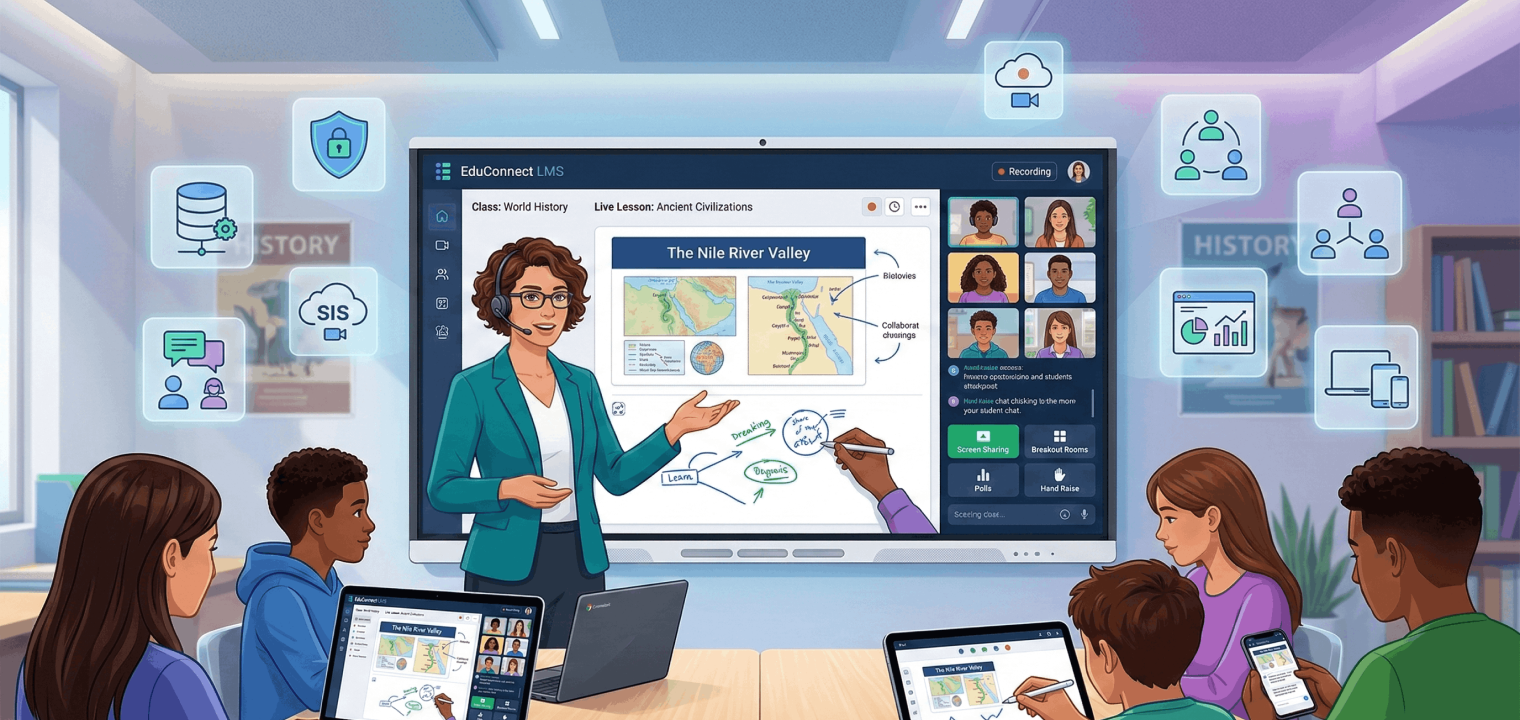
Remote learning tools are digital platforms enabling education outside traditional classroom settings. These technology solutions support teaching, learning, and administration and include a wide variety of tool types: learning management systems, video conferencing software, presentation tools, online learning platforms, and more.
These educational technology tools work together to replicate and enhance traditional classroom experiences. An LMS organizes assignments and tracks progress. Video conferencing connects teachers and students face-to-face. Interactive presentation tools transform passive lessons into active learning moments. The terminology is interchangeable—"virtual learning tools," "distance learning tools," and "remote learning tools" all describe this ecosystem.
Top Features to Look for in Remote Learning Tools
Evaluating remote learning solutions strategically means focusing on tools that promote student engagement strategies, simplify classroom management, and ensure security. Not every platform needs every feature, but your tech stack should cover these capabilities:
-
Cross-platform compatibility — Ensures students can participate on whatever device they have (Windows/macOS/iOS/Android/Chromebook). If a tool only works on specific operating systems, you’re creating barriers for learners.
-
Data security, privacy, and compliance — Look for controls and documentation that align with FERPA/COPPA expectations (encryption, access controls, data retention, admin auditability). Schools are responsible for student data protection.
-
SIS connectivity — The fastest way to avoid duplicate data entry and reduce teacher/admin workload is solid SIS integration. Automatic roster syncing eliminates manual updates.
-
Parent/guardian communication integration — Especially in K–12, tools that support parent messaging/visibility without extra logins reduce friction and improve follow-through.
-
Asynchronous + synchronous support — A strong stack supports live instruction and self-paced workflows (recordings, assignments, discussions, feedback loops). Not every lesson happens in real-time.
-
Real-time collaboration features — Core capabilities include screen sharing, chat, group work, shared docs/whiteboards, and structured discussion tools that keep students connected during live sessions.
-
Breakout room management — For live learning, breakout assignment, timing, monitoring, and easy "pull back to main room" controls are high-impact features that facilitate small-group instruction.
-
User-friendly interface — Ease-of-use is a top predictor of adoption; if it’s confusing, it won’t scale beyond a few power users. Both teachers and students need intuitive navigation.
-
Integration breadth and scalability — Beyond SIS, prioritize interoperability with identity (SSO), LMS, content tools, and existing school systems. Disconnected tools create data silos.
Education plan clarity: free vs. paid tier gaps — Teams should explicitly compare what’s included vs. locked behind paid tiers (limits on participants/time, recordings, admin controls, analytics, integrations).
The Best Remote Learning Tools Shortlist
1. Learning Management Systems (LMS)
|
Tool |
Best For |
Standout Feature |
|---|---|---|
|
Google Classroom |
Google-centric K–12 schools |
Native Workspace workflow integration |
|
Canvas LMS |
Higher ed & large K–12 districts |
Advanced grading and learner analytics |
|
Moodle |
Tech-resourced teams needing control |
Open-source, fully customizable ecosystem |
Best for organizing course content and student progress.
2. Video & Synchronous Communication
|
Tool |
Best For |
Standout Feature |
|---|---|---|
|
Microsoft Teams |
All-in-one Microsoft 365 schools |
Integrated chat, meetings, and M365 docs |
|
Zoom |
High-structure synchronous teaching |
Education-first breakout room controls |
|
Google Meet |
Simple, secure Google-based meetings |
Direct Calendar and Classroom syncing |
Best for live instruction and face-to-face remote connection.
3. Interactivity & Content Creation
|
Tool |
Best For |
Standout Feature |
|---|---|---|
|
Kahoot! |
High-energy formative assessments |
Competitive, game-based learning quizzes |
|
Canva |
Designing professional classroom visuals |
Education-specific infographic templates |
|
Vibe Board |
Hybrid classroom collaboration |
Infinite canvas with cloud-save features |
Best for student engagement and visual lesson delivery.
30 of the Best Remote Learning Tools by Category
Learning Management Systems (LMS)
Learning Management Systems are central hubs for course content, progress tracking, and assignment management. They streamline administrative tasks while providing a single destination for materials—reducing the "Where did I save that?" problem for both teachers and students.
1. Google Classroom
Google Classroom is a free web service designed for paperless assignment workflow and classroom management. It integrates seamlessly with Google Workspace, allowing teachers to create classes, distribute assignments, provide feedback, and track student progress—all within the Google ecosystem. Best suited for K-12 schools already using Google accounts, the platform offers a straightforward setup with minimal IT overhead.
Choose this if you need a simple, dependable hub for assignments and materials in a Google-first K–12 environment. It outperforms heavier LMSs on speed-to-adoption and low setup overhead, but lacks the deeper analytics and enterprise controls you’d expect in more complex deployments.
2. Canvas LMS
Canvas LMS is a comprehensive platform offering robust course delivery with advanced grading tools, analytics dashboards, and an extensive third-party integration ecosystem. It’s built for institutions that need sophisticated assessment workflows, detailed learner analytics, and the flexibility to connect with existing systems. Ideal for higher education and advanced K-12 programs, Canvas supports everything from rubric-based grading to learning outcomes tracking.
Choose this if you need a robust, institution-ready LMS with advanced grading workflows and lots of integration flexibility. It outperforms lightweight tools on depth (rubrics, analytics, extensibility), but can feel like "more system than you need" if you’re running a small program or want minimal admin lift.
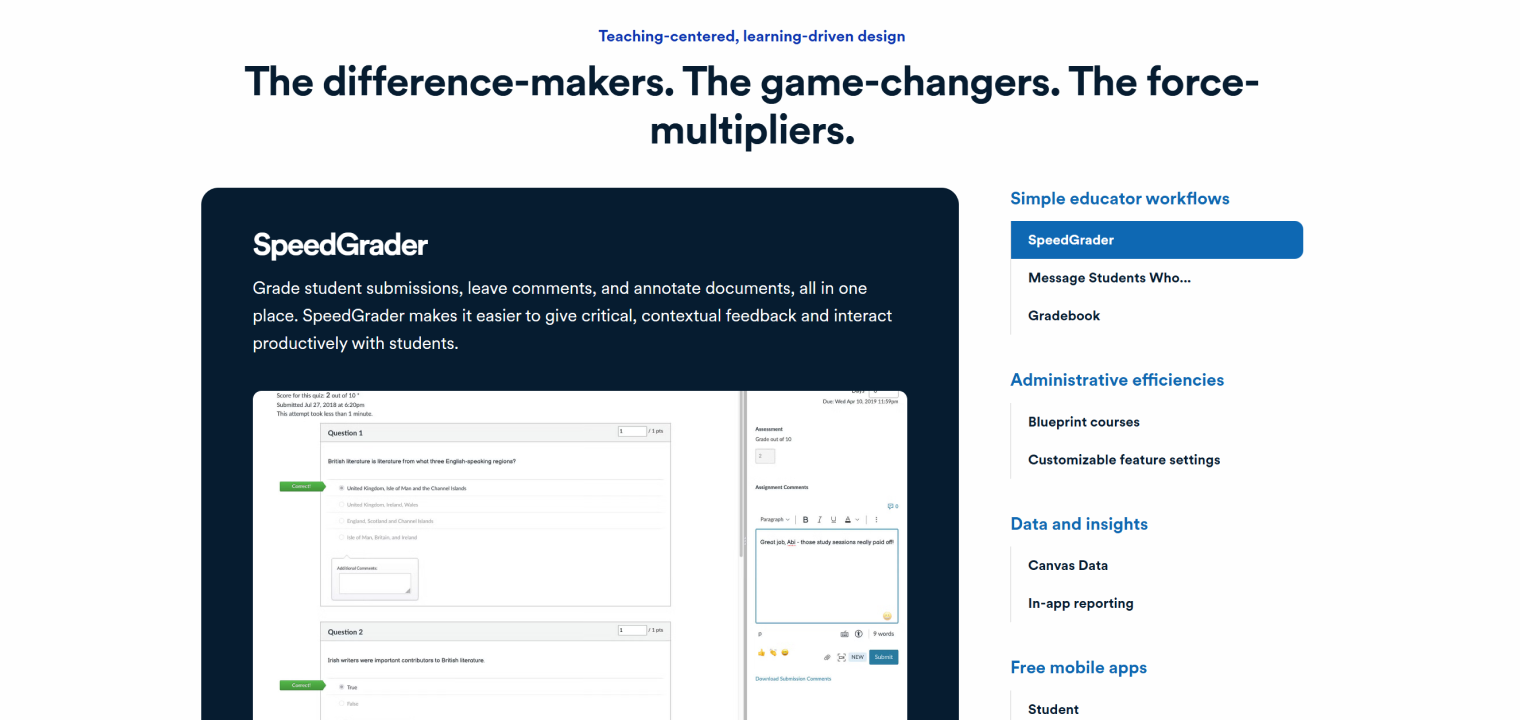 Screenshot of Canvas LMS highlighting SpeedGrader for streamlined grading and student interaction.
3. Blackboard
Blackboard (now part of Anthology) is an enterprise-grade LMS built for large institutional environments requiring sophisticated reporting and assessment capabilities. It offers comprehensive course management, detailed compliance reporting, and extensive administrative controls designed for universities and large school districts. The platform excels in environments where governance, auditability, and institutional-scale coordination are priorities.
Choose this if you need an enterprise-grade platform built for large institutions with sophisticated reporting and assessment needs. It outperforms simpler LMSs on institutional scale and governance, but may feel heavy if you want fast iteration and a modern, streamlined UX.
4. Edmodo
Edmodo is a free K-12 platform that combines classroom communication, collaboration, and coaching in one interface. Teachers can manage communication with students, colleagues, and parents while sharing content, quizzes, and assignments. The platform focuses on creating a social learning environment where class participation and peer interaction happen naturally alongside formal instruction.
Choose this if you need a K–12-friendly space that blends class participation and sharing in one place. It outperforms pure LMS tools on casual communication flow, but lacks the depth and durability of the major LMS platforms for complex grading, analytics, and large-scale deployments.
5. Moodle
Moodle is an open-source LMS that you can download, customize, and run on your own infrastructure. It offers complete control over course structure, design, and functionality through a strong plugin ecosystem and active developer community. Organizations with technical resources can tailor Moodle to exact specifications, creating unique learning experiences not possible with closed platforms.
Choose this if you need maximum customization and control over your LMS experience. It outperforms closed platforms on flexibility and extensibility, but lacks the "set it and forget it" simplicity—expect technical resources for hosting, maintenance, and tailoring.
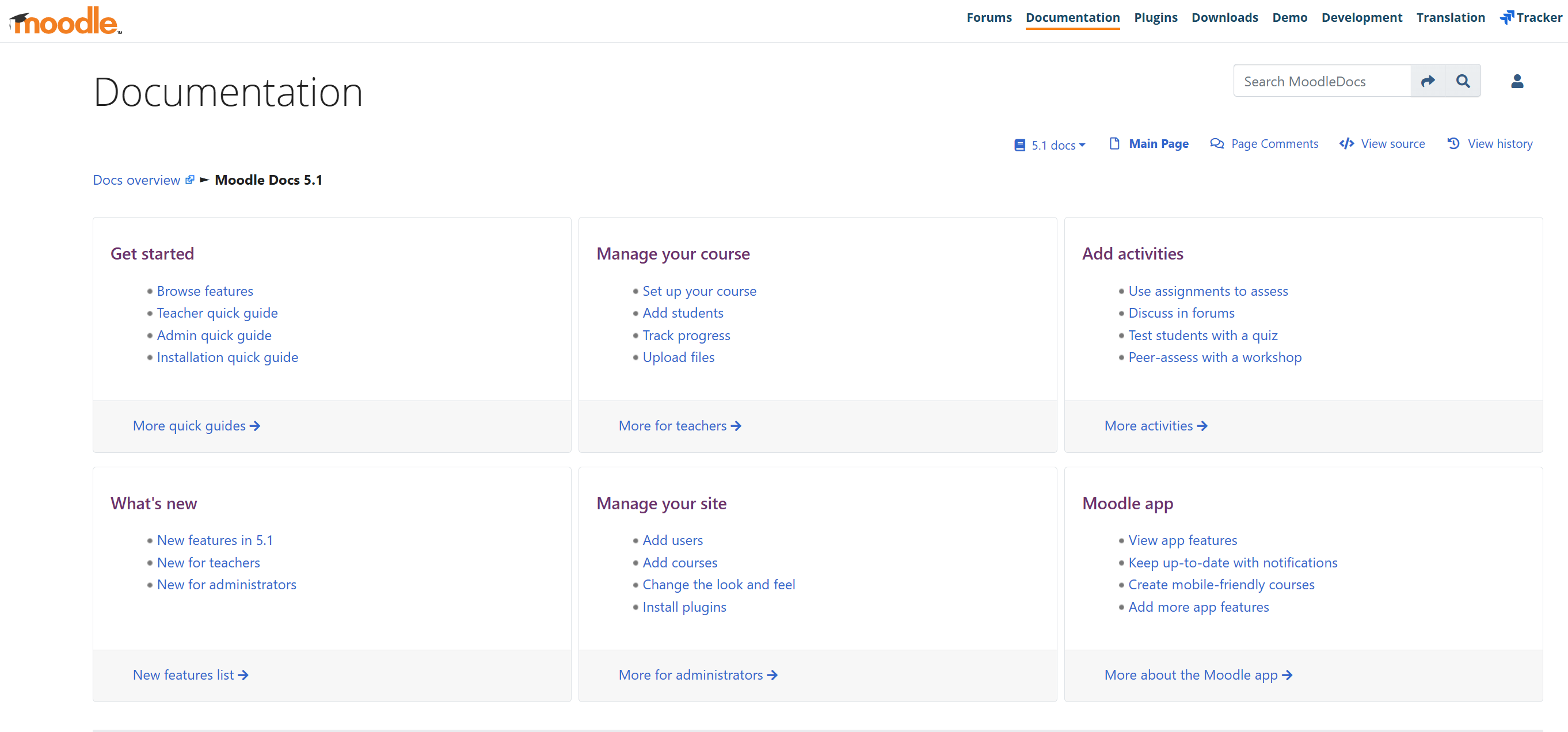 Screenshot of Moodle Documentation showcasing user guides, course management tools, activity setup options, and administrative features for educators and administrators.
Communication and Video Conferencing
Video conferencing for education enables real-time interaction for virtual lectures and face-to-face connections. These platforms support screen sharing, breakout rooms, and recording capabilities that bring remote learning closer to the classroom experience.
6. Zoom
Zoom is the dominant video conferencing platform known for reliable performance across network conditions. It offers education-focused features, including breakout rooms, polling, whiteboard collaboration, and attendance tracking through dedicated Education plans. Teachers can manage complex synchronous sessions with multiple interaction modes while recording lessons for asynchronous access.
Choose this if you need reliable live teaching with strong breakout room control and a mature set of real-time facilitation tools. It outperforms many alternatives on meeting stability and breakout workflows, but lacks a built-in course structure (so you’ll still need an LMS for assignments/content).
7. Microsoft Teams
Microsoft Teams is an integrated hub that combines video meetings, chat, file sharing, and collaboration within the Microsoft 365 environment. Teams for Education includes persistent communication channels, assignment workflows, and tight integration with Word, Excel, PowerPoint, and OneNote. It’s designed as an "all-in-one" solution for schools operating in the Microsoft ecosystem.
Choose this if you need meetings plus persistent chat, file sharing, and collaboration in a Microsoft 365 environment. It outperforms stand-alone video tools on "everything in one hub," but can feel complex—especially for younger students or schools without strong Microsoft admin support.
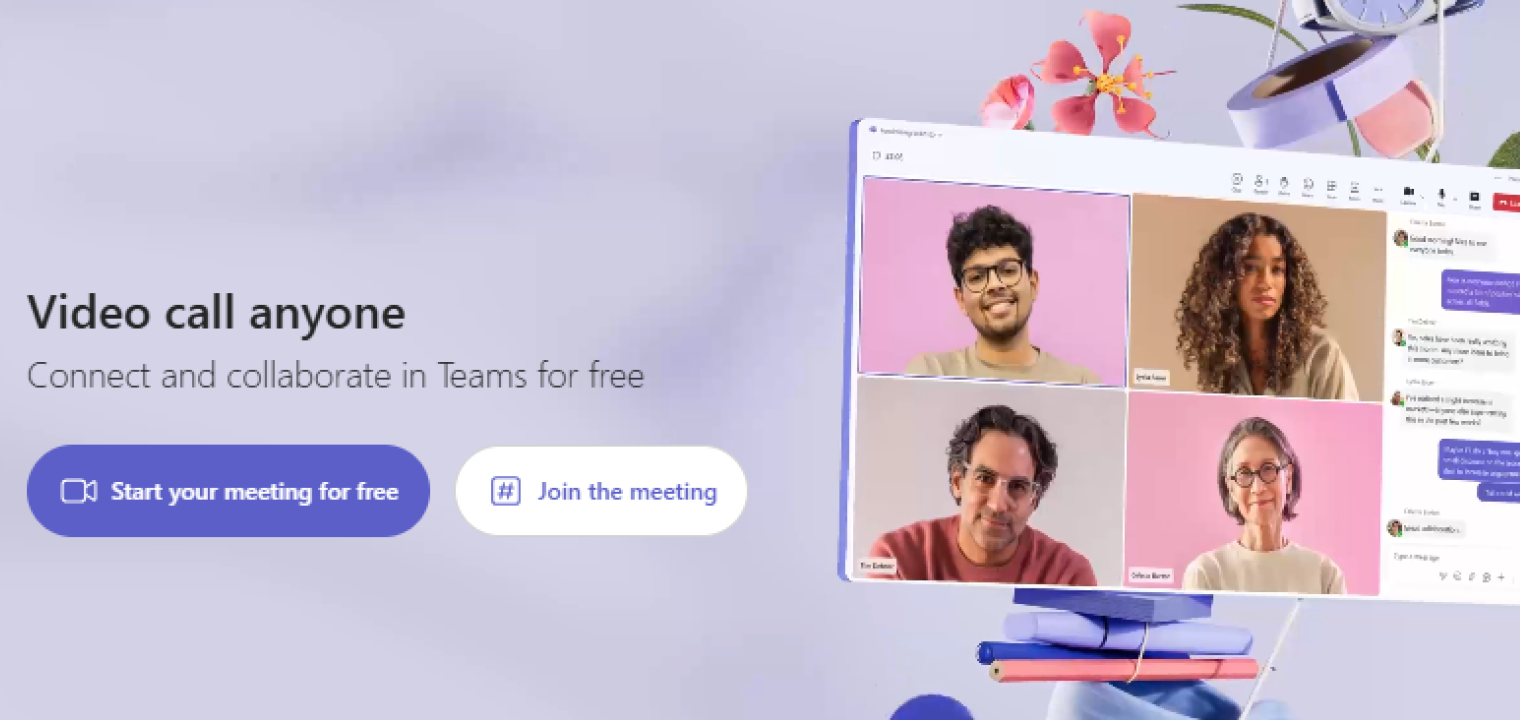 Screenshot of Microsoft Teams showcasing free video calls and real-time collaboration with chat, shared screens, and a clean interface for seamless team communication.
8. Google Meet
Google Meet delivers simple, secure video meetings integrated directly with Google Calendar and Google Classroom. It offers reliable video quality with minimal setup requirements, making it easy for students to join meetings from any device. Strong security features include host controls, waiting rooms, and admin visibility into meeting usage across the organization.
Choose this if you need straightforward, secure video meetings that are easy to schedule and join in a Google Workspace workflow. It outperforms heavier tools on simplicity and low friction, but lacks some of the more advanced facilitation features teams want for high-structure instruction.
9. Remind
Remind is a dedicated messaging platform for teacher-to-student and teacher-to-parent communication. It allows educators to send announcements, reminders, and individual messages without sharing personal phone numbers, maintaining professional boundaries while enabling quick communication. The platform works via text, email, and app notifications.
Choose this if you need safe, professional teacher-to-student/parent messaging without sharing personal phone numbers. It outperforms email chains on immediacy and boundary-setting, but lacks rich instructional delivery (it’s comms-first, not a teaching platform).
10. ClassDojo
ClassDojo is a parent communication and digital portfolio platform designed for K–12 classrooms. Teachers can share real-time updates, celebrate student achievements, and create digital portfolios of student work. The platform also supports assigning and submitting work while maintaining an engaging, family-friendly interface that encourages parent participation in the learning process.
Choose this if you need family engagement, quick updates, and student portfolios in a parent-friendly experience. It outperforms generic messaging tools on K–12 community-building, but lacks the depth of a full LMS for end-to-end course management.
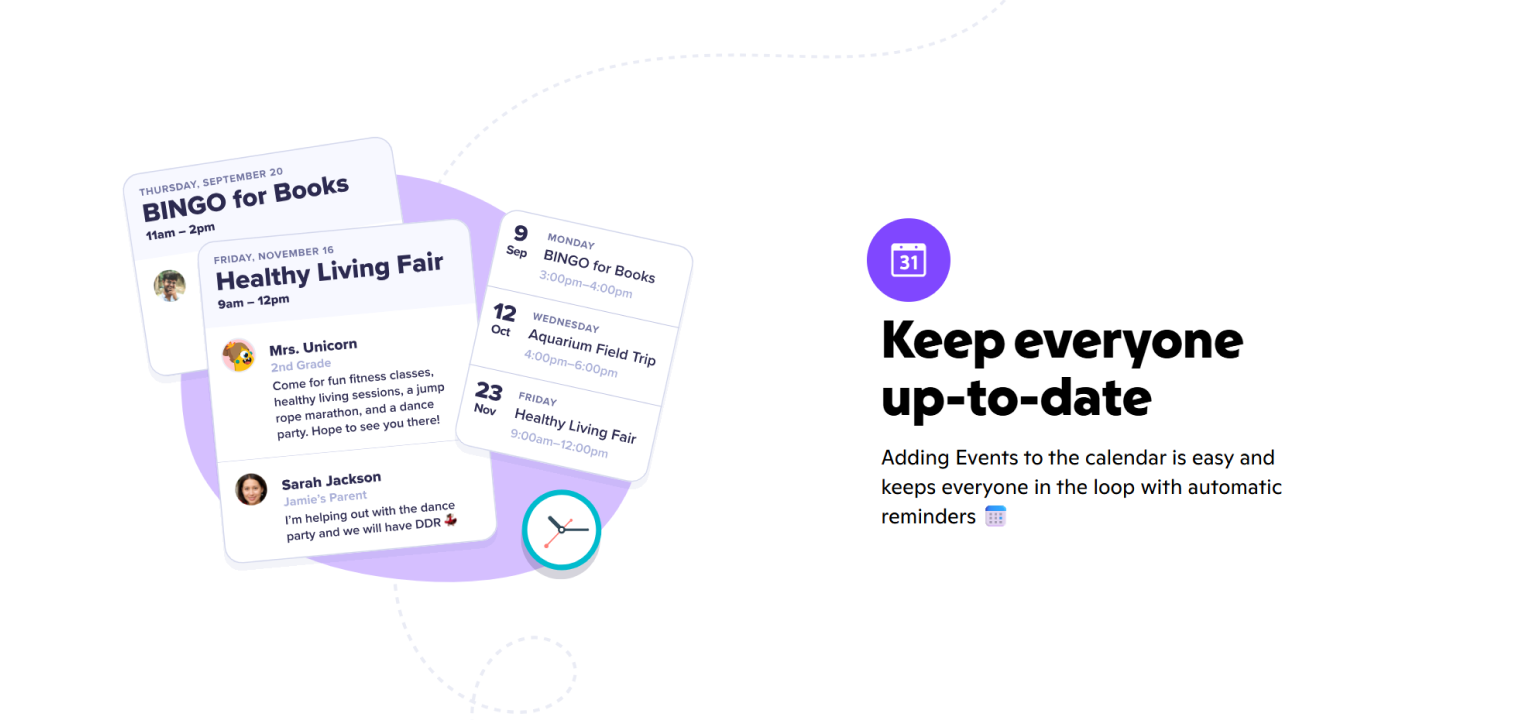 Screenshot of ClassDojo showcasing its school calendar feature, which helps teachers and parents stay informed with event updates, automatic reminders, and shared activity details.
Presentation and Class Engagement
Interactive learning tools transform static lessons into engaging experiences. These platforms add polls, quizzes, and interactive elements for real-time feedback—turning one-way lectures into two-way conversations.
11. Pear Deck
Pear Deck is a Google Slides add-on that transforms presentations into interactive learning experiences. Teachers can embed questions, polls, and drawing prompts directly into slides, collecting real-time student responses for formative assessment. The platform works synchronously during live lessons or asynchronously for self-paced review, giving teachers visibility into individual student understanding.
Choose this if you need to turn Google Slides into interactive lessons with real-time student responses. It outperforms static decks on formative check-ins, but lacks the broader lesson library and "all-in-one" experience some platforms provide.
12. Nearpod
Nearpod offers ready-made interactive lessons complete with virtual field trips, embedded assessments, and rich multimedia content. Teachers can import their own slides or use Nearpod’s extensive library, then add interactive elements like polls, quizzes, and collaboration boards. The platform provides immediate insights into student comprehension through real-time dashboards.
Choose this if you need ready-made interactive lessons and embedded assessment with strong teacher visibility into understanding. It outperforms slide-only approaches on structured interactivity and content options, but can feel more prescriptive than DIY tools if you want total control.
13. Kahoot!
Kahoot! brings gamification to education through competitive quiz-based learning. Teachers create game-style quizzes where students compete individually or in teams, with points awarded for speed and accuracy. The high-energy format drives participation and makes formative assessment feel more like play, while providing teachers with participation data and analytics on learning gaps.
Choose this if you need high-energy review games that boost participation fast. It outperforms many quiz tools on hype and momentum, but lacks nuance for deeper assessment or long-form learning pathways.
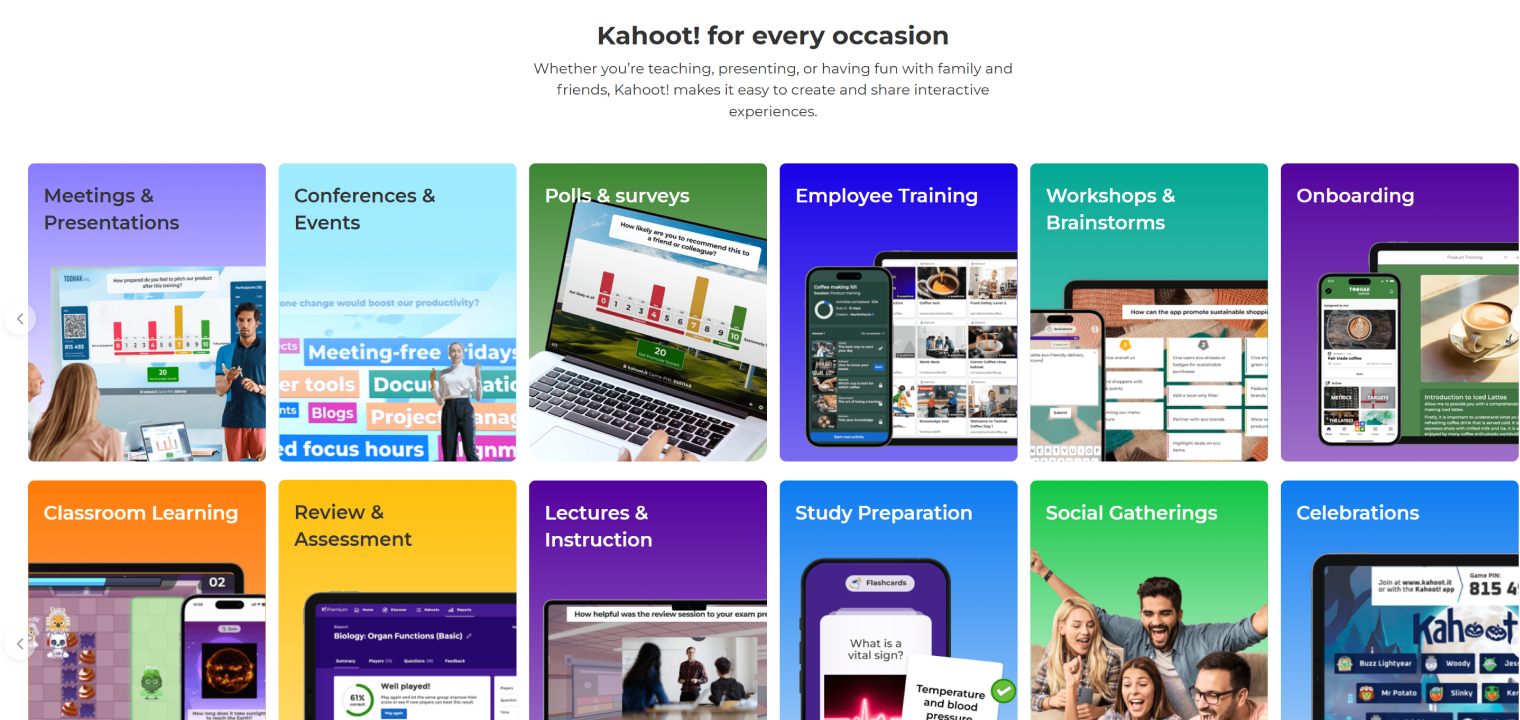 Screenshot of Kahoot! showcasing its versatile use across multiple scenarios, including classroom learning, employee training, meetings, events, and social gatherings, with interactive quizzes and real-time engagement.
14. Quizizz (Wayground)
Quizizz delivers self-paced gamified quizzes featuring memes, leaderboards, and instant feedback. Unlike live-only quiz platforms, Quizizz works equally well for synchronous classroom review and asynchronous homework assignments. Students receive immediate feedback on each question, and teachers gain detailed analytics on performance patterns.
Choose this if you need self-paced practice that still feels fun and gives instant feedback. It outperforms live-only quiz games on asynchronous flexibility, but lacks the "live room energy" that some teachers want for big moments.
15. Mentimeter
Mentimeter is a live polling and Q&A platform that facilitates real-time audience interaction. Teachers can create word clouds, live voting sessions, and open question forums that make large groups feel interactive. It’s particularly effective for quick sentiment checks, brainstorming sessions, and giving every student a voice in discussions.
Choose this if you need live polling, Q&A, and quick sentiment checks to make large groups interactive. It outperforms many tools on simple, elegant audience engagement, but lacks full classroom workflow features (assignments, grading, content sequencing).
Content Creation
Content creation tools build professional-quality videos, infographics, and visual presentations. They democratize design without specialized technical skills—turning teachers into multimedia creators.
16. Canva
Canva provides templates for creating presentations, infographics, videos, and more through an intuitive drag-and-drop interface. Canva Education is positioned as free for eligible K–12 schools and districts, giving teachers access to professional design tools without requiring graphic design expertise. The platform includes thousands of templates specifically designed for educational content.
Choose this if you need fast, professional-looking visuals (slides, infographics, short videos) without design expertise. It outperforms traditional slide tools on templates and polish, but lacks deeper video editing and learning-specific workflows you’d get from dedicated platforms.
17. Loom
Loom records your screen and camera simultaneously, making it perfect for creating tutorials, feedback videos, and asynchronous lessons. Teachers can walk through demonstrations, provide personalized feedback on student work, or record mini-lectures that students watch on their own time. The platform provides engagement analytics showing which students watched and how much they viewed.
Choose this if you need quick screen-and-camera recordings for tutorials, walkthroughs, and feedback. It outperforms many recorders in speed and ease for async explanation, but lacks the structured assignment/assessment layer of an LMS.
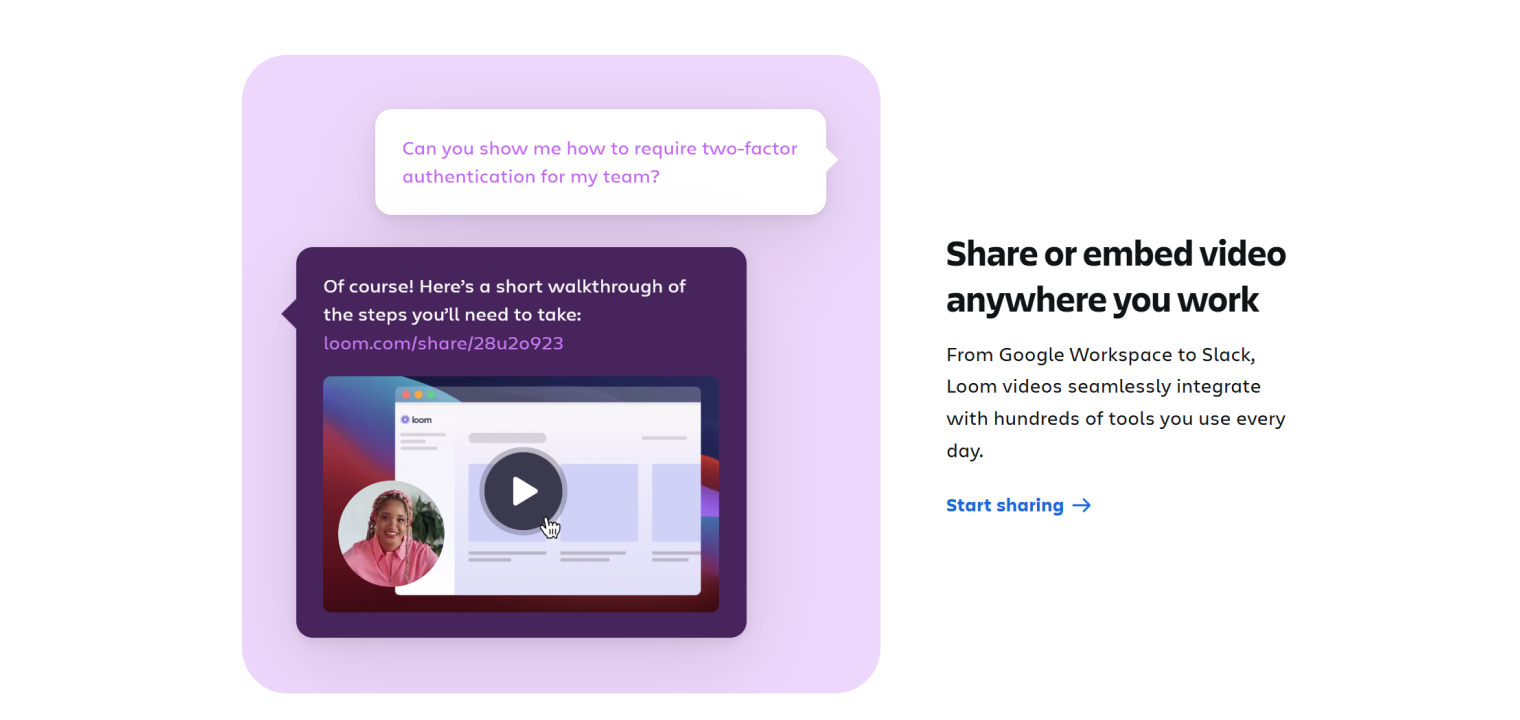 Screenshot of Loom showcasing its video sharing feature, where users can reply to questions with short walkthrough videos and seamlessly embed them in messaging and collaboration tools.
18. Screencastify
Screencastify is a Chrome extension for creating screen recordings with built-in annotation tools and trimming features. It’s designed for Chromebook-heavy classrooms where teachers need simple screen capture without complex editing software. Videos can be shared directly to Google Classroom or saved to Google Drive, maintaining the Google ecosystem workflow.
Choose this if you need easy screen recording (especially in Chromebook/Chrome-heavy classrooms) and simple trimming/annotation. It outperforms more complex editors on simplicity and classroom fit, but lacks advanced production features for polished media.
19. Adobe Spark
Adobe Spark is a suite for creating videos, graphics, and web pages with professional templates and brand consistency tools. It enables portfolio-quality creative projects across multiple media types, giving students and teachers access to Adobe’s design capabilities without the complexity of professional tools like Photoshop or Premiere Pro.
Choose this if you need more "brand-consistent," portfolio-style creative projects (video, graphics, simple web pages). It outperforms basic slide tools on creative output quality, but it can be more than you need for everyday lesson delivery.
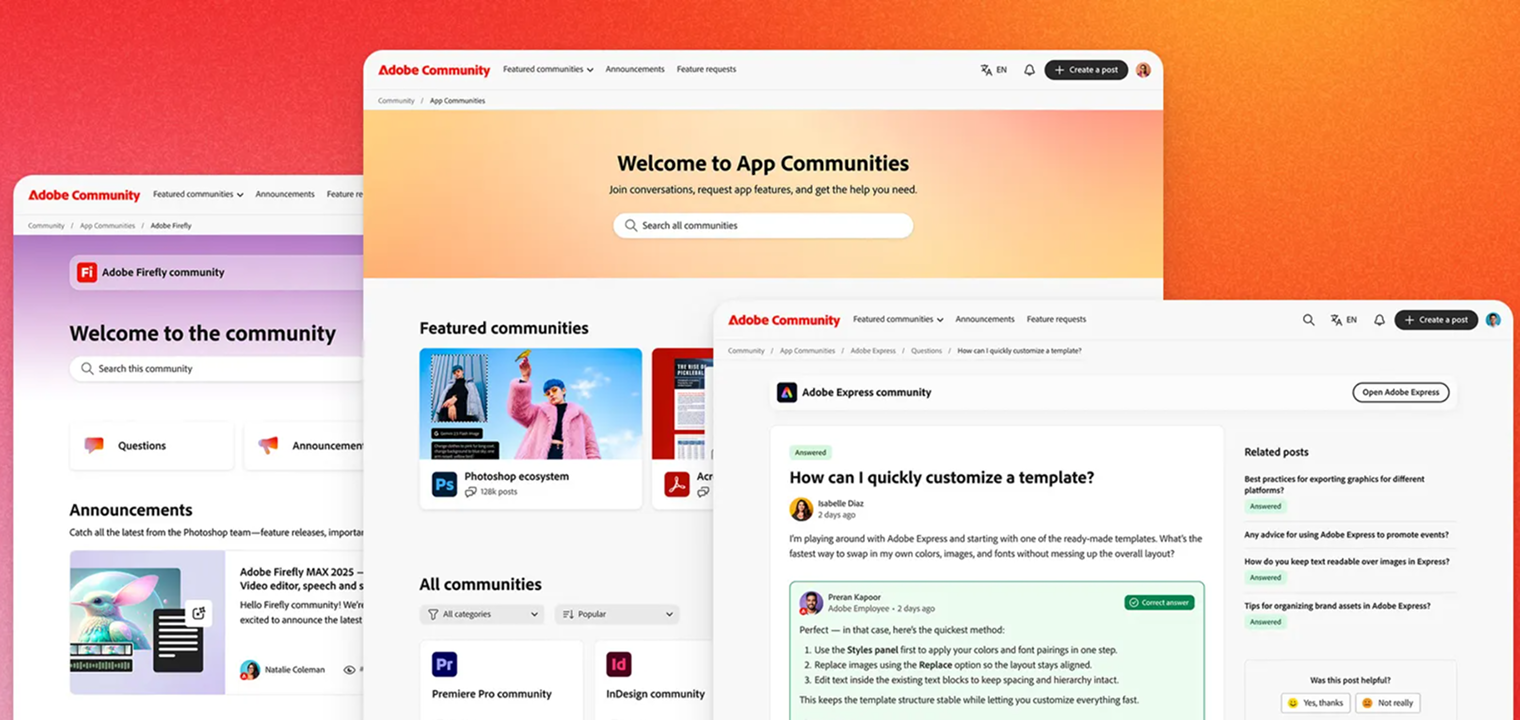 Screenshot of Adobe Community showcasing user forums, app-specific communities, and expert support for Photoshop, Express, Firefly, and other Adobe tools.
Collaboration and Productivity
Collaboration tools create digital bulletin boards and project spaces for group work. They facilitate teamwork regardless of location—turning isolated learning into connected experiences.
20. Padlet
Padlet is a digital bulletin board where students and teachers share ideas, resources, and multimedia content. It supports text, images, links, and files in customizable layouts, including grids, timelines, and canvas formats. Teachers use Padlet for brainstorming sessions, collecting student work, curating resources, and creating collaborative spaces for project-based learning.
Choose this if you need a digital bulletin board for brainstorming, collecting resources, and showcasing work. It outperforms discussion threads on visual organization, but lacks structured grading and course sequencing.
21. Flip
Flip (formerly Flipgrid) is a video discussion platform where students record short video responses to teacher prompts. It creates safe spaces for student voice, builds communication skills, and strengthens classroom community through asynchronous video conversations. Students can respond to prompts and reply to classmates, creating threaded video discussions.
Choose this if you need student voice via short video responses and discussion. It outperforms text-only forums on presence and community, but lacks full course management and traditional assessment tooling.
22. Google Workspace (Docs, Slides, Sheets)
Google Workspace provides cloud-based collaboration tools, including Docs, Slides, and Sheets, with real-time co-editing capabilities. Multiple students can work simultaneously on the same document with built-in commenting and version control. It serves as the foundation for collaborative writing projects, group presentations, and data analysis assignments in Google-centric classrooms.
Choose this if you need real-time co-creation for group work and writing-heavy collaboration. It outperforms many platforms on simultaneous editing and commenting, but lacks a built-in instructional structure (you’ll still want an LMS to orchestrate the learning flow).
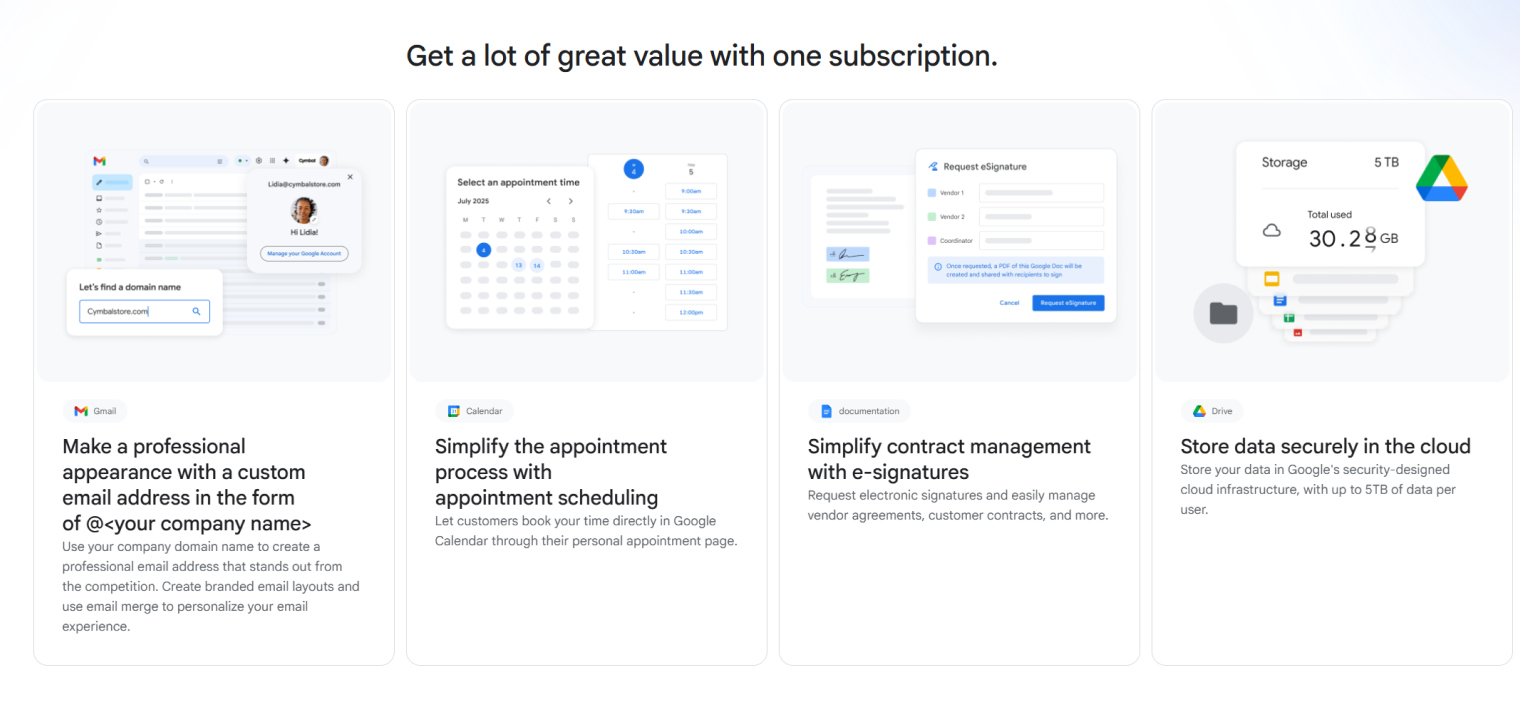 Screenshot of Google Workspace highlighting email, calendar, e-signatures, and cloud storage for organizations.
23. Slack
Slack is an organized messaging platform with channels for different topics and direct messages for private conversations. It manages classroom communication and group project coordination through threaded conversations and file sharing. While more common in professional settings, Slack works well for older students and staff collaboration, where clear channel organization improves communication clarity.
Choose this if you need organized channel-based communication for group projects (often better for older students or staff). It outperforms email on clarity and speed, but lacks education-first features like rostering, parent comms, and assignment workflows.
24. Notion
Notion is an all-in-one workspace combining notes, databases, wikis, and project management in a highly customizable interface. Teachers can create flexible course hubs that function as resource libraries, project trackers, and collaborative note-taking spaces. The platform adapts to different organizational styles and can serve as a central knowledge base for course materials.
Choose this if you need a flexible course hub that can function as a wiki, resource library, and project workspace. It outperforms rigid tools on adaptability and organization, but lacks the built-in education mechanics (grading, submissions) you’d expect from an LMS.
25. Vibe Board
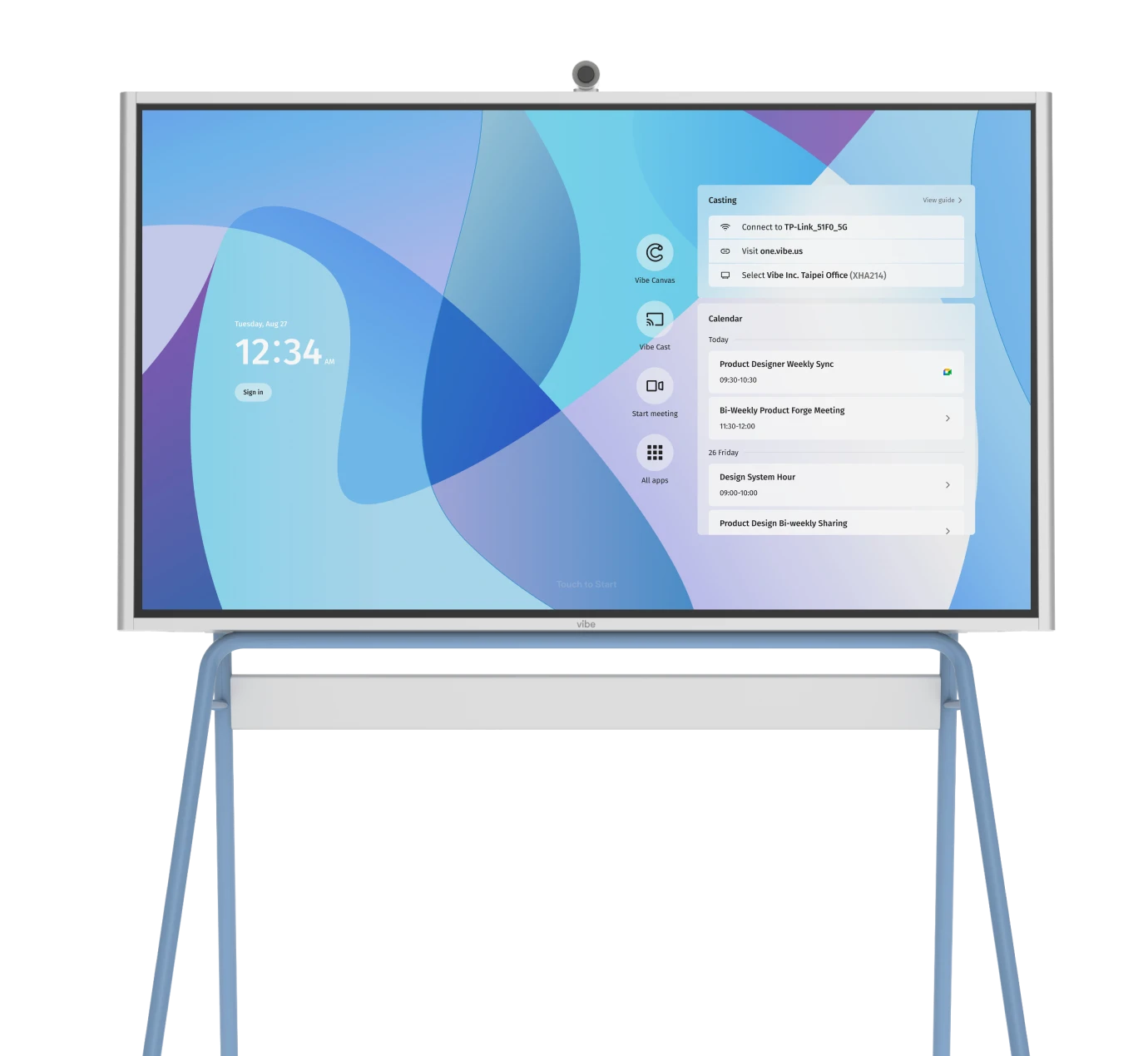
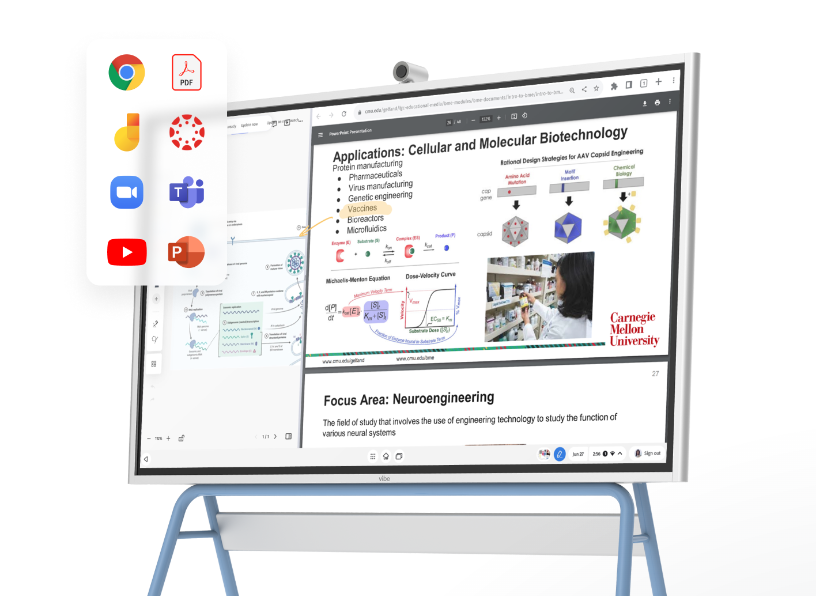
Vibe Board S1 is an interactive smart board for teaching that combines digital whiteboarding with video conferencing capabilities. It integrates with Zoom, Teams, Google Meet, and major LMS platforms, enabling real-time collaboration through an infinite canvas, sticky notes, and screen sharing. The board’s multi-touch interface allows in-person students to interact with content while remote students participate simultaneously.
Choose this if you need a hybrid classroom bridge—interactive whiteboarding for in-room students that also works for remote participants. It outperforms basic whiteboards on shared, persistent collaboration, but lacks being "just software" because it’s hardware-dependent and requires room setup.
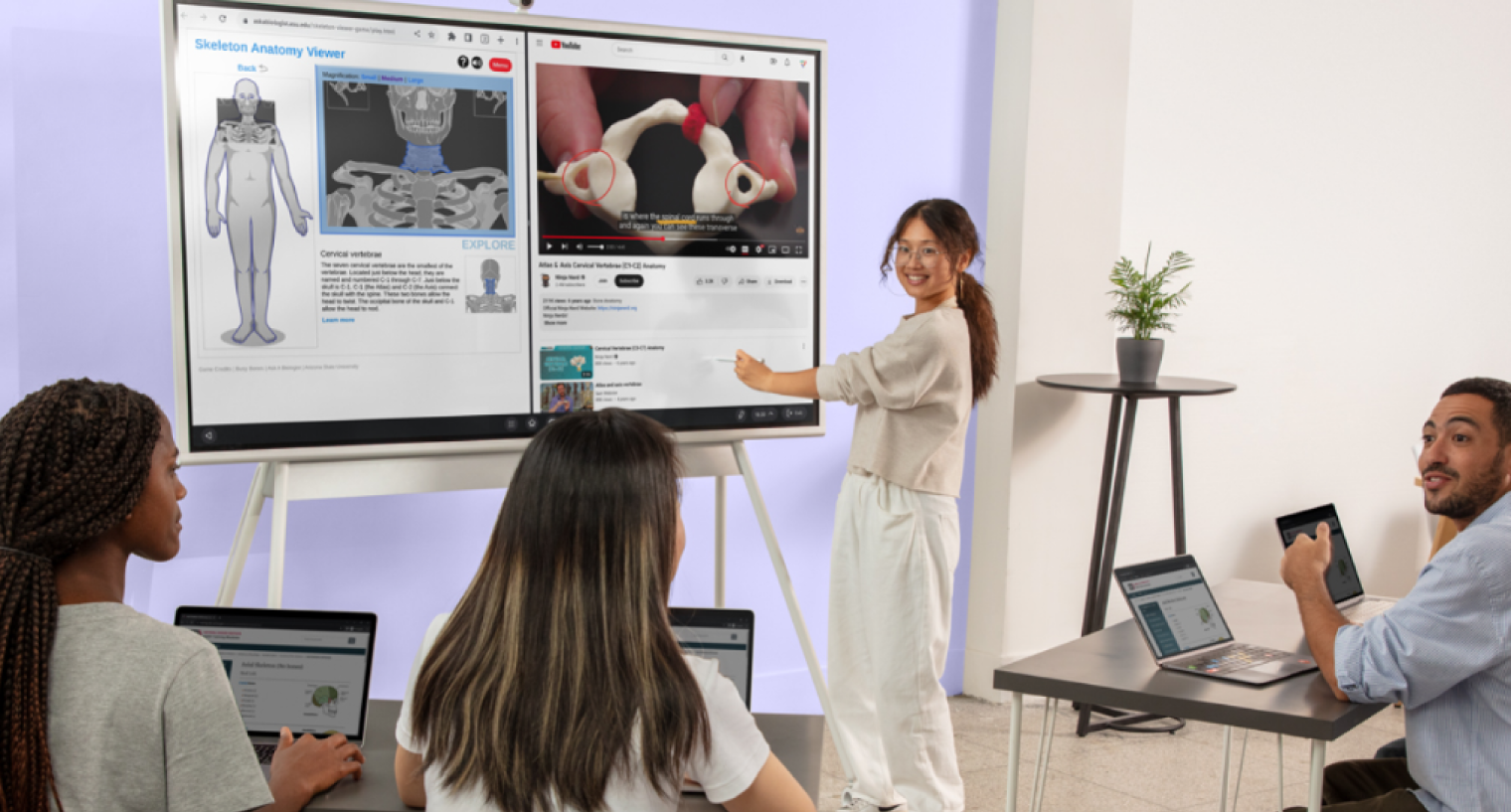 A girl in the classroom is using a Vibe Board to demonstrate biology concepts to her peers.
Online Learning Platforms
Online learning platforms provide ready-made curricula and self-paced courses. They offer standards-aligned content supporting differentiated instruction—letting students learn at their own pace.
26. Khan Academy
Khan Academy offers free standards-aligned content covering K-12 through early college subjects. The platform includes video lessons, practice exercises, and personalized dashboards that track mastery-based progression. Students work at their own pace while teachers monitor progress through detailed analytics, making it ideal for differentiated instruction and homework support.
Choose this if you need free, standards-aligned practice and self-paced progression that students can use independently. It outperforms many paid options on accessibility and breadth for core subjects, but lacks the customization and teacher-controlled course design of an LMS.
27. Coursera
Coursera partners with universities to deliver professional certifications and university-level courses. The platform focuses on career-relevant learning for older students and adult learners, offering credentials from recognized institutions. Courses include video lectures, graded assignments, and peer assessments designed to mirror university-level rigor.
Choose this if you need university-partnered courses and career-relevant certificates for older students. It outperforms casual course marketplaces on credential credibility, but lacks K–12 classroom workflow and day-to-day teacher controls.
28. Udemy
Udemy is a marketplace for self-paced online courses covering technical skills, creative pursuits, and professional development. With thousands of topics available at accessible price points, students can find practical skill-based learning across nearly any subject. Course quality varies since any instructor can publish, but user ratings help identify high-quality options.
Choose this if you need a huge catalog of practical, skill-based courses at accessible price points. It outperforms more curated platforms on topic variety, but lacks consistency in instructional quality and alignment to formal standards.
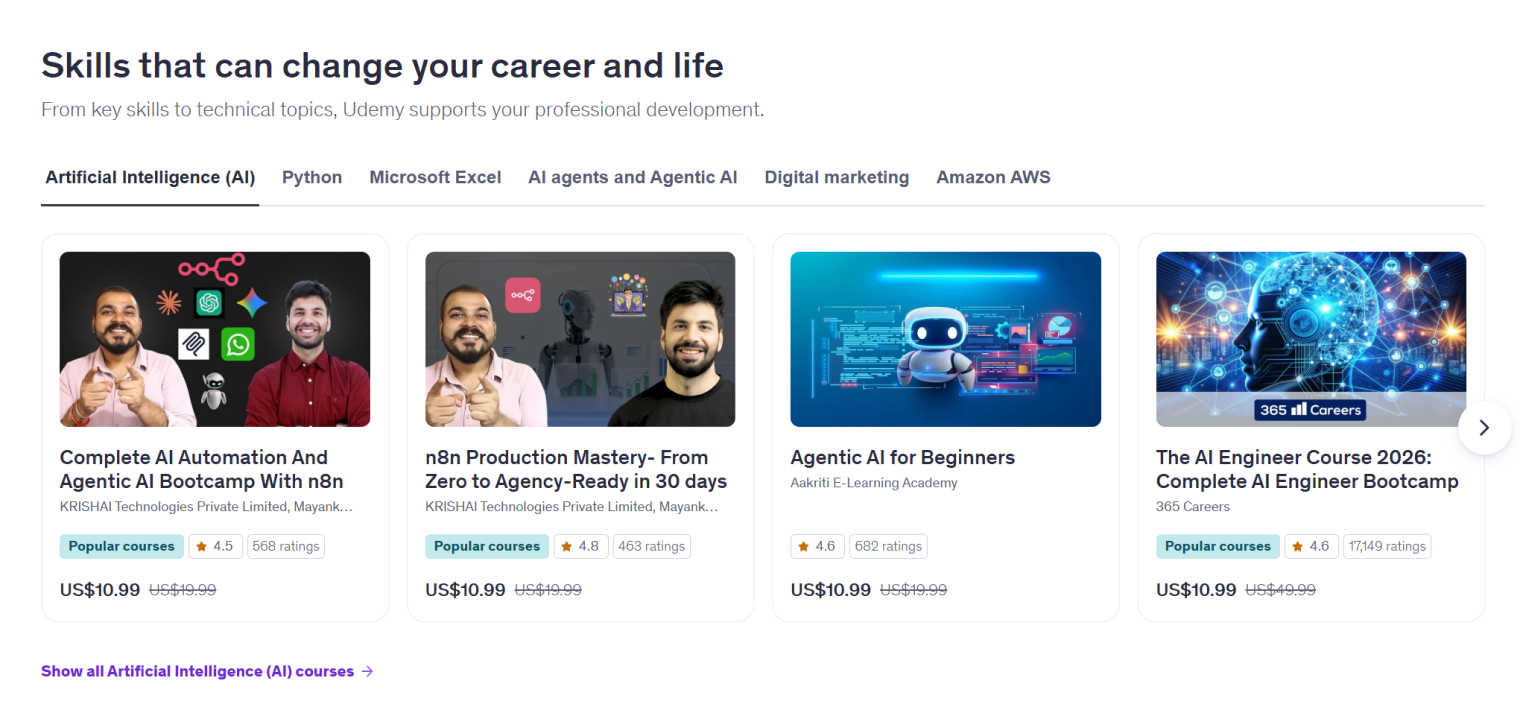
29. edX
edX is a nonprofit platform featuring university-level courses from top institutions with verified certificate options. It delivers rigorous academic content designed by university faculty, maintaining higher education standards in course design and assessment. The platform serves learners seeking formal credentials and in-depth subject matter expertise.
Choose this if you need rigorous, university-level learning experiences with a more academic feel. It outperforms many platforms in depth and institutional partnerships, but it isn’t designed as a K–12 classroom operating system.
30. Seesaw
Seesaw creates digital portfolios that build learning loops between students, teachers, and families. Students capture their work through photos, videos, drawings, and notes while teachers gain insights into learning progress. Families engage with school happenings through a parent-friendly interface that shows what students are learning in real-time.
Choose this if you need digital portfolios that help students capture learning and keep families in the loop. It outperforms generic LMSs on family-friendly visibility and reflection, but lacks the depth of a traditional LMS for complex course administration.
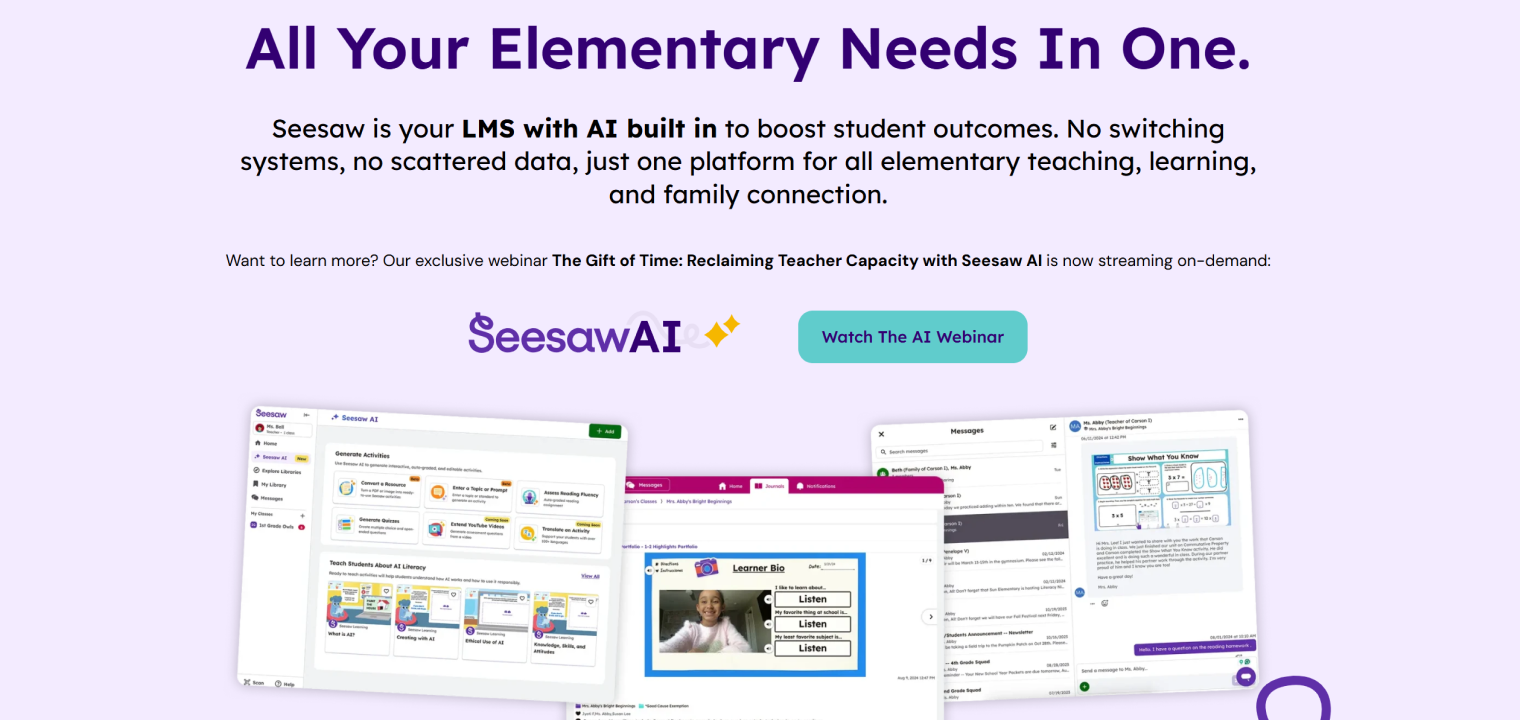 screenshot of Seesaw showcasing its all-in-one learning management system with built-in AI tools for elementary education, including activity generation, student engagement, and family communication.
Remote Learning Tools FAQs
What are online learning tools?
Online learning tools are digital platforms that enable teaching, learning, and educational administration outside traditional classroom settings. These include Learning Management Systems, video conferencing platforms, collaboration software, content creation tools, and assessment platforms that work together to support remote and hybrid education.
What is the most popular remote learning platform?
Google Classroom leads K–12 adoption due to its free integration with Google Workspace for Education. For higher education, Canvas LMS dominates with comprehensive course management, while Zoom remains the most widely used video conferencing platform across all education levels.
What equipment do I need to teach remotely?
Essential equipment includes a computer with video conferencing hardware like a webcam and microphone, a reliable internet connection, and headphones to reduce echo during live sessions. Optional upgrades include document cameras, drawing tablets, ring lights, and interactive displays like the Vibe Board for hybrid classrooms.
How can remote teaching be made more interactive?
Interactive remote teaching combines synchronous engagement tools like live polling, breakout rooms, and game-based quizzes with asynchronous collaboration spaces such as digital bulletin boards and video discussions. The key is varying interaction modes by mixing large-group, small-group, and individual activities within each session.