

Do you ever feel like you’re watching a spectator sport when you hop on a hybrid meeting? Half of your team is remote, and the rest of you are mentally bouncing between the single TV and the markerboard. This setup is no easier for your remote colleagues, and pretty soon, there is less engagement and diverse voices.
Smart whiteboards fix this by giving everyone the same shared canvas. Both on-site and remote participants can sketch, annotate, and build ideas together in real time—and on the same smart board for conference rooms. But if you want the best results, you also need the best smart board features. The 10 features below are what separate basic digital displays from true collaboration hubs.
- If remote participants can’t write, annotate, or edit the same content as the room, collaboration breaks down fast.
- Touch accuracy, writing feel, and latency matter more for daily use than flashy specs on a product page.
- Features that preserve work automatically (cloud saving, infinite canvas) directly impact follow-through after meetings.
- The best smart whiteboards reduce setup, training, and tool-switching so teams can focus on the work itself.
1. High-Resolution Touch-Enabled Displays
A high-resolution touch-enabled display sounds technical, but the real benefit is simple: everyone can actually see what’s going on. The text onscreen is readable, your diagrams don’t blur together, and any shared screens look the way they’re supposed to—whether you’re sitting at the table, standing in the back, or joining remotely. Good visuals can make all the difference.
Touch responsiveness matters just as much. When taps land where you expect, and there’s no noticeable lag, using the board feels like second nature. That smooth interaction encourages people to step up and engage rather than retreat to their laptops. The easier the board is to use, the more it becomes part of and supports the conversation.
2. Natural Pen-On-Screen Writing Experience
Writing on a smart whiteboard shouldn’t feel like learning a new skill. If there’s a delay between your hand and the line on the screen, or the pen skips and drags, people stop using it. They’ll talk through ideas instead of drawing them, or grab paper instead of walking up to the board.
Ideally, you aren’t thinking about the technology at all—the digital whiteboard should almost blend into the environment. When the pen tracks smoothly and responds right away without lagging, people aren’t thinking about the smart whiteboard. They just write. That matters in real meetings, where ideas are flying, and no one wants to slow things down to "fix" the board.
3. AI Handwriting And Shape Recognition
Most people don’t write neatly in the middle of a conversation, and that’s normal. In rapid-fire meetings, notes can get messy, with an occasional crooked arrow or boxes turning into blobs. Ideas might make sense in the moment, but the problem usually shows up later, when someone tries to figure out what the office whiteboard actually says or recreate it in a doc.
AI handwriting and shape recognition help clean things up as you go. Rough handwriting becomes readable text. Hand-drawn circles and boxes snap into clean shapes. The board stays legible without anyone stopping the flow to rewrite or redraw. That makes it easier to share what came out of the meeting with stakeholders and actually use it afterward in follow-through action items.
4. Digital Infinite Whiteboarding Canvas
Running out of space is one of the fastest ways to kill a good discussion. Someone reaches the edge of the board, starts erasing, and suddenly half the earlier context disappears. An infinite whiteboarding canvas takes care of that by giving teams as much room as they need to think things through.
Instead of squeezing ideas into whatever space is left, teams can keep expanding, grouping related notes, or moving sections around as the conversation evolves. That’s especially helpful for longer workshops or projects that span multiple sessions. Nothing gets wiped away, and ideas don’t have to be "finished" just to make room. The board can grow with the conversation, even when that conversation leads to complex workshops or long-running projects.
5. Integrated Video Conferencing Support
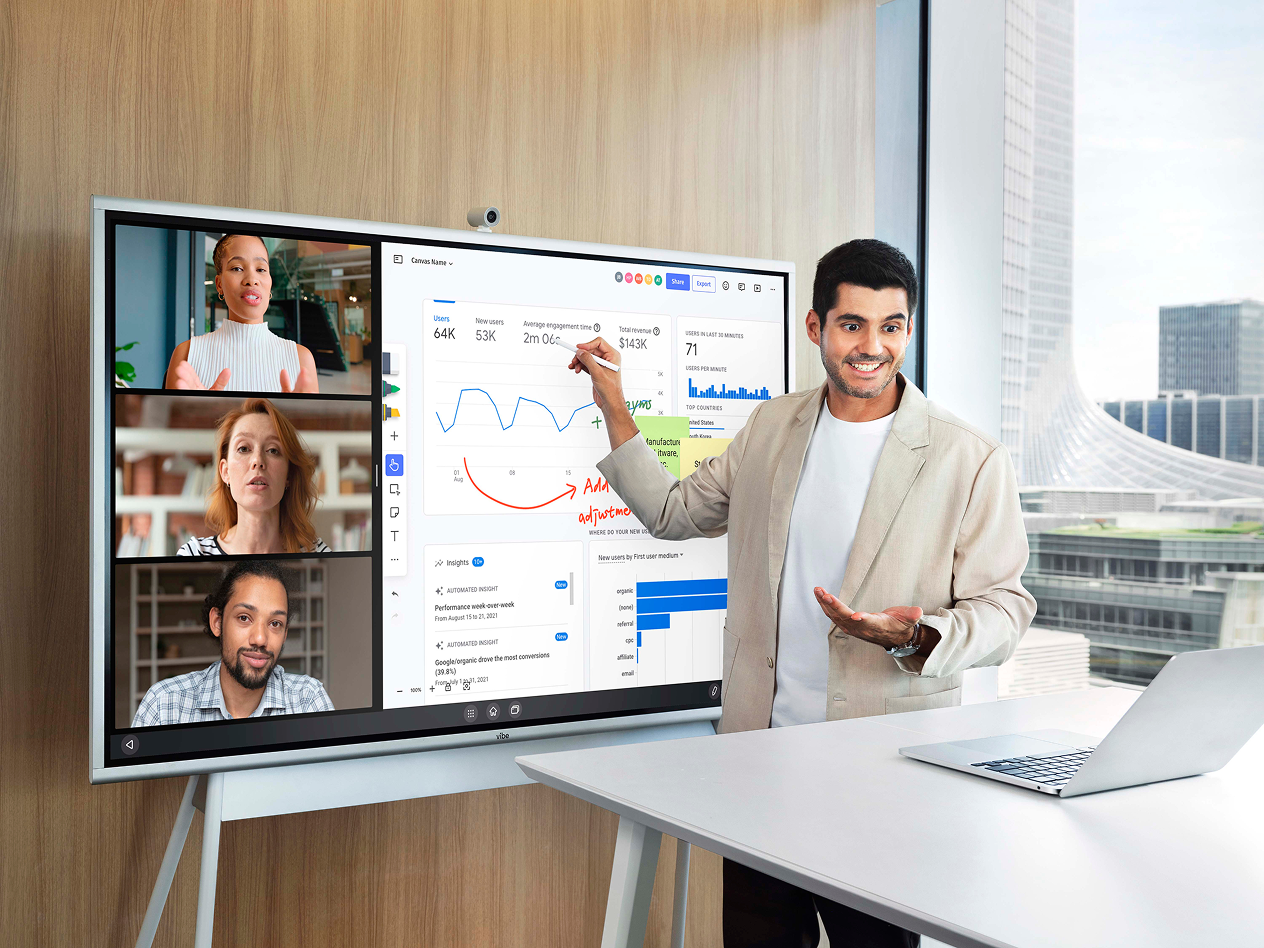
Integrated video conferencing means the interactive whiteboard can actually run the meeting. No need for a laptop, a camera, and a mess of cables. Teams can launch calls, share content, and collaborate from one screen. That cuts down on setup time and avoids the awkward "can everyone see this?" tech issues at the start of meetings.
More importantly, it keeps remote participants connected to the same work as the people in the room. When the board, the call, and the shared content live in one place, everyone is looking at—and working on—the same thing. That consistency helps meetings feel more balanced and keeps collaboration from splintering across devices.
6. Split Screen Conferencing Functionality
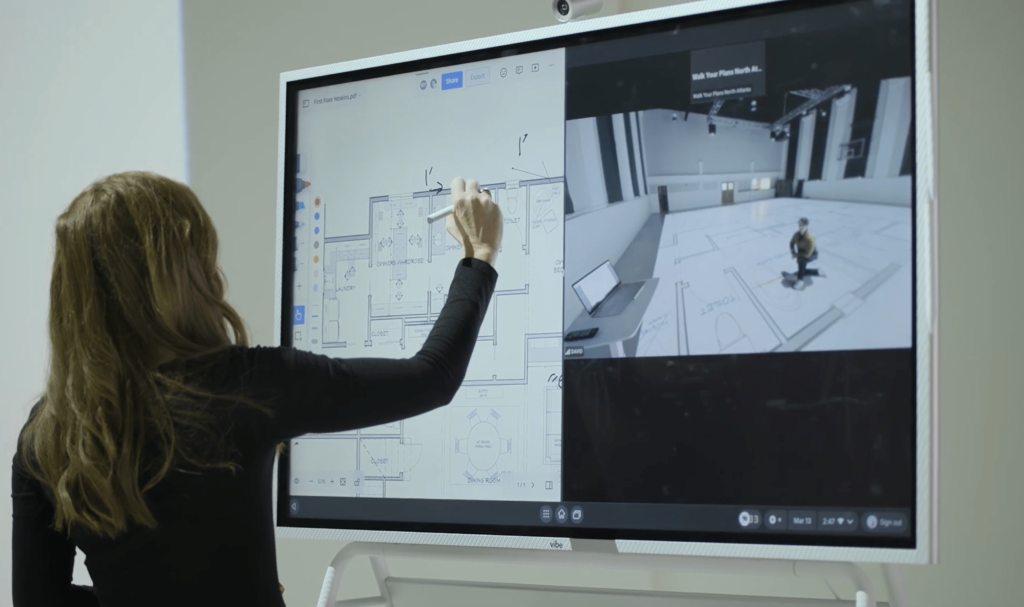
Split-screen conferencing solves a small but frustrating problem: choosing between seeing people or seeing the work. When remote participants disappear behind slides, everyone in the meeting feels that weird barrier. But when the content disappears, it’s harder to stay aligned on what’s being discussed.
With split-screen views, both stay visible at the same time. You can keep faces on one side and the shared board or presentation on the other. That makes conversations easier to follow and helps people stay engaged without constantly switching views or asking for updates.
7. App Ecosystem And File Compatibility
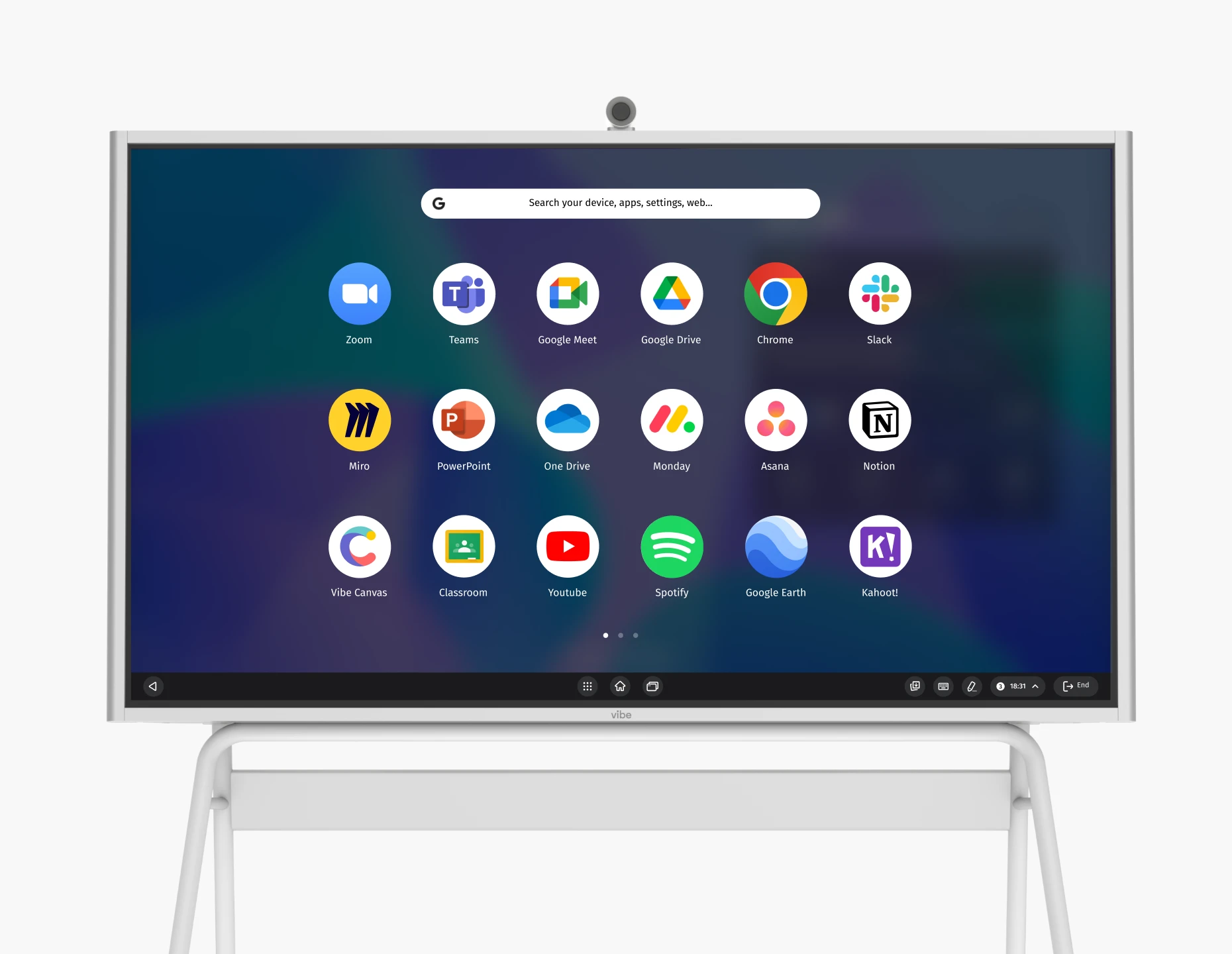
The best smart whiteboards are far more useful when it works with the tools teams already use. An app ecosystem lets you open presentations, documents, videos, and collaboration tools directly on the board—no need to mirror from someone’s laptop. That keeps meetings moving and avoids the scramble to find the "right" cable or adapter.
Broad file compatibility matters just as much. Teams shouldn’t have to convert files or worry about whether something will open. With formatting and file types all aligned, the board makes you more flexible and future-proofs your investments.
8. Automatic Saving To Cloud Storage
Anyone who’s ever taken a photo of a whiteboard knows how easy it is to lose good work. Automatic saving takes that risk off the table by preserving everything the moment a session ends. There’s no need to remember to export files or capture screenshots before people head out.
With cloud storage, the board becomes something teams can come back to. People who missed the meeting can review what happened, and teams can pick up exactly where they left off next time. That continuity makes meetings feel more useful beyond the moment they happen.
9. Template Library For Common Use Cases
Starting from a blank board can slow things down, especially when a meeting already has a clear goal. A template library gives teams a head start with layouts for common sessions like planning, brainstorming, retros, or lessons. It adds natural visual organization that you don’t have to spend the first ten minutes drawing or setting up; people can jump straight into the conversation.
Templates also help meetings stay on track. When the structure is already there, it’s easier to guide discussions, capture the right information, and avoid wandering off-topic. Over time, using familiar templates makes recurring meetings more repeatable and productive without adding extra prep work.
10. Intuitive OS and User Interface
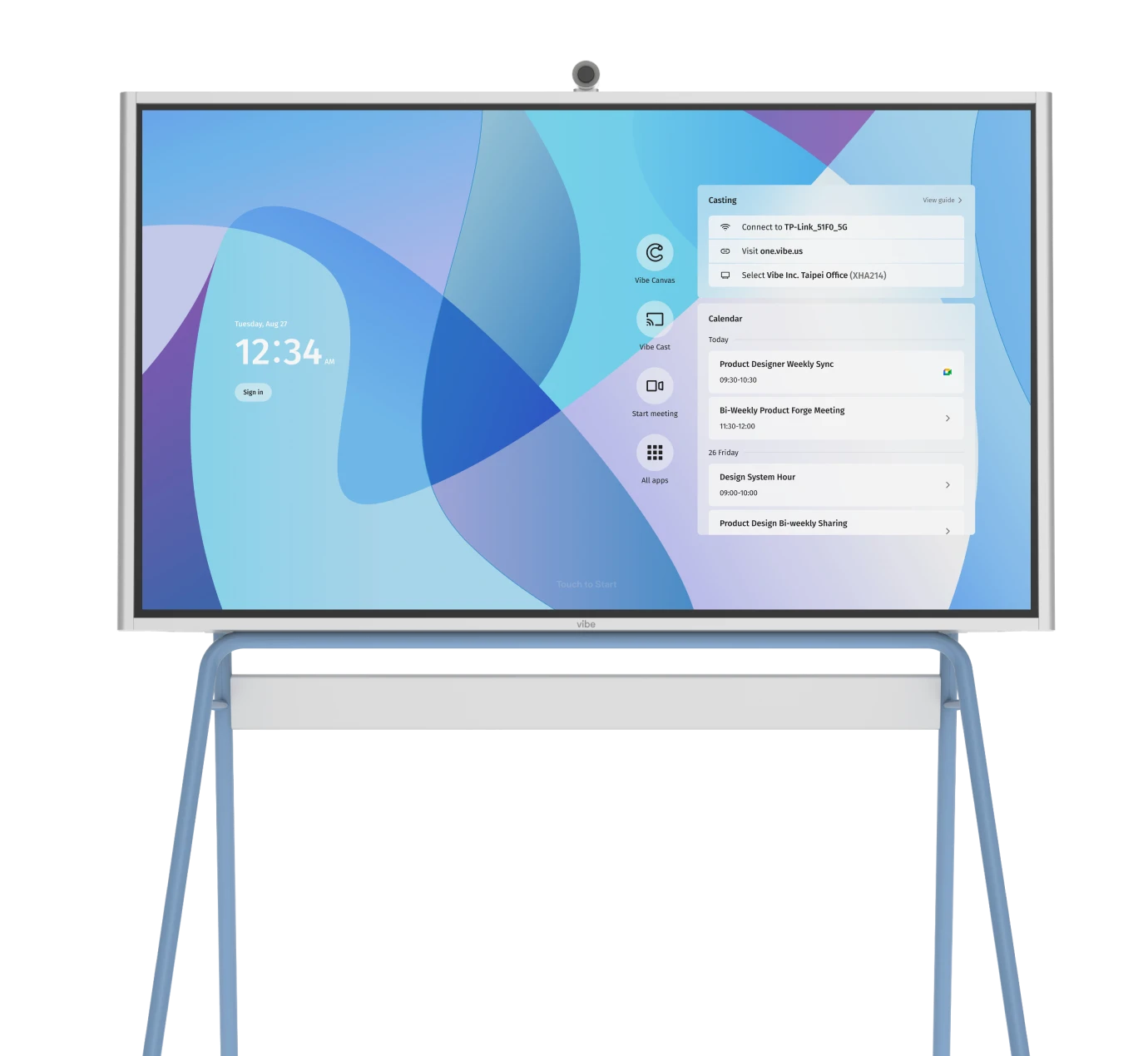
A smart whiteboard for the office can have every feature in the world, but if people don’t know how to use it, it won’t matter. An intuitive operating system and interface make the board approachable from the moment someone walks up to it. Instead of fielding questions about how to use a smart board, menus should be easy to find, and basic actions shouldn’t require instructions or training.
You want that confidence for the entire workforce. It’s best when anyone in your organization feels comfortable starting meetings on their own, switching between tools, or jumping in to write something down. When the board doesn’t feel intimidating, it actually gets used by more people, more often—without relying on IT or a designated "expert" in the room.
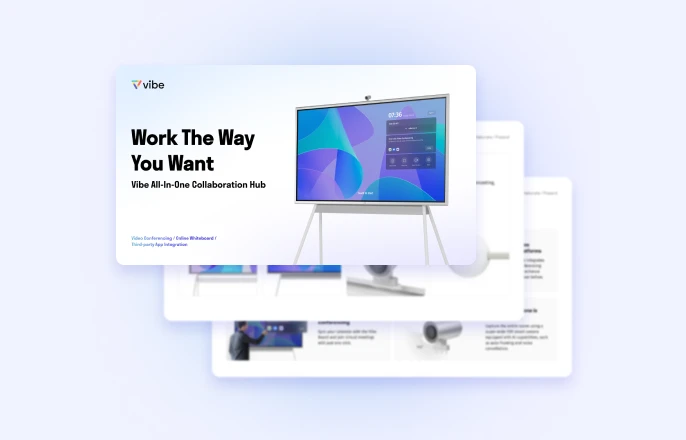
Vibe Board S1: The Ultimate Collaboration Hub
All of the features above come together in the Vibe Board S1, built to support real collaboration. It’s designed for hybrid work, where meetings aren’t presentations and ideas don’t live in one place. From writing and whiteboarding to video calls and app access, everything happens on a single, shared surface that both in-room and remote participants can use at the same time.
There’s no complicated setup, no learning curve, and no need to stitch together multiple tools. It works the way teams already think and communicate, which makes it easier to adopt. Your team gets:
-
Premium audio-video experience for on-site and remote participants
-
A clear visual hub for presenting and casting content so everyone stays aligned
-
Real-time editing and whiteboarding that keeps people engaged
-
A polished, professional setup for client-facing meetings
-
Simple, intuitive use without needing IT support
-
Portability to turn almost any room into a collaboration space
-
Access to over 250 workplace applications
Ready to see smart board features and benefits in action? Experience the Vibe Board S1 firsthand by scheduling a demo.
Smart Whiteboard Features FAQs
What can you do with a smart whiteboard?
A smart whiteboard lets teams present, write, draw, annotate, and collaborate on shared content in real time. Unlike a traditional dry-erase board or static screen, it supports digital whiteboarding, video conferencing, app access, and cloud saving so work continues beyond the meeting.
What are the benefits of smart whiteboards?
Smart whiteboards make meetings more interactive and inclusive, especially for hybrid teams. They reduce setup friction, keep work visible to everyone, and make it easier to capture, share, and revisit ideas instead of losing them when the meeting ends.
What are the components of a smart whiteboard?
Most smart whiteboards combine a high-resolution touch display, built-in computing system, smart board software, and connectivity for video conferencing and apps. Together, these components turn the board into a collaborative whiteboard rather than just a digital display.