You already ask Claude to draft proposals, prep for calls, and think through decisions. But when the question is "what did the client actually say last Thursday?", Claude has nothing to go on unless you dig up the notes and paste them in.
The Vibe AI Claude connector closes that gap. It gives Claude direct, read-only access to the meetings, transcripts, summaries, and memos you’ve captured with Vibe, so you can ask about any conversation in plain language and get an answer drawn from your own record. This guide walks through setup for Claude, Claude Code, and ChatGPT, explains all 10 tools, and gives you prompts to start with.
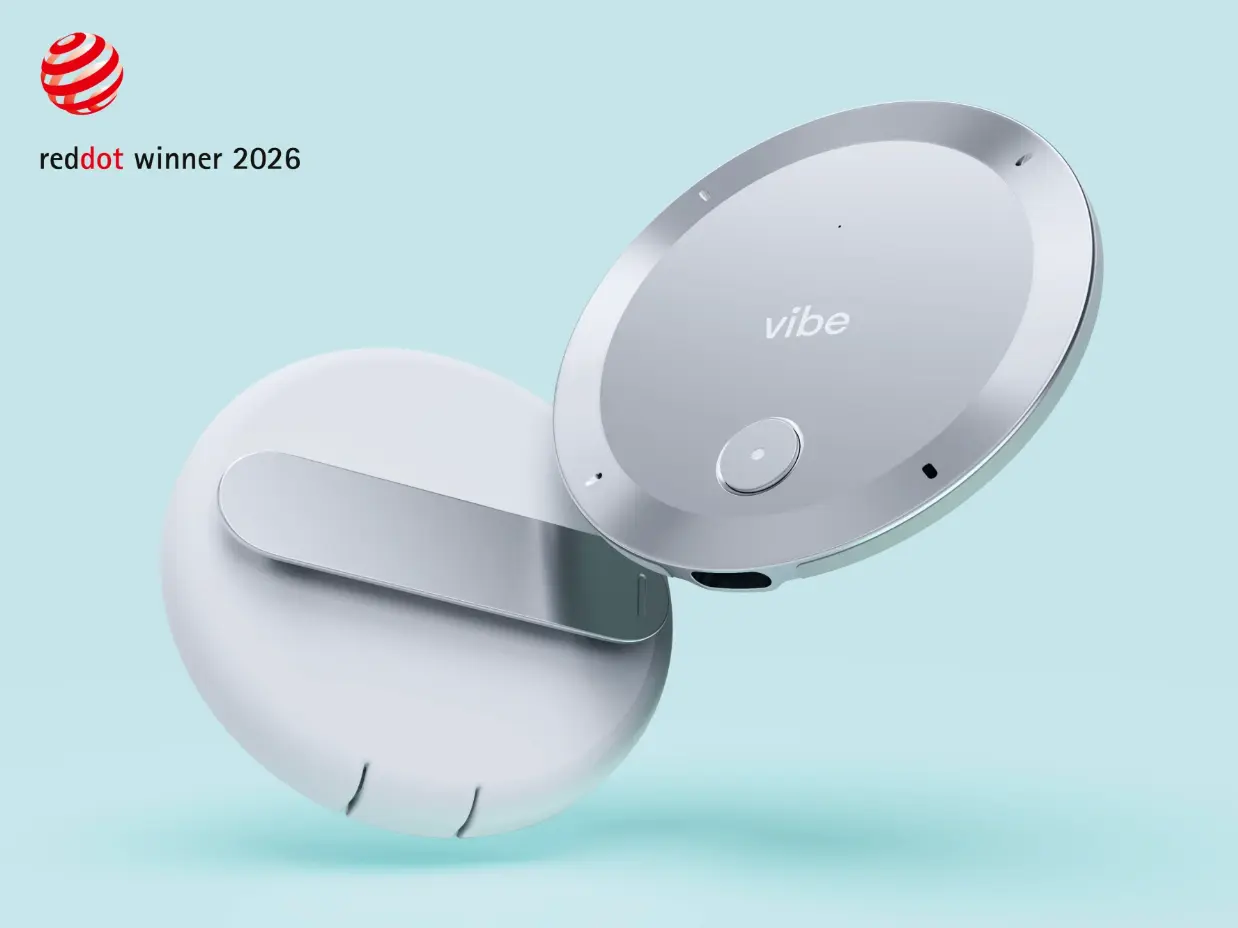
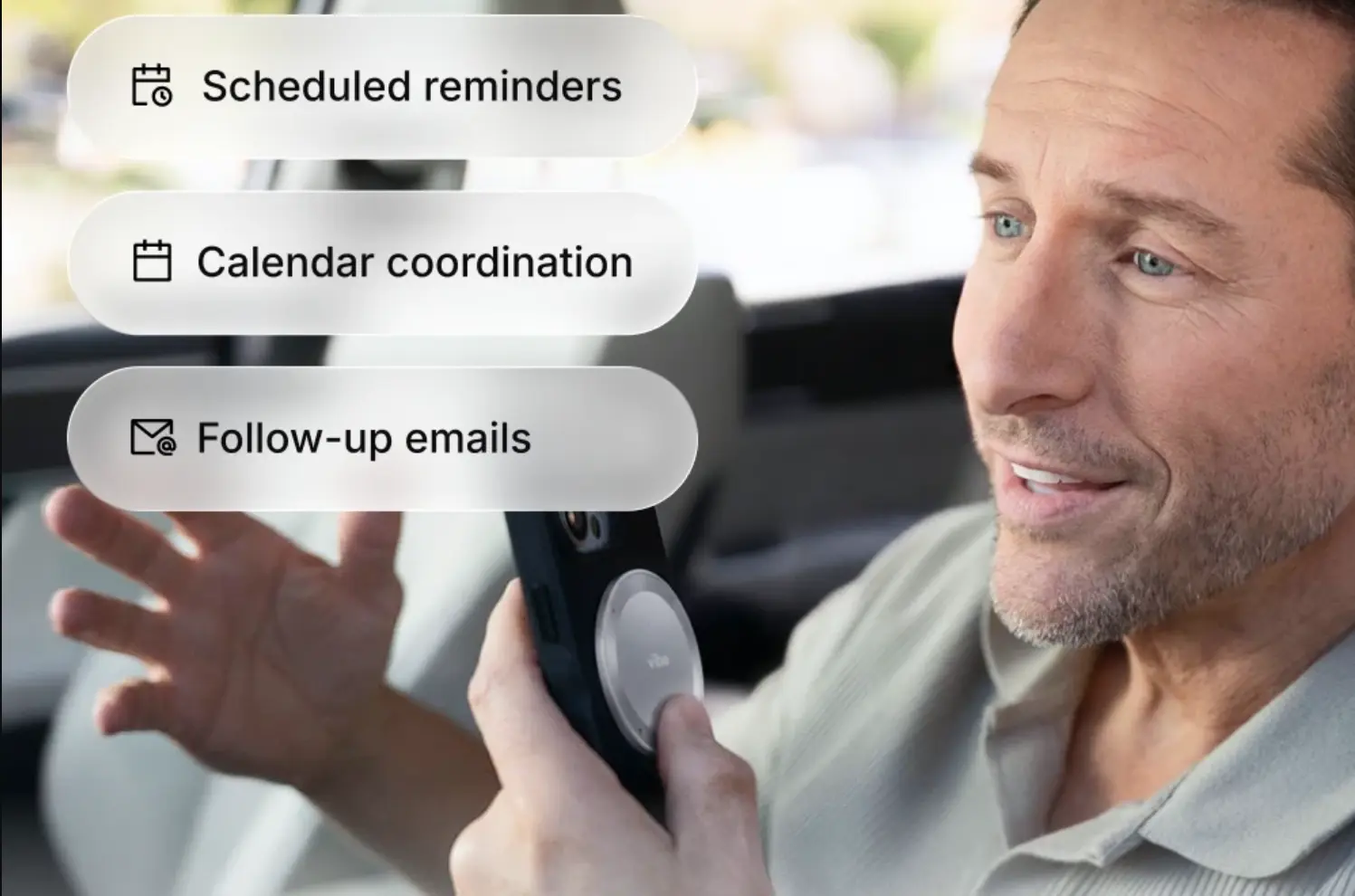 Vibe Dot with Claude reminders, calendar, and follow-up emails
What Is the Vibe AI Claude Connector?
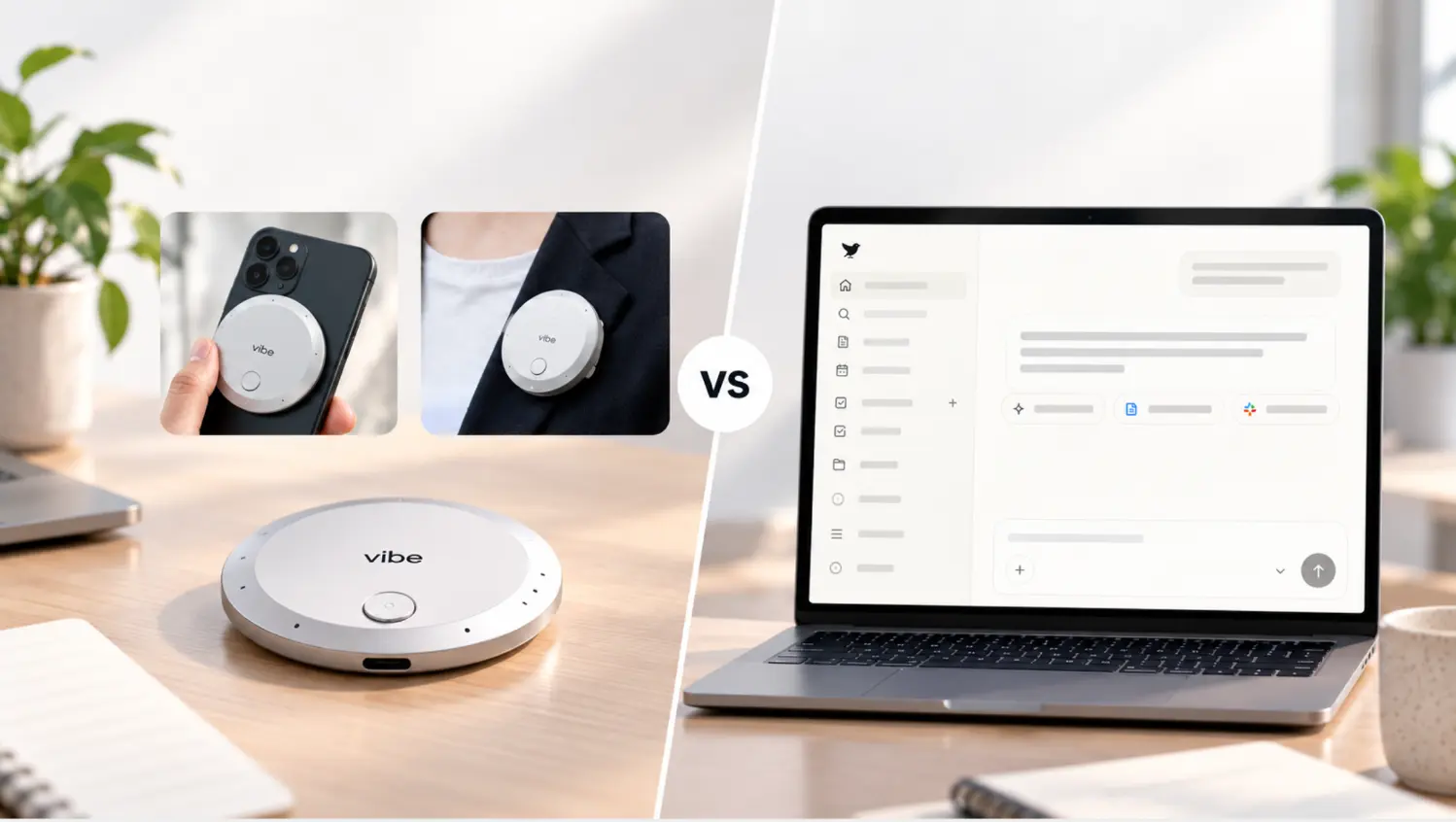
The Vibe AI Claude connector is an Anthropic-verified integration that lets Claude retrieve your Vibe meeting data on demand. It’s built on the Model Context Protocol (MCP), the open standard AI assistants use to connect to outside tools. Once connected, Claude can search transcripts, pull meeting summaries and action items, and look up memos captured with Vibe Dot, Vibe Bot, or the Vibe AI app.
Vibe AI is listed in Claude’s official Connectors Directory as Anthropic verified, and the same hosted MCP server also works with ChatGPT, Claude Code, Cursor, and other MCP-capable apps.
What You’ll Need
|
Requirement |
Details |
|---|---|
|
A Vibe AI Pro or Max plan |
"Sync Vibe AI to your AI stack" is included in Pro ($9/seat/month, billed annually) and Max, not the free Starter plan. Plans come with Vibe Dot or Vibe Bot |
|
An AI assistant |
Claude (web, desktop, or mobile), Claude Code, ChatGPT (web), or another MCP-capable app |
|
Two minutes |
The Claude directory setup is a single sign-in |
|
Optional: a personal access token |
Only for headless or remote setups where OAuth isn’t practical |
You don’t need to configure anything technical to use the connector in Claude. If you’re on a Claude Team or Enterprise plan, an Owner needs to enable the connector for your organization first (covered below).
How to Connect Vibe AI to Claude (Web, Desktop, and Mobile)
Direct answer: Open the Vibe AI page in Claude’s Connectors Directory, click Connect, and sign in to Vibe. That’s the whole setup.
According to Anthropic, web connectors are available for all users on Claude, Cowork, Claude Desktop, and Claude Mobile, so the Vibe AI connector isn’t limited to paid Claude plans.
-
Open the connector page. Go to the Vibe AI connector in Claude’s directory and click Add to Claude. Or, inside Claude, go to Customize → Connectors, click +, and search for "Vibe AI."
-
Click Connect. Claude shows the connector’s description and tools before you continue.
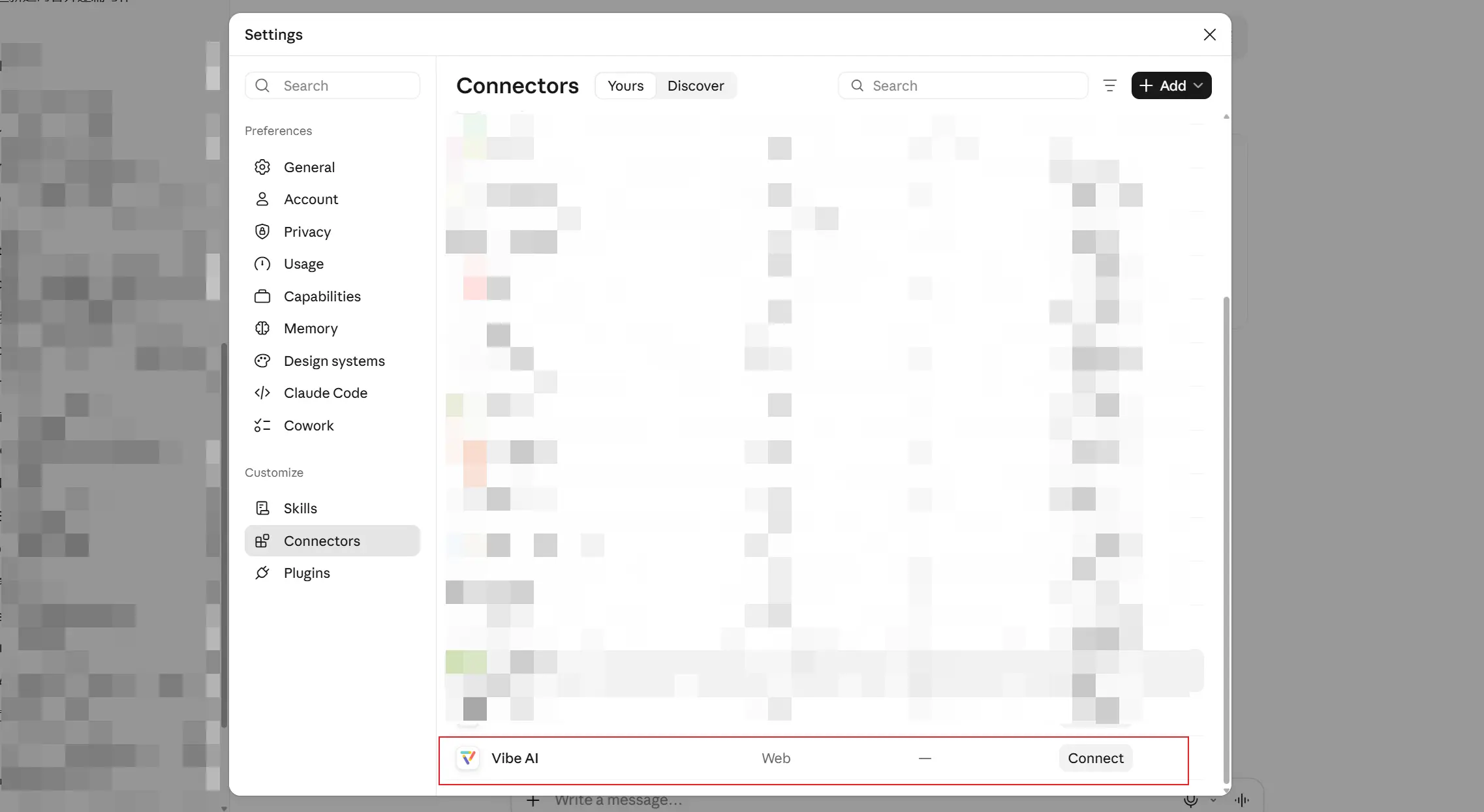 Vibe AI connector on Claude AI
 -
Sign in to Vibe. A Vibe sign-in window opens. Log in with the account that holds your meetings.
-
Turn it on in a chat. In any conversation, click + (or type /), hover over Connectors, and make sure Vibe AI is toggled on.
-
Ask a question. Try "List my five most recent Vibe meetings" to confirm it’s working.
Once you connect on Claude web or desktop, the connector is also available the next time you sign in on Claude for iOS or Android.
For Claude Team and Enterprise workspaces
On Team and Enterprise plans, an Owner or Primary Owner needs to enable a connector for the organization before members can use it. Each person still signs in to Vibe individually, so everyone only sees their own meetings. If you can’t add Vibe AI yourself, select Request on the connector’s page in the directory to ask an Owner.
Owners can also set tool permissions per connector. Because every Vibe AI tool is read-only, teams can safely set them to "Always allow."
How to Connect Vibe AI to Claude Code
Claude Code connects to the same hosted server at https://mcp.vibe.us/mcp. Vibe’s setup guide documents two options.
Option 1: OAuth (recommended). Add the server from your terminal:
claude mcp add --transport http --scope user vibe-chorus https://mcp.vibe.us/mcpOption 2: Personal access token. Use this for remote or headless environments. Create a token in the Vibe AI web app under Settings → Integration → Personal access tokens, copy it immediately (it’s shown only once), then add it as a bearer header:
claude mcp add --transport http --scope user vibe-chorus https://mcp.vibe.us/mcp --header "Authorization: Bearer YOUR_TOKEN"Restart Claude Code and type /mcp. You should see vibe-chorus ✔ connected with 10 tools. The first tool call asks for permission; because every tool is read-only, choosing "always allow" is safe.
The same URL works for Cursor, Codex, and other MCP-capable apps: add a new MCP server with the URL above and HTTP (streamable HTTP) as the transport.
How to Connect Vibe AI to ChatGPT
ChatGPT connects to Vibe AI as a custom MCP server, added from the Plugins page on ChatGPT web. According to OpenAI, custom MCP server connections are available for ChatGPT Business and Enterprise/Edu customers on ChatGPT web, and Pro users can connect custom MCP servers with read/fetch permissions. Because every Vibe AI tool is read-only, the full connector works on ChatGPT Pro as well.
-
Open Plugins. On ChatGPT web, go to Plugins, select the plus button, then Add custom MCP server.
-
Name it and add the URL. Enter "Vibe AI" as the name and
https://mcp.vibe.us/mcpas the endpoint URL. -
Set up authentication. Choose OAuth and sign in to Vibe when prompted.
-
Confirm and create. Review OpenAI’s risk warning, check I understand and want to continue, then select Create as a plugin and review the 10 discovered tools.
-
Use it in a chat. Start a new conversation, type @, and select Vibe AI before your question.
In Business workspaces, only admins and owners can add and publish custom MCP servers; on Enterprise/Edu, admins can grant that permission to selected members. ChatGPT doesn’t support adding custom MCP servers on mobile, so set it up on the web.
The 10 Vibe AI Connector Tools, Explained
You don’t need to name these tools in your prompts. Claude picks the right one based on your question. Knowing what each does helps you ask better questions.
|
Tool |
What it does |
Ask something like |
|---|---|---|
|
|
Lists all meetings you can access |
"What meetings did I have this week?" |
|
|
Searches meetings with optional filters |
"Find my meetings with Acme from September" |
|
|
Gets details and permissions for one meeting |
"Who was in yesterday’s design review?" |
|
|
Previews a meeting’s timeline segments |
"Give me the outline of the board prep call" |
|
|
Fetches a meeting’s full transcript |
"What exactly did Dana say about pricing?" |
|
|
Lists every AI summary for a meeting |
"What summaries exist for Monday’s standup?" |
|
|
Fetches one summary by template |
"Pull the action items from the client kickoff" |
|
|
Lists all memos you can access |
"Show my memos from this week" |
|
|
Searches memos with optional filters |
"Find my memo about the hiring plan" |
|
|
Gets the full content of one memo |
"Open the memo I recorded after the site visit" |
All tools respect Vibe’s access controls: per Vibe’s documentation, Claude can only see meetings, transcripts, and summaries that you can already see in the Vibe app.
What to Ask Claude About Your Meetings
The connector is most valuable when Claude combines your meeting record with its own reasoning. Here are prompts organized by role.
For sales and account managers
-
"Summarize every conversation I’ve had with Northwind this quarter and list open commitments on both sides."
-
"Before my 2 p.m. call, remind me of the three concerns the client raised last time."
-
"Draft a follow-up email based on today’s demo, using the next steps we agreed on."
For consultants and client services
-
"Pull the transcript from Tuesday’s discovery workshop and turn the client’s goals into a proposal outline."
-
"What scope changes came up across my last four meetings with this client?"
For managers and team leads
-
"What decisions were made in this week’s leadership meetings, and who owns each one?"
-
"Compare what we said about the Q1 launch date in September versus October."
For individual contributors
-
"Find the memo I recorded about the onboarding idea and expand it into a one-page brief."
-
"What action items were assigned to me across all meetings this week?"
A realistic example: A field sales rep visits three clients in a day, capturing each conversation with Vibe Dot. Back at her desk, she asks Claude, "Draft follow-up notes for today’s three visits, with each client’s priorities and our next step." Claude searches the day’s meetings, pulls each summary, and writes three drafts she reviews and sends, without reopening a single recording.
Privacy, Permissions, and Security
The Vibe AI connector was designed to be safe to leave on.
-
Read-only by design. All 10 tools read data. None can edit, delete, or share anything in your Vibe account.
-
Your permissions, nothing more. The connector enforces the same access as the Vibe AI app. It can’t see meetings you weren’t given access to.
-
Revocable anytime. Disconnect in Claude under Customize → Connectors. If you used a personal access token, deleting it in Settings → Integration stops every integration using it immediately.
-
Token hygiene. Vibe recommends one token per agent or device, so revoking one doesn’t break the others, and never pasting tokens into chats or screenshots.
On the capture side, Vibe Dot protects recordings with a dedicated hardware encryption chip (FIPS 140-3, Common Criteria EAL 6+).
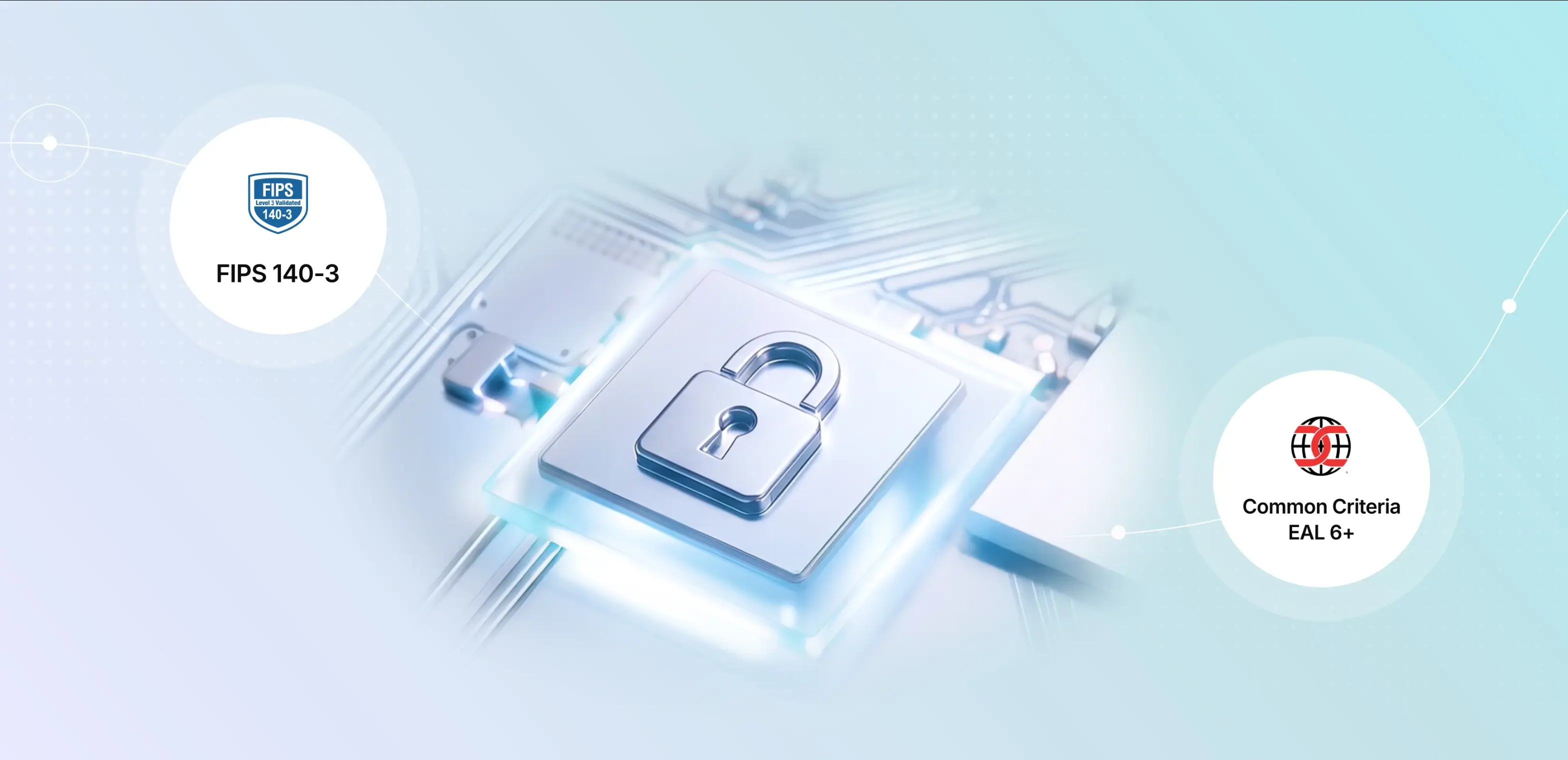 Chip padlock with FIPS 140-3 and Common Criteria EAL 6+ badges
Limitations to Know
-
It reads; it doesn’t act. The connector retrieves your meeting data. It doesn’t create tasks, send messages, or change anything in Vibe. Claude can still draft follow-ups and documents from what it finds; you send them.
-
It only knows what Vibe captured. Conversations need to be recorded with Vibe Dot, Vibe Bot, or the Vibe AI app first.
-
Plan requirements on both sides. The connector is part of Vibe AI Pro and Max. On the ChatGPT side, custom MCP servers are available on Business, Enterprise/Edu, and (for read/fetch servers like Vibe’s) Pro, and must be added on the web.
Troubleshooting
Claude says it can’t find any meetings. Confirm you signed in with the Vibe account that holds your recordings. If you have more than one Vibe account, disconnect and reconnect with the right one.
Authentication fails in Claude Code. Check that the URL is exactly https://mcp.vibe.us/mcp with no extra path. If you used a token, it may be expired or revoked; create a new one and update your config.
Vibe AI doesn’t appear in my connectors list. On Team and Enterprise plans, an Owner must enable it first. Use Request on the connector’s directory page.
Claude isn’t using Vibe for a meeting question. Make sure Vibe AI is toggled on for that conversation, or mention "in Vibe" in your prompt.
Conclusion: Give Claude a Memory of Your Meetings
Claude is only as useful as the context it can reach. The Vibe AI Claude connector gives it the context most AI assistants never see: what was actually said in your meetings, client visits, and quick memos captured on the go. Setup takes one sign-in, every tool is read-only, and it works across Claude, Claude Code, and ChatGPT.
If you’re on Vibe AI Pro or Max, connect Vibe AI to Claude and ask your first question. If you’re new to Vibe, start with the device that captures the conversations your other tools miss.
Frequently Asked Questions
What is the Vibe AI Claude connector?
The Vibe AI Claude connector is an Anthropic-verified integration in Claude’s Connectors Directory that lets Claude read your Vibe meeting data on demand. Once connected, Claude can search transcripts, retrieve meeting summaries and action items, and look up memos captured with Vibe Dot, Vibe Bot, or the Vibe AI app. It’s built on the Model Context Protocol and uses 10 read-only tools.
Is the Vibe AI connector free to use in Claude?
On the Claude side, Anthropic makes web connectors available to all Claude users across web, desktop, and mobile. On the Vibe side, connecting your meetings to Claude or ChatGPT is included in Vibe AI Pro ($9 per seat per month, billed annually) and Max, but not the free Starter plan. Vibe AI plans come with the purchase of Vibe Dot or Vibe Bot.
Can Claude edit or delete my Vibe meetings?
No. All 10 tools in the Vibe AI connector are read-only. Claude can list, search, and read your meetings, transcripts, summaries, and memos, but it cannot edit, delete, or share anything in your Vibe account. The connector also enforces your existing Vibe permissions, so Claude only sees meetings you can already access in the Vibe AI app.
Does Vibe AI work with ChatGPT?
Yes. Add Vibe’s hosted MCP server, mcp.vibe.us/mcp, from the Plugins page on ChatGPT web by selecting Add custom MCP server and signing in with OAuth. OpenAI supports custom MCP servers on Business and Enterprise/Edu plans, and Pro users can connect read/fetch servers, which covers all 10 read-only Vibe tools. Then type @ in a chat and select Vibe AI.
How do I connect Vibe AI to Claude Code?
Run claude mcp add –transport http –scope user vibe-chorus https://mcp.vibe.us/mcp in your terminal, then restart Claude Code and type /mcp to confirm 10 tools are connected. For remote or headless environments, create a personal access token in the Vibe AI web app under Settings → Integration and pass it as an Authorization bearer header.
Which Vibe devices work with the Claude connector?
The connector reads meetings and memos captured by Vibe Dot, Vibe’s wearable AI assistant device; Vibe Bot, Vibe’s in-room AI meeting assistant; and the Vibe AI app. Everything those sources capture lands in one Vibe AI account, so Claude can answer questions across in-person conversations, meeting-room sessions, and memos in a single prompt.