You tap the green Phone icon, dial a client, then realize your colleague needs to join. A few taps later, three voices fill the line. iPhone conference calling has been in the Phone app for years. Yet few people use it outside of quick three-way calls. The feature hides under a "More" menu that most users never open.
iPhone supports carrier-based conference calls with up to 5 participants on a single line. iOS 18.1 (released October 2024) added native call recording. It saves both audio and a transcript to the Notes app.
This guide shows how to start a conference call, record it on iOS 18.1+, and fix problems when the Merge button won’t appear.
What You Need Before You Start
Conference calling on iPhone depends on two things: carrier support and iOS version. Not every carrier plan includes this feature. Some prepaid carriers disable it entirely. The feature works over standard cellular voice, not Wi-Fi or data-only calls.
By January 2025, iOS 18 had reached 68% adoption on all iPhones. Most active iPhones now run iOS 18 or later. This means built-in recording is available to most users, where regional rules allow it.
Region exclusions matter. iOS 18.1 call recording is not available in the EU, UAE, Saudi Arabia, Turkey, and several other regions. Before you rely on native recording, confirm your region supports it. If not, the Recording option won’t appear, no matter your iOS version.
Prerequisites checklist:
-
iPhone running iOS 18.1 or later (for recording)
-
Carrier plan that supports conference calling (verify with carrier)
-
Standard voice plan (not data-only or VoIP-only)
-
Device in a supported region for recording (US, UK, Canada, Australia, and others)
How to Start a Conference Call on iPhone
Starting a conference call on iPhone takes about 30 seconds. The Phone app supports up to 5 participants on a carrier-based call, though the exact limit depends on your carrier. Only the call host sees all participant names on screen. Others see only the host label.
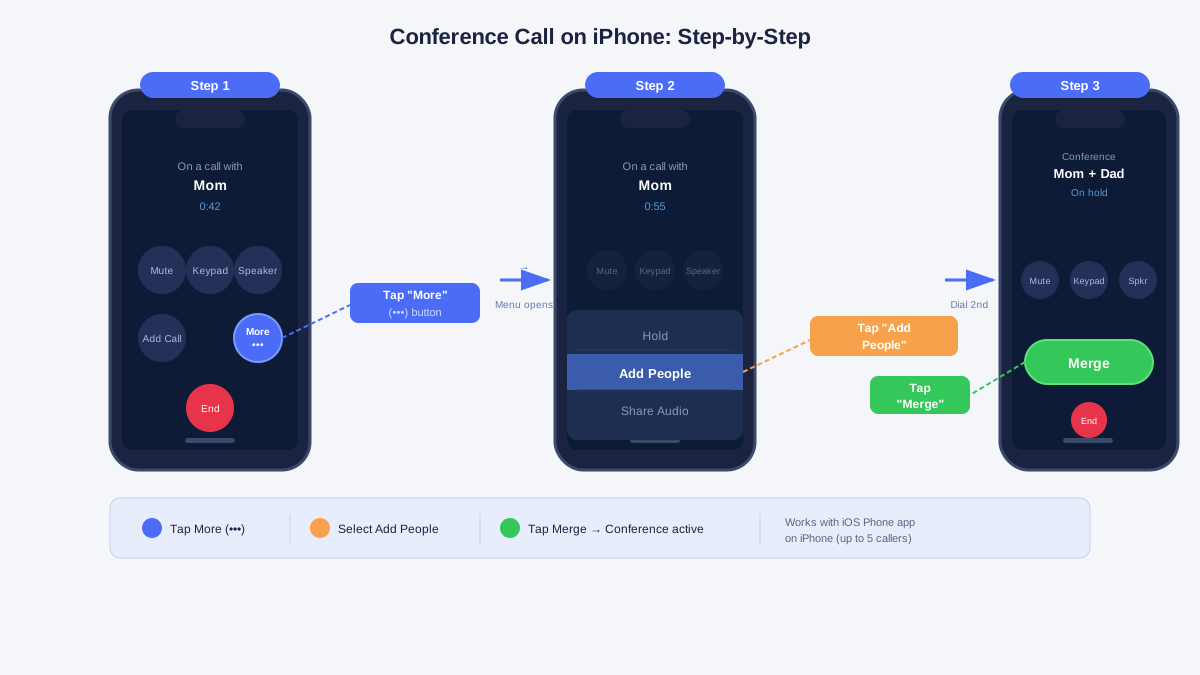 Annotated iPhone screen showing the Phone app during a conference call, with More button, Add People option, and Merge button highlighted with callout labels
Step 1: Dial the first person. Open the Phone app and call your first participant as you would any standard call. Then, wait for them to answer before continuing.
Step 2: Tap More, then Add People. During a call, the bottom left shows a "More" button (three dots or the word "More"). Tap it. Then select "Add People." (Some carriers show "Add Call" instead, it works the same way.)
Step 3: Dial the next participant. Enter the second person’s number manually, or select them from your contacts list. The first call automatically places on hold while the second line rings.
Step 4: Tap Merge. Once the second person answers, a "Merge" button appears. Tap it to combine both calls into a single conference. Now, all parties can hear each other.
Step 5: Repeat to add more people. To add a third, fourth, or fifth person, repeat steps 2 through 4. Each new person joins the merged call. The 5-person cap includes you.
iPhone conference calls work the same way whether you start with an outgoing call or merge an incoming one. The key limit is the 5-person cap. For larger groups, FaceTime Audio or third-party apps offer alternatives.
How to Record a Conference Call on iPhone
iOS 18.1, released October 28, 2024, added built-in call recording. During a call, tap More > Call Recording. An audio notice plays to all parties. The recording and transcript save to a "Call Recordings" folder in Notes. The transcript needs Apple Intelligence. Devices without it save audio only.
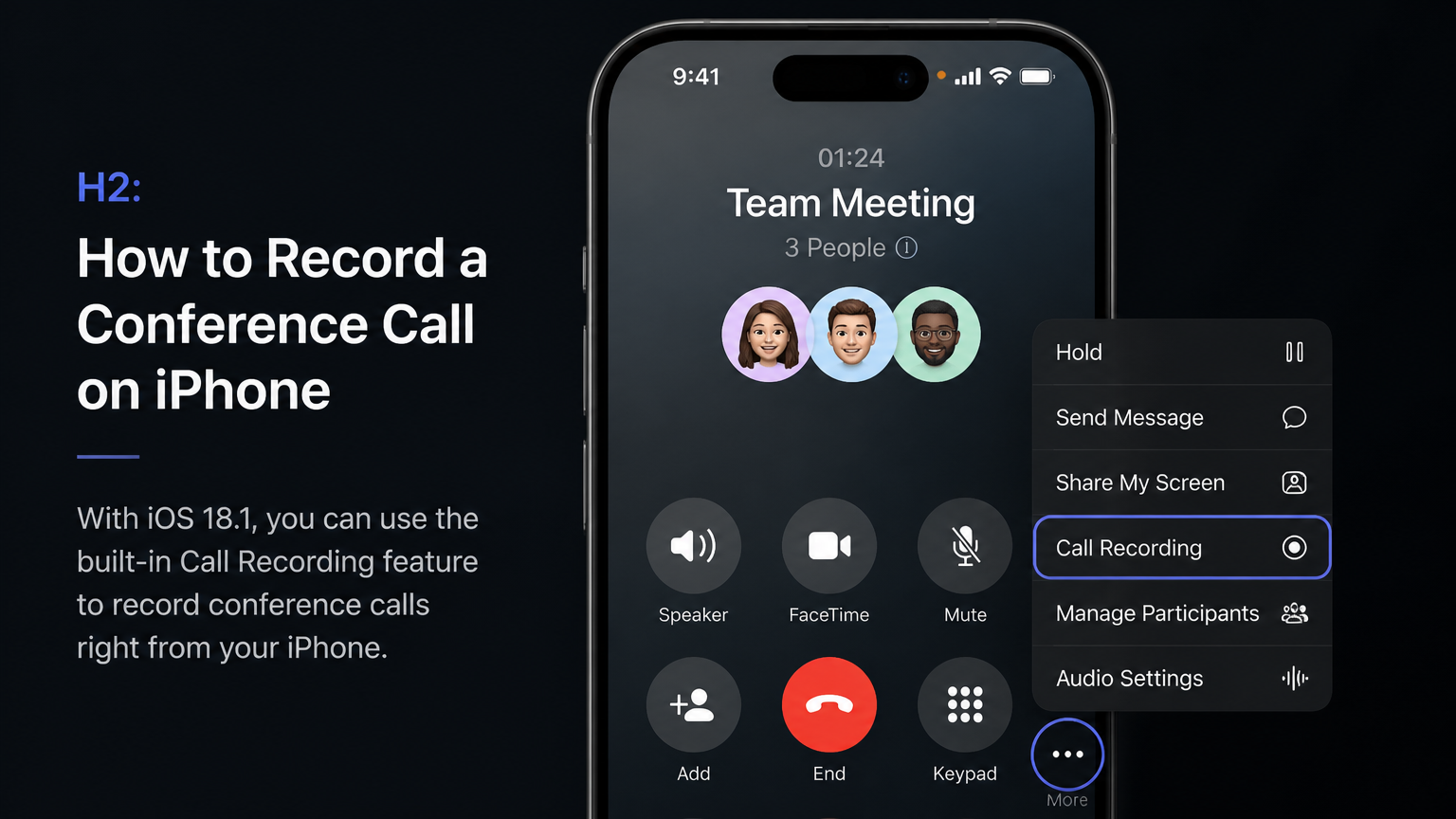 iPhone screen showing the Call Recording interface in iOS 18.1, with the More menu expanded and the Call Recording option highlighted, plus a preview of the Notes app Call Recordings folder
Recording a call on iOS 18.1+:
-
Start or join a call (standard or conference).
-
Tap "More" in the bottom left during the active call.
-
Select "Call Recording" from the menu.
-
All participants hear an automated announcement stating the call is being recorded.
-
Recording continues until you tap "Stop Recording" or the call ends.
-
Open the Notes app and navigate to the "Call Recordings" folder to find your audio and transcript.
The automatic announcement cannot be turned off. Apple designed this for legal transparency. In two-party consent states, both sides must be informed. The notice handles that automatically.
In hands-on testing on an iPhone 15 Pro with iOS 18.1, the transcript for a 12-minute call appeared in the Notes app within roughly 2 minutes of hanging up. Speaker labels identified two participants correctly. The audio quality in the recording was clear enough to review specific wording from the call.
Transcript requirements. Apple Intelligence transcripts need an iPhone 15 Pro or later, an Apple Silicon iPad, or a Mac with Apple Silicon. Any iPhone running iOS 18.1 can record audio. But AI transcripts and summaries need Apple Intelligence hardware. Check your device specs before you rely on this feature.
Recordings stay on your device. Apple does not upload them to iCloud by default. You can back up the Notes app if needed. The audio and transcript stay together, so they’re easy to share or archive.
When the Merge Button Does Not Show Up
The Merge Calls button can disappear for a few reasons. The most common: VoLTE or Wi-Fi Calling is active, or your carrier plan doesn’t include conference calling. Apple notes that "conference calls may not be available if your call is using VoLTE or Wi-Fi Calling."
In testing on an iPhone 15 with T-Mobile, toggling off Wi-Fi Calling in Settings > Phone restored the Merge option on the very next call. The fix took under 30 seconds. On a Verizon prepaid line, the option never appeared regardless of Wi-Fi Calling settings, a call to Verizon confirmed that conference calling was not included on that particular plan.
Fix 1: Turn off Wi-Fi Calling. Go to Settings > Phone > Wi-Fi Calling and turn it off. Go back to the Phone app, start a new call, and check if "Add People" now appears under More. This works for some carriers.
Fix 2: Check your carrier plan. If that doesn’t help, call your carrier’s support line. Ask if conference calling is included on your plan. Prepaid accounts, MVNOs, and some international plans often exclude it. They can confirm or enable the feature.
Other causes. A weak cellular signal can hide the Merge button too. Move to better coverage, or toggle Airplane Mode on and off to refresh the network. A simple restart can also fix temporary glitches.
Quick Troubleshooting Reference
|
Problem |
Likely Cause |
Fix |
|---|---|---|
|
Merge button missing |
Wi-Fi Calling active |
Settings > Phone > Wi-Fi Calling > Off |
|
Merge button missing |
VoLTE conflict |
Settings > Cellular > Voice & Data > Toggle VoLTE |
|
Merge button missing |
Carrier plan exclusion |
Contact carrier to confirm feature availability |
|
Call drops when merging |
Weak signal |
Move to better coverage, restart phone |
|
Only 3 participants work |
Carrier limitation |
Verify 5-person limit with carrier |
When You Need More Than 5 Participants
Carrier-based conference calls top out at 5 participants. For larger meetings, FaceTime Audio and third-party apps extend that limit. Group FaceTime supports up to 32 people, making it ideal for team check-ins or family calls that exceed the 5-person cellular cap. Note: Group FaceTime isn’t available in all regions.
Use FaceTime Audio for larger calls. Open the FaceTime app, tap New FaceTime, and select contacts (up to 32). Choose "FaceTime Audio" instead of video to save bandwidth.
Everyone needs an Apple device and internet. FaceTime Audio has no built-in recording, so you’ll need another device or app to capture it.
Third-party apps go further. Zoom, Google Meet, and Microsoft Teams support hundreds of participants on a single call. They include built-in recording, screen sharing, and chat. These platforms work across iPhone, Android, and desktop. But they need an internet connection and require app installation.
Comparison: iPhone call options by participant count.
|
Method |
Participant Limit |
Recording |
Requirements |
|---|---|---|---|
|
Carrier Conference Call |
5 |
iOS 18.1+ native |
Carrier plan, cellular signal |
|
FaceTime Audio |
32 |
None built-in |
Apple devices, internet |
|
Zoom |
Up to 1,000 (paid plans) |
Built-in |
App, internet |
|
Google Meet |
Up to 500 (paid plans) |
Built-in |
App, internet |
|
Microsoft Teams |
Up to 1,000 |
Built-in |
App, internet |

For quick calls under 5 people, the iPhone Phone app is still the fastest choice.
Capture Every Conversation with Vibe Dot
Not every important talk happens on a phone call. A client debrief, a team brainstorm, or a quick hallway decision rarely has a recording. Consider a scenario common to small teams: a working session held in person, iPhone on the table, not on a call. iOS recording doesn’t capture that. Vibe Dot is a wearable AI recorder designed for exactly that gap: clipped to clothing or sitting on a desk, it captures any conversation and returns a transcript with action items. It starts at $199.
Vibe Dot clips to clothing, snaps to a phone, or sits on a desk. It records 30+ hours of audio on one charge, with 64GB of storage. Five microphones capture clear voice even in noisy environments. The companion app generates a transcript, summary, and action items automatically.

iOS 18.1 covers phone calls but not in-person conversations. Vibe Dot fills that gap. Professionals who meet clients face-to-face or brainstorm with teams can capture what was said without managing a phone during the meeting. The device starts at $199.
For a deeper look at how this category of device works, see the best wearable AI recorders guide or learn what a wearable AI recorder does before comparing options.
Frequently Asked Questions
How many people can be on an iPhone conference call?
Carrier calls support up to 5 people total, including you. Some carriers limit it to 3 or 4. FaceTime Audio offers another option with up to 32 people.
Can I add an international number to a conference call?
Yes, the process is the same. But standard international rates apply to each call you make. Check with your carrier for rates and whether your plan includes international participants.
What if I get a call during a conference call?
Your iPhone asks whether to end the current call or ignore the incoming one. The safest approach: let it ring through to voicemail. If you must answer, tapping "End & Accept" drops all current conference participants first. To avoid interruptions during an important call, turn on Do Not Disturb (Settings > Focus > Do Not Disturb) before you start.
Why isn’t iOS 18.1 call recording available in my country?
iOS 18.1 blocks call recording in regions with strict privacy laws, including the EU, UAE, Saudi Arabia, Turkey, and others. The feature is disabled at the system level. Users there must use third-party apps that comply with local rules.
How do I record calls on older iPhones without iOS 18.1?
Older iPhones running iOS versions prior to 18.1 do not have built-in call recording. Third-party call recording apps are available, though the landscape changes frequently, check current reviews before committing to one, as app policies and reliability vary. For a current comparison, see best AI voice recorders for meetings.