Most content about AI recorders for ADHD sells you on the fact that they record. That was never the hard part. The hard part is the gap between "this device can auto-capture, remember across sessions, and hand off to an AI agent" and actually having those settings configured correctly for the specific way you personally forget things.
This is a setup guide, not a feature list. Four common ADHD failure points, the exact setting that addresses each one, and what still doesn’t happen automatically no matter how the settings are configured. The steps below use Vibe Dot to show exactly what each setting looks like in practice, since it’s one of the few devices in this category with a distinct mode for each failure point rather than one generic "record" button.
A note before starting: this is a product and workflow guide, not clinical advice. If you’re evaluating whether recording could work as a formal accommodation at school or work, that’s a separate process — see the note near the end.
The device we’ll use throughout is Vibe Dot, a wearable AI recorder built around exactly this gap — it has a distinct setting for each of the four failure points below, rather than the single generic "record" button most recorders ship with. If you’re comparing options first, our best AI recorders for ADHD roundup covers alternatives; this guide assumes you want the how-to, not the comparison.
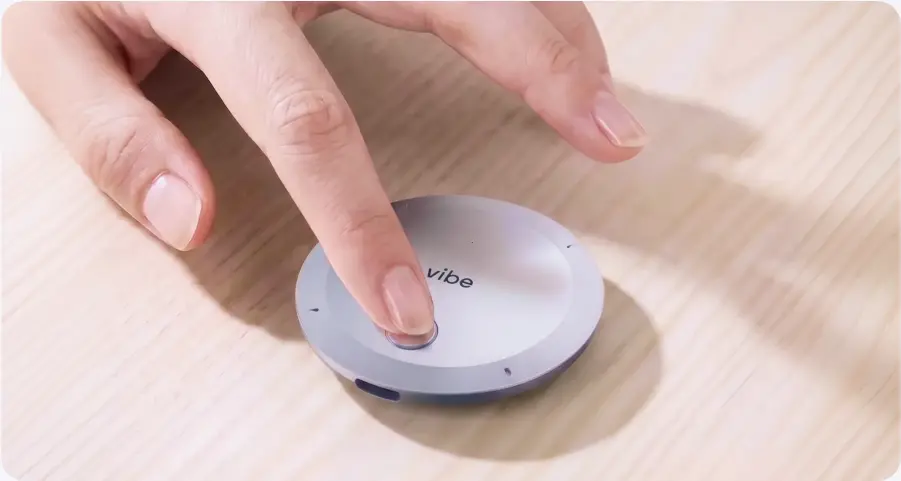 Finger pressing the button on a round Vibe Dot AI recorder placed on a wooden desk surface
You can’t record what you didn’t know would matter
Someone stops you between meetings, or calls while you’re driving, and by the end of it you’ve agreed to something. You had no reason to hit record, because you didn’t know the conversation would matter until it already had. This is the single most expensive failure point in the category, because you don’t discover it until you go looking for a recording that was never made.
The setting that addresses this is voice-triggered automatic capture, called Standby Mode. It listens for your voice and starts recording once it detects a few seconds of speech, then stops on its own after a period of silence. No button, no prediction required in advance.
Setup:
-
This mode requires Voice ID to be configured first — it’s what lets the device tell your voice apart from ambient noise and know when to start. Do this once, before anything else.
-
Open the app, tap the device icon to open Device Settings, and confirm the device shows connected.
-
Turn on Auto Mode and set how long it stays active — two hours is enough to cover a work block without leaving the device armed all day.
-
Each conversation it captures uploads as its own separate recording, with a transcript and summary generated automatically.
You can still start or stop a recording manually while this mode is active, for anything outside the armed window. For detailed instructions, read this guide.
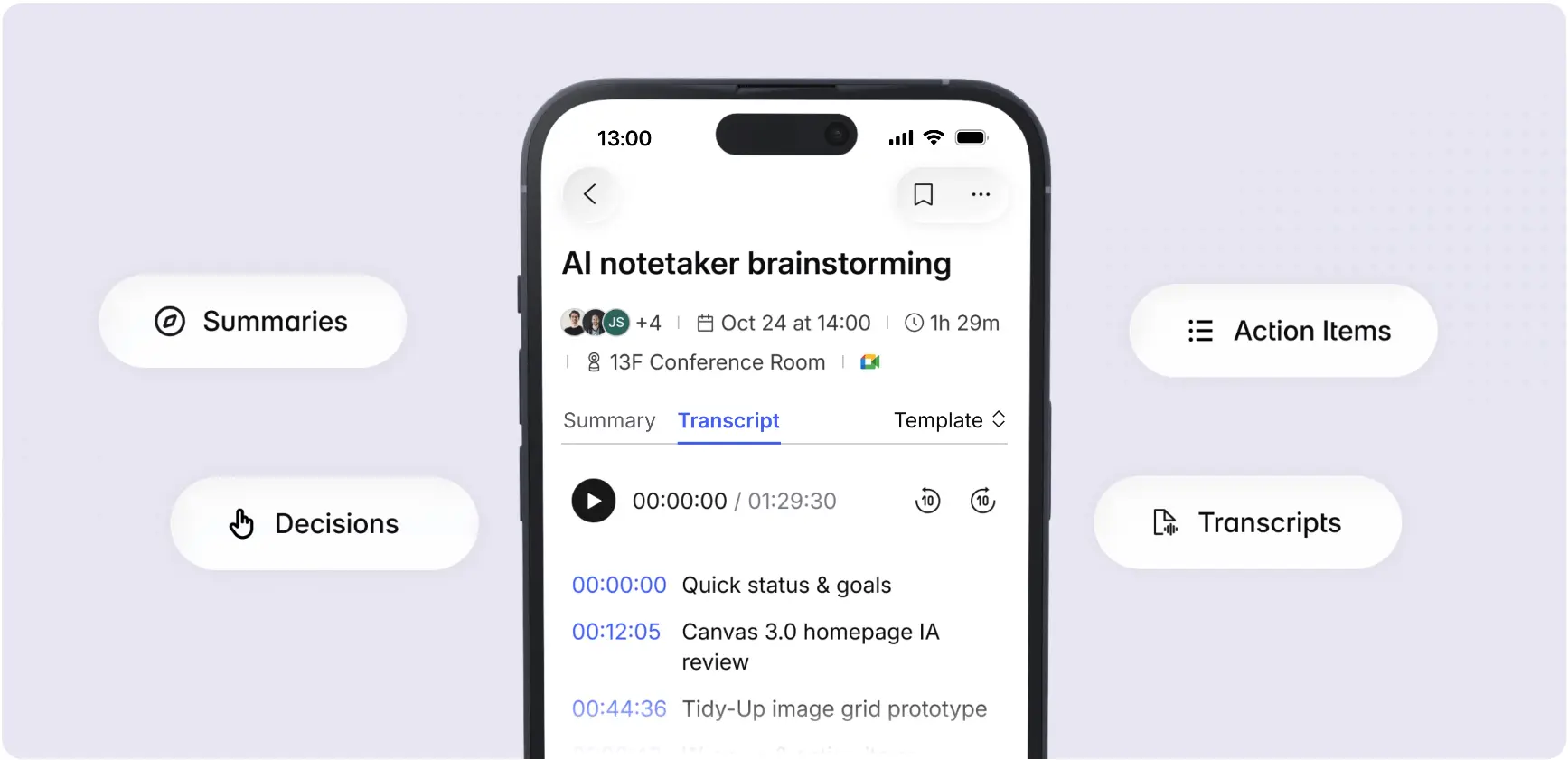 Vibe AI app transcript view with meeting highlights
The meeting you forget every week is still a scheduling problem
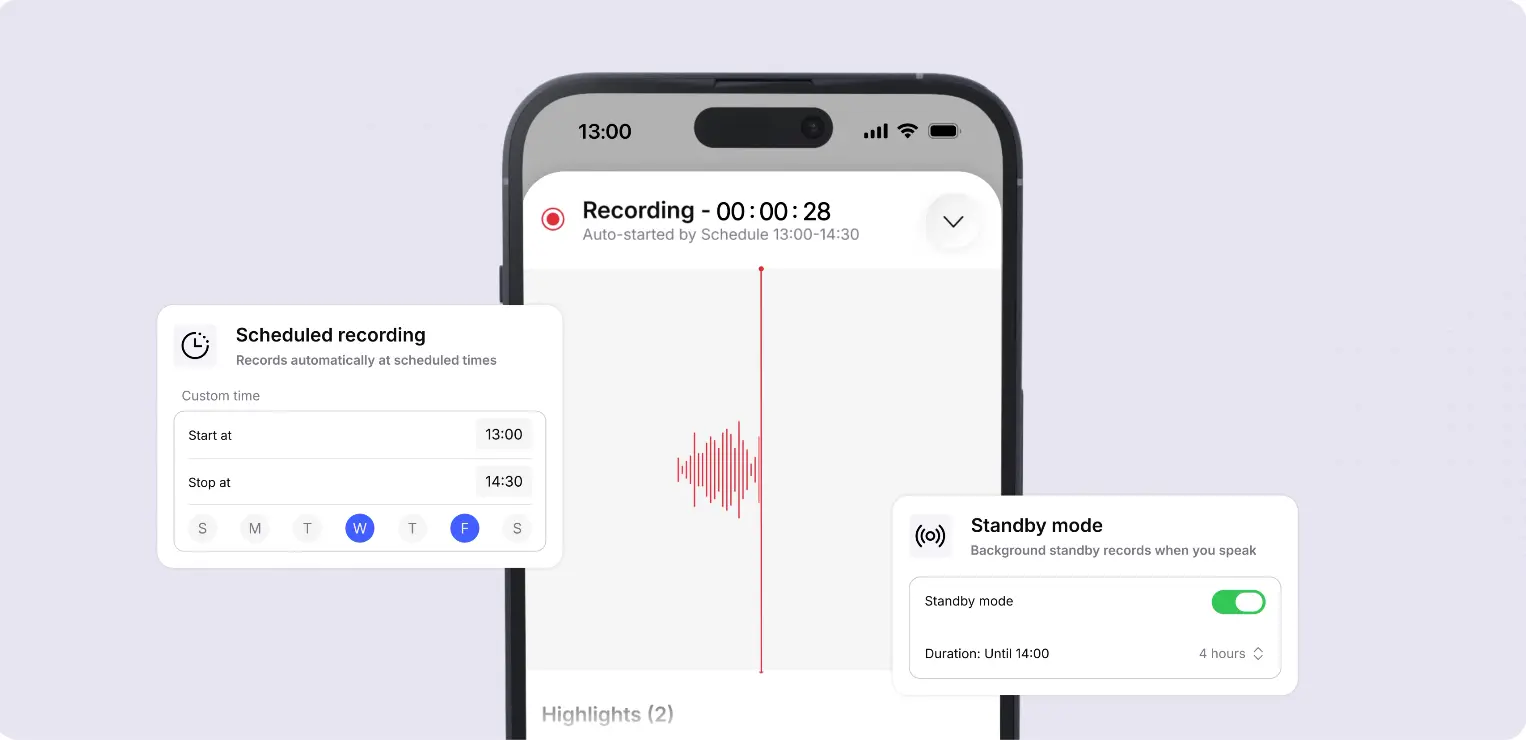
Same call, same time, every Tuesday — and you still occasionally realize ten minutes in that nothing is recording. Voice-triggered capture helps here too, but if the meeting is calendared, there’s a setting built specifically for this that removes even the step of remembering to arm the device.
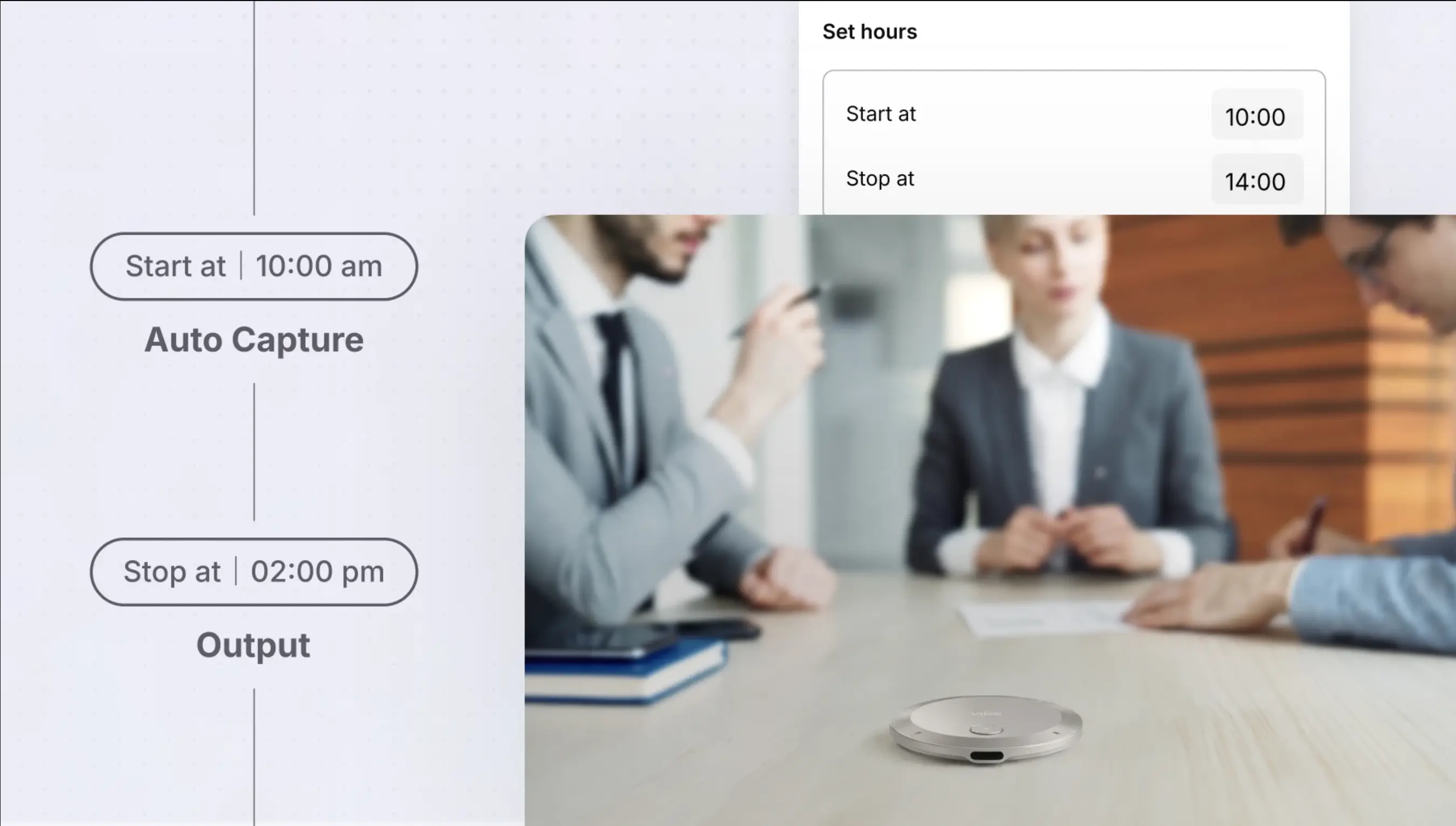
The setting is scheduled recording. You give Vibe Dot a recurring time window and it starts and stops on its own — no voice detection needed, no daily toggle.
Setup:
-
In Device Settings, find Scheduled recording.
-
Add a time window and day pattern — 8:00–9:00 every weekday auto-starts and stops recording across Monday through Friday. A one-off window works the same way for a single event.
-
Reconnect the device to the app at least once a week. Schedule changes only sync when it reconnects — update the schedule and forget to reconnect, and it keeps running the old one. This is the one step in this whole setup that’s easy to forget and quietly undoes the thing you configured to stop you from forgetting.
Remembering it happened isn’t the same as finding it again
This is the gap most recorders in this category can’t close at all. You remember a client mentioned a number, or a decision got made — you just don’t remember which of the last dozen calls it was in. Reviewing then means opening files one at a time and hoping.
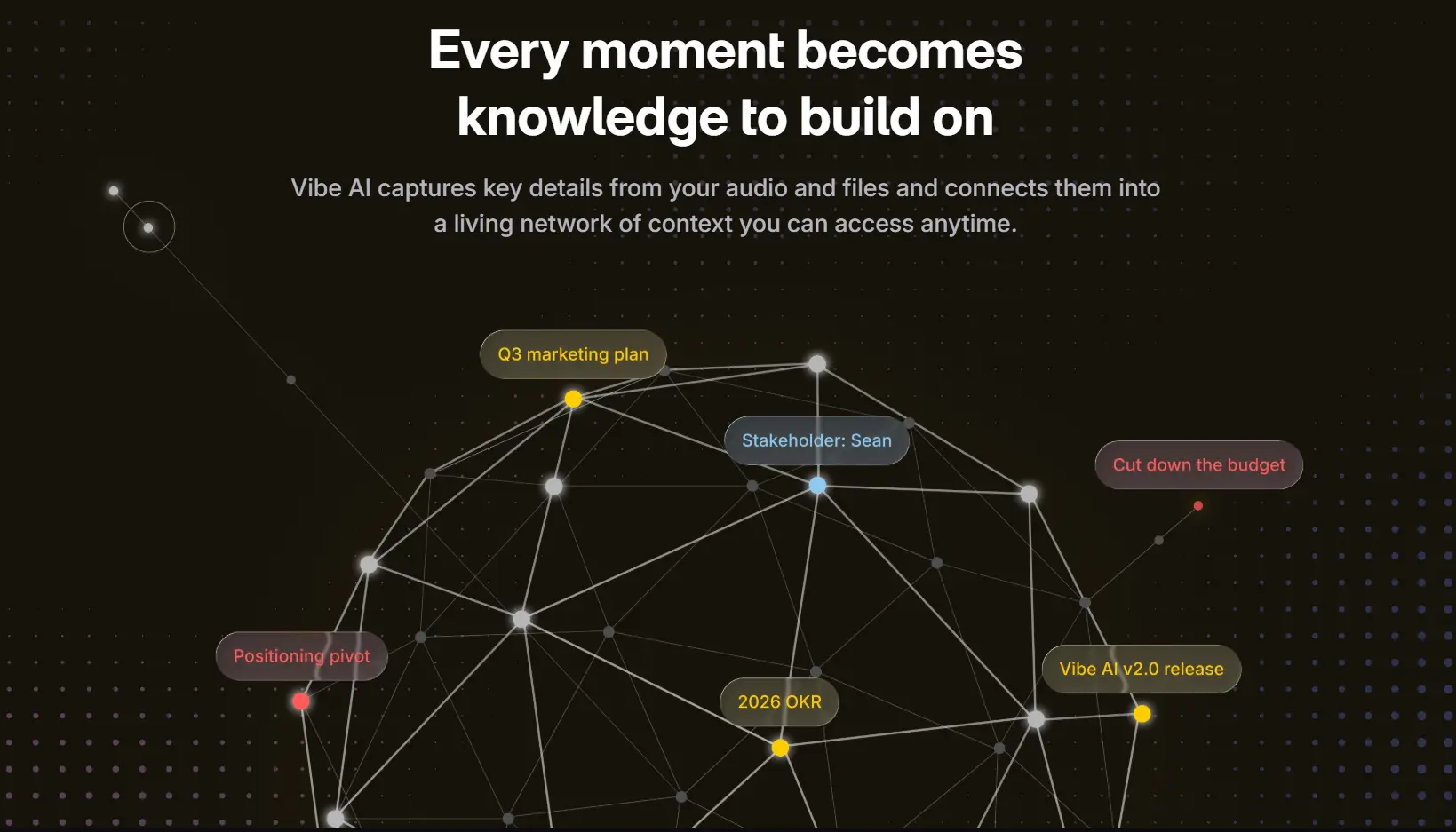
The relevant capability is meaning-based, cross-session search, through Ask AI. It’s backed by a Memory Graph that connects context across recordings rather than storing each one as an isolated file. You can ask a question that spans your whole recorded history and get an answer sourced from what was actually said, not keyword matching — "what were the three concerns the client raised" or "what budget number did we land on last week" pulled straight from whichever recording actually has it.
Worth checking before you rely on it: single-meeting and all-memos search are broadly available, but search across multiple meetings — the version that actually answers "which of my last twelve calls was this in" — draws on usage credits and requires a paid tier. If cross-session search is the specific reason you’re evaluating a device, confirm which plan unlocks it before choosing a tier on price alone.
Your AI agent still can’t see your meetings by default
If you already work inside Claude, Cursor, or another MCP-capable AI tool, you can connect it directly to your recorder’s data instead of switching apps to look something up.
This runs on a read-only MCP server. Your agent can list your meetings, pull a transcript, fetch a summary, or search your memos — on request, when you ask it to. The direction matters here: this is your agent asking for information, not the recorder pushing information into your agent’s other tools. Ask Claude to "pull the action items from my last meeting with Acme and summarize them," and it retrieves that and answers you. It does not, through this connection, go create a task in another app on its own.
Setup (Claude Code example):
-
In the app, go to Settings → Integration and either use standard OAuth or create a personal access token if you’re in a headless or remote environment. If you create a token, copy it immediately — it’s shown once.
-
Add the server:
claude mcp add --transport http --scope user vibe-chorus https://mcp.vibe.us/mcp (append --header "Authorization: Bearer." if using a token instead of OAuth) -
Restart Claude Code and run /mcp — you should see the connection listed with its tools. The first tool call asks for permission; since every tool is read-only, "always allow" is safe.
-
Try it: "List my five most recent meetings," or "Pull the transcript from my last meeting with [name] and summarize the action items."
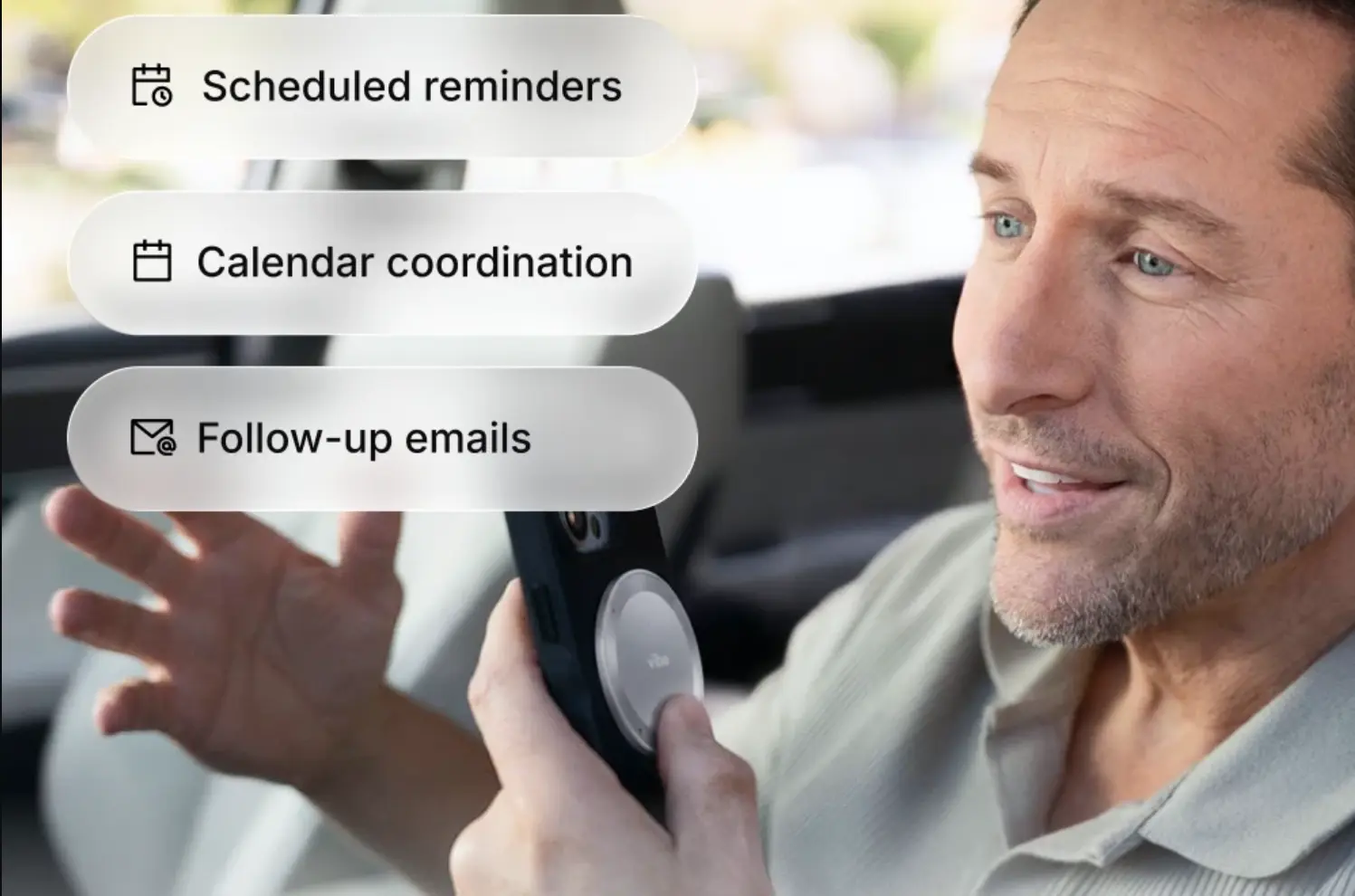
If you want push, not pull: Vibe also offers an agentic layer called Vibe AI that can push actions directly into tools like Slack, Notion, and CRM systems, rather than waiting for an agent to ask. It’s real and supported — just a less commonly used path than the MCP connection above, so if direct push into a specific tool is what you need, confirm the setup directly rather than assuming it works the same way as MCP.
What none of this fixes automatically
Worth being straight about, because a setup guide that oversells creates exactly the disappointment that makes people abandon a system three weeks in.
Voice-triggered capture is still Beta on Vibe Dot. Treat it as good, not guaranteed, for anything high-stakes until you’ve tested it on a few low-stakes conversations. Detection occasionally starts a beat late or tails a few extra seconds of silence — check a week of recordings against what you remember actually happened before depending on it.
A commitment still needs a human to confirm it was a commitment. Cross-session search and meeting summaries surface what was said and draft what looks like an action item. Neither knows whether "we’ll probably move that to Q3" was a decision or someone thinking out loud. That judgment stays yours, every time
Cross-meeting search costs credits and needs a paid tier. If searching your whole history — not just one meeting — is the feature you actually came here for, confirm your plan supports it before you’re three months in and can only search your most recent call.
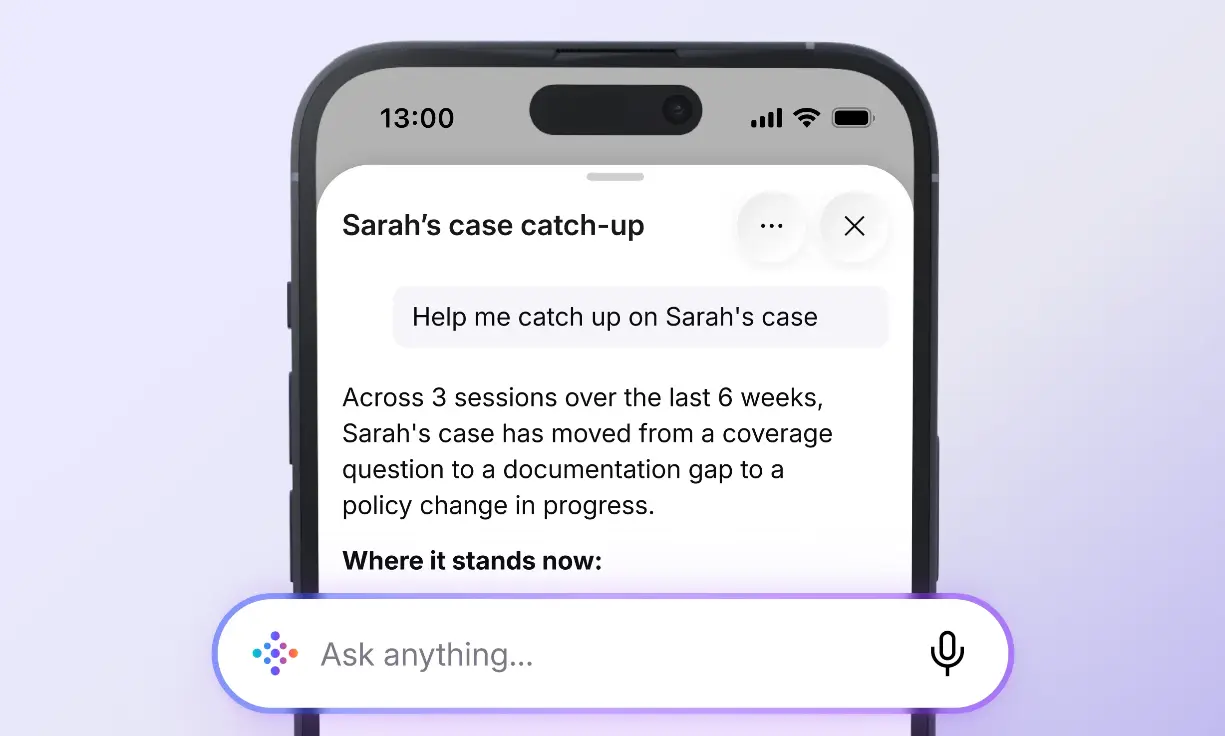 Vibe AI app answering a query about case history, summarizing progress across multiple past sessions
What it costs
$199 for the device. The AI subscription runs on tiers: Starter is free (300 minutes a month — enough for a few short meetings a week, not for daily heavy use), Pro runs about $9/seat/month (1,200 minutes), and Max is about $29/seat/month, which adds extended memory retention and the advanced search and agentic features above. If cross-session search or push automation is the reason you’re buying, budget for Pro or Max rather than assuming the free tier covers it.
Consent and one honest limit
Recording law varies by state, and several U.S. states require consent from everyone on a call, with extra rules for phone conversations. Announce that you’re recording, and check what applies to your role and location — this isn’t legal advice. If you’re exploring recording as a formal accommodation through work or school, that runs through your employer’s HR process or your school’s disability services office, not through a device purchase — see our guide on requesting recording as an accommodation for what that process actually involves.
And the limit no setting changes: nothing here decides for you whether something was actually agreed. Automatic capture gets the conversation. Search finds the sentence. You still make the call on whether it was a real commitment — the value of getting the setup right is that you get to make that call while you can still remember the context, instead of six weeks later when someone asks what was decided.
The short version
Four failure points, four settings: Standby Mode for the conversation you couldn’t predict, Scheduled recording for the meeting you always forget, Ask AI for finding something you know you said but can’t place, and read-only MCP access if you want your own AI agent to see into all of it. None of it replaces your judgment about what was actually decided — it just makes sure the judgment call is still possible to make later, once you’ve configured Vibe Dot correctly the first time.
Frequently Asked Questions
Do AI recorders for ADHD record automatically, or do I have to press a button every time?
Depends on the device and the setting, but the better ones offer both, and which one you use depends on the conversation. Voice-triggered automatic capture (Standby Mode on Vibe Dot) starts on detecting your voice and stops after silence — best for conversations you can’t predict in advance. Scheduled recording auto-starts and stops for recurring calendared meetings. A manual button remains available when you want deliberate control, which some people prefer for sensitive conversations.
Can I search across meetings from weeks ago, not just the most recent one?
Yes, through Ask AI — meaning-based search across your recorded history rather than keyword matching within one file. Single-meeting and all-memos search are broadly available; searching across multiple meetings at once draws on AI credits and needs a paid tier, so confirm your plan covers it if that’s the specific capability you need.
Does Vibe Dot automatically create tasks in tools like Notion or Slack?
Not by default. The standard setup — a read-only MCP connection — lets an AI agent you already use query your meeting data on request; it doesn’t push anything anywhere on its own. Vibe also offers a separate agentic layer called OpenClaw for pushing actions into tools like Slack or Notion directly, but that’s a distinct setup from basic agent access and worth confirming before you assume it’s included.
How reliable is voice-triggered automatic capture?
Treat any Beta-labeled auto-capture feature as good but not guaranteed for anything high-stakes. Test it for a week on ordinary conversations and check the results against what you remember before relying on it for something you can’t afford to lose.
What’s the difference between voice-triggered capture and scheduled recording?
Voice-triggered capture reacts in the moment to conversations you didn’t plan for. Scheduled recording follows a calendar window you set in advance, for meetings that happen at the same time every week — and it removes even the step of remembering to arm the device. Most people end up using both: scheduled for standing meetings, voice-triggered for everything unplanned in between.