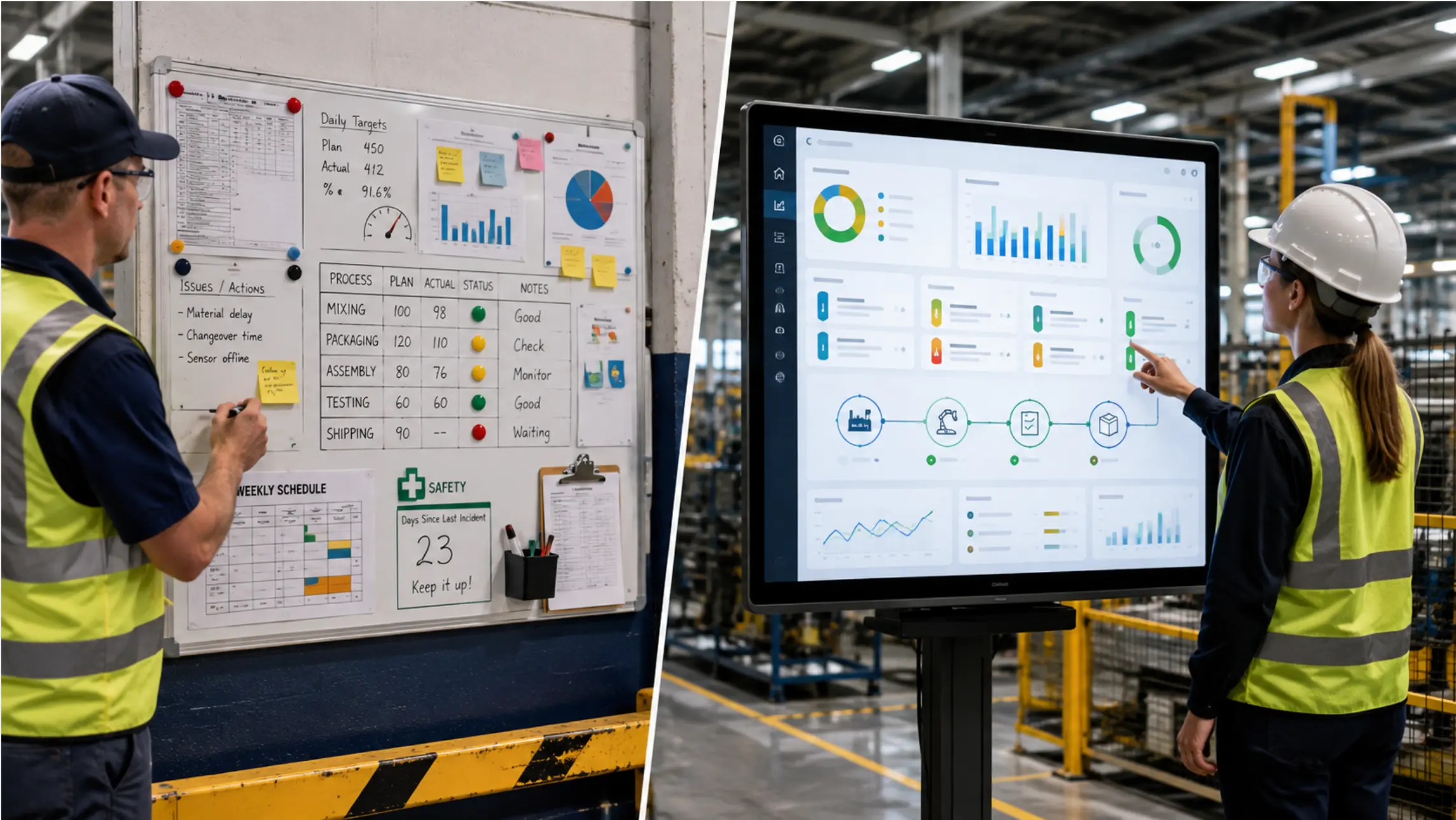
Most manufacturing teams already have Power BI dashboards tracking production output, quality rates, and shift performance. The problem is not the data — it is where the data lives. It stays on an analyst’s laptop, or buried in a browser tab that only one person can see at a time.
Getting a Power BI dashboard onto a shared screen in a meeting room or on the plant floor sounds straightforward. In practice, the method matters: some approaches work for a one-time presentation and fall apart for daily operational use. This guide covers four ways to get it onto a shared screen, where each one breaks down, and what to look for when the dashboard needs to be both visible and interactive during a live review.
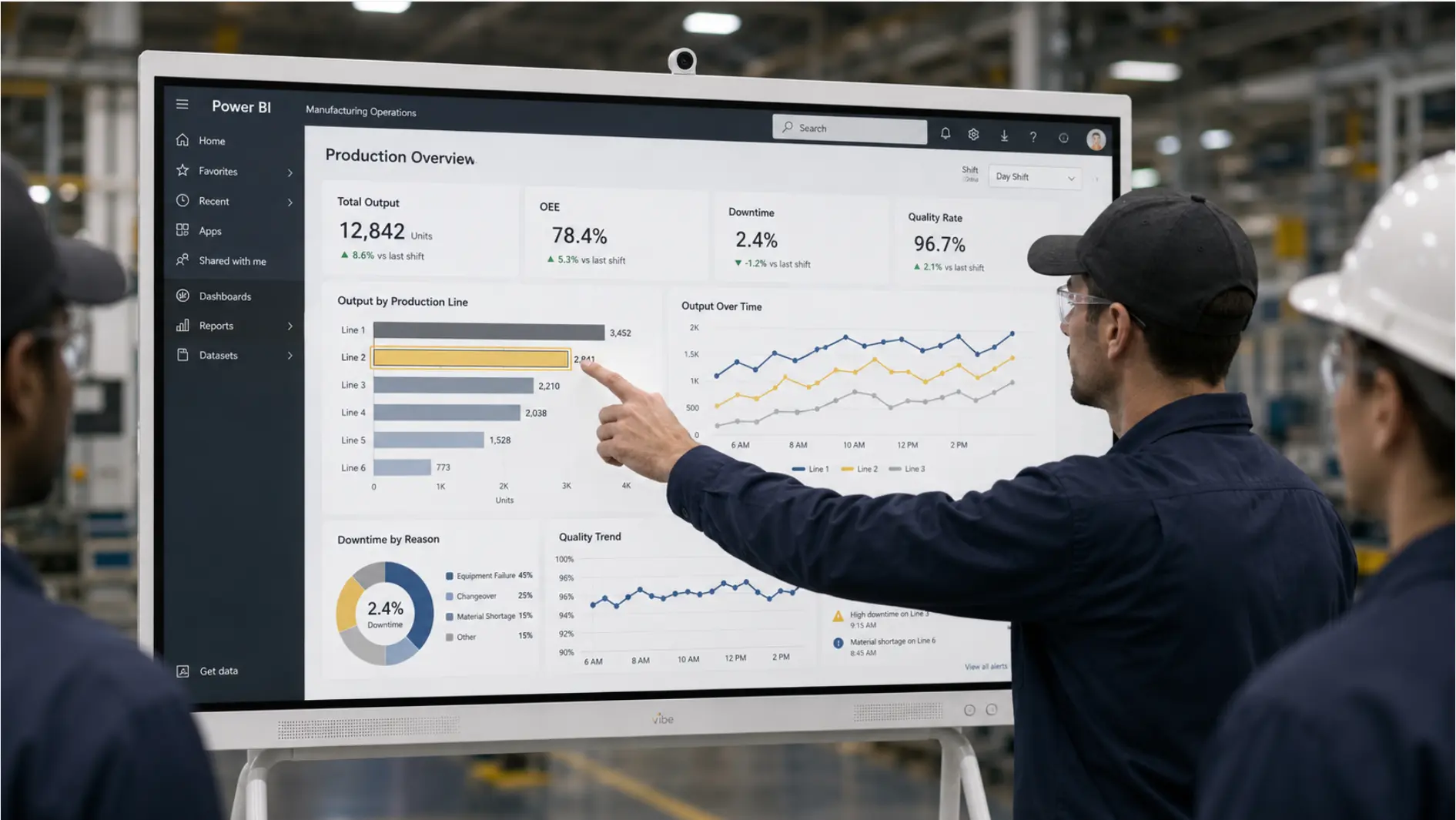
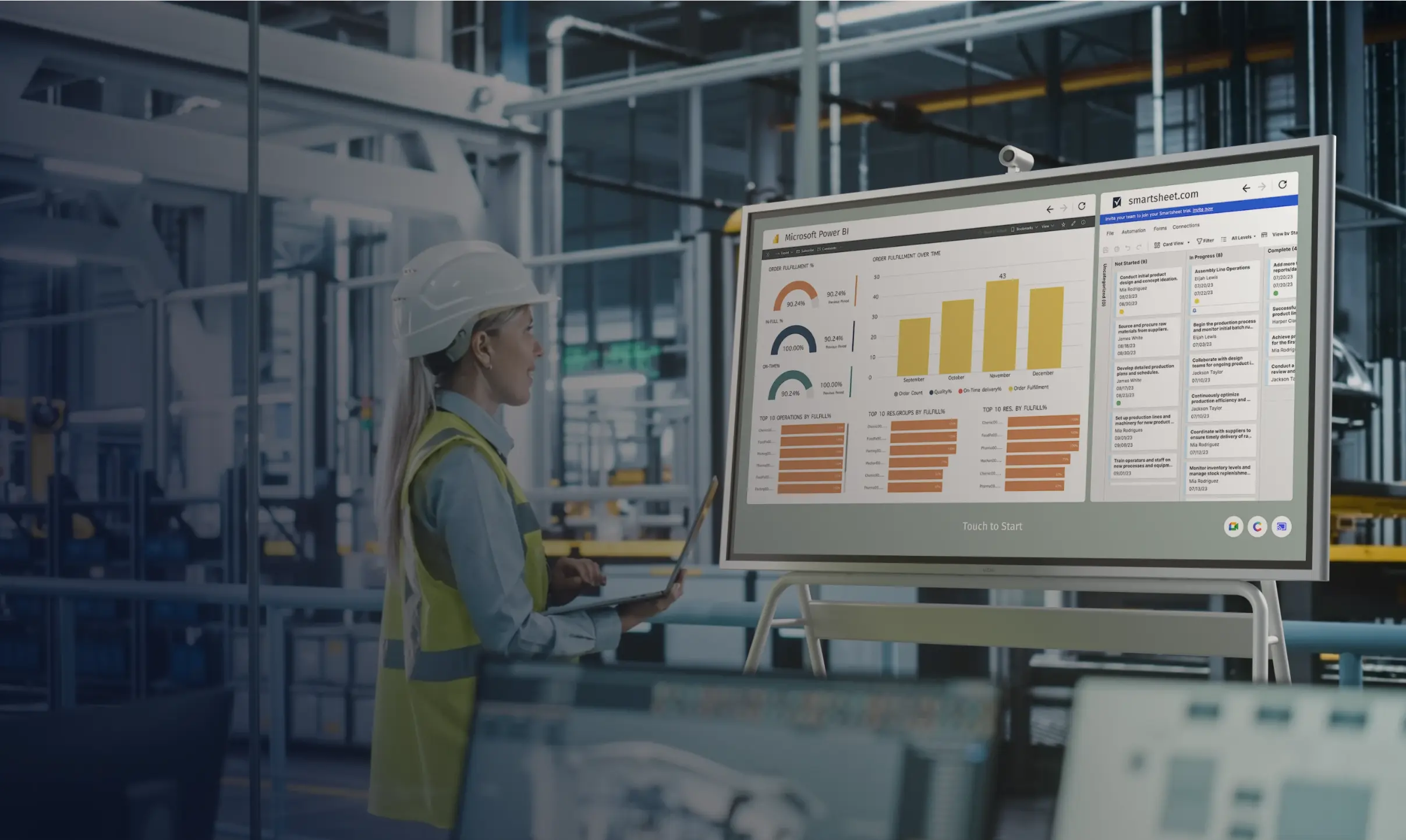 Board in a manufacturing meeting room showing a live Power BI dashboard with production metrics — team members pointing at the screen during a shift review
Why Most Plants Default to Laptops — and Why That Creates Problems
Power BI was built for analysis on individual workstations. The natural workflow is: connect to data sources, build reports, share a link, open in a browser. When a meeting starts, someone plugs in an HDMI cable or tries to cast their screen.
This works until it does not.
In manufacturing environments specifically, three failure modes come up repeatedly:
The meeting waits on one person’s laptop. If the production manager who built the dashboard is not in the room, the dashboard is not in the room either. The data exists — it just cannot get onto the shared screen without the right login on the right device.
Casting drops mid-review. As noted in our comparison of display options for manufacturing teams, wireless casting to a TV is inconsistent enough that plant teams regularly abandon it and fall back to the whiteboard. A dropped cast during a shift review means someone is now redrawing numbers on a whiteboard from memory.
The display is read-only. Even when casting works, no one can interact with the dashboard. Drilling into a specific line’s output, filtering by shift, or annotating an anomaly all require walking back to the laptop — which breaks the room’s focus and slows the review.
The Three Ways to Get Power BI onto a Shared Screen
Option 1: HDMI from a Laptop
Connect a laptop directly to the room display with an HDMI cable. Open Power BI in a browser or the desktop app, mirror the display, and present.
When it works: One-off presentations, walkthroughs for visitors or executives, situations where the data does not need to update during the session.
Where it breaks: The laptop has to stay connected for the duration. If the person presenting needs to step out, the screen goes dark. The display shows whatever is on the laptop’s screen — including notifications, browser tabs, and anything else — unless the presenter manually manages it. And the review is still one-directional: the presenter drives, everyone else watches.
Manufacturing reality: Plants running daily shift reviews cannot tie a specific person’s laptop to the room display every morning. The method does not scale past occasional use.
Option 2: Casting or Wireless Screen Share
Cast from a laptop or tablet to a TV or display using Chromecast, Miracast, or a similar protocol. The screen mirrors wirelessly, no cable required.
 Close-up of a Vibe Board screen showing Power BI with a team member touching the display to drill into a specific production line's data
When it works: Small rooms with reliable Wi-Fi, short sessions, teams that have already tested the specific device-and-display combination.
Where it breaks: Plant environments often have network congestion, interference from machinery, or restricted wireless configurations that make casting inconsistent. A session that works fine at 8 a.m. may drop at 10 a.m. when more devices are on the network. There is also no way to rotate through multiple dashboards or keep the display live if the casting device goes to sleep or leaves the room.
OptiSigns and similar digital signage platforms solve the always-on problem for passive display — the dashboard stays on screen without a laptop present. But signage platforms are designed for broadcasting: the content plays, and the room watches. They are not built for the review session where someone needs to drill into a line item or pull up a second report mid-conversation.
Option 3: A Windows Device That Runs Power BI Natively
The third option is a display with a built-in Windows computer — one that opens Power BI Service or the Power BI desktop app directly, authenticates once, and runs the dashboard as a full application rather than a cast from somewhere else.
This is the approach that matches how manufacturing reviews actually work. The dashboard is not being broadcast to the room — it is running in the room, on the device everyone is looking at.
What changes operationally:
-
Anyone in the room can interact with the dashboard directly — touch to filter, tap to drill down, switch between reports without going back to a laptop
-
The display stays live between sessions; the next shift walks in and the current data is already on screen
-
IT manages the device through Intune and Windows 11 Pro, the same way they manage any other endpoint — no security exception required for an unmanaged device on the network
-
When connectivity is restricted or intermittent, locally cached files remain accessible
The Vibe Board S1 Pro runs Windows 11 Pro natively. Power BI opens as a full desktop application or in the browser, with the same login the team already uses through Microsoft 365 or Azure Active Directory. The board connects to SharePoint and OneDrive directly, so a Power BI report linked to an Excel file in SharePoint updates on the board the same way it would on any Windows workstation.
For plants where IT has restricted cloud access — a pattern that came up in manufacturing evaluations at several defense-adjacent and regulated facilities — the board supports local storage and can be configured to work within those constraints without requiring a special network exception.
Option 4: Cast Your Laptop to the Vibe Board — and Keep Touchback
There is a scenario the first three options do not fully address: the engineer who has already built a Power BI report on their laptop, wants to share it with the room, and also wants the group to be able to interact with the display together.
Vibe Board supports four casting methods natively — HDMI/USB-C, Vibe Tap, AirPlay, and Web Cast — so anyone in the room can put their screen on the board without needing to log into a shared account or reconfigure anything.
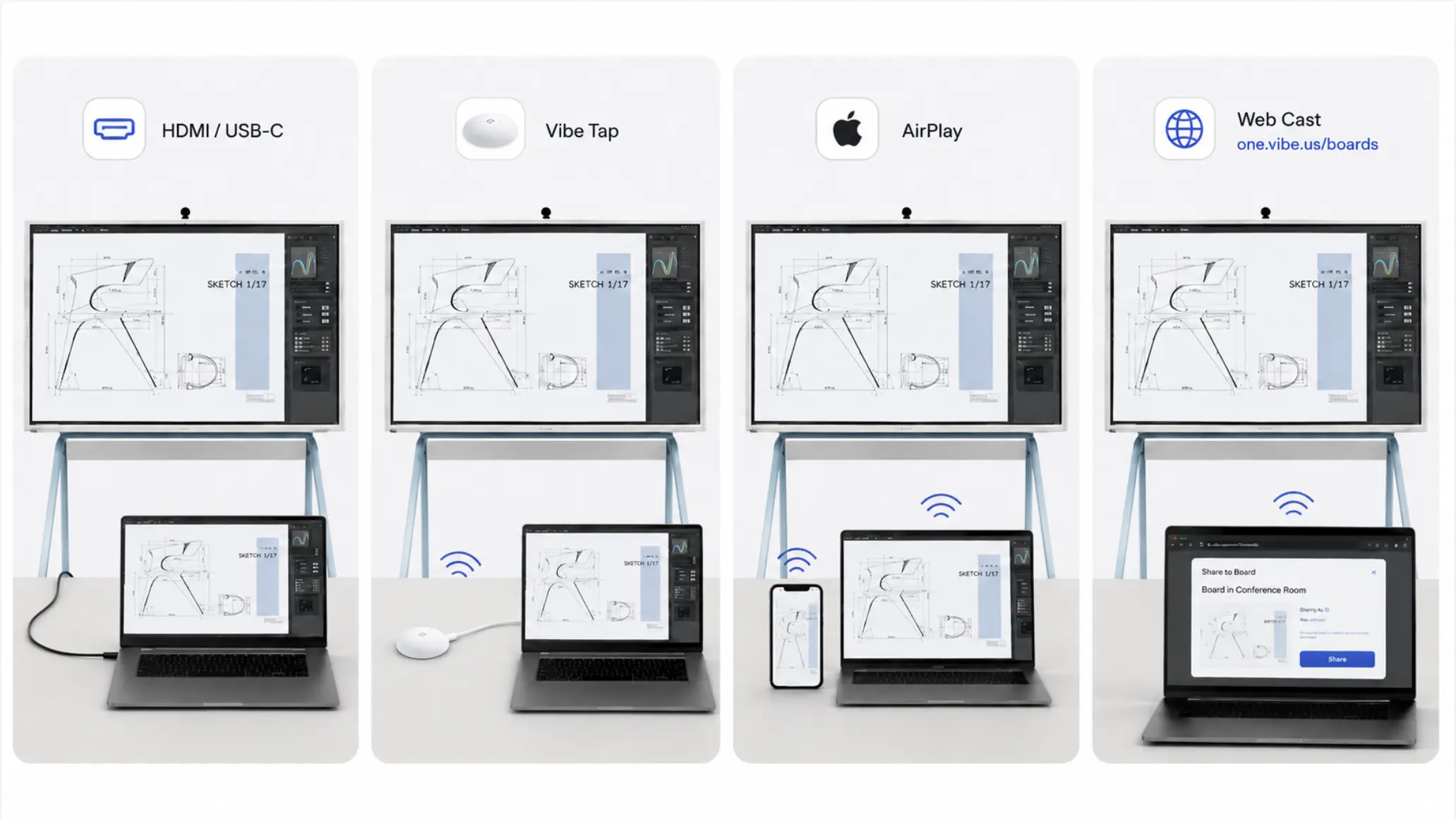 Four casting options shown side by side — HDMI/USB-C input, Vibe Tap dongle, AirPlay from an Apple device, and Web Cast
What makes this different from casting to a TV is touchback. When a laptop is cast to the Vibe Board via HDMI or Vibe Tap, the board’s touch surface controls the laptop. Tapping on a Power BI chart on the board is the same as clicking it on the laptop — the filter applies, the drill-down opens, the view updates. The presenter does not need to return to their keyboard.
How each casting mode fits a manufacturing scenario:
-
HDMI/USB-C — hardwired, zero network dependency, the most reliable option for plants with congested or restricted Wi-Fi. The laptop screen appears on the board instantly.
-
Vibe Tap — a USB dongle the presenter plugs into their laptop. One tap connects wirelessly, no network configuration or IT setup required. Useful for rooms where different people present from different machines shift to shift.
-
AirPlay — for Mac or iPad users in the engineering or quality team, mirroring to the board requires no additional hardware.
-
Web Cast — cast from any Windows or Apple device through one.vibe.us/boards, browser-based with no software install. Useful for a remote participant who needs to drive the display from outside the room.
The practical result: the engineer keeps their Power BI session on their own authenticated account — no service account, no shared credentials — while the room interacts with the content on the board. When the session ends, the engineer takes their laptop and their data stays in their own Power BI workspace.
What Interactive Display Changes in a Live Manufacturing Review
The difference between a passive display and an interactive one is most visible during the review itself.
In a passive setup — signage software pushing Power BI to a TV — the meeting runs around whatever the dashboard is currently showing. If a supervisor wants to filter last week’s data by shift, someone has to go back to a laptop, apply the filter, and wait for the display to update.
In an interactive setup, that drill-down happens at the board. The supervisor touches the screen, selects the filter, and the room sees the updated view in the same motion. The conversation does not pause.
This matters in manufacturing contexts specifically because the questions that come up in shift reviews are rarely answered by the top-level view. OEE at 78% across the plant is a starting point — the useful conversation is about which line pulled it down and why. Getting to that answer without breaking the room’s momentum is where the display method makes a measurable difference.
Three specific behaviors are worth noting:
-
Annotation during review. On a Windows-based interactive display, the team can mark up the Power BI view directly — circle an anomaly on a trend chart, add a note to a quality spike — and save that annotation back to a shared file. The marked-up view exists after the meeting ends, tied to the data that prompted it.
-
Switching between reports without a laptop. A shift review might start with production output, move to quality metrics, and end with maintenance backlog. On a native Windows device, switching between reports is the same as switching between windows — the presenter does not need to navigate back to the source machine.
-
Remote participants see the same view. When a supervisor at a second plant joins via Teams, they see the live Power BI dashboard on the shared board, not a static screenshot. If the in-room team drills into a specific line, the remote participant sees that change happen. For plants coordinating production across multiple sites, this closes the version gap that makes multi-site reviews frustrating.
IT Considerations Before You Deploy
Manufacturing IT environments have constraints that consumer-grade display setups do not account for.
Cloud access restrictions. Several manufacturing facilities — particularly those in aerospace, defense supply chain, and regulated industries — restrict or limit cloud connectivity on the plant floor. A display that requires an active cloud session to show Power BI content will fail in these environments. A Windows device with local storage and the ability to cache Power BI reports locally handles this without a workaround.
Device management. Any display going onto the plant network needs to be manageable by IT. A TV with a Chromecast or a purpose-built signage player is an unmanaged device — IT has no visibility into it, cannot patch it, and cannot enforce policies on it. A Windows 11 Pro device enrolls in Intune, supports Active Directory, and sits in the fleet alongside every other managed endpoint. For manufacturing IT teams who have already seen what happens when an unmanaged device ends up on the network, this distinction matters.
Authentication. Power BI requires a Microsoft login. On a shared display, that means either a service account set up for the room, or a device that handles authentication in the background through SSO. A Windows device joined to the organization’s Azure AD handles this the same way a workstation does — the dashboard is accessible to anyone with the right permissions, without requiring a personal login on the shared screen.
For a fuller breakdown of what to evaluate in a display for manufacturing environments, the guide to interactive displays versus digital signage versus TV setups covers the device-level differences in more detail.
What to Put on the Dashboard for Manufacturing Reviews
The display method affects how much information the room can actually use. A screen that requires someone to walk to a laptop to change views creates a bottleneck that limits how much of the dashboard gets used. An interactive display removes that bottleneck — but the dashboard still needs to be designed for the context.
A few principles that apply specifically to manufacturing review sessions:
One primary metric per screen view. The meeting is more productive when everyone is looking at the same number and asking the same question. A dashboard that shows twelve KPIs at once is harder to use as a discussion anchor than one showing OEE with a drill-down available.
Differentiate the meeting view from the floor display view. A dashboard designed for a 10-person shift review — where participants will filter, drill down, and ask follow-up questions — is different from a dashboard designed to be visible from 15 feet away on the plant floor. KPI dashboard reviews that drive decisions are most effective when the display format matches the context.
Keep the source file authoritative. The board displays Power BI; Power BI connects to the data source. Annotations and notes go into a shared file, not into the dashboard itself. The dashboard stays clean and the record of the review session is preserved separately.
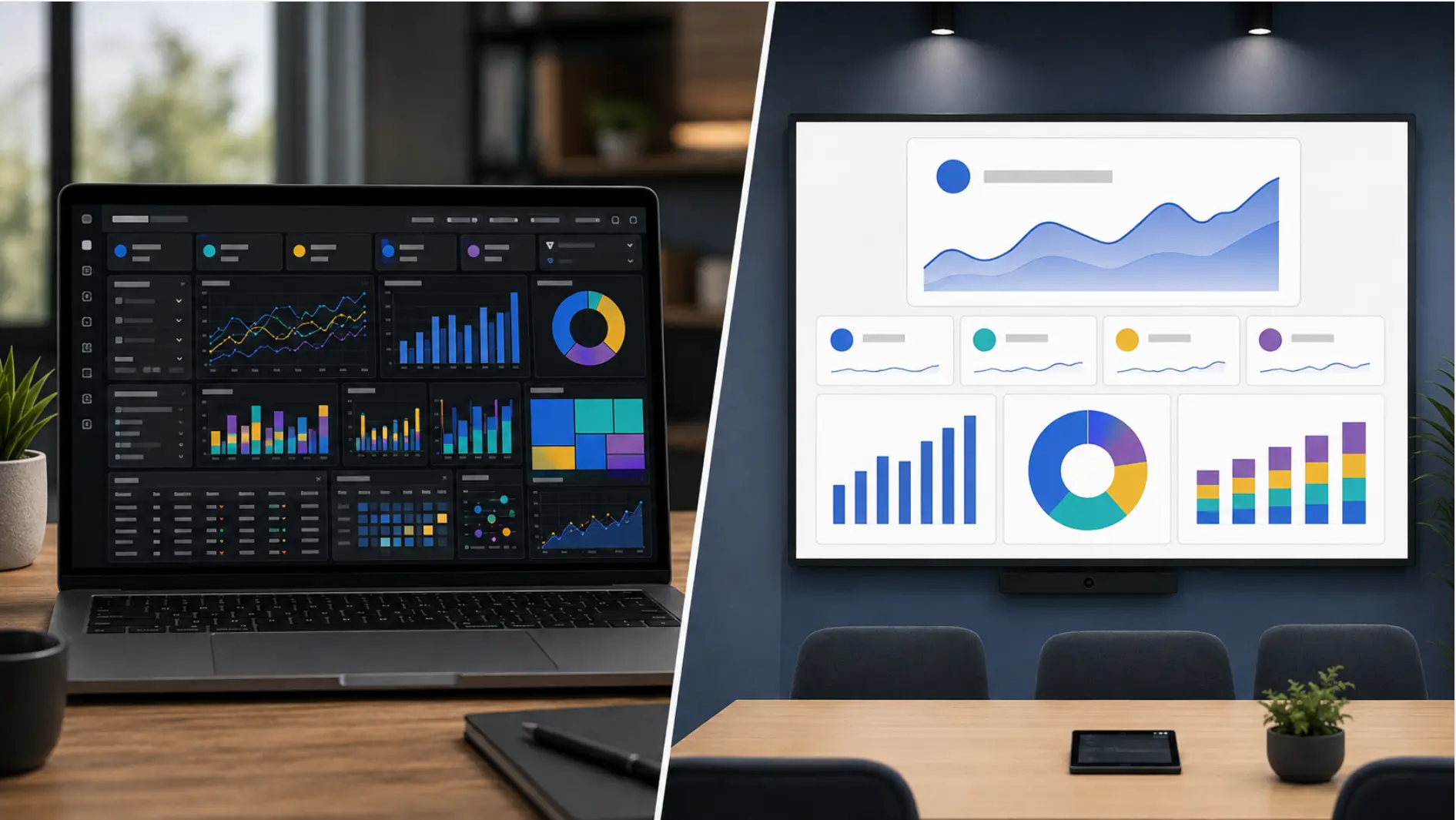 Power BI report on a laptop vs. Power BI report on Vibe Board
The Practical Difference
Displaying Power BI on a shared manufacturing screen is a solved problem. HDMI works. Casting usually works. Digital signage platforms work for passive display.
The question is whether the room can actually use the dashboard once it is on the screen — filter it, drill into it, annotate it, and pick up where the last session left off. That use case requires a display running the application natively, not broadcasting a view from somewhere else.
For manufacturing teams whose daily reviews are built around operational data that changes shift to shift, that distinction determines whether the dashboard becomes part of how the room works or just something that plays in the background.
Request a demo to see how Vibe Board runs Power BI and other manufacturing tools natively, or request a quote if you need a PO.
Frequently Asked Questions
Does Power BI require a separate license to run on a Vibe Board?
No additional Power BI license is required beyond what your organization already uses. The Vibe Board S1 Pro runs Windows 11 Pro, so Power BI opens as it would on any Windows workstation — using the same Microsoft 365 or Power BI Pro license the team already has. The board authenticates through Azure AD or Microsoft SSO, so no separate account is needed for the room display.
Can Power BI stay on screen between meetings without someone’s laptop connected?
Yes, on a Windows-based display that runs Power BI natively. The application stays open between sessions, and the dashboard refreshes on the same schedule as the underlying data connection. This is different from casting or signage-based approaches, where the display depends on an active connection from another device.
What happens to Power BI access if the plant’s internet connection goes down?
It depends on how the data connection is configured. Reports connected to cloud-hosted data sources will not refresh without connectivity. Reports built on locally cached datasets, or Power BI files saved directly to the device, remain accessible offline. For plants with unreliable connectivity, building reports against locally stored data files — and syncing when connectivity is restored — is the more reliable approach.
Can different plants see the same Power BI dashboard simultaneously?
Yes. If the report is published to Power BI Service and the display at each location is authenticated with the right permissions, both rooms see the same live report. Changes made in the underlying data appear on both screens at the next refresh interval. This is different from a shared canvas view — each display is showing the same report independently, not a shared session.
How does IT manage a Vibe Board on the plant network?
The Vibe Board S1 Pro runs Windows 11 Pro and supports Intune enrollment, Active Directory domain join, and single sign-on. IT manages it through the same tools used for any other Windows endpoint — no separate device management system is required, and no security exception is needed to put it on the network.
Is this the same as using a digital signage platform to show Power BI?
No. Digital signage platforms like OptiSigns or RocketScreens push a rendered view of the Power BI dashboard to a display — useful for always-on floor displays where the content plays passively. A Windows-based interactive display runs Power BI as a full application: the team can filter, drill down, annotate, and switch reports during the session. The right choice depends on whether the use case is passive visibility or active review.