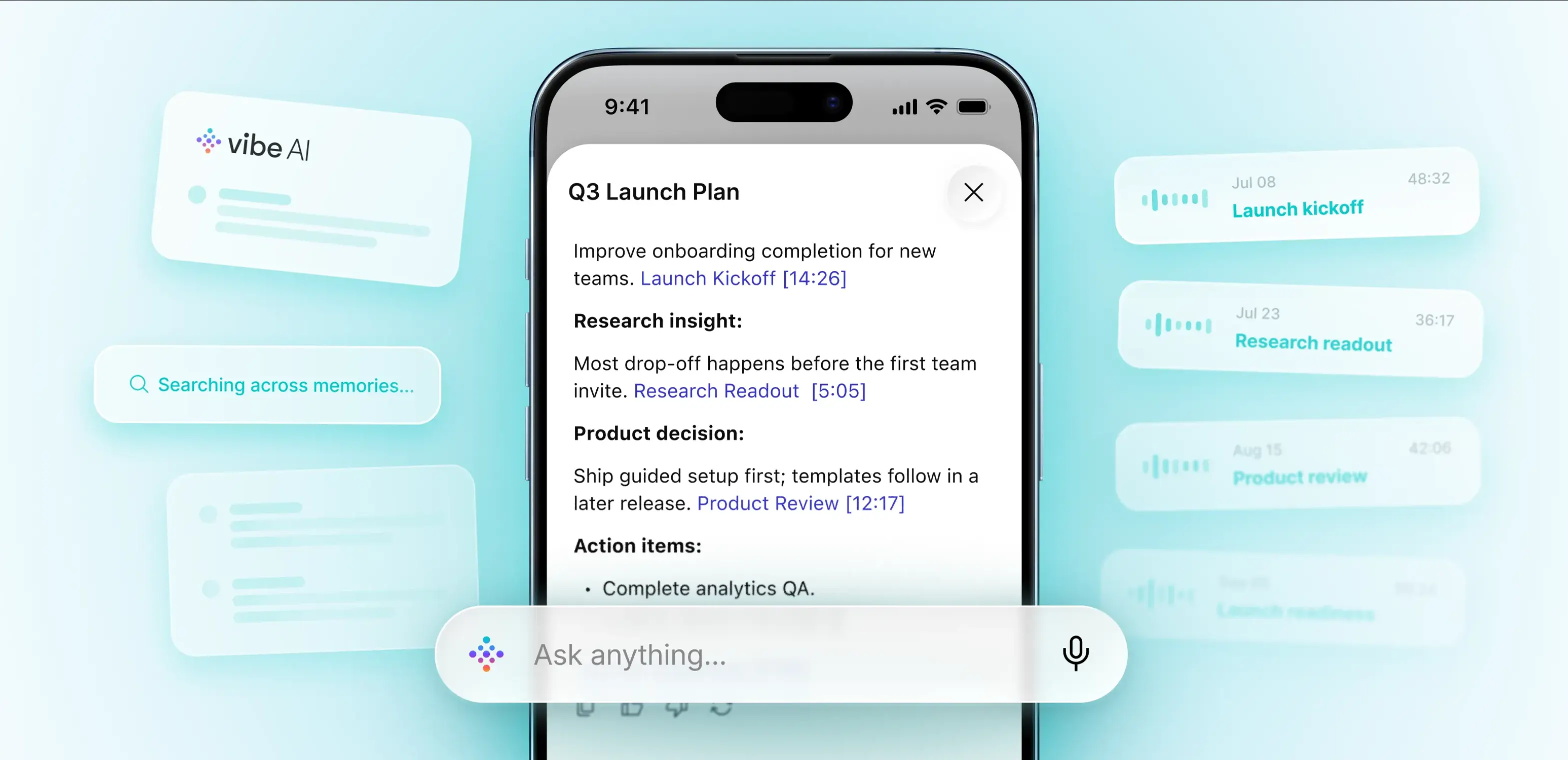
The decision that mattered most this week probably wasn't made on a video call. It was made in a doorway, at someone's desk, or over lunch, and nothing wrote it down. That is the in-person meeting problem, and an AI notetaker for in-person meetings was supposed to end it.
By mid-2026 it almost did. Google, Zoom, and Microsoft all offer in-person note-taking. But read their own documentation closely and the same four gaps appear, and none of them is about transcription accuracy.
An AI notetaker for in-person meetings captures a face-to-face conversation through a device microphone, with no meeting link or bot to join, then turns the audio into a transcript, summary, and action items.
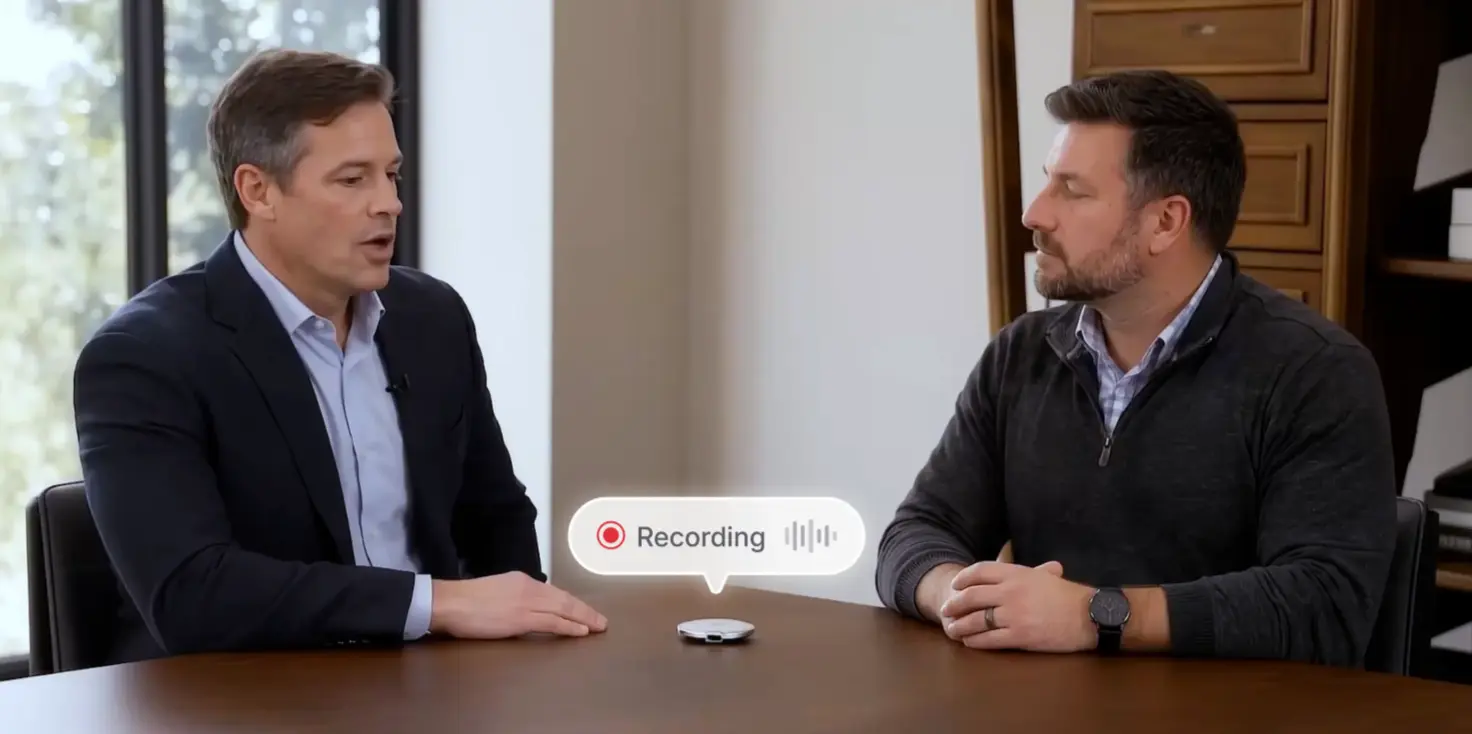 Two men in an in-person business meeting with a Vibe Dot AI recorder on the table showing a live Recording indicator
What Google, Zoom, and Microsoft Shipped for In-Person Meetings
All three now support face-to-face conversations. This is what each one asks of you.
|
Platform |
How in-person notes start |
What it requires |
|---|---|---|
|
Google Meet |
Open the Meet app, tap Take notes, then Start taking notes; pause or stop from the same screen |
An eligible Google Workspace edition or Google AI plan; one language at a time |
|
Microsoft Teams Rooms (Facilitator) |
Someone signed into Teams on their phone scans the QR code on the room display |
A Teams Rooms device with a Teams Rooms Pro license; the documentation still labels the feature a preview |
|
Zoom (My Notes) |
Click the My Notes icon in the Zoom app; My Notes can also recognize a conversation and ask whether to capture notes |
A Zoom Workplace or My Notes plan; the free Basic tier allows 3 My Notes uses per month |
That is real progress, and the gaps are in what surrounds the button.
Gap 1: Someone Still Has to Press Start
Every in-person mode above begins with a person choosing to start it. Zoom comes closest: My Notes can recognize a conversation and ask whether to capture notes, but it still asks.
That matters because the conversations most likely to go unrecorded are the unplanned ones. Microsoft's Work Trend Index found that 57% of meetings are ad hoc calls without a calendar invite. If calls skip the calendar that often, it is reasonable to assume doorway conversations skip it too: nobody schedules them, so nobody starts the notes. We unpack the structural reasons in The Meetings Your AI Note-Taker Can't Capture.
Length is a second problem. Google's help page lists a meeting shorter than the recommended 15 minutes as a reason notes can come out incomplete or not at all. A two-minute decision in a corridor sits outside that range.
Picture a site manager agreeing a schedule change with a subcontractor on the walk to the truck. By the time anyone opens an app, the commitment is history.
Gap 2: Nobody Knows Who Said What
In a room with several people, attribution breaks first. Microsoft's documentation states the limit plainly: in Teams Rooms, only the person who scans the QR code is named in the transcript and notes, and everyone else appears as Speaker 1, Speaker 2, and so on. Microsoft says wider attribution will come later.
An action item assigned to "Speaker 2" is not an action item, and a summary that credits the wrong person with a promise is worse than none. We cover why this keeps happening in our guide to speaker labels in meeting transcription.
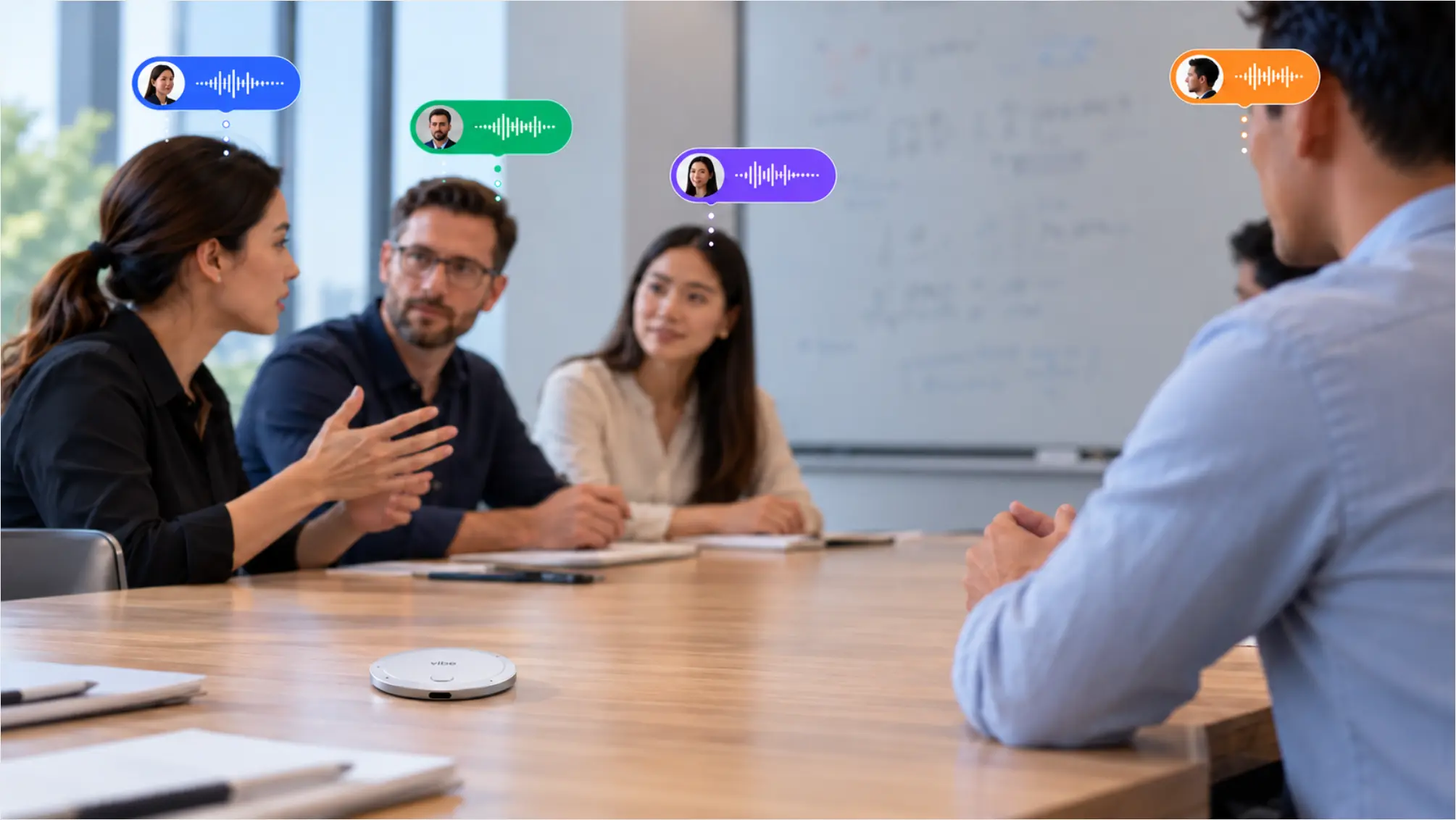 Team meeting around a conference table with a Vibe Dot AI recorder identifying each speaker with color-coded voice waveforms
Gap 3: Notes Land in the Silo of Whoever Pressed Start
Where the notes end up depends on who started the session. In Google's flow, the notes document is saved to the Drive folder of the person who turned the feature on. In Microsoft's, notes are reached through the Recap section of a Teams calendar or chat. In Zoom's, notes are stored in Zoom Hub. Google's and Microsoft's documentation both describe a notes file per session, not a running memory that connects this week's conversation with last month's.
Licensing adds boundaries. Microsoft's in-person notes must be started by someone in your organization who is signed into Teams on their phone, and note-taking isn't available for federated or external users. A client meeting can fall between those rules, leaving your knowledge of one client split between a Google Doc in one person's Drive and a Teams recap in another's calendar. It is the same "one meeting, one screen" ceiling we traced in the evolution of AI meeting assistants.
Gap 4: Consent Has No Built-In Notice
On a video call, the platform announces notes to everyone. Google says that when notes are on, all participants are told and a pencil icon appears on their screens, and admins can require explicit consent first, though that setting is off by default. In person, there is no screen. Google's in-person help page walks through starting, pausing, and stopping on your own device, and it does not describe a notice to the others in the room. Microsoft does show on the Teams Rooms display that Facilitator is listening, and the room's microphone can be muted to stop capture.
The law then varies by place (general information, not legal advice). Federal law and most states need only one party's consent, but California, Florida, Maryland, Massachusetts, New Hampshire, and Pennsylvania require everyone's consent, and Illinois and Washington generally do too. Oregon is all-party for in-person conversations but one-party for phone calls; Nevada is the reverse.
Courts are testing notetaker consent, so far only for virtual meetings. In an August 13, 2026 ruling in In re Otter.AI Privacy Litigation, the judge let federal wiretap, California privacy, and Illinois biometric claims proceed, dismissed others with leave to amend, and declined to assume a participant knew he was being recorded just because a notetaker appeared in the meeting. These are allegations at an early stage, not findings. The lesson that carries over to rooms: being visible is not the same as being consented.
No product can obtain consent for you. A one-line routine does more than any setting: "I'm using an AI notetaker for this. Okay with everyone?"
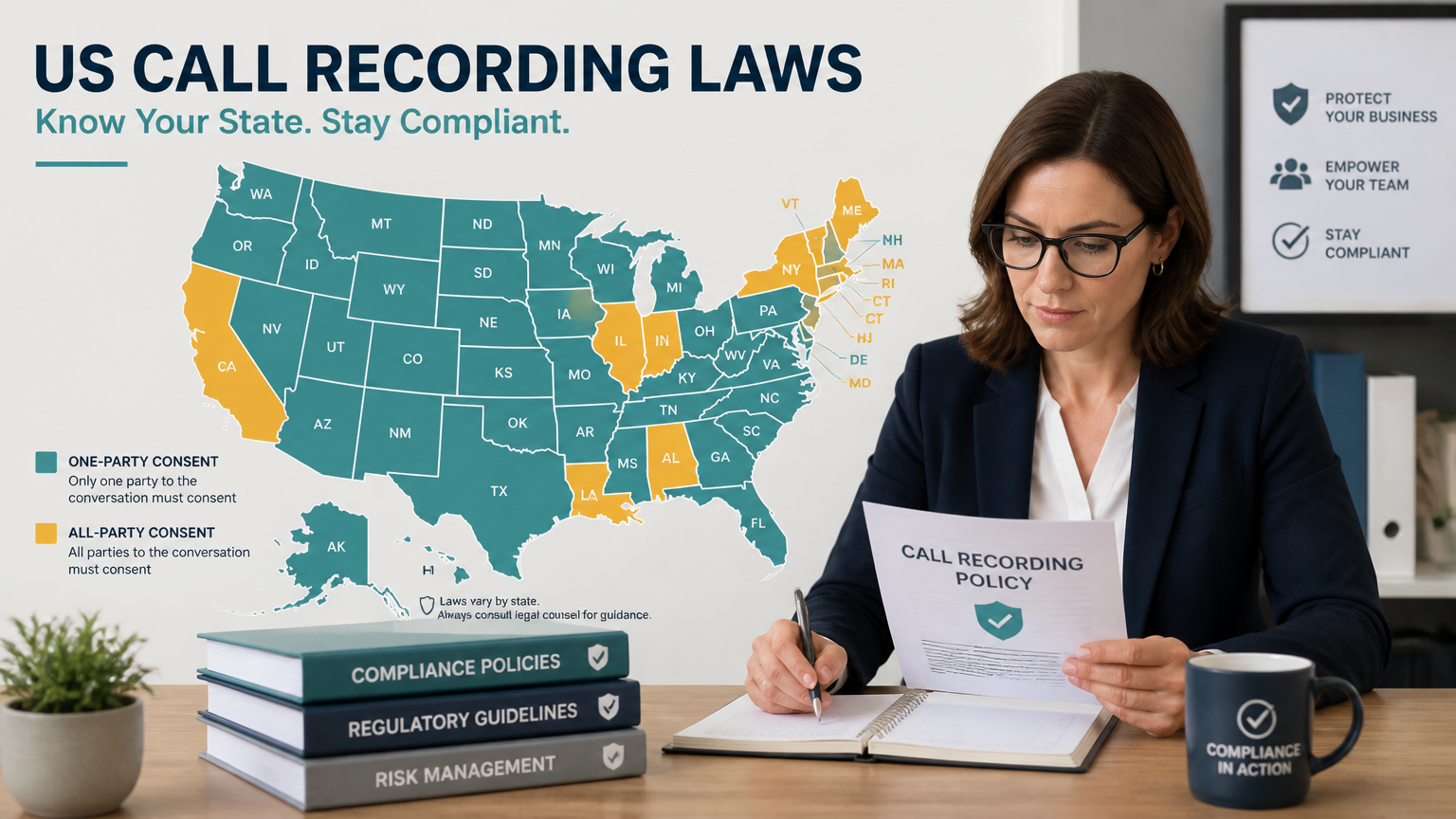 US call recording laws map with one-party and all-party consent states
What to Look For in an In-Person AI Notetaker (and Where Vibe Dot Fits)
Ask four questions of any tool: Can it start without me? Does it name the people in the room? Do notes from different rooms and weeks land in one memory? Does the workflow make telling people routine?
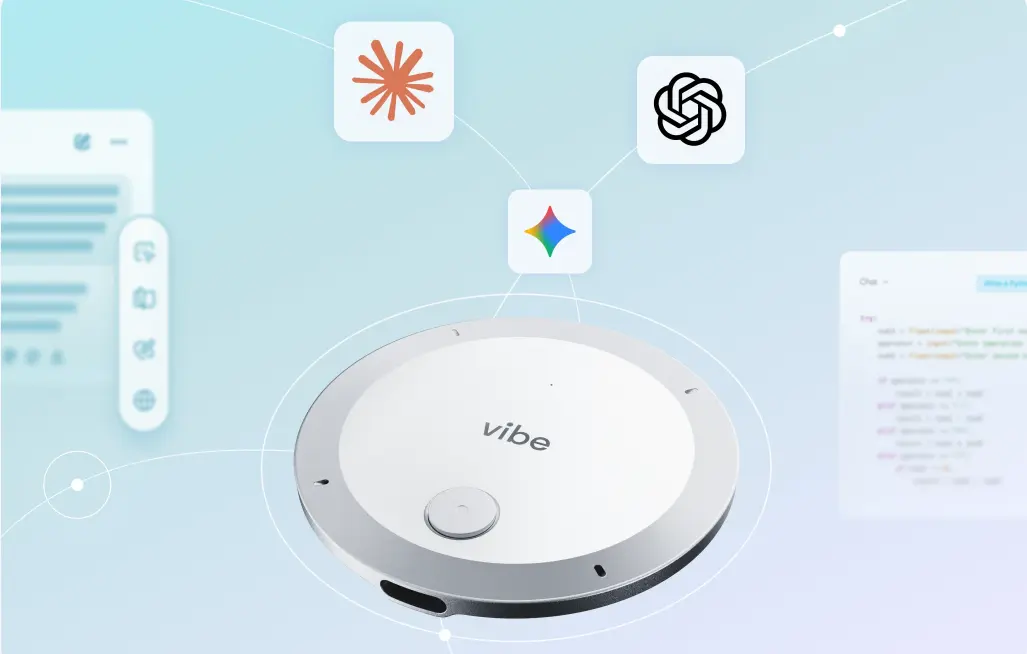
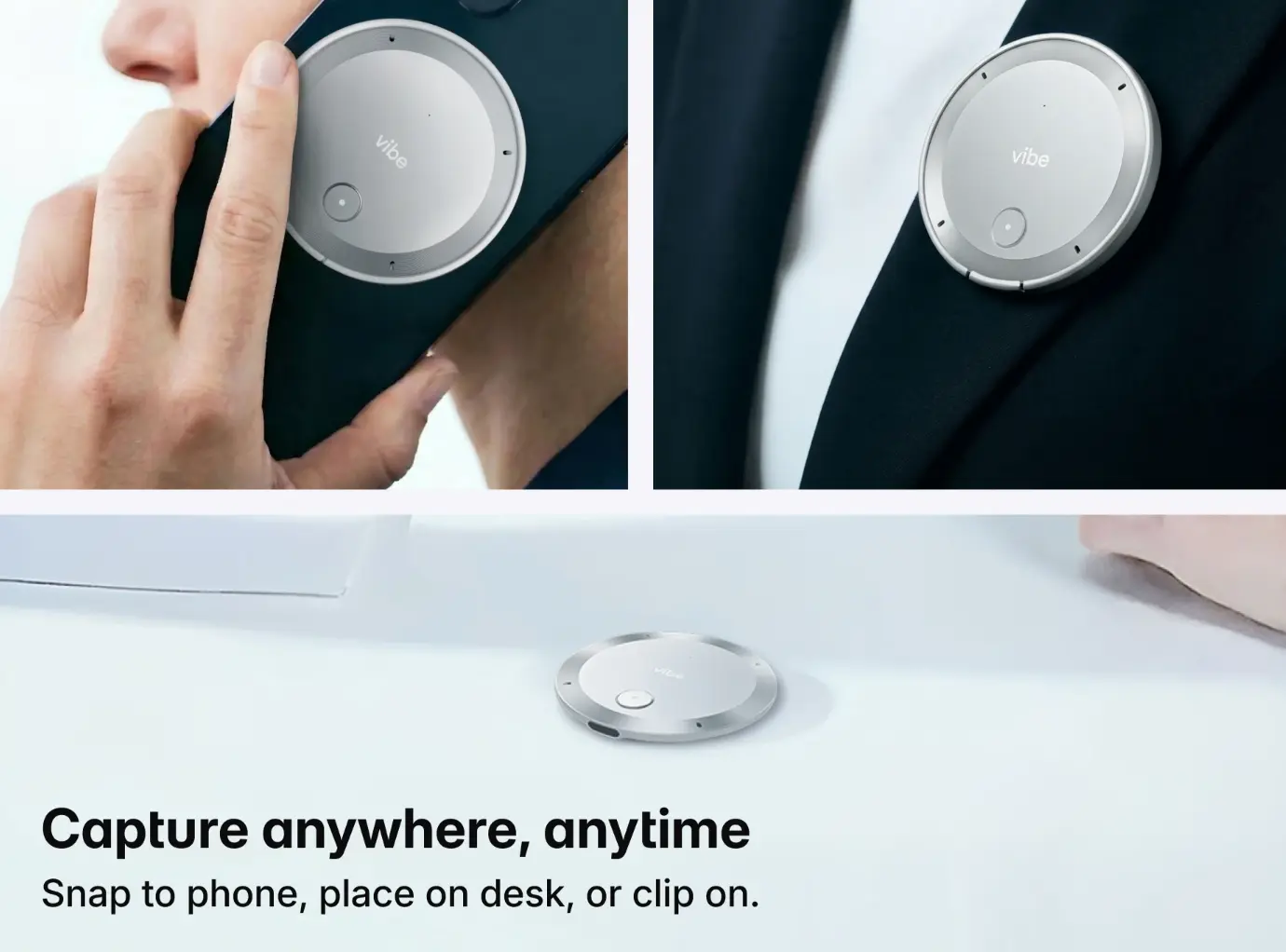
Vibe Dot is a wearable recorder built for conversations the calendar never sees. Here is how it answers, including the parts still partial:
-
Start. Auto capture (Auto mode in Vibe's help center, labeled Beta on the product page) can start recording when Dot recognizes your voice or during scheduled windows, and Voice ID setup is required for it. A double-tap starts a meeting recording by hand, and press-and-hold saves a quick memo.
-
Names. Transcripts carry speaker labels on every plan, and Voice ID recognizes you. Automatically naming recurring speakers is listed as rolling out soon on Vibe's pricing page, and the Vibe Bot page notes that speaker separation and voice recognition are in beta and may miss some speakers. For now, expect to confirm other people's names.
-
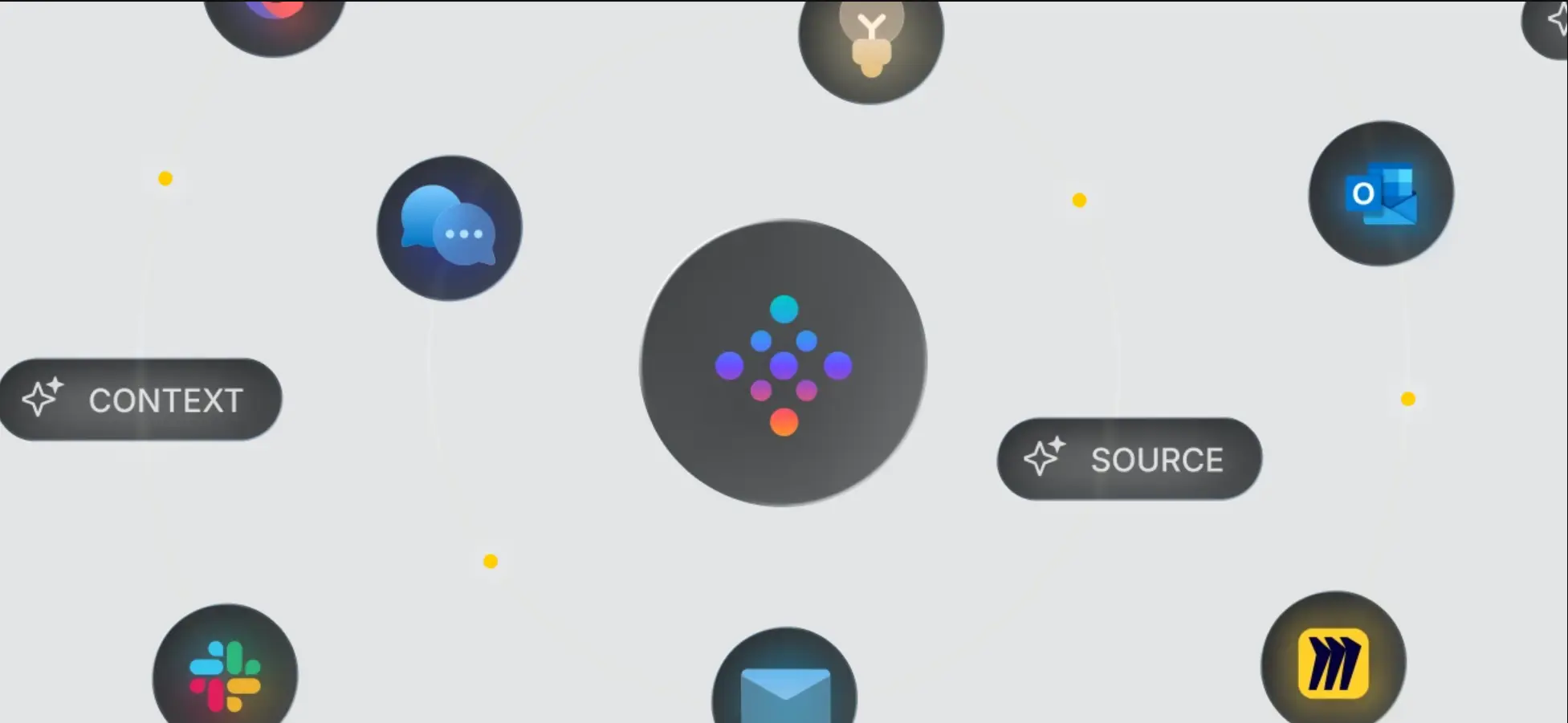
Silo. On the same page, whether it's Vibe Bot on the table or Vibe Dot in your pocket, everything lands in one record you can ask and search. Ask AI reaches back 12 months on Pro and across all meetings on Max, and Pro and Max can sync that context to Claude and ChatGPT (setup guide). Vibe Bot joins Zoom, Meet, and Teams calls with one tap and prompts you to record when it notices an in-person conversation, so both kinds share one memory.
-
Consent. Dot doesn't solve this one either. Its product page says you control when it records, with working hours or a tap, but telling the people in front of you is still your job.
The trade-offs. It is a wearable you have to bring, and the AI-assistant sync needs Pro or Max. If all your meetings happen in one Teams Rooms space and everyone already holds the right Copilot license, the built-in tools may be enough.
Conclusion
In-person capture is now table stakes. What remains unsolved is everything around the button: who starts it, who gets named, where the notes live, and whether the room agreed.
The best test of any in-person AI notetaker is not how clean the transcript looks. It is whether the hallway decision made at 4:45 on a Thursday is searchable, correctly attributed, and consented to by Monday.
Frequently Asked Questions
What is an AI notetaker for in-person meetings?
It is a tool that records a face-to-face conversation through a phone, laptop, or dedicated device and turns the audio into a transcript, summary, and action items. Unlike a video-call bot, it has no meeting link to join, so capture depends on a microphone in the room and someone starting it.
Do Google Meet, Zoom, and Microsoft Teams take AI notes for in-person meetings?
Yes, all three do as of October 2026, with conditions. Google Meet needs an eligible Workspace edition or Google AI plan, Zoom's My Notes is part of Workplace and My Notes plans, with a limited free tier, and Microsoft's Facilitator needs a Teams Rooms Pro device and is labeled a preview. In each case, a person starts the session.
Is it legal to record an in-person meeting with an AI notetaker?
It depends on where you are, and this is general information, not legal advice. Federal law and most states require one party's consent, but several states, including California, Florida, and Pennsylvania, require everyone's. Oregon is all-party for in-person talk. The safe habit is to announce the recording and get a yes from everyone present.
Why does my in-person transcript label everyone "Speaker 1" and "Speaker 2"?
The tool separated the voices but cannot attach names. In Microsoft's Teams Rooms flow, only the person who scans the QR code is named. Names usually come from voice enrollment or a platform's participant list, and an in-person room has neither unless people enroll in advance.
How can I capture unplanned hallway conversations?
Use a capture method that doesn't depend on opening an app at the right moment, such as a wearable that starts on your voice or a scheduled recording window, and say out loud that you're recording. Check that notes land in one searchable place, not someone else's folder.