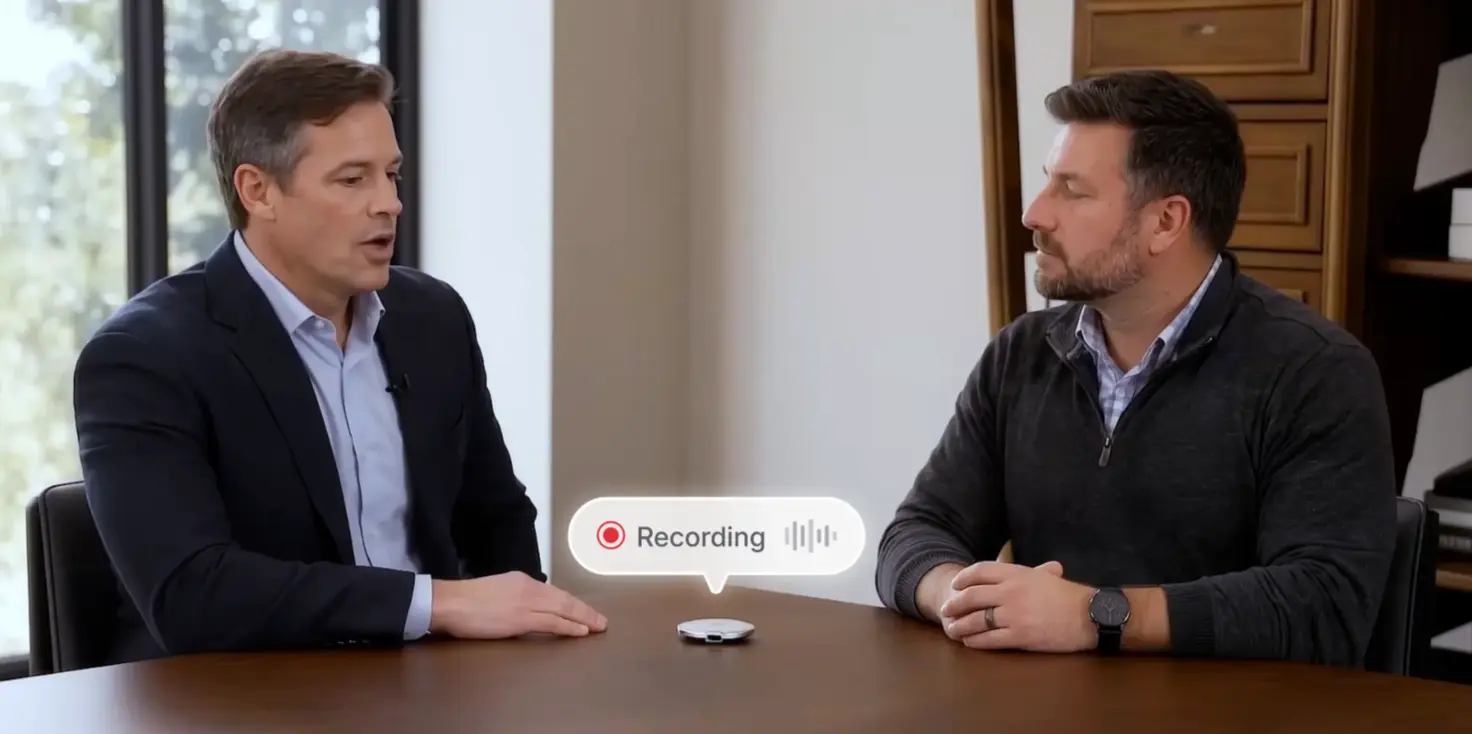

The call goes well. Then comes the part nobody enjoys: open HubSpot, find the deal, retype what the buyer said, move the stage, and create the follow-up task. This guide shows how to update HubSpot after a sales call without retyping any of it, using Vibe Dot to capture the conversation and Vibe AI to write the results into your CRM.
Quick answer: To update HubSpot automatically after a sales call, capture the conversation, connect HubSpot to an AI tool that can write to your CRM, tell it what to update, and review the changes. With Vibe Dot and Vibe AI, Vibe Dot records the call, and Vibe AI updates contact, company, and deal information in HubSpot and creates follow-up tasks from the next steps agreed on the call.
The cost of skipping this work is real. Salesforce's State of Sales 2026 report, based on a survey of 4,050 sales professionals, found that the average seller spends about 40% of their time actually selling, and that Gen Z reps lose roughly two hours a week to manual data entry. Every minute spent reconstructing a call from memory is a minute not spent with a buyer.
What You Can Update in HubSpot Automatically
Vibe AI works with four kinds of HubSpot data. According to the Vibe AI listing on the HubSpot Marketplace, the connector helps update contact, company, and deal information and create follow-up tasks based on what customers share. In practice, that covers:
-
Contacts and companies: new details the buyer shares about their role, team, or business.
-
Deals: call notes, stage, and next steps on the opportunity record.
-
Follow-up tasks: the next steps you agreed on, turned into tasks so commitments are less likely to slip.
The listing describes this as helping keep records current, not as unattended autopilot. Plan to review the result, as Step 4 explains.
What You'll Need
-
Vibe Dot and the Vibe AI app on your phone. Dot records the conversation and syncs to the app over Bluetooth.
-
Vibe AI Pro or Max. On the Vibe AI pricing page, CRM updates are listed under AI actions, which run on AI credits. Pro includes 100 credits a month (about 20–30 actions), and Max includes 400 (about 80–120). The free Starter plan does not include actions. Vibe AI plans come with the purchase of a Vibe Dot or Vibe Bot.
-
A HubSpot account and the Vibe AI connector from the HubSpot Marketplace. The listing shows personal access, so each rep connects their own account.
-
A few minutes after each call to review what changed.
Step 1: Capture the Call
Record the whole conversation, and mark the moments that matter. A CRM update is only as good as the capture behind it.
-
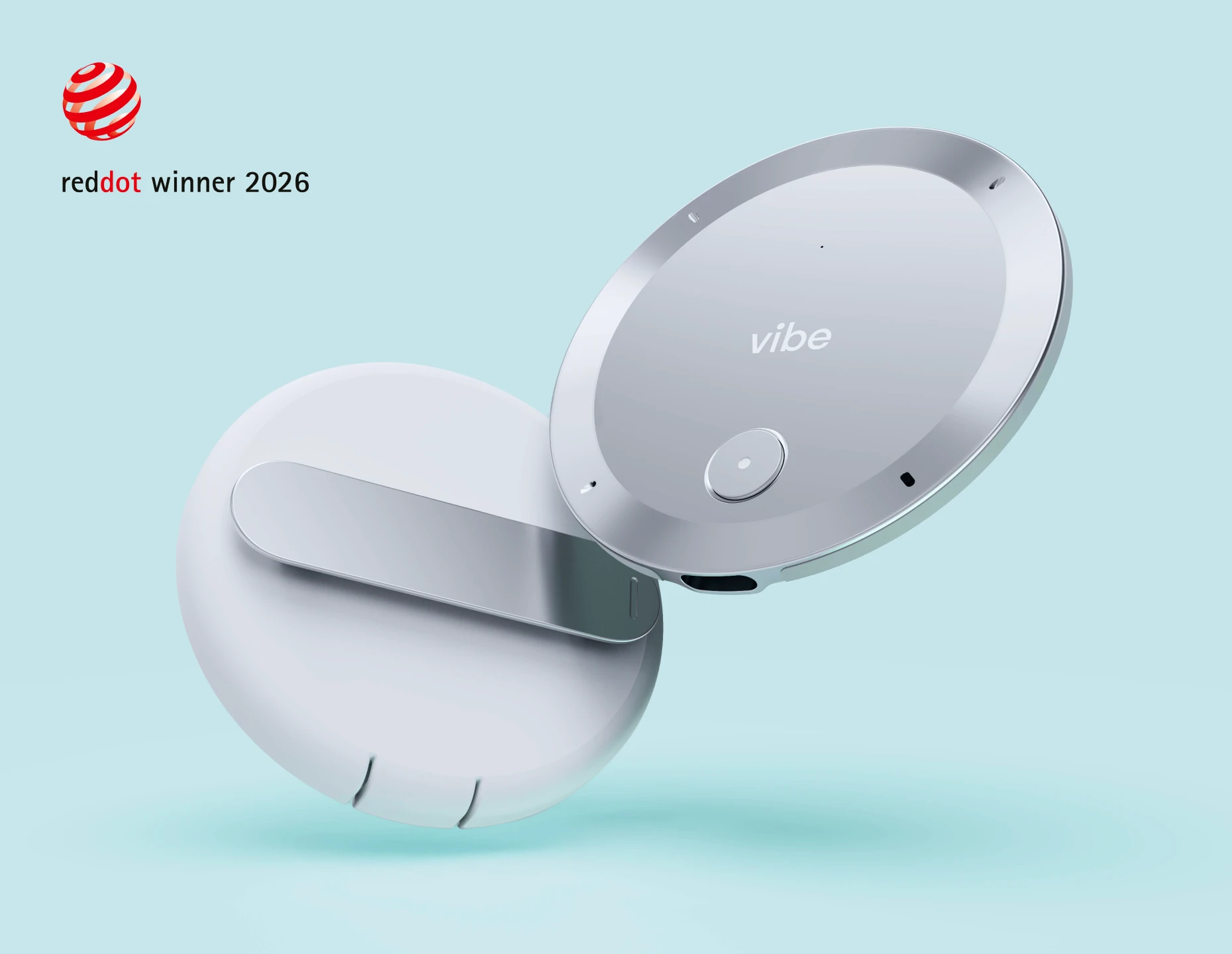
For in-person meetings: clip Vibe Dot on, or set it on the table. Double-tap to start recording and double-tap again to stop.
-
For phone calls: attach Dot to the back of your phone. A magnetic ring for non-MagSafe phones comes in the box.
-
During the call: press Dot once to highlight a key moment, such as a budget figure, an objection, or a deadline.
-
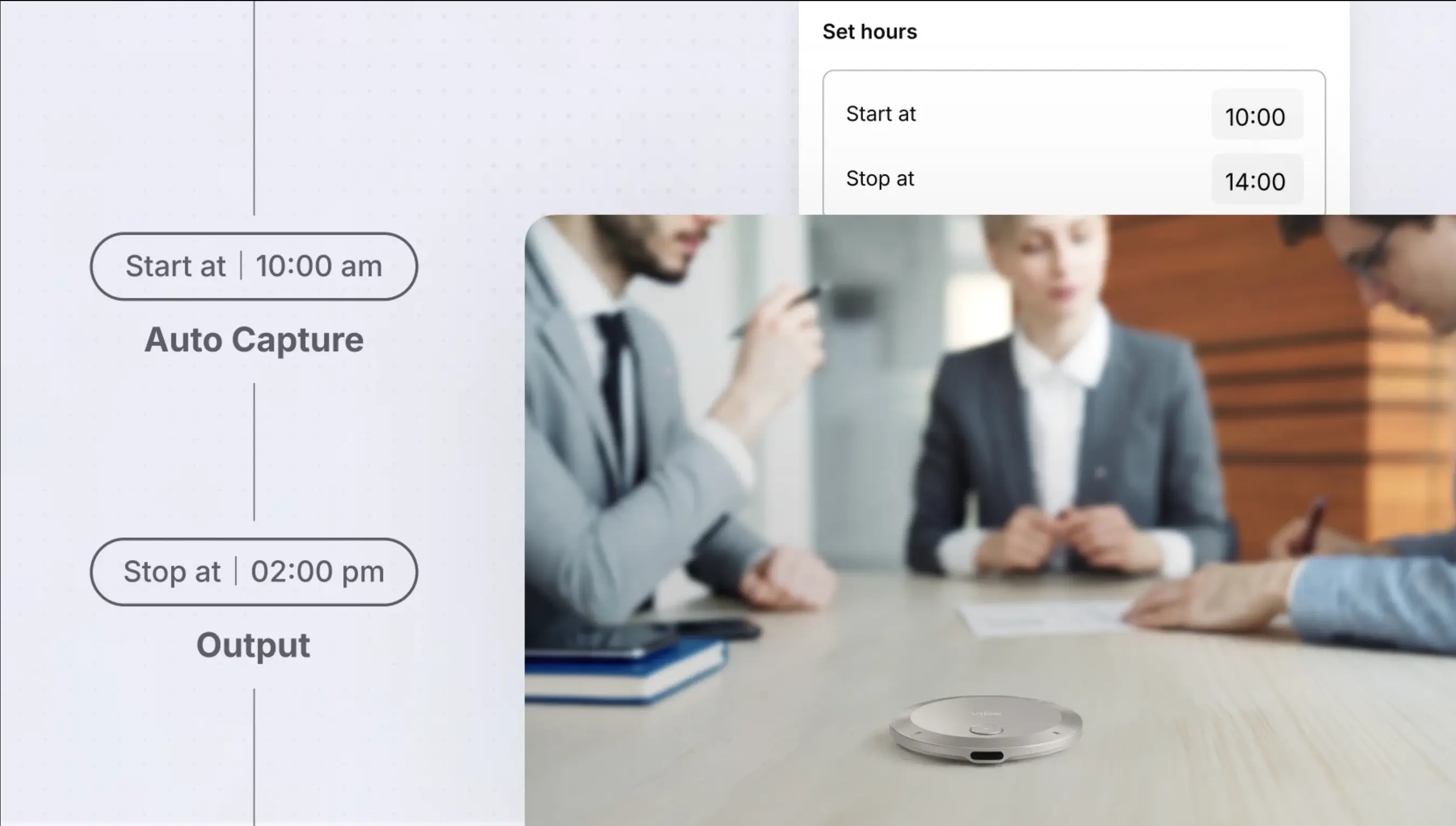
For unplanned conversations: Auto Capture (Beta) can start recording when Dot recognizes your voice, or during a scheduled window.
Vibe Dot records to onboard storage, so it keeps working without a connection and syncs when your phone is back in range. Say the next step out loud before you hang up ("so I'll send pricing by Friday"). The clearer it is in the audio, the cleaner the task that comes out of it.
A note on consent: recording laws vary by jurisdiction and organization. Tell participants you are recording, and follow your company's policy.
Step 2: Connect HubSpot
Install the Vibe AI connector once, and every later call can use it.
-
Open the Vibe AI listing on the HubSpot Marketplace and sign in to install it.
-
Sign in to your Vibe AI account when prompted. The listing notes that a Vibe AI subscription is required.
-
Approve the permissions requested during connection. The listing says no HubSpot permissions are required up front, and that Vibe AI may request additional permissions while connecting.
Because access is personal, the updates you request use your own connection. If your team uses shared HubSpot conventions, such as required deal properties, agree on them before you start so the results fit your process.
Step 3: Tell Vibe What to Update
Give one clear instruction after the call, by voice or in the app. With Vibe Dot you can press and hold, speak, and have Vibe save a memo or run an action without unlocking your phone. You can also do it from the Vibe AI app.
A good instruction names three things: the deal, the change, and the next step. For example:
"Update the Acme deal with today's call notes, move it forward, and create a task to send pricing by Friday."
Vibe's own example workflow for an account executive follows the same pattern: after a client call, draft a follow-up with next steps, update the opportunity, and schedule the next call. The more specific you are about which deal and which date, the less there is to correct later.
Step 4: Review What Changed in HubSpot
Spend two minutes checking the record before you move on. This is the step that keeps automation trustworthy.
-
Right record? Confirm the notes landed on the correct contact, company, and deal.
-
Accurate notes? Compare them with what was actually said. Check names and numbers.
-
Right next step? Confirm each task reflects what was agreed, with the right timing.
-
Multi-person calls? Check that comments are attributed to the right speaker. If a transcript misattributes a statement, fix it before the change propagates.
If something is off, correct it in HubSpot. Treat the first few weeks as calibration. Most corrections come from vague instructions, which are easy to tighten.
Step 5: Send the Follow-Up and Book the Next Call
Close the loop while the call is fresh. Vibe AI can draft and send follow-ups through Gmail, Outlook, and Slack, and schedule follow-up meetings in Google Calendar and Outlook Calendar. In Vibe's example, the email arrives as a draft ready for your review.
A follow-up that cites the buyer's actual concern and deadline lands better than a generic thank-you. If you want the principles behind a strong one, read our guide to writing a follow-up email after a meeting.
Step 6: Use Memory to Prepare the Next Call
Before the next conversation, ask what you already know. Vibe AI links each conversation to earlier ones through its Memory Graph, so you can ask what was agreed, what is still open, and what the buyer worried about, with answers pulled across meetings.
In Vibe's example, when you say you need to follow up with a contact about a contract by Friday, Dot finds three earlier threads with that person, surfaces the contract deadline, and flags a conflict. How far back Ask AI reaches depends on your plan: 7 days of meetings on Starter, 12 months on Pro, and all meetings on Max.
An Example, Start to Finish
This walkthrough follows Vibe's own account executive scenario and is illustrative, not a customer result.
A rep finishes a demo call with a prospect. During the call she pressed Dot once when the buyer mentioned a budget cycle. In the parking lot, she presses and holds Dot and asks Vibe to update the deal, create a task to send pricing by Friday, and schedule the next call.
-
Within minutes: the deal in HubSpot shows the call notes and next step, and the follow-up task exists.
-
Same afternoon: a follow-up email draft is waiting. She reviews it and sends it.
-
Next week: before the next call, she asks Vibe AI what concerns the buyer raised, and gets the answer with context from both conversations.
|
Step |
Manual |
With Vibe Dot and Vibe AI |
|---|---|---|
|
Record the conversation |
Rely on memory or typed notes |
Dot captures it |
|
Log notes on the deal |
You retype them |
Vibe AI writes them to HubSpot |
|
Update contacts and companies |
You find and edit each record |
Vibe AI updates them from the call |
|
Create follow-up tasks |
You create them by hand |
Vibe AI creates them from agreed next steps |
|
Send the follow-up |
You write it |
Drafted for your review |
|
Review the result |
Not applicable |
You check it |
Common Problems and How to Avoid Them
-
Wrong deal or contact. Name the company and deal in your instruction, especially when a contact belongs to several opportunities.
-
Vague tasks. "Follow up" becomes a weak task. Say what, and by when.
-
Running out of credits. Vibe notifies you when you hit a limit. Your existing memory and history stay accessible, but new processing waits for the next cycle unless you upgrade or buy a top-up pack.
-
Sensitive calls. Use per-thread permissions in Vibe AI so only the right people can see specific conversations.
-
Over-trusting the output. Always review before a record drives a forecast or a customer email.
We should be clear about the limits. CRM updates require a paid Vibe AI plan, they draw from a monthly credit allowance, Auto Capture is in Beta, and the connector helps keep records current rather than replacing your judgment.
Where This Fits in Your Stack
CRM updates are one of five kinds of follow-up work an AI meeting agent can do, alongside messages, tasks, scheduling, and exports. For the full picture, see What Is an AI Meeting Agent?. If your best conversations happen away from a screen, read why software note takers miss them. For the manual system underneath, our guide to tracking action items from meetings covers the who, what, and by-when format.
Conclusion
Updating HubSpot after a sales call comes down to a short loop: capture the call, connect your CRM once, give a clear instruction, and review the result. The work that used to take an evening of retyping becomes a few minutes of checking.
Start with capture, because everything downstream depends on it. Vibe Dot records in-person meetings and phone calls, and Vibe AI carries what was said into HubSpot.
Frequently Asked Questions
Can Vibe AI update HubSpot automatically after a sales call?
Yes. Vibe AI connects to HubSpot through a connector on the HubSpot Marketplace and helps update contact, company, and deal information from your conversations, plus create follow-up tasks from agreed next steps. You review the result in HubSpot. CRM updates are part of the Pro and Max plans.
What HubSpot records can Vibe AI update?
According to the HubSpot Marketplace listing, Vibe AI helps update contacts, companies, and deals, and creates follow-up tasks based on what customers share on the call. On the Vibe Dot page, Vibe's example includes updating the opportunity stage, notes, and next steps.
Do I need a paid plan to update HubSpot from my calls?
On the Vibe AI pricing page, CRM updates are listed under AI actions for the Pro and Max plans. Pro costs $9 per seat per month, billed annually, and includes 100 AI credits (about 20–30 actions). Max costs $29 per seat per month, billed annually, and includes 400 credits (about 80–120 actions).
Does this work for in-person meetings and phone calls?
Yes. Vibe Dot clips on for in-person conversations and attaches to the back of your phone for calls. It records to onboard storage, so it works without a connection, then syncs to the Vibe AI app over Bluetooth when your phone is back in range. Follow your local recording-consent rules.
Is it safe to connect my CRM to Vibe AI?
Vibe AI holds SOC 2 Type 2 and HIPAA attestations from Prescient Assurance, and your information is not used to train Vibe's or third-party AI models. The HubSpot connector uses personal access, so each rep connects their own account. Review changes after each call, and use per-thread permissions for sensitive conversations.
How many CRM updates can I run each month?
Credits are shared across all Vibe AI actions, including follow-up messages, tasks, scheduling, exports, and CRM updates. Pro includes about 20–30 actions a month and Max about 80–120. If you reach the limit, existing memory stays accessible, and you can upgrade or buy a top-up pack to keep processing.