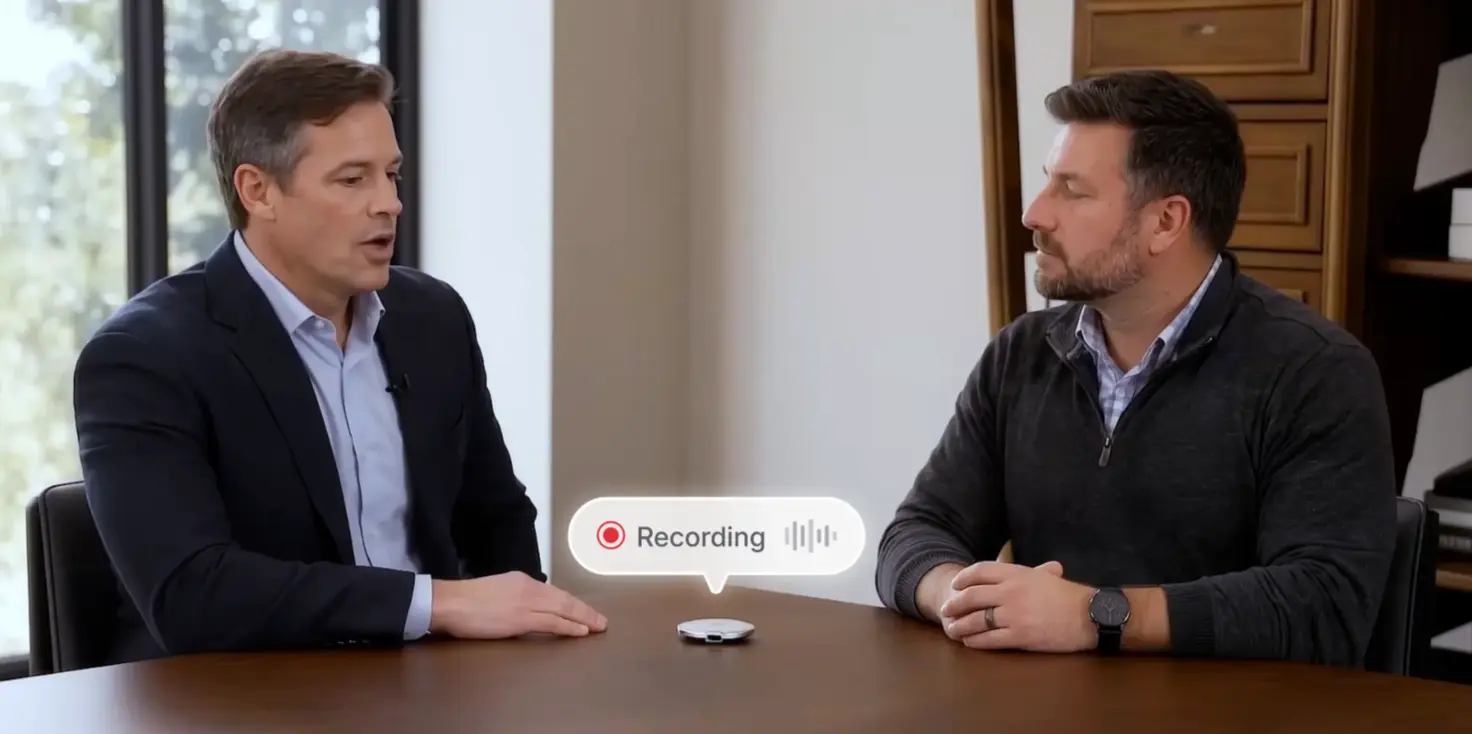

A meeting ends with six clear action items in the notes. By Thursday, two of them exist in your tracker. The rest are somewhere between a recap email and someone's memory. This guide shows how to turn meeting notes into Jira, Linear, or Asana tasks automatically, using Vibe Dot to capture the conversation and Vibe AI to create the tasks where your team already works.
The gap is common. Jabra's Cost of Bad Meetings research, published in June 2026, found that 59% of meetings need a follow-up meeting to fix the first. Unclear outcomes get expensive, and a task that never reaches the tracker is the cheapest outcome to prevent.
Quick answer: To turn meeting notes into tasks automatically, state each action item with an owner and a date, record the meeting, connect your tracker to an AI tool that can create tasks, tell it where the tasks belong, and review them. With Vibe, Vibe Dot captures the conversation, and Vibe AI pulls action items from the transcript and creates tasks in Jira, Linear, or Asana.
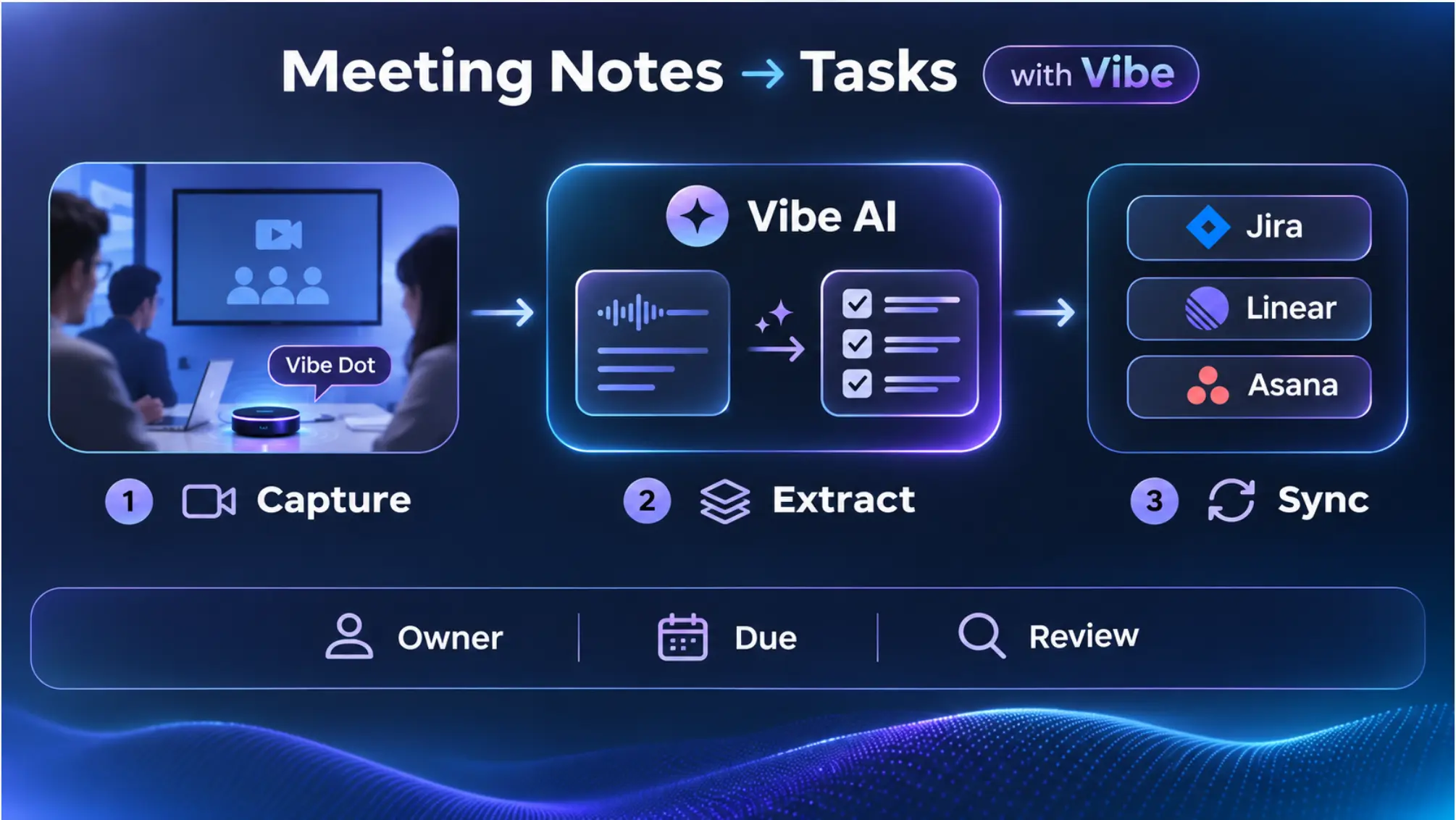 Vibe workflow: Vibe Dot captures the meeting, Vibe AI extracts action items, and tasks sync to Jira, Linear, and Asana
What Vibe AI Creates in Each Tool
Vibe AI supports three task trackers. The Vibe AI pricing page lists "Create tasks from meetings" for Jira, Linear, and Asana on both the Pro and Max plans.
|
Tracker |
What Vibe AI does with an action item |
|---|---|
|
Jira |
Creates a task from the action item |
|
Linear |
Creates an issue from the action item |
|
Asana |
Creates a task from the action item |
Vibe Dot can run this in all three trackers. Common scenarios include: after a product review, updating roadmap priorities and owners in Linear; after a site walkthrough, assigning flagged issues in Asana with due dates; and after a sprint planning meeting, creating a Jira task for each committed item.
One distinction matters here. Meeting notes, summaries, and action items are generated on every Vibe AI plan, including the free Starter plan. Pushing those action items into a tracker is an AI action, which requires Pro or Max.
What You'll Need
-
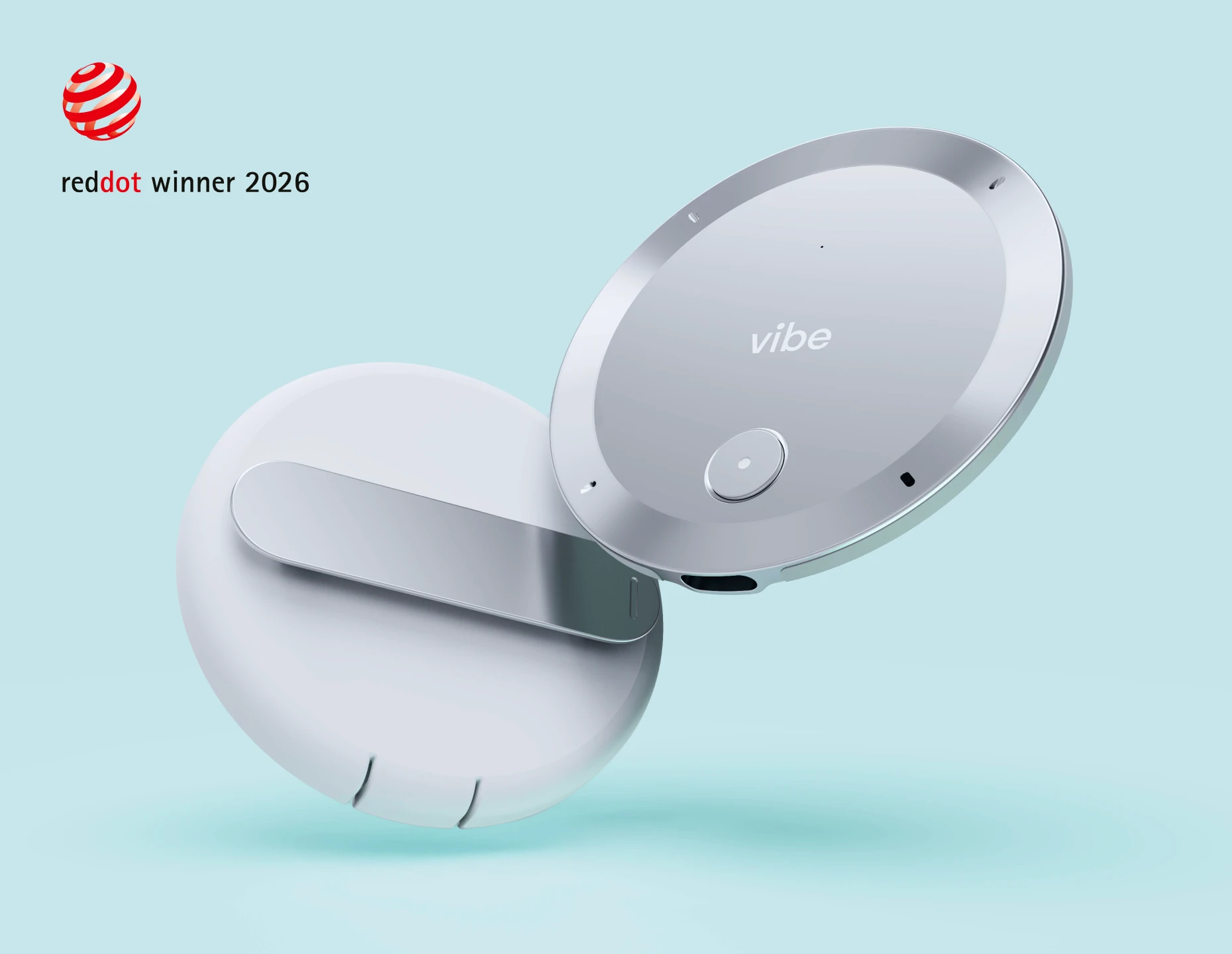
Vibe Dot and the Vibe AI app on your phone. Dot records and syncs to the app over Bluetooth. For meetings in a conference room or on a video call, Vibe Bot can capture the room, and what either device captures lands in the same Vibe AI record.
-
Vibe AI Pro or Max. Task creation runs on AI credits: Pro includes 100 a month (about 20–30 actions), and Max includes 400 (about 80–120).
-
An account in Jira, Linear, or Asana that is allowed to create items in the project you plan to use.
-
A consistent way of stating action items, covered in Step 1.
Step 1: State Action Items So They Can Become Tasks
A task is only as good as the sentence it came from. Use the format "[Owner] will [specific action] by [date]," and say it out loud before the meeting ends. Our guide to tracking action items from meetings explains why this works: the owner, the verb, and the deadline are the three things a tracker needs.
Compare two ways of saying the same thing:
-
Weak: "We should look at the login timeout."
-
Strong: "Priya will investigate the login timeout and report back by Thursday."
The strong version has an owner, an action, and a date, so the task that comes out of it is already assignable. Confirming ownership aloud also gives the transcript a clear moment to attach the name to.
Step 2: Capture the Meeting
Record the full conversation, and mark decisions as they happen.
-
Standing meetings and one-to-ones: double-tap Vibe Dot to start and double-tap to stop.
-
Key moments: press Dot once to highlight a decision or commitment, so it is easy to find in the transcript.
-
Recurring meetings: Auto Capture (Beta) can start recording at scheduled times, or when Dot recognizes your voice.
-
Conference rooms and hybrid calls: place Vibe Bot on the table. It joins Zoom, Google Meet, and Microsoft Teams with one tap and records what is said in the room.
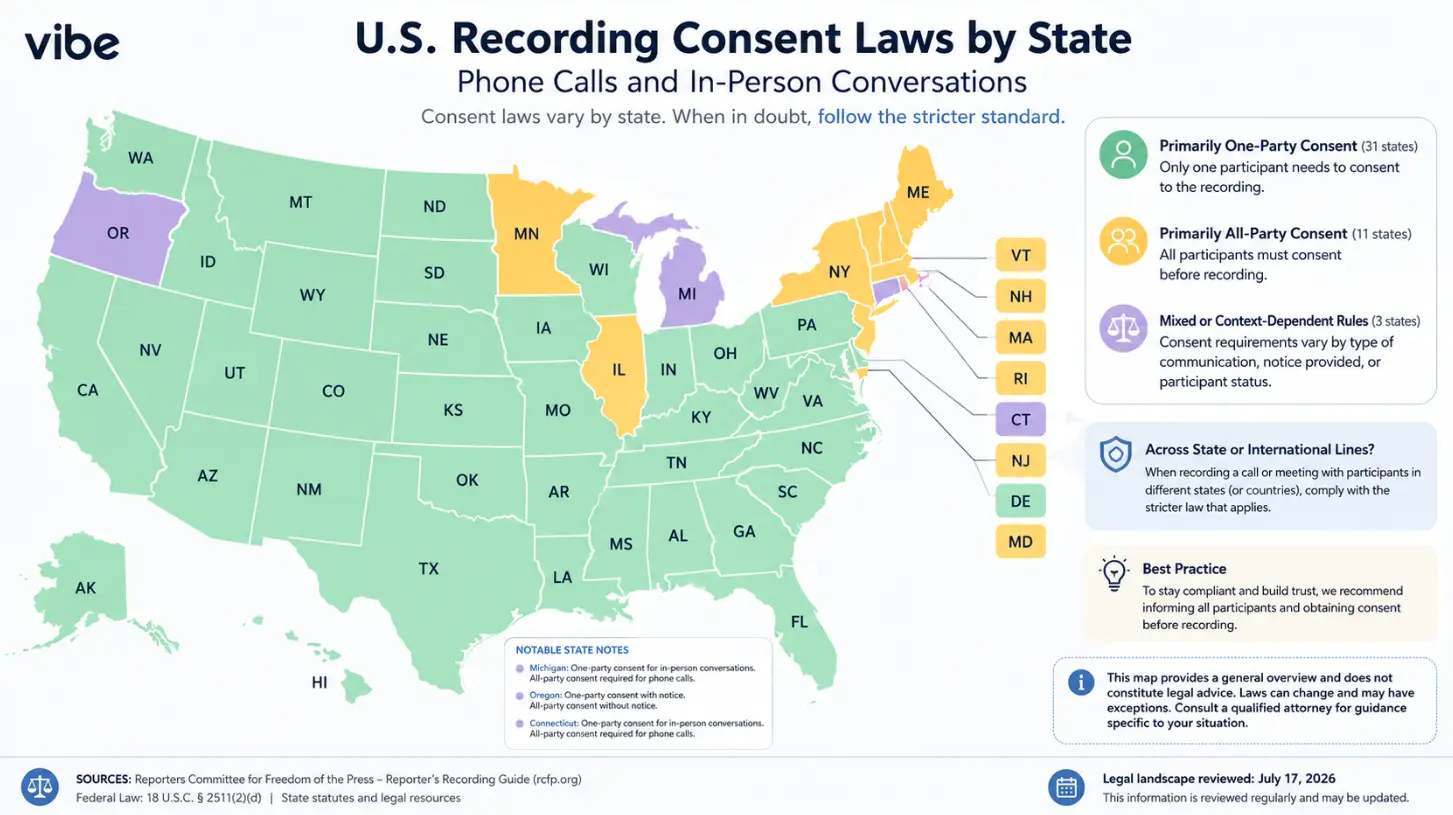
Vibe Dot records to onboard storage and syncs when your phone is in range, so a meeting in a dead zone still gets captured. As always, tell participants you are recording and follow your organization's consent policy.
Step 3: Connect Your Tracker
Connect the tracker your team actually uses, once. Vibe AI works with Jira, Linear, and Asana, so you only need the one that holds your team's backlog. Use an account that has permission to create items in the right project. If different teams use different trackers, decide in advance which meetings route to which.
The connection is part of the Pro and Max plans. Vibe AI plans come with the purchase of a Vibe Dot or Vibe Bot.
Step 4: Tell Vibe Where the Tasks Go
Give one clear instruction after the meeting. With Vibe Dot you can press and hold, speak, and have Vibe run an action without unlocking your phone. You can also do it from the Vibe AI app.
Name the destination, and anything your workflow depends on. For example:
"Create tasks for this meeting's action items in the Atlas project, and assign each to the person who owns it."
Use the destination's own vocabulary: a project in Jira, a team in Linear, or a project in Asana. If you only ever use one board, you can keep the instruction shorter. The more your process depends on a field, such as priority or due date, the more important it is to say it.
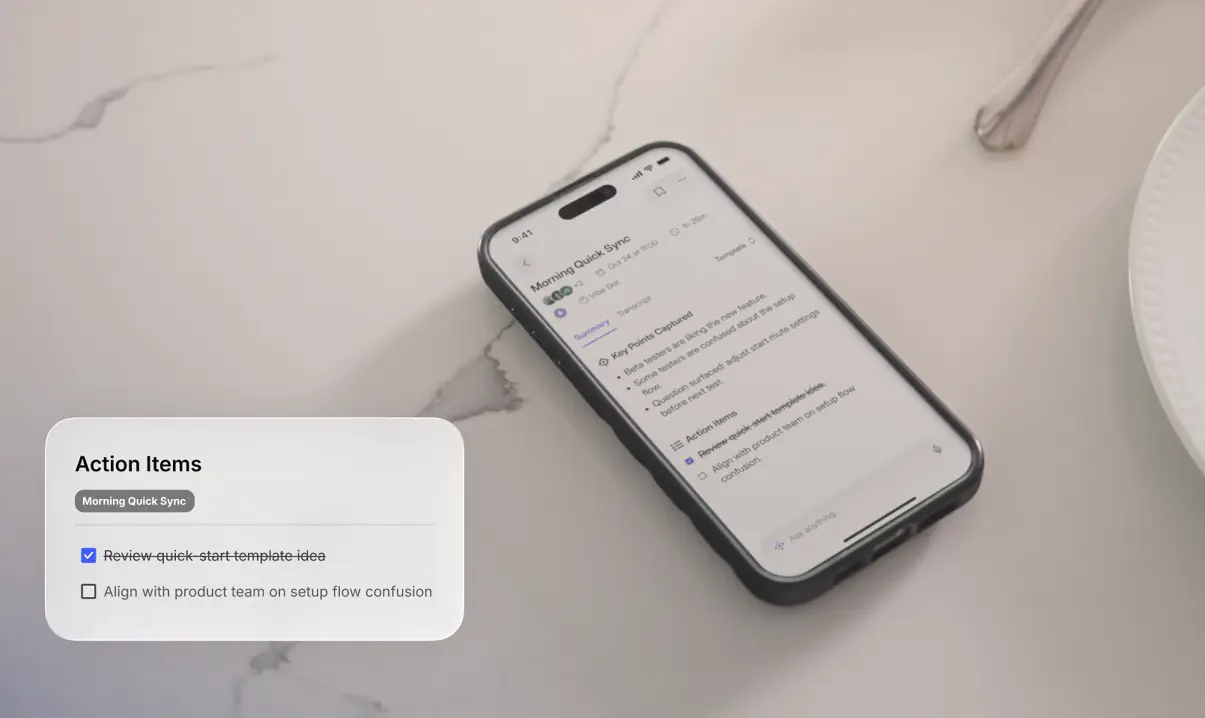 Vibe Dot app showing a meeting summary and action items
Step 5: Review the Tasks Before You Trust Them
Spend a few minutes checking the new tasks. This is what keeps automation from adding noise to your backlog.
-
Clear titles. Each task should read as a specific action, not a topic.
-
Right owners. Confirm each task is assigned to the person who actually agreed to it. In meetings with several people, check that the transcript attributed statements to the right speaker.
-
Right dates. Confirm deadlines match what was said.
-
No duplicates. Compare against what already exists in the backlog, especially for recurring meetings that revisit the same items.
-
Right place. Confirm tasks landed in the correct project or team.
Fix anything that is off directly in your tracker. Early on, most corrections trace back to vague phrasing in the meeting, which is easy to tighten.
Step 6: Close the Loop at the Next Meeting
Open the next meeting by reviewing what is still open. Tasks in a tracker only help if someone looks at them. Start recurring meetings by walking through open items from the last one, before adding new topics.
To check what was actually committed, use Ask AI. On Pro it reaches across the last 12 months of meetings, and on Max across all of them, so you can ask what was agreed about a topic across several meetings instead of reopening old notes. Vibe AI's Memory Graph links each conversation to earlier ones, which helps with projects that span many meetings.
An Example, Start to Finish
Here is how the full workflow runs after a product review.
During the review, the product manager presses Dot once when the team agrees to move a reliability fix ahead of a feature. After the meeting, she presses and holds Dot and asks Vibe to turn the action items into tasks in the team's project and to schedule a recap in Slack for the next morning.
-
Tasks: Vibe AI creates them in the tracker, each assigned to the owner named in the meeting.
-
Review: she checks the new tasks, merges any duplicates, and corrects any dates that are off.
-
Recap: Vibe AI sends the Slack recap the next morning, so the team starts the day with the same list.
|
Step |
Manual |
With Vibe Dot and Vibe AI |
|---|---|---|
|
Capture the discussion |
Typed notes or memory |
Dot or Bot records it |
|
Extract action items |
You scan the notes |
Vibe AI pulls them from the transcript |
|
Create tasks in the tracker |
You retype each one |
Vibe AI creates them in Jira, Linear, or Asana |
|
Assign owners |
You look up who agreed to what |
Taken from what was said in the meeting |
|
Share the recap |
You write and send it |
Vibe AI can send follow-ups through Slack, Gmail, or Outlook |
|
Check the result |
Not applicable |
You review it |
Common Problems and How to Avoid Them
-
Vague tasks. "Look into pricing" becomes a vague ticket. State the owner, the action, and the date in the meeting.
-
Wrong owner. Two people with the same first name, or a transcript that mixes up speakers, can misassign a task. Use full names for ownership and check speaker labels.
-
Duplicates. Recurring meetings repeat items. Check the backlog before accepting new tasks.
-
Credits run out. Vibe notifies you at your limit. Your existing memory and history stay accessible, but new processing waits for the next cycle unless you upgrade or buy a top-up pack.
-
Sensitive meetings. Use per-thread permissions in Vibe AI so only the right people can see specific conversations.
-
Over-trusting the output. Review before tasks drive sprint planning or customer commitments.
We should be clear about the limits. Task creation requires a paid Vibe AI plan, it draws from a monthly credit allowance, Auto Capture is in Beta, and the quality of each task depends on how clearly the action item was stated.
Where This Fits in Your Stack
Creating tasks is one of five kinds of follow-up work an AI meeting agent can do, alongside messages, CRM updates, scheduling, and exports. For the full picture, see What Is an AI Meeting Agent?. If your sales team lives in a CRM instead, see how to update HubSpot after a sales call. And if your best conversations happen away from a screen, read why software note takers miss them.
Conclusion
Turning meeting notes into Jira, Linear, or Asana tasks comes down to a short loop: state action items clearly, capture the meeting, connect your tracker once, give one instruction, and review the result. The retyping goes away, and the commitments reach the backlog while the details are still fresh.
Start with the habit, since clear action items make every tool better. Then add capture and automation with Vibe Dot and Vibe AI.
Frequently Asked Questions
Can Vibe AI create Jira tickets from meeting notes?
Yes. Vibe AI creates tasks in Jira from the action items in your meetings, and does the same in Linear (as issues) and Asana (as tasks). Task creation is an AI action on the Pro and Max plans. You review the tasks in your tracker afterward.
Which task trackers does Vibe AI support?
Vibe AI supports Jira, Linear, and Asana for creating tasks from meetings. It also supports Gmail, Outlook, and Slack for follow-ups, HubSpot for CRM updates, Google Calendar and Outlook Calendar for scheduling, and Google Drive, OneDrive, Google Docs, and Notion for exports.
Do I need a paid plan to send action items to a tracker?
Yes. Vibe AI generates meeting notes, summaries, and action items on every plan, including the free Starter plan. Creating tasks in Jira, Linear, or Asana requires Pro ($9 per seat per month, billed annually) or Max ($29 per seat per month, billed annually).
Will Vibe AI assign owners and due dates?
Yes. Vibe AI assigns tasks to owners and sets due dates, for example assigning flagged issues in Asana with due dates. The result depends on what was said clearly in the meeting, so state the owner and the date out loud, and review each task after it is created.
Does this work for in-person meetings and video calls?
Yes. Vibe Dot captures in-person conversations and records to onboard storage. Vibe Bot sits on a conference table, joins Zoom, Google Meet, and Microsoft Teams, and records the room. Both feed the same Vibe AI record that the action items come from.
How many tasks can I create each month?
Task creation uses AI credits, shared with every other Vibe AI action. Pro includes 100 credits a month, or about 20–30 actions. Max includes 400, or about 80–120. If you reach the limit, existing memory stays accessible, and you can upgrade or buy a top-up pack to keep processing.