
The meeting is recorded and summarized. Then the notes sit in one app while your team's work lives in another. This guide shows how to export meeting notes to Notion, Google Docs, or OneDrive with Vibe Dot, so the summary, decisions, and next steps land where your team already looks, without copying and pasting.
Quick answer: To export meeting notes to Notion, Google Docs, or OneDrive with Vibe Dot, record the meeting, tell Vibe AI where the content should go, and review the result. Exporting meeting content is one of Vibe AI's five actions on the Pro and Max plans, with Google Drive, OneDrive, Google Docs, and Notion as supported destinations. Exports run on AI credits.
The reason to do this is access, not tidiness. Glean's Work AI Index 2026, a survey of 6,000 digital workers published in June 2026, found that 53% say important information they need is not accessible from their AI tools, as IT Brief reported. Notes that stay inside one app stay invisible to everything else. Notes saved to your team's wiki or shared drive are where people, and the AI tools they use, can actually find them.
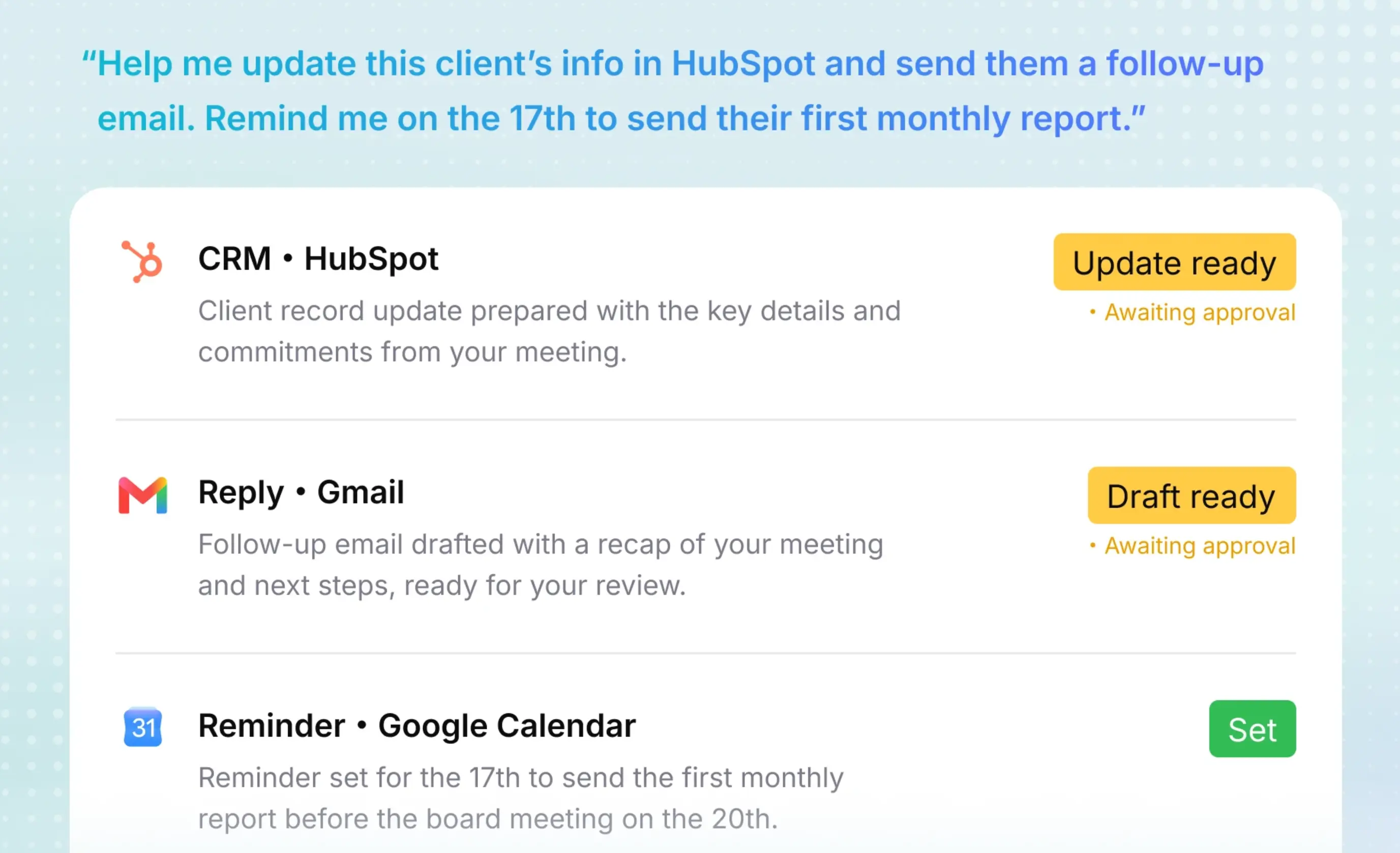 Vibe AI agent handling HubSpot, Gmail and Calendar tasks from one prompt
Where Vibe Dot Can Send Your Meeting Content
Vibe AI supports four export destinations. The Vibe AI pricing page lists "Export meeting content" with Google Drive, OneDrive, Google Docs, and Notion for both Pro and Max.
|
Destination |
Best for |
A typical use |
|---|---|---|
|
Notion |
Living documents, project pages, and team wikis |
Updating a project page with the decisions and owners from a review |
|
Google Docs |
Narrative documents people will read and comment on |
A meeting summary the whole team can edit |
|
Google Drive |
Keeping meeting content with other project files |
Filing a summary in the right client or project folder |
|
OneDrive |
Teams on Microsoft 365 |
Sharing a report with specific people, with the right access |
Choose the destination your team already opens every day. The best export is the one nobody has to go looking for.
Export vs. Connect: Two Different Things
Exporting sends meeting content out. Connecting lets Vibe AI read from your apps. They are separate features, and they work in opposite directions.
-
Export is an action. Vibe AI takes meeting content and puts it in Google Drive, OneDrive, Google Docs, or Notion. It is available on Pro and Max and uses AI credits.
-
Ask AI across connected apps lets Vibe AI draw on your files when it answers a question. On Pro it covers Google Drive and Dropbox. Max adds Slack, Email, and Notion.
Used together, they form a loop. You export notes into Notion, and on Max, Ask AI can later pull from Notion to answer questions about a project.
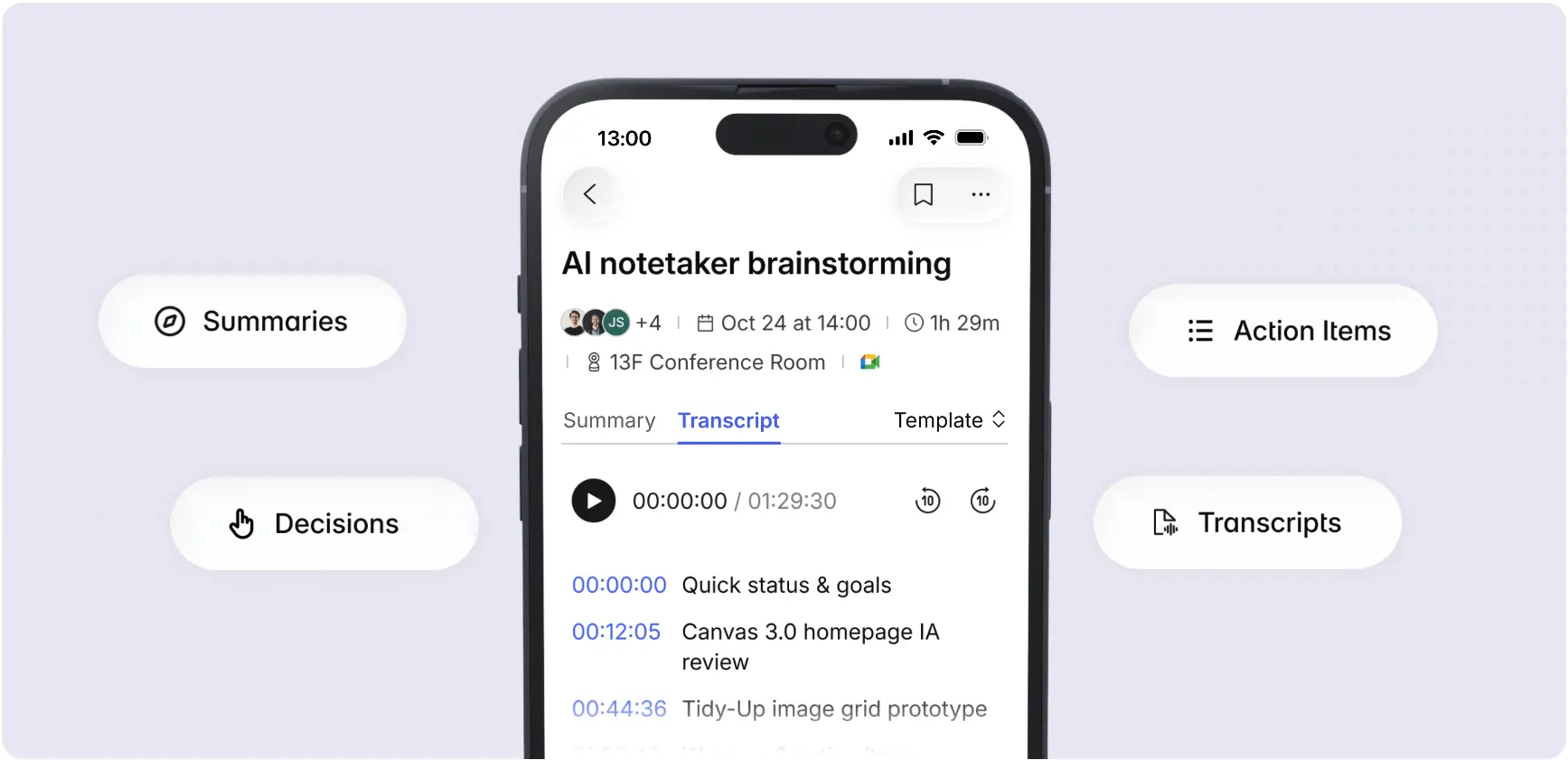 Vibe AI app meeting transcript with summaries and action items
What You'll Need
-
Vibe Dot and the Vibe AI app on your phone. Vibe Dot records and syncs to the app over Bluetooth.
-
Vibe AI Pro or Max. Exports run on AI credits. Pro includes 100 a month (about 20–30 actions), and Max includes 400 (about 80–120). The free Starter plan generates notes, summaries, and action items but does not include actions. Our guide to Vibe Dot AI pricing explains how minutes and credits work.
-
An account in your destination, such as Notion, Google Workspace, or Microsoft 365, with permission to create or edit content where you plan to save it.
-
A simple structure for your notes, covered in Step 1.
Step 1: Give Your Meeting Notes a Home
Decide where meeting notes live before you export anything. An export is only as organized as the place it lands.
-
In Notion: create a meeting notes page or database, with a property for the project or client.
-
In Google Drive: make one folder per project or client, and a consistent naming pattern such as date, project, and meeting type.
-
In OneDrive: do the same, and decide who gets access by default.
Pick one convention and stick to it. Consistency matters more than which convention you choose.
Step 2: Capture the Meeting With Vibe Dot
Record the whole conversation, and mark the moments that matter.
-
Meetings in person: clip Vibe Dot on or set it on the table. Use Tap to Record: double-tap to start, and double-tap again to stop.
-
Phone calls: attach Vibe Dot to the back of your phone. A magnetic ring for non-MagSafe phones comes in the box.
-
Key moments: press Vibe Dot once to highlight a decision.
-
Planned or recurring conversations: Auto Capture (Beta) can start recording when Vibe Dot recognizes your voice, or during a scheduled window.
Vibe Dot records to onboard storage and syncs when your phone is in range, so a meeting in a dead zone is still captured. Say the decisions and owners out loud before the meeting ends, since the AI works from what it hears. Tell participants you are recording, and follow your organization's consent policy.
Step 3: Connect Your Destination
Connect the app where your notes should land, once. Vibe AI works with Google Drive, OneDrive, Google Docs, and Notion for exports. Connect the one or two your team actually uses, and use an account that can create items in the right place.
Connecting storage and wiki accounts gives an AI tool access to sensitive material, so connect only what you need. Vibe AI holds SOC 2 Type 2 and HIPAA attestations from Prescient Assurance, and Vibe AI includes per-thread permissions so you can control who sees specific conversations.
Step 4: Tell Vibe Where It Goes
Give one clear instruction after the meeting, naming the destination and what to include. With Vibe Dot you can press and hold, speak, and have Vibe run an action without unlocking your phone. You can also do it from the Vibe AI app.
Here are three instructions you can adapt:
To Notion.
"Save the summary, decisions, and action items from this meeting to the Atlas project page in Notion."
To Google Docs.
"Create a Google Doc with the decisions and next steps from this meeting and put it in the client folder."
To OneDrive.
"Share today's inspection report with the maintenance lead and give them edit access."
The more specific you are about the project, the folder, and the people, the less there is to move or fix afterward. These example instructions are our own illustrations of the pattern, not exact commands.
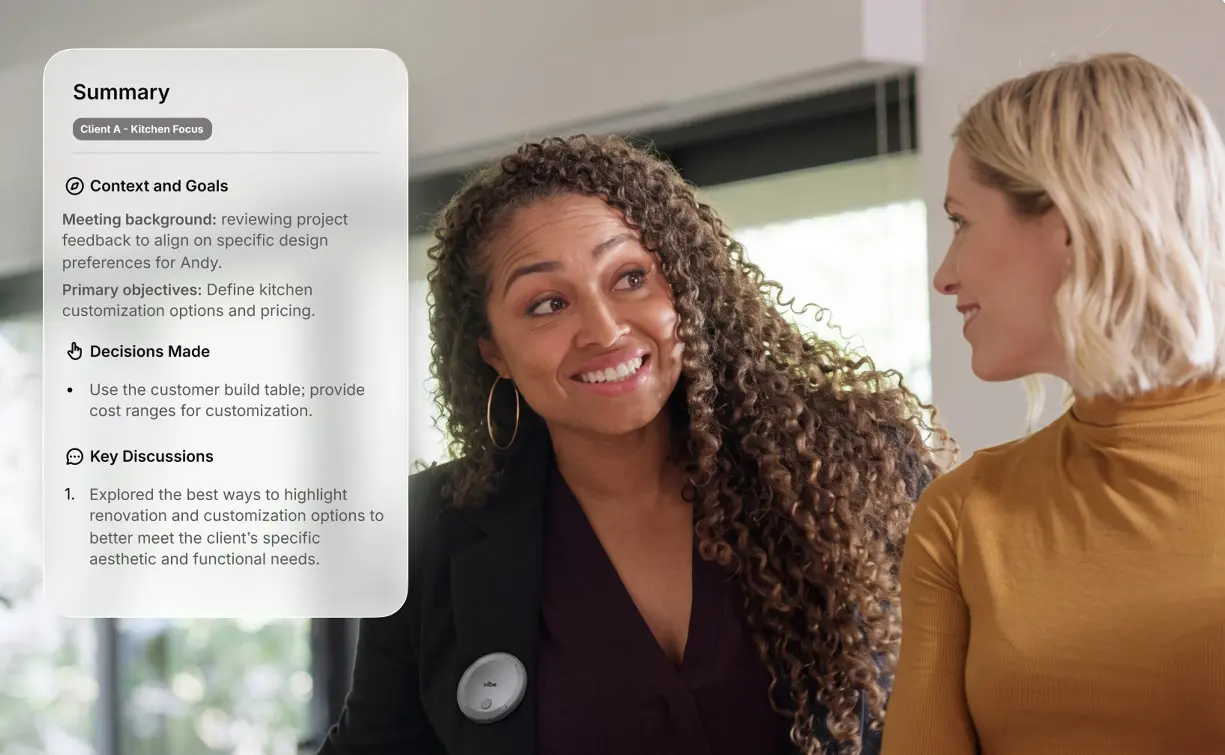 Vibe Dot lapel recorder with AI meeting summary for a client meeting
Step 5: Review and Organize What Was Exported
Spend a couple of minutes checking the result. Exports put your meeting content into shared places, so a quick look prevents surprises.
-
Right place? Confirm the content landed in the correct page, folder, or project.
-
Right content? Check the summary against what was said, especially names, numbers, and decisions.
-
Right access? If you shared something, confirm who can view or edit it. Do not give edit access casually.
-
Nothing sensitive? Remove anything that should not sit in a shared document.
-
Right title? Rename the file or page to match your convention.
On the Pro and Max plans, the pricing page also lists a way to group related meetings and Vibe Memos by client, project, or case, which helps keep exports tied to the right work.
Step 6: Make the Notes Easy to Find Later
An export is only useful if people can find it. A few habits help.
-
One source of truth. Pick a primary home for meeting notes, and avoid saving the same notes in three places.
-
Link to follow-up work. If a meeting produced tasks, send them to your tracker too. Our guide to turning meeting notes into Jira, Linear, or Asana tasks covers that.
-
Ask AI for the rest. Vibe AI keeps every transcript and summary on every plan, and Ask AI can answer questions about past meetings. Starter reaches the last 7 days, Pro reaches 12 months, and Max reaches all meetings.
An Example, Start to Finish
These walkthroughs follow Vibe's own product scenarios and are illustrative, not customer results.
Product manager, after a product review. The PM asks Vibe to retrieve and summarize recent customer feedback, update the roadmap priorities and owners in Notion, and schedule a recap in Slack for 9 the next morning. The plan lives in Notion, where the team already works.
Operations lead, after a site visit. The lead asks Vibe to share the inspection report in OneDrive with edit access for the maintenance lead and to schedule a Friday review in Outlook Calendar. The right person has the right file, and the follow-up is on the calendar.
|
Step |
Manual |
With Vibe Dot and Vibe AI |
|---|---|---|
|
Capture the meeting |
Typed notes or memory |
Vibe Dot records it |
|
Write up the notes |
You summarize |
Vibe AI summarizes |
|
Save to the right place |
You copy and paste |
Vibe AI exports to Notion, Google Docs, Google Drive, or OneDrive |
|
Share with the right people |
You set permissions by hand |
You instruct, then confirm access |
|
Check the result |
Not applicable |
You review it |
Common Problems and How to Avoid Them
-
Content in the wrong place. Name the project, folder, or page in your instruction.
-
Duplicates. Decide on one home for notes and one naming convention before you start exporting.
-
Over-sharing. Check who has access before anyone gets edit rights.
-
Sensitive meetings. Use per-thread permissions in Vibe AI so only the right people can see specific conversations.
-
Credits run out. Vibe notifies you at your limit. Your existing memory and history stay accessible, but new processing waits for the next cycle unless you upgrade or buy a top-up pack.
-
Over-trusting the output. A short review beats finding an error later in a shared document.
We should be clear about the limits. Exports require a paid Vibe AI plan, they draw from a monthly credit allowance, and Auto Capture on Vibe Dot is in Beta. The result also depends on how clearly the meeting was recorded and how specific your instruction was.
Where This Fits
Exporting is one of five kinds of work an AI meeting agent can do, alongside follow-ups, tasks, scheduling, and CRM updates. For the full picture, see What Is an AI Meeting Agent?. If your most useful conversations happen away from a screen, read why software note takers miss them.
Conclusion
Exporting meeting notes comes down to a short loop: give your notes a home, record the meeting with Vibe Dot, connect your destination once, give one clear instruction, and review what landed. The copying and pasting disappears, and your notes end up where people and their tools can find them.
Start with where your team already works, then add capture and automation with Vibe Dot and Vibe AI.
Frequently Asked Questions
Can Vibe Dot export meeting notes to Notion?
Yes. Vibe AI's "Export meeting content" action supports Notion, along with Google Drive, OneDrive, and Google Docs. It is available on the Pro and Max plans and uses AI credits. You record the meeting with Vibe Dot, then tell Vibe where the content should go and review the result.
Which export destinations does Vibe AI support?
Vibe AI exports meeting content to Google Drive, OneDrive, Google Docs, and Notion. It also drafts follow-ups in Gmail, Outlook, and Slack, schedules meetings in Google Calendar and Outlook Calendar, creates tasks in Jira, Linear, and Asana, and updates HubSpot.
Do I need a paid plan to export meeting notes?
Yes. Vibe AI's free Starter plan generates meeting notes, summaries, and action items, but exporting them to another app is an AI action. That requires Pro ($9 per seat per month, billed annually) or Max ($29 per seat per month, billed annually).
What is the difference between exporting and connecting an app?
Exporting is an action that sends meeting content out to Notion, Google Docs, Google Drive, or OneDrive. Connecting an app, through Ask AI across connected apps, lets Vibe AI read your files to answer questions. On Pro it covers Google Drive and Dropbox, and Max adds Slack, Email, and Notion.
How many exports can I run each month?
Credits are shared across all Vibe AI actions, including exports, follow-ups, tasks, scheduling, and CRM updates. Pro includes about 20–30 actions a month and Max about 80–120. If you reach the limit, existing memory stays accessible, and you can upgrade or buy a top-up pack to keep processing.
Is it safe to export meeting notes to shared apps?
Treat exports like any shared document. Check where the content landed and who can view or edit it, and remove anything sensitive. Vibe AI holds SOC 2 Type 2 and HIPAA attestations from Prescient Assurance and includes per-thread permissions, but your own review is the main safeguard.