
A punch list walkthrough produces dozens of small decisions in an hour: a scuffed door here, a missing outlet cover there, a sub who promises to be back Friday. Most of it is said out loud, and most of it is gone by the time anyone sits down to write it up. This guide shows how to turn punch list walkthrough notes into assigned tasks with Vibe Dot, which captures the walk as you talk, and Vibe AI, which carries the list into your tools.
Quick answer: To turn a walkthrough into a punch list automatically, wear Vibe Dot during the walk, say each item with its location, the problem, who owns it, and a date, then give Vibe AI one instruction afterward: create the tasks, share the report, and book the re-walk. Task creation, sharing, and scheduling are Vibe AI actions on the Pro and Max plans.
What a Punch List Is, and Why Walkthrough Notes Go Wrong
A punch list is the list of small items that still need to be fixed or finished before a project can be signed off. According to Autodesk's guide to construction punch lists, the general contractor sets up the walkthrough, the owner points out issues, the list goes to the people involved, and a second walkthrough follows once the fixes are done. Some teams call it a snag list.
The process breaks down in the gap between the walk and the list. People take notes while walking, compare against the plans, and argue about who said what. Then someone retypes everything into a spreadsheet days later, and items fall out. That gap has a cost. The Construction Industry Institute's rework reduction guide puts rework at 2% to 20% of a project's contract amount, and a conversation nobody recorded is one of the ways rework starts.
What Vibe Dot Adds to a Walkthrough
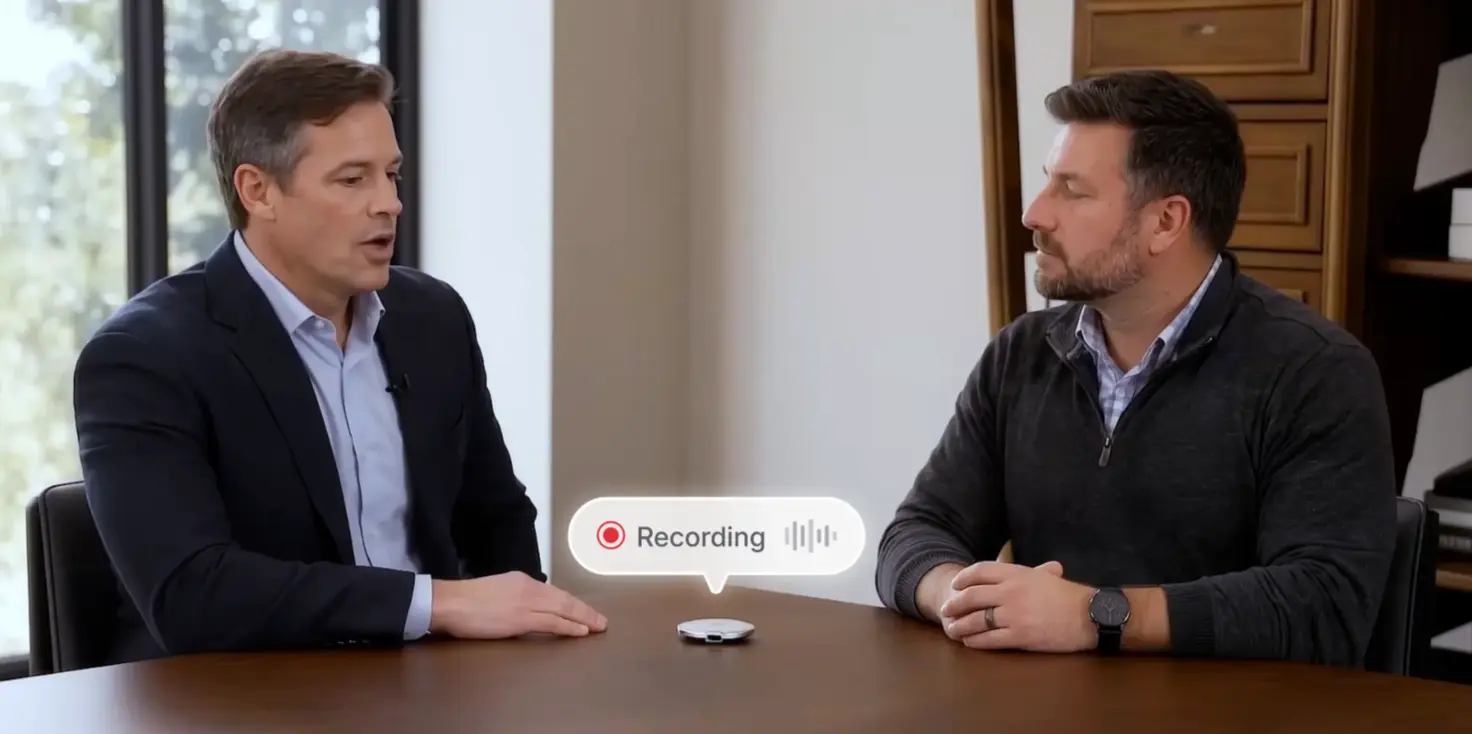
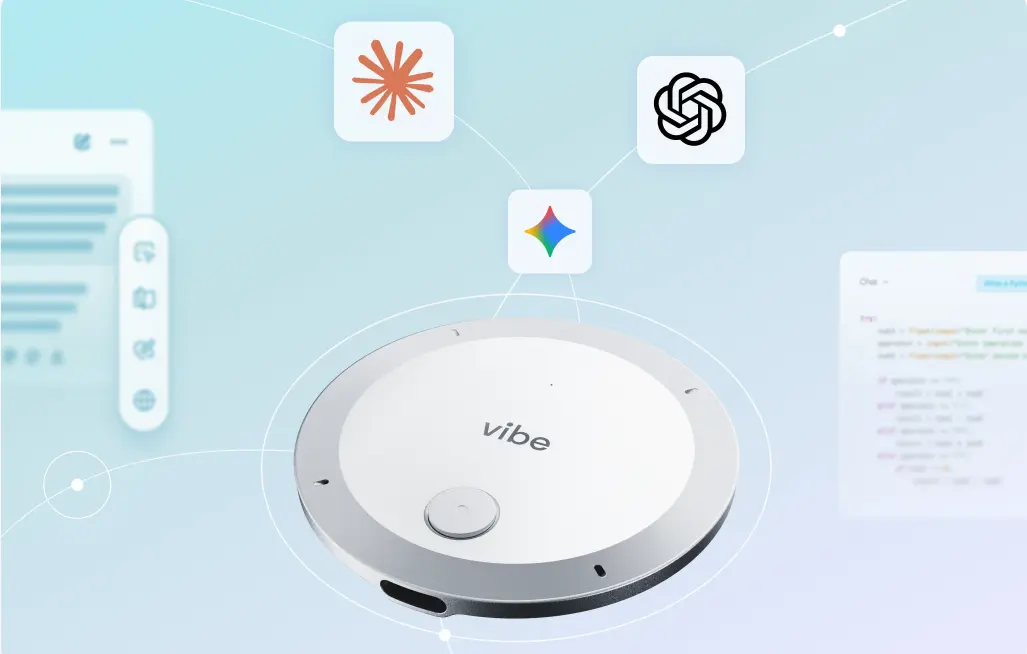
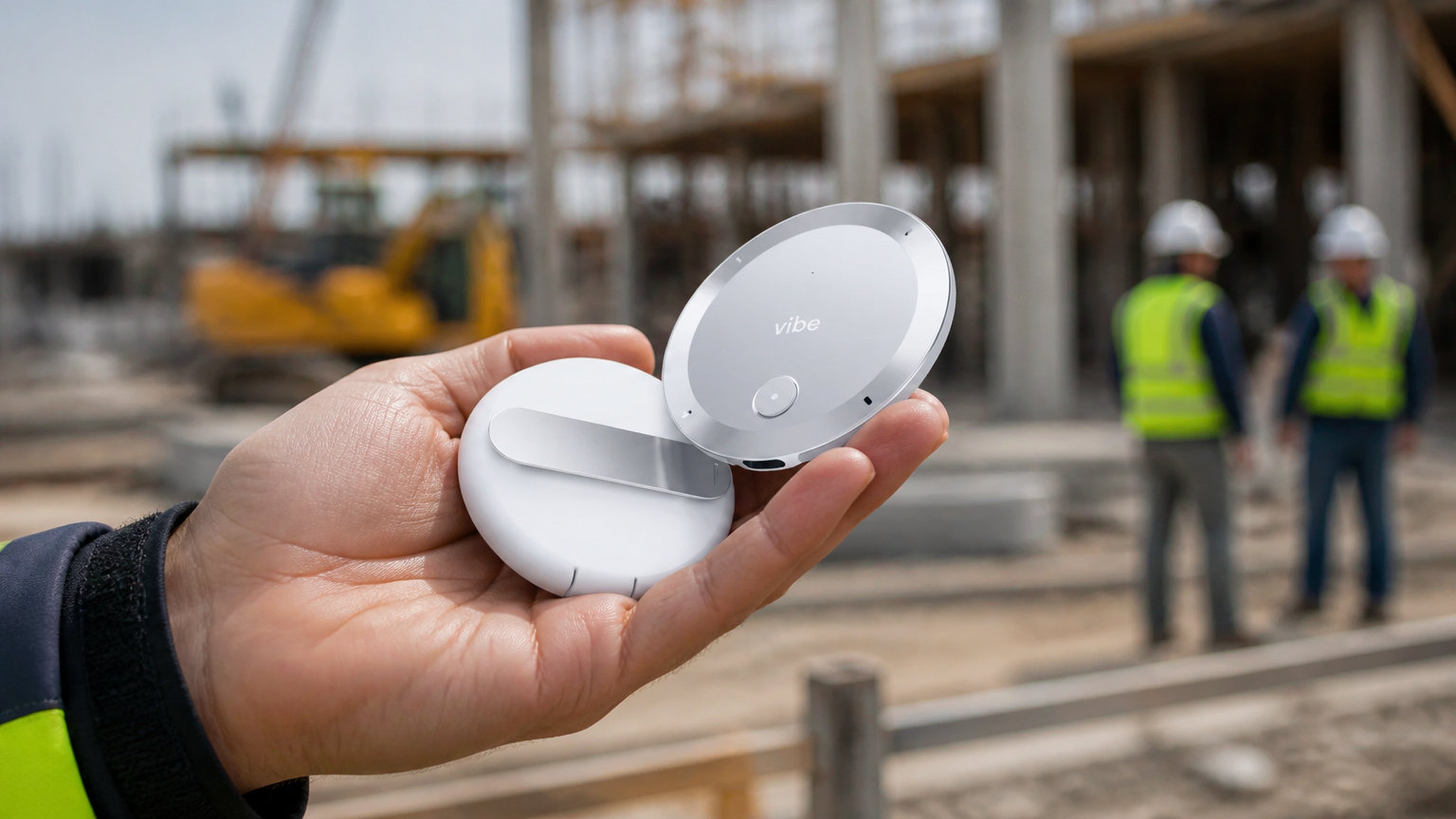
Vibe Dot is a wearable AI recorder that captures the walk without making you stop writing. It clips on, so your hands stay free, and it records to onboard storage, so a site with weak signal does not break the recording. Its 5-mic array includes a bone-conduction microphone that picks up the wearer's own voice, which helps on loud sites. It also has 30-plus hours of battery and 64GB of storage. For the longer case on why calendar-bound tools miss jobsite conversations, see AI Note Taking for Construction: Why Meeting Bots Fall Short.
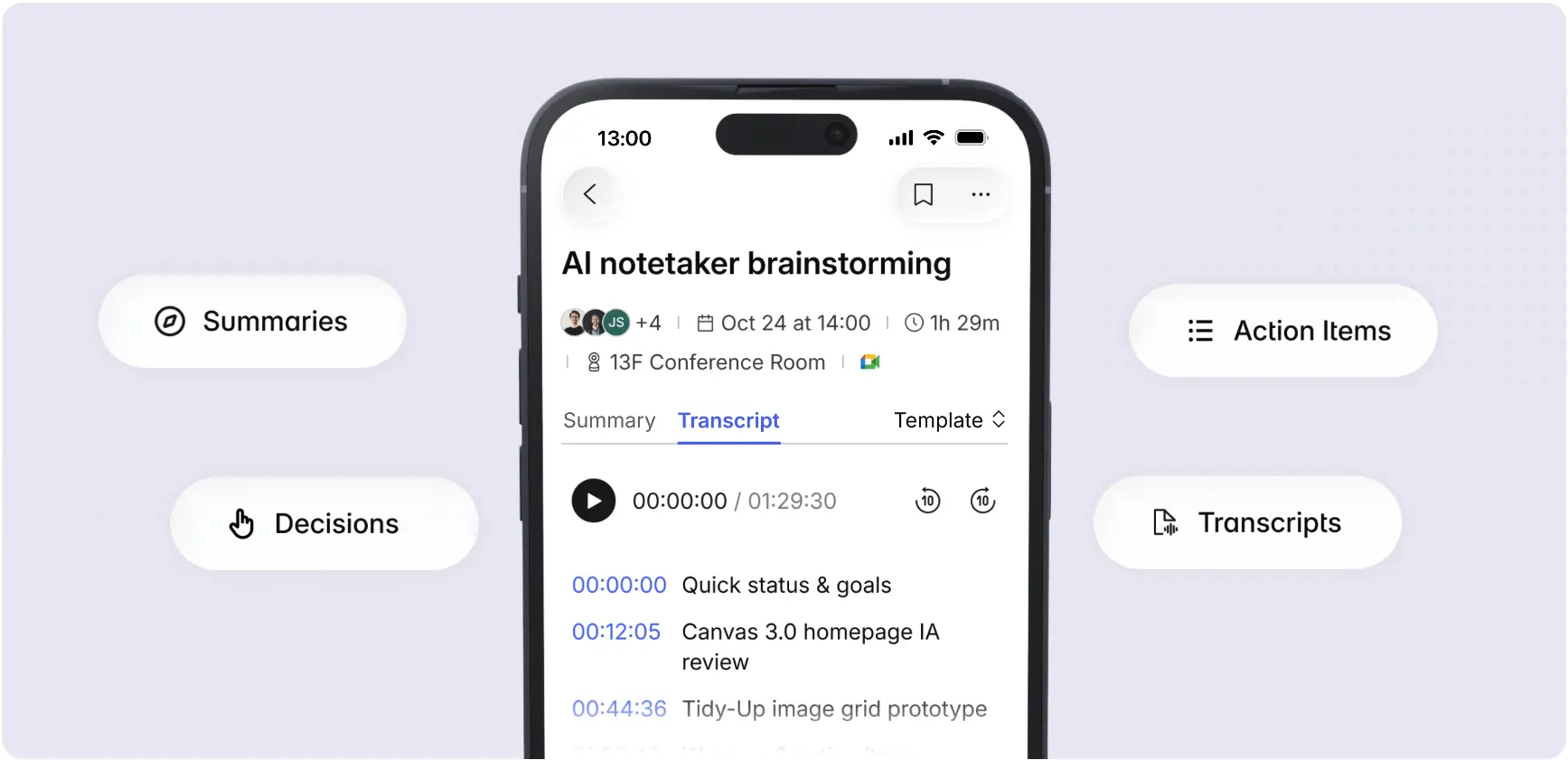
After the walk, Vibe AI turns the recording into a transcript, a summary, and action items, and on Pro and Max it can act on them. Two customers describe the effect on their own work on the Vibe Dot page. Rahul Panchal of RP Builders says it handles capturing the conversation so he can focus on the people in the room, and Joshua Salinger of Birdsmouth Design-Build says he can record things, have them transcribed, and stay present.
What You'll Need
-
Vibe Dot and the Vibe AI app on your phone. Vibe Dot syncs to the app over Bluetooth.
-
Vibe AI Pro or Max. Creating tasks, sharing files, sending follow-ups, and scheduling run on AI credits. Pro includes 100 a month (about 20–30 actions), and Max includes 400 (about 80–120). The free Starter plan generates notes, summaries, and action items but does not include actions. Our guide to Vibe Dot AI pricing explains minutes and credits.
-
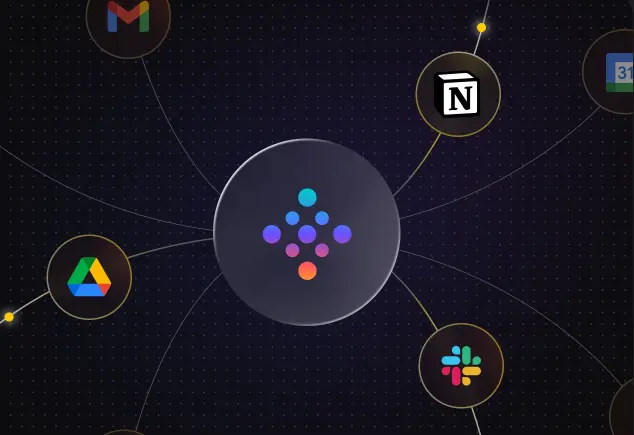
Your tools: a task tracker (Jira, Linear, or Asana), file storage (Google Drive, OneDrive, Google Docs, or Notion), and a way to message trades (Gmail, Outlook, or Slack).
-
A phone camera or field app for photos. Vibe Dot records audio. It does not take photos, and punch items often need a picture.
Step 1: Prepare the Walk
A little structure before the walk makes every item easier to capture.
-
Plan a route. Walk room by room or area by area, so items are said in a predictable order.
-
Know who is there. Owner, contractor, and trade leads. You will want to assign by name.
-
Agree on a spoken pattern. Every item gets a location, an issue, an owner, and a date. Tell the group you will say it this way.
Step 2: Capture the Walk
Start recording before you enter the first space, and mark each item as you go.
-
Tap to Record. Double-tap Vibe Dot to start, and double-tap again to stop.
-
Mark each item. Press Vibe Dot once to highlight an item as you say it, so it is easy to find in the transcript.
-
Say who is present. Name the attendees at the start. It helps with speaker labels and attribution.
-
Disclose that you are recording. A short statement at the start, such as saying this walkthrough is being recorded for the punch list, covers everyone present. Recording laws vary by state, and some require every party's consent. See our guide to one-party and two-party consent states.
Vibe Dot stores audio locally, so you can finish the walk and sync when your phone is back in range.
Step 3: Say Each Item in a Structure the AI Can Use
The AI works from what it hears, so a clear item becomes a clear task. Use four parts: where, what, who, and when.
|
Weak |
Strong |
|---|---|
|
"The door in the hallway is scratched." |
"Second-floor hallway, door 214 has a scratch on the lower panel. Painter fixes it by Thursday." |
|
"Outlet cover is missing somewhere." |
"Conference room B, north wall, missing outlet cover. Electrician, by Wednesday." |
|
"Somebody needs to follow up on the glass." |
"Storefront glass delivery is still unconfirmed. Marcus calls the supplier tomorrow and reports back." |
The strong versions give the location, the issue, a named owner, and a deadline. They also make easy-to-read task titles later. Our guide to tracking action items from meetings explains why that format works.
Step 4: Give One Instruction After the Walk
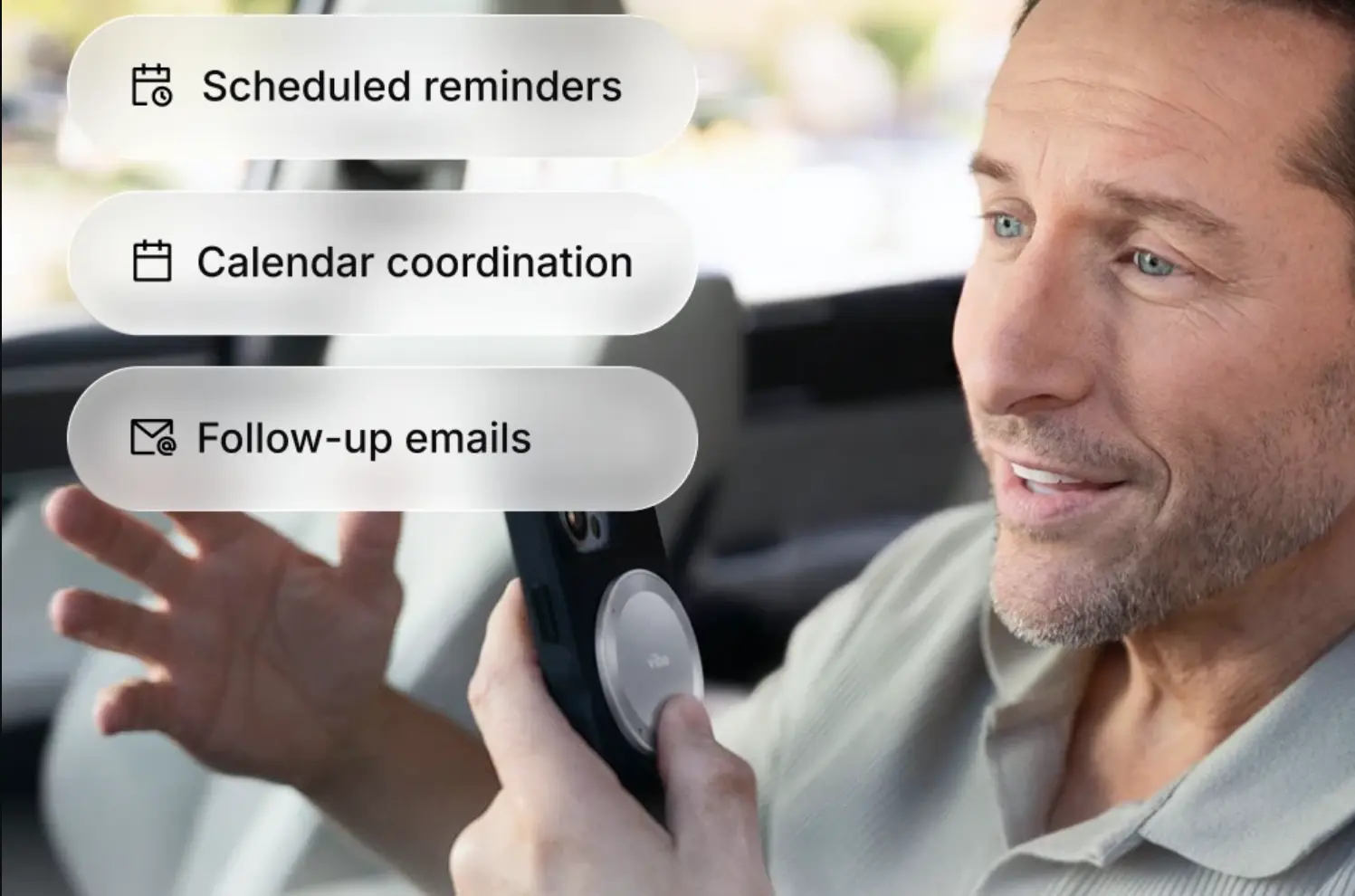
After the walk, tell Vibe Dot what to do with the list. With Vibe Dot you can press and hold, speak, and have Vibe Dot run an action without unlocking your phone. You can also do it from the Vibe AI app.
Here are examples you can adapt:
Create the tasks.
"Create tasks for the punch items from this walkthrough in the Riverside project, each assigned to the trade I named."
Share the report.
"Share today's walkthrough report with the maintenance lead and give them edit access."
Notify the trades.
"Draft an email to each trade listing their punch items and due dates."
Book the re-walk.
"Schedule a follow-up walkthrough for next Friday afternoon."
Vibe AI supports Jira, Linear, and Asana for tasks; Google Drive, OneDrive, Google Docs, and Notion for sharing and exporting; Gmail, Outlook, and Slack for follow-ups; and Google Calendar and Outlook Calendar for scheduling. These example instructions are our own illustrations, not exact commands.
Step 5: Review Before Anyone Gets Assigned
Check the list before it goes to your trades. A wrong assignment costs you a day and a conversation.
-
Right location? Confirm room and floor names, especially on large sites.
-
Right owner? Confirm each item is assigned to the trade that actually owns it. Check speaker labels if several people talked.
-
Right date? Confirm deadlines match what was agreed.
-
No duplicates? Merge items that were mentioned twice.
-
Photos attached? Add pictures in your field app where an item needs one.
-
Anything missing? Skim the transcript for items said in passing.
In Vibe's own example, drafts arrive ready for review, and Action history keeps a record of what you asked Vibe to do and the result.
Step 6: Close the Loop
A punch list only ends when every item is verified.
-
Share the list with each trade, so everyone sees the same version.
-
Set the re-walk. Schedule it when you send the list, so the deadline is real.
-
Review open items at each check-in. Ask Vibe AI what is still open from the last walkthrough. Ask AI reaches 12 months of meetings on Pro and all meetings on Max.
-
Verify, then close. On the re-walk, repeat the capture, and compare the new recording against the original list.
An Example, Start to Finish
This walkthrough follows Vibe's own operations lead scenario and is illustrative, not a customer result.
An operations lead finishes a customer site visit and asks Vibe Dot or Vibe AI to share the inspection report with the maintenance lead with edit access, log the customer's requirements and issues, and schedule a Friday review in Outlook Calendar.
-
During the walk: she says each item with a location, a problem, an owner, and a date.
-
Within minutes of finishing: the report is shared in OneDrive, the tasks exist in the tracker, and the Friday review is booked.
-
Friday: she reviews open items against the recording and closes what is done.
|
Step |
Manual |
With Vibe Dot and Vibe AI |
|---|---|---|
|
Capture the walk |
Notes on paper or a phone |
Vibe Dot records it |
|
Write the list |
Retype after the walk |
Vibe AI pulls items from the transcript |
|
Assign owners |
You look up who said what |
Taken from what was said |
|
Create the tasks |
You enter each one |
Vibe AI creates them in Jira, Linear, or Asana |
|
Share and notify |
You email each trade |
Vibe AI drafts messages and shares the report |
|
Book the re-walk |
You check calendars |
Vibe AI schedules it |
|
Check the result |
Not applicable |
You review it |
Common Problems and How to Avoid Them
-
Vague items. "Fix that" becomes a vague task. Say where, what, who, and when.
-
Missing photos. Vibe Dot records audio only. Take photos separately and attach them.
-
Noisy sites. The bone-conduction microphone helps, but accuracy still depends on the conditions, so review the transcript for key items.
-
Wrong owner. Use full names for ownership, and check speaker labels.
-
Credits run out. Vibe notifies you at your limit. Your existing memory and history stay accessible, but new processing waits for the next cycle unless you upgrade or buy a top-up pack.
-
Sensitive projects. Use per-thread permissions in Vibe AI so only the right people can see specific conversations.
We should be clear about the limits. Vibe AI actions require a paid plan and run on a monthly credit allowance, Auto Capture is in Beta, and Vibe Dot does not capture photos. The quality of each task depends on how clearly the item was stated.
Where This Fits
A punch list is one example of how an AI meeting agent turns spoken decisions into work. For the full picture, see What Is an AI Meeting Agent?. For the task side in more detail, read how to turn meeting notes into Jira, Linear, or Asana tasks.
Conclusion
A good punch list is built in the walk, not after it. State each item with a location, an issue, an owner, and a date. Capture the walk with Vibe Dot, give one clear instruction afterward, and review what comes back. The retyping goes away, and every item reaches the people who have to fix it while the details are fresh.
Start with the habit of saying items clearly, then add capture and automation with Vibe Dot and Vibe AI.
Frequently Asked Questions
How do I turn walkthrough notes into a punch list?
State each item out loud with a location, an issue, an owner, and a date while you walk. Record the walkthrough with Vibe Dot, then ask Vibe AI to create the tasks in Jira, Linear, or Asana, share the report, and schedule the re-walk. Review the list before anyone is assigned.
Can Vibe Dot record a punch list walkthrough on a noisy site?
Vibe Dot has a 5-mic array that includes a bone-conduction microphone, which picks up the wearer's own voice, and it records to onboard storage without needing a signal. Accuracy still depends on site conditions, so review the transcript for key items.
Does Vibe Dot take photos of punch items?
No. Vibe Dot records audio. Take photos with your phone or field app and attach them to the tasks, since many punch items need a picture to be clear.
Which tools can Vibe AI send punch list items to?
Vibe AI creates tasks in Jira, Linear, and Asana. It shares and exports content to Google Drive, OneDrive, Google Docs, and Notion, drafts messages in Gmail, Outlook, and Slack, and schedules meetings in Google Calendar and Outlook Calendar.
Do I need a paid plan to create tasks from a walkthrough?
Yes. Vibe AI's free Starter plan generates notes, summaries, and action items, but creating tasks, sharing files, and scheduling are actions that require Pro ($9 per seat per month, billed annually) or Max ($29 per seat per month, billed annually).
Do I need permission to record a site walkthrough?
Recording laws vary by state, and some states require every party's consent. Tell everyone present that you are recording, ideally at the start, and follow your company's policy. Our guide to one-party and two-party consent states covers the basics.