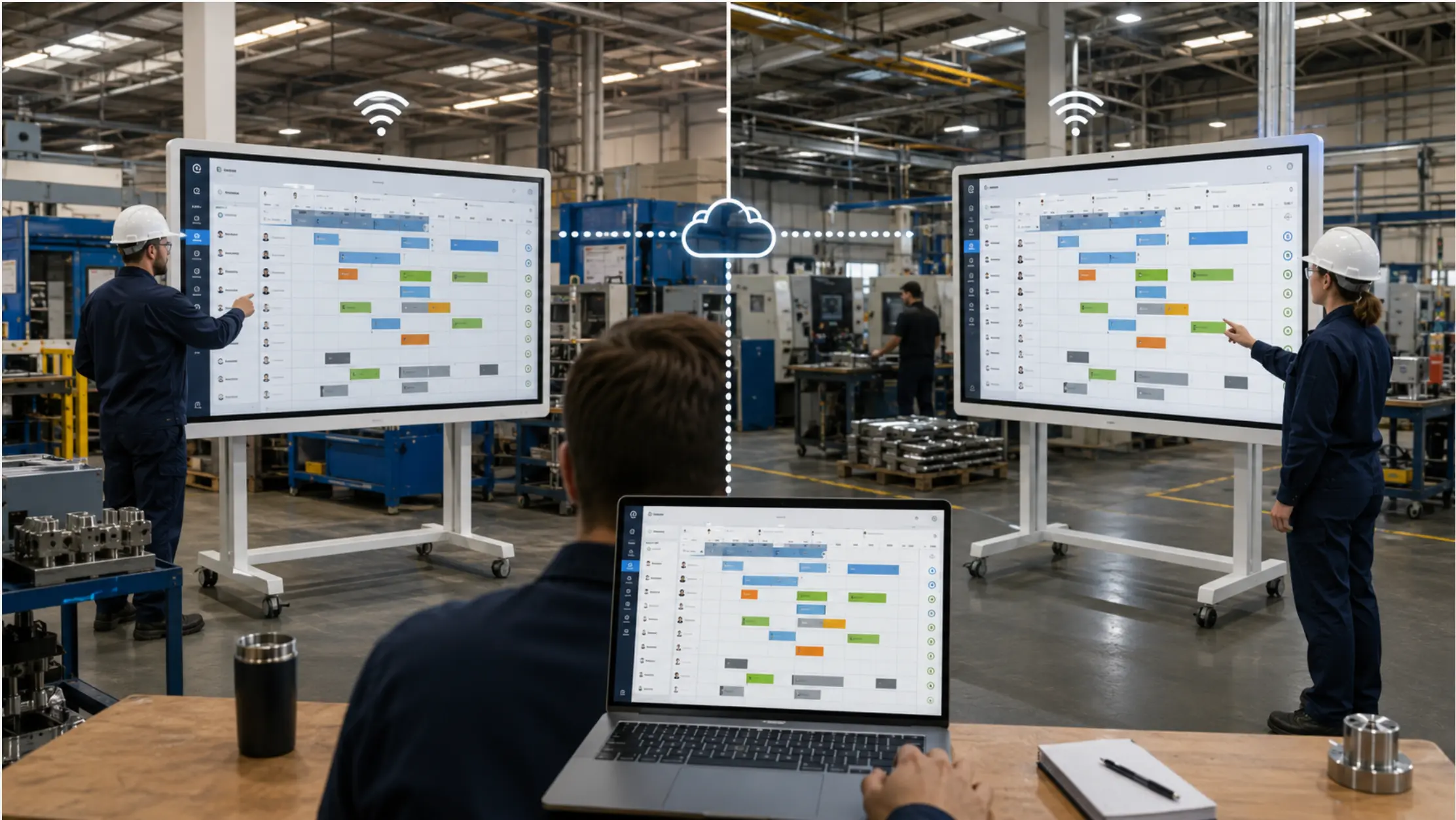
In most manufacturing plants, the shift assignment board works like this: someone arrives early, reads the schedule from the system, and rewrites it by hand onto a whiteboard. Names down the left side. Tasks across the top. Check boxes for when something is done. By 8 a.m. the board is current. By 10 a.m. it might not be.
This is not a technology failure. It is a workflow design that has stayed manual long after the information it depends on moved into a system. Zebra’s 2024 Manufacturing Vision Study — the most recent edition of their annual global research — found that only 16% of manufacturing leaders have real-time visibility into production across their operations, a gap that frequently starts exactly here: at the handoff between the system and the wall. The schedule exists somewhere — in Excel, in an ERP export, in a shared file. The assignment board is a handwritten copy of that schedule, maintained by one person, in one room, on one wall.
This guide covers how to replace that process with a digital shift assignment board that the planner can set remotely, the floor can read on arrival, and operators can interact with throughout the shift — using files and tools most manufacturing teams already have.
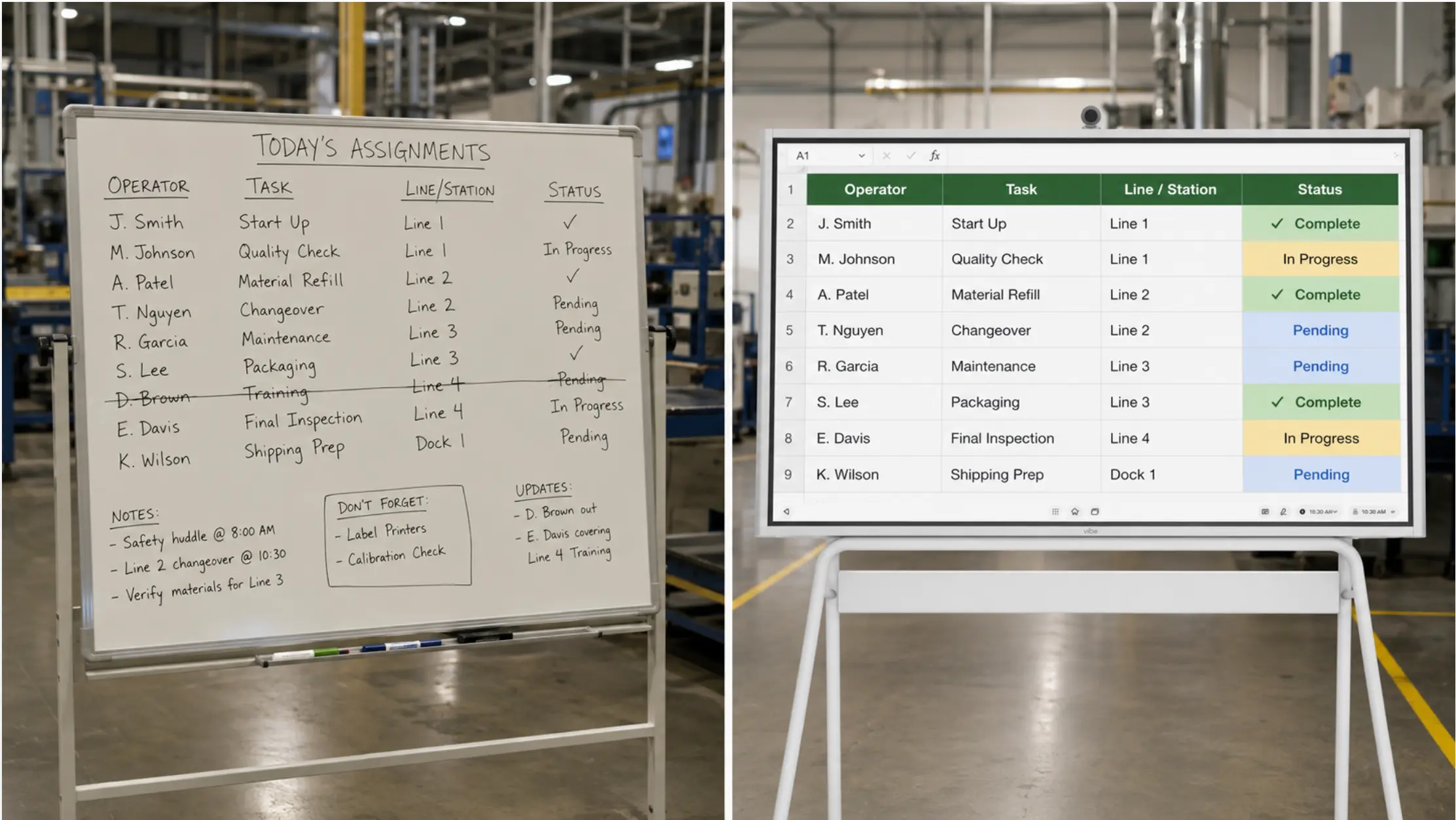 A whiteboard with handwritten names and tasks, check marks in marker, some crossed out — next to a Vibe Board showing the same assignments
What a Shift Assignment Board Actually Needs to Do
Before choosing a format or tool, it helps to be specific about what the board has to accomplish. A shift assignment board has three jobs, and most physical boards only do two of them reliably.
Job 1: Tell each operator what they are doing today. Names, tasks, line assignments, targets. This is the information the floor needs at the start of the shift. A physical whiteboard does this — as long as someone has written it before the first operator arrives.
Job 2: Show the current state of the plan as the shift progresses. When an operator finishes a task, the board should reflect that. When a line goes down or a priority changes, the board should reflect that too. Physical boards struggle here — updating them mid-shift requires someone to physically go to the board, erase, and rewrite, which rarely happens consistently.
Job 3: Give the planner visibility into progress without walking the floor. This is the job most physical boards fail entirely. The planner who set the assignments at site one cannot see the check marks that operators are making at site two. Progress information flows back only when someone calls, emails, or the shift ends.
A digital shift assignment board that does all three jobs changes the planner’s relationship to the floor — from reactive to live.
Why Most "Digital" Solutions Miss the Mark for This Use Case
Search for digital shift assignment boards and you find two categories of tools, neither of which fits the way this workflow actually runs on a manufacturing floor.
Workforce scheduling software (Shiftboard, Deputy, When I Work) solves the labor planning problem: who is scheduled to work, coverage gaps, overtime compliance. It does not solve the floor-visibility problem. These tools are designed for managers with logins, not for an operator who clocks in at 5 a.m. and needs to see their tasks for the day on a board they walk past.
Shift handover platforms (iFactory, Augmentir, MeisterTask) solve the shift-to-shift knowledge transfer problem: what happened last shift, what equipment is down, what issues are open. They are built around structured logging and handover notes. They are not built for the daily task board that tells an operator — who may not own a smartphone or have a system login — what they are building today.
The gap between these two categories is exactly the use case this article addresses: a board that is visible on the floor, set by the planner, readable without a login, and interactive enough for operators to mark their own progress.
The Template-First Approach: Building the Board in Excel
The most practical path to a digital shift assignment board for most manufacturing teams starts with Excel — not because it is the most sophisticated tool, but because it is the one the planner already uses and the one that requires no new systems or approvals.
The structure is straightforward:
Rows: One row per operator or workstation. Name in column A, role or line in column B.
Columns: Task 1, Task 2, Target quantity, Status, Notes. Add a timestamp column if mid-shift updates are expected.
Status field: A dropdown cell (In Progress / Complete / On Hold) that an operator can update with a tap on a touch display, or that a supervisor can update from any connected device.
Date and shift header: Auto-populated from a formula so the planner does not have to update the header each day — only the assignments.
The planner builds this template once. After that, the daily work is updating names and assignments in the cells that change — which typically takes five to ten minutes — and saving the file. Everything else stays the same.
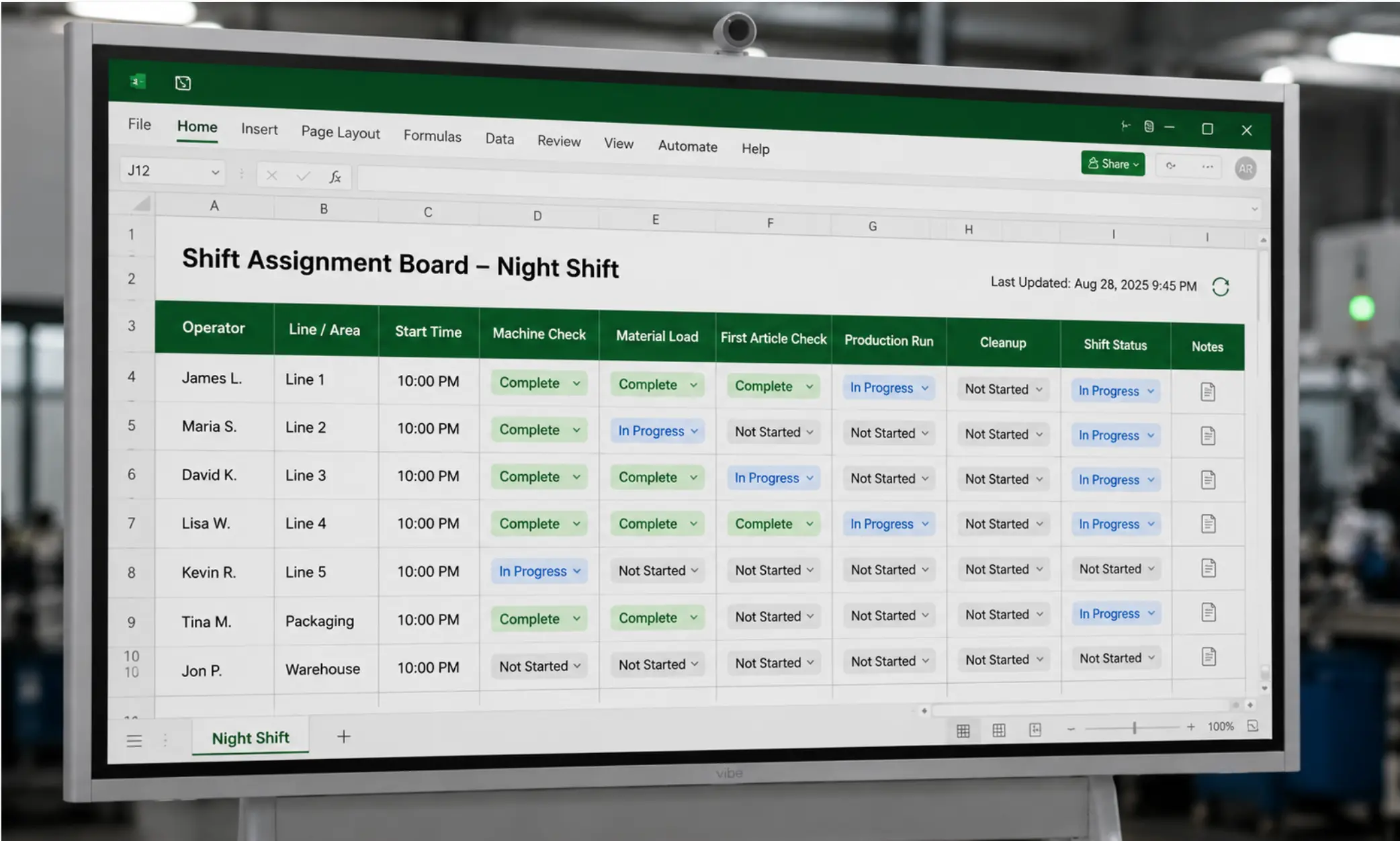 Close-up of an Excel shift assignment template on a Vibe Board — operator names in rows, task columns with dropdown status fields, a "last updated" timestamp in the header, one row showing "Complete" in green
The file lives in SharePoint or OneDrive, in the same folder the team already uses. When the planner saves the file, the board on the floor updates. When an operator marks a task complete on the board, the planner sees it from their laptop. The same file. The same version. No copy, no transcription.
Setting Up the Board on the Floor
The display on the floor is where the design decisions matter most, because this is where adoption either happens or does not.
Location. The board needs to be where operators already stop — next to the time clock, at the entrance to the production area, or at the line where the work happens. A board that requires someone to walk out of their way to check it will not become part of the daily routine.
Readability. The font size and layout need to work at the distance operators will actually be standing. An Excel template designed for a laptop screen may need formatting adjustments to be readable from three to five feet away. Large font for names and task labels, color-coded status fields (green for complete, yellow for in progress, red for blocked), and no more information than the shift needs to see.
Interaction. On a touch display, operators can tap a status cell to update it directly — no keyboard, no mouse, no login required if the board is set up with a shared session. This is the interaction pattern that mirrors what floor staff already do with physical boards: marking a task done is the same gesture, just on a screen instead of with a marker.
The Vibe Board S1 Pro opens the Excel file directly from SharePoint, displays it at full scale on a 75-inch screen, and allows touch interaction without requiring each operator to authenticate. The planner authenticates once when setting up the board; from then on, the board stays on the assignment template until the planner changes it.
Orientation. The board should show the full shift’s assignments at a glance — all operators, all tasks, current status — without scrolling. If the template requires scrolling to see all operators, it is too dense for floor use. Limit the visible rows to the number of operators on a single shift, and use a separate tab or file for each shift if needed.
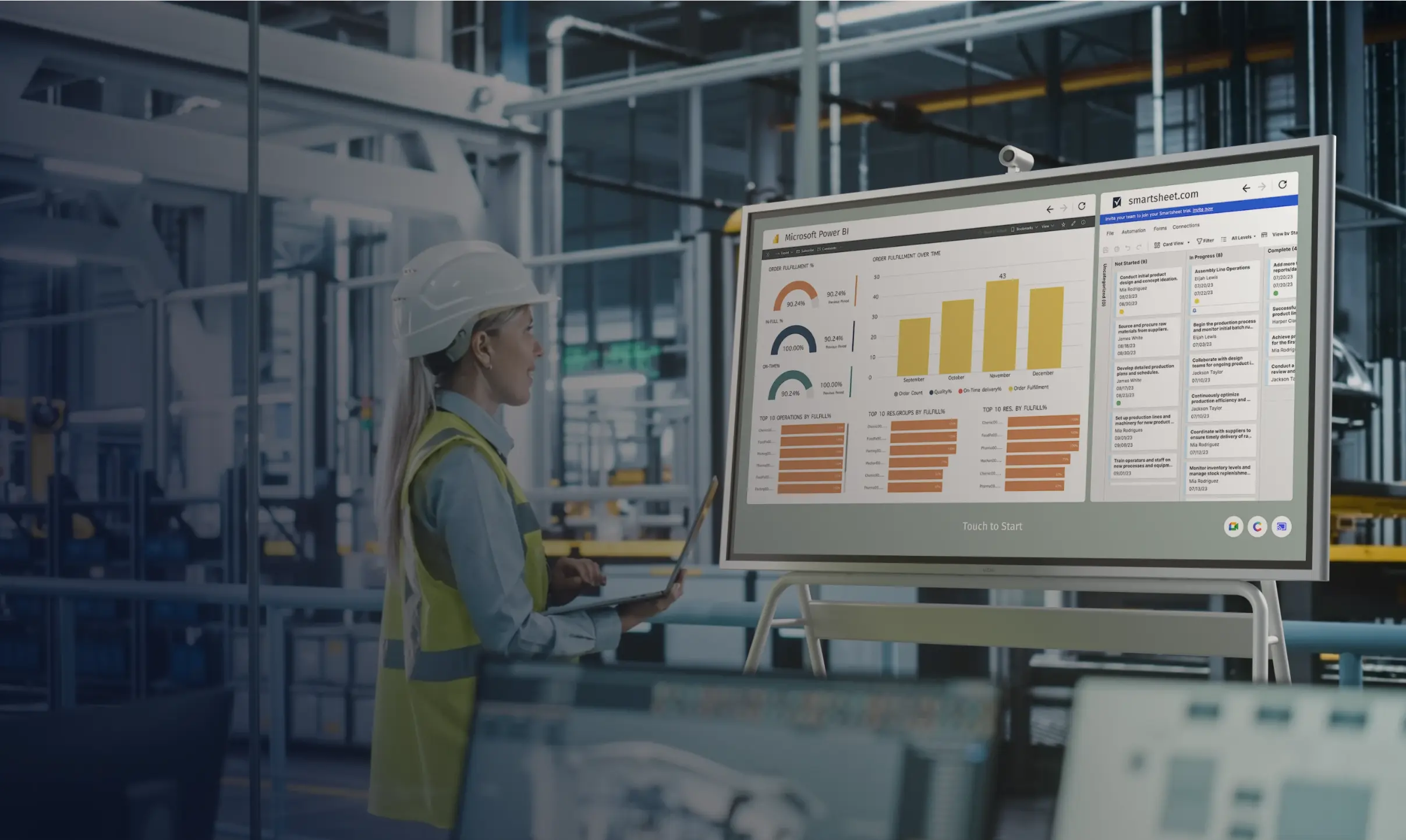
How the Planner Sets the Board Remotely
One of the most significant operational changes a digital assignment board creates is that the planner no longer has to be in the building before the first shift starts.
With the file in SharePoint or OneDrive, the planner can update tomorrow’s assignments from a laptop at home the night before. When the first operator clocks in at 5 a.m., the board already shows their assignments for the day — set hours before anyone with planning authority has arrived at the plant.
This closes a specific failure mode that is common in plants with early shifts: the floor starts the day without direction because the person who sets the plan arrives after the first shift begins. On a physical board, that gap means the floor either waits or makes assumptions. On a digital board connected to a live file, the gap does not exist.
The same mechanism works for mid-shift updates. If a line goes down, a material shortage changes the plan, or priorities shift during the shift, the planner updates the file from wherever they are. The board on the floor reflects the change immediately, without anyone having to call the floor supervisor and ask them to update a whiteboard.
What Operators Actually Do With the Board
Adoption on the floor depends almost entirely on whether the interaction the board requires matches the interaction the floor is already comfortable with.
Physical shift assignment boards work partly because the interaction is obvious: you read your name, you read your task, you put a check mark when you are done. A digital board that requires logging in, navigating menus, or learning a new interface will not replace that habit.
The design that works in practice is close to the physical board interaction:
-
Operators read the board at clock-in. Their name is in the same place every day. Their tasks are next to their name. No navigation required.
-
Operators mark tasks complete by tapping a status field. On a touch display, this is a single tap — the same motion as putting a check mark on a whiteboard, just without the marker.
-
Operators can add a note if something is blocked. A notes column gives the floor a way to flag issues without having to find a supervisor. "Machine down — waiting for maintenance" goes into the notes cell. The planner sees it from their laptop. Quality issues flagged in the notes column often become the inputs for structured problem-solving — see how teams digitize an A3 or QRQC board to track those escalated issues through to resolution.
This matters because the alternative — asking floor staff to log into a system to update their status — runs into a well-documented adoption wall. Microsoft’s Work Trend Index research found that one-third of all frontline workers say they do not have the right technological tools to do their job effectively, with adoption often failing not because workers resist technology but because the tools require steps that do not fit how floor work actually happens.
This interaction pattern is close enough to the physical board that operators who have never used a touch display before can figure it out within a few minutes. The visual management principles that make physical boards effective — visible status, clear ownership, immediate feedback — translate directly to the digital format when the design keeps the interaction simple.
Connecting the Assignment Board to Other Operational Data
Once the assignment board is live as a shared file, it becomes a foundation that other operational data can connect to.
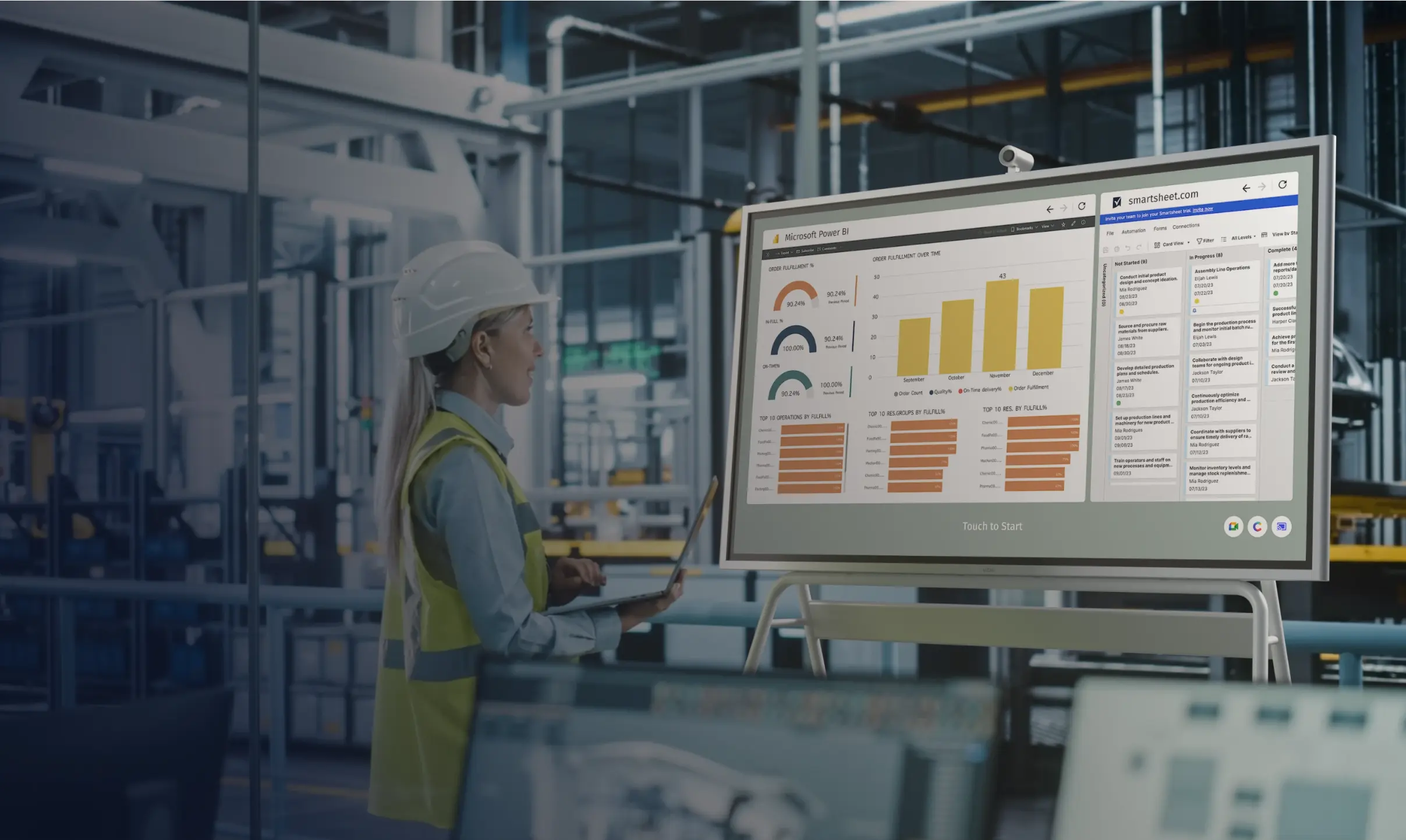
KPI overlays. A second tab in the same Excel file — or a split-screen view on the board — can show the shift’s production targets alongside the assignments. For teams whose shift review includes a Safety, Quality, Delivery, Cost, and People check, the same Excel-and-SharePoint approach works for digitizing an SQDCP board alongside the assignment board. Operators see both their task and the metric they are working toward on the same screen. For teams already using live KPI dashboards in manufacturing reviews, the assignment board and the dashboard can share the same display with a simple layout split.
Shift handover continuity. Because the completed assignment file is saved to SharePoint, the incoming shift supervisor can open last shift’s board before the handover meeting. Completions, notes, and flags are all there — no verbal summary required for the information that is already captured.
Multi-site visibility. If the planner supports more than one facility, the same approach extends directly: one file per site, both in SharePoint, both visible from the planner’s laptop. Setting assignments for two plants is the same process as setting assignments for one — update the file, save, both boards update.
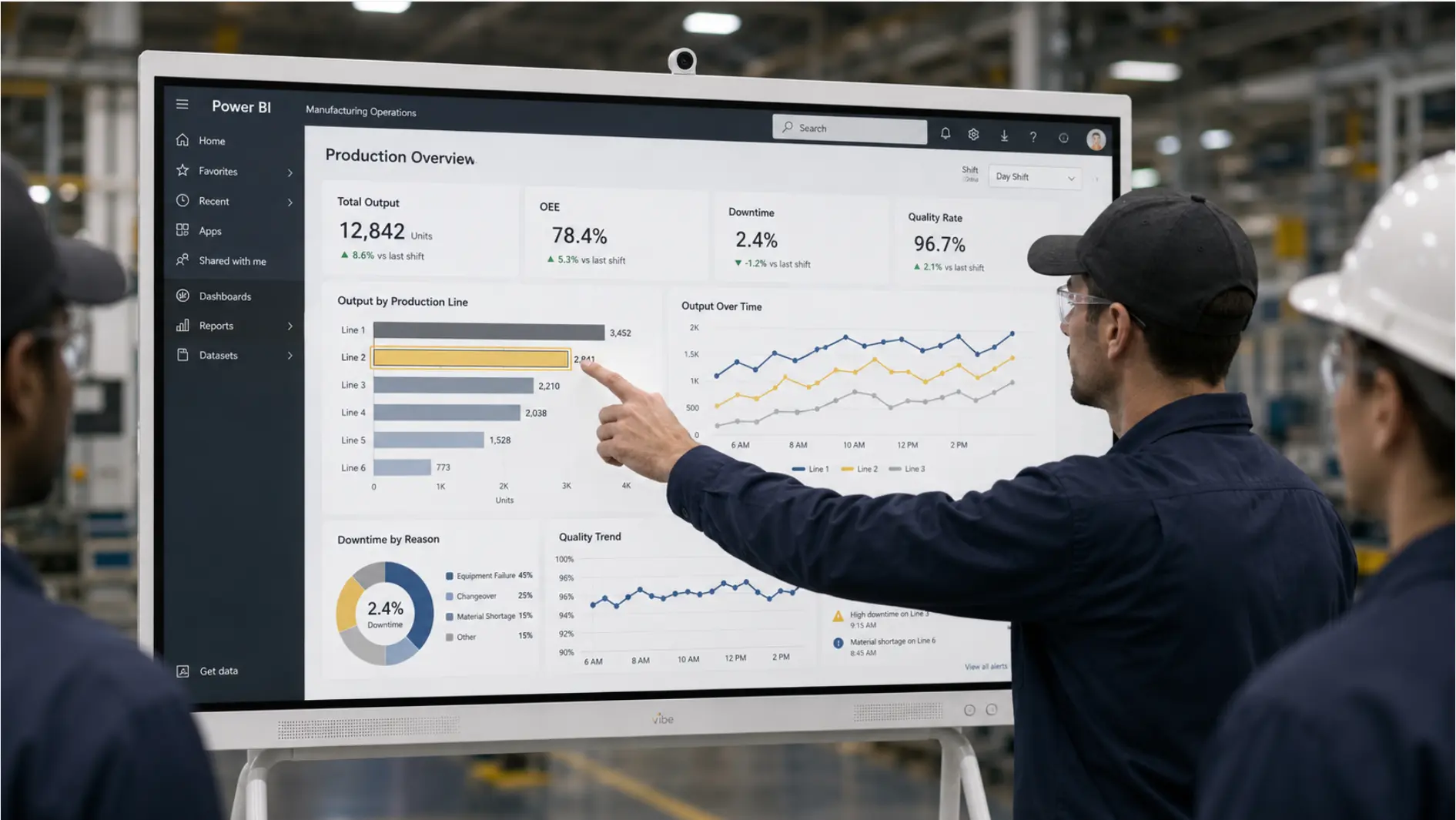 Factory workers reviewing manufacturing production data on Vibe Board interactive display showing Power BI dashboard
Common Setup Mistakes to Avoid
Building the template with too much information. The floor board should show what operators need to know for their shift, not everything the planner knows. A template with 15 columns, conditional formatting logic, and embedded charts is harder to maintain and harder to read from the floor. Start with the minimum: name, task, target, status.
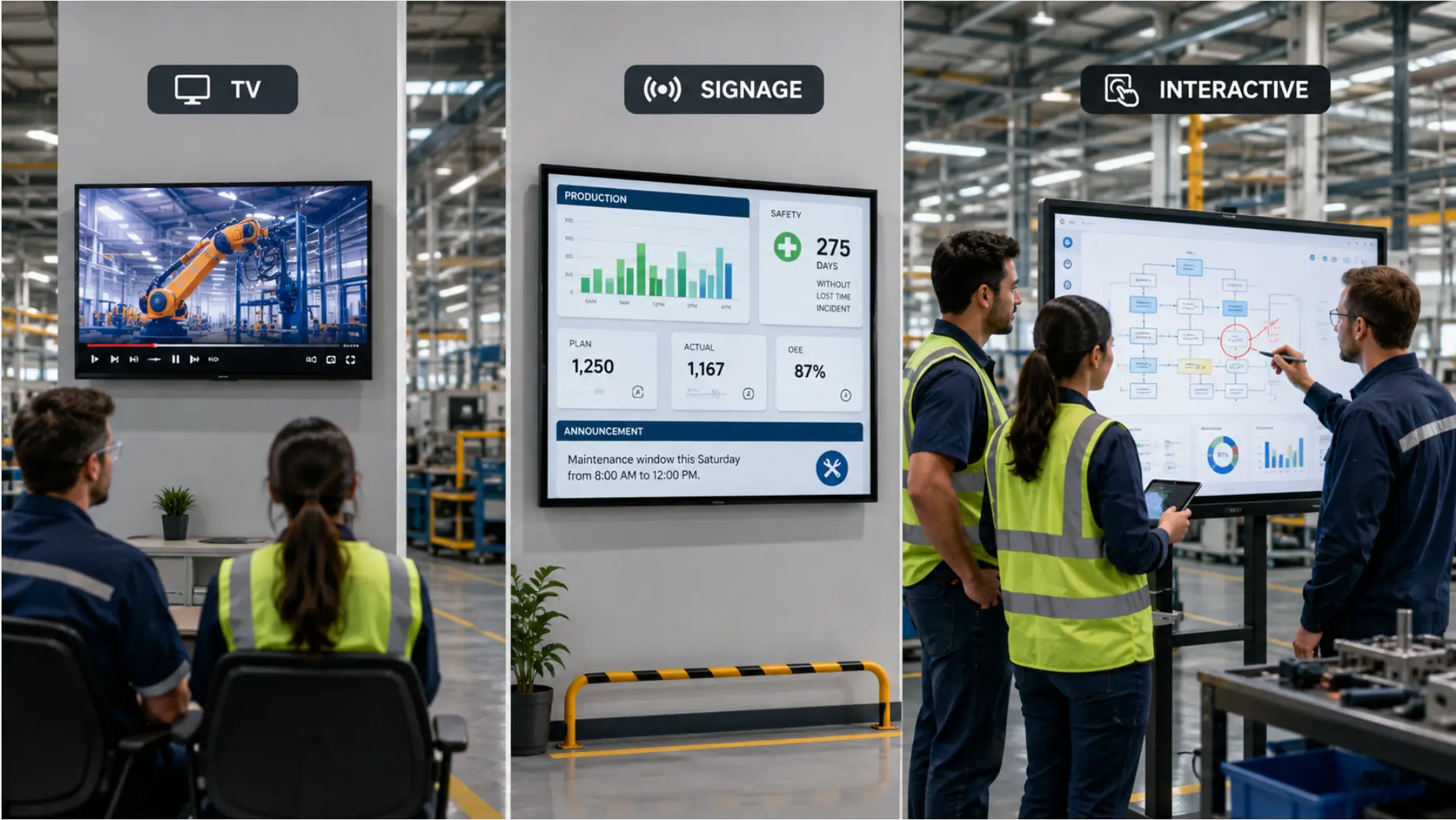
Using a TV instead of an interactive display. A TV showing a screenshot of the assignment template is better than a physical whiteboard for readability, but it eliminates the two-way interaction — operators cannot mark completions, and the display does not update when the planner changes the file. A purpose-built interactive display running Windows is what enables the live-file connection and the touch interaction that makes the board useful throughout the shift, not just at clock-in.
Requiring a login for operators to interact. If marking a task complete requires an operator to authenticate, most operators will not do it. The board should be set up so that the shared session stays open throughout the shift, with the planner’s credentials handling the file access in the background.
Skipping the location decision. A board installed in the break room instead of at the entrance to the production area will not become part of the daily check-in routine. The physical placement of the display determines whether the board gets seen at clock-in — which is when it matters most. For plants that need a dedicated space where assignments, KPIs, and open issues are all visible at once, an Obeya room extends the shift board concept into a full visual management system.
A Board the Floor Actually Uses
The physical shift assignment board persists in manufacturing not because it is the best solution but because it works well enough that no one has replaced it with something better. It is visible, it is simple, and it requires no technology to read.
A digital shift assignment board built on a shared Excel file and displayed on a touch screen in the right location keeps those properties — visible, simple, no login to read — while adding the ones that make it genuinely more useful: set remotely the night before, updated in real time when the plan changes, and readable by the planner without walking the floor.
The operators who interact with it most are the ones least likely to want a new system. The design that works is the one that feels like the board they already know, just on a screen that stays current.
Request a demo to see how the Vibe Board S1 Pro runs a live shift assignment template, or request a quote if you are ready to deploy.
Frequently Asked Questions
How long does it take to set up the Excel template?
The initial template typically takes 30 to 60 minutes to build — setting up the row and column structure, adding the status dropdown, formatting for floor readability, and saving it to SharePoint. After that, the daily update is five to ten minutes: refreshing the operator names and task assignments for the next shift. The template structure stays the same every day.
What if operators are not comfortable using a touch screen?
The interaction required is minimal — one tap to update a status field. Most operators who are comfortable with a smartphone can do this without training. For teams where even minimal interaction is a barrier, the supervisor can handle status updates from a laptop, and the board still provides the primary benefit: a current, readable assignment display that does not require anyone to rewrite it by hand each morning.
Can the board show assignments for multiple shifts at once?
Yes, using separate tabs in the same Excel file — one tab per shift. The board displays the active shift’s tab by default. When the shift changes, the supervisor or planner switches to the next tab. Alternatively, a single tab can include all shifts with color coding to distinguish them, though this tends to reduce readability on the floor display.
How does this work if the plant’s internet connection is unreliable?
The Vibe Board S1 Pro supports local file storage. If SharePoint is inaccessible, the most recently synced version of the assignment file remains on the board. For the planner’s mid-shift updates to reach the floor in a low-connectivity environment, a brief connectivity window — even a few minutes — is sufficient to sync the latest file version.
Does this replace shift handover software?
No. The shift assignment board and shift handover tools solve different problems. The assignment board tells operators what they are doing this shift. Handover software captures what happened during a shift so the incoming team has context. Both can coexist — the completed assignment file serves as a record that handover notes can reference, but it is not a substitute for structured handover documentation in environments where that level of continuity is required.